How to Pass a User Data Directory Profile to Puppeteer
Pass a profile directory to Puppeteer with the `userDataDir` launch option. Learn how to choose the right directory, handle launch errors, and keep profile data safe.
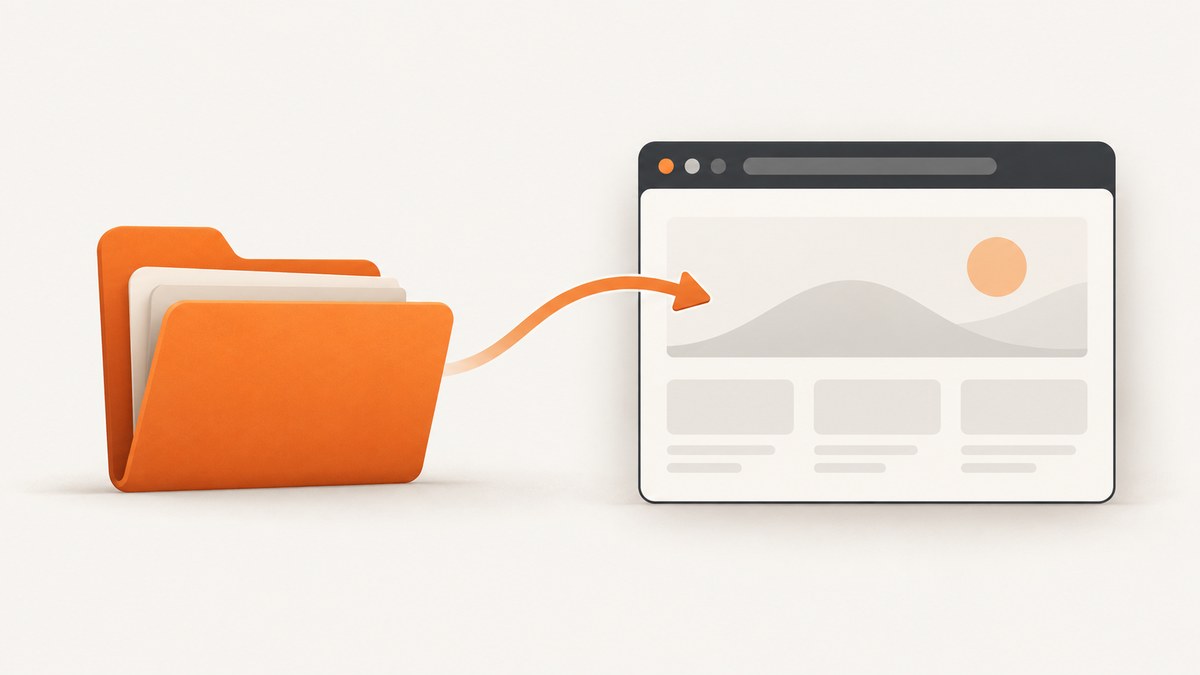
Set userDataDir in the options passed to puppeteer.launch(). The value is the user data directory path Puppeteer should use for the browser it launches:
import puppeteer from 'puppeteer';

const browser = await puppeteer.launch({
  userDataDir: '/absolute/path/to/profile',
});
Use a directory the process can write to, and make sure it is the browser’s user data directory rather than an assumed profile subfolder. An explicit directory is optional: Puppeteer normally creates a temporary profile in the operating system’s temporary directory. The examples below show a complete launch and cleanup flow, discuss existing Chrome profiles, and explain common failures.
1. What userDataDir controls
userDataDir is a launch option for selecting the browser’s user data directory. Chromium stores browser state in that directory, so using a persistent path lets the browser launched with that option reuse state between runs. The exact contents and subdirectory layout depend on the browser; consult the Chromium documentation for directory details before selecting a path. Puppeteer’s launch reference documents this option as a path to a user data directory. See the Puppeteer LaunchOptions API.
The option does not choose a page, tab, or individual profile subdirectory by name. It tells Puppeteer which user data directory to pass to the launched browser. Prefer an absolute path so the process’s working directory cannot change what the path resolves to.
If you omit the option, Puppeteer creates a temporary user data directory. That is convenient for isolated automation where browser state should not persist between executions. Set an explicit path when you want a known directory to hold browser state across launches.
2. Launch Puppeteer with a selected directory
ES modules
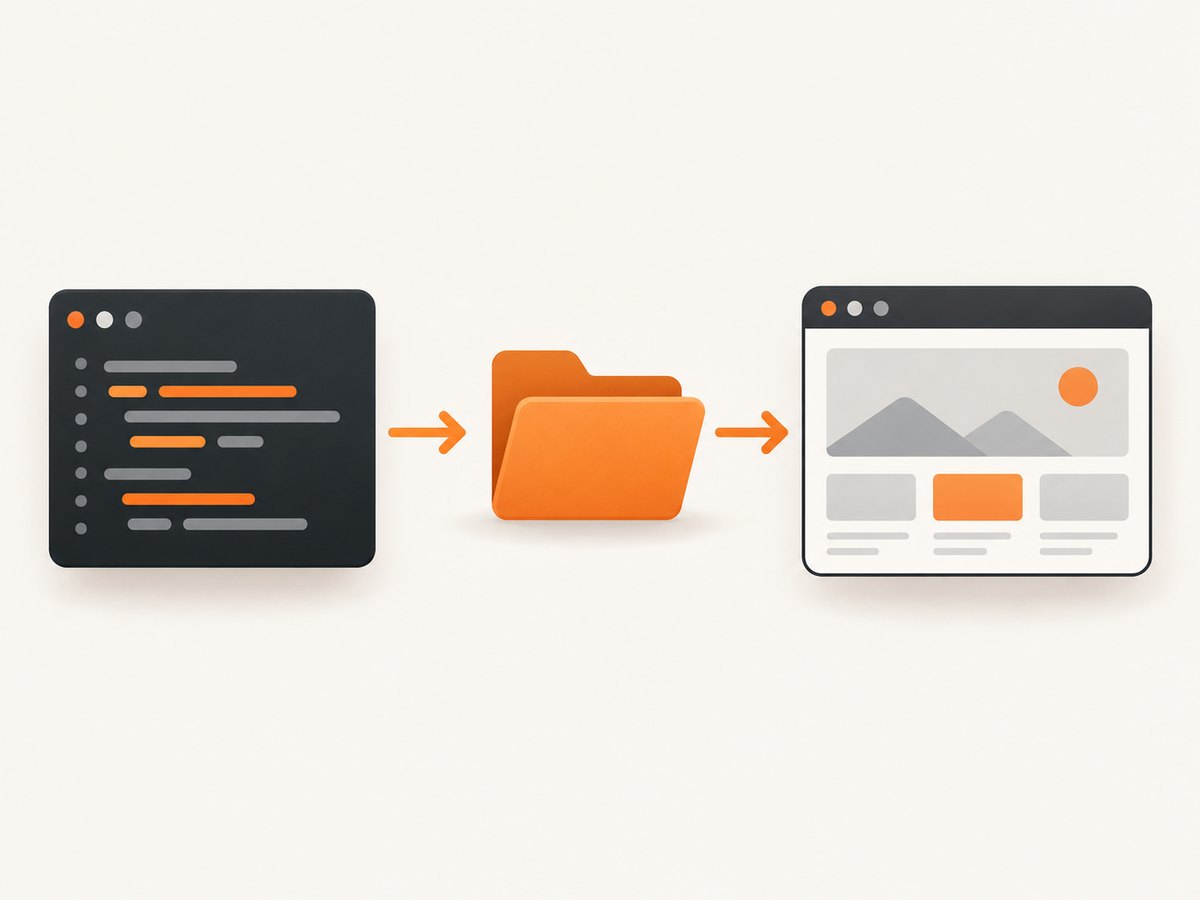
Install Puppeteer in your project, then use this script. Save it as capture.mjs and run node capture.mjs:
import puppeteer from 'puppeteer';

const profileDirectory = '/absolute/path/to/profile';

const browser = await puppeteer.launch({
  userDataDir: profileDirectory,
  headless: true,
});

try {
  const page = await browser.newPage();
  await page.goto('https://example.com', {
    waitUntil: 'domcontentloaded',
  });
  await page.screenshot({ path: 'example.png' });
} finally {
  await browser.close();
}
The try/finally ensures the browser is closed if navigation or screenshot capture fails. Closing the browser releases its use of the directory and avoids leaving a browser process behind.
CommonJS
For a CommonJS project, the launch option is identical; only the import syntax changes:
const puppeteer = require('puppeteer');

(async () => {
  const browser = await puppeteer.launch({
    userDataDir: '/absolute/path/to/profile',
    headless: true,
  });

  try {
    const page = await browser.newPage();
    await page.goto('https://example.com', {
      waitUntil: 'domcontentloaded',
    });
    await page.screenshot({ path: 'example.png' });
  } finally {
    await browser.close();
  }
})();
Use a JavaScript string valid for the host operating system. Forward slashes are accepted in many Windows JavaScript paths, for example C:/automation/profile; if you use backslashes, escape them as \\ or use a string form that treats them literally. Do not copy a path from another machine and assume it exists in your runtime or container.
3. Choose the right directory
- Decide whether state should persist. For a one-off, clean automation run, omit
userDataDirand let Puppeteer create a temporary profile. For runs that need persistent browser state, supply an explicit directory. - Use the user data directory level. The API option refers to the user data directory. Browser installations can organize individual profiles inside it, so do not guess that a subdirectory such as one named for a profile is interchangeable. Confirm the layout and intended behavior in the Chromium documentation.
- Check that the path exists or can be created, and is writable. The operating-system account running Node must be able to write there. Puppeteer’s troubleshooting guide explicitly calls out the need for a writable user data directory and shows setting
userDataDirwhen necessary: Puppeteer troubleshooting. - Keep automation data separate from important personal browser data. Choose a directory intended for the automation job. This makes it easier to control its lifecycle and avoid accidentally using the wrong state.
Directory paths are host-specific. In a container, CI runner, or service, the relevant filesystem is the one visible to that process—not necessarily the one on your workstation. Mount or provision the directory where the browser process can access it, and check permissions under the same user that launches Puppeteer.
4. Launch options that commonly accompany userDataDir
userDataDir is independent of other launch settings. The following options often matter when you configure a browser process:
| Option | When to use it | What to check |
|---|---|---|
headless |
Choose headless operation for automation without a visible browser window, or headed operation when you need to inspect behavior. | Some environments need additional display or browser setup for headed operation. |
executablePath |
Point Puppeteer at a separately installed browser when you have a reason to use it. | Puppeteer says it is only guaranteed to work with its bundled browser. A custom executable path is used at your own risk; check the launch reference for the current caveat. |
args |
Pass browser command-line arguments required by a specific environment. | Use only arguments you understand. Puppeteer’s troubleshooting guide strongly discourages running without the browser sandbox as a routine fix. |
timeout |
Set how long Puppeteer waits for the browser process to start. | A larger timeout does not fix an invalid path, unwritable directory, or incompatible executable. |
Check the API reference for the available options in the Puppeteer version installed in your project. The research reference documents Puppeteer 25.12.0; option availability and defaults can change between releases.
5. Existing Chrome profile versus an already-running browser
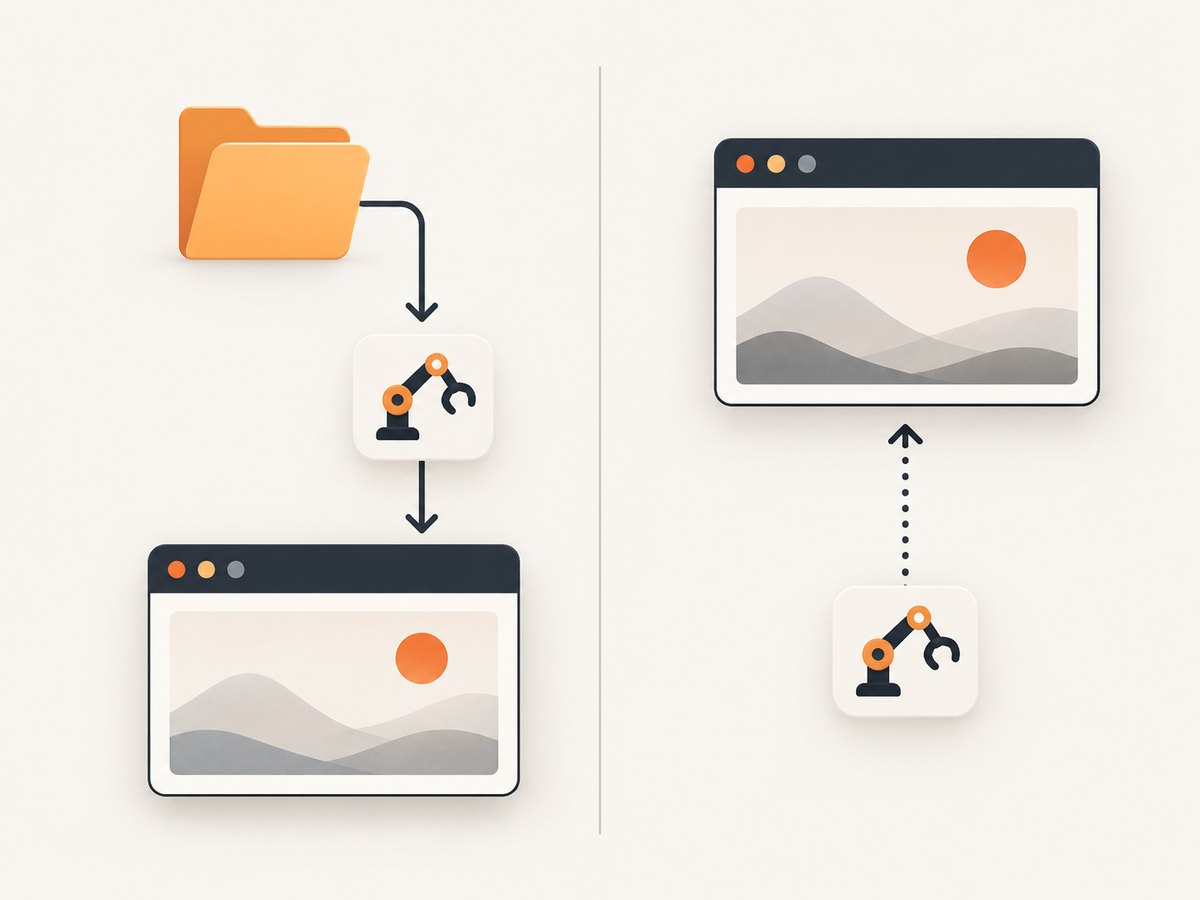
These are two different workflows:
| Workflow | Who starts the browser? | How the browser is selected |
|---|---|---|
Launch with puppeteer.launch({ userDataDir }) |
Puppeteer starts the process. | You provide the user data directory in launch options. |
| Connect to a running browser | A separate process has already started it. | Puppeteer connects using a supported connection mechanism; this is not the same as choosing an arbitrary user data directory at launch. |
Puppeteer documents an experimental Chrome channel connection that looks for Chrome in a well-known default user data directory. That behavior should not be confused with selecting any arbitrary directory through userDataDir. Read the Puppeteer connection guidance and the relevant connection API for the version you use.
If your goal is to launch a browser against a selected directory, use puppeteer.launch(). If another process owns the browser lifecycle, use the documented connection workflow for that process. The launch option itself does not attach to an already-running browser.
6. Profile state, isolation, and reliability
An explicit directory makes state persistent, which is useful when a workflow intentionally needs it. It also means later runs may see state left by earlier work. If a task should start clean, use a fresh temporary directory or omit userDataDir. If a task should reuse state, keep the path stable and ensure the process can read and write it.
Avoid having multiple browser launches operate on the same profile directory at the same time. The reviewed Puppeteer references establish the need for a writable directory, but do not specify every browser locking or concurrent-use behavior. Treat a directory as belonging to one controlled automation run at a time unless your browser setup explicitly documents otherwise.
Use finally cleanup around the browser lifecycle. In workers or long-running services, make sure errors during navigation, page creation, and capture all eventually close the browser. This reduces orphan processes and helps prevent later runs from encountering confusing state or resource contention.
7. Troubleshooting
| Symptom | Likely cause | Fix |
|---|---|---|
Browser fails to start after adding userDataDir |
The path is misspelled, inaccessible from the runtime, or not writable by the browser process user. | Log or inspect the resolved path, verify it exists in the runtime, and check directory permissions as the same user. Try a known writable directory. |
| It creates or uses an unexpected profile | The supplied path points at a different level than the intended user data directory, or a relative path resolves from an unexpected working directory. | Use an absolute path and verify the browser’s directory layout in Chromium documentation. Do not assume a profile-named subdirectory is the correct value. |
| Works with bundled Chromium but fails with installed Chrome | The custom executable may not be compatible with the Puppeteer version or environment. | First try Puppeteer’s bundled browser. If you need the custom executable, check the supported compatibility information and launch reference caveat. |
| Browser appears to hang during startup | The process may be waiting on startup, a constrained environment, or an unusable directory; increasing the timeout alone may only hide the root cause. | Check process logs, path access, runtime dependencies, and executable choice. Set an appropriate launch timeout only after diagnosing the underlying condition. |
| Sandbox-related launch error | The execution environment may not support the browser sandbox configuration. | Review Puppeteer’s troubleshooting guidance and correct the environment. Do not add --no-sandbox as a routine workaround; Puppeteer strongly discourages running without a sandbox. |
| Later runs behave differently from the first run | The explicit profile retains browser state. | Use a fresh directory for isolated runs, or deliberately clear and recreate the automation profile according to your application’s data policy. |
8. Performance and cost considerations
The profile directory does not by itself make page navigation or rendering faster. A persistent profile can avoid starting every run with an empty browser state, but it also carries state forward; measure the behavior of your own workflow rather than assuming a speedup. A temporary profile gives more isolation and predictable starting state, while an explicit directory gives repeatability when that is what the task needs.
For self-hosted Puppeteer, account for the compute and storage used by the browser process and any retained profile data. Keep the directory lifecycle bounded: decide how long state is needed, where it is stored, and when it is removed. Browser startup timeouts and page navigation timeouts solve different problems, so configure them separately for the failure mode you are handling.
If the task is simply to obtain a screenshot of a public page and does not require browser-side custom automation or a chosen local profile, a screenshot API may be simpler operationally. ScreenshotNeo is a website screenshot API and MCP server from Yorker Media; its one-request API returns PNG, JPEG, WebP, or PDF. Its options include custom headers, cookies, user agent, viewport, waits, CSS and JavaScript, and full-page capture. It does not give you a local Puppeteer profile directory.
9. Or skip the browser setup
For a screenshot that does not need your local Puppeteer profile, call ScreenshotNeo with a URL. See the ScreenshotNeo API docs for the request options.
curl -G "https://api.screenshotneo.com/v1/shot" \
  -d access_key=YOUR_API_KEY \
  --data-urlencode url=https://stripe.com \
  -o shot.webp
import requests
r = requests.get(
"https://api.screenshotneo.com/v1/shot",
params={"access_key": "YOUR_API_KEY", "url": "https://stripe.com"},
timeout=90,
)
open("shot.webp", "wb").write(r.content)const q = new URLSearchParams({
access_key: 'YOUR_API_KEY',
url: 'https://stripe.com',
});
const res = await fetch(`https://api.screenshotneo.com/v1/shot?${q}`);
if (!res.ok) throw new Error(`Screenshot request failed: ${res.status}`);
await Bun.write('shot.webp', res);Cookie banners, newsletter popups, and chat widgets are removed before the shot; each cleanup step can be turned off. Bot checks, blank pages, timeouts, failed loads, and cache hits cost nothing, and response headers say which page verdict and billing status applied. An MCP server lets Claude, Cursor, and other MCP clients take screenshots. The Free plan includes 1,000 shots a month with no card; paid plans start at $5 for 3,000 shots. Sign up for 1,000 free screenshots a month, no card required.
10. Frequently asked questions
Is userDataDir required?
No. Puppeteer normally creates a temporary profile under the operating system’s temporary directory when you do not specify one.
Can the path be relative?
The option takes a path, but an absolute path is easier to reason about because it does not depend on the process’s current working directory.
Does userDataDir select a profile by its display name?
No. It supplies a user data directory path. Confirm how the browser organizes individual profiles before choosing a nested path.
Can I set userDataDir when connecting to a browser that is already open?
It is a launch option for a browser Puppeteer starts. Connecting to an existing process is a separate workflow and has its own documented connection settings.
Should I use my everyday Chrome profile?
Use a directory deliberately chosen for the automation workflow, with access controlled by the process that runs the browser. This keeps the target and its retained state clear.
Where can I confirm the option for my installed Puppeteer version?
Check the LaunchOptions API reference matching your installed release and Puppeteer’s troubleshooting guide.


