How to Stop Puppeteer From Downloading Videos Instead of Playing Them
Find out whether Puppeteer is navigating to an attachment, a raw video file, or a page without a player—and fix the cause.
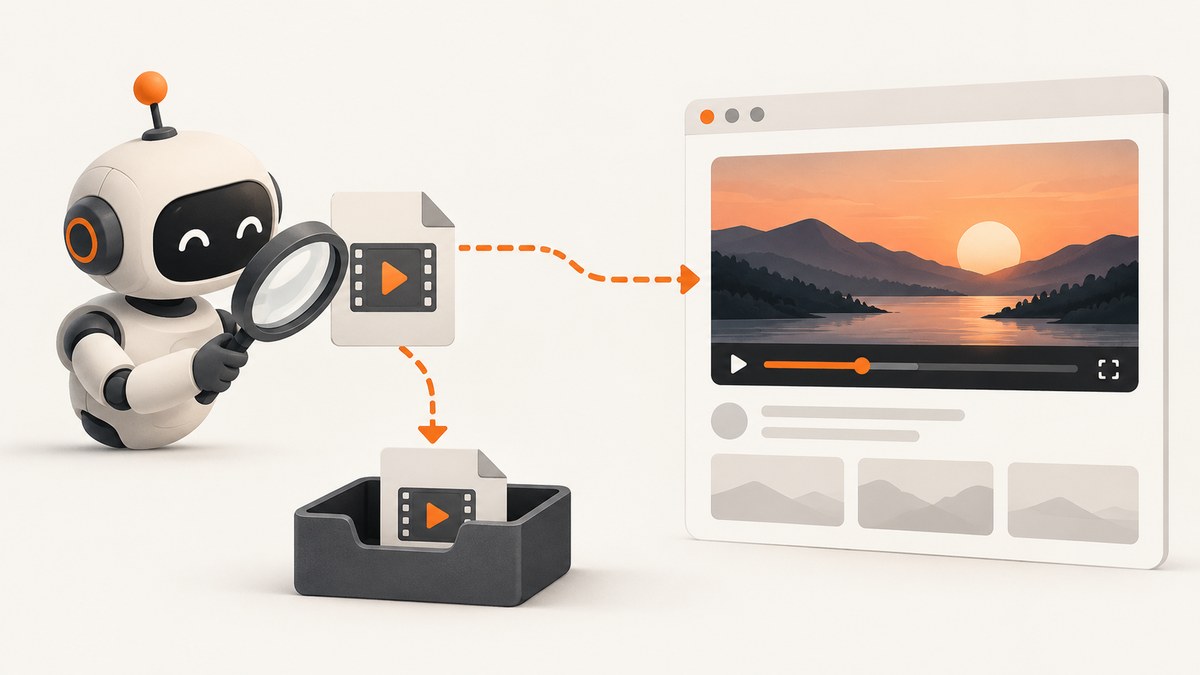
If Puppeteer downloads a video instead of showing it, first identify what URL it is opening and inspect the final response after redirects. A response with Content-Disposition: attachment is intended to download; a direct media URL is not the same thing as a webpage with an embedded player. Puppeteer’s download settings control browser download behavior, but they do not change server headers or turn a media response into a player.
Use this sequence: confirm the download is from the target page rather than Puppeteer’s installation, inspect the response headers and redirects, then check whether the destination page actually contains a working <video> element. The exact cause depends on the URL, response, browser context, and page markup.
1. Identify which download you are seeing
There are two common events that look similar but have different causes:
- Browser installation download: installing the
puppeteerpackage can download a browser binary. Puppeteer documents thatpuppeteer-coredoes not automatically download Chrome during installation. This happens during package setup, before your page navigation. - Target URL download: your script navigates to a page or media URL and the browser downloads its response. This happens at runtime, around
page.goto()or a click that opens a link.
If a file appears while installing dependencies, investigate your package and browser installation configuration. If it appears when your script visits a URL or clicks a control, inspect that request and the response. Changing the Puppeteer package will not fix an attachment response from the target site.
2. Inspect the final navigation response
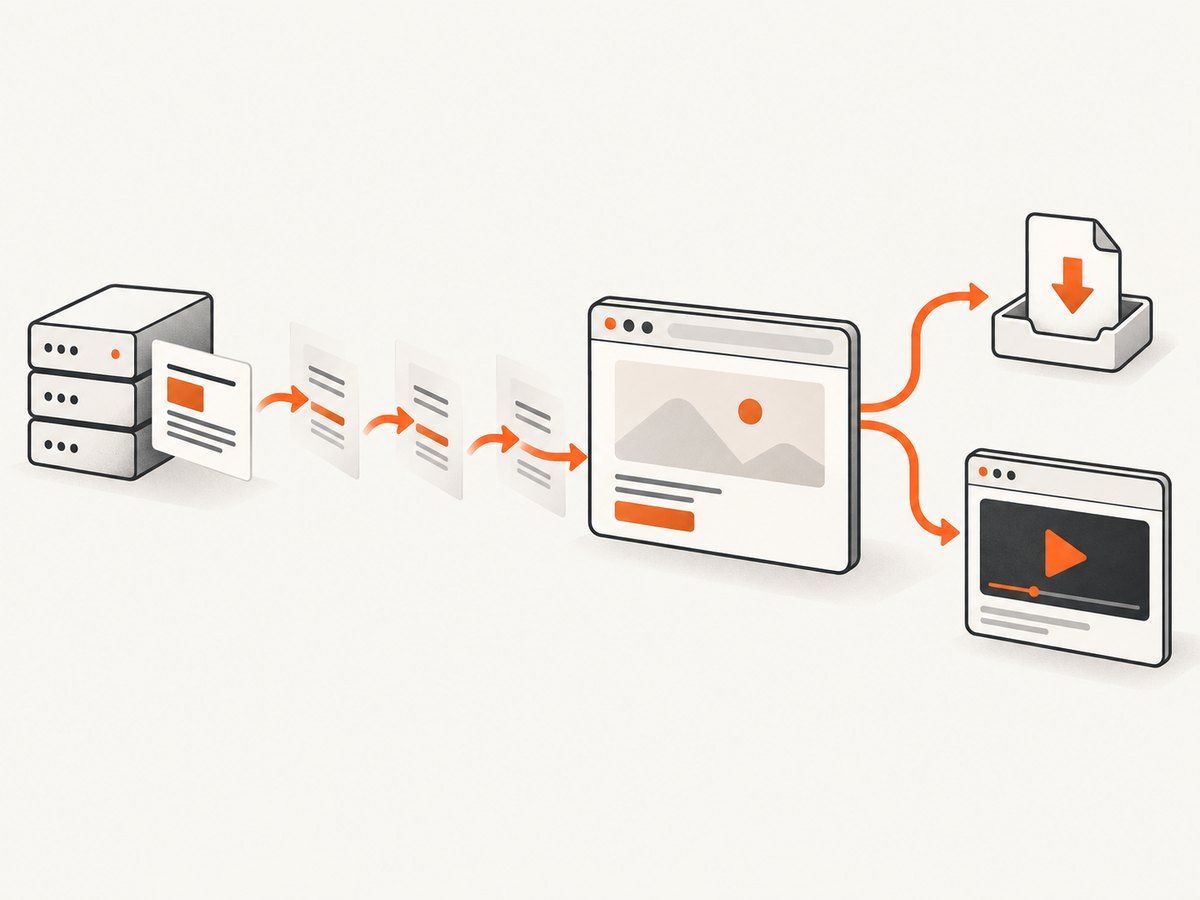
Page.goto(url) navigates the page or frame to a URL and resolves with the main-resource response. When redirects occur, inspect the response for the final destination. Record the status, URL, content type, and disposition before deciding what to change.
const puppeteer = require('puppeteer');

(async () => {
  const browser = await puppeteer.launch({ headless: true });
  try {
    const page = await browser.newPage();
    const response = await page.goto('https://example.com/video', {
      waitUntil: 'domcontentloaded',
      timeout: 30000,
    });

    if (!response) {
      console.log('Navigation produced no main-resource response.');
      return;
    }

    console.log('Final URL:', page.url());
    console.log('Status:', response.status());
    console.log('Headers:', response.headers());
    console.log('Content-Type:', response.headers()['content-type']);
    console.log('Content-Disposition:', response.headers()['content-disposition']);
  } finally {
    await browser.close();
  }
})();
Replace the example URL with the URL that is actually being opened. Header names are case-insensitive on the wire; Puppeteer’s response header object exposes lowercase names. A redirect can change both the destination and its headers, so check the final response rather than inferring behavior from the first URL or its extension.
| Observation | Likely meaning | Next check |
|---|---|---|
Content-Disposition: attachment |
The server is indicating that the content should be downloaded. | Inspect the final response and, if you control the server, its response configuration. |
Content-Disposition: inline or absent |
The response is not explicitly marked as an attachment. | Check whether the URL is a player page, whether the browser supports the media, and whether the page embeds it. |
| HTML response with no visible player | The page may be a landing page, a challenge, or a page whose player loads later. | Inspect the DOM, scripts, and console/network failures. |
| Video MIME type at the navigation URL | The browser is receiving media directly, not necessarily a webpage. | Navigate to the site’s player page if playback in a page is the goal. |
3. Distinguish a media URL from a player page
A raw video file URL and a webpage that embeds a video are different resources. Navigating directly to a media URL asks the browser to handle that media response. It does not construct a surrounding page with controls, captions, layout, or a player chosen by the site.
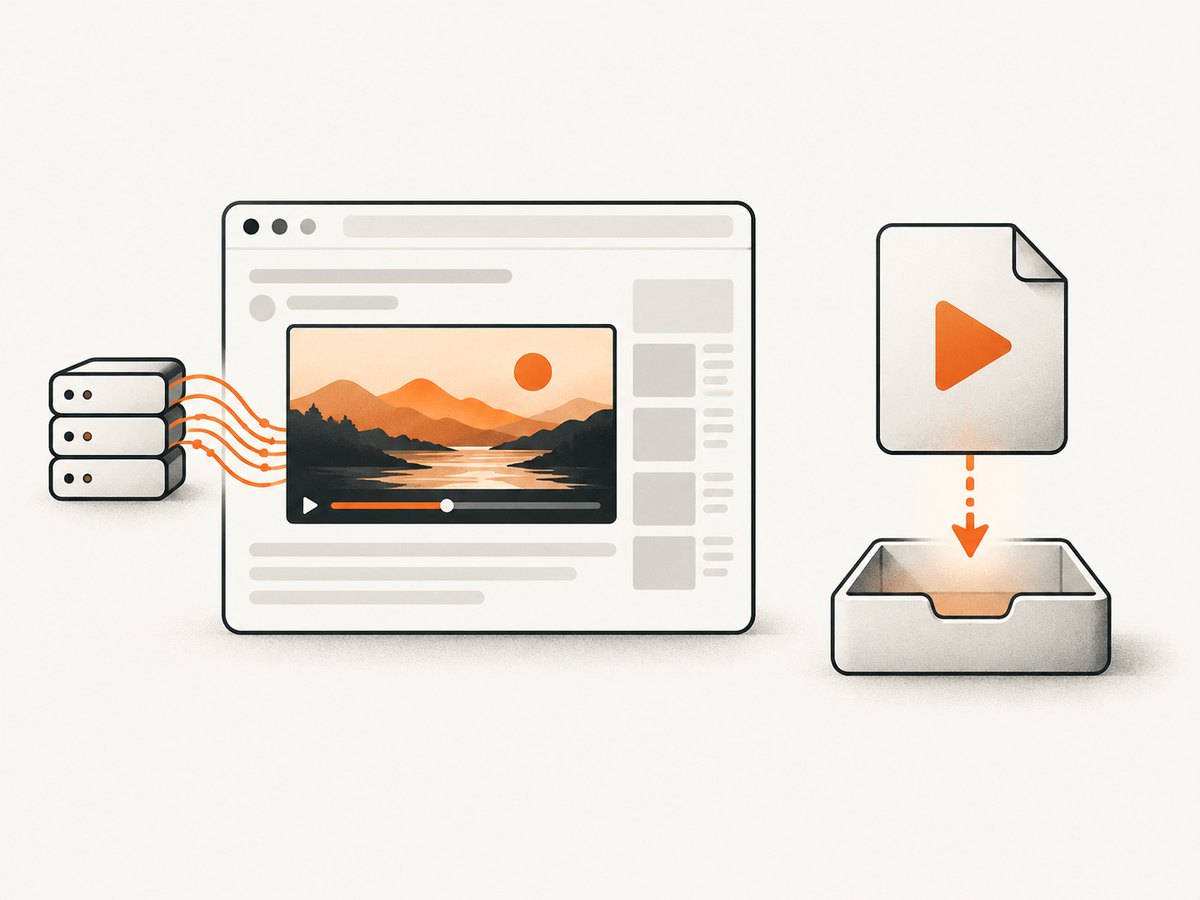
For an in-page player, the document needs video markup and a source the browser can handle. A minimal example is:
<video controls preload="metadata">
  <source src="/media/clip.webm" type="video/webm">
  Your browser does not support this video.
</video>
Use the MIME type that matches the actual media format. Incorrect server MIME configuration can affect how a browser handles a file; MDN specifically notes MIME configuration as relevant for WebM. A valid MIME type alone does not guarantee playback: the codec, browser support, access permissions, and response behavior also matter.
In Puppeteer, navigate to the page containing the player, then wait for the element or a site-specific ready condition. For example:
await page.goto('https://example.com/watch/clip', {
  waitUntil: 'domcontentloaded',
  timeout: 30000,
});
await page.waitForSelector('video', { timeout: 15000 });

const player = await page.$eval('video', video => ({
  src: video.currentSrc || video.src,
  paused: video.paused,
  readyState: video.readyState,
  error: video.error ? video.error.code : null,
}));
console.log(player);
readyState helps show whether media data is available, but it is not a guarantee that playback will proceed. Autoplay policies, user gestures, cross-origin restrictions, and site-specific player logic can affect playback. If the video requires a click, interact with the page’s actual play control and check for errors rather than assuming navigation will start playback.
4. Check for an explicit download link
The download may begin after clicking an anchor such as <a href="/clip.mp4" download>. The download attribute asks the browser to treat the linked URL as a download. MDN documents that it applies to same-origin URLs and blob: or data: URLs, and browser handling can also depend on response headers and user settings.
Inspect the element you click and its actual target. If the goal is playback, use the page’s player route or an appropriate media embedding flow rather than clicking a download link. If you own the page and intend the link to open media, adjust the link and server response consistently. Do not remove a download attribute from a third-party page and assume that the remote server will then serve a playable inline response.
5. Use Puppeteer download behavior for downloads
Puppeteer exposes download behavior through browser context options. This is relevant when your automation needs to allow, deny, or configure downloads; it does not rewrite Content-Disposition, create a player, or convert the response body to another format. Puppeteer’s Files guide says it does not currently offer a way to handle file downloads programmatically, so avoid treating download policy as a playback API.
If your task is to save a file, configure the context’s download behavior using the API supported by the Puppeteer version you have installed, then verify the destination and file lifecycle in your own workflow. If your task is to display a video, diagnose the URL, response, and page markup instead. Keep these as separate requirements.
6. Troubleshooting common cases
| Symptom | Cause to investigate | Fix or next step |
|---|---|---|
A video file is saved as soon as goto() runs |
The URL may return media directly or a response marked as an attachment. | Log the final URL and response headers. Navigate to the site’s player page if one exists. |
| The URL looks like a webpage but downloads after redirecting | The final redirect target may serve an attachment or raw media. | Inspect response.url(), page.url(), and the final response headers. |
| The page loads but no player appears | The page may not embed a video, or its scripts may have failed or not finished loading. | Check for a video element, inspect console errors and failed requests, and wait for a meaningful selector. |
| The player is present but stays blank | The source may be unavailable, unsupported, incorrectly typed, or blocked. | Inspect currentSrc, the media request, response type, and the element’s error state. Verify server MIME configuration and browser/codec support. |
| A click starts a download | The clicked anchor may carry download, or the destination response may be an attachment. |
Inspect the link target and final response. Use the page’s playback control or player route. |
It downloads during npm install |
This is likely Puppeteer’s browser binary setup, not the target site. | Review Puppeteer installation settings. The puppeteer-core package does not automatically download Chrome. |
| Changing download behavior has no effect on playback | Download policy does not alter server headers or add media markup. | Return to the response and player diagnostics; change server behavior only when you control it. |
| Navigation times out on a video page | A long media request or page activity may make a broad load condition unsuitable. | Use a narrower condition such as domcontentloaded, set an appropriate timeout, then wait for the player or state your task needs. |
7. Performance and reliability considerations
Use the narrowest navigation wait condition that matches the task. Waiting for every network request to stop can be unreliable on pages with streaming media, analytics, or persistent connections. A typical diagnostic flow waits for the document, then waits for a specific player selector or a site-defined readiness signal.
For reliable diagnosis, log the final URL, status, relevant headers, player source, and failed requests. Avoid retrying the same URL blindly: if the server consistently responds with an attachment, retries will reproduce the same behavior. If the response changes based on cookies, authentication, or redirects, preserve the relevant session context and compare responses from the same browser state.
Playback is affected by the server and media as well as automation. Check the actual response body and browser console; a screenshot can confirm what rendered, but cannot establish that an unseen media stream is decodable or that a download did not occur.
8. Cost and scope
Puppeteer is appropriate when you need browser automation, interaction, or playback inspection. The main costs to plan for are browser execution time, infrastructure, and any bandwidth or storage used by downloaded media. Avoid downloading large media files when the task only needs page structure or a visual capture. Keep screenshots, media downloads, and playback verification as separate outputs so the automation does only the work the task requires.
Or skip the browser setup
If the task is to capture how a page looks, ScreenshotNeo can return a screenshot or PDF with one GET request. It does not play or debug video; it captures the rendered page. See the ScreenshotNeo API docs for parameters and options.
curl -G "https://api.screenshotneo.com/v1/shot" \
  -d access_key=YOUR_API_KEY \
  --data-urlencode url=https://example.com/watch/clip \
  -o shot.webp
ScreenshotNeo accepts cookie and consent banners before capture and removes more than 60 known consent platforms, newsletter popups, and chat widgets; each step can be turned off. Bot checks and CAPTCHAs, blank pages, timeouts, failed loads, and cache hits are not billed, and response headers report the page verdict and billing status. Its MCP server gives AI agents tools to take screenshots, get page information, and capture PDFs. The Free plan includes 1,000 screenshots a month with no card; paid plans start at $5 for 3,000 shots. Sign up for free screenshots.
FAQ
Can Puppeteer force an attachment response to play inline?
No. Browser download behavior does not rewrite the server’s response or create a player. If you control the server, review its response headers and page markup; otherwise use a page that embeds the media appropriately.
Does a video file URL mean the site has a video player?
No. It may be a direct media resource. A player is part of a webpage and must have markup and a browser-compatible source.
Should I use puppeteer-core to stop target videos downloading?
Not for that issue. It avoids automatic Chrome download during package installation, but does not change what a target URL returns when visited.
Can a screenshot tell me whether the video codec works?
No. A screenshot shows rendered pixels at a moment in time. Inspect the media element, network response, and browser errors to diagnose playback.


