Why Puppeteer Viewport Settings Do Not Affect Generated PDFs
Puppeteer’s viewport controls screen layout; PDF paper size and print styling use separate settings. Here’s how to control both reliably.
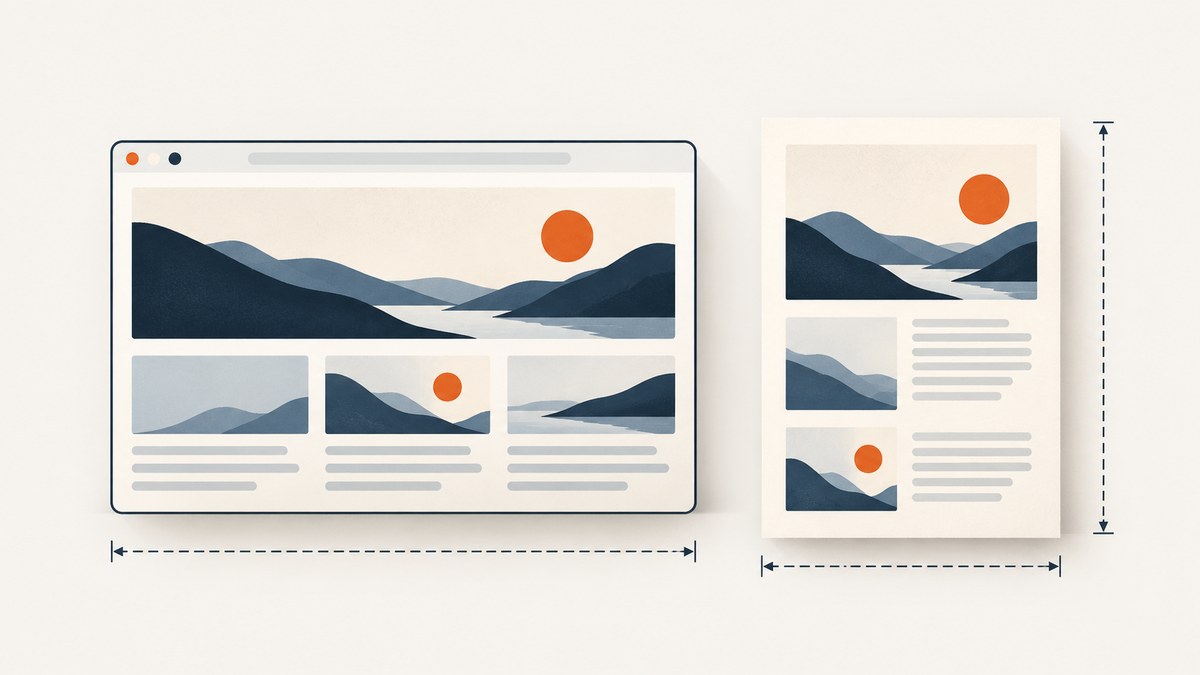
Puppeteer’s viewport settings do not set the dimensions of a generated PDF. The viewport controls the page’s screen layout and can affect responsive behavior; page.pdf() follows a separate print-to-PDF path. It uses print CSS by default, while PDF options such as format, width, height, margins, and orientation determine the paper geometry.
To make a PDF match a desired result, configure the media type and paper size explicitly. Set the viewport before navigation when the site’s responsive layout depends on it, then choose PDF options for the printed page. The two settings can influence the same content, but they answer different questions.
1. Viewport size and PDF paper size are separate controls
A viewport is the browser’s layout area for screen rendering. A site can use its width to select responsive breakpoints, rearrange columns, or load different content. Puppeteer recommends setting the viewport before navigation for sites that react to device dimensions.
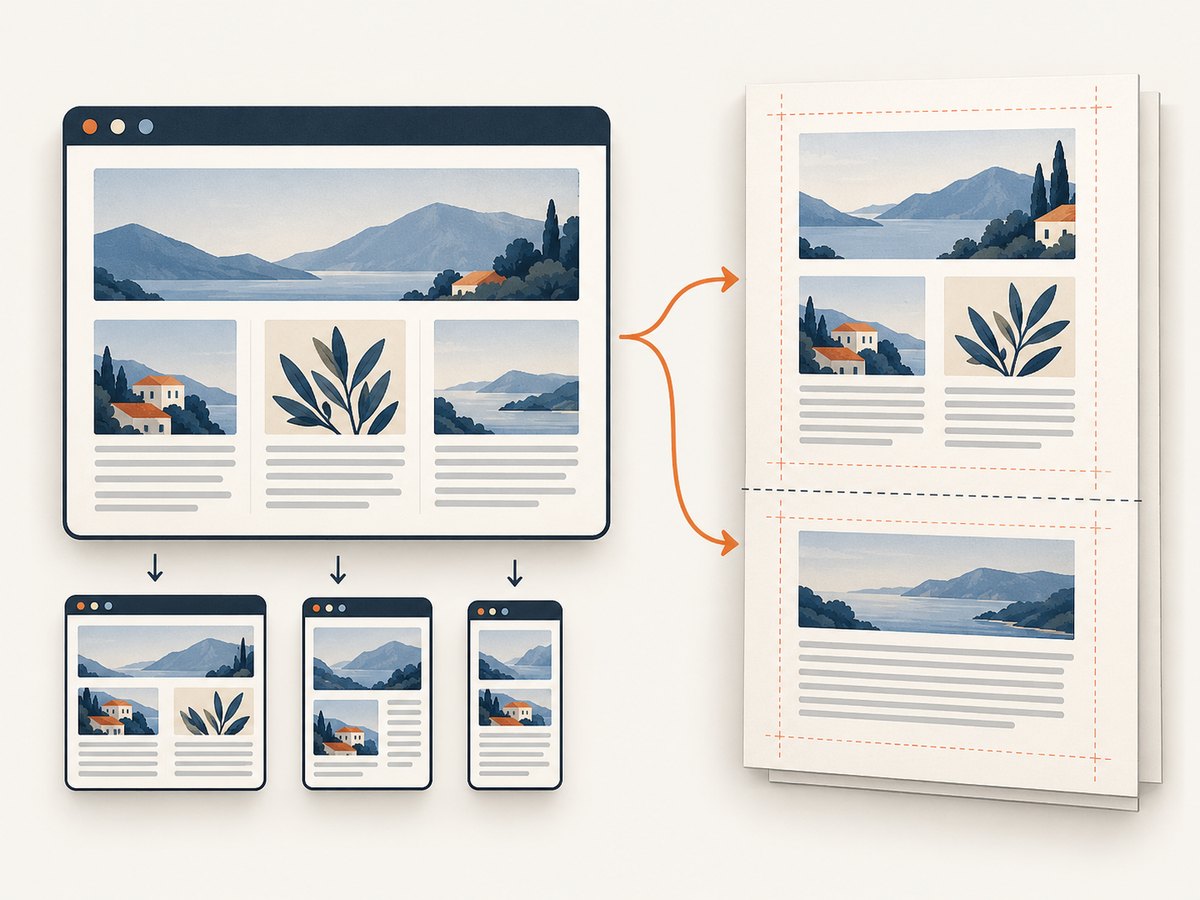
A PDF is produced through print layout. By default, Puppeteer applies the print CSS media type when page.pdf() runs. The PDF page’s physical dimensions come from PDF options or, in a specific configuration, CSS @page rules. Changing page.setViewport() alone does not choose Letter, A4, or a custom paper size.
| Setting | Controls | Where to configure it |
|---|---|---|
| Viewport width and height | Screen layout and responsive behavior | page.setViewport() |
| Media type | Whether screen or print CSS applies | page.emulateMediaType() |
| PDF paper size | Printed page dimensions | page.pdf() options: format, width, or height |
| CSS page size | Paper dimensions declared by the document | @page, enabled through preferCSSPageSize |
This distinction explains the common surprise: a page may look correct in a browser viewport and still paginate or scale differently in the PDF. The PDF renderer is applying print styling and page geometry, not taking a screenshot of the current viewport.
2. Generate a PDF with explicit paper settings
Here is a complete Node.js example using Puppeteer. It sets the viewport before navigation, waits for the page to load, and generates an A4 portrait PDF with explicit margins.
const puppeteer = require('puppeteer');

(async () => {
  const browser = await puppeteer.launch();
  try {
    const page = await browser.newPage();

    // Set this before navigation if the site responds to viewport dimensions.
    await page.setViewport({ width: 1440, height: 900 });
    await page.goto('https://example.com', {
      waitUntil: 'networkidle2',
      timeout: 30000,
    });

    await page.pdf({
      path: 'page.pdf',
      format: 'A4',
      landscape: false,
      printBackground: true,
      margin: {
        top: '12mm',
        right: '12mm',
        bottom: '12mm',
        left: '12mm',
      },
    });
  } finally {
    await browser.close();
  }
})();
The viewport in this example can affect the site’s responsive layout. format: 'A4' determines the PDF paper. If the site has print-specific CSS, that CSS is used by default. printBackground: true includes background graphics that are otherwise omitted from print output.
Install Puppeteer in a Node.js project with npm install puppeteer. The code uses the package’s browser download behavior; deployment environments may need additional system libraries or a separately managed browser, depending on how Puppeteer is installed.
Choose screen CSS only when that is the intended output
If the screen design is intentionally the PDF design, emulate screen media before generating the PDF:
await page.emulateMediaType('screen');
await page.pdf({ path: 'screen-styled.pdf', format: 'A4' });
This changes which CSS media rules apply. It does not change the page’s paper dimensions. Keep format, width and height, or the CSS page-size configuration to define the sheet.
3. Pick one authority for page dimensions
Puppeteer offers two main ways to set paper dimensions: PDF options or CSS @page. Use the option that matches the document’s ownership and the result you need.
Use PDF options for a fixed output format
Use format for a standard size such as A4 or Letter. If you need a custom size, provide width and height with supported CSS units such as inches, millimeters, or pixels. When format and explicit dimensions are both provided, format takes priority.
await page.pdf({
  path: 'custom.pdf',
  width: '8.5in',
  height: '11in',
  printBackground: true,
});
For a landscape page, set landscape: true. Check the resulting page dimensions in a PDF viewer; do not assume a viewport width or height will rotate or resize the paper.
Let CSS @page define the paper
Documents designed to control their own print format can declare a page size in CSS. Enable preferCSSPageSize: true to let that CSS size take precedence over the PDF format, width, or height options.
await page.addStyleTag({
  content: '@page { size: A4 landscape; margin: 12mm; }',
});

await page.pdf({
  path: 'css-sized.pdf',
  preferCSSPageSize: true,
  printBackground: true,
});
The documented default for preferCSSPageSize is false. In that default mode, Puppeteer uses the PDF paper options and scales content to fit the paper size when needed. If CSS should be authoritative, set the flag explicitly and inspect the document’s @page declarations.
4. Adjust margins, orientation, scale, and print styling
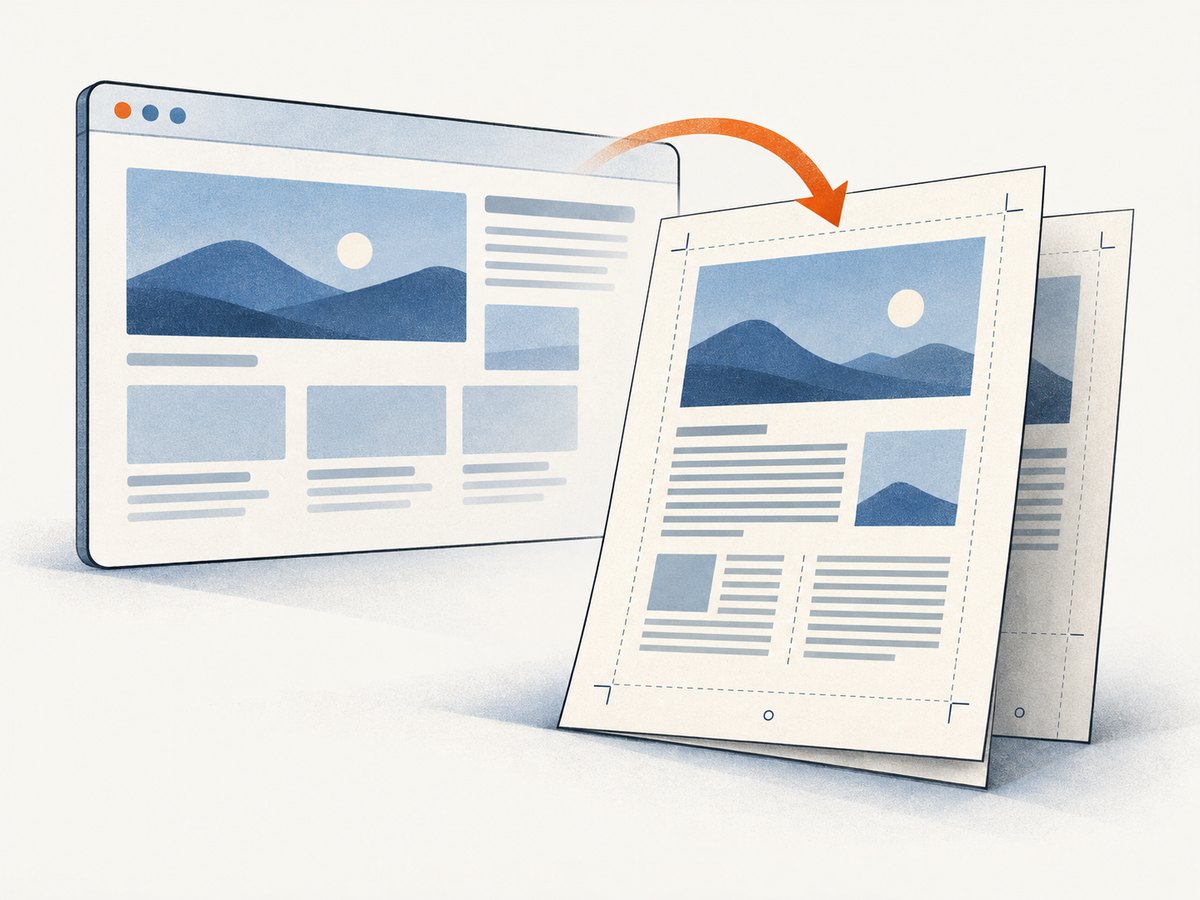
Paper size is only one part of PDF geometry. Margins reduce the printable content area; orientation changes the page direction; scale changes how content fits. Puppeteer documents scale as 1 by default, with an allowed range from 0.1 to 2.
- Margins: Use the
marginobject to set top, right, bottom, and left values. Use consistent units and avoid unintentionally shrinking the available content area. - Landscape: Set
landscape: truefor a wide page. Confirm that the selected paper format and page CSS agree with this choice. - Scale: Start at
1. Change scale only after confirming paper dimensions, margins, and CSS; scaling can make text too small or create unexpected whitespace. - Backgrounds: Set
printBackground: truewhen colors or background images are part of the intended document. - Print CSS: Use
@media printand@pagerules for print-specific layouts, page breaks, and page sizing. Remember that print media is the default forpage.pdf().
For example, screen-only navigation or interactive controls may remain in print unless the site’s print stylesheet hides them. Conversely, styles inside @media screen may disappear from a default PDF. Decide whether the desired document is a print layout or a screen-styled export before tuning the viewport.
5. Set viewport before navigation when responsive layout matters
If the page changes based on viewport size during startup, set the viewport before calling page.goto(). This lets scripts and CSS observe the intended screen dimensions during navigation. It can affect which responsive layout is rendered into the document, but PDF paper sizing still needs its own configuration.
For repeatable output, record both choices: the viewport used to select page content and the PDF options used to lay that content onto paper. Also keep the target URL and wait condition stable. Dynamic pages may need a selector wait or application-specific readiness condition before creating the PDF.
6. Troubleshooting unexpected PDF size or appearance
| Symptom | Likely cause | Fix |
|---|---|---|
| Changing viewport has no effect on page dimensions | Viewport is not the PDF paper control. | Set format or explicit width and height in page.pdf(). |
PDF ignores the CSS @page size |
preferCSSPageSize is false, its documented default. |
Set preferCSSPageSize: true and verify the page rule is present when printing. |
| PDF looks different from the browser | page.pdf() uses print media by default. |
Adjust print CSS, or call page.emulateMediaType('screen') first if screen CSS is required. |
| Content is unexpectedly scaled | Paper options, CSS page size, margins, or scale do not match. | Choose one paper-size authority, check margins, and begin with scale 1. |
| Background colors or images are missing | Print backgrounds are not enabled. | Set printBackground: true. |
| Layout uses the wrong breakpoint | The viewport was set too late, or has the wrong dimensions. | Set it before navigation and verify the responsive page content independently of paper size. |
| Landscape setting seems ineffective | Paper format, dimensions, or @page size may conflict. |
Check which setting controls paper size and align it with landscape. |
Debug in this order: confirm the page’s responsive layout, confirm print or screen media, choose paper-size authority, then tune margins and scale. This makes it easier to identify which setting caused a mismatch.
7. Performance, reliability, and cost notes
PDF creation requires loading the page and laying it out for print, so total time depends on navigation, page scripts, fonts, images, and the amount of content. A networkidle2 wait is a useful starting point for pages that settle after requests finish, but sites with ongoing network activity may need a more specific readiness condition. Set an explicit navigation timeout and close the browser in a finally block so errors do not leave a browser process running.
For reliable output, use a consistent viewport, media type, page-size authority, and margins. Wait for critical content such as web fonts or charts when the application exposes a ready selector. Verify a representative PDF after changing CSS or Puppeteer versions. Avoid attributing every layout difference to viewport size: page breaks and print styles can change pagination independently.
Self-hosted Puppeteer has no per-PDF API fee, but browser compute, memory, storage, and operational maintenance have costs. Reusing browser processes can reduce repeated launch overhead in a service, though each job still needs isolation and cleanup. Bound concurrency according to available memory, particularly for long pages or large PDFs.
8. Or skip the browser setup
If your goal is a screenshot or PDF of a URL rather than a Puppeteer-controlled print layout, ScreenshotNeo provides a website screenshot API and MCP server. Its one-call PDF request is documented at ScreenshotNeo’s API documentation:
curl -G "https://api.screenshotneo.com/v1/shot" \
  -d access_key=YOUR_API_KEY \
  --data-urlencode url=https://example.com \
  -d format=pdf \
  -o page.pdf
Cookie banners, popups, and chat widgets are removed before the shot. Bot checks, blank pages, and failed loads are never billed. An MCP server lets AI agents use screenshot tools. The free plan includes 1,000 screenshots a month with no card; paid plans start at $5 for 3,000 screenshots. For a PDF with a specific page layout, paper size, or print stylesheet behavior, use the Puppeteer controls above; an API capture is useful when you want the rendered URL as an output without managing browser setup.
Sign up free for 1,000 screenshots a month, with no card required.
9. Frequently asked questions
Does setViewport affect anything in a PDF?
It can affect responsive content rendered into the PDF, especially when the site responds to viewport dimensions. It does not select the PDF’s paper dimensions.
What setting should I use for an A4 PDF?
Use format: 'A4', unless the document’s CSS @page size should be authoritative; in that case enable preferCSSPageSize: true.
Can I use screen CSS and still create a PDF?
Yes. Call page.emulateMediaType('screen') before page.pdf(), then set paper size through PDF options or CSS page sizing as appropriate.
Why does the PDF have different page breaks from the screen page?
Screen content is laid out in a viewport, while PDF content is paginated onto paper and normally uses print CSS. Use print rules and page-break styling to control the printed document.
Does format override width and height?
Yes. When format is supplied, it takes priority over width and height.


