How to Use Puppeteer With Vue.js
Run Puppeteer from Node.js to test a Vue app through its browser, choose reliable selectors, and troubleshoot common setup issues.
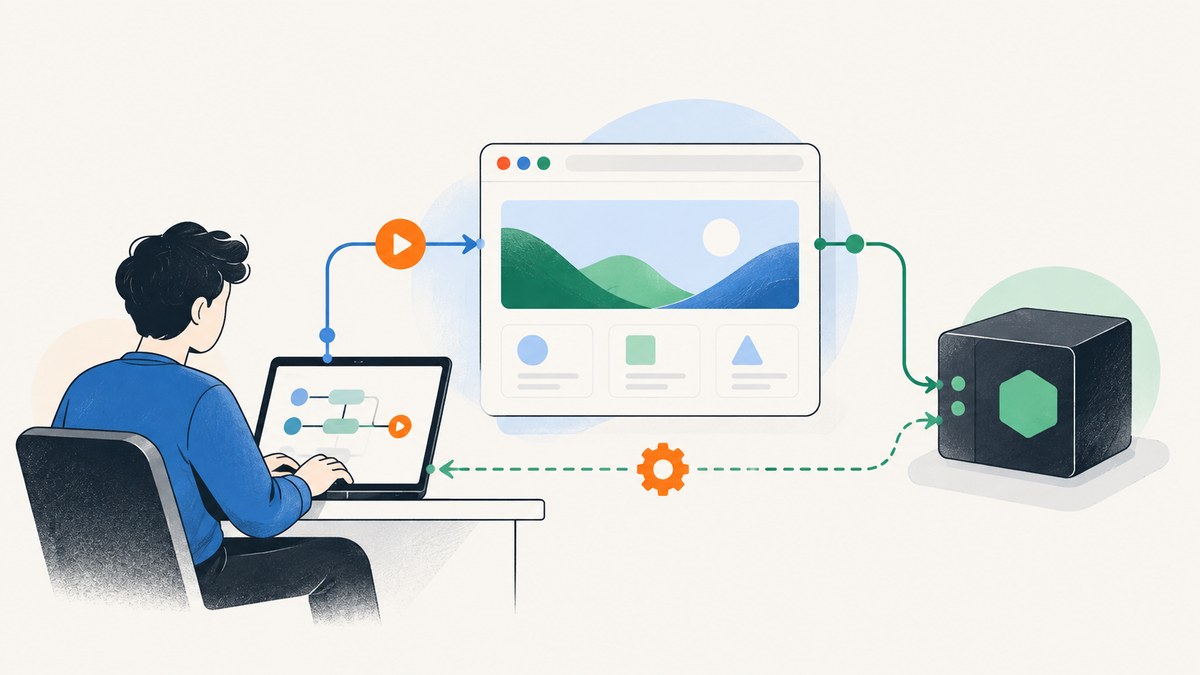
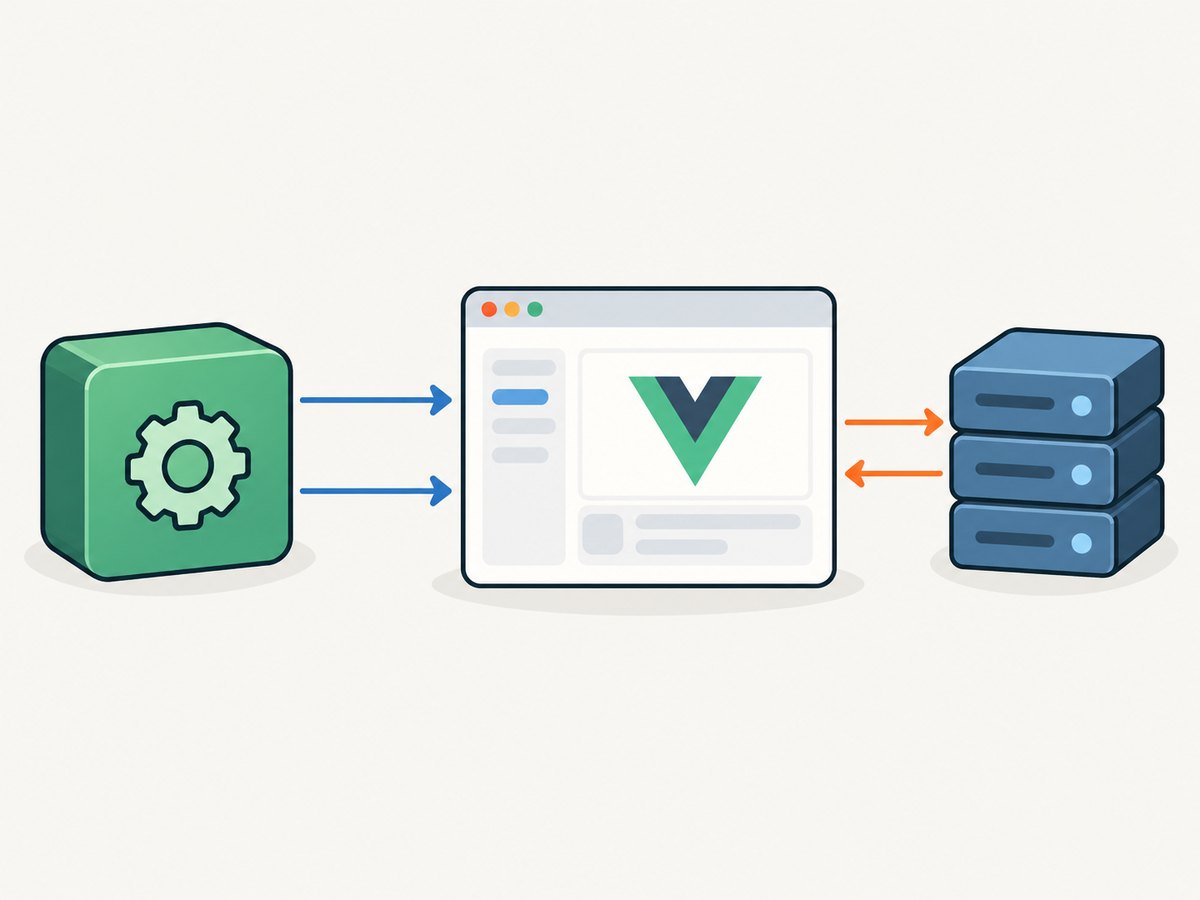
Puppeteer works with Vue.js by running as a separate Node.js automation process. Start your Vue app with its development or production server, then have Puppeteer open a browser, navigate to the app’s URL, interact with rendered elements, and check the results. You generally do not import Puppeteer into the Vue client bundle: browser automation needs Node.js or another controlled environment that can launch or connect to a browser.
This setup lets you test what a visitor sees, including routing, rendered content, and interaction outcomes. The same browser-and-page workflow can capture a screenshot for debugging. Puppeteer’s regular Node workflow can launch Chrome or Firefox, while its specialized browser-side mode connects to a separate remote browser and cannot launch one itself. Puppeteer overview · Getting started
1. Install Puppeteer in the Node environment
Check the current Puppeteer system requirements before installing. The requirements page currently lists Node 22.12 or later; versions and support can change. Puppeteer releases are paired with browser releases, so use the browser Puppeteer manages unless you have a reason to configure another executable.
npm install --save-dev puppeteerThe puppeteer package normally downloads a compatible browser during installation. If your environment manages browsers separately, puppeteer-core is the library-only option; it does not download a browser for you. In that case, configure an executable or connect to a remote browser. See installation guidance and the configuration interface.
2. Start Vue, then run the automation script
Keep the Vue server and Puppeteer process separate. In one terminal, start the app using the project’s own command. A Vite app often uses npm run dev -- --host 127.0.0.1; other Vue projects may use a different command or port. Wait until the server reports that it is ready before running the script.
npm run dev -- --host 127.0.0.1Create check-vue.mjs at the project root. This runnable example uses a deliberately generic URL and accessible button name: replace the URL and selector with elements your Vue app actually renders.
import puppeteer from 'puppeteer';

const appUrl = process.env.APP_URL ?? 'http://127.0.0.1:5173';
const browser = await puppeteer.launch();

try {
  const page = await browser.newPage();
  page.setDefaultTimeout(10_000);
  page.on('console', message => {
    if (message.type() === 'error') console.error('Page console:', message.text());
  });
  page.on('pageerror', error => console.error('Page error:', error.message));

  const response = await page.goto(appUrl, { waitUntil: 'domcontentloaded' });
  if (!response || !response.ok()) {
    throw new Error(`App navigation failed: ${response?.status() ?? 'no response'}`);
  }

  // Use an accessible name or a stable selector from your app.
  await page.locator('button[aria-label="Increment"]').click();
  await page.locator('text/Count: 1').wait();
  console.log('Vue interaction passed');
} finally {
  await browser.close();
}
Run it in another terminal after the app is available:
APP_URL=http://127.0.0.1:5173 node check-vue.mjsThe sample assumes the page includes a button named “Increment” and then displays “Count: 1”; those are example app behaviors, not built-in Vue controls. For a test suite or CI job, use your project’s server orchestration to start the app, wait for readiness, run the script, and stop the server even if an assertion fails.
3. Choose selectors that survive UI changes
Puppeteer locators wait for targets and check that they are actionable before interaction. Prefer selectors based on the interface contract: accessible roles and names, labels, text users see, or stable application attributes. A CSS selector such as button[data-testid="save"] can be useful when the application deliberately maintains that test attribute.
// Accessible, user-facing selectors are usually the most durable.
await page.locator('::-p-aria(Submit)').click();
await page.locator('::-p-text(Saved)').wait();

// CSS is appropriate when the app exposes a stable test hook.
await page.locator('[data-testid="profile-save"]').click();
Confirm the selector syntax supported by your installed Puppeteer version. Its page interactions guide documents locators and selector types, including CSS, text, accessibility, XPath, and others. A selector that happens to match a Vue component’s current DOM structure may become brittle if the template changes.
Can Puppeteer find a Vue component by name?
There is an optional Puppeteer Vue selector, ::-p-vue(MyComponent), which inspects Vue vnode context and component type. It can help with specialized diagnostics, but it relies on Vue internals. For a normal end-to-end test, assert on the rendered behavior or user-facing element instead.
// Special-purpose component lookup; depends on Vue internals.
const component = await page.locator('::-p-vue(MyComponent)').wait();
Component names may be absent, transformed, or different from the name you expect in production builds. Treat a failed component lookup as a diagnostic limitation rather than evidence that the visible UI is broken. The selector is described in Puppeteer’s interaction documentation.
4. Pick the right readiness and browser settings
Vue apps often render after the first HTML response. Choose a navigation condition that matches the test: domcontentloaded waits for initial document parsing; load also waits for load-event resources; networkidle can be useful for pages that settle, but persistent polling or analytics may prevent a quiet network. Even after navigation, wait for a meaningful page element before interacting.
await page.goto(appUrl, { waitUntil: 'domcontentloaded' });
await page.locator('main').wait();
await page.locator('button[aria-label="Increment"]').click();
Headless mode is the default. For a visual investigation, launch a visible browser with headless: false. Puppeteer also offers headless: 'shell', which uses a distinct browser binary and does not behave identically to regular Chrome. Choose it only after confirming its behavior suits the task. See headless modes.
const browser = await puppeteer.launch({ headless: false });For reproducible CI, keep the Puppeteer version and browser environment consistent. You can configure browser choice, executable path, cache location, and download behavior; an arbitrary locally installed browser version may not match Puppeteer’s supported release. The supported browsers page and configuration reference describe these choices.
5. Capture a screenshot of a Vue page
For a local debugging artifact, wait for the page content you care about and save a screenshot. A full-page image is useful for layout review, though lazy-loaded sections may need scrolling or explicit waiting before capture.
await page.goto(appUrl, { waitUntil: 'domcontentloaded' });
await page.locator('main').wait();
await page.screenshot({ path: 'vue-page.png', fullPage: true });
To compare a specific viewport, set it before navigation:
await page.setViewport({ width: 1440, height: 900, deviceScaleFactor: 1 });Use repeatable fonts, data, viewport dimensions, and browser versions when comparing screenshots. Animations, timestamps, randomized content, and network-loaded assets can make captures differ even when the layout code has not changed.
Or skip the browser setup
If you need a screenshot of a public page rather than an interactive test of your local Vue app, ScreenshotNeo provides a website screenshot API and MCP server. It returns an image or PDF from one request. See the API documentation.
curl -G "https://api.screenshotneo.com/v1/shot" -d access_key=YOUR_API_KEY --data-urlencode url=https://stripe.com -o shot.webpimport requests
r = requests.get(
"https://api.screenshotneo.com/v1/shot",
params={"access_key": "YOUR_API_KEY", "url": "https://stripe.com"},
timeout=90,
)
r.raise_for_status()
open("shot.webp", "wb").write(r.content)const q = new URLSearchParams({ access_key: 'YOUR_API_KEY', url: 'https://stripe.com' });
const res = await fetch(`https://api.screenshotneo.com/v1/shot?${q}`);
if (!res.ok) throw new Error(`Screenshot request failed: ${res.status}`);
await Bun.write('shot.webp', res);The Node example uses Bun’s file writer to save the response body; with Node.js, use await import('node:fs/promises').then(({ writeFile }) => writeFile('shot.webp', Buffer.from(await res.arrayBuffer()))) in an async function.
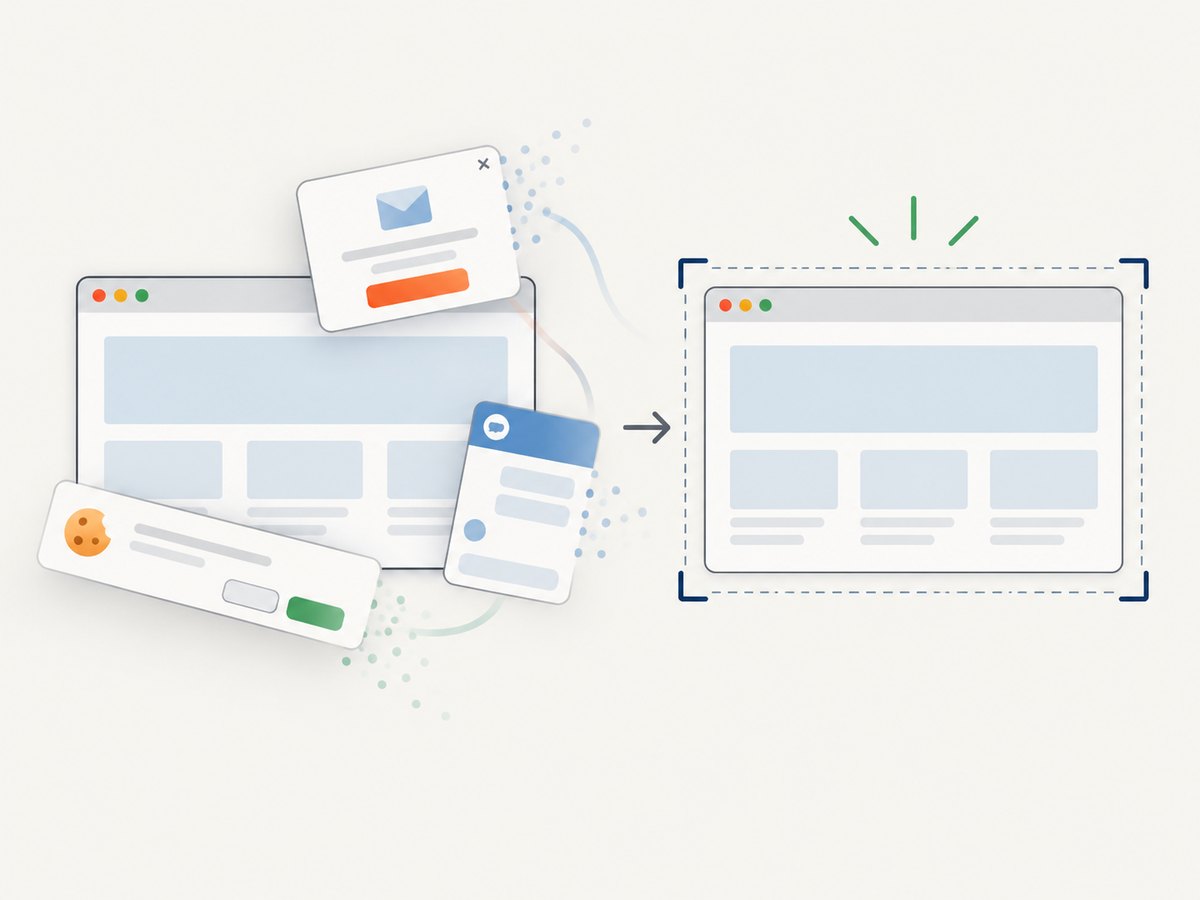
- Cookie and consent banners are accepted and removed before capture, along with more than 60 known consent platforms, newsletter popups, and chat widgets; each step can be turned off.
- Bot checks, CAPTCHAs, blank pages, timeouts, failed loads, and cache hits cost nothing. Response headers report the page verdict and whether the shot was billed.
- An MCP server gives AI agents tools for screenshots, page information, and PDF capture.
- The free plan includes 1,000 shots a month with no card. Paid plans start at $5 for 3,000 shots.
Sign up for 1,000 free screenshots a month, no card required.
6. Troubleshooting Puppeteer with Vue
| Symptom | Likely cause | Fix |
|---|---|---|
| Navigation refused or timed out | The Vue server is stopped, still starting, or listening on another host or port. | Open the exact URL in a normal browser, check the dev-server output, and wait for readiness before running Puppeteer. Set APP_URL to the actual address. |
| Locator times out | The selector does not match the rendered page, content is delayed, or the expected state never occurs. | Inspect the page title and HTML, wait for the user-visible state, and verify the accessible name or test attribute in the running app. |
| Click does not work | The target is hidden, covered, disabled, or not yet actionable. | Use a locator and wait for the enabled state or the overlay to disappear. Do not use forced clicks to mask an actual usability or timing defect. |
| Browser executable missing | Browser download was skipped, cache is unavailable, or puppeteer-core was installed without browser configuration. |
Install/configure the compatible browser, set a valid executable path, or use the regular puppeteer package where downloading is permitted. |
| Works locally but fails in CI | Different browser version, missing OS dependencies, server readiness race, or container sandbox settings. | Pin the environment, follow Puppeteer’s Docker guidance, start the app before the script, and inspect CI browser logs. |
| Vue component selector finds nothing | Component context/name is not exposed as expected or differs in the built app. | Use rendered text, role, label, or stable CSS test hook for assertions; reserve the Vue selector for diagnosis. |
| Screenshot varies between runs | Animation, live data, fonts, lazy content, or external assets change timing or appearance. | Use fixed test data and viewport, disable animations in test CSS, and explicitly wait for critical images or content. |
For difficult failures, turn off headless mode, slow actions, and collect page console and page-error events as in the example. Puppeteer’s debugging guide covers additional inspection and protocol logging. Protocol logs can include sensitive information, so avoid exposing them in shared artifacts.
7. Performance, reliability, and cost
Browser startup is often the expensive part of a small script. Reuse a browser process for related checks and create separate pages when isolation is needed, then close pages and the browser in cleanup code. Do not leave browsers orphaned after failed assertions. For parallel suites, size concurrency to available memory and CPU; too many browser pages can make tests slower and less predictable.
Use the narrowest useful readiness condition. Waiting for every network connection to disappear can stall on long polling, while fixed sleeps waste time and still fail under load. Waiting for a real element or state gives a more direct signal. Keep timeouts explicit and diagnose which wait failed instead of raising all timeouts indiscriminately.
Puppeteer itself has no per-screenshot fee described in the cited documentation. Your cost is the compute, CI minutes, and maintenance of browser environments you run. A screenshot service such as ScreenshotNeo has a separate usage plan; its free tier is 1,000 shots monthly and paid plans begin at $5 for 3,000. Choose browser automation when you need interaction and assertions against your own app; use a screenshot API for convenient captures of reachable pages.
For container execution, Puppeteer publishes an official Docker image with Chrome for Testing and dependencies. Follow its guidance on sandbox capabilities and an init process so child browser processes are managed correctly. Check current image tags and your infrastructure’s security policy before adopting a container setup. Puppeteer Docker guide.
8. Running Puppeteer from the Vue browser bundle
This is a specialized architecture, not the standard way to test a Vue site. Puppeteer’s browser-side mode uses the browser-specific puppeteer-core entry point and connects over a WebSocket to a separate browser. It cannot launch or download that browser using Node APIs. A client bundle also exposes connection details to users, so use a trusted remote-browser setup and avoid embedding secrets. See running Puppeteer in the browser.
FAQ
Does Puppeteer replace Vue Test Utils?
They address different layers. Puppeteer exercises the app through a real browser; component-level tests can check Vue behavior without driving a full browser. Use the level that matches the failure you want to catch.
Can I run the same script against a production build?
Yes. Start the production server and set APP_URL to its reachable address. Keep test data and environment configuration controlled so the result is repeatable.
Should I use Chrome or Firefox?
Choose a browser supported by your installed Puppeteer release and relevant to your target users. Check the current supported-browser documentation before pinning versions.
Can the screenshot API test a local Vue app?
A remote service can only capture a URL it can reach. A local-only development address is generally reachable only from your own machine, so use Puppeteer locally for that app unless you provide an accessible deployment.


