How to Wait for Pages and Delays in Puppeteer on Firebase Functions
Use navigation, selector, network, function, popup, and timer waits correctly in Puppeteer while respecting Firebase Functions time limits.

Direct answer: wait for the condition your next operation needs. Use page.waitForNavigation() together with the click or submit action that triggers navigation; use page.waitForSelector() when an element must appear; use page.waitForFunction() for application state; use request or network-idle waits for network conditions; use a browser-context target wait for a popup; and use a native timer Promise only when elapsed time itself is the requirement. Every wait consumes part of your Firebase Function’s total execution time.
An arbitrary sleep can finish too early on a slow run or waste time on a fast run. Puppeteer’s current documentation marks Page.waitForTimeout obsolete and recommends waiting for a specific condition instead. See the Page API and waitForFunction API for the version installed by your project.
1. Choose the wait that matches the event
| Need to wait for | Use | What it proves |
|---|---|---|
| A new document after a click | waitForNavigation |
The navigation event reached the selected lifecycle state. |
| An element to exist or become visible | waitForSelector |
The selector matched, optionally with visibility. |
| A JavaScript application condition | waitForFunction |
A page-context predicate returned a truthy value. |
| A response or request | waitForResponse or request events |
The specified network event occurred. |
| Quiet network activity | waitForNetworkIdle |
Network activity stayed below the configured threshold for the idle period. |
| A new tab or popup | browserContext().waitForTarget |
A new browser target matching your predicate was created. |
| A fixed amount of time | new Promise(resolve => setTimeout(resolve, ms)) |
Only that time elapsed; it does not prove the page is ready. |
Network idle is not a universal “finished” signal. Analytics, chat, polling, and streaming requests can keep a page active, while an application may render useful content before the network becomes quiet. Prefer a selector or an in-page condition that represents the state your code actually needs.
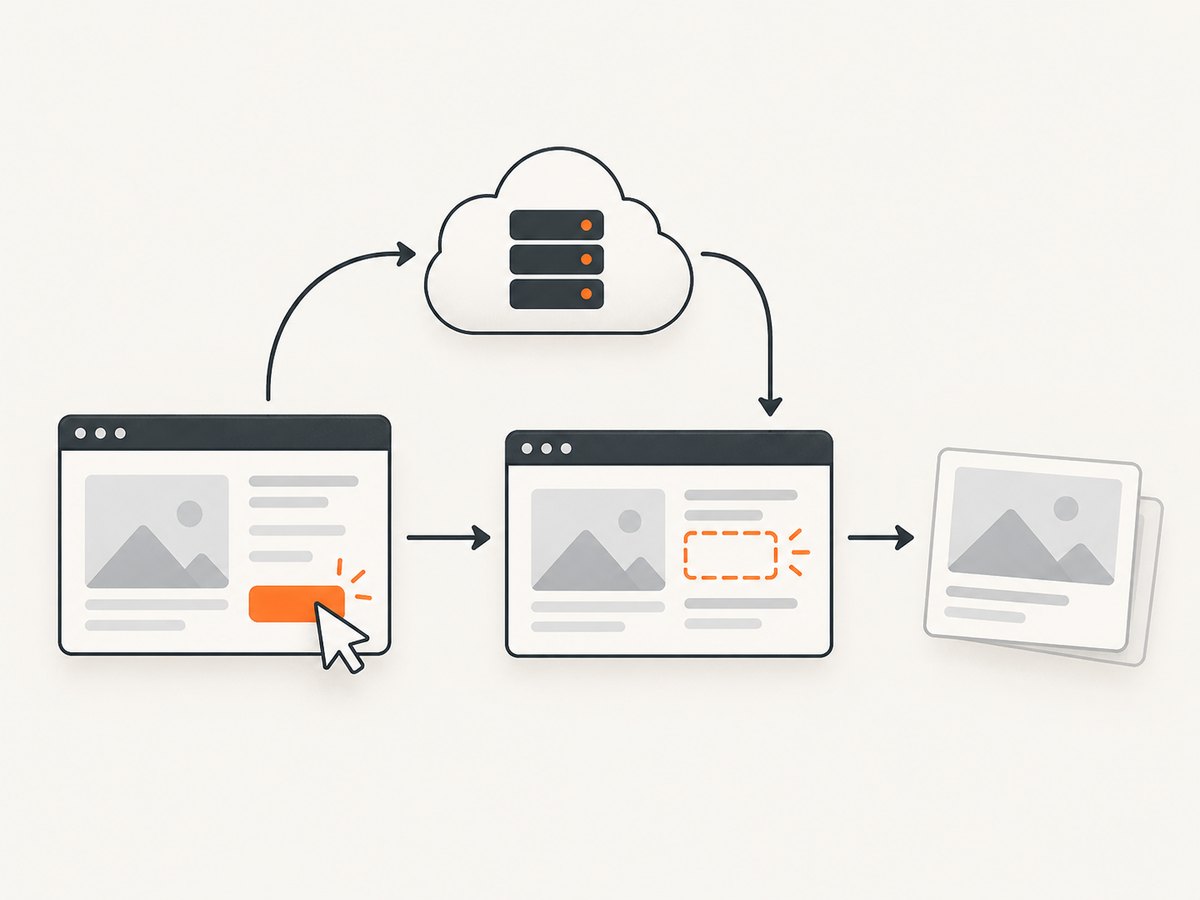
2. A Firebase Function with safe Puppeteer waits
The following HTTP function shows the basic structure. Replace the URL, selectors, and browser launch configuration with the versions supported by your exact Puppeteer and Firebase runtime. Puppeteer guarantees compatibility with its bundled browser; using another executable path is your responsibility.
const { onRequest } = require('firebase-functions/v2/https');
const puppeteer = require('puppeteer');

exports.capturePage = onRequest(
  { timeoutSeconds: 300, memory: '1GiB' },
  async (req, res) => {
    let browser;
    try {
      browser = await puppeteer.launch({ headless: true });
      const page = await browser.newPage();
      page.setDefaultTimeout(30_000);
      page.setDefaultNavigationTimeout(60_000);

      await page.goto('https://example.com', {
        waitUntil: 'domcontentloaded',
        timeout: 60_000,
      });
      await page.waitForSelector('main', { visible: true, timeout: 15_000 });

      const title = await page.title();
      res.json({ title });
    } catch (error) {
      console.error(error);
      res.status(504).json({ error: error.message });
    } finally {
      if (browser) await browser.close();
    }
  }
);
page.goto can wait for load, domcontentloaded, or networkidle states depending on your Puppeteer version and needs. A navigation lifecycle event only describes loading progress; it does not guarantee that a client-side framework has rendered the data your next step uses.
3. How do I wait after a click that navigates?
Register the navigation wait and the action together with Promise.all. If you await the click first, the browser can navigate before the separate wait is registered, creating a race.
const [response] = await Promise.all([
  page.waitForNavigation({
    waitUntil: 'domcontentloaded',
    timeout: 60_000,
  }),
  page.click('a.next'),
]);

if (!response) {
  throw new Error('The click did not produce a navigation response');
}

await page.waitForSelector('[data-ready="true"]', {
  visible: true,
  timeout: 10_000,
});
This pattern also applies to form submission:
await Promise.all([
  page.waitForNavigation({ waitUntil: 'domcontentloaded' }),
  page.click('button[type="submit"]'),
]);
Some single-page applications update the URL or DOM without a full navigation. In that case, waitForNavigation may time out even though the click worked. Wait for the resulting selector, URL, response, or application state instead.
4. Wait for a selector or an application condition
Selector waits
await page.waitForSelector('.results-row', {
  visible: true,
  timeout: 20_000,
});

const rows = await page.$$eval('.results-row', elements =>
  elements.map(element => element.textContent.trim())
);
The documented default timeout for selector waits is 30 seconds. Set a shorter timeout when failure should be reported quickly, or a longer one when the page has a known slow operation. visible: true requires the element to be present and visible; it does not prove that its text is complete.
In-page conditions
await page.waitForFunction(
  () => document.querySelector('[data-status]')?.dataset.status === 'ready',
  { timeout: 30_000 }
);
Use waitForFunction when the meaningful state is not represented by one stable selector. The function runs in the page context, so reference browser globals such as document there, and pass values as arguments rather than closing over Node.js variables:
const expectedCount = 20;
await page.waitForFunction(
  count => document.querySelectorAll('.item').length >= count,
  { timeout: 30_000 },
  expectedCount
);
5. Waiting for requests and network idle
Wait for a specific response when the next step depends on one API call:
const responsePromise = page.waitForResponse(
  response =>
    response.url().includes('/api/report') && response.request().method() === 'GET',
  { timeout: 30_000 }
);

await page.click('button.load-report');
const response = await responsePromise;
if (!response.ok()) throw new Error(`Report request failed: ${response.status()}`);
const report = await response.json();
For a general quiet period, use the network-idle API available in your Puppeteer version:
await page.waitForNetworkIdle({
  idleTime: 1_000,
  concurrency: 0,
  timeout: 30_000,
});
The API waits at least the configured idle time. Pages with long polling, advertisements, analytics, or WebSockets may never satisfy a strict idle condition. In those cases, wait for the content selector or a specific response and optionally abort irrelevant requests.
await page.setRequestInterception(true);
page.on('request', request => {
  const type = request.resourceType();
  if (['image', 'font', 'media'].includes(type)) request.abort();
  else request.continue();
});
Install interception before navigation. Aborting resources can speed a function but may also prevent the page from rendering the state you need.
6. How do I wait for a new tab or popup?
A popup is a new browser target. Waiting for navigation on the current page will not capture it. Start a target promise before clicking, filter it by an expected URL, then resolve its page:
const targetPromise = page.browserContext().waitForTarget(
  target => target.url().startsWith('https://example.com/result'),
  { timeout: 30_000 }
);

await page.click('button.open-result');
const target = await targetPromise;
const popup = await target.page();
if (!popup) throw new Error('The popup target has no page');

await popup.waitForSelector('main', { visible: true, timeout: 15_000 });
const popupTitle = await popup.title();
await popup.close();
If the site opens a blank target and sets its URL later, use a predicate that accepts the initial target and then wait for the popup URL or content. Always close popup pages when finished so a warm function instance does not accumulate tabs.
7. Fixed delays: when they are justified
A fixed delay is appropriate when time itself is the requirement, such as allowing a CSS animation to finish or waiting for a third-party rate limit with no observable completion signal. Puppeteer’s documentation calls Page.waitForTimeout obsolete; use a native timer Promise:
await new Promise(resolve => setTimeout(resolve, 2_000));Keep the delay bounded and follow it with a state check when possible:
await new Promise(resolve => setTimeout(resolve, 500));
await page.waitForSelector('.animation-complete', { visible: true });
Do not use a ten-second sleep as a substitute for knowing what “ready” means. It increases billed compute time and still fails when the page takes longer.
8. Firebase timeout limits and budgeting
The function timeout is the outer ceiling for browser startup, navigation, waits, extraction, screenshot work, and cleanup. Firebase currently documents maximum durations of 3,600 seconds for HTTP and callable functions, 1,800 seconds for scheduled and task queue functions, and 540 seconds for other event-driven functions. These limits differ by trigger type; configure a value appropriate for your function rather than assuming one global maximum. See the Firebase runtime options documentation.
exports.scheduledJob = onSchedule(
  { timeoutSeconds: 900, memory: '1GiB' },
  async () => {
    // All browser work must finish within this function timeout.
  }
);
Source-code runtime options are the default source of truth and can override console or CLI settings unless you deliberately configure external-change preservation. Leave headroom for browser launch, retries, and cleanup. A 60-second page navigation timeout inside a function with a 90-second total timeout leaves little room for another page or a retry.
9. Troubleshooting common wait failures
| Symptom | Likely cause | Fix |
|---|---|---|
Navigation timeout exceeded |
The click did not navigate, or the wait started after navigation. | Use Promise.all; for an SPA, wait for a selector, URL, or response instead. |
Waiting for selector failed |
Wrong selector, iframe, hidden element, or slow rendering. | Verify the selector in the correct frame, use visibility deliberately, and set a realistic timeout. |
| Network idle never arrives | Polling, analytics, WebSockets, or ads keep requests active. | Wait for the specific response or ready element; block irrelevant resources if safe. |
| Popup wait times out | The target predicate is too strict or the click opens the current tab. | Log target URLs, loosen the predicate, and confirm the expected interaction. |
| Function reaches its deadline | Several waits consume the total Firebase budget. | Remove arbitrary sleeps, cap retries, reduce navigation/resource work, and raise the configured timeout within the trigger’s documented limit. |
| Browser fails to launch after deployment | Executable packaging does not match the runtime. | Use the browser bundled and supported by your Puppeteer setup, and verify the exact runtime/package combination. |
| Element exists but extraction is empty | The shell rendered before data or text was inserted. | Wait for a data attribute, expected text, item count, or application predicate. |
10. Performance, reliability, and cost practices
- Set navigation and operation timeouts explicitly so one origin cannot consume the entire function budget.
- Use the narrowest condition that proves readiness. A selector or response is usually faster and more reliable than a long sleep.
- Reuse a browser only when your function architecture safely isolates pages and closes them after each request. Always close the browser in a
finallyblock when launching per invocation. - Block resources only after confirming they are unnecessary. Fonts, images, and scripts can affect layout and application readiness.
- Record which wait failed, the URL, elapsed time, and the last observed state. This makes intermittent failures diagnosable.
- Retry only transient failures, with a limit and backoff. Retrying a deterministic selector typo multiplies execution time.
- Keep Firebase’s configured timeout larger than the longest individual wait plus cleanup. The platform deadline wins even if Puppeteer still has time remaining.
11. Or skip the browser setup
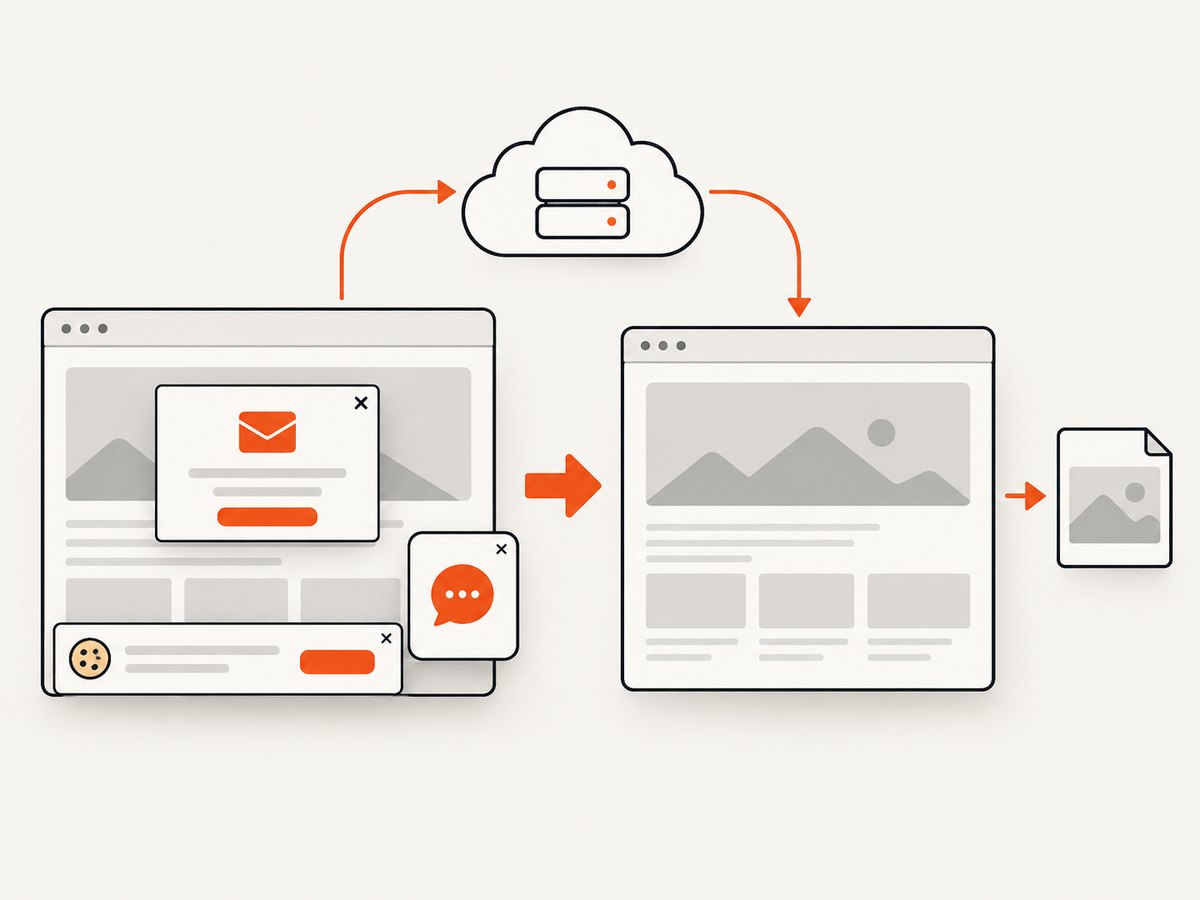
If your goal is a reliable screenshot rather than maintaining Chromium in a Firebase Function, ScreenshotNeo provides a single HTTP request for PNG, JPEG, WebP, or PDF output. Its capture flow accepts cookie and consent banners as a visitor and removes more than 60 known consent platforms, newsletter popups, and chat widgets before the shot; each step can be disabled. Bot checks, blank pages, timeouts, failed loads, and cache hits are not billed, and the response identifies the result with X-Page-Verdict and X-Billed headers. An MCP server provides take_screenshot, get_page_info, and capture_pdf tools for Claude, Cursor, and other MCP clients.
Read the complete option reference in the ScreenshotNeo documentation. The basic call is:
curl -G "https://api.screenshotneo.com/v1/shot" \
  -d access_key=YOUR_API_KEY \
  --data-urlencode url=https://stripe.com \
  -o shot.webp
import requests
r = requests.get(
"https://api.screenshotneo.com/v1/shot",
params={"access_key": "YOUR_API_KEY", "url": "https://stripe.com"},
timeout=90,
)
r.raise_for_status()
open("shot.webp", "wb").write(r.content)const q = new URLSearchParams({
access_key: 'YOUR_API_KEY',
url: 'https://stripe.com',
});
const res = await fetch(`https://api.screenshotneo.com/v1/shot?${q}`);
if (!res.ok) throw new Error(`Screenshot failed: ${res.status}`);
const buffer = Buffer.from(await res.arrayBuffer());
require('fs').writeFileSync('shot.webp', buffer);Options cover full-page capture with lazy images loaded, CSS-selector element capture, dark mode, 12 device presets or any viewport, retina scale, PDF paper size and margins, custom CSS and JavaScript, clicks, selector or network-idle waits, blocked ads and resource types, headers, cookies, user agents, authorization, timezone, geolocation, transparent backgrounds, resizing, configurable-TTL caching, signed links, asynchronous jobs with signed webhooks, bulk capture of up to 100 URLs per call, usage reporting, and an OpenAPI specification.
Plans include 1,000 screenshots per month free with no card, then Starter at $5 for 3,000, Growth at $15 for 15,000, Pro at $39 for 60,000, Scale at $99 for 250,000, and Business at $249 for 1,000,000. Yearly billing gives two months free, and every feature is available on every plan. Create a free ScreenshotNeo account to start with 1,000 screenshots a month and no card.
12. FAQ
How long should a Puppeteer wait run?
Long enough for the specific condition under normal load, with a timeout below the Firebase function deadline. There is no universal value; measure the page’s behavior and leave cleanup headroom.
Should I use load or domcontentloaded?
Use domcontentloaded when the document structure is enough and wait separately for the content you need. Use load when dependent resources must finish. Neither replaces an application-ready condition.
Why does waitForNavigation return null?
A history change or same-document navigation may not create a response. Wait for the URL or resulting DOM state when no full document request occurs.
Can Firebase Functions wait indefinitely?
No. Every invocation has a configured timeout and a platform maximum based on its trigger type. Puppeteer cannot extend that outer limit.
Do I need Puppeteer if I only need screenshots?
No. A screenshot API such as ScreenshotNeo moves browser setup and wait handling out of your function while providing image, PDF, cleanup, billing-verdict, and MCP options.


