How to Take a Screenshot of a Whole Page with Puppeteer
Capture an entire rendered page with Puppeteer using fullPage:true, handle lazy content and formats, troubleshoot failures, and compare an API option.
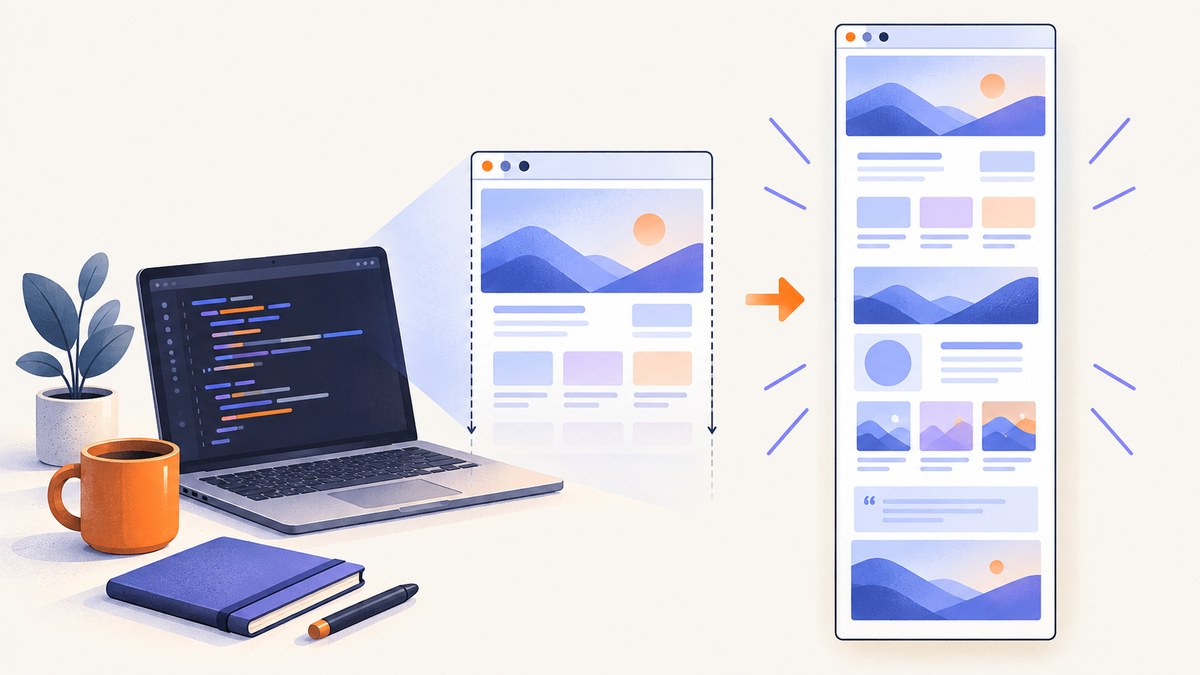
Use Puppeteer’s page.screenshot() method with fullPage: true. That tells Puppeteer to capture the complete rendered document instead of only the visible viewport. A minimal script launches a browser, navigates to the URL, saves the image, and closes the browser:
import puppeteer from 'puppeteer';

const browser = await puppeteer.launch();
try {
  const page = await browser.newPage();
  await page.goto('https://example.com', { waitUntil: 'networkidle2' });
  await page.screenshot({
    path: 'page.png',
    fullPage: true,
  });
} finally {
  await browser.close();
}
fullPage defaults to false. Set it explicitly whenever the requirement is a whole-page image. The ScreenshotOptions reference documents the available screenshot settings, while the official screenshots guide shows the launch, navigation, capture, and close workflow.
1. Install Puppeteer and create a runnable script
Use a current Node.js project and install Puppeteer:
mkdir puppeteer-full-page
cd puppeteer-full-page
npm init -y
npm install puppeteer
Set "type": "module" in package.json, then save the earlier example as capture.js and run:
node capture.jsPuppeteer downloads a compatible browser during installation. In a restricted build environment, you may instead point Puppeteer at an existing browser with executablePath, but that browser must be compatible with the installed Puppeteer version.
2. What fullPage actually captures
A full-page screenshot is based on the document’s rendered dimensions. Puppeteer lays out the page, captures content beyond the current viewport, and returns one image. It does not automatically understand whether a site’s application has finished rendering, whether a lazy image has loaded, or whether an infinite feed has a meaningful end.
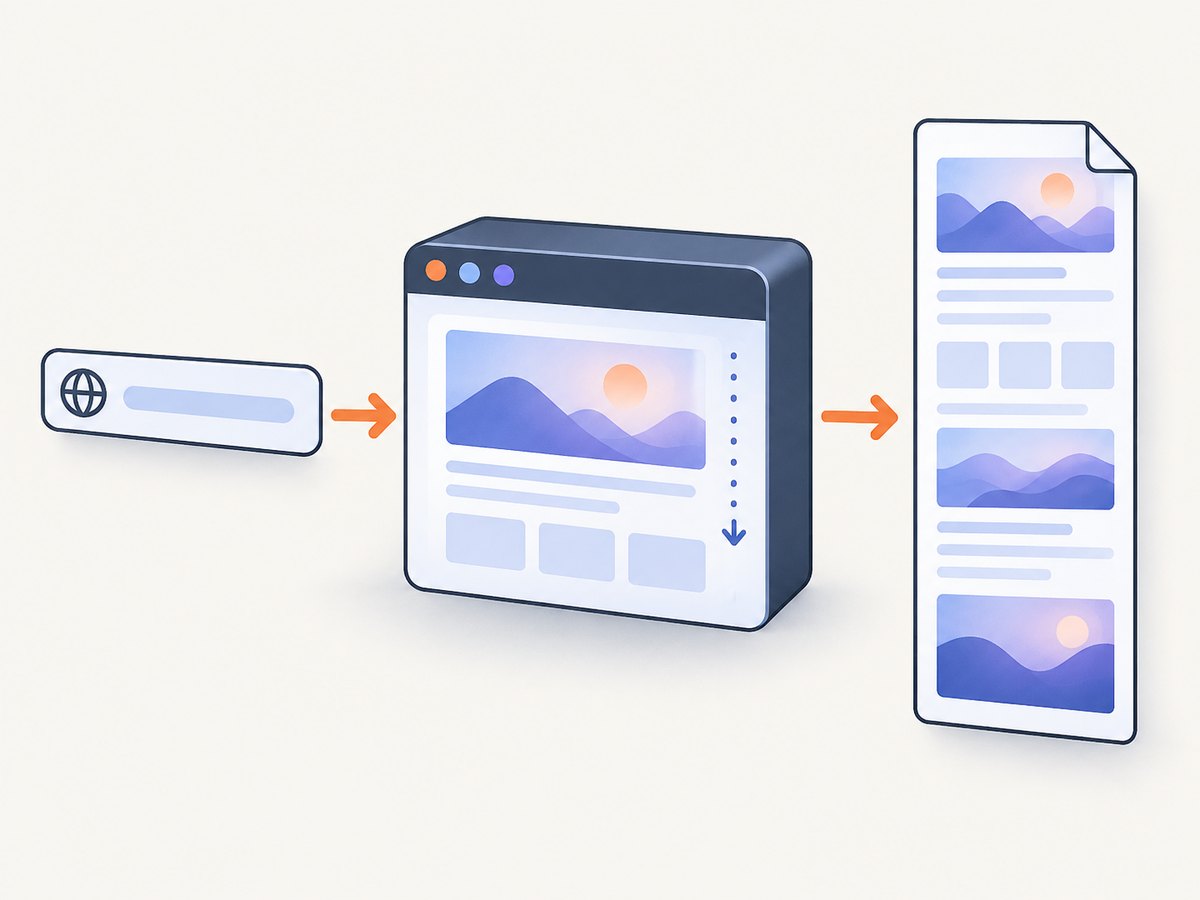
Navigation completion and visual readiness are separate concerns. waitUntil: 'networkidle2' waits for a period with few active network connections, but it is not a universal signal that every component is ready. A page can continue rendering after network activity becomes quiet, and analytics or long polling can prevent an idle state.
Choose a readiness signal
- Static pages:
waitUntil: 'load'or'domcontentloaded'may be sufficient. - Server-rendered pages: wait for a selector that identifies the finished content.
- Client-rendered applications: wait for an application-specific attribute, text marker, or known component.
- Lazy-loaded sections: scroll through the page before capturing so intersection observers request images and content.
- Animations: disable them with CSS or wait until the animation state is stable.
await page.goto(url, { waitUntil: 'domcontentloaded' });
await page.waitForSelector('[data-page-ready="true"]', { timeout: 30000 });
await page.screenshot({ path: 'ready-page.png', fullPage: true });
3. Complete Puppeteer example for lazy-loaded pages
The following script sets a deterministic viewport, waits for a readiness marker when one exists, scrolls to trigger lazy loading, returns to the top, and captures the document. Adapt the selector and URL to the site you own or are authorized to capture.
import puppeteer from 'puppeteer';

const url = process.argv[2] ?? 'https://example.com';
const browser = await puppeteer.launch({
  // headless is the default; set executablePath only when needed.
});

try {
  const page = await browser.newPage();
  await page.setViewport({ width: 1440, height: 900, deviceScaleFactor: 1 });
  await page.goto(url, { waitUntil: 'domcontentloaded', timeout: 60000 });

  // Prefer a site-specific readiness marker when available.
  const ready = await page.$('[data-page-ready="true"]');
  if (ready) {
    await page.waitForSelector('[data-page-ready="true"]', { timeout: 30000 });
  }

  // Trigger intersection-observer lazy loading.
  await page.evaluate(async () => {
    await new Promise((resolve) => {
      const step = Math.max(window.innerHeight, 400);
      let y = 0;
      const timer = setInterval(() => {
        window.scrollBy(0, step);
        y += step;
        if (y >= document.body.scrollHeight) {
          clearInterval(timer);
          window.scrollTo(0, 0);
          setTimeout(resolve, 500);
        }
      }, 100);
    });
  });

  await page.screenshot({
    path: 'whole-page.png',
    fullPage: true,
    type: 'png',
  });
} finally {
  await browser.close();
}
Scrolling is site-dependent. Some pages append content forever, so impose a maximum scroll distance or item count for feeds and dashboards. For a page with a known “load more” control, click it a bounded number of times and wait for the new content after each click.
4. Screenshot options you will use most often
| Option | Purpose | Practical note |
|---|---|---|
fullPage |
Capture the full document when true. | Defaults to false. |
path |
Write the result to a file. | Image type is inferred from the extension. |
type |
Choose png, jpeg, or webp where supported. |
PNG is lossless; JPEG and WebP can reduce size. |
quality |
Set lossy image quality. | Applies to formats other than PNG. |
encoding |
Return binary data or base64. | Binary is the default. |
omitBackground |
Capture transparency instead of a default background. | Useful for isolated artwork. |
clip |
Capture a rectangle. | When clipping, captureBeyondViewport behavior differs. |
captureBeyondViewport |
Control capture outside the viewport for clipped screenshots. | The documented default depends on whether a clip is supplied. |
optimizeForSpeed |
Favor capture speed where supported. | Check browser/protocol compatibility. |
The API returns a Uint8Array by default when no path is supplied. Requesting base64 encoding returns a string instead. A file path is optional: omit it when you want to upload bytes directly to object storage or another service.
const bytes = await page.screenshot({ fullPage: true });
await storage.put('page.png', bytes);

const base64 = await page.screenshot({ fullPage: true, encoding: 'base64' });
5. Control the page before capture
Viewport, device scale, and color scheme
await page.setViewport({
  width: 1280,
  height: 800,
  deviceScaleFactor: 2,
});
await page.emulateMediaFeatures([
  { name: 'prefers-color-scheme', value: 'dark' },
]);
A larger deviceScaleFactor produces more pixels and larger files. Keep it at 1 for predictable dimensions, or use 2 when the image is intended for high-density displays.
Hide fixed overlays and consent UI
Sticky headers, cookie dialogs, chat bubbles, and newsletter prompts can appear in a full-page image even when they cover only a small part of the viewport. If you control the page, add a deterministic capture mode. Otherwise, hide known selectors immediately before the screenshot:
await page.addStyleTag({
  content: `
    .cookie-banner, .newsletter-modal, .chat-widget {
      display: none !important;
    }
    *, *::before, *::after {
      animation: none !important;
      transition: none !important;
    }
  `,
});
Do not hide content selectors broadly; a rule such as div { display:none } can make the capture appear blank.
Cookies, headers, and authentication
await page.setExtraHTTPHeaders({ Authorization: `Bearer ${process.env.TOKEN}` });
await page.setCookie({
  name: 'session',
  value: process.env.SESSION_COOKIE,
  domain: 'example.com',
  path: '/',
  httpOnly: true,
  secure: true,
});
Keep credentials out of source control and logs. For a multi-tenant capture worker, create an isolated browser context for each tenant and close it after the job.
6. Full page versus one element
Use Page.screenshot({ fullPage: true }) for the document. Use ElementHandle.screenshot() when the requirement is a card, chart, invoice, or other element. Puppeteer scrolls the element into view before capturing it. If the element is detached from the DOM, the method can throw.
const card = await page.waitForSelector('.pricing-card');
if (!card) throw new Error('pricing card not found');
await card.screenshot({ path: 'pricing-card.png' });
For a selector that can be replaced during hydration, locate it as late as possible and capture promptly. If a framework rerenders the component, reacquire the handle instead of reusing a stale one.
7. Formats, memory, and large pages
PNG preserves text and sharp edges but can be large. JPEG is smaller for photographic pages and accepts quality. WebP can also reduce size when your downstream systems support it. Very tall pages may consume substantial browser memory and produce images that exceed limits in image viewers or storage systems.
- Set a maximum document height for untrusted or infinite-scroll pages.
- Prefer element captures or section captures for dashboards that do not have a meaningful end.
- Stream the returned bytes to storage instead of keeping multiple screenshots in memory.
- Use a queue with bounded concurrency; each active page consumes browser resources.
- Close pages and browsers in
finallyblocks so failures do not leak processes.
When screenshots run concurrently, Puppeteer coordinates some browser operations with screenshot completion. The API documentation notes that newPage(), Browser.newPage(), and Page.close() wait for screenshot work in the same browser context; Page.bringToFront() does not wait for existing screenshot work. Design workers so a page is not closed or reused while its capture promise is pending.
8. Troubleshooting Puppeteer full-page screenshots
| Symptom | Likely cause | Fix |
|---|---|---|
| Only the viewport appears | fullPage was omitted or false. |
Pass { fullPage: true }. |
| Images are missing | Lazy loading has not been triggered or finished. | Scroll in steps, wait for image completion, or use a readiness marker. |
| Capture times out during navigation | The page has long polling, blocked requests, or a slow server. | Use an explicit timeout, choose a less strict wait condition, and wait for the required selector separately. |
| Cookie dialog covers content | The dialog is part of the rendered DOM. | Accept it through the site’s normal flow or hide its specific selector before capture. |
| Element screenshot throws | The element was detached during rerender. | Wait for the component to settle and reacquire the element handle. |
| Image is unexpectedly huge | High device scale, PNG compression characteristics, or an extremely tall document. | Use scale 1, JPEG/WebP where appropriate, or split the capture. |
| Blank or partial page | JavaScript error, blocked resource, authentication failure, or capture before app hydration. | Inspect console and response errors, verify credentials, and wait for an application-specific ready signal. |
| Options fail under BiDi | WebDriver BiDi does not support every screenshot parameter. | Use only the parameters listed by the BiDi support documentation, or use the standard supported mode. |
For diagnosis, log the final URL, HTTP status, document height, and whether expected selectors exist. A small diagnostic block can reveal a redirect or an authentication page:
console.log({
  url: page.url(),
  height: await page.evaluate(() => document.documentElement.scrollHeight),
  title: await page.title(),
  hasMain: Boolean(await page.$('main')),
});
9. Or skip the browser setup
If you need reliable screenshots across many URLs, you can use ScreenshotNeo, a website screenshot API and MCP server. It handles full-page capture and can load lazy images before the shot. Cookie and consent banners, newsletter popups, and chat widgets are removed before capture. Bot checks, blank pages, timeouts, failed loads, and cache hits are not billed, and response headers identify the page verdict and billing status.

See the ScreenshotNeo documentation for the complete option list. A basic request is:
curl -G "https://api.screenshotneo.com/v1/shot" \
  -d access_key=YOUR_API_KEY \
  --data-urlencode url=https://stripe.com \
  -o shot.webp
import requests
r = requests.get(
"https://api.screenshotneo.com/v1/shot",
params={"access_key": "YOUR_API_KEY", "url": "https://stripe.com"},
timeout=90,
)
r.raise_for_status()
open("shot.webp", "wb").write(r.content)const q = new URLSearchParams({ access_key: 'YOUR_API_KEY', url: 'https://stripe.com' });
const res = await fetch(`https://api.screenshotneo.com/v1/shot?${q}`);
if (!res.ok) throw new Error(`HTTP ${res.status}`);
const data = Buffer.from(await res.arrayBuffer());
await import('node:fs/promises').then(fs => fs.writeFile('shot.webp', data));ScreenshotNeo also supports CSS-selector element capture, dark mode, device presets and custom viewports, retina scale, PDF output, custom CSS and JavaScript, clicks, waits, blocked resource types, headers, cookies, user agents, authorization, timezone, geolocation, transparent backgrounds, resizing, selectable cache TTLs, signed links, asynchronous jobs with signed webhooks, bulk capture for up to 100 URLs per call, a usage API, and an OpenAPI specification. Its MCP server exposes take_screenshot, get_page_info, and capture_pdf for Claude, Cursor, and other MCP clients.
The free plan includes 1,000 screenshots each month with no card. Paid plans start at $5 for 3,000 screenshots, and every feature is available on every plan. Create a free ScreenshotNeo account to try the API.
10. Puppeteer or an API: choosing the right workflow
| Need | Best fit |
|---|---|
| One internal script with custom browser logic | Puppeteer gives direct control over navigation, JavaScript, cookies, and selectors. |
| Many URLs without maintaining Chromium workers | An API removes browser installation, process supervision, and scaling work. |
| AI agents taking screenshots | ScreenshotNeo’s MCP server provides screenshot and page-information tools. |
| Exact, repeatable capture of your own app | Puppeteer is useful when you control readiness markers and test fixtures. |
| Clean public-page images | ScreenshotNeo removes known consent platforms, newsletter popups, and chat widgets before capture. |
11. Production checklist
- Set
fullPage: trueand choose an explicit output format. - Set a deterministic viewport and device scale factor.
- Wait for an application-specific readiness signal.
- Trigger and verify lazy-loaded content.
- Handle consent dialogs and fixed overlays deliberately.
- Set navigation and selector timeouts.
- Bound infinite-scroll behavior and maximum document height.
- Close pages and browsers in cleanup code.
- Record URL, status, dimensions, and failure reason for each job.
- Check protocol-specific option support when using WebDriver BiDi.
FAQ
How do I take a full page screenshot in Puppeteer?
Call await page.screenshot({ path: 'page.png', fullPage: true }) after navigating to the page.
Does fullPage include content below the fold?
Yes, it captures the rendered document beyond the current viewport. Content that has not loaded yet still will not appear.
Can I get bytes instead of saving a file?
Yes. Omit path and Puppeteer returns a Uint8Array; request encoding: 'base64' for a base64 string.
What should I use for one component?
Locate the component and call ElementHandle.screenshot(). Reacquire the handle if the framework replaces the element.
Why is my screenshot different between runs?
Fonts, animations, ads, timestamps, responsive breakpoints, and asynchronous data can change the rendered page. Fix the viewport, disable motion, wait for stable data, and control external resources where possible.


