Can Puppeteer Press Win + PrtSc to Take a Screenshot?
Puppeteer’s keyboard API sends events to a browser page, not documented Windows hotkeys. Use page.screenshot() for webpage images; use a host capture tool for the desktop.

No—not as a reliable way to invoke the Windows desktop shortcut. Puppeteer’s page.keyboard is a virtual keyboard for sending events to a browser page. Its documentation does not describe it as an interface for triggering global Windows shortcuts such as Win + PrtSc. If you want an image of the webpage, use Puppeteer’s screenshot API: await page.screenshot({ path: 'screenshot.png' }). If you need the whole Windows desktop, use a host-level operating-system capture mechanism. Puppeteer Page documentation · Puppeteer screenshot guide.
1. What Puppeteer’s keyboard API actually controls
A Puppeteer Page represents a browser tab. Its keyboard property provides an API for managing a virtual keyboard, and its high-level methods generate keyboard events on the page. The lower-level methods, such as down() and up(), let you control those events more precisely. They are useful for interacting with page content that responds to keyboard input: typing into a search box, submitting a form, or testing keyboard navigation.
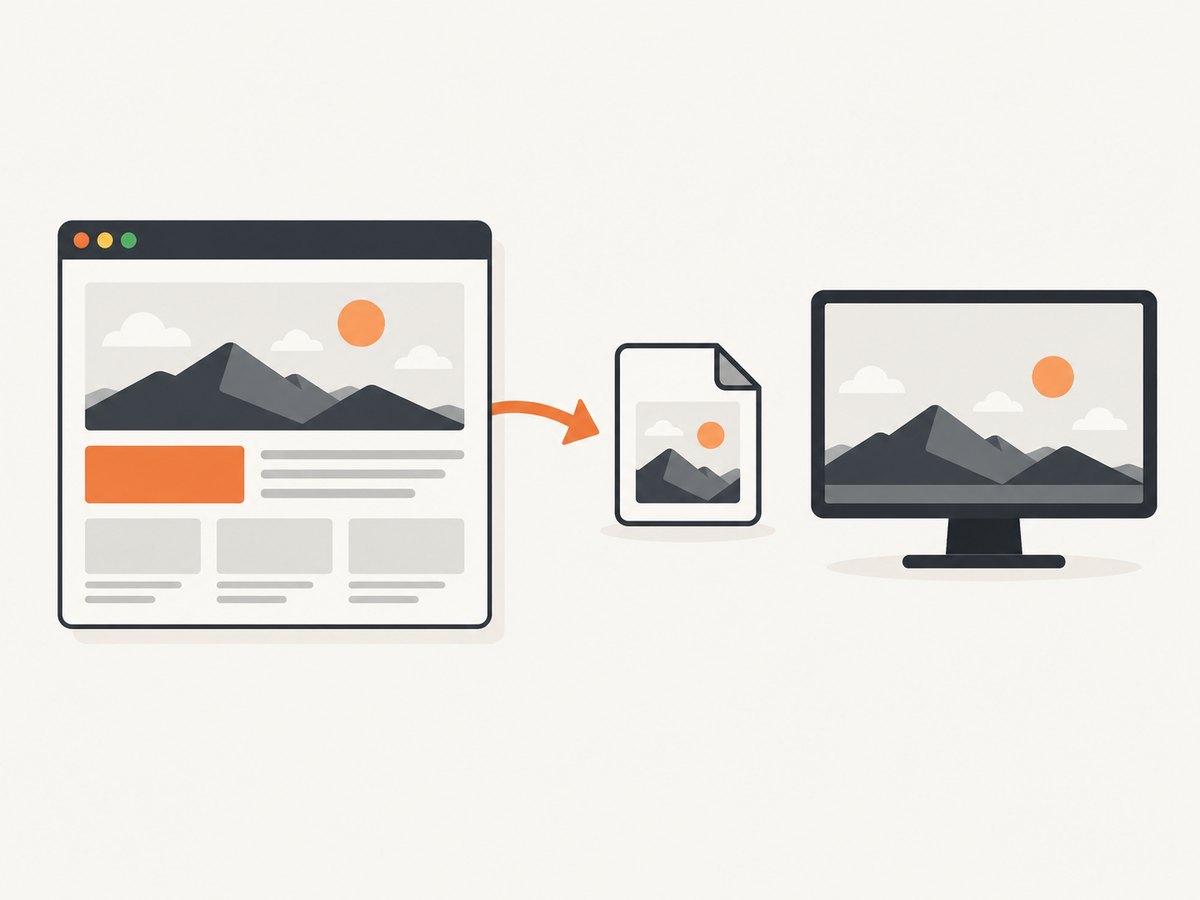
That is different from asking Windows to run a shell shortcut. A browser page is not the Windows desktop, and Puppeteer’s documented keyboard API makes no promise to activate the Start key, capture the entire display, or put a desktop image on the system clipboard. Trying to send a key named Meta, Win, or a Print Screen key does not turn a page event into a dependable global hotkey.
It helps to decide which image you mean before writing code:
- Webpage image: browser-rendered page content, saved as a PNG, JPEG, or another supported screenshot format.
- Element image: a specific DOM element, such as a chart, card, or report panel.
- Desktop image: the visible Windows display, potentially including other windows, menus, and applications.
Puppeteer’s screenshot methods address the first two. A desktop capture needs a host-level capture tool or operating-system workflow. This distinction also matters in headless environments: there may be no interactive desktop or foreground window to capture at all, while Puppeteer can still render and capture a page.
2. Take a webpage screenshot with Puppeteer
Here is a complete Node.js example. It opens a page, waits for navigation, saves a PNG, and closes the browser even if navigation or capture fails. Install Puppeteer in a project first with npm install puppeteer, then save this as screenshot.mjs and run it with node screenshot.mjs.
import puppeteer from 'puppeteer';

const browser = await puppeteer.launch();
try {
  const page = await browser.newPage();
  await page.setViewport({ width: 1440, height: 1000 });
  await page.goto('https://example.com', {
    waitUntil: 'networkidle2',
    timeout: 30_000,
  });
  await page.screenshot({ path: 'screenshot.png', fullPage: true });
} finally {
  await browser.close();
}
The essential call is page.screenshot(); the launch, navigation, and viewport setup are surrounding browser automation. Puppeteer’s official guide shows the same basic sequence: launch, create a page, navigate, take a screenshot, then close the browser. Consult the screenshot guide and ScreenshotOptions reference for the version you use.
Capture just one element
When a full page would include irrelevant content, wait for the target and capture its element handle. This is useful for a dashboard widget, a product card, or a chart. A missing selector should be treated as a capture error rather than silently producing an unrelated image.
const chart = await page.waitForSelector('#revenue-chart', {
  timeout: 10_000,
});
if (!chart) throw new Error('Chart did not appear');
await chart.screenshot({ path: 'chart.png' });
The screenshot guide documents ElementHandle.screenshot() and notes that Puppeteer attempts to scroll a hidden element into view. If the selector matches an element inside a cross-origin iframe, first locate the correct frame and query within it; querying the main frame alone cannot find that element.
Set the viewport and wait for the right state
For repeatable page screenshots, set a viewport before navigation or capture. Width and height affect responsive layout, line wrapping, and which content appears above the fold. If the page lazily loads images as the user scrolls, a full-page capture may need a deliberate scroll-through step or application-specific readiness condition before taking the screenshot. A navigation event such as networkidle2 is a useful starting point, but it cannot prove that every page-specific image, animation, or client-side request is finished.
await page.setViewport({ width: 1280, height: 800, deviceScaleFactor: 1 });
await page.goto('https://example.com/report', { waitUntil: 'domcontentloaded' });
await page.waitForSelector('[data-report-ready="true"]', { timeout: 15_000 });
await page.screenshot({ path: 'report.png', fullPage: true });
3. Screenshot options and practical choices
The options below cover the choices developers most often need. Defaults and supported formats can vary by Puppeteer version, so check the official options reference if an option is central to your workflow.
| Option | Use it for | Notes |
|---|---|---|
path |
Saving directly to a file | The image type is inferred from the file extension. A relative path is resolved from the process working directory. Without a path, screenshot bytes are returned. |
fullPage |
Capturing the whole page | Defaults to false. A long page can make a large image and take more time or memory. |
type |
Choosing an output format | PNG is the documented default. Use a supported image type for your installed version. |
quality |
Adjusting lossy image size | A 0–100 quality value is not applicable to PNG. |
clip |
Capturing a rectangle | Specifies the region to capture; use coordinates and dimensions appropriate to the page. |
omitBackground |
Keeping transparency | Hides the default white background where the output format supports transparency. |
encoding |
Getting base64 or binary data | The default binary result is a Uint8Array; base64 encoding returns a string. |
captureBeyondViewport |
Capturing outside the viewport | Controls capture beyond the current viewport, especially in conjunction with clipping. |
optimizeForSpeed |
Favoring capture speed | May trade other characteristics for speed; use it only when that tradeoff fits your output needs. |
A full-page capture and an element capture solve different layout problems. Use a full-page image for a page archive or review. Use a selected element when you need a compact artifact that is stable across page changes. If you want a fixed-size region, use clip; if you want responsive behavior, set the viewport and capture the rendered result.
4. If you really mean the Windows desktop
Windows documents Print Screen as a way to capture the screen and copy the image to the clipboard; the Snipping Tool can capture a selected region, window, or full screen. The documented Win + Shift + S shortcut opens the snipping overlay. These are Windows workflows, separate from Puppeteer’s page keyboard API. Check Microsoft’s current instructions for your Windows version and settings: Copy the window or screen contents and Use Snipping Tool to capture screenshots.
For automation that must capture the whole desktop, choose a host capture mechanism designed for the operating system and run it in a session where the desktop exists and is accessible. The exact method depends on whether the program runs interactively, as a service, in a virtual machine, or in a container. Puppeteer alone does not provide a documented global Win + PrtSc interface. Also keep clipboard behavior separate from file output: page.screenshot({ path: ... }) writes browser pixels to a file, not to the Windows clipboard.
5. Troubleshooting Puppeteer screenshots
| Symptom | Likely cause | Fix |
|---|---|---|
| No Windows screenshot occurs | The Puppeteer keyboard event is scoped to the page and is not a supported global hotkey mechanism. | Use page.screenshot() for webpage content. For desktop content, use a host-level Windows capture tool. |
| The page is blank or incomplete | Capture ran before navigation or application rendering finished. | Wait for an appropriate navigation milestone and a page-specific selector or ready state. Increase timeouts only after identifying the actual delay. |
| Images are missing | Lazy loading, blocked requests, or late image decoding. | Scroll relevant content into view and wait for expected images or application readiness before capture. |
| Selector wait times out | The selector is wrong, the element never appears, or it lives in another frame. | Inspect the page structure, wait for the correct selector, and query the appropriate iframe when applicable. |
| Screenshot differs across runs | Viewport, fonts, animations, dynamic data, or timing vary. | Set a fixed viewport, wait for stable content, and disable or control page animations in the test environment when appropriate. |
| Output is unexpectedly huge | A very long page, high device scale factor, or lossless format produces many pixels. | Capture an element or clipped region, reduce dimensions or scale, or use a lossy format when acceptable. |
| Screenshot file is not found | A relative path is resolved from the process working directory, which may differ from the script directory. | Use an absolute path or log the current working directory and confirm that the parent directory exists. |
| Browser does not close after an error | Cleanup was skipped when navigation or capture threw. | Put browser.close() in a finally block, as in the runnable example. |
6. Performance, reliability, and cost
Screenshot time is a sum of browser startup, navigation, page rendering, readiness waits, image encoding, and file I/O. Reusing a browser for multiple pages can avoid repeated startup overhead, but each page still needs its own navigation and capture lifecycle. Close pages and browsers when finished so automation does not accumulate processes or memory.
For reliability, capture only after a meaningful readiness condition. networkidle2 can be unsuitable for pages with ongoing analytics, streaming, or polling, while waiting for a single selector may miss image decoding or a chart rendered later. Prefer a page-specific signal when the application provides one; set finite navigation and selector timeouts; and make cleanup unconditional. If a screenshot is evidence or an artifact in a pipeline, log the target URL, viewport, wait condition, and error so a failed capture can be reproduced.
Memory and output size rise with pixel count. Full-page captures of tall pages can consume substantially more resources than viewport or element captures. Use JPEG or WebP when a smaller lossy image is acceptable; retain PNG when crisp edges or lossless output matter. Screenshotting is not a fixed per-call Puppeteer fee, but it consumes compute, memory, storage, and possibly CI minutes. Budget based on actual run frequency and the browser environment rather than assuming the keypress is a free shortcut.
7. Or skip the browser setup
If your goal is a webpage image rather than a Windows desktop screenshot, ScreenshotNeo provides a website screenshot API. The following GET request returns a screenshot for a URL; its API can also return PDF output. See the ScreenshotNeo API documentation for parameters and response details.
curl -G "https://api.screenshotneo.com/v1/shot" -d access_key=YOUR_API_KEY --data-urlencode url=https://stripe.com -o shot.webpimport requests
r = requests.get("https://api.screenshotneo.com/v1/shot", params={"access_key": "YOUR_API_KEY", "url": "https://stripe.com"}, timeout=90)
open("shot.webp", "wb").write(r.content)const q = new URLSearchParams({ access_key: 'YOUR_API_KEY', url: 'https://stripe.com' });
const res = await fetch(`https://api.screenshotneo.com/v1/shot?${q}`);
if (!res.ok) throw new Error(`Screenshot request failed: ${res.status}`);
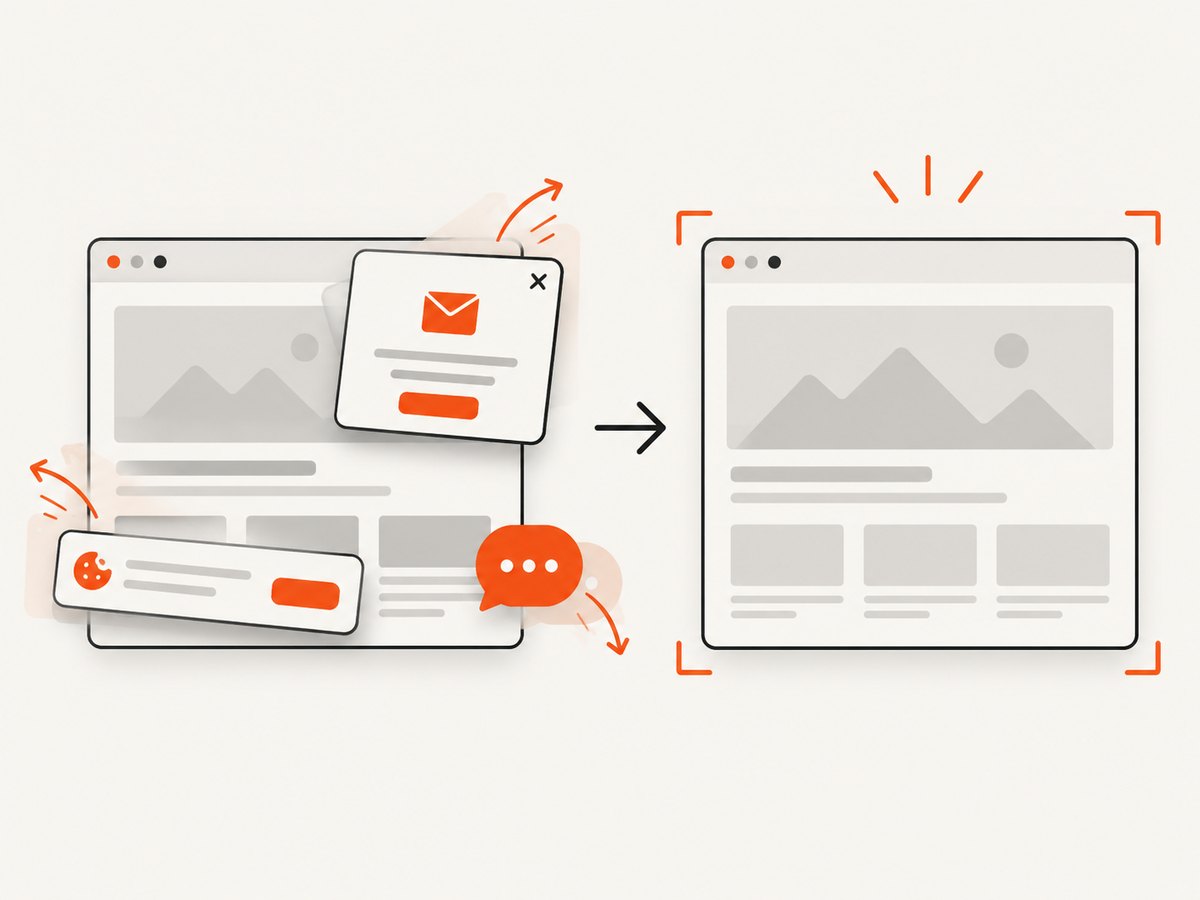
await import('node:fs/promises').then(fs => fs.writeFile('shot.webp', Buffer.from(await res.arrayBuffer())));ScreenshotNeo accepts cookie or consent banners before capture and removes more than 60 known consent platforms, newsletter popups, and chat widgets; each of those steps can be turned off. Bot checks or CAPTCHAs, blank pages, timeouts, failed loads, and cache hits cost nothing, and the response includes X-Page-Verdict and X-Billed headers to identify the result. It also has an MCP server with take_screenshot, get_page_info, and capture_pdf tools for Claude, Cursor, and other MCP clients.
The free plan includes 1,000 shots per month with no card. Paid plans start at $5 for 3,000 shots; all features are on every plan, and yearly billing gives two months free. This is for rendering a website URL through an API, not capturing arbitrary windows on your Windows desktop. Sign up for 1,000 free screenshots a month, with no card.
8. FAQ
Can Puppeteer press the Windows key?
Puppeteer can generate keyboard events for page interaction. Its documented keyboard API does not promise to operate the Windows shell or invoke system-wide shortcuts.
Can I make a screenshot appear on the clipboard with page.screenshot()?
The screenshot API returns image bytes or writes them to a path. It does not document copying the image to the host Windows clipboard.
What is the simplest way to screenshot a webpage in Puppeteer?
Navigate to the page, then call await page.screenshot({ path: 'screenshot.png' }). Add a viewport and an appropriate wait condition for repeatable results.
Can Puppeteer capture a whole Windows desktop?
Its page screenshot API captures browser page content. A desktop-wide image requires an operating-system or host-level capture mechanism.


