How to Get Page Content After ClickAsync in PuppeteerSharp
Awaiting ClickAsync is enough for DOM updates, but navigation and asynchronous rendering need the right wait. Get reliable HTML with runnable PuppeteerSharp examples.

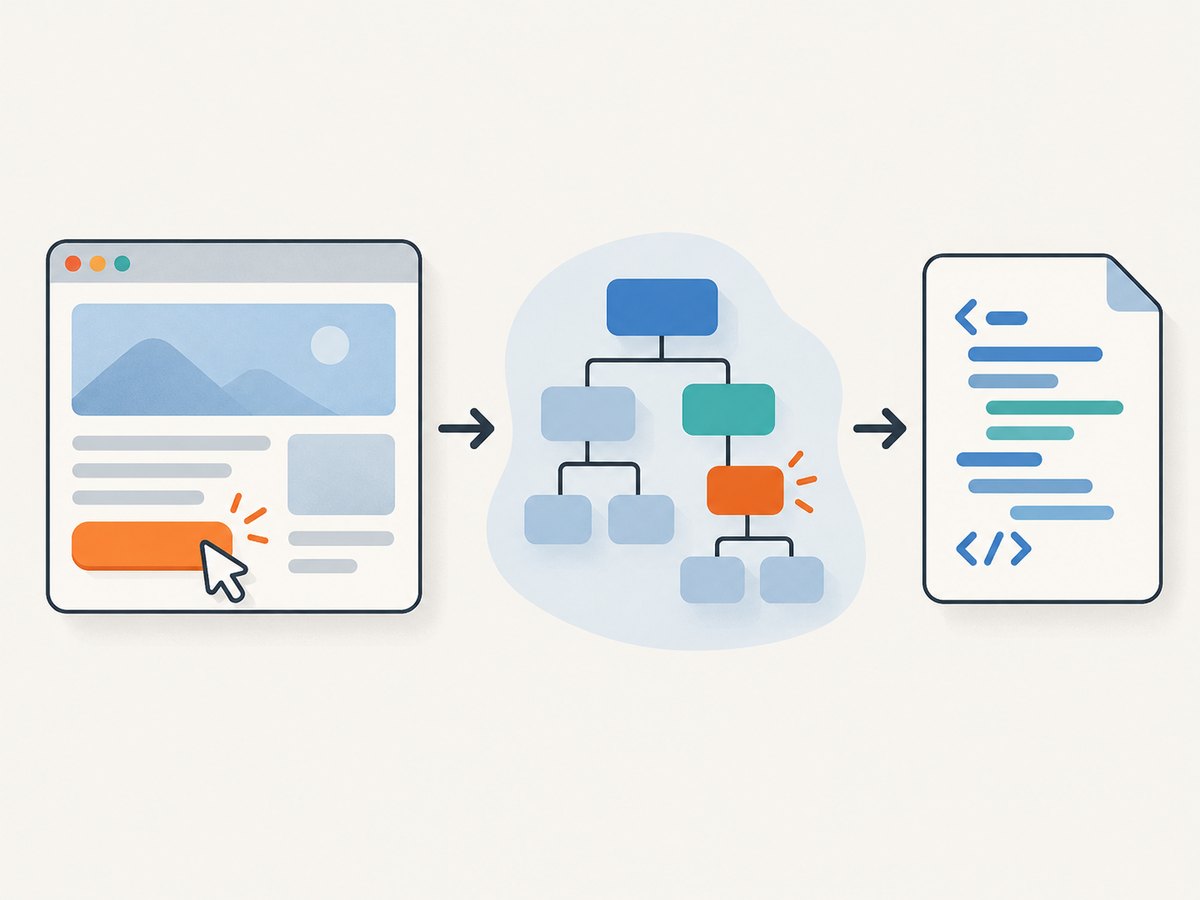
Direct answer: If a PuppeteerSharp click updates the current document, await ClickAsync and then call GetContentAsync:
await page.ClickAsync("button.load-more");
var html = await page.GetContentAsync();
If the click navigates or reloads the page, start WaitForNavigationAsync before clicking, then await that task before reading the HTML. For JavaScript-driven updates, wait for the specific result, response, or application condition that proves the new content is ready. GetContentAsync serializes the current document; it does not wait for a click’s asynchronous effects to finish.
1. What GetContentAsync returns
PuppeteerSharp’s IPage.GetContentAsync() returns the full HTML contents of the current page, including the doctype. The implementation serializes the document’s root element, so it captures the live DOM after browser-side scripts have changed it, rather than just the original response source. See the PuppeteerSharp IPage API and its source repository.
That makes it useful for collecting markup after a user-like action such as opening a menu, loading another result batch, expanding a panel, or applying a filter. The method itself is not a readiness check. If the click starts a fetch request and the UI renders its result later, calling GetContentAsync immediately may return the pre-update HTML.
Use GetContentAsync when you need the entire document. If you need only text or a value, evaluate the relevant DOM property instead; extracting less data is usually simpler and cheaper to process.
2. Basic pattern for an in-page update
For a click that changes the current DOM without navigating, the sequence is: click, wait for evidence of the update, then read content. If the click handler updates the DOM synchronously, awaiting the click is enough. If rendering is asynchronous, add a condition-specific wait.
Minimal runnable example
The example assumes a reachable page contains a button with the selector button.load-more. Replace the URL and selector with the page under automation.
using PuppeteerSharp;

var browserFetcher = new BrowserFetcher();
await browserFetcher.DownloadAsync();

await using var browser = await Puppeteer.LaunchAsync(new LaunchOptions
{
    Headless = true
});

await using var page = await browser.NewPageAsync();
await page.GoToAsync("https://example.com");

await page.ClickAsync("button.load-more");
await page.WaitForSelectorAsync(".results .result-item");

var html = await page.GetContentAsync();
Console.WriteLine(html);
Use the browser installation and launch options appropriate to your PuppeteerSharp version and deployment. The essential extraction sequence is independent of how Chromium is provisioned. A selector that already exists before the click is not sufficient proof that new results arrived; wait for a newly inserted item, a changed count, or another state that distinguishes the updated page.
Wait for a specific result
Suppose the click adds a result card. If you can target a result that appears only after the action, wait for that selector:
await page.ClickAsync("button.load");
await page.WaitForSelectorAsync(".results .result-item:nth-child(11)");
var html = await page.GetContentAsync();
If the target selector exists before the action, wait for a state change instead. One simple option is to count matching nodes before and after:
var before = await page.QuerySelectorAllAsync(".results .result-item");
var oldCount = before.Length;

await page.ClickAsync("button.load-more");
await page.WaitForFunctionAsync(
    "oldCount => document.querySelectorAll('.results .result-item').length > oldCount",
    oldCount);

var html = await page.GetContentAsync();
Check the exact overload available in your installed PuppeteerSharp version if your project uses a different release. An application-specific predicate can also wait for a loading indicator to disappear or for a page state attribute to change.
3. If the click navigates or reloads
Register the navigation wait before clicking. Navigation can happen quickly; starting the wait afterward risks missing the event and timing out.
var navigation = page.WaitForNavigationAsync();
await page.ClickAsync("a.next-page");
await navigation;

var html = await page.GetContentAsync();
The PuppeteerSharp API documents that the navigation wait resolves when the page navigates to a new URL or reloads. Its frame documentation uses the same ordering: create the navigation task, click, then await it. See the IPage API and IFrame API.
A navigation wait may resolve with a null response, for example when navigation comes from an anchor or a History API change. Treat completion as the synchronization signal; do not require a non-null response as proof that the wait worked.
Some applications update the URL through client-side routing without a traditional document load. In that case, a navigation wait may not represent when the content is ready. Wait for the destination view’s selector or a meaningful application condition after the click.
4. Choose a wait that proves readiness
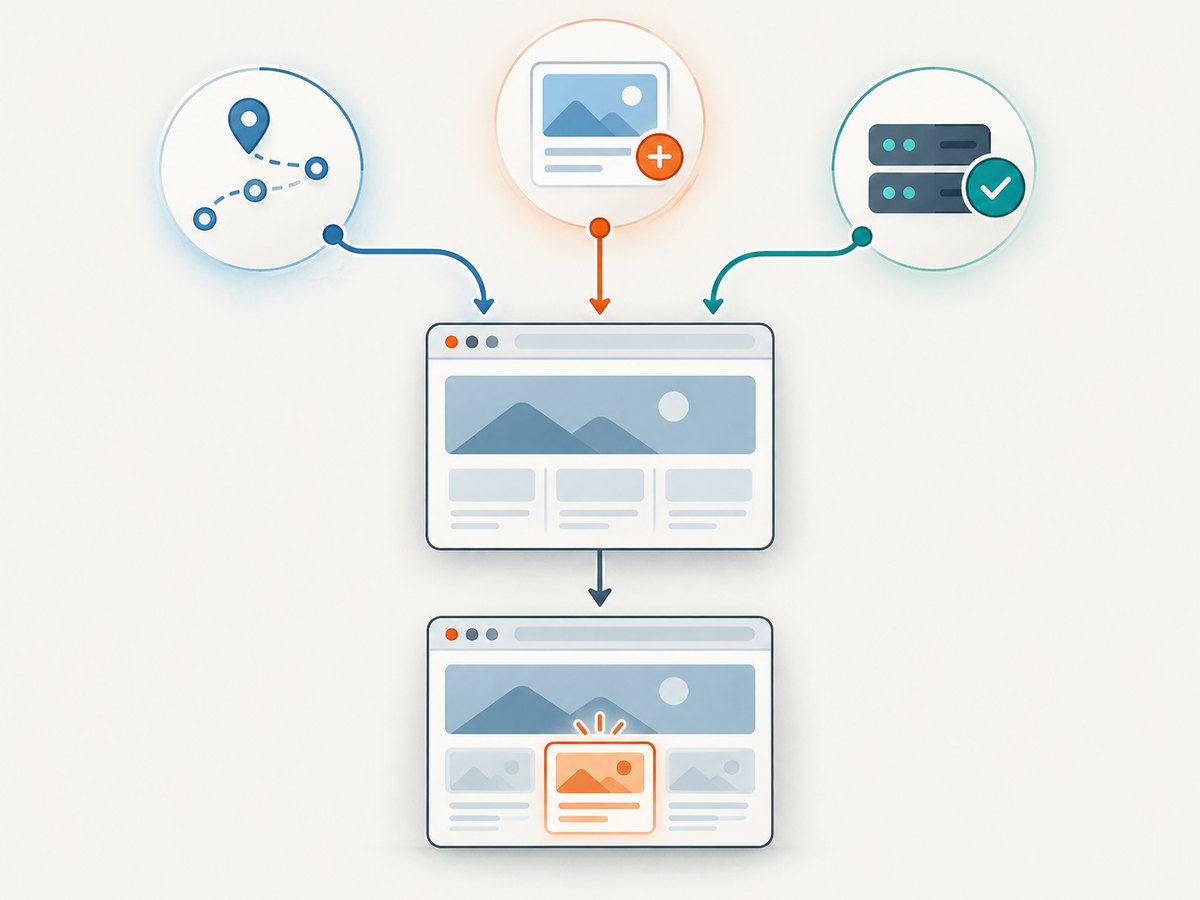
Pick the wait based on what the site does after the click. Each option observes a different event; none can infer that the page is useful for your task without a condition to check.
| Page behavior | Useful wait | What it confirms | Watch out for |
|---|---|---|---|
| Full navigation or reload | WaitForNavigationAsync |
The page navigated or reloaded | Start the wait before clicking; response can be null |
| New DOM node appears | WaitForSelectorAsync |
A matching node is present | Choose a selector that represents new content |
| Known API call completes | WaitForResponseAsync |
A matching response arrived | The UI may still need time to render it |
| Page becomes quiet | WaitForNetworkIdleAsync |
Network activity meets the idle condition | Polling and persistent connections may prevent idle |
| Application-specific state changes | WaitForFunctionAsync |
Your predicate is true in the page | Make the predicate specific and bounded by a timeout |
PuppeteerSharp documents selector, function, response, and network-idle waits alongside content extraction. Prefer an observable condition over a fixed sleep: a delay can be too short on a slow run and unnecessarily long on a fast one.
Wait for a known response
When the button triggers a known endpoint, wait for the response that corresponds to that action. Match a stable URL fragment or other response detail, and still verify that the interface applied the data before extracting HTML.
var responseTask = page.WaitForResponseAsync(response =>
    response.Url.Contains("/api/results") && response.Ok);

await page.ClickAsync("button.load-more");
var response = await responseTask;

await page.WaitForFunctionAsync(
    "() => document.querySelectorAll('.results .result-item').length > 0");

var html = await page.GetContentAsync();
A response can arrive with an error status or data the interface rejects. Match the response you expect, check its status where useful, and wait for the visible DOM state separately when rendering is asynchronous.
When network idle is appropriate
WaitForNetworkIdleAsync can help with pages whose relevant work finishes when network requests settle. It is not a universal “page loaded” signal: analytics, polling, streaming connections, and background requests can keep a page busy, while a quiet network does not guarantee that the intended content rendered. Use it only when network quiescence fits the application’s behavior.
5. Get content inside an iframe
page.GetContentAsync() serializes the main frame. If the button or updated content lives inside an iframe, locate the relevant frame, interact with it, wait within that frame, and call its GetContentAsync().
var frame = page.Frames.FirstOrDefault(f => f.Url.Contains("embedded"));
if (frame is null)
{
    throw new InvalidOperationException("Expected frame was not found.");
}

await frame.ClickAsync("button.load-more");
await frame.WaitForSelectorAsync(".results .result-item");
var frameHtml = await frame.GetContentAsync();
Frame URLs and names depend on the page. If a frame is created after navigation, wait until it exists before selecting it. Cross-origin restrictions in browser JavaScript limit what the page’s own scripts can access, but PuppeteerSharp frame APIs let automation operate on the relevant frame context.
6. Configure timeouts and handle failures
Selector and navigation waits use PuppeteerSharp’s configured default timeouts unless you provide wait-specific options. The API documents DefaultTimeout and DefaultNavigationTimeout; set them deliberately for the site and environment instead of assuming every page responds within the same interval.
page.DefaultTimeout = 15_000;
page.DefaultNavigationTimeout = 30_000;

var navigation = page.WaitForNavigationAsync();
await page.ClickAsync("a.next-page");
await navigation;
var html = await page.GetContentAsync();
Keep waits bounded. A large timeout can hide a wrong selector or a click that did nothing; a very small timeout can fail under normal network variation. Log the URL, action, wait condition, and exception so a timeout is diagnosable.
Common errors and fixes
| Symptom | Likely cause | Fix |
|---|---|---|
GetContentAsync contains old results |
Extraction ran before the asynchronous UI update | Wait for a new selector, count change, response plus render, or app predicate |
| SelectorException during click | The selector matched no element when ClickAsync ran |
Wait for the button selector, check spelling and frame, and confirm the page reached the expected state |
| Navigation wait times out | The action did not navigate, or the wait was started too late | Start the wait before clicking; if it is an in-page update, use a DOM or app-state wait instead |
| Navigation completes but content is stale | Client-side rendering continues after URL change or load event | After navigation, wait for a destination-specific selector or predicate |
| Network idle never arrives | Long polling, analytics, or persistent requests keep the network active | Wait for the target content or response rather than global idleness |
| Frame content is missing | Extraction ran on the main page rather than the iframe | Find the right IFrame, then wait and extract from it |
| Wait is flaky across runs | Fixed delay or overly broad readiness condition | Wait for a specific state transition and use an appropriate timeout |
ClickAsync locates the selector, scrolls the element into view, and clicks its center. A missing match produces SelectorException. If an overlay intercepts the click, inspect the current page state and deal with the overlay explicitly rather than repeatedly clicking.
7. Practical reliability and performance
- Wait narrowly: a result selector or state predicate usually finishes sooner and more predictably than waiting for every network request.
- Extract only what you need: the full serialized document can be large. For a field or a small set of nodes, evaluate a targeted expression and return only those values.
- Reuse the browser process: for repeated tasks, launch Chromium once and create pages or contexts as needed instead of paying startup cost for every click. Close pages and the browser when the job ends.
- Keep actions isolated: independent tasks should not share one mutable page concurrently. Interleaved clicks and reads can make the captured state ambiguous.
- Handle dynamic content explicitly: lazy loading may require scrolling the relevant area into view before waiting for its content. A successful click does not guarantee every below-the-fold item has rendered.
- Retry with care: retrying a click can submit a form twice or trigger a duplicate action. First inspect whether the original action succeeded, then retry only when it is safe.
Reliability depends on the page’s behavior, selector stability, network conditions, and browser environment. There is no single wait that makes arbitrary pages deterministic. Record the condition that failed and capture a diagnostic snapshot when appropriate.
8. Cost and deployment notes
PuppeteerSharp is a browser automation library; your operating cost comes from the infrastructure and browser work needed to run it, including CPU, memory, execution time, and any hosted browser service you choose. Full-page HTML also consumes memory and storage proportional to the document size. Avoid launching a browser per URL in a high-volume worker, and cap concurrency to the capacity of the machine.
For a production pipeline, consider browser crashes, navigation timeouts, blocked automation, authentication state, and cleanup after exceptions. Use bounded retries with backoff only for transient failures, and distinguish them from deterministic problems such as invalid selectors or access-denied pages. Never assume a successful browser call means the returned HTML is complete for your intended purpose.
9. Or skip the browser setup
If the task is capturing a website screenshot rather than extracting its HTML, ScreenshotNeo provides a website screenshot API and MCP server. A single GET request returns PNG, JPEG, WebP, or PDF. For example, this cURL request saves a WebP screenshot:
curl -G "https://api.screenshotneo.com/v1/shot" -d access_key=YOUR_API_KEY --data-urlencode url=https://stripe.com -o shot.webpSee the ScreenshotNeo API documentation for request options. Python and Node.js equivalents:
import requests

r = requests.get(
    "https://api.screenshotneo.com/v1/shot",
    params={"access_key": "YOUR_API_KEY", "url": "https://stripe.com"},
    timeout=90,
)
open("shot.webp", "wb").write(r.content)
const q = new URLSearchParams({ access_key: 'YOUR_API_KEY', url: 'https://stripe.com' });
const res = await fetch(`https://api.screenshotneo.com/v1/shot?${q}`);
if (!res.ok) throw new Error(`Screenshot request failed: ${res.status}`);
const bytes = Buffer.from(await res.arrayBuffer());
await import('node:fs/promises').then(fs => fs.writeFile('shot.webp', bytes));ScreenshotNeo accepts cookie or consent banners as a visitor and removes more than 60 known consent platforms, newsletter popups, and chat widgets before capture; each step can be turned off. Bot checks and CAPTCHAs, blank pages, timeouts, failed loads, and cache hits cost nothing, with response headers indicating the page verdict and whether the request was billed. Its MCP server offers take_screenshot, get_page_info, and capture_pdf for Claude, Cursor, and other MCP clients. The Free plan includes 1,000 shots monthly without a card; paid plans start at $5 for 3,000 shots. Sign up for 1,000 free screenshots a month, no card required.
10. FAQ
Does GetContentAsync include the doctype?
Yes. PuppeteerSharp documents that it returns the full HTML contents including the doctype.
Does it return the original server response?
It returns the current document’s serialized DOM. JavaScript changes made after the initial response can therefore appear in the returned HTML.
Should I use WaitForNavigationAsync for every click?
No. Use it when the click navigates or reloads. For an in-page update, wait for the result or state change that the click should cause.
Can I read only one frame?
Yes. Use the relevant IFrame and its content method after the frame’s own update is ready.
Why did a wait resolve but the desired content remain absent?
The wait may have observed a different event than the one that guarantees your target is rendered. Verify a selector or application condition tied directly to the content you need.


