How to Generate PuppeteerSharp PDFs of Scrolled Pages
Learn how PuppeteerSharp handles scrolled and lazy-loaded pages, configure print output, and generate reliable PDFs in .NET.

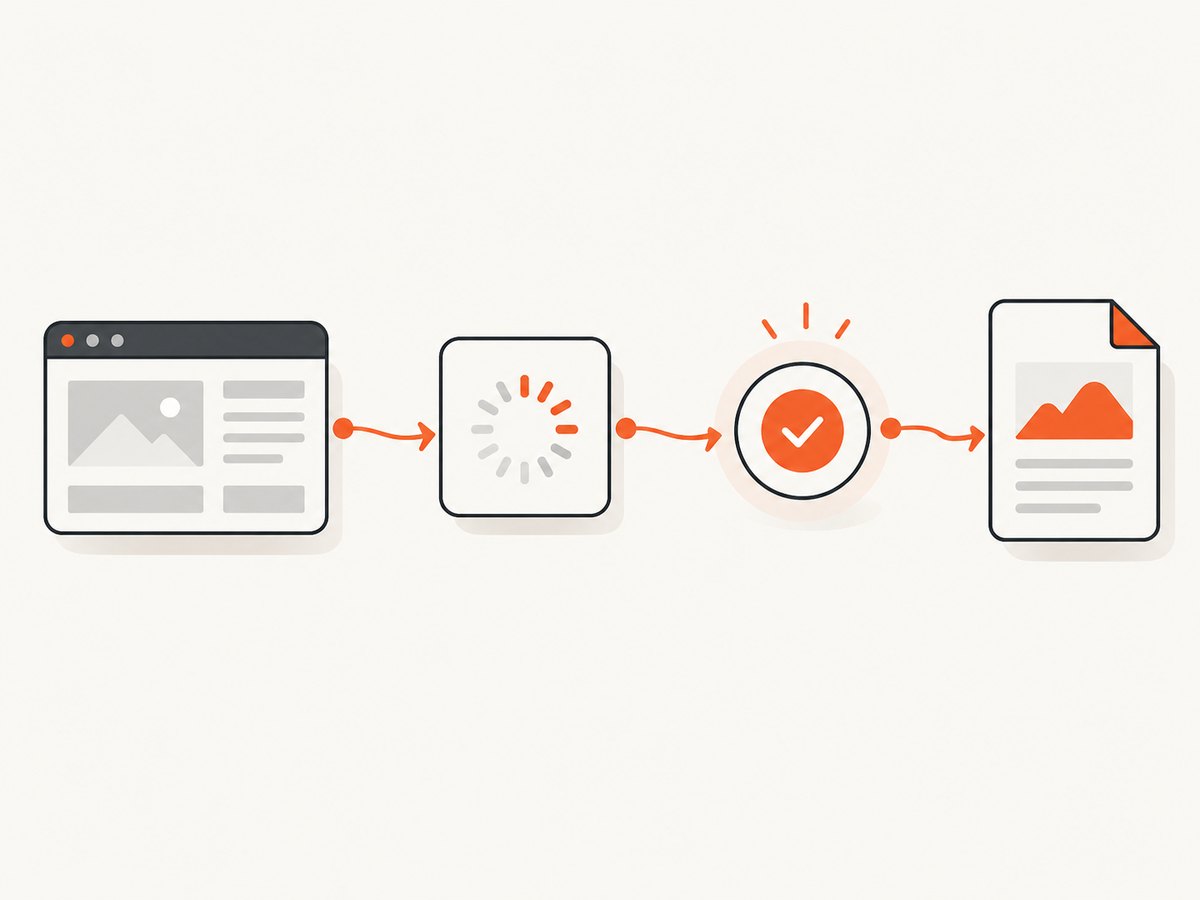
Short answer: navigate to the page, trigger the loading behavior your page requires, wait for a concrete readiness condition, and call PdfAsync. Scrolling the page does not have a documented meaning as a PDF crop boundary. PuppeteerSharp generates PDF output with print CSS media by default; call EmulateMediaTypeAsync(MediaType.Screen) when the page must use screen styles. Verify the resulting PDF for the exact Chromium and PuppeteerSharp versions you deploy.
The official PuppeteerSharp workflow is a headless Chrome page, navigation, an optional selector wait, and PdfAsync. The API documentation describes PDF generation as using print CSS media by default and says PDF generation is supported in Chrome headless (Page API, official examples).
1. Decide what “scrolled PDF” means
There are two different requirements that are often mixed together:
- A complete printable document: include content that appears below the initial viewport, including sections revealed after scrolling.
- A PDF of one visible region: capture the viewport after it has been scrolled to a particular offset.
PuppeteerSharp’s documented PDF API does not promise that the current scroll offset clips the PDF to the visible viewport. A page can be scrolled before PdfAsync, but the resulting output depends on the page layout, Chromium, and PuppeteerSharp version. If a single viewport is the requirement, test the exact page and runtime and inspect the PDF rather than assuming that a scroll offset is a crop rectangle.
2. Install PuppeteerSharp and launch Chrome
Create a .NET console project and add the package:
dotnet new console -n ScrolledPdf
cd ScrolledPdf
dotnet add package PuppeteerSharp
PuppeteerSharp needs a Chrome or Chromium executable. You can point to an installed browser with ExecutablePath, or use the PuppeteerSharp browser-fetch workflow appropriate for your deployment. Keep the browser version consistent between development and production so pagination and font behavior are predictable.
3. Minimal PDF capture in C#
This is the smallest useful implementation. It navigates, waits for the main content, and writes a PDF:
using PuppeteerSharp;

var url = "https://example.com/article";

await using var browser = await Puppeteer.LaunchAsync(new LaunchOptions
{
    Headless = true
});

await using var page = await browser.NewPageAsync();
await page.GoToAsync(url);
await page.WaitForSelectorAsync("main");
await page.PdfAsync("output.pdf");
The selector wait is only an example readiness check. Replace main with a selector that means the page has reached the state you need. The official examples use the same navigate, wait, and PDF sequence (PuppeteerSharp examples).
4. Make a dynamically loaded page complete before PDF generation
Infinite feeds, lazy images, accordions, and client-rendered sections may not be present when navigation resolves. Your code should reproduce the page’s required loading behavior and then wait for a measurable condition.
Wait for a known selector
await page.GoToAsync(url, new NavigationOptions
{
    WaitUntil = new[] { WaitUntilNavigation.Networkidle0 }
});
await page.WaitForSelectorAsync(".article-body.is-ready");
await page.PdfAsync("article.pdf");
A selector is stronger than an arbitrary sleep when the application exposes a state class or completion element. Some sites never become network-idle because of analytics, sockets, or polling; in that case use a selector or an application-specific condition.
Scroll to trigger lazy loading
Some pages load images or cards only after an element approaches the viewport. Scroll in increments, allow the browser to process work, and stop when the document height no longer grows:
await page.GoToAsync(url);

await page.EvaluateFunctionAsync(@"async () =>
{
    let previousHeight = 0;
    for (let pass = 0; pass < 30; pass++)
    {
        window.scrollTo(0, document.body.scrollHeight);
        await new Promise(resolve => setTimeout(resolve, 250));
        const height = document.body.scrollHeight;
        if (height === previousHeight) break;
        previousHeight = height;
    }
    window.scrollTo(0, 0);
}");

await page.WaitForSelectorAsync(".footer");
await page.PdfAsync("complete.pdf");
This loop is a general pattern, not a guarantee that every framework has finished loading. Prefer a page-owned completion marker when one exists. A fixed delay alone cannot prove that all requests, fonts, or image decodes have completed.
Wait for fonts
PdfOptions.WaitForFonts waits for document.fonts.ready and defaults to true according to the API reference. Set it explicitly when you want the intent to be clear:
await page.PdfAsync("fonts-ready.pdf", new PdfOptions
{
    WaitForFonts = true
});
5. Choose print or screen CSS
Print media is the default. Print styles can hide navigation, change colors, or alter layout for paper. If the PDF should follow the screen stylesheet, switch media before generating it:
await page.EmulateMediaTypeAsync(MediaType.Screen);
await page.PdfAsync("screen-styled.pdf");
This changes CSS media selection. It does not turn the PDF into a viewport screenshot and does not define scroll clipping. Keep content loading and rendering style as separate decisions.
6. Configure PdfOptions for real documents
PdfOptions controls print output. Common settings include:
| Option | Use it for | Practical note |
|---|---|---|
Format |
Named paper sizes such as A4 or Letter | Use when a standard paper size is required. |
Width/Height |
Custom page dimensions | Useful for receipts or unusual layouts. |
MarginOptions |
Top, right, bottom, and left margins | Leave room for printer-safe output. |
Landscape |
Wide tables and dashboards | Combine with a suitable paper format. |
PrintBackground |
Background colors and images | The documented default is false; enable it when backgrounds carry meaning. |
Scale |
Fit content to a page | The documented range is 0.1 to 2, with a default of 1. |
DisplayHeaderFooter |
Headers, footers, page numbers | Use the header and footer templates supported by Chromium. |
WaitForFonts |
Font readiness | Defaults to true and waits for document.fonts.ready. |
Tagged |
Tagged PDF output where supported | Validate accessibility requirements in your target viewer. |
var options = new PdfOptions
{
    Format = PaperFormat.A4,
    Landscape = false,
    PrintBackground = true,
    Scale = 1,
    WaitForFonts = true,
    MarginOptions = new MarginOptions
    {
        Top = "18mm",
        Right = "14mm",
        Bottom = "18mm",
        Left = "14mm"
    }
};

await page.PdfAsync("report.pdf", options);
Check the installed API version for the exact property names and supported combinations (PdfOptions reference).
7. A production-ready C# example
using PuppeteerSharp;

const string url = "https://example.com/long-report";

await using var browser = await Puppeteer.LaunchAsync(new LaunchOptions
{
    Headless = true
});

await using var page = await browser.NewPageAsync();
await page.SetViewportAsync(new ViewPortOptions
{
    Width = 1440,
    Height = 900,
    DeviceScaleFactor = 1
});

await page.GoToAsync(url, new NavigationOptions
{
    WaitUntil = new[] { WaitUntilNavigation.DOMContentLoaded }
});

await page.WaitForSelectorAsync("article");
await page.EvaluateFunctionAsync(@"async () =>
{
    const images = Array.from(document.images);
    await Promise.all(images.map(image =>
        image.complete ? Promise.resolve() : new Promise(resolve =>
        {
            image.addEventListener('load', resolve, { once: true });
            image.addEventListener('error', resolve, { once: true });
        })));
    await document.fonts.ready;
}");

await page.EmulateMediaTypeAsync(MediaType.Screen);

await page.PdfAsync("report.pdf", new PdfOptions
{
    Format = PaperFormat.A4,
    PrintBackground = true,
    WaitForFonts = true,
    Scale = 1,
    MarginOptions = new MarginOptions
    {
        Top = "16mm",
        Right = "14mm",
        Bottom = "16mm",
        Left = "14mm"
    }
});
The image wait prevents an obvious class of incomplete output, while the font wait handles font readiness. Add a page-specific lazy-loading trigger before these waits when your application needs one.
8. If you really need one scrolled viewport
First define the output precisely: viewport width and height, scroll offset, device scale, and whether the result must be a PDF or an image. PuppeteerSharp documents PDF generation, paper settings, and media emulation, but the consulted API pages do not document a PDF viewport-clipping option. A practical workflow is to validate the target page with your exact Chromium and PuppeteerSharp versions, generate the PDF, and inspect page boundaries. If the requirement is inherently a visible-region capture, a screenshot workflow may be a better fit than PDF generation.
9. Troubleshooting
| Symptom | Likely cause | Fix |
|---|---|---|
| Lower sections are missing | Lazy loading was never triggered or the PDF ran too early. | Scroll or invoke the page’s loading method, then wait for a concrete completion selector. |
| The PDF uses the wrong colors or layout | Print CSS is selected by default. | Call EmulateMediaTypeAsync(MediaType.Screen) before PdfAsync, or adjust print CSS intentionally. |
| Fonts reflow between runs | Web fonts were not ready when layout was printed. | Keep WaitForFonts = true and wait for the page’s font-loading state. |
| Images are blank | Images are lazy, blocked, or still decoding. | Trigger lazy loading, wait for image completion, and inspect browser permissions and network errors. |
ExecutablePath or launch errors |
Chrome is absent or the executable path is wrong. | Install a compatible Chrome/Chromium build or configure the correct executable path for the host. |
| Navigation never completes | Persistent requests prevent a network-idle condition. | Use DOMContentLoaded plus selector and application-specific readiness checks. |
| Content is cut at page breaks | CSS print rules, fixed heights, or unsuitable margins. | Inspect print CSS, remove fixed-height clipping, and tune format, scale, and margins. |
| Scrolling changes nothing in the PDF | Scroll position is not a documented PDF crop control. | Define a full-document PDF requirement or validate a separate viewport-capture approach. |
10. Performance, reliability, and cost
- Reuse browser processes carefully: launching Chrome for every request adds startup time. Reusing a browser while creating isolated pages can help throughput, but close pages and cap concurrency so memory does not grow without bound.
- Wait on signals: selector, font, image, and application-ready waits reduce both premature PDFs and unnecessary delays compared with a large fixed sleep.
- Control page size: very long documents, high-resolution images, and large scale values consume more memory and can take longer to print. Set a maximum document policy for untrusted URLs.
- Make retries deliberate: retry navigation failures with a limit and record the URL, browser version, timeout, and readiness condition. Do not blindly duplicate jobs that already wrote a PDF.
- Inspect output: validate page count, file size, and a representative page image in CI or a staging workflow. PDF success only means Chromium produced a file; it does not prove that every dynamic section appears.
- Budget infrastructure: self-hosted PuppeteerSharp costs come from your compute, storage, bandwidth, and browser maintenance. Keep those costs separate from any per-capture API pricing.
11. Or skip the browser setup
ScreenshotNeo provides a website capture API when you need a rendered capture without maintaining Chromium. Its PDF and capture options include waiting for a selector, delay, or network idle; full-page capture with lazy images loaded; custom CSS and JavaScript; cookies, headers, user agents, and authorization; device and viewport controls; and PDF paper size, margins, landscape mode, and page ranges. The API also accepts the parameter names used by other screenshot APIs, which can simplify migration. See the ScreenshotNeo documentation for the current request format.

curl -G "https://api.screenshotneo.com/v1/shot" -d access_key=YOUR_API_KEY --data-urlencode url=https://stripe.com -o shot.webpimport requests
r = requests.get("https://api.screenshotneo.com/v1/shot", params={"access_key": "YOUR_API_KEY", "url": "https://stripe.com"}, timeout=90)
open("shot.webp", "wb").write(r.content)const q = new URLSearchParams({ access_key: 'YOUR_API_KEY', url: 'https://stripe.com' });
const res = await fetch(`https://api.screenshotneo.com/v1/shot?${q}`);Cookie banners, newsletter popups, and chat widgets are removed before the shot, with each cleanup step configurable. Bot checks, blank pages, timeouts, failed loads, and cache hits are not billed; response headers identify the page verdict and whether the capture was billed. An MCP server provides take_screenshot, get_page_info, and capture_pdf tools for Claude, Cursor, and other MCP clients. The free plan includes 1,000 screenshots each month with no card, and paid plans start at $5 for 3,000 shots. Create a free ScreenshotNeo account.
12. FAQ
Does scrolling guarantee that the PDF starts at the current scroll position?
No. The documented API does not define scroll offset as a PDF crop boundary. Test the exact page and runtime, or choose a capture method designed for a visible viewport.
Should I use Networkidle0 for every page?
No. Persistent analytics, sockets, and polling can prevent network idle. Combine a practical navigation milestone with selectors or application-specific readiness checks.
Why does my PDF look different from the browser tab?
PDF generation uses print CSS by default. Call EmulateMediaTypeAsync(MediaType.Screen) when screen styles are required, then configure print options separately.
Does WaitForFonts load every image and JavaScript component?
No. It waits for document.fonts.ready. Dynamic content and images need their own trigger and readiness checks.
Can PuppeteerSharp generate PDFs in every browser?
The Page API documents PDF generation for Chrome headless. Keep a compatible Chrome or Chromium executable available in the deployment environment.


