Pure Python Packages for Creating Website Images
Use Pillow to create and process raster images in Python, and CairoSVG when your source artwork is SVG. Here’s how to choose, install, and use each package.

Short answer: Start with Pillow for creating and editing raster images such as PNGs, JPEGs, and thumbnails. Use CairoSVG when your input is SVG and you need to convert it to PNG, PDF, PostScript, or another SVG. They serve different jobs, and a pipeline may use both.
This guide shows runnable examples, explains how to choose output formats and handle files in memory, and covers deployment issues and untrusted uploads. If you mean capturing a website as an image rather than generating artwork, see the ScreenshotNeo option below.
1. Choose a package based on the input and output
| Your task | Start with | Check before shipping |
|---|---|---|
| Create a canvas, draw shapes, compose images, resize photos, or make thumbnails | Pillow | Whether the installed build supports your chosen format, plus image dimensions and memory use |
| Convert an existing SVG illustration to PNG or PDF | CairoSVG | SVG feature coverage, system dependencies, platform, and license obligations |
| Convert SVG, then resize or composite its pixels | CairoSVG and Pillow | Both packages’ runtime dependencies and the actual output appearance |
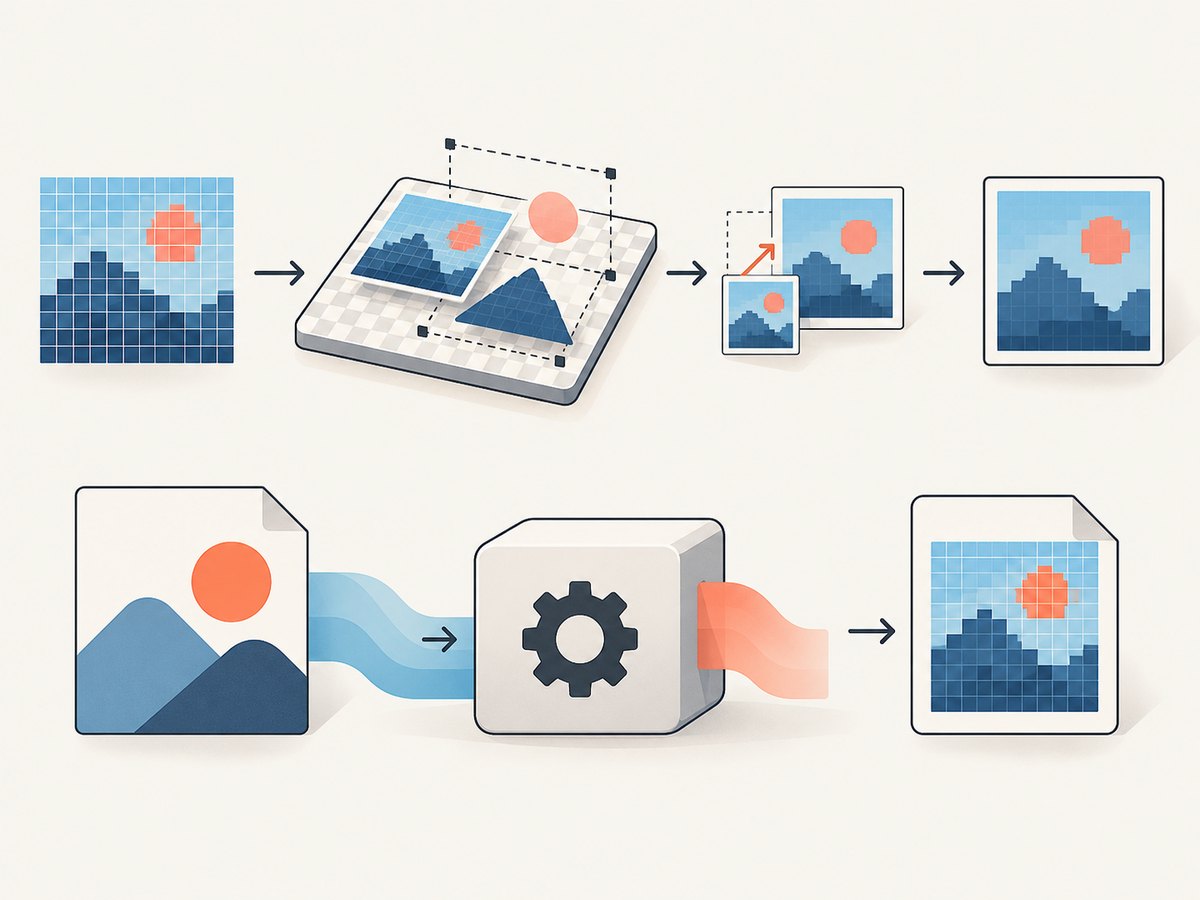
Pillow is a general raster image library with broad format support and APIs for image creation, processing, and compositing. CairoSVG is a Python library and command-line tool focused on converting SVG 1.1 documents. This is a comparison of documented roles, not a performance ranking. Confirm your specific format and SVG features against the project documentation and deployment environment.
2. Install Pillow and create a website image
Install Pillow in the Python environment used by your application:
python -m pip install PillowThe package is imported as PIL. This example draws a 1200-by-630 PNG banner using only Pillow:
from PIL import Image, ImageDraw

width, height = 1200, 630
image = Image.new("RGB", (width, height), color="#f3f5f8")
draw = ImageDraw.Draw(image)

draw.rectangle((0, 0, width, 18), fill="#3157d5")
draw.ellipse((90, 150, 390, 450), fill="#dce5ff")
draw.rounded_rectangle((460, 170, 1060, 430), radius=28, fill="#ffffff")
draw.text((510, 220), "A generated website image", fill="#172033")
draw.text((510, 280), "Draw shapes, combine assets, save a PNG", fill="#48536a")

image.save("website-banner.png", format="PNG")
Run it with python make_banner.py. The output is a raster image: its pixels are fixed at the dimensions you created. Pillow can also open existing images, resize them, create thumbnails, composite layers, and generate effects such as gradients and noise. For text that must use a particular typeface, load a font file with Pillow’s font APIs and check that the font is available in the production container.
Resize and save a thumbnail
For a thumbnail that fits within a bounding box while preserving aspect ratio:
from PIL import Image

with Image.open("photo.jpg") as source:
    source.thumbnail((640, 640))
    source.save("photo-thumbnail.webp", format="WEBP", quality=82)
thumbnail() modifies the opened image in place and keeps it within the requested size. The example requests WebP output, but successful encoding depends on the installed Pillow build and format support. Check the Pillow format handbook for the format you need. Choose output dimensions and quality based on your page’s requirements; the example quality value is a setting, not a universal recommendation.
Return image bytes from a web handler
When an application needs image bytes instead of a file on disk, Pillow can save into an in-memory buffer:
from io import BytesIO
from PIL import Image, ImageDraw

image = Image.new("RGB", (320, 180), "#e7edff")
ImageDraw.Draw(image).rectangle((20, 20, 300, 160), fill="#3157d5")

buffer = BytesIO()
image.save(buffer, format="PNG")
png_bytes = buffer.getvalue()

# In a web framework, return png_bytes with Content-Type: image/png.
This shows the image-library portion only. Set the response content type and caching behavior in your framework, and consider the memory cost of buffering large images. Pillow’s file APIs accept filenames, path-like objects, and file-like objects; see its file handling documentation.
3. Convert SVG artwork with CairoSVG
Choose CairoSVG when the source is SVG and the required result is a raster image or one of its other documented output types. Install the Python package with:
python -m pip install cairosvgA minimal conversion from a file to PNG is:
import cairosvg

cairosvg.svg2png(
    url="artwork.svg",
    write_to="artwork.png",
    output_width=1200,
)
You can also pass SVG bytes or text to the conversion functions. For example, this creates a PNG from an SVG string:
import cairosvg

svg = b'''<svg xmlns="http://www.w3.org/2000/svg" width="600" height="300">
  <rect width="600" height="300" fill="#eef2ff"/>
  <circle cx="160" cy="150" r="85" fill="#3157d5"/>
</svg>'''

png_bytes = cairosvg.svg2png(bytestring=svg)
with open("shape.png", "wb") as output:
    output.write(png_bytes)
CairoSVG also documents svg2pdf, svg2ps, and svg2svg. Its command-line tool can convert an SVG file to PNG as well. Use the Python interface when conversion belongs inside an application; use the CLI when a build step or shell script is a better fit.
Check SVG compatibility before adopting it
SVG is a broad format, and CairoSVG documents limitations: it does not implement every SVG feature, including some color-management behavior and only a subset of SVG filters. Test representative source files, including any externally referenced images, fonts, or filters your artwork relies on. Rendering differences can be a compatibility issue rather than a Python error.
CairoSVG documents Linux, macOS, and Windows support, along with native dependencies such as Cairo and FFI components. A successful local pip install does not guarantee the same installation will work in a slim production container. Follow the documentation for the target operating system and include required native libraries in the deployment image. The project describes CairoSVG as LGPLv3 licensed; review the license terms for your distribution model.
4. Combine vector conversion and raster editing
A common workflow is to rasterize a supplied SVG with CairoSVG, then use Pillow for pixel-based edits or to save a thumbnail. The two steps can be joined in memory:
from io import BytesIO
import cairosvg
from PIL import Image

with open("artwork.svg", "rb") as source:
    svg_bytes = source.read()

png_bytes = cairosvg.svg2png(bytestring=svg_bytes)
with Image.open(BytesIO(png_bytes)) as raster:
    raster.thumbnail((800, 800))
    raster.save("artwork-thumbnail.png", format="PNG")
This combination follows from the packages’ documented roles: CairoSVG converts SVG documents, and Pillow processes raster images. It is not necessary if your input and output are already handled by one package. Validate transparency, dimensions, color, and any external SVG references in the final file.
5. Decide on dimensions, format, and delivery
Dimensions and scaling
Choose dimensions based on where the image will appear. A large source can be scaled down for a card or thumbnail, but an output that is too small may look soft when displayed larger. For multiple placements, generate appropriately sized variants rather than expecting one raster file to look ideal at every size. SVG can remain resolution-independent until conversion; specify the desired output dimensions when rasterizing.
Format selection
PNG is useful when you need lossless output or transparency. JPEG is commonly used for photographic content where lossy encoding is acceptable. WebP may fit a web delivery pipeline if your installed libraries and target browsers support the required workflow. These are format tradeoffs, not guarantees about smaller files: inspect the actual outputs and confirm browser and encoder requirements. Pillow’s format documentation lists supported formats and their build considerations.
Cost and performance
Both packages run as software in your application, so the practical costs are compute, memory, storage, and engineering time rather than a per-image API charge from the library itself. Image dimensions strongly affect memory use: an uncompressed raster requires storage for its pixels plus working buffers and object overhead. Large conversions can increase request latency and memory pressure. Profile representative files in the actual runtime, bound input dimensions, and consider moving expensive work out of latency-sensitive web requests.
Do not assume a particular package is faster for your workload based on its purpose. Compare output correctness and resource use on representative images if throughput matters. Avoid repeatedly decoding and re-encoding an unchanged image when you can reuse a generated result or cache it in your application.
6. Handle untrusted image inputs safely
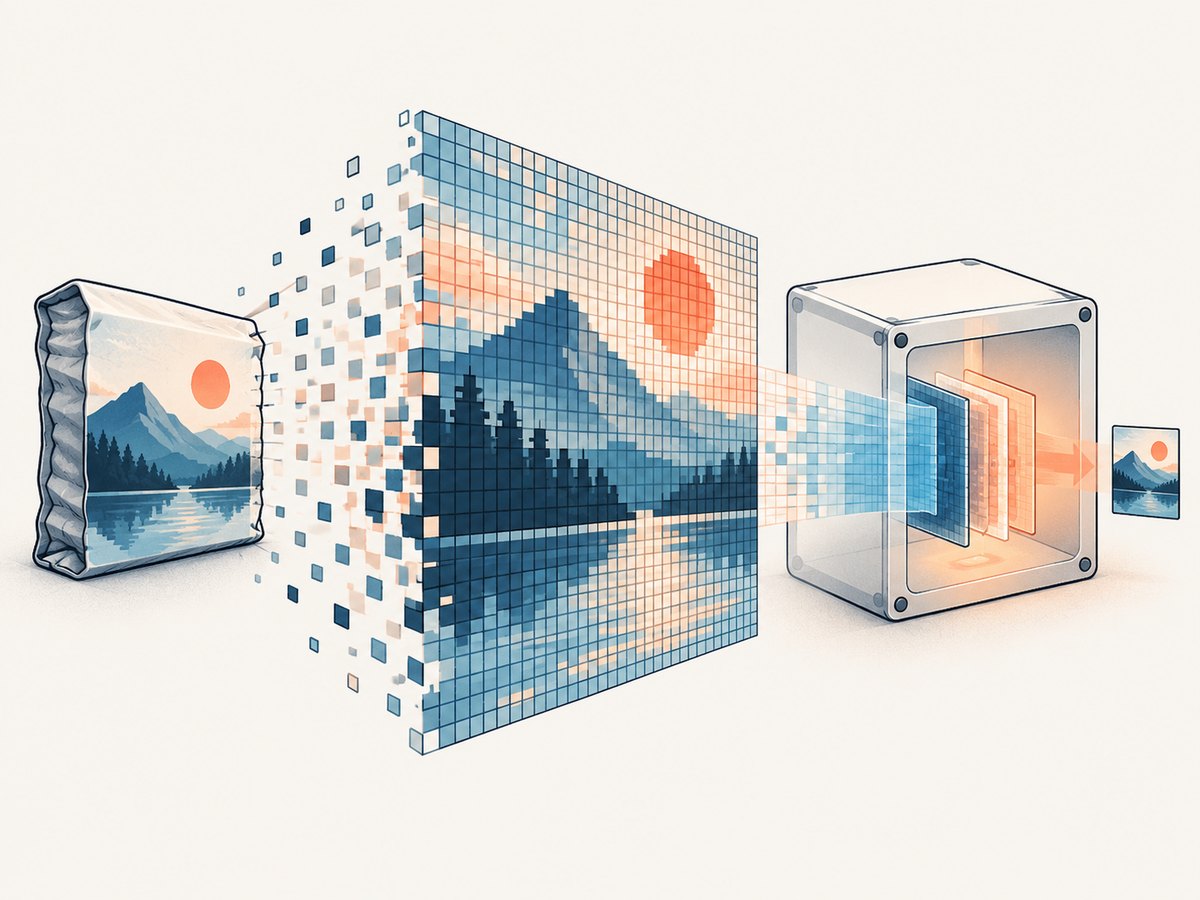
If users can upload images, treat image dimensions and file contents as untrusted. Pillow documents a decompression-bomb safeguard: a small compressed file can expand into an image that consumes excessive memory. Pillow warns when an image exceeds a pixel threshold and can raise an error above a higher threshold. Do not disable this safeguard casually. Set application-level upload and dimension limits, catch decoding errors, and process uploads with resource limits appropriate to your service.
For SVG, consider whether the input references external resources or contains features your pipeline should not resolve. Define what source files are accepted, test the conversion behavior, and avoid passing arbitrary user-controlled paths into a conversion process. The exact security controls depend on how SVGs enter your system and how the runtime is isolated.
7. Troubleshooting
| Symptom | Likely cause | What to do |
|---|---|---|
ModuleNotFoundError: No module named 'PIL' |
Pillow was installed into a different Python environment. | Run python -m pip install Pillow using the same interpreter that runs the script, then check python -m pip show Pillow. |
| Cannot save a requested format | The installed build may not support that encoder, or the format name/extension is wrong. | Check the Pillow format handbook and installed build; explicitly set a supported format when saving. |
| CairoSVG install fails in a container | Native Cairo or FFI dependencies/build components may be missing. | Install the operating-system dependencies listed by CairoSVG for the target platform, then rebuild the environment. |
| SVG conversion succeeds but looks different | The SVG uses features CairoSVG does not implement in the same way, or depends on external assets. | Reduce or adjust unsupported SVG features, make required assets available, and compare output against the intended rendering. |
| Memory use spikes while opening an upload | The image has very large pixel dimensions or triggers decompression-bomb safeguards. | Limit upload size and dimensions, handle Pillow warnings/errors deliberately, and isolate expensive processing. |
| Output is blurry or unexpectedly large | Raster dimensions, source resolution, or encoder settings do not match the display use. | Generate for the actual display size, inspect the output, and adjust the format and quality settings. |
8. Or skip the browser setup
If by “creating a website image” you mean capturing a live web page, Pillow and CairoSVG are not browser screenshot tools. ScreenshotNeo is a website screenshot API and MCP server: one GET request with a URL returns a PNG, JPEG, WebP, or PDF. Its API accepts the URL and capture options, and the ScreenshotNeo docs cover configuration.
curl -G "https://api.screenshotneo.com/v1/shot" -d access_key=YOUR_API_KEY --data-urlencode url=https://stripe.com -o shot.webpimport requests
r = requests.get("https://api.screenshotneo.com/v1/shot", params={"access_key": "YOUR_API_KEY", "url": "https://stripe.com"}, timeout=90)
open("shot.webp", "wb").write(r.content)const q = new URLSearchParams({ access_key: 'YOUR_API_KEY', url: 'https://stripe.com' });
const res = await fetch(`https://api.screenshotneo.com/v1/shot?${q}`);Cookie banners are accepted and removed before capture, along with known consent platforms, newsletter popups, and chat widgets. Bot checks, blank pages, timeouts, failed loads, and cache hits are not billed; response headers report the page verdict and billing status. An MCP server lets AI agents use screenshot, page-info, and PDF-capture tools. The free plan includes 1,000 screenshots a month with no card; paid plans start at $5 for 3,000. Sign up for 1,000 free screenshots a month, with no card.
9. Frequently asked questions
Can Python generate a PNG without a browser?
Yes. Pillow can construct a raster image directly, draw on it, and save it as PNG. Use CairoSVG if the artwork already exists as SVG and needs rasterizing.
Can I use both packages in one project?
Yes. A useful pattern is CairoSVG for SVG conversion followed by Pillow for raster resizing or compositing. Add both only when the workflow needs both roles.
Which package should I use to screenshot a live website?
These libraries create or convert image files; they do not provide a full browser capture workflow. For a live page capture, use a browser automation setup or a screenshot service such as ScreenshotNeo.
Does every Pillow installation support every image format?
No. Check the format handbook and the capabilities of the installed build, especially when deploying to a different operating system or container.
Is CairoSVG a general replacement for Pillow?
No. CairoSVG focuses on SVG conversion; Pillow is the broader raster image workbench. Choose based on the source asset and operation.


