How to Set Accept-Encoding to Gzip and Inspect Headers in Pyppeteer
Set Accept-Encoding in Pyppeteer, inspect request and response headers, verify gzip safely, and troubleshoot Chromium-specific behavior.

Set the page header before navigation, then inspect both sides of the transaction:
await page.setExtraHTTPHeaders({"Accept-Encoding": "gzip"})

page.on("request", lambda request: print("REQUEST", request.url, request.headers))
page.on("response", lambda response: print("RESPONSE", response.url, response.status, response.headers))

response = await page.goto("https://example.com")
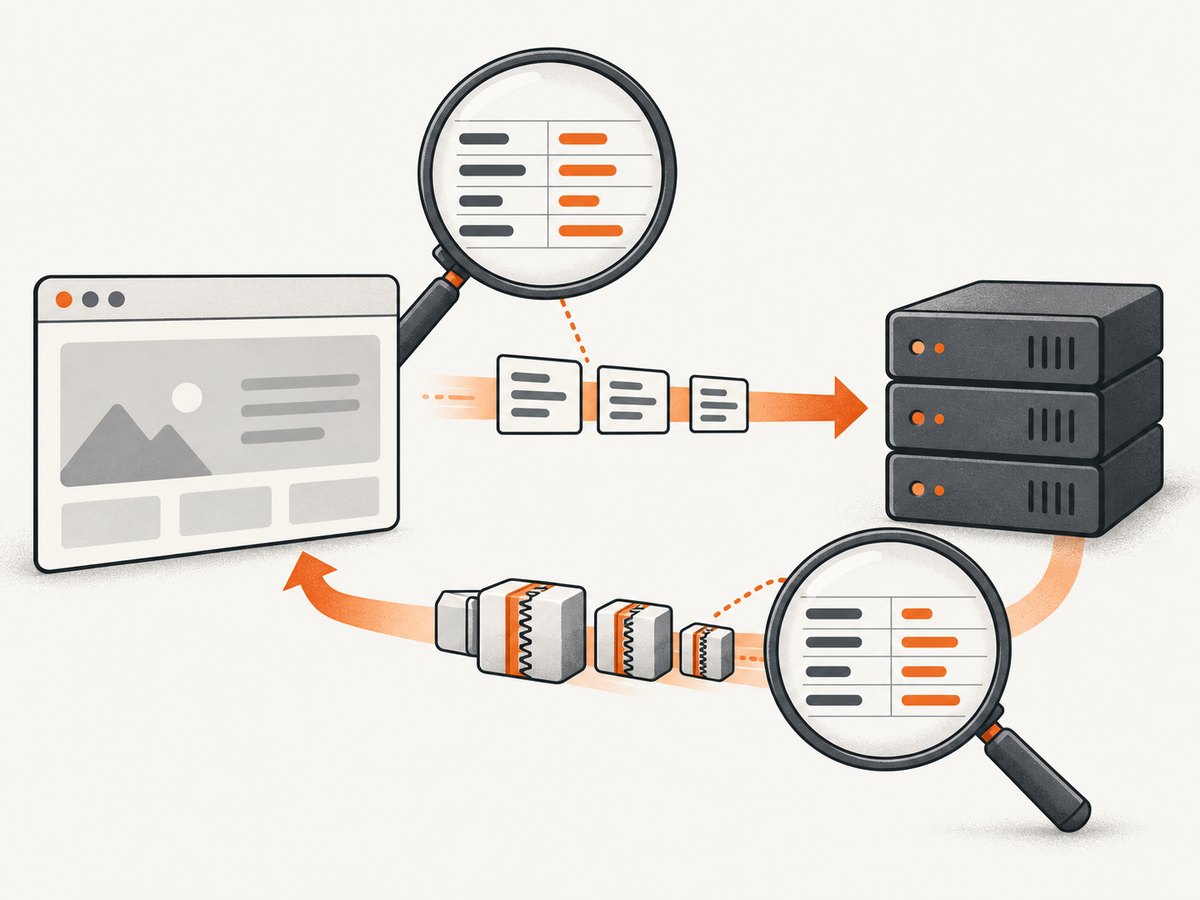
This configures an extra page-level header, but it does not prove that Chromium sent that exact value or that the server returned a gzip-compressed representation. Check the actual outgoing request and the response’s Content-Encoding separately. Pyppeteer exposes both through request and response objects; Chrome DevTools provides a visual check.
1. Install and launch Pyppeteer
Install the package in an isolated environment:
python -m venv .venv
source .venv/bin/activate
pip install pyppeteer
Launch Chromium and create a page. The first launch may download a compatible Chromium revision, depending on your Pyppeteer installation and cache.
import asyncio
from pyppeteer import launch

async def main():
    browser = await launch(headless=True)
    page = await browser.newPage()
    try:
        await page.goto("https://example.com", {"waitUntil": "networkidle2"})
        print(await page.title())
    finally:
        await browser.close()

asyncio.run(main())
2. Set Accept-Encoding before navigation
Page.setExtraHTTPHeaders accepts a dictionary. Header values must be strings, and the extra headers apply to requests initiated by that page. Set them before goto, reloads, or other operations that initiate navigation.
import asyncio
from pyppeteer import launch

async def main():
    browser = await launch(headless=True)
    page = await browser.newPage()
    try:
        await page.setExtraHTTPHeaders({
            "Accept-Encoding": "gzip"
        })
        await page.goto("https://example.com", {"waitUntil": "domcontentloaded"})
    finally:
        await browser.close()

asyncio.run(main())
Header order is not guaranteed. Use case-insensitive lookups, because Pyppeteer documents request and response header names as lower-case.
Adding other headers
await page.setExtraHTTPHeaders({
    "Accept-Encoding": "gzip",
    "Accept-Language": "en-US,en;q=0.9",
    "X-Trace-Id": "run-123"
})
Do not pass numeric or boolean values; convert them to strings first. If a site requires authentication, set only the headers you are authorized to send and avoid logging secrets.
3. Inspect outgoing request headers
Register the request listener before navigation so it can observe the request. Filter by URL when a page loads many subresources.
import asyncio
from pyppeteer import launch

async def main():
    browser = await launch(headless=True)
    page = await browser.newPage()

    def on_request(request):
        if request.isNavigationRequest() or request.url.startswith("https://example.com"):
            value = request.headers.get("accept-encoding")
            print("REQUEST URL:", request.url)
            print("Accept-Encoding:", value)
            print("All headers:", request.headers)

    page.on("request", on_request)
    try:
        await page.setExtraHTTPHeaders({"Accept-Encoding": "gzip"})
        await page.goto("https://example.com", {"waitUntil": "domcontentloaded"})
    finally:
        await browser.close()

asyncio.run(main())
The value printed is what Pyppeteer exposes for that request. It is useful evidence, but Chromium may apply browser-network rules around certain headers. The API documentation does not guarantee that a manually supplied Accept-Encoding value is transmitted unchanged on the wire for every Chromium build.
4. Inspect response headers and verify gzip
Listen for responses and read content-encoding. A gzip response normally has Content-Encoding: gzip, but absence of that header means the representation was not labeled gzip; it does not by itself explain why.
import asyncio
from pyppeteer import launch

async def main():
    browser = await launch(headless=True)
    page = await browser.newPage()

    def on_response(response):
        if response.url.startswith("https://example.com"):
            encoding = response.headers.get("content-encoding")
            content_type = response.headers.get("content-type")
            print("RESPONSE URL:", response.url)
            print("Status:", response.status)
            print("Content-Encoding:", encoding)
            print("Content-Type:", content_type)
            print("All headers:", response.headers)

    page.on("response", on_response)
    try:
        await page.setExtraHTTPHeaders({"Accept-Encoding": "gzip"})
        await page.goto("https://example.com", {"waitUntil": "networkidle2"})
    finally:
        await browser.close()

asyncio.run(main())
Inspect the request and response as two independent checks:
- Find the target request and read
request.headers.get("accept-encoding"). - Find its response and read
response.headers.get("content-encoding"). - Confirm that the response status and content type belong to the resource you intended to inspect.
- Repeat with the exact Pyppeteer and Chromium versions used in production.
5. A complete diagnostic script
This script records navigation failures, requests, responses, and the final page URL while avoiding cookies or authorization values in output.
import asyncio
from pyppeteer import launch

TARGET = "https://example.com"

async def main():
    browser = await launch(headless=True)
    page = await browser.newPage()

    def on_request(request):
        if request.isNavigationRequest():
            print({
                "kind": "request",
                "url": request.url,
                "accept_encoding": request.headers.get("accept-encoding"),
            })

    def on_response(response):
        if response.url == TARGET:
            print({
                "kind": "response",
                "url": response.url,
                "status": response.status,
                "content_encoding": response.headers.get("content-encoding"),
                "content_type": response.headers.get("content-type"),
            })

    page.on("request", on_request)
    page.on("response", on_response)
    try:
        await page.setExtraHTTPHeaders({"Accept-Encoding": "gzip"})
        response = await page.goto(TARGET, {
            "waitUntil": "networkidle2",
            "timeout": 60000,
        })
        print("Final URL:", page.url)
        print("Navigation status:", response.status if response else None)
    except Exception as exc:
        print("Navigation error:", repr(exc))
    finally:
        await browser.close()

asyncio.run(main())
6. Inspect headers in Chrome DevTools
For a one-off visual inspection:

- Open the page in the Chromium instance you want to examine.
- Open DevTools and select the Network panel.
- Reload the page.
- Select the document request or a specific resource.
- Open Headers and review Request Headers and Response Headers.
- Check
Accept-Encodingunder the request andContent-Encodingunder the response.
DevTools can show provisional headers in some situations for security reasons, so treat the panel as a diagnostic view and compare it with script logging when the distinction matters.
7. Advanced request interception
Pyppeteer also supports request interception and continue_(). This is useful when a concrete requirement calls for per-request decisions, such as changing a header only for selected URLs.
import asyncio
from pyppeteer import launch

async def main():
    browser = await launch(headless=True)
    page = await browser.newPage()
    await page.setRequestInterception(True)

    async def handle(request):
        headers = dict(request.headers)
        if request.url.startswith("https://example.com"):
            headers["Accept-Encoding"] = "gzip"
        await request.continue_({"headers": headers})

    page.on("request", lambda request: asyncio.ensure_future(handle(request)))
    try:
        await page.goto("https://example.com", {"waitUntil": "domcontentloaded"})
    finally:
        await browser.close()

asyncio.run(main())
Interception adds complexity: every intercepted request must be continued, aborted, or fulfilled, and an exception in the handler can stall a page. Use page-level extra headers unless you specifically need per-request logic. The reviewed documentation does not establish that interception is required for this Accept-Encoding example.
8. cURL, Python, and Node.js comparison checks
These clients help separate server behavior from browser behavior. They are comparison tools, not proof that Chromium will behave identically.
cURL
curl -v --compressed -H 'Accept-Encoding: gzip' https://example.com -o page.htmlRead the verbose request and response lines. --compressed asks cURL to request and transparently decode supported compression.
Python requests
import requests

r = requests.get(
    "https://example.com",
    headers={"Accept-Encoding": "gzip"},
    timeout=30,
)
print("request:", r.request.headers.get("Accept-Encoding"))
print("status:", r.status_code)
print("content-encoding:", r.headers.get("Content-Encoding"))
print("content-type:", r.headers.get("Content-Type"))
Node.js
const res = await fetch('https://example.com', {
  headers: { 'Accept-Encoding': 'gzip' }
});
console.log('status:', res.status);
console.log('content-encoding:', res.headers.get('content-encoding'));
console.log('content-type:', res.headers.get('content-type'));
Each client has its own header handling and decompression behavior. Compare status, encoding, content type, and response size only within the same request conditions.
9. Common errors and fixes
| Symptom | Likely cause | Fix |
|---|---|---|
accept-encoding is missing in the log |
Headers were set after navigation, or the listener was registered too late. | Call setExtraHTTPHeaders and register listeners before goto. |
Response has no content-encoding |
The server selected an uncompressed representation, a proxy changed the response, or the resource was not the expected request. | Check the matching URL, status, request header, and server configuration. Do not infer gzip from the configured request alone. |
| Header value type error | A value is not a string. | Convert it with str(value) before passing the dictionary. |
| Navigation times out | The page or a dependency did not finish within the timeout. | Increase the timeout for slow targets, use an appropriate waitUntil, and log responses to identify the stalled resource. |
| Interception hangs the page | A request handler failed to call continue_(), abort(), or respond(). |
Handle every intercepted request and catch exceptions in the handler. |
| DevTools differs from Pyppeteer logs | DevTools may show provisional headers, or the tools observe different Chromium sessions. | Inspect the same browser build and repeat the transaction. |
| Only some resources are gzip encoded | Compression is selected per response; images, cached resources, and small files may differ. | Filter and evaluate the exact resource you care about. |
10. Reliability, performance, and cost considerations
- Reliability: Pin and record your Pyppeteer and Chromium versions. Header behavior can vary with browser revisions, so recheck after upgrades.
- Performance: Logging every request and response can produce large output and add overhead. Filter by URL, navigation status, or resource type during repeated runs.
- Compression: Requesting gzip does not guarantee it will be selected. Server policy, proxies, caches, and resource type all affect the response.
- Retries: If you retry navigation, label each attempt and inspect each transaction independently.
- Cost: Local Pyppeteer has no per-request API charge, but Chromium startup, bandwidth, and machine resources still matter. Avoid downloading or logging response bodies unless required.
11. Or skip the browser setup
If your goal is a clean image or PDF rather than browser-network diagnostics, ScreenshotNeo provides a single screenshot request. Its API handles the capture workflow without maintaining Chromium yourself. See the ScreenshotNeo documentation for all options.
curl -G "https://api.screenshotneo.com/v1/shot" -d access_key=YOUR_API_KEY --data-urlencode url=https://stripe.com -o shot.webpimport requests
r = requests.get("https://api.screenshotneo.com/v1/shot", params={"access_key": "YOUR_API_KEY", "url": "https://stripe.com"}, timeout=90)
open("shot.webp", "wb").write(r.content)const q = new URLSearchParams({ access_key: 'YOUR_API_KEY', url: 'https://stripe.com' });
const res = await fetch(`https://api.screenshotneo.com/v1/shot?${q}`);Cookie banners, newsletter popups and chat widgets are removed before the shot. Bot checks, blank pages and failed loads are never billed, and response headers identify the page verdict and billing result. An MCP server lets AI agents use take_screenshot, get_page_info and capture_pdf. The free plan includes 1,000 screenshots a month with no card; paid plans start at $5 for 3,000.
Create a free ScreenshotNeo account and start with the 1,000-shot monthly allowance.
12. FAQ
Does setting the header force gzip?
No. It configures an extra header in Pyppeteer. Verify the outgoing request and the response’s Content-Encoding independently.
Are header names case-sensitive in Pyppeteer?
Use lower-case keys when reading the exposed dictionaries, such as request.headers.get("accept-encoding").
Should I use interception for every request?
No. Page-level extra headers are simpler. Use interception only when you need per-request decisions and can reliably finish every intercepted request.
Why does a browser request differ from cURL?
They use different network stacks, defaults, caches, proxies, and decompression behavior. Compare them as separate transactions.
Can I verify compressed bytes from the page body?
Page APIs generally expose the decoded document to JavaScript. For wire-level evidence, inspect network tooling or a client that reports transfer details, while treating the response headers as the authoritative representation label.
13. Source links
- Pyppeteer API reference for
setExtraHTTPHeaders, request and response objects, and interception. - Pyppeteer page implementation, which delegates extra headers to the network manager.
- Chrome DevTools Protocol Network domain.
- Chrome DevTools Network reference.


