How to Click a Link and Scrape the Next Page With Pyppeteer
Synchronize clicks with navigation, handle JavaScript pagination, and extract the next page reliably with Pyppeteer.

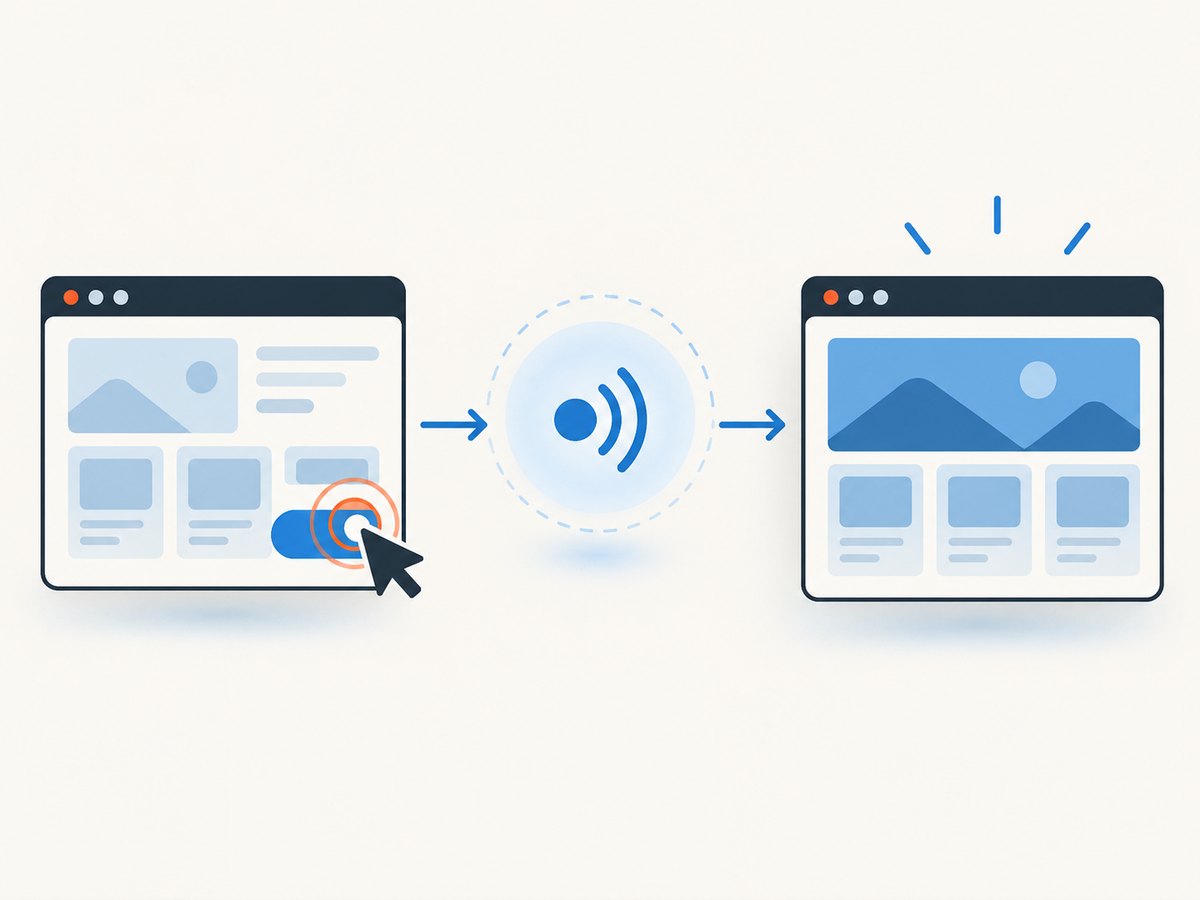
To click a link that triggers a full navigation in Pyppeteer and scrape the next page, start the navigation wait and click together with asyncio.gather. Then wait for the page’s content and extract it with page.content() or page.evaluate(). Starting the wait after the click can miss a fast navigation. For JavaScript pagination that changes the DOM without navigating, wait for a page-specific selector, function, URL change, request, or response instead.
1. Install Pyppeteer and confirm your environment
Pyppeteer is an unofficial Python port of Puppeteer. Its API resembles Puppeteer, but behavior and examples can vary by installed version. Check the package version and follow the guidance for that version when adapting upstream examples. The [Pyppeteer API reference](https://pyppeteer.github.io/pyppeteer/reference.html) documents the page methods used below.
python -m pip install pyppeteer
python -c "import pyppeteer; print(pyppeteer.__version__)"
Pyppeteer may need to download Chromium the first time it launches. Run the script in an environment that can download or access the browser binary, and account for the extra setup in a container or CI environment. Install only the browser dependencies your deployment environment requires.
2. Click, wait for navigation, and extract the page
This runnable example starts at a listing page, collects each page’s item text, clicks the next link, and stops when the link is absent or disabled. Replace the URL and selectors with values from the site you are permitted to scrape.
import asyncio
from pyppeteer import launch

START_URL = "https://example.com/catalog"
NEXT_SELECTOR = "a[rel='next']"
ITEM_SELECTOR = "article.product"

async def scrape_pages(start_url, next_selector, item_selector):
    browser = await launch(headless=True)
    page = await browser.newPage()
    # Set an explicit timeout in milliseconds for navigation and selector waits.
    page.setDefaultNavigationTimeout(45000)
    page.setDefaultTimeout(20000)

    try:
        response = await page.goto(start_url, {"waitUntil": "load"})
        if response is not None and response.status >= 400:
            raise RuntimeError(f"Initial page returned HTTP {response.status}: {start_url}")

        while True:
            await page.waitForSelector(item_selector, {"visible": True})
            page_url = page.url
            items = await page.evaluate(
                """selector => Array.from(
                    document.querySelectorAll(selector),
                    el => el.innerText.trim()
                )""",
                item_selector,
            )
            for item in items:
                print({"page": page_url, "item": item})

            next_link = await page.querySelector(next_selector)
            if next_link is None:
                break

            is_disabled = await page.evaluate(
                """el => el.disabled === true ||
                    el.getAttribute('aria-disabled') === 'true' ||
                    el.classList.contains('disabled')""",
                next_link,
            )
            if is_disabled:
                break

            old_url = page.url
            # Register the navigation listener before the click can trigger it.
            await asyncio.gather(
                page.waitForNavigation({"waitUntil": "networkidle0"}),
                page.click(next_selector),
            )
            if page.url == old_url:
                # A site may update the page in place; use its DOM readiness signal instead.
                await page.waitForFunction(
                    """({selector, oldText}) => {
                        const current = Array.from(document.querySelectorAll(selector),
                            el => el.innerText.trim()).join("\\n");
                        return current !== oldText;
                    }""",
                    {},
                    {"selector": item_selector, "oldText": "\\n".join(items)},
                )
    finally:
        await browser.close()

if __name__ == "__main__":
    asyncio.run(scrape_pages(START_URL, NEXT_SELECTOR, ITEM_SELECTOR))
The core race-free pattern is the paired wait and click: await asyncio.gather(page.waitForNavigation(waitOptions), page.click(selector, clickOptions)). The [API reference](https://pyppeteer.github.io/pyppeteer/reference.html) describes this synchronization because starting a separate wait after the click can miss the navigation event. In a real scraper, prefer a selector that identifies the next-page control and item records reliably, such as a semantic link, accessible label, or stable data-* attribute.
Choose a navigation readiness condition
waitUntil controls when goto or a navigation wait considers the document ready:
| Value | Use it when | Trade-off |
|---|---|---|
load |
The page’s load event is a sufficient starting point. | JavaScript may still fetch or render the records you need. |
domcontentloaded |
You need the parsed document and will wait explicitly for the target content. | Images and other resources may still be loading. |
networkidle0 |
The site settles with no active network connections for the required interval. | Analytics, polling, or long-lived connections may prevent the condition from being reached. |
networkidle2 |
The site can keep a small number of requests active while becoming usable. | It still may not prove that a particular result list has updated. |
For pages that fetch data after navigation, pair a less restrictive navigation condition with waitForSelector(item_selector, {"visible": True}). A page-specific readiness signal is usually more meaningful than waiting for all network traffic to stop.
3. Extract HTML or just the fields you need
Use page.content() when you need the current document’s HTML, including markup created by client-side rendering. Use page.evaluate() to return targeted values from the live DOM and avoid transferring or parsing unrelated markup.
# Entire current HTML document
html = await page.content()

# Structured fields from matching cards
records = await page.evaluate("""selector => Array.from(
  document.querySelectorAll(selector), card => ({
    title: card.querySelector('h2')?.innerText.trim() ?? null,
    href: card.querySelector('a')?.href ?? null,
    price: card.querySelector('[data-price]')?.getAttribute('data-price') ?? null
  })
)""", "article.product")
Evaluation runs in the page context. Return JSON-compatible values such as strings, numbers, arrays, and plain objects. For data you need to retain, store the values in Python before moving to the next page. The live DOM can change after a click, so do not treat an old element handle as a durable reference to a new page’s content.
4. Handle JavaScript pagination without full navigation
Many “Next” controls replace a result list with JavaScript while keeping the same document. In that case, waitForNavigation() is not the right readiness signal: it may resolve with no navigation, or wait until a timeout. Click the control and wait for an observable change that proves the new results are ready.

Wait for a changed result list
old_text = await page.evaluate(
    """selector => Array.from(document.querySelectorAll(selector),
        el => el.innerText.trim()).join('\\n')""",
    ITEM_SELECTOR,
)
await page.click(NEXT_SELECTOR)
await page.waitForFunction(
    """({selector, oldText}) =>
      Array.from(document.querySelectorAll(selector),
        el => el.innerText.trim()).join('\\n') !== oldText""",
    {},
    {"selector": ITEM_SELECTOR, "oldText": old_text},
)
new_text = await page.evaluate(
    """selector => Array.from(document.querySelectorAll(selector),
        el => el.innerText.trim())""",
    ITEM_SELECTOR,
)
Compare a stable page number, first record ID, or pagination token when possible. Text can remain identical across pages with overlapping or repeated records. If the list briefly clears during loading, wait for the loading indicator to disappear and then wait for the expected records to appear.
Choose another wait signal when it matches the site
- Selector:
waitForSelector()for a page marker, updated record, or visible loading state. - Function:
waitForFunction()for a changed page number, updated text, or application state. - URL:
waitForFunction()withlocation.hrefwhen the app updates history or query parameters. - Request or response:
waitForRequest()orwaitForResponse()when the list is driven by a known API call. Start the wait before clicking, then inspect the result before extracting the rendered records.
Do not assume that an unchanged URL means a failed click. Conversely, a changed URL does not prove that the new content has finished rendering. Pair the signal with a check for the content you need.
5. Make pagination complete and safe to stop
Before each click, check whether the next control exists and whether it is disabled. Sites represent the final page in different ways: the link may disappear, use aria-disabled="true", have a disabled class, or remain clickable while returning the same results. The selector and state checks in the example cover common cases, but adapt them to the site’s markup.
- Record a page identifier such as the URL, current page number, or first item ID.
- Extract the current page only after its content is present.
- Find the next control and stop if it is missing or disabled.
- Click with a navigation wait for a full-page transition, or use an in-place update wait for client-side pagination.
- After the wait, verify the page identifier changed. Stop or raise a diagnostic error if it did not.
A maximum page count is useful as a final guard against a broken “Next” selector that loops forever. For example, add max_pages to the function and stop or raise when the counter reaches it. Keep a set of visited page URLs or page IDs when a site may cycle through links.
6. Timeouts, retries, and failure handling
Pyppeteer’s documented default timeout is 30 seconds. Set a timeout suited to the target site with page.setDefaultTimeout(milliseconds) and page.setDefaultNavigationTimeout(milliseconds), or pass a timeout option to an individual wait. A timeout of 0 disables the timeout; that can leave a scraper stuck indefinitely, so prefer a finite limit and useful logging.
try:
    await asyncio.gather(
        page.waitForNavigation({"waitUntil": "domcontentloaded", "timeout": 45000}),
        page.click(NEXT_SELECTOR, {"timeout": 15000}),
    )
except Exception as exc:
    print({"url": page.url, "next_selector": NEXT_SELECTOR, "error": str(exc)})
    raise
Retry only after deciding what failed. A timeout waiting for navigation may mean the site updates in place, while a click timeout may mean the control is covered, detached, or absent. Retrying a click blindly can advance twice if the first click worked but the wait failed. Check the URL and page marker first, then retry only if the page is still on the expected state.
7. Common errors and fixes
| Symptom | Likely cause | Fix |
|---|---|---|
| The next page loads but the scraper misses it. | The click happened before the navigation listener was registered. | Start waitForNavigation() and click() together with asyncio.gather. |
Navigation Timeout Exceeded |
The site does not navigate, or network idle never occurs. | For client-side pagination, wait for a changed selector, function, URL, request, or response. If it navigates, consider domcontentloaded plus a result selector. |
Waiting for selector failed |
The selector is wrong, the element is hidden, or it appears after a delayed fetch. | Inspect the current HTML, verify the selector, and wait for the correct visible marker with a suitable finite timeout. |
| The same records are scraped repeatedly. | The click did not advance, the page updates later than the wait, or the selector points to stale content. | Compare a page number or record ID before and after the click; wait for the new marker and stop if it remains unchanged. |
ElementHandleError or a detached element. |
The DOM replaced the target between lookup and use. | Re-query the control after the update and use its current selector. Avoid reusing element handles across page transitions. |
| Chromium fails to launch. | The browser binary is missing, download was unavailable, or the runtime lacks required system libraries. | Confirm Pyppeteer’s browser installation and deployment dependencies; run in an environment with the required browser available. |
| The script never finishes. | An infinite pagination loop or a wait with timeouts disabled. | Use finite timeouts, maximum pages, visited page IDs, and an explicit termination check. |
8. Performance, reliability, and responsible scraping
Browser automation is heavier than fetching a page’s HTML directly: each page uses a browser process, and JavaScript rendering, images, and network activity add time and resource use. Keep one browser open while iterating pages, close it in finally, and avoid launching a browser for every click. Extract only the fields you need. If images are irrelevant and the target permits it, configure request handling to reduce unnecessary resource work, while checking that the site does not depend on those requests to render its data.
Use a readiness condition tied to the content rather than an arbitrary long sleep. A fixed delay is simple but can waste time on fast pages and still fail on slow ones. Keep timeouts finite, record the current URL and page identifier, and make each page’s extraction idempotent where possible. For transient failures, retry with a bounded policy and verify whether the previous click already advanced before repeating it.
Respect the site’s terms, robots guidance, authentication boundaries, and request rate. Obtain permission before scraping restricted content. Do not use browser automation to bypass access controls or evade bot checks.
9. Or skip the browser setup
If you need screenshots of pages rather than their structured text, ScreenshotNeo returns an image or PDF from one GET request. See the API documentation for request options.
curl -G "https://api.screenshotneo.com/v1/shot" -d access_key=YOUR_API_KEY --data-urlencode url=https://stripe.com -o shot.webp

# Python
import requests
r = requests.get("https://api.screenshotneo.com/v1/shot", params={"access_key": "YOUR_API_KEY", "url": "https://stripe.com"}, timeout=90)
open("shot.webp", "wb").write(r.content)

// Node.js
const q = new URLSearchParams({ access_key: 'YOUR_API_KEY', url: 'https://stripe.com' });
const res = await fetch(`https://api.screenshotneo.com/v1/shot?${q}`);
Cookie banners, newsletter popups, and chat widgets are removed before the shot. Bot checks, blank pages, and failed loads are never billed; response headers report the page verdict and billing status. An MCP server lets Claude, Cursor, and other MCP clients take screenshots. The free plan includes 1,000 screenshots a month with no card; paid plans start at $5 for 3,000. Create a free account and get 1,000 screenshots a month with no card.
10. Frequently asked questions
Does page.content() include JavaScript-rendered content?
It returns the current document HTML. If the application has already rendered records into the DOM, that markup is included; wait for the relevant content before calling it.
Can I scrape every page until the end?
Yes. Continue while a valid next control exists, and include safeguards such as a maximum page count and visited page identifiers.
What if the next link opens a new tab?
The examples assume navigation in the current tab. For a new tab, listen for the target page or popup, wait for its content, and extract from that page object.
Can Pyppeteer return structured records instead of HTML?
Yes. Use page.evaluate() to read fields from matching elements and return arrays or plain objects to Python.
Is Pyppeteer the same project as Puppeteer?
No. Pyppeteer is an unofficial Python port. Check its installed version and project guidance when applying Puppeteer examples.


