How to Log In and Log Out by Clicking Elements With Pyppeteer
Use Pyppeteer to fill login fields, click controls, wait for navigation safely, and verify login and logout with signals from your target site.
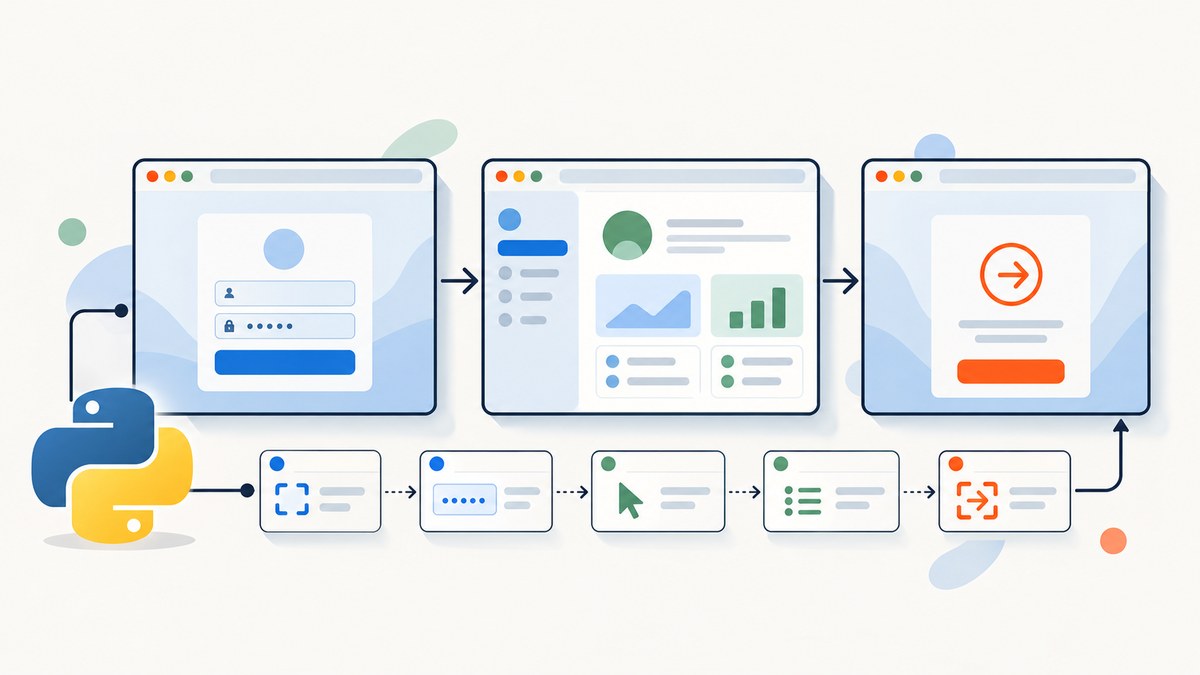
To log in and log out with Pyppeteer, wait for the target page’s actual form controls, type into the username and password fields, and click the appropriate buttons. If a click causes a document navigation, start waitForNavigation() and the click together with asyncio.gather(). Then verify the result with a site-specific signal, such as an account link after login or the login form after logout. Selectors and success conditions depend on the site; Pyppeteer does not provide a universal login recipe.
The example below is a template for a site you are authorized to automate. Replace the URL, selectors, credentials, and state checks with values from that site. It uses a navigation wait for both transitions; if the application changes state through client-side routing without a full navigation, use the SPA pattern later in this guide instead.
1. Install Pyppeteer and prepare the browser
Pyppeteer is an asynchronous Python port of Puppeteer for Chrome or Chromium automation. The project’s Pyppeteer 0.0.25 documentation describes Python 3.6 or later and says an initial run downloads a Chromium build. These are version-specific details from old documentation, so check the package and browser requirements for the version you install. See the Pyppeteer project guide.
python -m pip install pyppeteerSave the script below as login_logout.py. For a real account, provide credentials through environment variables or a secrets manager instead of putting them in source control. This example reads environment variables and fails clearly if they are absent.
2. Complete login and logout example
import asyncio
import os
from pyppeteer import launch

LOGIN_URL = "https://example.com/login"
USERNAME_SELECTOR = "input[name='username']"
PASSWORD_SELECTOR = "input[name='password']"
LOGIN_BUTTON_SELECTOR = "button[type='submit']"
LOGGED_IN_SELECTOR = "a[href*='account']"
LOGOUT_BUTTON_SELECTOR = "button.logout"
SIGNED_OUT_SELECTOR = "input[name='username']"

async def wait_for_click_navigation(page, selector):
    """Use when clicking selector causes a document navigation."""
    return await asyncio.gather(
        page.waitForNavigation({"waitUntil": "networkidle2"}),
        page.click(selector),
    )

async def main():
    username = os.environ.get("TARGET_USERNAME")
    password = os.environ.get("TARGET_PASSWORD")
    if not username or not password:
        raise RuntimeError("Set TARGET_USERNAME and TARGET_PASSWORD first")

    browser = await launch(headless=True)
    try:
        page = await browser.newPage()
        page.setDefaultTimeout(15000)
        await page.goto(LOGIN_URL, {"waitUntil": "domcontentloaded"})

        await page.waitForSelector(USERNAME_SELECTOR, {"visible": True})
        await page.waitForSelector(PASSWORD_SELECTOR, {"visible": True})
        await page.type(USERNAME_SELECTOR, username)
        await page.type(PASSWORD_SELECTOR, password)

        await wait_for_click_navigation(page, LOGIN_BUTTON_SELECTOR)
        await page.waitForSelector(LOGGED_IN_SELECTOR, {"visible": True})

        # The logout control and signed-out signal are site-specific.
        await page.waitForSelector(LOGOUT_BUTTON_SELECTOR, {"visible": True})
        await wait_for_click_navigation(page, LOGOUT_BUTTON_SELECTOR)
        await page.waitForSelector(SIGNED_OUT_SELECTOR, {"visible": True})

        print("Login and logout state checks completed")
    finally:
        await browser.close()

asyncio.get_event_loop().run_until_complete(main())
Set credentials in the shell before running, for example export TARGET_USERNAME='…' and export TARGET_PASSWORD='…'. Use a dedicated test account when available. Do not put real credentials into logs, screenshots, or committed files.
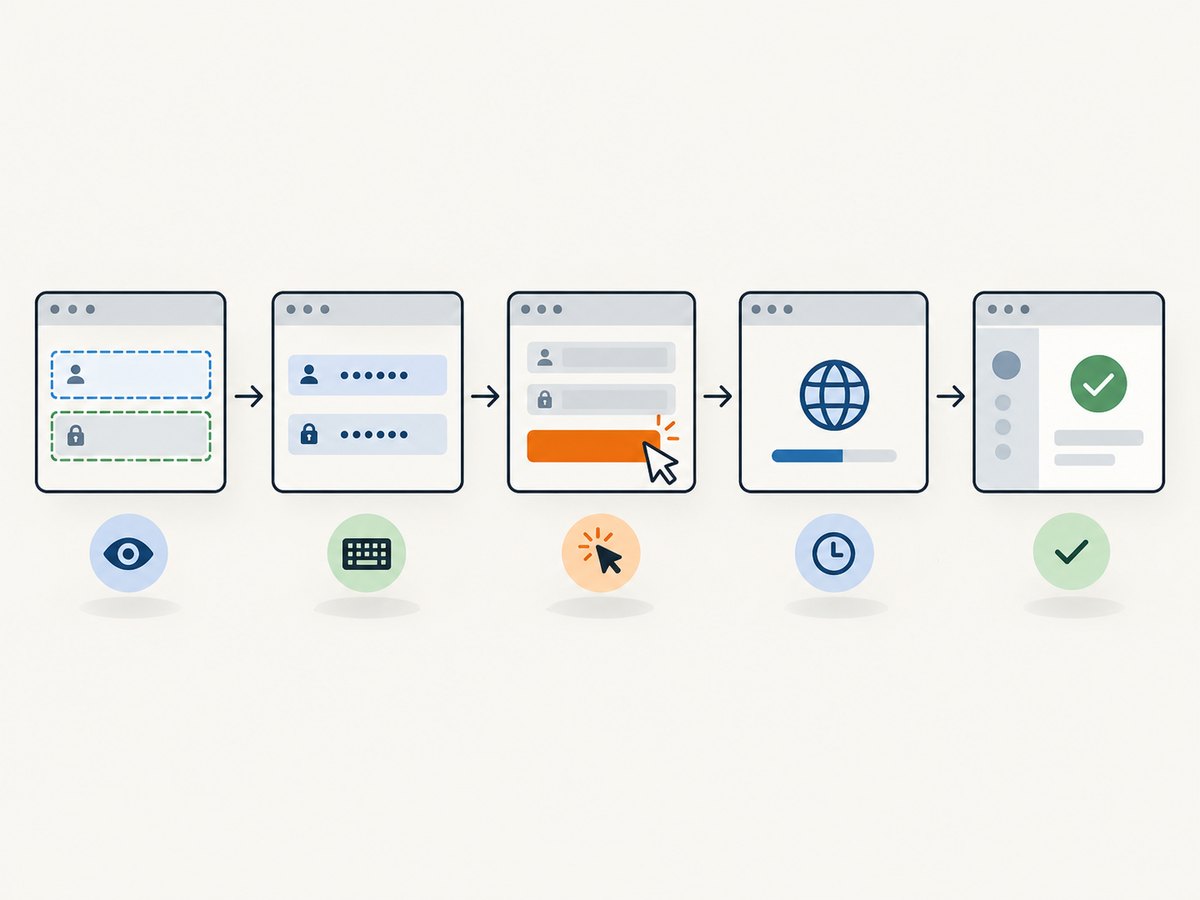
All selectors and the URL above are illustrative placeholders. Inspect the authorized target page to identify its real controls and reliable state indicators. The account link may appear before all authenticated data is ready, and a login page may show a username field even when the user is already signed out, so choose checks that actually distinguish the states your workflow needs.
3. Why the navigation wait must start with the click
A common timing bug is clicking first and then waiting for navigation. The page may navigate before the wait is attached, leaving the script waiting until timeout. Pyppeteer’s API reference gives the concurrent pattern: start the navigation wait and click together. In Python, asyncio.gather() does that.
await asyncio.gather(
    page.waitForNavigation({"waitUntil": "networkidle2"}),
    page.click("button[type='submit']"),
)
The navigation wait can resolve with None for certain history or anchor changes. That is one reason to verify a meaningful state after the click instead of treating a navigation response as proof of successful login. The documented navigation and selector timeout default is 30 seconds; this example explicitly changes the page’s default timeout to 15 seconds. Adjust timeouts to fit the target’s normal behavior, but avoid disabling them as a routine fix.
4. Adapt the interaction to the site
Inspect selectors and visible controls
CSS selectors must match the page’s DOM. Prefer stable attributes such as a documented name, ID, or test attribute over styling classes that may change during a redesign. A selector that matches multiple elements can also be ambiguous: narrow it to the intended form or button. Pyppeteer’s Python API uses names such as querySelector, querySelectorAll, and xpath, rather than JavaScript Puppeteer’s $, $$, and $x.
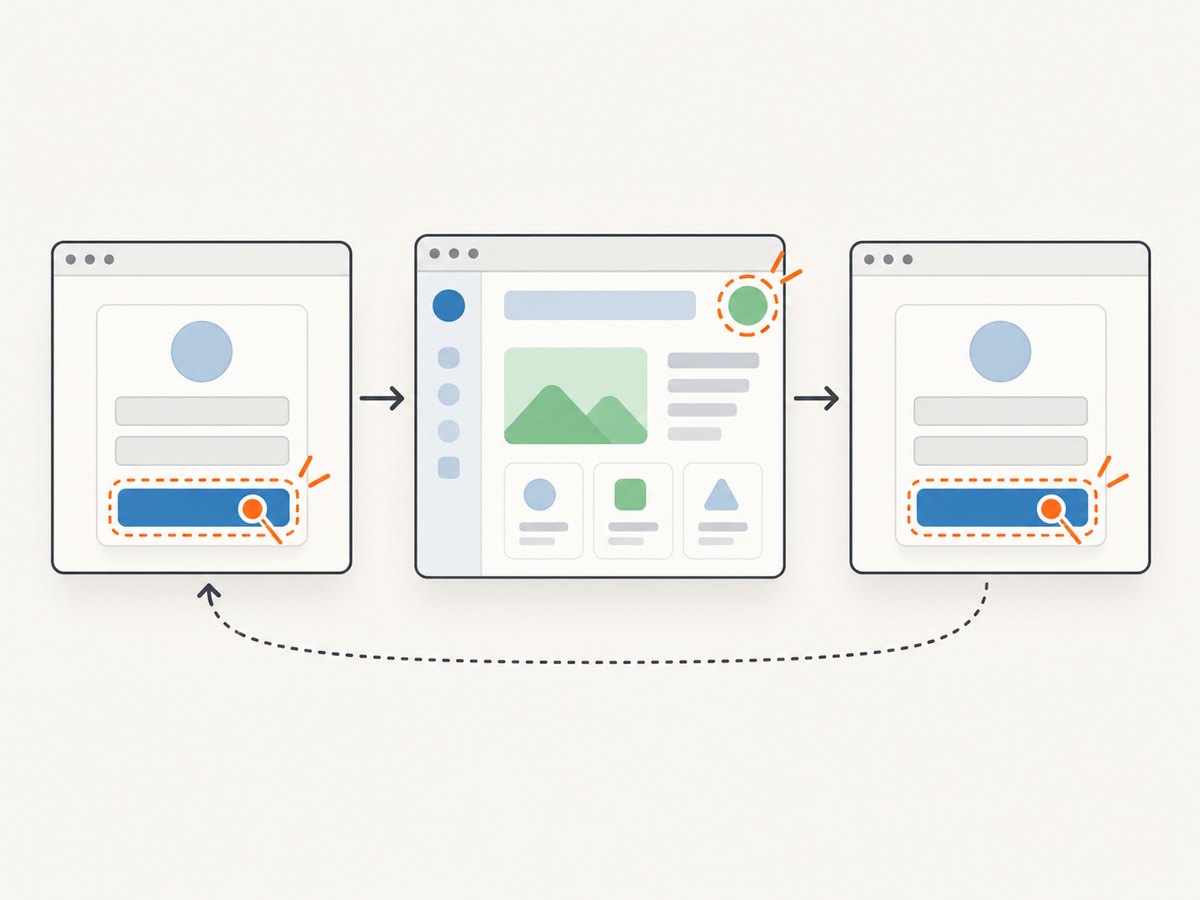
waitForSelector(selector, {"visible": True}) waits for a matching visible element. click(selector) scrolls the matching element into view when needed and clicks its center. type(selector, text) types into a matching element. Missing selectors are errors, not successful no-ops. Waiting before interacting makes failures easier to diagnose, but it cannot make an incorrect selector correct.
Choose the right wait for a single-page app
Some applications update the interface without a full document navigation. In that case, a navigation wait may time out even though login succeeded. Wait for the authenticated state instead, and click without waiting for navigation:
await page.click(LOGIN_BUTTON_SELECTOR)
await page.waitForSelector(LOGGED_IN_SELECTOR, {"visible": True})
Use the same idea for logout: wait for the site’s signed-out signal. A fixed sleep can sometimes mask a race, but it is slower when the page responds quickly and still unreliable when it responds slowly. Prefer waiting for the actual state that matters.
Handle form and page variations
- Different field types: The site might use an email field, a multi-step form, or a button that becomes enabled only after validation. Adapt the selectors and wait for the next step before typing or clicking.
- Consent layers: A consent dialog may cover the form or intercept a click. Follow the site’s normal consent flow if required, then wait for the login controls again.
- Frames: If the form is inside an iframe, locate the relevant frame and interact with its page context. Page-level selectors do not automatically target every frame.
- MFA and redirects: A login may require a second factor, approval, or an intermediate redirect. Add the authorized site-specific steps and checks rather than assuming the first submit completes authentication.
- Buttons that are not submit controls: A click may validate fields, open a menu, or reveal another form step instead of navigating. Wait for that next state before continuing.
Use JavaScript evaluation only when selector APIs do not fit
For ordinary form entry and clicks, prefer Pyppeteer’s selector methods. Its project guide notes that evaluate() accepts JavaScript as a string and can mis-detect whether a string is a function or expression; force_expr=True is available when an expression is incorrectly treated as a function. If you need evaluation for a target-specific interaction, keep the expression small and verify its effect with a visible page state.
5. cURL, Python, and Node.js for a screenshot of the resulting page
Pyppeteer is the do-it-yourself browser automation method for performing the login and logout sequence. The following examples are for capturing a screenshot of a public page. A single screenshot request does not perform the interactive login sequence above: authenticated captures need an appropriate authorized session or site-specific authentication setup. ScreenshotNeo accepts a URL and returns a screenshot or PDF; see its API documentation for request options.
cURL
curl -G "https://api.screenshotneo.com/v1/shot" \
  -d access_key=YOUR_API_KEY \
  --data-urlencode url=https://example.com \
  -o shot.webp
Python
import requests

r = requests.get(
    "https://api.screenshotneo.com/v1/shot",
    params={"access_key": "YOUR_API_KEY", "url": "https://example.com"},
    timeout=90,
)
open("shot.webp", "wb").write(r.content)
Node.js
const q = new URLSearchParams({
  access_key: 'YOUR_API_KEY',
  url: 'https://example.com',
});
const res = await fetch(`https://api.screenshotneo.com/v1/shot?${q}`);
if (!res.ok) throw new Error(`Screenshot request failed: ${res.status}`);
const bytes = new Uint8Array(await res.arrayBuffer());
await (await import('node:fs/promises')).writeFile('shot.webp', bytes);
6. Troubleshooting Pyppeteer login and logout
| Symptom | Likely cause | What to do |
|---|---|---|
waitForSelector times out |
The selector is wrong, the control is hidden, the page has not reached the expected step, or the form is in a frame. | Inspect the current page and URL, confirm the selector against the rendered DOM, and wait for the preceding state. Check frames if the control is embedded. |
click or type reports no matching element |
The selector does not match an element at interaction time. | Correct the selector and wait for it before the action. Do not catch and ignore this error as if the interaction succeeded. |
| Navigation wait times out after clicking | The site may update through SPA routing, the click may not have submitted, or the selected wait condition may not settle. | Determine whether a document navigation should happen. For an SPA, wait for the resulting state instead. For navigation, keep the wait and click concurrent. |
| Navigation finishes but login check fails | The credentials were rejected, an intermediate step appeared, or the chosen authenticated selector is not a valid success signal. | Check the visible error or next-step form and define a site-specific success condition. Account for MFA and redirects. |
| Click does not activate the intended button | A consent overlay, modal, disabled control, or duplicate selector may intercept or redirect the interaction. | Resolve the site’s visible overlay through its normal flow, wait until the button is enabled, and narrow the selector to the intended control. |
| Browser launch fails | Chromium is missing, incompatible, or unavailable in the runtime environment. | Check the installed Pyppeteer version and browser setup instructions for that version. The old 0.0.25 guide describes a Chromium download on initial use; do not assume every current setup behaves identically. |
| Script succeeds locally but not in deployment | Different browser versions, headless rendering, network access, or environment configuration can change page behavior. | Compare runtime and browser versions, capture diagnostic page state safely, and use explicit waits. Keep credentials out of diagnostic output. |
7. Reliability, speed, and cost considerations
For reliability, treat login and logout as state transitions: establish the starting page, wait for each actionable control, perform the interaction, and assert the resulting state. Use bounded timeouts so a changed page fails visibly. When a navigation is expected, synchronize the click and navigation wait; when no document navigation is expected, wait for a selector or other site-specific state. Avoid assuming that a successful click means authentication succeeded.
For speed, choose the lightest completion signal that still proves the transition you need. Waiting for every network request to stop can be slower or unsuitable on pages with long-running requests; a visible authenticated-state selector may be more appropriate when the app is ready before the network becomes idle. Avoid repeated fixed delays when an event or selector can express the condition directly.
Running a browser has setup and resource costs: the script needs a compatible browser runtime, and each automated session consumes browser time and machine capacity. Reuse a browser process for a controlled sequence when suitable, close pages and browsers in cleanup paths, and avoid excessive parallel sessions. The amount of work depends on the site, wait conditions, and runtime; the cited Pyppeteer material provides no benchmark for a generic login flow.
ScreenshotNeo’s pricing is separate from running Pyppeteer: its free plan includes 1,000 screenshots per month without a card; paid plans start at $5 for 3,000 screenshots, and yearly billing gives two months free. Only clean shots are billed; its response includes X-Page-Verdict and X-Billed headers. Check those response headers when handling automated captures.
Or skip the browser setup
For a screenshot of a page, ScreenshotNeo is a website screenshot API and MCP server from Yorker Media. Its API takes one GET request with a URL and can return PNG, JPEG, WebP, or PDF. Cookie banners, newsletter popups, and chat widgets are removed before the shot, and each of those steps can be turned off. Bot checks, blank pages, timeouts, failed loads, and cache hits are not billed. AI agents can use its MCP server tools: take_screenshot, get_page_info, and capture_pdf.
curl -G "https://api.screenshotneo.com/v1/shot" \
  -d access_key=YOUR_API_KEY \
  --data-urlencode url=https://example.com \
  -o shot.webp
ScreenshotNeo is for capturing a page; it does not replace the Pyppeteer login/logout interaction in this guide. It includes 1,000 screenshots per month free with no card, and paid plans start at $5 for 3,000. Sign up for the free plan.
8. Frequently asked questions
Does Pyppeteer know when a login succeeded?
No. It provides browser automation methods. Your code must check a signal chosen for the specific website.
Can I automate a login that uses MFA?
Only by implementing the target site’s authorized MFA flow and handling its additional states. The basic example does not solve MFA.
Why does Pyppeteer use asyncio.gather() here?
It starts the click and navigation wait concurrently, avoiding the race where navigation begins before the wait is registered.
Can ScreenshotNeo take a screenshot after this script logs in?
The one-call URL example captures a page and does not perform login. Authenticated-page capture requires session handling appropriate to the site and the API options available for that use case.
Sources
- Pyppeteer project documentation — project overview and usage.
- Pyppeteer API reference — selectors, clicks, typing, waits, navigation, and evaluation.
- Puppeteer page interactions guide — comparative context for browser interaction patterns; newer Puppeteer APIs are not a guarantee of identical Pyppeteer behavior.
- ScreenshotNeo API documentation.


