Why Pyppeteer Code Works Only on Windows and How to Fix It
Pyppeteer is not Windows-only. Learn how to fix Chromium paths, installs, permissions, versions, and runtime differences across Linux, macOS, CI, and containers.
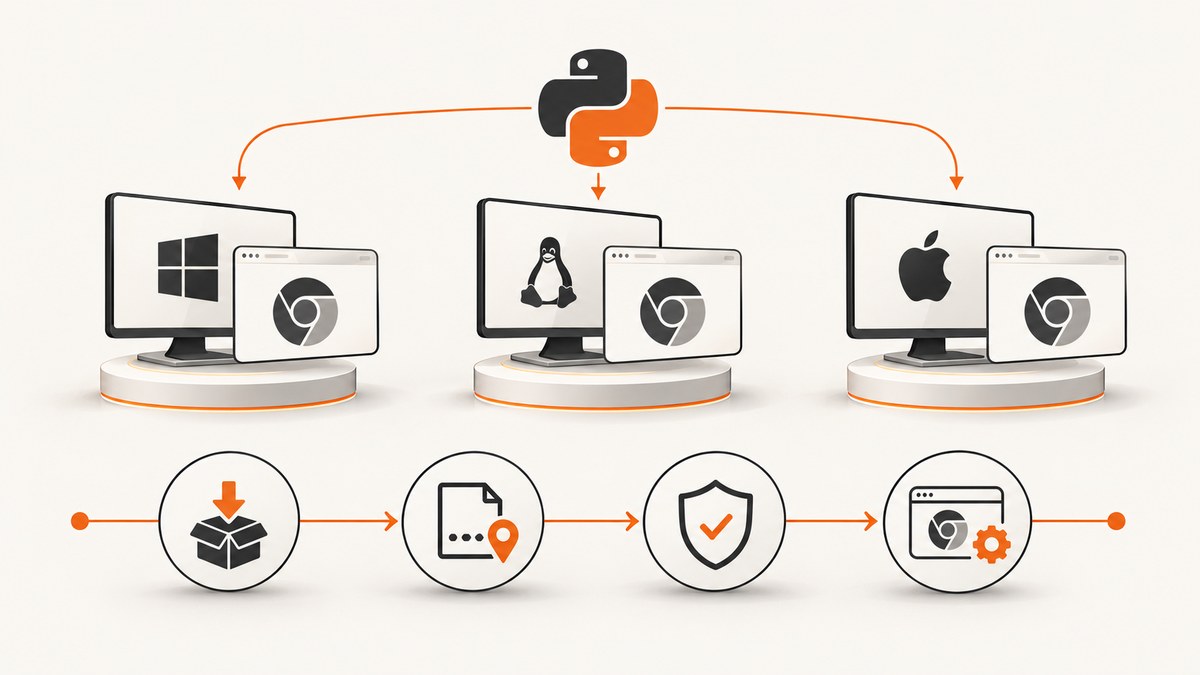
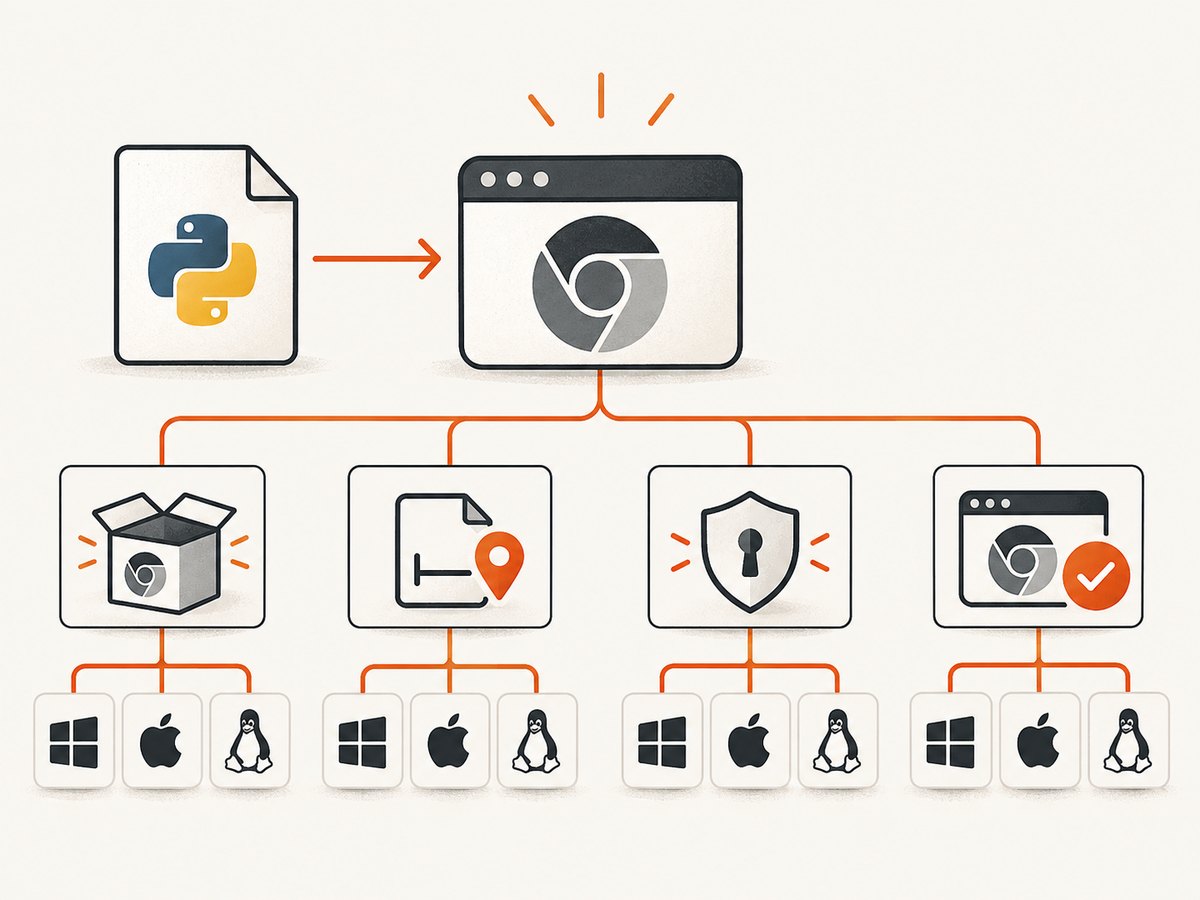
Short answer: Pyppeteer is not documented as Windows-only. It downloads Chromium on first use when a suitable browser is missing, and its API documents browser-data locations for Windows, macOS, and Linux. When the same script works on Windows but fails elsewhere, the difference is usually the Python environment, Chromium installation, executable path, permissions, CPU architecture, browser version, or the runtime environment such as CI or a container.
The exact fix depends on the launch error and the target machine. This guide gives you a repeatable way to identify that difference, repair the setup, and decide whether continuing with Pyppeteer is sensible.
1. Confirm the premise and the likely cause
Pyppeteer is an unofficial Python port of Puppeteer. The current project README requires Python 3.8 or newer and says that first use downloads Chromium if no suitable binary is present. It also documents a pyppeteer-install command for downloading Chromium before your script runs. The project is currently described as unmaintained and recommends considering Playwright Python, but that maintenance status does not mean Pyppeteer cannot run on Linux or macOS.
Common reasons for a Windows-only result include:
- Pyppeteer was installed in one virtual environment, while the script runs with another Python interpreter.
- Chromium downloaded successfully on Windows but was never downloaded, was deleted, or is unreadable on the other machine.
- The script contains a Windows executable path such as
C:\\Program Files\\.... - The browser binary exists but lacks execute permission, or a service account cannot read its parent directory.
- The target machine uses a different CPU architecture or distribution package.
- The installed Chrome or Chromium version is not compatible with the Chromium revision Pyppeteer expects.
- CI, Docker, a server, or a different user account changes filesystem paths, permissions, environment variables, or process restrictions.
Start with the complete exception. “Chromium executable not found,” a permission error, a browser crash, and a page timeout require different fixes.
2. Install Pyppeteer and its browser in the same environment
Use the interpreter that will execute your program. A virtual environment prevents a global package from being confused with the package used by your application.
python3 -m venv .venv
. .venv/bin/activate
python -m pip install --upgrade pip
python -m pip install pyppeteer
pyppeteer-install
On Windows PowerShell, activate the environment with:
python -m venv .venv
.\.venv\Scripts\Activate.ps1
python -m pip install --upgrade pip
python -m pip install pyppeteer
pyppeteer-install
The project README states that the Chromium download is approximately 150 MB. Plan for that download during image builds or first-run startup, and cache it where your deployment system permits.
Verify that the package and installer resolve from the same environment:
python -c "import sys, pyppeteer; print(sys.executable); print(pyppeteer.__file__)"
python -m pip show pyppeteer
which pyppeteer-install   # macOS/Linux
where pyppeteer-install   # Windows
If those commands point to different environments, install and run the program with the same interpreter.
3. Use a portable launch pattern
executablePath is optional. Omit it to use Pyppeteer’s downloaded Chromium. Supply it only when you intentionally want a browser installed on the target machine. The API reference warns that Pyppeteer works best with its bundled Chromium and does not guarantee compatibility with another browser version.
import asyncio
from pyppeteer import launch

async def main():
    browser = await launch(
        # Omit this line to use Pyppeteer's downloaded Chromium.
        # Replace it with the real path on the target machine.
        executablePath="/path/to/chrome-or-chromium",
        headless=True,
    )
    try:
        page = await browser.newPage()
        await page.goto("https://example.com", {"waitUntil": "networkidle2"})
        print(await page.title())
    finally:
        await browser.close()

asyncio.run(main())
For a first diagnostic run, remove executablePath and run pyppeteer-install. If that works, the problem is probably the system-browser path or its version. If it still fails, inspect the downloaded browser location, permissions, and launch exception.
Cross-platform browser-data locations
The API reference documents these defaults:
| Platform | Default Pyppeteer data directory |
|---|---|
| Windows | C:\Users\<username>\AppData\Local\pyppeteer |
| macOS | /Users/<username>/Library/Application Support/pyppeteer |
| Linux | /home/<username>/.local/share/pyppeteer |
Linux may use $XDG_DATA_HOME/pyppeteer. $PYPPETEER_HOME can override the location. Check both variables when the browser appears to have downloaded but Pyppeteer cannot find it.
Supplying an explicit browser path
Use the actual path from the target host rather than copying a Windows path into a Linux or macOS deployment. Typical locations vary by distribution and installation method, so discover the path on that machine:
# Linux
command -v chromium
command -v chromium-browser
command -v google-chrome

# macOS
which chromium
which google-chrome
ls "/Applications/Google Chrome.app/Contents/MacOS/Google Chrome"

# Windows PowerShell
Get-Command chrome
Get-Command chromium
Then pass the discovered path to executablePath. Confirm that the account running the script can execute the file and traverse every parent directory.
4. A systematic troubleshooting checklist
- Record the runtime. Capture the operating system, CPU architecture, Python version, Pyppeteer version, browser version, exact exception, and whether the program runs locally, in CI, in Docker, or under a service account.
- Confirm the interpreter. Print
sys.executable, then install Pyppeteer and runpyppeteer-installthrough that same environment. - Check the data directory. Inspect
PYPPETEER_HOME,XDG_DATA_HOME, and the documented platform default. Make sure the directory is persistent if the process runs in a temporary container. - Check the binary. Verify that the downloaded or supplied executable exists, is readable, and has execute permission on Unix systems.
- Test the bundled browser first. Remove
executablePathand retry. This separates Pyppeteer’s browser management from system-browser compatibility. - Test a local browser as a diagnostic. Add the real path for Chrome or Chromium on that host. A successful launch identifies a download or path problem; it does not prove that every system-browser version is supported.
- Compare versions. Pyppeteer’s API warns that another browser version may not work even when the executable path is correct.
- Close the browser in
finally. This prevents failed runs from leaving child processes behind and exhausting the machine over time.
5. Common errors, causes, and fixes
| Error or symptom | Likely cause | Fix |
|---|---|---|
FileNotFoundError or Chromium executable not found |
Chromium was not downloaded, the data directory changed, or executablePath points to a nonexistent Windows path. |
Run pyppeteer-install in the active environment; inspect PYPPETEER_HOME/XDG_DATA_HOME; or set the real target-host path. |
| Permission denied | The service account cannot read the browser or execute it. | Fix ownership and execute permissions, and verify access to every parent directory. Avoid running the application as a different user from the one that downloaded Chromium unless the data directory is shared correctly. |
| Browser starts and immediately exits | Browser-version mismatch, missing system dependency, incompatible architecture, or a runtime restriction. | Retry with Pyppeteer’s bundled Chromium, compare versions and architecture, and inspect the full launch log from the target environment. |
| Works locally but fails in CI or Docker | The image lacks the downloaded browser, its cache is ephemeral, or the runtime user and filesystem differ. | Install/download the browser during the image or job setup, persist the cache where appropriate, and run the diagnostic commands as the same user as the application. |
| Page opens but navigation times out | Network access, DNS, proxy settings, or page-specific loading behavior differs by environment. | Verify outbound access from the runtime, inspect the URL independently, and choose an appropriate navigation wait condition. A launch fix will not solve a blocked network request. |
| Only one machine hangs during launch | Platform, browser build, dependency, or environment difference. | Collect the OS, architecture, Python/Pyppeteer/browser versions, and exact exception. Do not generalize from one machine. |
6. The Fedora report: useful clue, not a universal diagnosis
Pyppeteer issue #441 describes one launch hang on Fedora 37 with Python 3.11 and Chrome 115.0.5790.3. It is a dated user report, not evidence that Fedora or Linux is broadly incompatible and not proof of a universal remedy. Treat it as a reminder to compare the complete environment and browser version when a launch hangs.
Avoid making --no-sandbox your standard fix. A comment in that issue suggests disabling sandboxing, but the primary API documentation does not present it as a general cross-platform solution, and changing browser sandbox settings requires a security review. First repair installation, paths, permissions, dependencies, and version compatibility.
7. Should you migrate to Playwright Python?
The current Pyppeteer repository calls the project unmaintained and suggests considering Playwright Python. Playwright’s official Python documentation describes separate package and browser installation steps and provides synchronous and asynchronous APIs.
| Decision axis | Pyppeteer | Playwright Python |
|---|---|---|
| Maintenance signal | Current README describes it as unmaintained. | Official documentation provides current installation and usage guidance. |
| Browser management | Downloads Chromium when absent; supports executablePath. |
Installs managed browser binaries with its browser-install command and documents cache locations. |
| API migration | Existing code uses Pyppeteer methods. | Provides separate sync and async APIs; existing scripts need edits. |
| Compatibility strategy | Test the supported bundled-browser setup before changing libraries. | Evaluate after reproducing the failure and checking the migration effort. |
Migration is an engineering choice, not an instant drop-in fix. If a Pyppeteer-specific behavior is important, reproduce it with a clean supported setup before committing to a rewrite.
8. Or skip the browser setup
If your goal is simply to obtain a reliable screenshot rather than maintain a browser process, ScreenshotNeo provides a GET endpoint that returns a PNG, JPEG, WebP, or PDF. See the ScreenshotNeo documentation for request options.
cURL
curl -G "https://api.screenshotneo.com/v1/shot" -d access_key=YOUR_API_KEY --data-urlencode url=https://stripe.com -o shot.webpPython
import requests

r = requests.get(
    "https://api.screenshotneo.com/v1/shot",
    params={"access_key": "YOUR_API_KEY", "url": "https://stripe.com"},
    timeout=90,
)
r.raise_for_status()
open("shot.webp", "wb").write(r.content)
Node.js
const q = new URLSearchParams({ access_key: 'YOUR_API_KEY', url: 'https://stripe.com' });
const res = await fetch(`https://api.screenshotneo.com/v1/shot?${q}`);
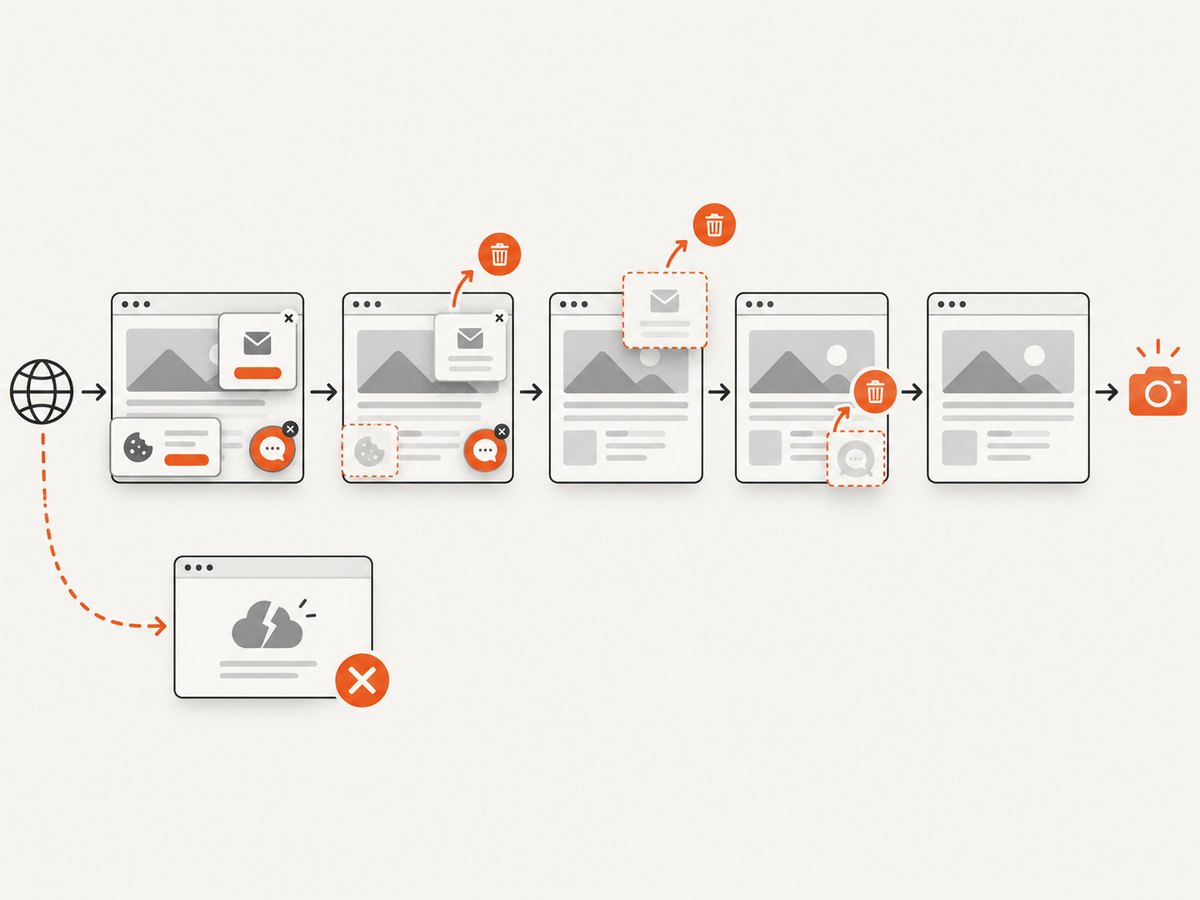
ScreenshotNeo removes cookie and consent banners, newsletter popups, and chat widgets before capture. Bot checks, blank pages, timeouts, failed loads, and cache hits are not billed, and each response identifies the result with X-Page-Verdict and X-Billed headers. Its MCP server lets Claude, Cursor, and other MCP clients call take_screenshot, get_page_info, and capture_pdf. The free plan includes 1,000 screenshots per month with no card; paid plans start at $5 for 3,000 shots.
Create a free ScreenshotNeo account and use the 1,000 monthly screenshots without adding a card.
9. Performance, reliability, and cost notes
- Startup cost: the first Pyppeteer run may download approximately 150 MB of Chromium. Cache that download in CI or bake it into an image when startup time matters.
- Process cleanup: always close the browser in
finally. Repeated leaked processes can consume memory and file descriptors. - Repeatability: pin the Python dependency and control which browser binary is used. A machine-wide Chrome update can change behavior when you rely on
executablePath. - Parallel jobs: give concurrent jobs isolated temporary profiles or a deliberate shared cache strategy. Avoid allowing multiple jobs to corrupt an incomplete browser download.
- Network timing: browser launch success does not guarantee that a page will load. Measure navigation and resource behavior separately from startup.
- Hosted alternative: ScreenshotNeo supports caching with a TTL you choose, async jobs with signed webhooks, bulk capture of up to 100 URLs per call, custom waits, blocking rules, device presets, full-page capture, element capture, PDFs, and usage reporting. Billing applies only to clean shots, with every feature on every plan.
10. FAQ
Is Pyppeteer officially Windows-only?
No. Its current documentation describes Chromium downloads and data locations for Windows, macOS, and Linux.
Should I always set executablePath?
No. Omit it when using Pyppeteer’s downloaded Chromium. Set it when you intentionally use a browser installed on the target host and have verified its path and compatibility.
Why did reinstalling Pyppeteer not help?
Reinstallation does not fix a script running under a different interpreter, an incorrect data-directory override, Unix permissions, an incompatible browser version, or a restricted CI/container runtime.
Does Playwright guarantee that my Pyppeteer script will work unchanged?
No. Playwright has different APIs and separate sync and async interfaces. Plan for code changes and test the behavior your application depends on.
What information should I include when asking for help?
Include the operating system and architecture, Python and Pyppeteer versions, browser version, exact exception, executable path, relevant environment variables, and whether the code runs locally, in CI, or in a container.
Sources: Pyppeteer repository and README; Pyppeteer API reference; Playwright Python library guide; Playwright browser management; Pyppeteer issue #441.


