Pyppeteer: Puppeteer for Python Developers
Pyppeteer brings Puppeteer-style Chrome automation to Python, but its maintainers call it unmaintained. Learn how it works, where it differs, and when to migrate.
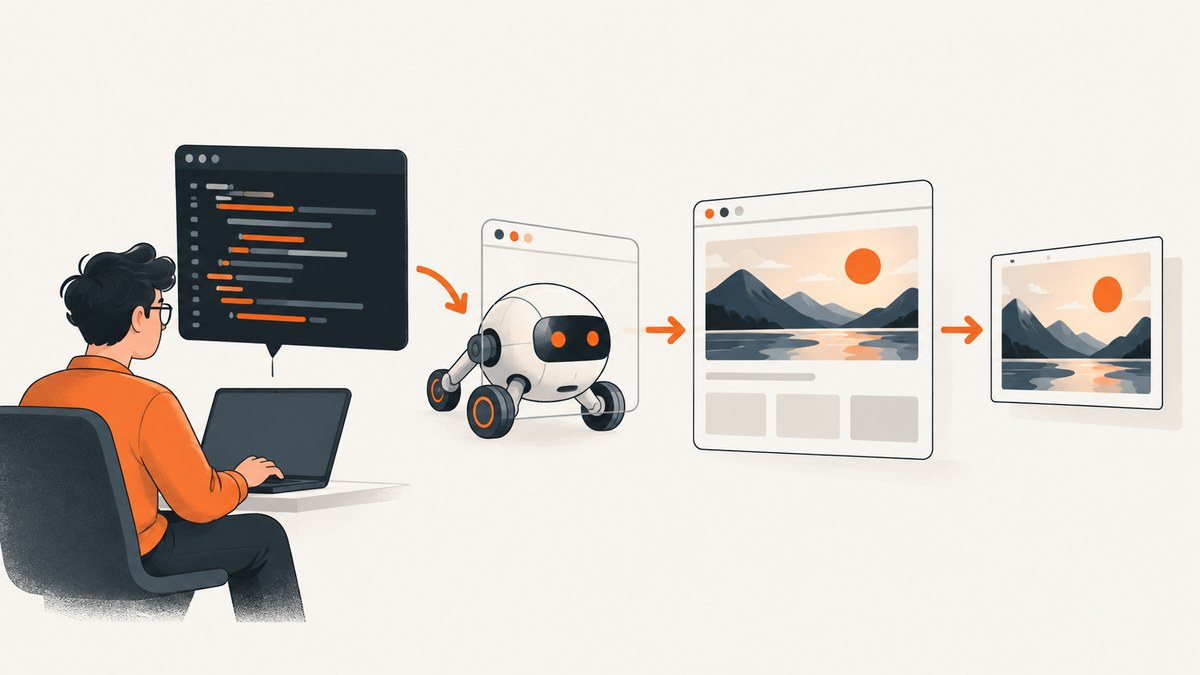
Pyppeteer is an unofficial Python port of Puppeteer for automating Chrome and Chromium. It can launch a browser, navigate to pages, interact with elements, run JavaScript, and save screenshots or PDFs. However, the Pyppeteer project README says the repository is unmaintained and recommends Playwright Python. For a new project, start by evaluating Playwright; Pyppeteer is most relevant when maintaining an existing integration or planning its migration.
This guide covers installation, browser setup, a runnable screenshot script, API differences, common failures, performance and deployment concerns, and migration choices. Pyppeteer’s README specifies Python 3.8 or later and notes that the first run may download Chromium. See the Pyppeteer project README and PyPI project page for project and package details.
1. What Pyppeteer does, and its maintenance status
Puppeteer is a JavaScript library for controlling Chrome or Firefox. Pyppeteer brings a similar style of browser automation to Python and focuses on Chrome/Chromium. It is an unofficial port, so similarity to Puppeteer does not guarantee identical behavior or a drop-in translation of JavaScript examples.
The project README explicitly describes Pyppeteer as unmaintained and suggests Playwright Python as an alternative. That should guide adoption decisions: if you need a maintained automation dependency, assess Playwright and your deployment constraints before starting new Pyppeteer work. Existing scripts can still be useful, but pin and validate their dependencies and browser environment rather than assuming ongoing compatibility fixes.
2. Install Pyppeteer and prepare Chromium
The current README requires Python 3.8 or newer. Install the package in a virtual environment so its dependencies do not mix with system Python packages:
python -m venv .venv
source .venv/bin/activate
python -m pip install --upgrade pip
python -m pip install pyppeteer
On Windows PowerShell, activate with .venv\Scripts\Activate.ps1. On Windows Command Prompt, use .venv\Scripts\activate.bat.
Pyppeteer can download a compatible Chromium build the first time a browser is launched. If you want that download to happen during image build or setup rather than during a production request, run:
pyppeteer-installThe download size depends on the version and platform; the repository’s approximate figure is not a universal guarantee. Make sure the runtime environment has network access during installation, sufficient disk space, and the system libraries Chromium needs. In containers, verify the actual base image and Chromium launch requirements.
3. Capture a page with a runnable Python script
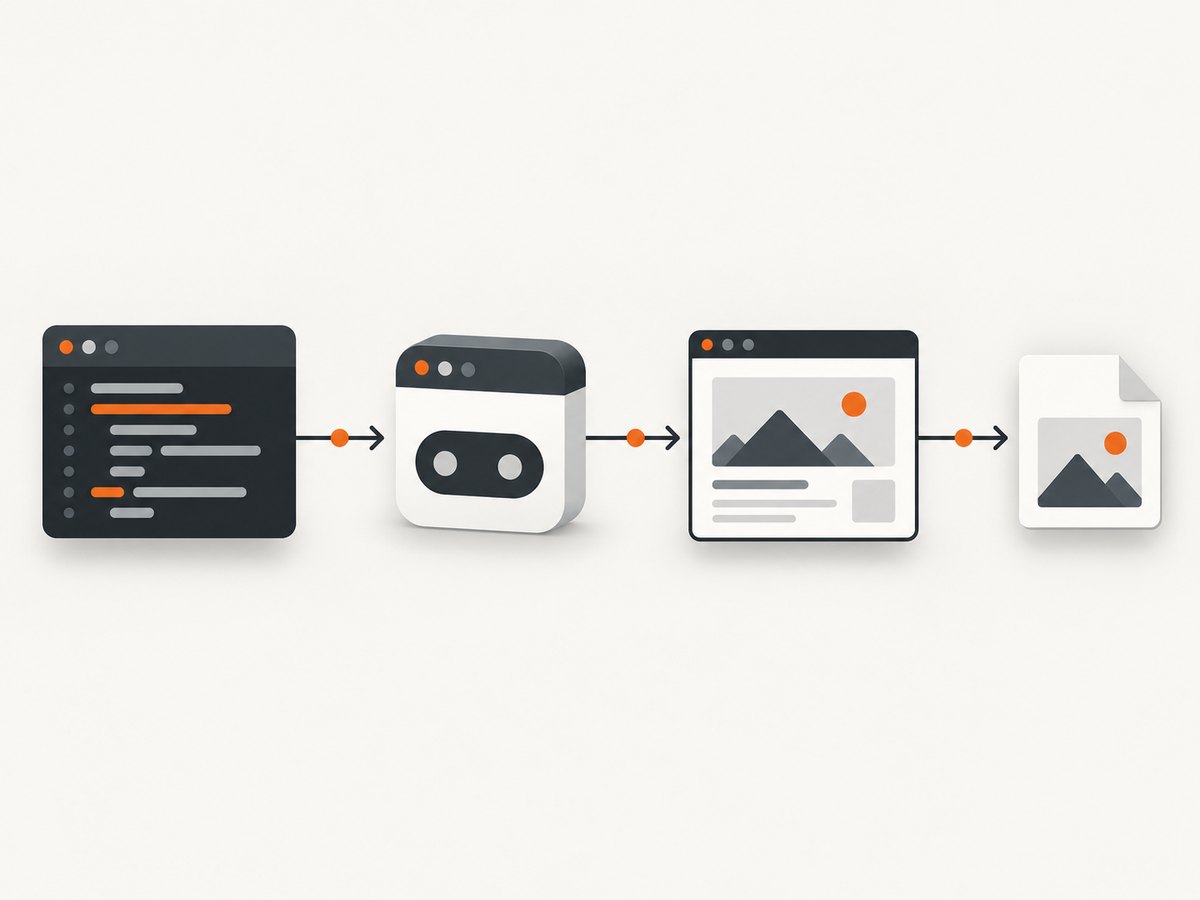
This asynchronous example launches Chromium, opens a page, waits for the document to load, sets a viewport, saves a screenshot, and closes the browser even if navigation or capture fails:
import asyncio
from pathlib import Path
from pyppeteer import launch

async def main():
    browser = await launch(headless=True)
    try:
        page = await browser.newPage()
        await page.setViewport({"width": 1440, "height": 1000})
        response = await page.goto(
            "https://example.com",
            {"waitUntil": "networkidle2", "timeout": 30000},
        )
        if response is not None and response.status >= 400:
            raise RuntimeError(f"Page returned HTTP {response.status}")
        await page.screenshot({"path": "page.png", "fullPage": True})
        print(f"Saved {Path('page.png').resolve()}")
    finally:
        await browser.close()

if __name__ == "__main__":
    asyncio.run(main())
Save it as capture.py and run python capture.py. The first launch may trigger the Chromium download described above. In notebooks or environments that already run an event loop, calling asyncio.run() can fail; use the environment’s existing event loop instead.
The waitUntil choice affects when navigation resolves. load waits for the load event; domcontentloaded waits for initial HTML parsing; networkidle0 and networkidle2 wait for network activity to become quiet under different thresholds. Analytics, long polling, and continuously loaded resources can make network idle unsuitable. For dynamic pages, wait for a meaningful selector or use a bounded delay after navigation.
4. Common capture options and page interactions
Pyppeteer’s Page API supports viewport settings, navigation, screenshots, PDF output, selectors, cookies, request handling, and browser evaluation. Check the Pyppeteer reference documentation for the exact method signatures supported by the installed version. These are common patterns:
# Capture only the visible viewport
await page.screenshot({"path": "viewport.jpg", "type": "jpeg", "quality": 85})

# Set a mobile-sized viewport
await page.setViewport({"width": 390, "height": 844, "isMobile": True})

# Wait for a specific element to appear
await page.waitForSelector("main article", {"visible": True, "timeout": 10000})

# Click a control, then capture
await page.click("button.accept")
await page.screenshot({"path": "after-click.png"})

# Export a PDF (Chromium's PDF rendering is generally intended for print output)
await page.pdf({"path": "page.pdf", "format": "A4", "printBackground": True})
For full-page screenshots, use fullPage: True; for a viewport image, omit it. JPEG quality applies to JPEG output. Use a selector wait when the target content appears after client-side rendering. For a control that may not exist, check visibility or catch the timeout rather than allowing every capture to fail.
Pyppeteer APIs are asynchronous: browser and page operations need await. Manage browser lifetime explicitly, especially in a service that handles many URLs. Reuse a browser process only when your concurrency and isolation model permits it, and create and close pages per job. A shared browser can reduce repeated startup work, but it also makes resource limits, crashes, and cross-request state important concerns.
5. Pyppeteer API differences from Puppeteer
Pyppeteer follows Puppeteer concepts, but Python syntax and implementation differences matter. For example, JavaScript’s dollar-sign method names cannot be used as Python method identifiers in the same way. Pyppeteer documents names such as querySelector, querySelectorAll, and xpath, alongside shorthand methods. Translate the operation, not just the spelling, and check the installed version’s reference.
Evaluation is another common source of confusion. Pyppeteer’s evaluate takes JavaScript source as a string. The README advises trying force_expr=True when an expression is interpreted as a function:
title = await page.evaluate("document.title", force_expr=True)
print(title)
Do not assume a Puppeteer snippet using callbacks, selector shortcuts, or newer browser APIs maps exactly. Confirm whether a method exists, whether it expects a string or callable, and whether the page context is the one you intend. Exercise translated code against representative pages, including errors and slow-loading content.
6. Troubleshooting
| Symptom | Likely cause | What to do |
|---|---|---|
| Chromium executable not found | The browser download has not run, or the runtime cannot see the downloaded executable. | Run pyppeteer-install during setup, check the install output and configured executable path, and ensure the runtime user can read the browser files. |
| First request hangs or fails in a fresh environment | First launch is downloading Chromium, or network access is unavailable. | Preinstall the browser in the build stage and verify network and disk access there. Set an explicit navigation timeout. |
| Browser exits immediately in a container | Missing system libraries, container restrictions, or launch flags and environment not suited to Chromium. | Inspect Chromium stderr, install the required OS dependencies for your base image, and follow the hosting environment’s security guidance. Avoid copying launch flags blindly from unrelated deployments. |
| Navigation timeout on a page that looks loaded | Network-idle waits can be kept open by analytics, streaming requests, or long polling. | Use domcontentloaded or load, then wait for the specific content selector. Keep a finite timeout and handle timeout as a page-level outcome. |
| Screenshot misses a chart, image, or client-rendered section | The capture ran before that content finished rendering or loading. | Wait for a page-specific selector, a known application-ready state, or a bounded delay. Check whether the page uses lazy loading and whether scrolling is needed to trigger it. |
evaluate returns an unexpected value or errors |
The source string may be treated as a function rather than an expression, or may refer to unavailable page globals. | Try the documented force_expr=True option for expressions and inspect browser-console errors and the page context. |
| Works locally but fails after deployment | Different browser binary, missing fonts or libraries, permissions, or resource limits. | Reproduce with the same Python version, OS image, Chromium build, fonts, and runtime user. Record browser and page errors for each job. |
7. Reliability, performance, and cost considerations
A browser capture is a sequence of failure-prone steps: launch, navigation, page readiness, rendering, and writing output. Put timeouts around navigation and selector waits; close pages and browsers in finally blocks; and report failures by stage so a timeout is distinguishable from an HTTP error or a missing selector. Retry only transient failures, with a small bounded retry count. Repeating a deterministic CAPTCHA or permanently missing page will add load without fixing the cause.
For throughput, measure your own workload rather than assuming a fixed capture rate. Page complexity, scripts, images, fonts, network latency, viewport size, and full-page length all affect time and memory. Control concurrency to avoid exhausting RAM or CPU, and consider blocking unneeded resources only when it will not remove content that matters. Reusing a browser process may avoid startup cost, but isolate contexts or pages carefully and recycle unhealthy processes.
There is no Pyppeteer service fee in the package itself described by these sources; operational cost comes from compute, storage, bandwidth, and engineering time to maintain a browser automation stack. Chromium downloads and upgrades also need to fit your build and release process. Since Pyppeteer is described as unmaintained, include migration and compatibility work in the ownership cost for a new long-lived system.
8. Should you migrate to Playwright Python?
Pyppeteer’s own README points readers to Playwright Python. Official Playwright Python documentation describes both synchronous and asynchronous APIs and browser support for Chromium, Firefox, and WebKit. Its browser documentation explains that each Playwright version expects particular browser binaries, so an update can require running the browser installation command again. See the Playwright Python documentation and browser installation documentation.
| Decision factor | Pyppeteer | Playwright Python |
|---|---|---|
| Project status | Repository says unmaintained; best considered for existing code or migration planning. | Recommended by Pyppeteer’s README; check current project release and support information when adopting. |
| Browser engines | Chrome/Chromium automation focus. | Documentation lists Chromium, Firefox, and WebKit. |
| Python style | Asynchronous API and Puppeteer-like concepts. | Documented synchronous and asynchronous APIs. |
| Browser management | May download Chromium on first use. | Browser binaries are matched to Playwright versions and may need reinstalling after updates. |
For an existing Pyppeteer application, inventory the calls you actually use before estimating a port: navigation waits, evaluation, selectors, cookies, network interception, screenshots, PDFs, and launch configuration. Translate a small representative workflow first, including a failure case. Then compare output, browser coverage, operational packaging, and the fit of sync or async APIs for your application. Puppeteer’s own documentation remains useful background for the JavaScript API Pyppeteer resembles, but it is not a Python replacement; see the Puppeteer documentation.
9. Or skip the browser setup
If your task is simply to produce screenshots or PDFs from URLs, ScreenshotNeo is a website screenshot API and MCP server. It can return PNG, JPEG, WebP, or PDF from one GET request. Its API documentation covers the request options.
curl -G "https://api.screenshotneo.com/v1/shot" \
  -d access_key=YOUR_API_KEY \
  --data-urlencode url=https://stripe.com \
  -o shot.webp
import requests
r = requests.get(
"https://api.screenshotneo.com/v1/shot",
params={"access_key": "YOUR_API_KEY", "url": "https://stripe.com"},
timeout=90,
)
r.raise_for_status()
open("shot.webp", "wb").write(r.content)const q = new URLSearchParams({ access_key: 'YOUR_API_KEY', url: 'https://stripe.com' });
const res = await fetch(`https://api.screenshotneo.com/v1/shot?${q}`);
if (!res.ok) throw new Error(`Screenshot request failed: ${res.status}`);
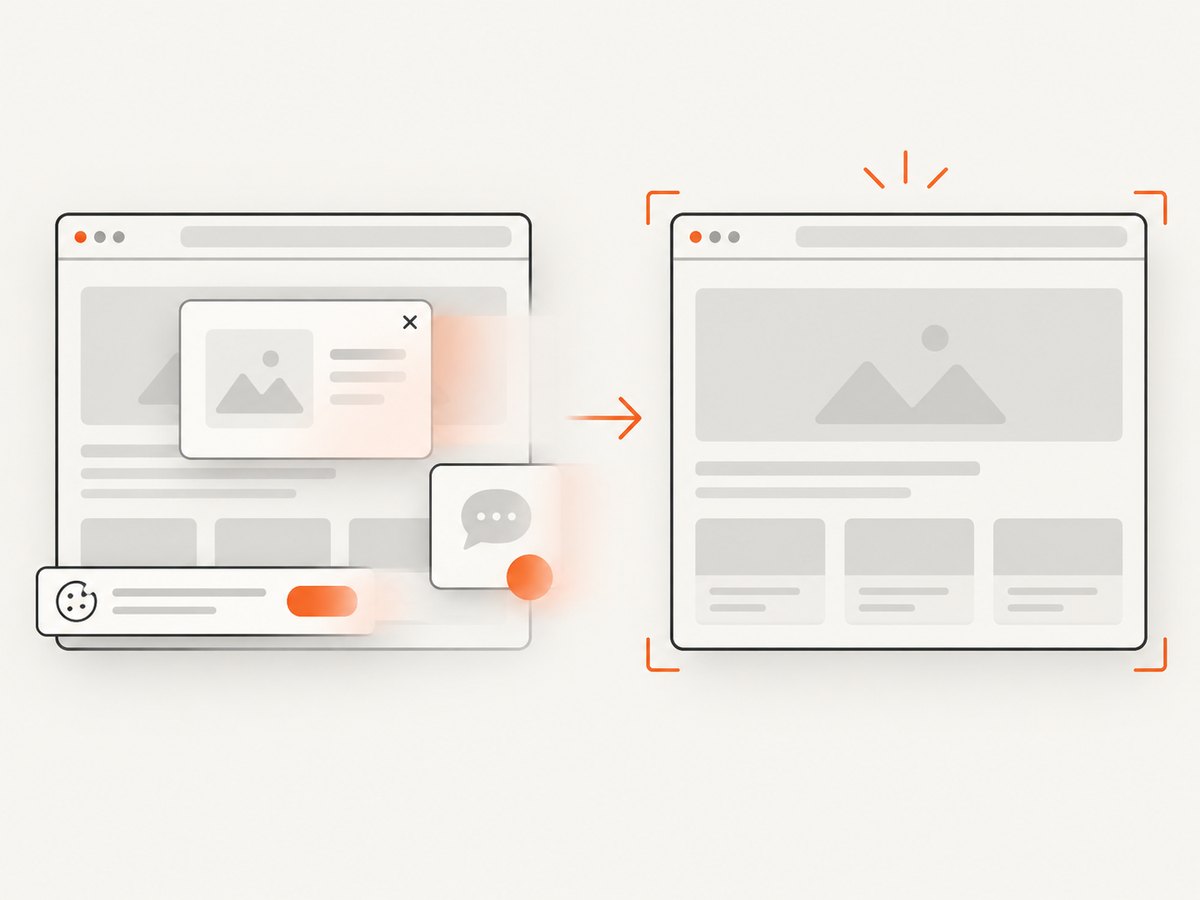
await Bun.write('shot.webp', res);ScreenshotNeo accepts cookie and consent banners as a visitor and removes more than 60 known consent platforms, newsletter popups, and chat widgets before capture; each step can be turned off. Bot checks, blank pages, timeouts, failed loads, and cache hits are not billed, and response headers identify the page verdict and billing status. Its MCP server provides take_screenshot, get_page_info, and capture_pdf tools for Claude, Cursor, and other MCP clients. The free plan includes 1,000 shots a month without a card; paid plans start at $5 for 3,000 shots.
Sign up for 1,000 free screenshots a month, with no card required.
10. Frequently asked questions
Is Pyppeteer the official Python version of Puppeteer?
No. The Pyppeteer project describes it as an unofficial Python port. Similar concepts do not mean exact API compatibility.
Can Pyppeteer take PDFs as well as screenshots?
Pyppeteer exposes Chromium PDF output through its page API. Use the documented options for paper format, print backgrounds, and other output settings supported by your installed version.
Does Pyppeteer support Firefox and WebKit?
Pyppeteer is presented as a Chrome/Chromium port. Playwright Python documents Chromium, Firefox, and WebKit support.
Should I use Pyppeteer for a new project?
Start by evaluating Playwright Python because Pyppeteer’s own repository says it is unmaintained and recommends Playwright. Keep Pyppeteer in consideration when supporting an existing integration requires it, and validate the exact browser environment you will deploy.


