How to Take Screenshots with Pyppeteer in Python
Learn how to capture full pages, elements, regions, JPEGs, PNGs, and in-memory images with Pyppeteer, plus fixes for Chromium and CI issues.
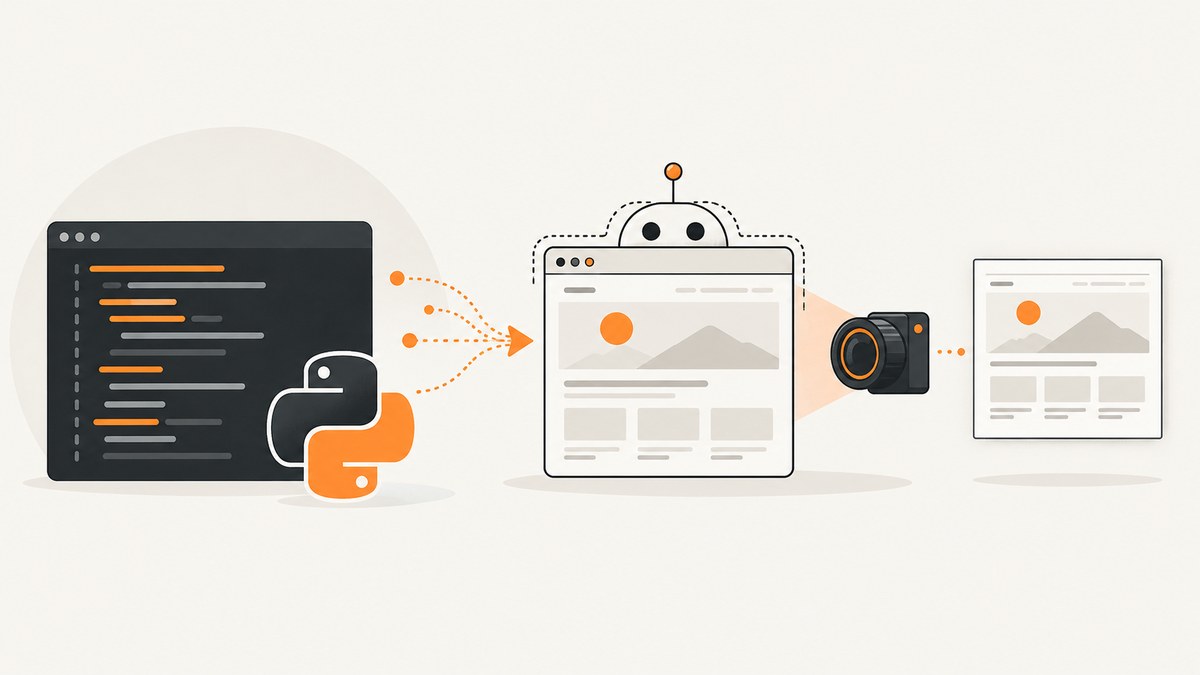
Use Pyppeteer’s asynchronous browser API: launch Chromium, open a page, navigate to a URL, call page.screenshot(), and close the browser. Install it with pip install pyppeteer. The following complete script writes example.png:
import asyncio
from pyppeteer import launch

async def main():
    browser = await launch()
    page = await browser.newPage()
    await page.goto("https://example.com")
    await page.screenshot({"path": "example.png"})
    await browser.close()

asyncio.get_event_loop().run_until_complete(main())
Pyppeteer is an unofficial Python port of Puppeteer. Its PyPI 2.0.0 release requires Python 3.8 or newer and below 4.0. The first run can download Chromium (approximately 150 MB), and the upstream repository currently describes itself as unmaintained. See the project README and PyPI release information before choosing it for a new system.
1. Install Pyppeteer and prepare Chromium
python -m pip install pyppeteerRun the minimal script once. If no compatible browser is installed, Pyppeteer may download Chromium into its local cache. In CI or a container, either cache that download between runs or point Pyppeteer at a browser already installed on the machine.
import asyncio
from pyppeteer import launch

async def main():
    browser = await launch({
        # Set this when Chrome/Chromium is installed at a known location.
        # "executablePath": "/usr/bin/chromium"
    })
    page = await browser.newPage()
    await page.goto("https://example.com", {"waitUntil": "networkidle2"})
    await page.screenshot({"path": "example.png"})
    await browser.close()

asyncio.run(main())
Pin the dependency in reproducible builds. Because the project is flagged as unmaintained, evaluate a maintained alternative such as Playwright for new long-lived projects; that is a maintenance recommendation, not a performance claim.
2. Control the viewport before capturing
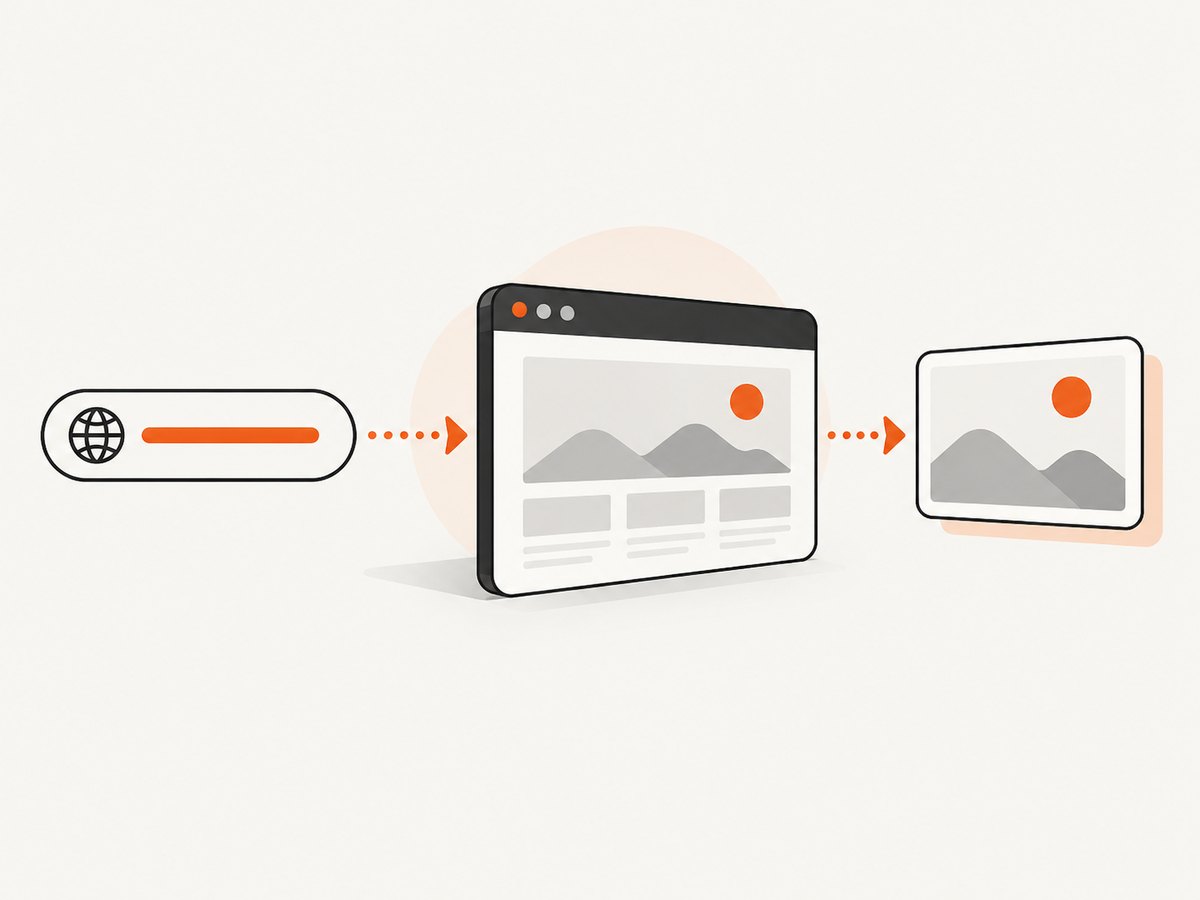
The viewport determines the CSS layout and the visible area. Set it before navigation when responsive breakpoints matter.
await page.setViewport({
    "width": 1440,
    "height": 900,
    "deviceScaleFactor": 1,
    "isMobile": False,
    "hasTouch": False,
})
Increase deviceScaleFactor for a retina-style image. Use a realistic viewport for the device you are documenting; changing it can change menus, columns, and typography.
3. Capture a full-page screenshot
import asyncio
from pyppeteer import launch

async def main():
    browser = await launch()
    page = await browser.newPage()
    await page.setViewport({"width": 1440, "height": 900})
    await page.goto("https://example.com", {"waitUntil": "networkidle2"})
    await page.screenshot({"path": "full.png", "fullPage": True})
    await browser.close()

asyncio.run(main())
fullPage: True captures the document’s complete scrollable height rather than only the current viewport. Pages that lazy-load content may need a scroll pass before capture:
await page.evaluate("""async () => {
    await new Promise((resolve) => {
        let y = 0;
        const step = 500;
        const timer = setInterval(() => {
            window.scrollBy(0, step);
            y += step;
            if (y >= document.body.scrollHeight) {
                clearInterval(timer);
                resolve();
            }
        }, 100);
    });
}""")
await page.screenshot({"path": "lazy-full.png", "fullPage": True})
4. Capture PNG, JPEG, or bytes
The output path extension determines the image type when you do not specify type. Set type explicitly when you want predictable output.
await page.screenshot({"path": "page.jpg", "type": "jpeg", "quality": 82})
await page.screenshot({"path": "page.png", "type": "png"})
quality applies to JPEG. PNG does not use a JPEG quality value. To keep the image in memory instead of writing a file, omit path; Pyppeteer returns screenshot bytes. You can also request base64 encoding:
png_bytes = await page.screenshot({"type": "png"})
with open("memory.png", "wb") as output:
    output.write(png_bytes)

base64_image = await page.screenshot({"encoding": "base64"})
5. Capture a rectangular region
Pass a clip rectangle in CSS pixels. Coordinates start at the page’s top-left corner.
await page.screenshot({
    "path": "region.png",
    "clip": {"x": 100, "y": 180, "width": 800, "height": 500},
})
The clip must describe a visible, non-negative rectangle. Calculate coordinates after the page has loaded, and remember that a responsive layout can move the target at a different viewport width.
6. Capture one element
Find the element with a CSS selector, then call the element handle’s screenshot method. It accepts the same screenshot options as a page capture.
import asyncio
from pyppeteer import launch

async def main():
    browser = await launch()
    page = await browser.newPage()
    await page.goto("https://example.com", {"waitUntil": "networkidle2"})
    card = await page.querySelector("article.card")
    if card is None:
        raise RuntimeError("article.card was not found")
    await card.screenshot({"path": "card.png"})
    await browser.close()

asyncio.run(main())
An element handle becomes invalid if the page rerenders and detaches that element. Query it again after navigation or a DOM update. Wait for the selector when the element is created asynchronously:
await page.waitForSelector("article.card", {"visible": True})
card = await page.querySelector("article.card")
7. Transparent backgrounds and page preparation
Use omitBackground to hide the default white background and produce transparency where the page supports it:
await page.screenshot({"path": "transparent.png", "omitBackground": True})For deterministic images, wait for the state you need rather than relying only on a fixed sleep:
await page.goto("https://example.com", {"waitUntil": "networkidle2"})
await page.waitForSelector("main")
await page.waitFor(500)  # brief delay for a final animation or font swap
You can inject CSS before capture to hide a cursor, animation, or volatile widget:
await page.addStyleTag({"content": "* { animation: none !important; transition: none !important; }"})8. A reusable Pyppeteer helper
import asyncio
from pathlib import Path
from pyppeteer import launch

async def screenshot(url: str, output: str, *, full_page: bool = False):
    browser = await launch()
    try:
        page = await browser.newPage()
        await page.setViewport({"width": 1440, "height": 900, "deviceScaleFactor": 1})
        await page.goto(url, {"waitUntil": "networkidle2", "timeout": 60000})
        await page.screenshot({"path": output, "fullPage": full_page, "type": "png"})
    finally:
        await browser.close()

asyncio.run(screenshot("https://example.com", "site.png", full_page=True))
The finally block closes Chromium when navigation or capture raises an exception. For a service, create a controlled browser lifecycle and avoid launching an unbounded number of processes per request.
9. Troubleshooting
| Symptom | Cause | Fix |
|---|---|---|
| Chromium download fails | The first-run download is blocked or incomplete. | Retry with network access, cache the browser in CI, or set executablePath to an installed Chrome/Chromium binary. |
BrowserError or the browser exits immediately |
The executable is missing, incompatible, or lacks required sandbox support. | Verify the binary path and permissions, then use the launch flags required by your container environment. Keep those flags specific to that environment. |
| Navigation timeout | The page or a dependency never reaches the selected readiness condition. | Raise the timeout, use an appropriate waitUntil value, or diagnose the slow request. Do not assume a timeout means the page is blank. |
| Screenshot is blank | Capture ran before content rendered, or the site returned a bot challenge. | Check the response and DOM, wait for a meaningful selector, and inspect the page in headed mode while debugging. |
| Element is not found | The selector is wrong or the element is created later. | Call waitForSelector, confirm the selector in the page’s DOM, and query again after rerenders. |
| Element handle is detached | A framework replaced the node after you obtained the handle. | Wait for the UI to settle and obtain a fresh handle immediately before element.screenshot(). |
| Fonts or images differ between runs | Resources are still loading, animations are active, or the environment has different fonts. | Wait for the required selector and fonts, disable animations with CSS, and use the same browser image and viewport in CI. |
| Full-page image cuts off lazy content | Content loads only after scrolling. | Scroll through the document, wait for the network or a content selector, then capture with fullPage. |
10. Performance, reliability, and cost
- Startup: launching Chromium for every image adds process startup time. Reuse a browser where your workload and isolation model allow it.
- Memory: full-page and high device-scale screenshots require more memory. Limit concurrent pages and resize after capture when a smaller artifact is sufficient.
- Network: third-party analytics, ads, videos, and slow APIs make readiness nondeterministic. Block or stub nonessential resources only when that matches the image you need.
- Reproducibility: pin Python and Pyppeteer versions, cache or pin the browser binary, fix the viewport, and use deterministic test data.
- Cost: Pyppeteer itself is a library, but you pay in compute, browser storage, bandwidth, and engineering time. A browser-based service can be simpler when you need many URLs or operational retries.
11. Or skip the browser setup
ScreenshotNeo provides a website screenshot API and MCP server. One GET request returns PNG, JPEG, WebP, or PDF. It accepts consent banners before capture and removes more than 60 known consent platforms, newsletter popups, and chat widgets; each cleanup step can be disabled. Bot checks, blank pages, timeouts, failed loads, and cache hits are not billed, and the response identifies the result with X-Page-Verdict and X-Billed headers. An MCP server provides take_screenshot, get_page_info, and capture_pdf for Claude, Cursor, and other MCP clients.

See the ScreenshotNeo API documentation for all options.
cURL
curl -G "https://api.screenshotneo.com/v1/shot" -d access_key=YOUR_API_KEY --data-urlencode url=https://stripe.com -o shot.webpPython
import requests
r = requests.get("https://api.screenshotneo.com/v1/shot", params={"access_key": "YOUR_API_KEY", "url": "https://stripe.com"}, timeout=90)
open("shot.webp", "wb").write(r.content)
Node.js
const q = new URLSearchParams({ access_key: 'YOUR_API_KEY', url: 'https://stripe.com' });
const res = await fetch(`https://api.screenshotneo.com/v1/shot?${q}`);
Every plan includes the features: full-page and element capture, device presets, custom viewports, retina scale, PDF controls, custom CSS and JavaScript, clicks, selector waits, delays, network-idle waits, request blocking, headers, cookies, user agents, authorization, timezone, geolocation, transparency, resizing, selectable cache TTLs, signed links, asynchronous jobs with signed webhooks, bulk capture for 100 URLs per call, usage API, and an OpenAPI specification. The parameter names used by other screenshot APIs also work, which helps when switching.
Free accounts include 1,000 screenshots each month with no card. Paid plans start at $5 for 3,000 shots; yearly billing gives two months free. Create a free ScreenshotNeo account.
12. FAQ
Does Pyppeteer take screenshots synchronously?
No. Its browser and page methods are asynchronous, so use asyncio and await navigation and capture calls.
Can I return an image from an HTTP endpoint?
Yes. Omit path, receive the returned bytes, and send them as the response body with an appropriate image content type.
When should I use fullPage instead of clip?
Use fullPage for the entire scrollable document and clip for a known rectangular area. Use an element handle when the target is a semantic DOM element.
Why does my first run take much longer?
Pyppeteer may be downloading its Chromium revision on first use. Cache that browser or configure an installed executable in repeatable environments.
Is Pyppeteer suitable for a new production project?
It can run the examples above, but the upstream repository is marked unmaintained. Pin versions and assess a maintained browser automation project before committing to a long-lived production system.


