Python Browser Automation with Selenium
Learn Selenium browser automation in Python, from setup and locators to reliable waits, testing, and remote execution.
Selenium lets Python scripts control a real browser through WebDriver. Install the Python package, create a WebDriver, navigate to a page, locate elements, interact with them, and close the browser with quit(). For dynamic pages, use explicit waits tied to the next action instead of assuming navigation means every JavaScript-rendered element is ready.
This guide builds a local workflow first, then covers locators, waits, tests, remote execution, configuration, troubleshooting, and practical limits. Selenium is designed for browser interaction and application testing; if your only goal is to get a screenshot of a URL, see the ScreenshotNeo option after the Selenium walkthrough.
1. Install Selenium and prepare Python
The current SeleniumHQ Python client documentation lists Python 3.10+ and browser options including Chrome, Edge, Firefox, Safari, WebKitGTK, and WPEWebKit. Supported combinations depend on the operating system and Selenium release, so check the official installation documentation when setting up a new environment. Selenium recommends an isolated virtual environment and installing or upgrading the bindings with pip.
python -m venv .venv
# macOS or Linux:
source .venv/bin/activate
# Windows PowerShell:
# .venv\Scripts\Activate.ps1
python -m pip install -U selenium
In most supported setups, Selenium Manager handles routine browser and driver discovery or setup when a driver is created. You generally do not need to begin by downloading a driver executable manually. If your organization pins browser versions, blocks downloads, or uses a custom browser location, configure that environment explicitly and consult Selenium’s driver guidance.
2. Your first runnable browser automation script
The following script opens a page, finds an element by ID, verifies the page state, and always closes the browser. Replace the URL and locator with values from the application you need to automate.
from selenium import webdriver
from selenium.webdriver.common.by import By


def main():
    driver = webdriver.Chrome()
    try:
        driver.get("https://www.selenium.dev/selenium/web/web-form.html")

        title = driver.title
        assert title, "The page should have a title"

        text_box = driver.find_element(By.NAME, "my-text")
        text_box.send_keys("Selenium with Python")
        driver.find_element(By.CSS_SELECTOR, "button").click()

        message = driver.find_element(By.ID, "message").text
        assert message == "Received!", f"Unexpected result: {message!r}"
        print(f"Page title: {title}")
        print(f"Result: {message}")
    finally:
        driver.quit()


if __name__ == "__main__":
    main()
Run it with python script.py. Selenium’s local Python workflow does not require the Selenium Java server. Keep driver creation and cleanup in a clear scope; quit() ends the browser session and releases its associated resources, including when an assertion or interaction fails.
3. Find elements and interact with them
A locator identifies an element in the page. Selenium’s Python bindings expose locator strategies through By. Prefer identifiers or selectors that reflect stable application markup, and choose a locator that targets the specific control you intend to use.
| Strategy | Example | When it fits |
|---|---|---|
| ID | By.ID, "submit" |
A unique, stable ID is available. |
| Name | By.NAME, "email" |
A form control has a useful name. |
| CSS selector | By.CSS_SELECTOR, "button.save" |
You can express a concise, specific selector. |
| XPath | By.XPATH, "//button[normalize-space()='Save']" |
You need a relationship or text-based match that CSS cannot express. |
| Link text | By.LINK_TEXT, "Documentation" |
The target is a link with stable visible text. |
Common WebElement operations include click(), send_keys(), clear(), get_attribute(), is_displayed(), and reading text. A locator can match zero, one, or many elements. find_element expects one match and raises an exception if none exists; find_elements returns a list, which may be empty.
from selenium.webdriver.common.by import By

email = driver.find_element(By.ID, "email")
email.clear()
email.send_keys("dev@example.com")

save = driver.find_element(By.CSS_SELECTOR, "button[type='submit']")
assert save.is_displayed()
assert save.is_enabled()
save.click()

rows = driver.find_elements(By.CSS_SELECTOR, "table tbody tr")
print(f"Found {len(rows)} rows")
For robust tests, assert the user-visible behavior or application state the test is meant to protect, rather than just asserting that a click call returned. Avoid brittle selectors tied to generated class names or deep page structure when the application can provide stable IDs or test attributes.
4. Wait for the state you need
A navigation call waits according to the browser’s configured page readiness behavior, but modern pages often continue changing after that point. A script that immediately searches for a JavaScript-rendered element can race with the application. Selenium identifies synchronization as a common cause of flaky automation. A fixed sleep can be too short on a slow run and waste time on a fast one.
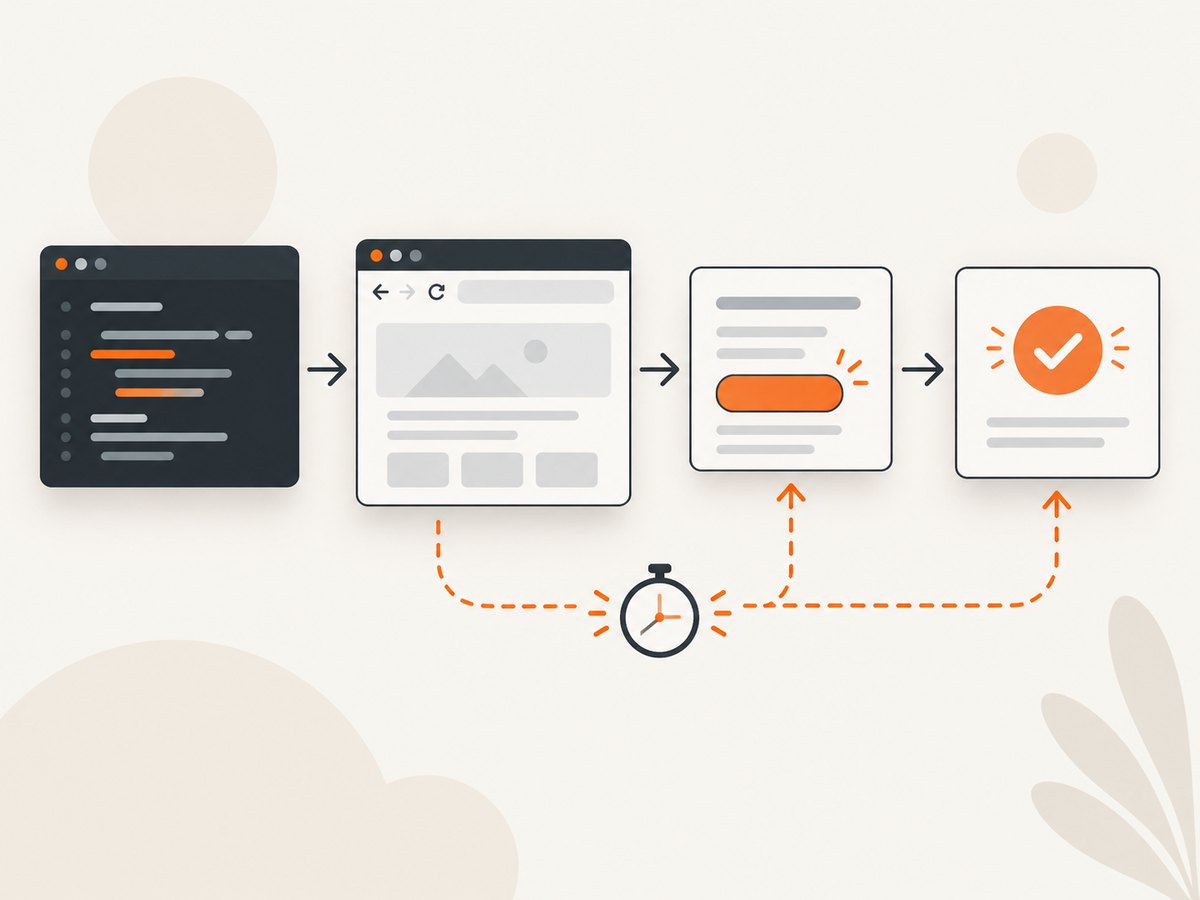
Use an explicit wait for the condition required by the next step. This example waits until a button is clickable, clicks it, then waits until a result element is visible.
from selenium import webdriver
from selenium.webdriver.common.by import By
from selenium.webdriver.support import expected_conditions as EC
from selenium.webdriver.support.ui import WebDriverWait


driver = webdriver.Chrome()
try:
    driver.get("https://example.com/form")
    wait = WebDriverWait(driver, 10)

    submit = wait.until(
        EC.element_to_be_clickable((By.CSS_SELECTOR, "button[type='submit']"))
    )
    submit.click()

    result = wait.until(
        EC.visibility_of_element_located((By.ID, "result"))
    )
    print(result.text)
finally:
    driver.quit()
Useful expected conditions include presence, visibility, clickability, invisibility, and title or URL checks. Pick the condition that makes the next action safe: presence only means the node exists; visibility also checks that it is displayed; clickability additionally checks that it is enabled.
Selenium also supports implicit waits, which apply to element lookup. Choose one synchronization strategy deliberately. Selenium’s official guidance warns against mixing implicit and explicit waits because the resulting wait times can be unpredictable. For most scripts that depend on specific interface states, explicit waits make the dependency easier to read.
5. Organize automation as a test
Keep setup, actions, assertions, and cleanup distinct. Selenium documents use with Python’s standard-library unittest and pytest. This example uses unittest so the test is runnable without adding another test framework.
import unittest
from selenium import webdriver
from selenium.webdriver.common.by import By
from selenium.webdriver.support import expected_conditions as EC
from selenium.webdriver.support.ui import WebDriverWait


class SearchTest(unittest.TestCase):
    def setUp(self):
        self.driver = webdriver.Chrome()
        self.addCleanup(self.driver.quit)
        self.wait = WebDriverWait(self.driver, 10)

    def test_search_shows_results(self):
        self.driver.get("https://example.com/search")
        box = self.wait.until(
            EC.visibility_of_element_located((By.NAME, "q"))
        )
        box.send_keys("selenium")
        self.driver.find_element(By.CSS_SELECTOR, "button[type='submit']").click()

        heading = self.wait.until(
            EC.visibility_of_element_located((By.ID, "results-heading"))
        )
        self.assertIn("selenium", heading.text.lower())


if __name__ == "__main__":
    unittest.main()
Replace the example domain, form locator, and result locator with those belonging to your application. Keep tests independent where practical so a failure identifies a specific behavior. If the browser cannot start in a test environment, inspect browser installation and driver logs before treating a page-level assertion as the cause.
6. Configure browser execution
WebDriver options let you set browser-specific startup configuration. For Chrome, for example, ChromeOptions can add arguments and set browser preferences; other browser drivers provide their own options classes. Configuration choices should match the environment and test purpose.
from selenium import webdriver

options = webdriver.ChromeOptions()
options.add_argument("--headless")
options.add_argument("--window-size=1440,1000")

driver = webdriver.Chrome(options=options)
try:
    driver.get("https://example.com")
    print(driver.title)
finally:
    driver.quit()
Headless mode is useful where a display is unavailable, but check the target browser’s behavior and your application’s rendering assumptions. Set a viewport intentionally when layout affects the test. Do not assume that a desktop browser session has the same viewport, fonts, operating system, or rendering details as every user’s device.
Other relevant configuration includes browser binary location, proxy or network settings, profile preferences, and logging. These are browser- and environment-specific; use the official browser driver documentation for the exact option names. Avoid placing credentials in source code or logs. Where a test needs authenticated access, provide secrets through the environment or your CI secret store.
7. Run locally, then consider Grid
A local WebDriver session is usually the simplest start: Python and a supported browser run on the same machine. When you need execution on remote machines, parallel browser sessions, or a browser and operating-system matrix, Selenium Grid and Remote WebDriver provide a remote execution path. Selenium’s Python documentation notes that a local script does not need its Java server; remote execution is a separate setup.
from selenium import webdriver
from selenium.webdriver.chrome.options import Options

options = Options()
# Add capabilities or browser arguments required by the remote environment.

driver = webdriver.Remote(
    command_executor="http://grid-host:4444",
    options=options,
)
try:
    driver.get("https://example.com")
    print(driver.title)
finally:
    driver.quit()
Use the actual Grid endpoint for your installation; the host above is a placeholder. Evaluate local versus remote execution by browser and operating-system coverage, setup and maintenance effort, parallel capacity, network access to the application, and who manages the Grid. Hosted browser-testing services are another category to evaluate if operating the infrastructure is not a fit; this guide does not compare vendors or their prices.
8. Troubleshooting common Selenium problems
| Symptom | Likely cause | What to try |
|---|---|---|
NoSuchElementException |
The locator is wrong, the element has not appeared, or it is in a different browsing context. | Inspect the live DOM and selector; wait for the expected state; switch to the relevant frame or window when appropriate. |
TimeoutException |
The awaited condition never became true within the timeout. | Confirm the page reached the expected URL, the locator is correct, and the application did not show an error or require a different state. |
ElementClickInterceptedException |
An overlay, animation, or other element covers the target. | Wait for overlays to disappear, scroll the element into view if needed, and check whether the intended control is actually available. |
| Browser or driver fails to start | Browser installation, version compatibility, permissions, or a restricted driver download is preventing startup. | Read the startup error and Selenium Manager output; verify a supported browser is installed and permitted; configure a known browser or driver path if your environment requires it. |
| Test passes locally but fails in CI | Different browser, viewport, timing, fonts, network access, or headless environment. | Record browser and environment versions, set the viewport, replace fixed sleeps with condition waits, and check CI access to the application. |
| Unexpected window or frame content | The target is inside an iframe or opened in another window. | Enumerate window handles and switch to the intended window; switch to the iframe before locating its contents. |
For a missing element, first distinguish a locator problem from a timing or context problem. Inspect the rendered page and confirm whether the node exists, whether it is inside a frame, and whether the page is in the expected state. Increasing a timeout alone will not fix a selector that can never match.
9. Performance, reliability, and cost
Each WebDriver session starts and controls a browser, so opening a new browser for every tiny operation adds startup and resource overhead. Reuse a session for related steps within one test, but keep test state isolated so one test does not depend on another. Parallel sessions can reduce wall-clock time when independent tests and available machine resources permit it, but each browser consumes CPU and memory.
Reliability comes mainly from deterministic application state and synchronization. Wait for the element or result your next step requires, use stable locators, and make assertions about outcomes. Browser automation can still fail because of application changes, network problems, browser differences, or environment changes; capture enough logs and test context to diagnose failures.
Selenium itself is an open-source browser automation project. The practical cost of local execution is the machine and engineering time needed to maintain scripts, browsers, and test environments. Remote or hosted execution can add infrastructure or service costs; compare those against the coverage and concurrency you need. No timing or price comparison is assumed here.
10. Or skip the browser setup
If the task is to capture a page rather than interact with it, a screenshot API can be simpler than starting and maintaining a browser session. ScreenshotNeo is a website screenshot API and MCP server from Yorker Media. One GET request takes a URL and returns a PNG, JPEG, WebP, or PDF. See the API documentation for parameters and response details.
curl -G "https://api.screenshotneo.com/v1/shot" -d access_key=YOUR_API_KEY --data-urlencode url=https://stripe.com -o shot.webpimport requests
r = requests.get(
"https://api.screenshotneo.com/v1/shot",
params={"access_key": "YOUR_API_KEY", "url": "https://stripe.com"},
timeout=90,
)
r.raise_for_status()
open("shot.webp", "wb").write(r.content)const q = new URLSearchParams({ access_key: 'YOUR_API_KEY', url: 'https://stripe.com' });
const res = await fetch(`https://api.screenshotneo.com/v1/shot?${q}`);
if (!res.ok) throw new Error(`Screenshot request failed: ${res.status}`);
await Bun.write('shot.webp', new Uint8Array(await res.arrayBuffer()));The Node example uses Bun to write the returned bytes to a file. In Node.js, use fs/promises instead:
import { writeFile } from 'node:fs/promises';

const q = new URLSearchParams({ access_key: 'YOUR_API_KEY', url: 'https://stripe.com' });
const res = await fetch(`https://api.screenshotneo.com/v1/shot?${q}`);
if (!res.ok) throw new Error(`Screenshot request failed: ${res.status}`);
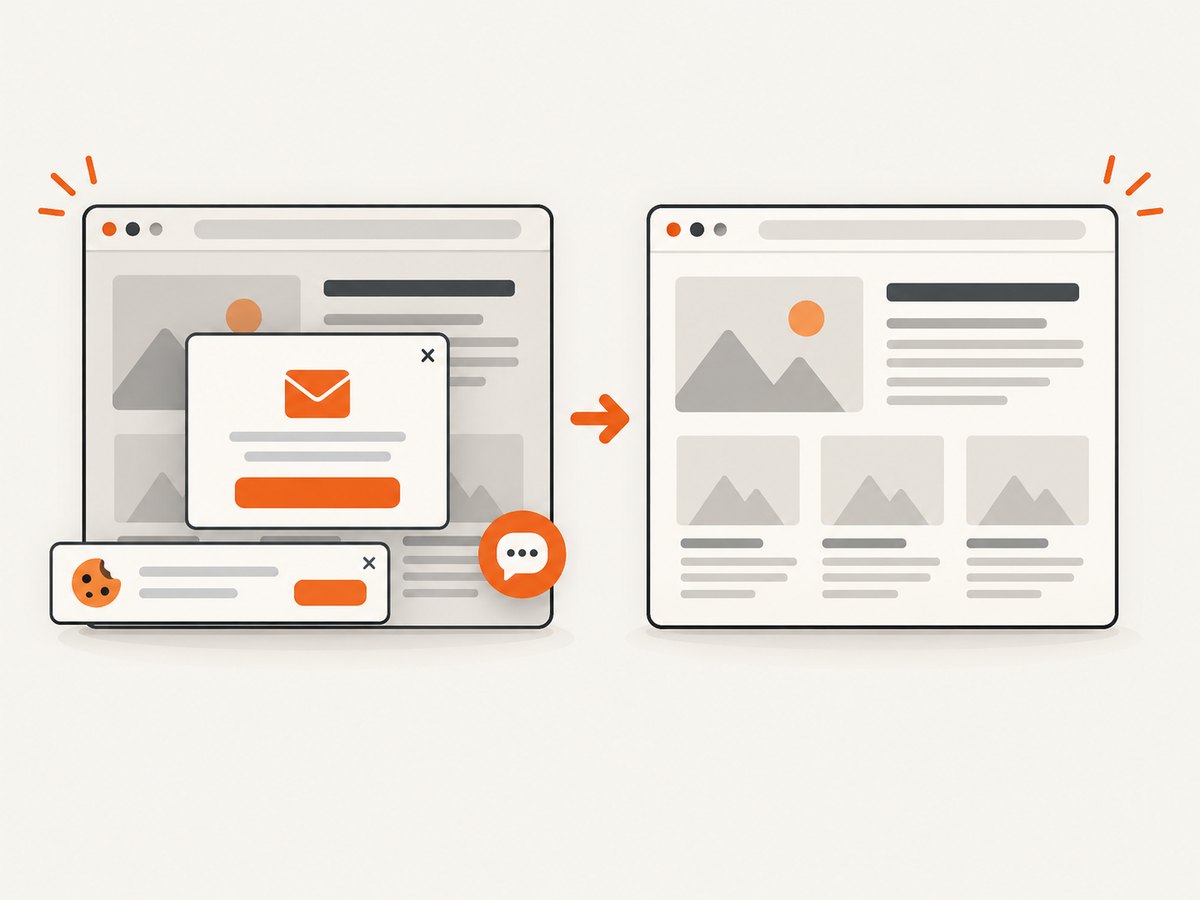
await writeFile('shot.webp', Buffer.from(await res.arrayBuffer()));- Cookie and consent banners, newsletter popups, and chat widgets are removed before the shot; each cleanup step can be turned off.
- Bot checks, blank pages, timeouts, failed loads, and cache hits are not billed. Response headers report the page verdict and billing status.
- An MCP server offers
take_screenshot,get_page_info, andcapture_pdffor Claude, Cursor, and other MCP clients. - The free plan includes 1,000 screenshots per month with no card. Paid plans start at $5 for 3,000 screenshots; every feature is on every plan.
Sign up free for 1,000 screenshots a month, no card required.
11. Selenium FAQ
How do I use Selenium with Python?
Install the selenium package, create a WebDriver for a supported browser, navigate with get(), locate elements with By, interact, assert the outcome, and call quit().
Does Selenium require Chrome?
No. The SeleniumHQ Python client documentation lists several browser options, including Chrome, Edge, Firefox, Safari, WebKitGTK, and WPEWebKit. Availability depends on platform and current support.
Do I need to install ChromeDriver separately?
Usually not as a first step: Selenium Manager handles routine driver management in most supported environments. Restricted or pinned environments may need manual browser and driver configuration.
Can Selenium take screenshots?
WebDriver includes browser screenshot capabilities. Selenium is useful when a screenshot is part of an interaction or test flow; a screenshot API is an alternative when the input is simply a URL and the desired output is an image or PDF.
Should I use Selenium or a browser unit-test tool?
Use Selenium when the workflow needs a browser driven through WebDriver and real user-like interaction. Choose based on the application behavior and browser coverage your tests need.


