How to Save a Screenshot with Python’s browser.save_screenshot
Save Selenium screenshots reliably with Python’s browser.save_screenshot, verify failures, handle paths, and choose full-page or API alternatives.
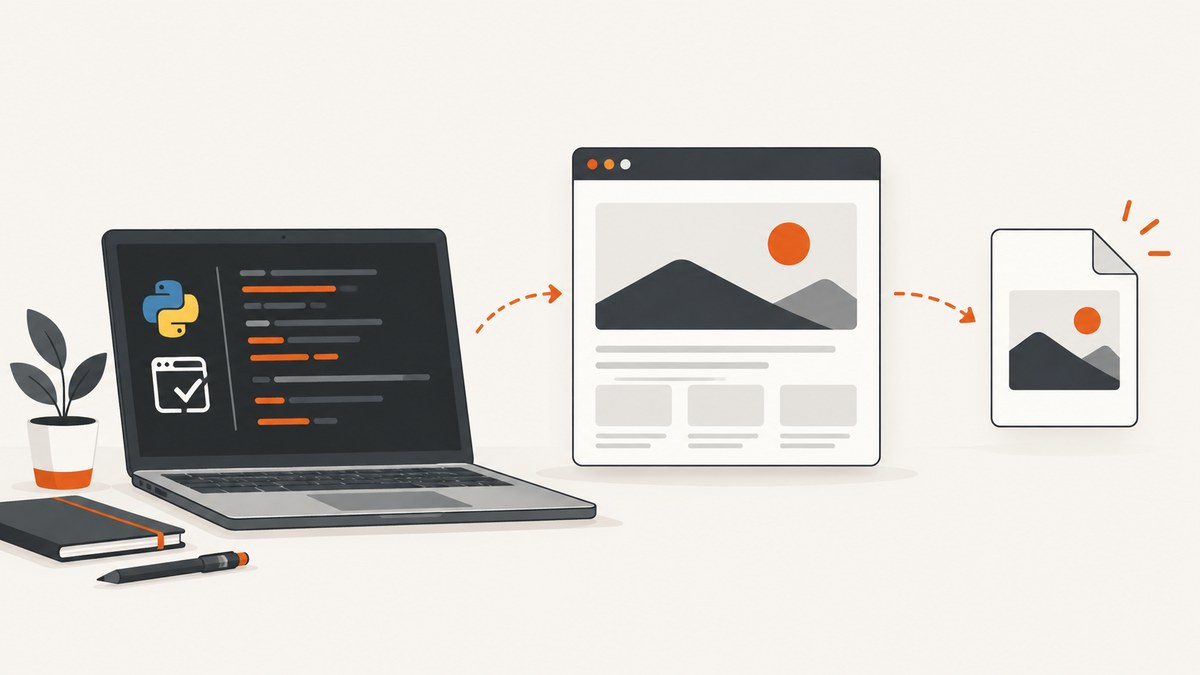
Direct answer: Selenium WebDriver saves the current browser window as a PNG with browser.save_screenshot("screenshot.png"). The method returns True when the file is written and False when an I/O error prevents the save. Use a writable path whose parent directory exists, check the return value when a failed capture matters, and call browser.quit() when finished. The Selenium API documents this as a screenshot of the current window, not automatically the entire scrollable page.
The variable name browser is your choice. Selenium examples often call the same WebDriver object driver; both names expose save_screenshot.
1. Minimal working example
from pathlib import Path
from selenium import webdriver

out = Path("screenshots")
out.mkdir(parents=True, exist_ok=True)

browser = webdriver.Chrome()
try:
    browser.get("https://example.com")

    saved = browser.save_screenshot(str(out / "page.png"))
    if not saved:
        raise RuntimeError("Could not save screenshot")
finally:
    browser.quit()
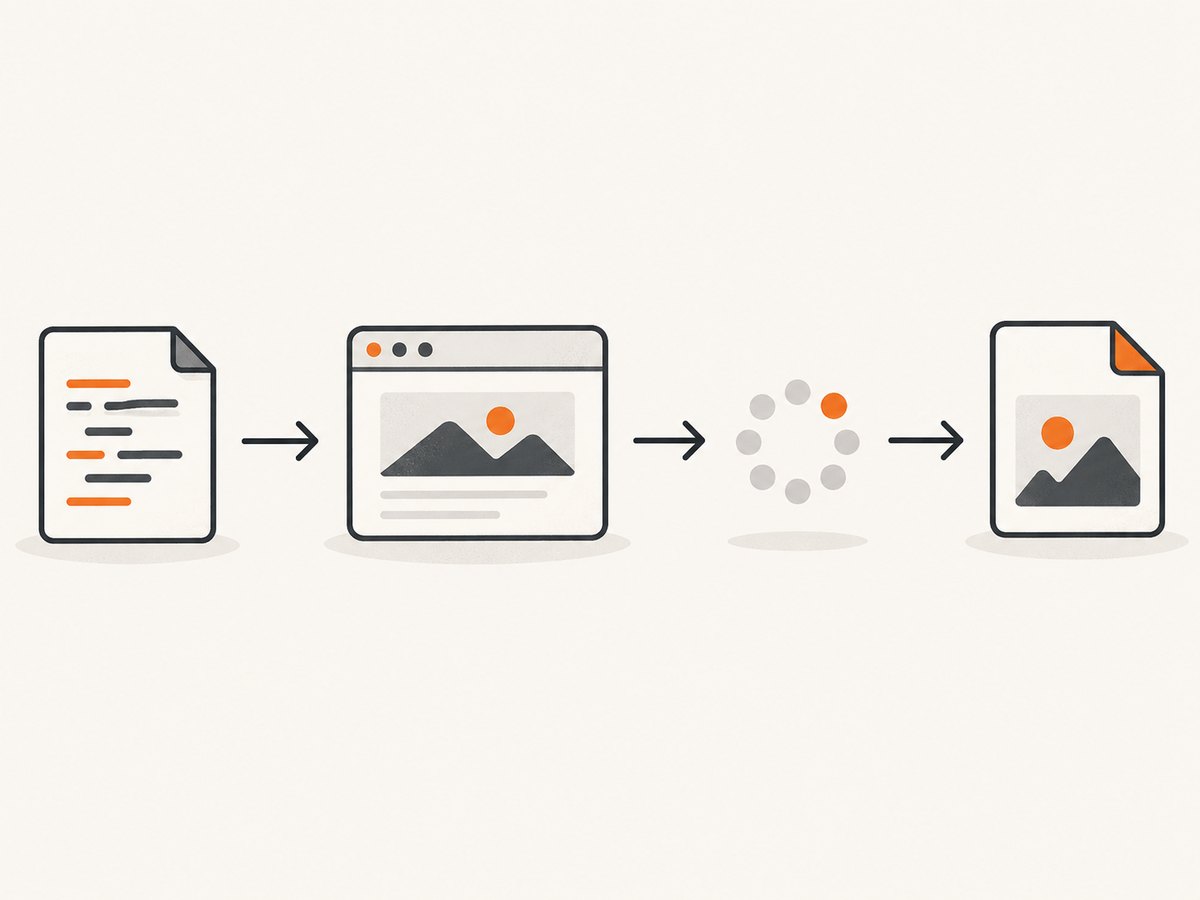
save_screenshot writes PNG data to the filename you provide. The Selenium WebDriver API recommends a filename ending in .png and documents a boolean result: False indicates an IOError; otherwise the method returns True. See the Selenium WebDriver Python API.
2. How the save operation works
Choose a path deliberately
The path is interpreted by the Python process. A relative path such as screenshots/page.png starts from the process working directory, which can differ between a terminal, IDE, test runner, and CI job. For predictable output, build the path with pathlib.Path, create its parent directory, and log the resolved path.
from pathlib import Path

output_file = Path("artifacts") / "checkout-home.png"
output_file.parent.mkdir(parents=True, exist_ok=True)
print(output_file.resolve())

if not browser.save_screenshot(str(output_file)):
    raise IOError(f"Screenshot was not saved: {output_file.resolve()}")
A full path also makes container and CI behavior easier to inspect. Confirm that the user running Python can write to the directory and that the destination is not a directory, read-only mount, or locked file.
Know what is captured
Selenium documents this method as saving the current window. It captures what the WebDriver browser window renders at its current viewport. It does not provide the Playwright-style full_page=True switch. If you need the complete scrollable document, see the alternatives below or use a service that supports full-page capture.
Wait for the page state you need
browser.get() waits according to the page-load strategy, but JavaScript applications can continue rendering afterward. Wait for a meaningful element, a known state, or a short delay only when necessary.
from selenium.webdriver.common.by import By
from selenium.webdriver.support.ui import WebDriverWait
from selenium.webdriver.support import expected_conditions as EC

browser.get("https://example.com/dashboard")
WebDriverWait(browser, 20).until(
    EC.visibility_of_element_located((By.CSS_SELECTOR, "main"))
)

if not browser.save_screenshot("dashboard.png"):
    raise RuntimeError("Screenshot save failed")
Waiting for a selector is usually more reliable than sleeping for an arbitrary number of seconds. If the page depends on a network request, wait for the element that proves the request has produced usable content.
3. Complete Selenium script for repeatable captures
from datetime import datetime, timezone
from pathlib import Path

from selenium import webdriver
from selenium.webdriver.chrome.options import Options
from selenium.webdriver.common.by import By
from selenium.webdriver.support.ui import WebDriverWait
from selenium.webdriver.support import expected_conditions as EC

URL = "https://example.com"
output_dir = Path("screenshots")
output_dir.mkdir(parents=True, exist_ok=True)

options = Options()
options.add_argument("--headless=new")
options.add_argument("--window-size=1440,1000")

browser = webdriver.Chrome(options=options)
try:
    browser.get(URL)
    WebDriverWait(browser, 20).until(
        EC.presence_of_element_located((By.TAG_NAME, "body"))
    )

    stamp = datetime.now(timezone.utc).strftime("%Y%m%dT%H%M%SZ")
    filename = output_dir / f"example-{stamp}.png"
    if not browser.save_screenshot(str(filename)):
        raise RuntimeError(f"Selenium could not save {filename}")
    print(filename.resolve())
finally:
    browser.quit()
Use a fixed viewport when comparing screenshots over time. A stable browser version, font set, timezone, locale, and test data also reduce visual differences that are unrelated to your code.
4. PNG bytes and base64 instead of a file
When another function owns storage, Selenium provides binary PNG data and a base64 representation on the WebDriver object.
# Binary bytes for an object store, HTTP response, or image library
png_bytes = browser.get_screenshot_as_png()
with open("page-from-bytes.png", "wb") as image_file:
    image_file.write(png_bytes)

# Base64 for a data URL or JSON payload
png_base64 = browser.get_screenshot_as_base64()
print(png_base64[:32])
Use save_screenshot when a local file is the desired result. Use the bytes method when you need to upload without creating a temporary file, and base64 when the receiving protocol explicitly expects text.
5. Current window, element, and full-page requirements
| Requirement | Suitable approach | Key detail |
|---|---|---|
| Current Selenium viewport | browser.save_screenshot("page.png") |
PNG file and boolean result |
| PNG bytes | browser.get_screenshot_as_png() |
Returns binary image data |
| Base64 image | browser.get_screenshot_as_base64() |
Returns a base64 string |
| Whole scrollable page | Playwright Python or a screenshot API | Playwright documents full_page=True |
| One element | Playwright locator screenshot or Selenium crop workflow | Element APIs differ by library |
Playwright Python documents page screenshots, element screenshots, optional output paths, returned bytes when no path is supplied, and full_page=True for the full scrollable page in its screenshot guide. Robot Framework Browser is powered by Playwright and has its own screenshot keywords and filename rules; its page and element capture behavior is documented in the Browser Library guide and keyword reference. Robot Framework’s separate Screenshot library captures the machine display and is a different workflow from WebDriver page screenshots; consult its library documentation.
6. Browser setup and configuration that affect the image
Viewport and headless mode
Set the window size explicitly with a Chrome option or WebDriver window command. Headless mode is useful for CI, but the rendered result can differ from a headed desktop because of viewport, fonts, GPU, and environment differences. Keep those inputs consistent for visual regression tests.
options = Options()
options.add_argument("--headless=new")
options.add_argument("--window-size=1280,900")
browser = webdriver.Chrome(options=options)
Device scale and responsive breakpoints
Responsive layouts react to CSS viewport width. Capture separate widths when you need desktop, tablet, and mobile states. A screenshot’s pixel dimensions can also be affected by device scale settings; record the browser and operating-system environment when comparing files.
Authentication, cookies, and private pages
Log in before calling save_screenshot, or load a test profile containing the required cookies. Never place real credentials in source control. For deterministic tests, use fixture accounts and stable seeded data.
Dynamic content and animation
Freeze or wait for animations before capturing. Hide rotating banners, wait for charts to finish, and make timestamps deterministic where possible. A screenshot taken during a transition is valid technically but difficult to compare.
7. Troubleshooting checklist
| Symptom | Likely cause | Fix |
|---|---|---|
Returns False |
Destination cannot be written or an I/O error occurred | Create the parent directory, use an absolute path, check permissions and free space, and raise on the false result. |
FileNotFoundError |
Parent directory does not exist | Call Path(path).parent.mkdir(parents=True, exist_ok=True). |
| File exists but is empty or invalid | Interrupted write, bad mount, or process termination | Write to a local writable directory first, check file size, then upload or move it. |
| Screenshot is blank | Capture happened before the application rendered, or the page failed | Wait for a meaningful selector, inspect browser logs, and verify the URL manually in the same environment. |
| Content is cut off | Method captures the current window only | Increase the viewport for a taller view, stitch scroll positions yourself, or use Playwright full-page capture/API capture. |
| Wrong responsive layout | Viewport differs between runs | Set --window-size explicitly and record browser settings. |
| WebDriver session errors | Browser and driver mismatch, missing binary, or crashed session | Install a compatible browser/driver pair, inspect CI dependencies, and capture diagnostics before retrying. |
| Intermittent visual differences | Fonts, animation, ads, time, or live data change | Use stable fixtures, wait for a settled state, disable animation in test CSS, and control locale/timezone where your setup allows. |
8. Reliability and performance practices
- Wait on evidence. Prefer an explicit element condition over a long fixed sleep.
- Keep sessions scoped. Reuse a browser session for a batch of related pages, but create isolated sessions when cookies or state could leak between tests.
- Save atomically. Write to a temporary filename, verify it exists and has nonzero size, then rename it when downstream jobs must never see partial files.
- Record metadata. Store URL, viewport, browser version, timestamp, and test identifier beside the image.
- Retry selectively. A retry can help with transient navigation failures; it cannot fix a permanently unwritable path or a selector that never appears. Bound retries and preserve the first failure diagnostics.
- Control concurrency. More simultaneous browsers consume more CPU, memory, and file descriptors. Tune worker count to the CI machine and avoid writing every job to the same filename.
The screenshot encoding itself is usually quick compared with starting a browser and loading a page. Reusing a driver can reduce startup overhead, while a fresh driver gives stronger isolation. Measure your own workload because page scripts, network responses, and assets dominate capture time.
9. Or skip the browser setup
For server-side captures, scheduled jobs, or many URLs, ScreenshotNeo provides a website screenshot API. One GET request returns PNG, JPEG, WebP, or PDF. Its capture options include full-page screenshots with lazy images loaded, CSS-element capture, dark mode, device presets or custom viewports, retina scale, custom CSS and JavaScript, click and wait actions, hidden selectors, blocked ads/trackers/requests/resource types, headers, cookies, user agents, Authorization, timezone, geolocation, transparent backgrounds, resizing, caching with your chosen TTL, signed links, asynchronous jobs with signed webhooks, bulk capture for up to 100 URLs per call, a usage API, and an OpenAPI specification. See the ScreenshotNeo documentation for request options.
curl -G "https://api.screenshotneo.com/v1/shot" -d access_key=YOUR_API_KEY --data-urlencode url=https://stripe.com -o shot.webpimport requests
r = requests.get("https://api.screenshotneo.com/v1/shot", params={"access_key": "YOUR_API_KEY", "url": "https://stripe.com"}, timeout=90)
open("shot.webp", "wb").write(r.content)const q = new URLSearchParams({ access_key: 'YOUR_API_KEY', url: 'https://stripe.com' });
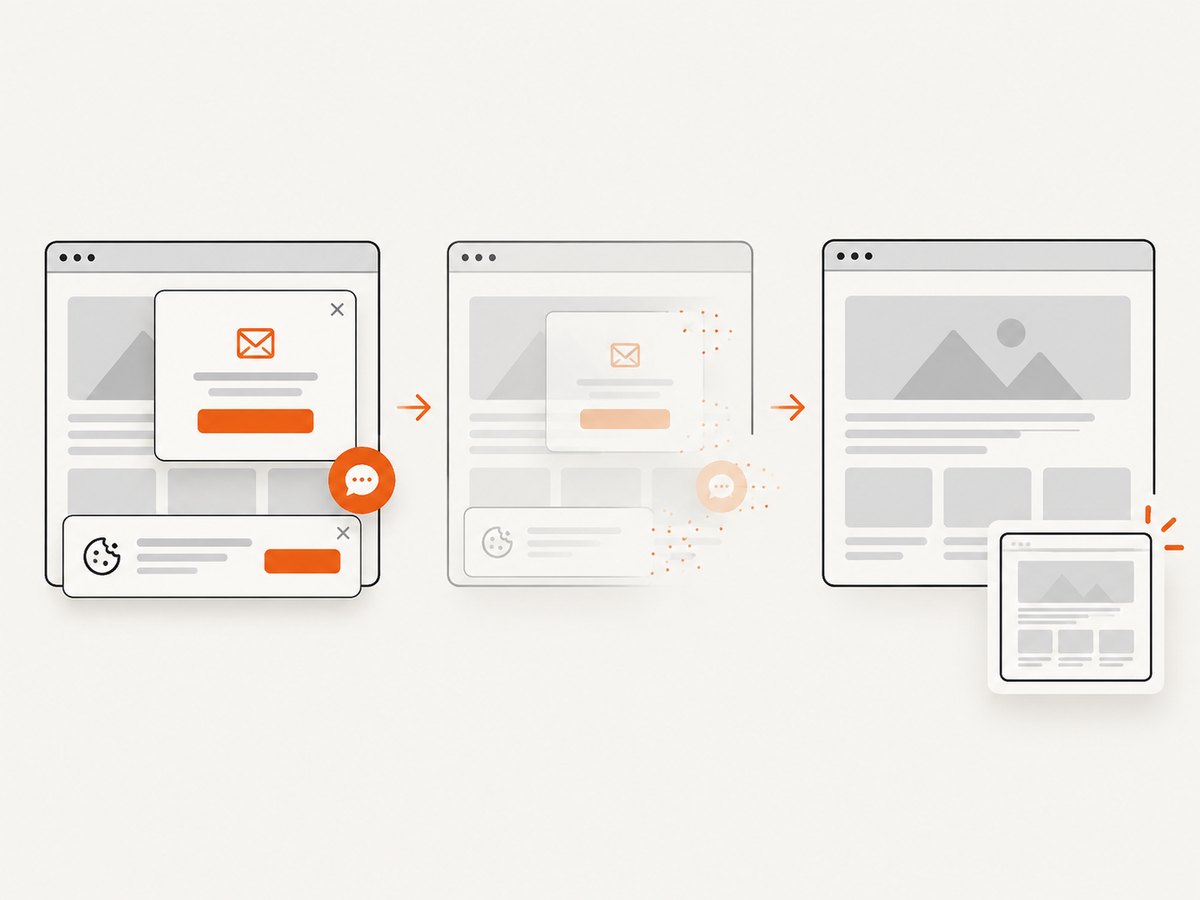
const res = await fetch(`https://api.screenshotneo.com/v1/shot?${q}`);ScreenshotNeo accepts the parameter names used by other screenshot APIs, which makes switching straightforward. Before capture it accepts cookie and consent banners like a visitor and removes more than 60 known consent platforms, newsletter popups, and chat widgets; each step can be turned off. Bot checks or CAPTCHAs, blank pages, timeouts, failed loads, and cache hits cost nothing, and each response identifies the result with X-Page-Verdict and X-Billed headers. An MCP server provides take_screenshot, get_page_info, and capture_pdf tools for Claude, Cursor, and other MCP clients.
The Free plan includes 1,000 screenshots per month without a card. Paid plans start at $5 for 3,000 screenshots; higher plans are Growth ($15/15,000), Pro ($39/60,000), Scale ($99/250,000), and Business ($249/1,000,000). Yearly billing gives two months free, and every feature is available on every plan. Create a free ScreenshotNeo account and start with 1,000 screenshots a month at no charge.
10. Cost and operational considerations
Local Selenium has no per-screenshot API charge, but your team operates the browser, drivers, machines, dependencies, retries, storage, and monitoring. Cloud browser infrastructure adds compute and maintenance decisions. An API trades browser operations for usage pricing and a request-based workflow. Compare the complete cost of reliable captures, including engineering time, failed jobs, storage, and queueing.
With ScreenshotNeo, only clean shots are billed. A response tells you whether it was billed, which makes usage accounting easier when a target blocks automation or fails to load. Caching can reduce repeated work when the selected TTL matches your freshness requirement.
11. FAQ
Does save_screenshot save JPEG?
No. Selenium documents this method as writing a PNG image file. Use a separate image conversion step if another format is required.
Can I call the object browser?
Yes. The name is local to your program; it must refer to a Selenium WebDriver instance.
How do I know the save worked?
Check the returned boolean and, for critical pipelines, verify that the expected file exists and has a nonzero size.
Why is my entire page missing?
The documented Selenium method targets the current window. Use a larger viewport, a full-page-capable library, or an API with full-page capture.
Should I use Selenium or Playwright?
Choose based on the rest of your automation stack. Selenium’s method is direct for current-window PNG files; Playwright documents full-page and element screenshot APIs. For a managed capture endpoint, ScreenshotNeo removes browser setup and supplies API options for full-page, element, PDF, waiting, blocking, and asynchronous workflows.


