How to Click Elements with Python and CSS Selectors
Learn to click CSS-selected elements in Selenium and Playwright Python, choose stable selectors, wait for dynamic pages, and fix common failures.
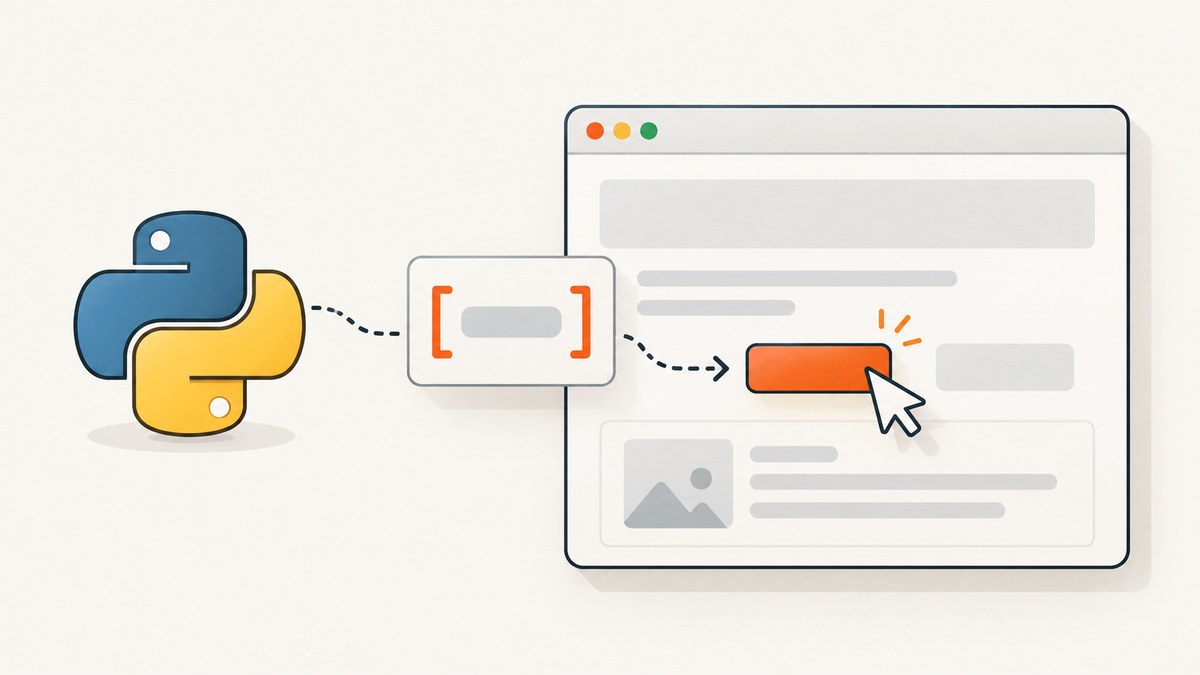
To click an element by CSS selector in Python, find it with Selenium’s By.CSS_SELECTOR and call .click(), or use Playwright’s page.locator(selector).click(). For dynamic pages, wait for the target to become available and actionable; for maintainable tests, use a stable selector such as a test ID or a role and accessible name when possible.
1. Choose Selenium or Playwright
Both libraries can click an element found with CSS. Selenium exposes the locator strategy explicitly, while Playwright wraps the selector in a locator whose click action waits for actionability conditions and scrolls the target into view. Choose the library already used by your project unless you have a reason to change its browser automation stack.
| Need | Selenium Python | Playwright Python |
|---|---|---|
| Find by CSS | driver.find_element(By.CSS_SELECTOR, selector) |
page.locator(selector) |
| Click | element.click() |
locator.click() |
| Dynamic-page synchronization | Choose an explicit wait that fits the page | Locator click performs actionability checks and retries within its timeout |
| Python style | Synchronous WebDriver API | Synchronous or asynchronous API |
Selenium documents CSS selector locators in its official locator guide. Playwright documents CSS selectors and locator actions in its locators guide.
2. Click with Selenium Python
Install Selenium with python -m pip install selenium. Selenium Manager can manage compatible browser drivers in supported setups; install a browser that your environment can run. Then use a CSS selector that matches the intended control:

from selenium import webdriver
from selenium.webdriver.common.by import By

url = "https://example.com"
selector = "button.submit"

driver = webdriver.Chrome()
try:
    driver.get(url)
    button = driver.find_element(By.CSS_SELECTOR, selector)
    button.click()
finally:
    driver.quit()
Replace the URL and selector with your application’s page and control. find_element returns the first match, so make the selector specific enough to identify the intended element. Selenium’s By.CSS_SELECTOR uses ordinary CSS selector syntax.
Common Selenium selector patterns
from selenium.webdriver.common.by import By

# ID
driver.find_element(By.CSS_SELECTOR, "#login").click()

# Class
driver.find_element(By.CSS_SELECTOR, ".primary-button").click()

# Attribute, including a stable test hook
driver.find_element(By.CSS_SELECTOR, "button[data-testid='save']").click()

# Descendant constrained to a meaningful form
driver.find_element(
    By.CSS_SELECTOR,
    "form#profile button[type='submit']"
).click()
CSS strings use quotes around attribute values as shown. Python string quoting must also be valid: the outer Python string above uses double quotes so the selector can contain single quotes.
Wait for a dynamic element
A page may render the target after navigation or after an interaction. In Selenium, select a wait condition based on what must be true before clicking. For example, wait until the element is clickable:
from selenium import webdriver
from selenium.webdriver.common.by import By
from selenium.webdriver.support import expected_conditions as EC
from selenium.webdriver.support.ui import WebDriverWait

url = "https://example.com"
selector = "button[data-testid='continue']"

driver = webdriver.Chrome()
try:
    driver.get(url)
    button = WebDriverWait(driver, 15).until(
        EC.element_to_be_clickable((By.CSS_SELECTOR, selector))
    )
    button.click()
finally:
    driver.quit()
The timeout here is an example, not a universal setting. Choose it from the application’s behavior and your test environment. If the click causes navigation, wait for the expected page state or URL afterward rather than assuming the next page has loaded immediately.
3. Click with Playwright Python
Install Playwright and its browser binaries for your environment:
python -m pip install playwright
python -m playwright install chromium
A complete synchronous example:
from playwright.sync_api import sync_playwright

url = "https://example.com"
selector = "button.submit"

with sync_playwright() as p:
    browser = p.chromium.launch()
    page = browser.new_page()
    page.goto(url)
    page.locator(selector).click()
    browser.close()
Playwright’s locator click waits for the target to satisfy actionability checks, including being visible, stable, enabled, and receiving events, and scrolls it into view. If the target does not become actionable within the configured timeout, the action fails with a timeout instead of silently clicking another match.
Asynchronous Playwright
Use the async API when the surrounding program uses asyncio:
import asyncio
from playwright.async_api import async_playwright

async def main():
    async with async_playwright() as p:
        browser = await p.chromium.launch()
        page = await browser.new_page()
        await page.goto("https://example.com")
        await page.locator("button.submit").click()
        await browser.close()

asyncio.run(main())
Do not mix sync Playwright calls with the async API. In async code, await navigation, locator actions, and other asynchronous operations.
Prefer user-facing or contract selectors when available
A CSS selector is useful when the application provides a deliberate stable hook. But selectors tied to incidental DOM structure can become brittle when markup changes. Playwright recommends locators close to how users perceive the page, such as role and accessible name, or an explicit test ID contract:
# User-facing accessible name
page.get_by_role("button", name="Save").click()

# Explicit application test contract
page.locator("[data-testid='save-button']").click()
For Selenium, the same maintainability principle applies: prefer stable IDs, names, or deliberate data-* attributes to generated class names and long chains of nested elements. The right attribute depends on the application.
4. Make CSS selectors precise and resilient
A click failure often begins with a selector that matches zero elements, several elements, or the wrong element. Use this checklist when writing one:
- Start with a stable ID, name, or test attribute supplied by the application.
- Scope a repeated control to a meaningful parent, such as the specific form or dialog.
- Keep the selector short enough that a harmless layout refactor will not break it.
- Check whether the selector is case-sensitive for the relevant attribute and whether the value is quoted correctly.
- Confirm the control is actually a clickable element; a nearby label or wrapper may not be the control.
- When multiple matches are expected, decide which one is intended and select it explicitly.
For example, button.save may match a save button in every row of a table. A scoped selector such as tr[data-record-id='42'] button.save narrows it to one record, assuming that data attribute is stable and present.
CSS and XPath selectors coupled to DOM structure can break when a page changes. Playwright’s locator guidance advises against relying on such structural selectors and recommends role locators or test IDs for resilient tests. See its test ID locator guidance.
5. Handle frames, shadow DOM, overlays, and repeated controls
Elements inside an iframe
A top-level selector cannot directly find content inside a frame. In Selenium, switch to the frame before locating the control, then switch back when done:
from selenium.webdriver.common.by import By
from selenium.webdriver.support import expected_conditions as EC
from selenium.webdriver.support.ui import WebDriverWait

wait = WebDriverWait(driver, 15)
wait.until(EC.frame_to_be_available_and_switch_to_it((By.CSS_SELECTOR, "iframe.payment")))
wait.until(EC.element_to_be_clickable((By.CSS_SELECTOR, "button.confirm"))).click()
driver.switch_to.default_content()
In Playwright, use a frame locator:
page.frame_locator("iframe.payment").locator("button.confirm").click()Use the iframe’s stable identifier where possible. If the frame is cross-origin, browser automation still interacts through the browser’s frame model; page JavaScript access restrictions are a separate concern.
Shadow DOM
Some components render controls inside a shadow root. Playwright’s locator engine supports open shadow DOM for most locators, while XPath does not pierce shadow roots. Closed shadow roots are not generally addressable through ordinary page selectors. Selenium support depends on the driver and browser APIs available; inspect the component and use the framework’s supported shadow-root mechanism rather than adding arbitrary delays.
Overlays and duplicate matches
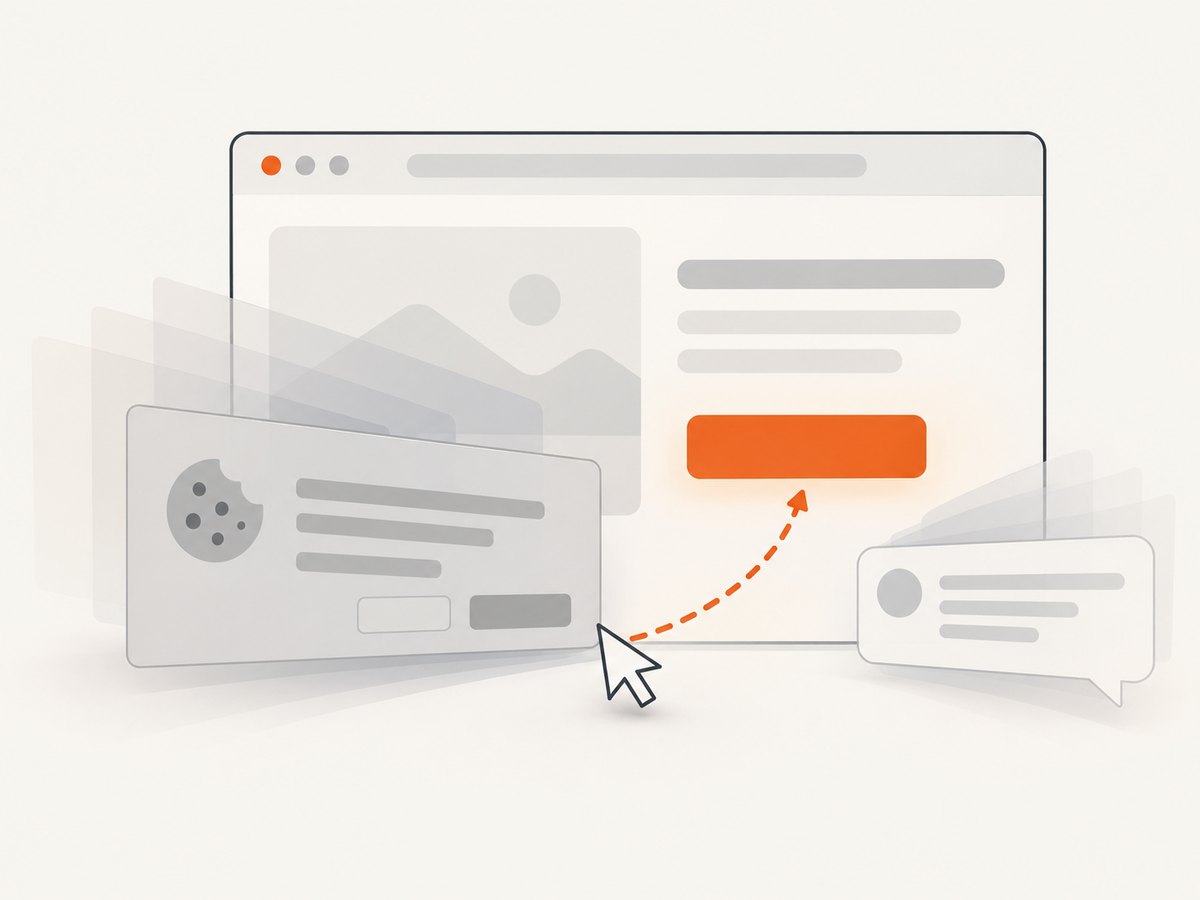
A cookie dialog, modal, loading mask, or sticky header can cover a control. A selector can correctly find the button while the browser refuses the click because another element receives pointer events. Resolve the overlay through the application’s normal interaction, wait for it to disappear, or target the control in the active dialog. Avoid JavaScript-forced clicks as a first fix: they can bypass the user interaction behavior the test is supposed to verify.
When a page has repeated controls, scope the locator to the relevant card, row, or dialog. Playwright supports locator composition; Selenium can locate a parent first and search within it:
# Selenium: search within a specific container
row = driver.find_element(By.CSS_SELECTOR, "tr[data-record-id='42']")
row.find_element(By.CSS_SELECTOR, "button.edit").click()
6. Troubleshoot failed CSS clicks
| Symptom | Likely cause | Fix |
|---|---|---|
Selenium NoSuchElementException |
Selector is wrong, the element is not in the DOM yet, or it is in a frame or shadow root. | Inspect the live DOM, wait for the relevant state, and switch into the correct browsing context before locating again. |
| Playwright locator timeout | No match appeared or the match never became actionable within the timeout. | Check selector spelling, visibility, enabled state, overlays, frame context, and whether the target changes after rendering. |
| More than one match | The selector is broad or repeated in a list. | Scope to a stable parent or use a unique test ID. In Playwright, strict locator actions surface ambiguity; resolve it instead of relying on incidental first-match order. |
| Element found but click intercepted | An overlay or another element is in front of the target, or layout is changing. | Wait for the overlay to close and the layout to settle; verify the visible target is the one intended. |
| Click runs but expected result does not happen | The target may be disabled, the click handler may require another condition, or the test checks too early. | Wait for the application result, such as a confirmation message or URL change, and verify the control’s state. |
| Works locally, fails in CI | Different browser setup, timing, viewport, fonts, or page response can change rendering and timing. | Use the same browser version and viewport where practical, wait on application state rather than fixed sleeps, and capture logs or a screenshot at failure. |
| Python syntax error in selector | Quotes inside the CSS string conflict with Python quotes. | Use opposite quote styles, escape the inner quote, or assign the selector to a separate variable. |
For Playwright, the official locator documentation describes the checks and timeout behavior of locator actions. For Selenium, use explicit waits with conditions that match the page’s state instead of assuming navigation completion means every dynamic control is ready.
7. Performance, reliability, and cost
Browser automation cost is mostly operational: browser startup, page navigation, scripts and network requests, waits, and cleanup all contribute to runtime and compute use. Reuse a browser process across multiple pages when your test harness permits it, but isolate browser contexts when test state such as cookies or local storage must not leak between cases. Close pages, contexts, and browsers reliably, including on exceptions.
Use state-based waits rather than long fixed sleeps. A fixed sleep always spends the full delay even when the page is ready early, while a short sleep can still be insufficient under a slower response. Keep selectors stable and assertions close to the interaction so that failures identify whether locating, clicking, or the resulting application behavior broke.
For CI reliability, record the URL, selector, browser and viewport configuration, and the relevant exception. Capture a failure screenshot or trace when your framework supports it. Avoid retrying every failure blindly: retries can hide real regressions, and a repeatedly intercepted click usually signals an overlay or page-state issue to diagnose.
8. Or skip the browser setup
If the job is to inspect or save a page screenshot rather than interact with a control, ScreenshotNeo provides a website screenshot API and MCP server. A single request returns an image or PDF. Read the API documentation for request options.
import requests

r = requests.get(
    "https://api.screenshotneo.com/v1/shot",
    params={"access_key": "YOUR_API_KEY", "url": "https://stripe.com"},
    timeout=90,
)
open("shot.webp", "wb").write(r.content)
ScreenshotNeo accepts cookie and consent banners before capture and removes more than 60 known consent platforms, newsletter popups, and chat widgets; each of those steps can be turned off. Bot checks and CAPTCHAs, blank pages, timeouts, failed loads, and cache hits are not billed, and response headers report the page verdict and billing status. Its MCP server gives AI agents tools for screenshots, page info, and PDF capture. The Free plan includes 1,000 shots per month with no card; paid plans start at $5 for 3,000 shots. Every feature is available on every plan. See ScreenshotNeo for details.
Create a free account for 1,000 screenshots a month, with no card.
9. Frequently asked questions
Can CSS selectors click links as well as buttons?
Yes. Locate an anchor or other interactive element with a CSS selector and click it. Prefer a selector that identifies the intended link, then wait for and assert the navigation result if the click changes pages.
Should I use find_element or find_elements in Selenium?
Use find_element when the selector should identify one target. Use find_elements when you expect multiple results and will inspect or choose among them. Do not let the first match stand in for an explicit decision about which control should be clicked.
Is Playwright’s page.click() still usable?
Playwright’s locator API is the recommended style for new code because it keeps the target as a locator and applies the locator action behavior. The examples here use page.locator(selector).click().
Can I click an element by text instead?
Yes. In Playwright, a role locator with an accessible name often expresses the intended user action more clearly than CSS. In Selenium, consider locating by accessible semantics where supported by your test tools, or use a stable application test attribute.
Does clicking require a screenshot?
No. Screenshots are useful for visual debugging or page capture, but they are not required to locate and click a DOM element.


