How to Open an HTML File, Take a Screenshot, Crop It, and Save It with Python
Open local HTML in Python, capture the rendered page, crop it with Playwright or Pillow, and save a clean PNG or JPEG.
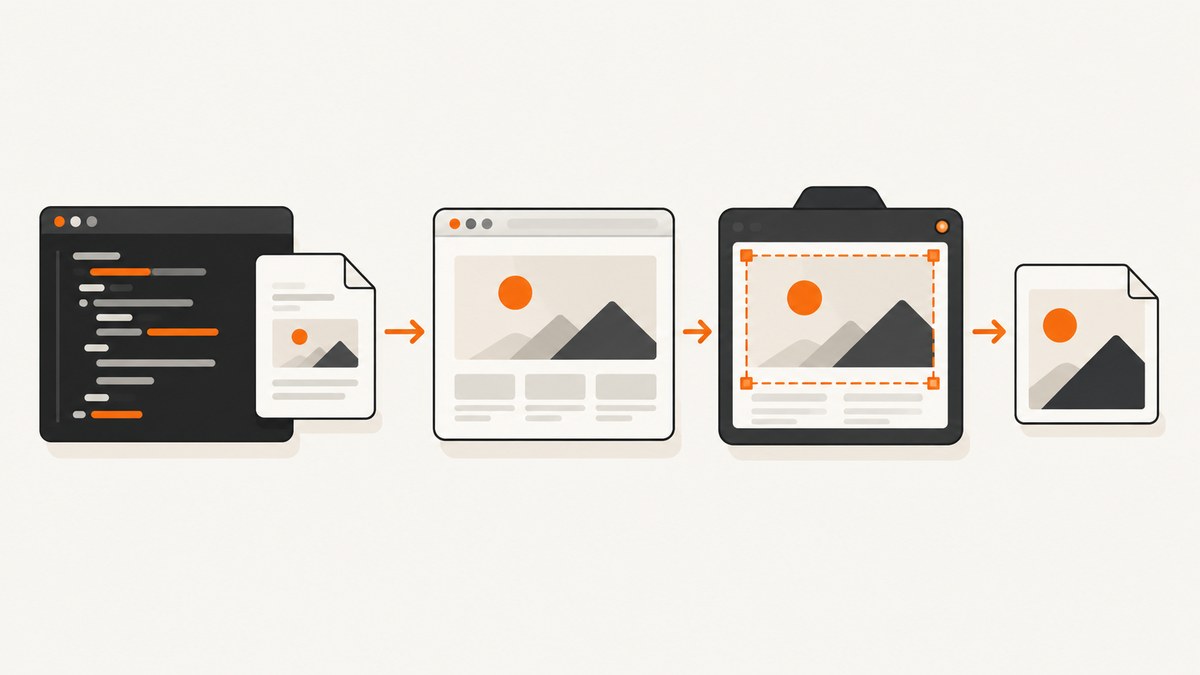
To open an HTML file in Python, render it in a real browser with Playwright, navigate to the file’s file:// URL, capture the page, crop the result, and save the cropped image with Pillow. Playwright can also crop during capture with a CSS-coordinate rectangle or capture one DOM element directly.
This workflow handles local HTML, CSS, JavaScript, web fonts, images, full-page documents, and responsive layouts. Use PyAutoGUI instead when you need a screenshot of the visible desktop, including browser chrome or a non-browser application.
Choose the right capture method
| Goal | Recommended tool | Why |
|---|---|---|
| Rendered local or remote HTML | Playwright | It loads the page in Chromium and captures the viewport, full page, a clip, or a DOM element. |
| Crop known in page coordinates | Playwright clip |
The browser captures only the rectangle you specify. |
| Crop determined after seeing the image | Pillow | Capture bytes or an intermediate file, then adjust pixel coordinates in Python. |
| Browser window, OS chrome, or another desktop app | PyAutoGUI | It captures what is visible on the desktop and accepts a screen region. |
Playwright’s screenshot API is documented in the Python screenshots guide, locator capture in its locator API, PyAutoGUI’s screenshot behavior in the official screenshot documentation, and Pillow image loading and saving in the Pillow Image reference.
Install Python dependencies
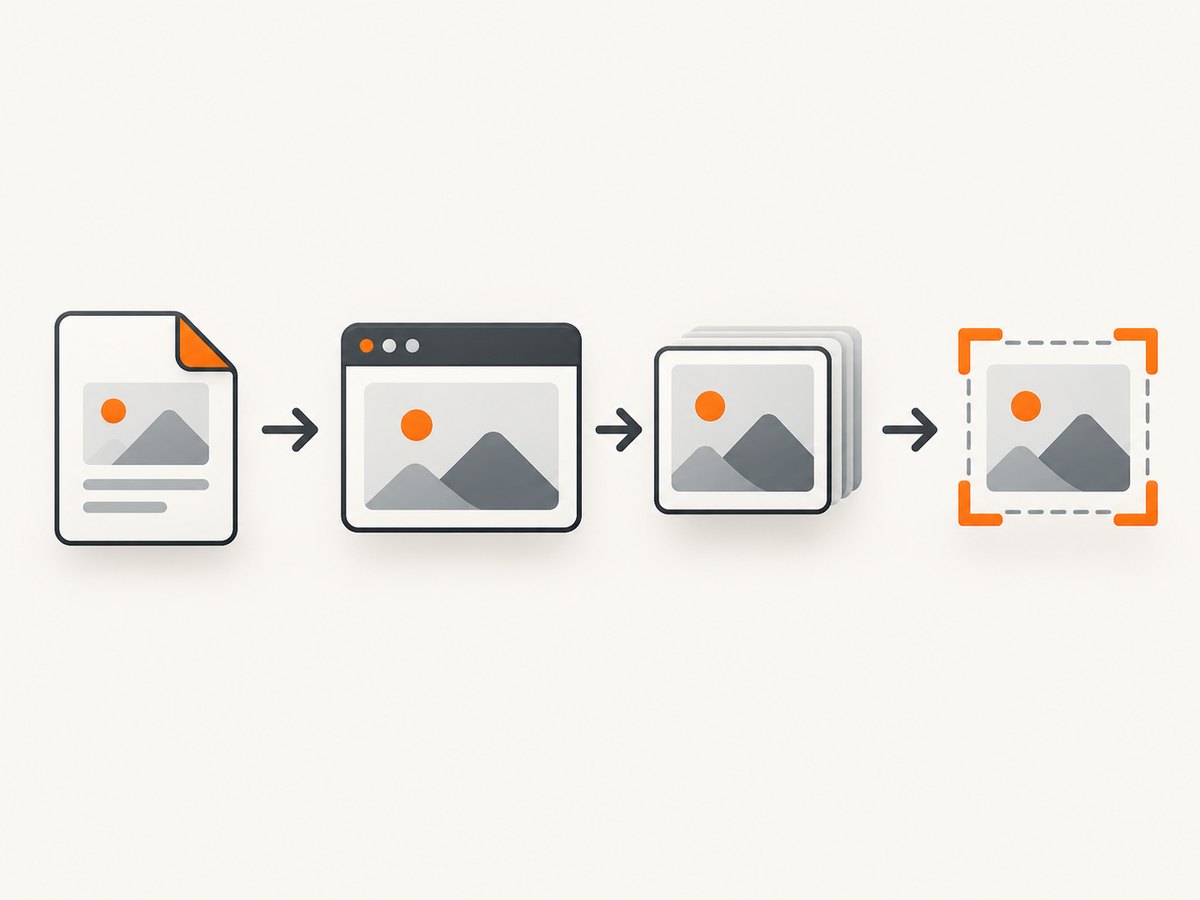
Create a virtual environment, install Playwright and Pillow, and install the browser binary:
python -m venv .venv
# macOS/Linux
source .venv/bin/activate
# Windows PowerShell
# .venv\\Scripts\\Activate.ps1

pip install playwright pillow
playwright install chromium
The playwright install chromium command is required on a new machine because the Python package and browser executable are separate. In CI, run it during image setup or the job’s dependency-install step.
Open a local HTML file and save a full-page screenshot
Resolve the path before converting it to a URI. This avoids surprises when the script is launched from a different working directory.
from pathlib import Path
from playwright.sync_api import sync_playwright

html_uri = Path("page.html").resolve().as_uri()

with sync_playwright() as p:
    browser = p.chromium.launch()
    page = browser.new_page(viewport={"width": 1280, "height": 900})
    page.goto(html_uri, wait_until="load")
    page.screenshot(path="page.png", full_page=True)
    browser.close()
full_page=True extends the capture beyond the viewport to the document’s scrollable height. Without it, Playwright saves only the current viewport. A local page can reference nearby CSS, JavaScript, and image files, but browser security and asset paths still depend on how the HTML is written. Use root-relative paths carefully and verify that local resources resolve from the file URI.
Wait for JavaScript and late-loading content
page.goto(html_uri, wait_until="domcontentloaded")
page.wait_for_selector("main.dashboard")
page.wait_for_timeout(500)
page.screenshot(path="ready.png", full_page=True)
Prefer a meaningful selector over a fixed delay when the page has a clear readiness condition. A short delay is useful for animations, delayed fonts, or content that appears after a timer. For remote pages, wait_until="networkidle" can help, but pages with analytics, sockets, or polling may never become idle; in those cases wait for a specific selector instead.
Crop while Playwright captures
If the rectangle is known in browser CSS coordinates, pass clip. The values are x, y, width, and height relative to the page.
from pathlib import Path
from playwright.sync_api import sync_playwright

html_uri = Path("page.html").resolve().as_uri()

with sync_playwright() as p:
    browser = p.chromium.launch()
    page = browser.new_page(viewport={"width": 1280, "height": 900}, device_scale_factor=1)
    page.goto(html_uri, wait_until="load")
    page.screenshot(
        path="hero-crop.png",
        clip={"x": 100, "y": 100, "width": 900, "height": 600},
        type="png",
    )
    browser.close()
Clip coordinates use CSS pixels. Device scale affects the physical pixel dimensions of the output, so a retina capture can contain twice as many pixels per CSS unit. Keep device_scale_factor=1 when you need predictable one-to-one coordinates, or set a higher value for sharper output and calculate later Pillow crops from the resulting image dimensions.
Capture one HTML element by selector
When the desired area is a component rather than a fixed rectangle, use a locator screenshot. Playwright scrolls the matched element into view and captures its visible bounds.
from pathlib import Path
from playwright.sync_api import sync_playwright

html_uri = Path("page.html").resolve().as_uri()

with sync_playwright() as p:
    browser = p.chromium.launch()
    page = browser.new_page(viewport={"width": 1280, "height": 900})
    page.goto(html_uri, wait_until="load")
    page.locator("#invoice-preview").screenshot(path="invoice.png", type="png")
    browser.close()
Use a stable ID, data attribute, or semantic class. If the selector matches multiple nodes, narrow it with locator(...).nth(0) or a more specific selector. A hidden element cannot be captured until it is made visible; wait for it and, if necessary, scroll or trigger the UI state first.
Capture bytes and crop with Pillow
Post-capture cropping is best when coordinates depend on the rendered image, when you need several variants, or when a person or another algorithm chooses the crop. Pillow’s crop box is different from Playwright’s clip object: it is (left, upper, right, lower) in image pixels.
from pathlib import Path
from playwright.sync_api import sync_playwright
from PIL import Image
from io import BytesIO

html_uri = Path("page.html").resolve().as_uri()

with sync_playwright() as p:
    browser = p.chromium.launch()
    page = browser.new_page(viewport={"width": 1280, "height": 900})
    page.goto(html_uri, wait_until="load")
    png_bytes = page.screenshot(full_page=True, type="png")
    browser.close()

with Image.open(BytesIO(png_bytes)) as image:
    print("captured pixels:", image.size)
    crop_box = (100, 100, 1000, 700)
    cropped = image.crop(crop_box)
    cropped.save("page-crop.png", format="PNG")
    cropped.convert("RGB").save("page-crop.jpg", format="JPEG", quality=92)
The right and lower values are exclusive boundaries. Pillow does not automatically reject a box that extends beyond the image; inspect image.size and clamp coordinates when they come from user input or a calculation.
Clamp a crop to the image
def safe_crop_box(image, left, top, right, bottom):
    width, height = image.size
    left = max(0, min(left, width))
    right = max(left, min(right, width))
    top = max(0, min(top, height))
    bottom = max(top, min(bottom, height))
    return left, top, right, bottom
Choose PNG, JPEG, or WebP
- PNG: lossless and suitable for text, diagrams, transparency, and pixel-accurate diffs.
- JPEG: smaller for photographs and gradients; convert an RGBA or palette image to RGB before saving.
- WebP: compact and supports lossy or lossless output; confirm that the consuming tool accepts it.
page.screenshot(path="page.webp", type="webp", quality=85)
page.screenshot(path="page.jpg", type="jpeg", quality=90)
JPEG has no alpha channel. If your HTML uses a transparent background, use PNG or WebP instead. For deterministic visual tests, keep the format, viewport, browser version, fonts, and device scale fixed.
Set viewport, device scale, and page extent
context = browser.new_context(
    viewport={"width": 1440, "height": 900},
    device_scale_factor=2,
    color_scheme="dark",
)
page = context.new_page()
page.goto(html_uri)
page.screenshot(path="retina-dark.png", full_page=True)
A viewport controls responsive breakpoints. device_scale_factor=2 produces a denser image. A context-level color_scheme lets pages using prefers-color-scheme render dark mode. For a mobile layout, use a smaller viewport or a Playwright device preset. Full-page capture can be very tall; consider element capture or a clip for large documents.
Use custom CSS before capture
Inject CSS to remove animation, hide controls, or standardize the page without editing the source HTML.
page.add_style_tag(content="""
    *, *::before, *::after {
        animation: none !important;
        transition: none !important;
        caret-color: transparent !important;
    }
    .print-button, .cookie-banner { display: none !important; }
""")
page.screenshot(path="stable.png", full_page=True)
For dynamic content, use page.evaluate() only for a deliberate state change, then wait for the resulting selector. Avoid arbitrary DOM mutations that make the screenshot differ from what a user would see unless that is the purpose of the capture.
Desktop screenshots with PyAutoGUI
PyAutoGUI is appropriate when the target is the visible desktop rather than the DOM. Its screenshot() function returns a Pillow image and accepts region=(left, top, width, height).
import pyautogui

im = pyautogui.screenshot("desktop.png", region=(0, 0, 1200, 800))
im.crop((100, 100, 900, 700)).save("desktop-crop.png")
On Linux, PyAutoGUI documents Pillow and the scrot utility as prerequisites for screenshots. Desktop capture is sensitive to window position, display scaling, sleep screens, notifications, and focus. Use Playwright for repeatable browser automation whenever OS chrome is not part of the requirement.
Complete reusable script
from io import BytesIO
from pathlib import Path
from PIL import Image
from playwright.sync_api import sync_playwright

HTML = Path("page.html").resolve().as_uri()
OUTPUT = Path("output")
OUTPUT.mkdir(exist_ok=True)

with sync_playwright() as p:
    browser = p.chromium.launch()
    page = browser.new_page(
        viewport={"width": 1280, "height": 900},
        device_scale_factor=1,
    )
    page.goto(HTML, wait_until="load")
    page.wait_for_selector("body")
    raw = page.screenshot(full_page=True, type="png")
    browser.close()

with Image.open(BytesIO(raw)) as image:
    box = (100, 100, min(1000, image.width), min(700, image.height))
    image.crop(box).save(OUTPUT / "cropped.png")
    image.crop(box).convert("RGB").save(OUTPUT / "cropped.jpg", quality=92)
Troubleshooting
| Symptom | Cause | Fix |
|---|---|---|
Executable doesn't exist |
Chromium was not installed. | Run playwright install chromium in the same environment. |
| Blank or incomplete page | Capture happened before JavaScript or assets finished. | Wait for a meaningful selector, then use a short delay for animations or late fonts. |
| Local CSS or images missing | Relative paths do not resolve from the file URI. | Use correct relative paths, resolve the HTML location, and inspect browser console errors. |
| Clip is shifted | Clip uses CSS coordinates while the output uses a different device scale. | Set device_scale_factor=1 or calculate Pillow coordinates from actual image dimensions. |
| Element screenshot fails | The selector matches nothing or the element is hidden. | Wait for the locator, make it visible, and narrow or correct the selector. |
| JPEG save raises a mode error | The image has alpha or palette mode. | Call convert("RGB") before saving JPEG. |
| PyAutoGUI cannot capture on Linux | scrot or Pillow is missing. |
Install both according to your distribution, then retry. |
Performance, reliability, and cost
- Reuse the browser: launch Chromium once and create pages or contexts for multiple captures. Browser startup is usually more expensive than another page.
- Limit image size: capture an element or clip instead of a very tall full page when downstream storage or processing is the constraint.
- Control variability: pin browser versions, fonts, viewport, timezone, color scheme, and device scale for visual regression work.
- Wait intentionally: selector-based waits reduce wasted time compared with long fixed sleeps, while a bounded timeout prevents a broken page from hanging a job forever.
- Save atomically: write to a temporary path and rename it after success when another process consumes screenshots.
- Handle failures: close pages and browsers in a
try/finallyblock, log the URL and stage that failed, and retry transient navigation failures with a cap.
Or skip the browser setup
ScreenshotNeo provides a website screenshot API and MCP server when you want a rendered capture without managing Playwright, Chromium, or desktop dependencies. The API accepts one GET request and returns PNG, JPEG, WebP, or PDF. See the ScreenshotNeo API documentation for the complete option list.
curl -G "https://api.screenshotneo.com/v1/shot" \\
  -d access_key=YOUR_API_KEY \\
  --data-urlencode url=https://stripe.com \\
  -o shot.webp
import requests
r = requests.get(
"https://api.screenshotneo.com/v1/shot",
params={"access_key": "YOUR_API_KEY", "url": "https://stripe.com"},
timeout=90,
)
r.raise_for_status()
open("shot.webp", "wb").write(r.content)const q = new URLSearchParams({
access_key: 'YOUR_API_KEY',
url: 'https://stripe.com'
});
const res = await fetch(`https://api.screenshotneo.com/v1/shot?${q}`);
if (!res.ok) throw new Error(`HTTP ${res.status}`);
const fs = await import('node:fs/promises');
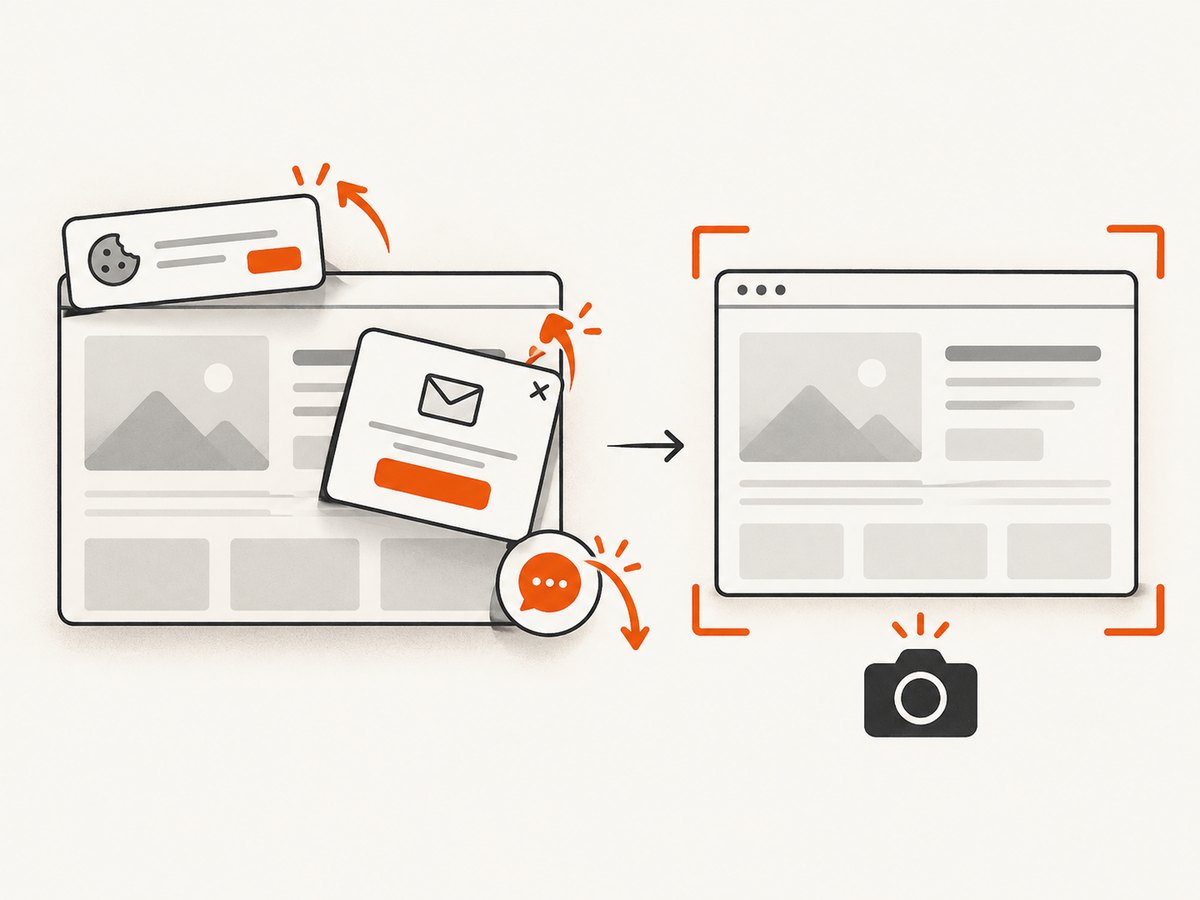
await fs.writeFile('shot.webp', Buffer.from(await res.arrayBuffer()));ScreenshotNeo removes cookie and consent banners, newsletter popups, and chat widgets before capture. Bot checks, blank pages, failed loads, timeouts, and cache hits are not billed, and response headers identify the page verdict and whether the shot was billed. Its MCP server exposes take_screenshot, get_page_info, and capture_pdf to Claude, Cursor, and other MCP clients. You can use full-page capture, element selectors, custom CSS and JavaScript, waits, headers, cookies, user agents, geolocation, resizing, caching, signed links, asynchronous jobs, bulk capture, and PDF options.
The Free plan includes 1,000 screenshots each month with no card. Paid plans start at $5 for 3,000 screenshots, and every feature is available on every plan. Create a free ScreenshotNeo account.
FAQ
Can Python screenshot an HTML string without writing a file?
Yes. Create a data URL or serve the string from a local HTTP endpoint, then call page.goto(). A temporary file is often simpler when the document references relative assets.
Should I crop before or after the screenshot?
Use Playwright's clip when the CSS rectangle is known and stable. Use Pillow after capture when the crop depends on image pixels, device scale, or a later decision.
Why does my full-page screenshot differ from a desktop screenshot?
A full-page Playwright shot captures the rendered document without OS chrome. PyAutoGUI captures the visible screen, including browser controls, window borders, notifications, and display scaling.
How do I make screenshots reproducible?
Pin the browser and fonts, set an explicit viewport and device scale, disable animations, wait for a stable selector, and use consistent color scheme and data.
Can I save a transparent screenshot?
Use PNG or WebP and configure the page background to be transparent. JPEG cannot preserve transparency.


