How to Take an In-Memory Screenshot with Python Playwright
Capture Playwright screenshots as Python bytes, configure format and page scope, process them in memory, and avoid temporary image files.
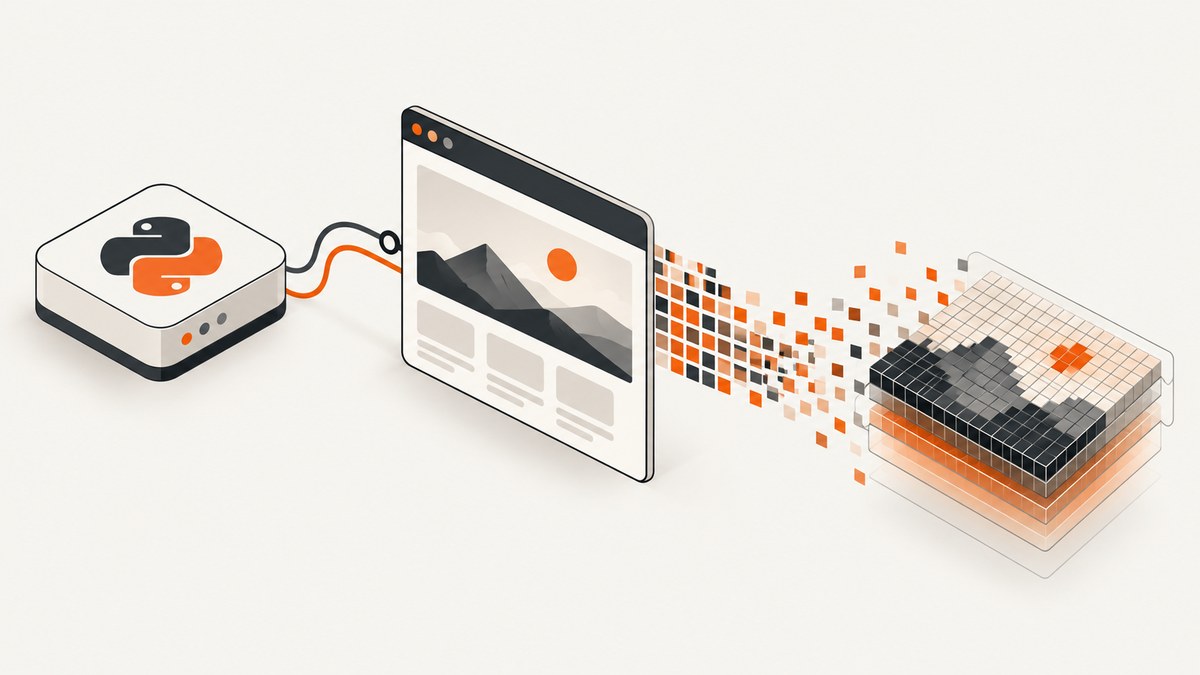
Direct answer: call page.screenshot() without a path. Playwright returns the image as a Python bytes value, so you can send it to object storage, an HTTP response, an image-processing library, a database, or another service without creating a temporary file. In asynchronous code, use await page.screenshot().
The official Playwright screenshots guide documents this behavior for both synchronous and asynchronous Python APIs. This guide shows complete scripts, full-page and element captures, format and quality settings, dynamic-page controls, troubleshooting, and an API alternative when managing Chromium yourself is unnecessary.
1. Install Playwright and its browser
Install the Python package, then download the browser binaries:
python -m pip install playwright
python -m playwright install chromium
Use a virtual environment for an application or service:
python -m venv .venv
source .venv/bin/activate       # Windows: .venv\\Scripts\\activate
python -m pip install playwright
python -m playwright install chromium
Playwright versions can add or change screenshot options. Check the Python release notes and the API documentation for the version pinned by your project. WebP support, for example, depends on the installed Playwright version.
2. Capture PNG bytes with the synchronous API
This is the smallest complete example. Because no path is supplied, the result stays in memory:

from playwright.sync_api import sync_playwright

with sync_playwright() as p:
    browser = p.chromium.launch()
    page = browser.new_page()
    page.goto("https://example.com", wait_until="networkidle")

    screenshot_bytes = page.screenshot()

    print(type(screenshot_bytes).__name__)
    print(f"{len(screenshot_bytes):,} bytes")

    browser.close()
screenshot_bytes is a bytes object containing a PNG by default. It can be passed directly to code that accepts bytes:
from io import BytesIO
from PIL import Image
from playwright.sync_api import sync_playwright

with sync_playwright() as p:
    browser = p.chromium.launch()
    page = browser.new_page(viewport={"width": 1440, "height": 900})
    page.goto("https://example.com", wait_until="domcontentloaded")

    screenshot_bytes = page.screenshot()
    image = Image.open(BytesIO(screenshot_bytes))
    print(image.size, image.format)

    browser.close()
The Pillow example reads the byte buffer; it does not require a screenshot file. Install Pillow separately with python -m pip install pillow if you use it.
3. Use the asynchronous API inside asyncio
Use the async API when the surrounding application already uses asyncio, such as an async web framework or a worker that handles concurrent jobs. The async call must be awaited:
import asyncio
from playwright.async_api import async_playwright

async def capture() -> bytes:
    async with async_playwright() as p:
        browser = await p.chromium.launch()
        page = await browser.new_page()
        await page.goto("https://example.com", wait_until="networkidle")
        screenshot_bytes = await page.screenshot()
        await browser.close()
        return screenshot_bytes

async def main():
    data = await capture()
    print(f"Captured {len(data):,} bytes")

asyncio.run(main())
Do not call asyncio.run() from a function that is already running inside an event loop. In that situation, await capture() from the existing coroutine.
4. Choose the capture region
Viewport screenshot
The default captures the currently visible viewport. Set the viewport when reproducible dimensions matter:
from playwright.sync_api import sync_playwright

with sync_playwright() as p:
    browser = p.chromium.launch()
    page = browser.new_page(viewport={"width": 1280, "height": 800})
    page.goto("https://example.com")
    data = page.screenshot()
    browser.close()
Full-page screenshot
Pass full_page=True to capture the full scrollable page rather than only the viewport:
data = page.screenshot(full_page=True)Long pages can produce large images and may contain lazy-loaded content that only appears after scrolling. If the site loads content on scroll, explicitly scroll before capturing:
page.goto("https://example.com", wait_until="networkidle")
page.evaluate("window.scrollTo(0, document.body.scrollHeight)")
page.wait_for_timeout(500)
page.evaluate("window.scrollTo(0, 0)")
data = page.screenshot(full_page=True)
A fixed delay is a fallback. Prefer waiting for a meaningful selector when possible, because network idle does not guarantee that client-side rendering or delayed widgets has finished.
Capture one element
Locator screenshots return bytes too:
header_bytes = page.locator("header").screenshot()
card_bytes = page.locator(".pricing-card").first.screenshot()
Playwright scrolls the locator into view and waits for actionability. If another element covers the target, the screenshot does not make the covered pixels visible. For a scrollable container, the capture represents the content currently visible in that element rather than every item hidden outside its scroll position. See the Locator API for locator behavior.
5. Set format, quality, scale, and transparency
PNG is the default. The Page API supports PNG, JPEG, and WebP where supported by your installed version:
png_bytes = page.screenshot(type="png")
jpeg_bytes = page.screenshot(type="jpeg", quality=82)
webp_bytes = page.screenshot(type="webp", quality=80)- PNG: lossless; the
qualityoption does not apply. - JPEG: smaller files for photographs and gradients; it has no alpha channel.
- WebP: supports quality control; quality 100 is lossless and lower values are lossy according to the API documentation and release notes.
Use scale="css" for one output pixel per CSS pixel. The default, scale="device", uses device pixels and can create larger images on high-DPI contexts:
css_sized = page.screenshot(scale="css")
device_sized = page.screenshot(scale="device")
For transparent-capable formats, omit_background=True removes the default page background:
transparent_png = page.screenshot(omit_background=True)Transparency does not apply to JPEG. If you need a transparent result, use PNG or a supported WebP configuration.
6. Make captures repeatable and safe to process
Wait for a specific page state
page.goto("https://example.com", wait_until="domcontentloaded")
page.locator("main").wait_for(state="visible")
data = page.screenshot()
Useful navigation states include domcontentloaded, load, and networkidle. A site can still animate or fetch data after any of these states, so combine navigation with a selector assertion or a short, deliberate delay when the page requires it.
Disable motion and hide unstable regions
The screenshot API includes animation handling, masking, and stylesheet options. For example, mask a changing timestamp with a locator:
timestamp = page.locator(".last-updated")
data = page.screenshot(mask=[timestamp])
You can also inject CSS before capture:
page.add_style_tag(content="""
*, *::before, *::after {
  animation: none !important;
  transition: none !important;
  caret-color: transparent !important;
}
""")
data = page.screenshot()
Masking changes the image output; it does not remove the element from the page. Choose a stable selector and keep the same viewport, locale, timezone, and data fixtures when visual comparisons must be deterministic.
Use a browser context for headers, cookies, and locale
context = browser.new_context(
    viewport={"width": 1440, "height": 900},
    locale="en-US",
    timezone_id="UTC",
    extra_http_headers={"X-Render-Mode": "screenshot"},
)
page = context.new_page()
Authentication and consent state can be added with context cookies or a saved storage state. Keep secrets out of source code and logs.
7. Return bytes from an HTTP endpoint
An in-memory screenshot is useful when your service should return the image immediately. This FastAPI example sends the bytes without writing a file:
from fastapi import FastAPI, HTTPException
from fastapi.responses import Response
from playwright.async_api import async_playwright

app = FastAPI()

@app.get("/screenshot")
async def screenshot(url: str):
    async with async_playwright() as p:
        browser = await p.chromium.launch()
        try:
            page = await browser.new_page(viewport={"width": 1280, "height": 800})
            await page.goto(url, wait_until="domcontentloaded", timeout=30_000)
            data = await page.screenshot(type="png")
            return Response(content=data, media_type="image/png")
        except Exception as exc:
            raise HTTPException(status_code=502, detail=str(exc))
        finally:
            await browser.close()
For production, reuse a browser process and create isolated contexts per request. Launching Chromium for every request adds startup cost and can exhaust memory under concurrency. Set navigation and operation timeouts, validate allowed URL schemes, and decide how to handle redirects and private network addresses before exposing an endpoint.
8. Troubleshoot common failures
| Symptom | Likely cause | Fix |
|---|---|---|
Executable doesn't exist |
The browser binary was not installed. | Run python -m playwright install chromium in the same environment. |
The function returns None or no usable data |
The result was not assigned, or a wrapper discarded it. | Assign data = page.screenshot(); async code must use data = await page.screenshot(). |
| A file appears unexpectedly | A path argument was supplied. |
Omit path to keep the image in memory. |
| Screenshot is only the visible area | Viewport capture is the default. | Use full_page=True, or capture a specific locator. |
| Element screenshot times out | The locator does not match, is hidden, or never becomes actionable. | Check the selector, wait for visibility, and inspect whether an overlay covers it. |
| Blank or incomplete content | Capture happened before client rendering, fonts, or lazy content finished. | Wait for a meaningful selector, scroll to trigger lazy loading, and use an appropriate navigation timeout. |
| JPEG has a black or solid background | JPEG cannot represent transparency. | Use PNG or WebP when alpha is required; do not rely on omit_background with JPEG. |
| WebP is rejected | The installed Playwright version does not support it. | Check the installed version and its release notes, then upgrade deliberately if WebP is required. |
| Asyncio error about a running loop | asyncio.run() was called from an existing event loop. |
Await the coroutine from the host application instead. |
9. Performance, reliability, and cost considerations
- Reuse browsers: keep a browser process alive and create short-lived contexts. Close pages and contexts so memory does not grow with each job.
- Control image size: set a sensible viewport, use
scale="css"when device-pixel output is unnecessary, and choose JPEG or WebP for photographic pages. - Bound work: set navigation, selector, and screenshot timeouts. Full-page captures of very long documents consume more memory than viewport captures.
- Make retries selective: retry transient navigation or network failures, but do not blindly retry invalid URLs, authentication failures, or deterministic selector errors.
- Observe outcomes: record URL, viewport, format, elapsed time, byte length, and exception type. Avoid recording cookies, authorization headers, or screenshot contents when they contain sensitive data.
- Estimate infrastructure cost: browser CPU, memory, storage, and bandwidth depend on page size, concurrency, and capture dimensions. Measure those variables in your own workload rather than assuming a fixed rate.
10. Or skip the browser setup
If you only need a clean screenshot response, ScreenshotNeo provides a GET endpoint that returns PNG, JPEG, WebP, or PDF. It handles the browser session and accepts the URL as a request parameter.

See the ScreenshotNeo documentation for the complete option list. A minimal call looks like this:
curl -G "https://api.screenshotneo.com/v1/shot" -d access_key=YOUR_API_KEY --data-urlencode url=https://stripe.com -o shot.webpimport requests
r = requests.get(
"https://api.screenshotneo.com/v1/shot",
params={"access_key": "YOUR_API_KEY", "url": "https://stripe.com"},
timeout=90,
)
r.raise_for_status()
open("shot.webp", "wb").write(r.content)const q = new URLSearchParams({ access_key: 'YOUR_API_KEY', url: 'https://stripe.com' });
const res = await fetch(`https://api.screenshotneo.com/v1/shot?${q}`);
if (!res.ok) throw new Error(`Screenshot failed: ${res.status}`);
const image = Buffer.from(await res.arrayBuffer());ScreenshotNeo removes cookie and consent banners, newsletter popups, and chat widgets before capture. Bot checks, blank pages, failed loads, timeouts, and cache hits are not billed, and response headers identify the page verdict and billing result. Its MCP server provides take_screenshot, get_page_info, and capture_pdf tools for Claude, Cursor, and other MCP clients.
The Free plan includes 1,000 screenshots each month with no card. Paid plans start at $5 for 3,000 shots; every feature is available on every plan. Create a free ScreenshotNeo account.
11. Frequently asked questions
Does an in-memory screenshot ever touch disk?
Playwright does not save the image when you omit path. The returned bytes still occupy process memory, and Chromium may use its own temporary resources internally.
Can I base64-encode the result?
Yes. Use base64.b64encode(data).decode("ascii") when an API requires a data string. Keep binary bytes for HTTP responses and object storage when possible because base64 increases payload size.
Should I use sync or async Playwright?
Use sync for ordinary scripts and synchronous workers. Use async when your application already runs an asyncio event loop or needs to coordinate many I/O-bound capture tasks.
Can a locator screenshot capture an element outside the viewport?
Playwright scrolls the locator into view before capturing it. It does not reveal pixels covered by another element, and a scrollable container only captures its currently visible content.
How do I save the bytes later?
If you decide that a file is needed after processing, write the returned value with open("shot.png", "wb").write(data). The in-memory API leaves that choice to your application.


