Python Screenshot API: Capture Any Website in Code
Use Playwright to capture a website from Python, save viewport, full-page, or element screenshots, and handle formats, timing, and common failures.
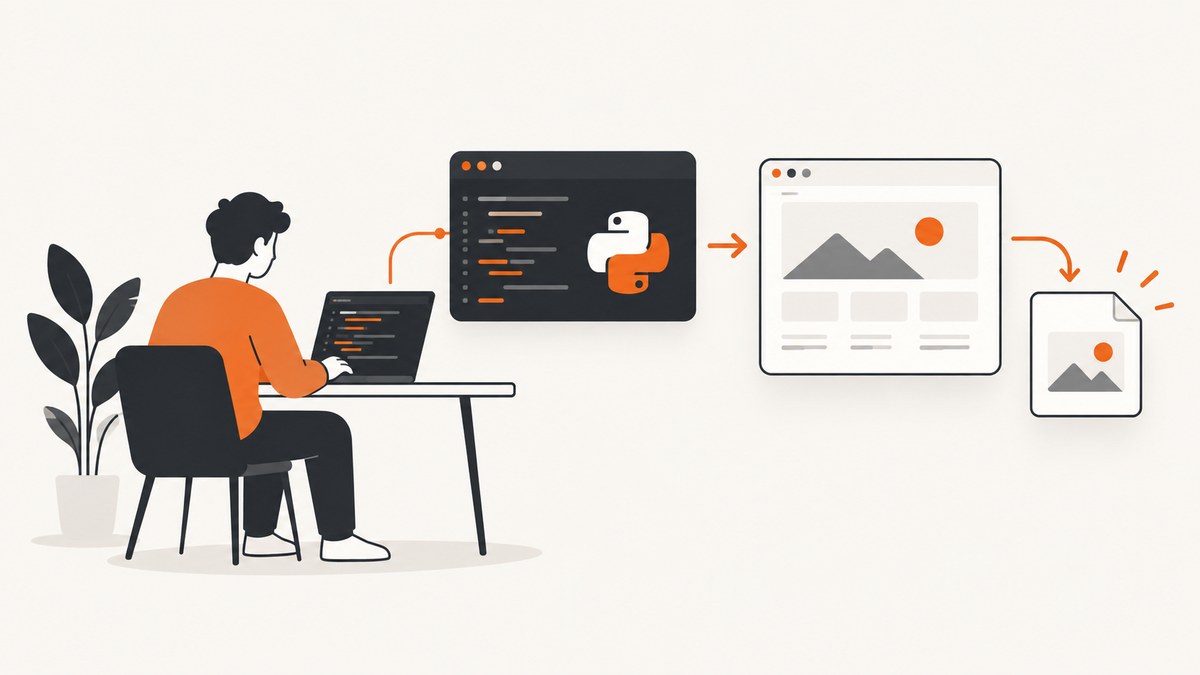
To capture a website screenshot in Python, launch a browser with Playwright, navigate to the URL, then call page.screenshot(). Use full_page=True for the entire scrollable page or a locator’s screenshot() method for one element. This guide shows runnable synchronous and asynchronous examples, output options, timing controls, and fixes for common failures.
1. Install Playwright and its browser
Playwright is a browser automation library. It renders the page in a real browser engine, then saves the pixels that browser displays. Install the Python package and download the browser binary you plan to use:
python -m pip install playwright
python -m playwright install chromium
For Firefox or WebKit, install that engine instead, or install all supported browsers with python -m playwright install. The browser binary is a separate dependency from the Python package. In a container or CI job, include both installation steps in the environment setup.
The examples use Chromium. Playwright also supports Firefox and WebKit; choose the engine that matches your workflow, and record it when you need repeatable captures. The official Playwright screenshots guide covers the screenshot calls, while the Page API reference documents browser lifecycle and screenshot options.
2. Capture a viewport screenshot
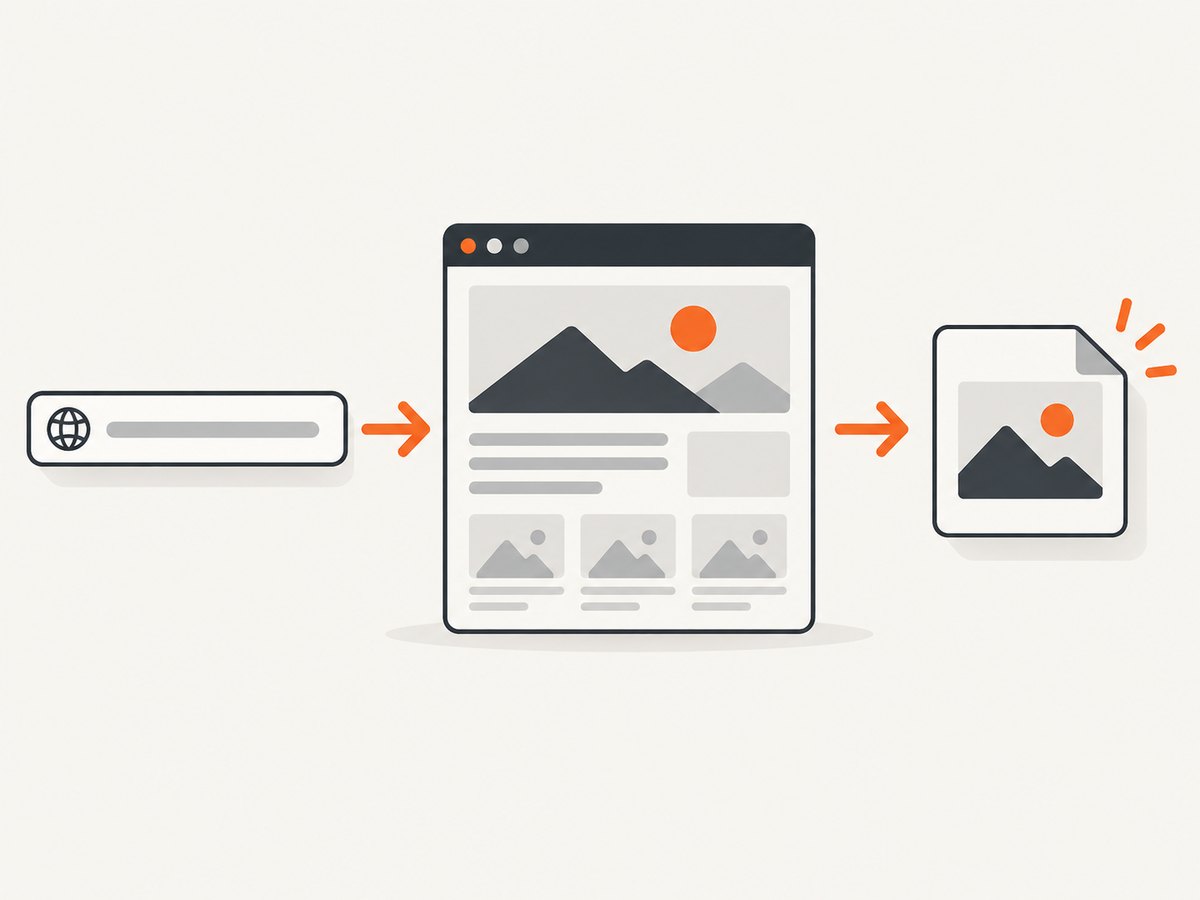
This minimal script opens a URL and saves the currently visible viewport as a PNG:
from pathlib import Path
from playwright.sync_api import sync_playwright

url = "https://example.com"
output = Path("screenshot.png")

with sync_playwright() as playwright:
    browser = playwright.chromium.launch()
    page = browser.new_page(viewport={"width": 1440, "height": 900})
    page.goto(url, wait_until="load", timeout=30_000)
    page.screenshot(path=str(output))
    browser.close()

print(f"Saved {output}")
page.screenshot(path=...) captures the visible page area by default. The browser context sets the viewport in CSS pixels; the screenshot’s physical pixel dimensions also depend on the device scale factor. A 1440-by-900 viewport at scale 1 produces a different pixel size from the same viewport at scale 2.
The context manager closes the Playwright driver when the block ends. Close the browser explicitly after each job or use a try/finally block in long-running programs so an exception does not leave browser processes behind.
3. Choose the capture area
Full scrollable page
Set full_page=True to capture the full scrollable page as one tall image:
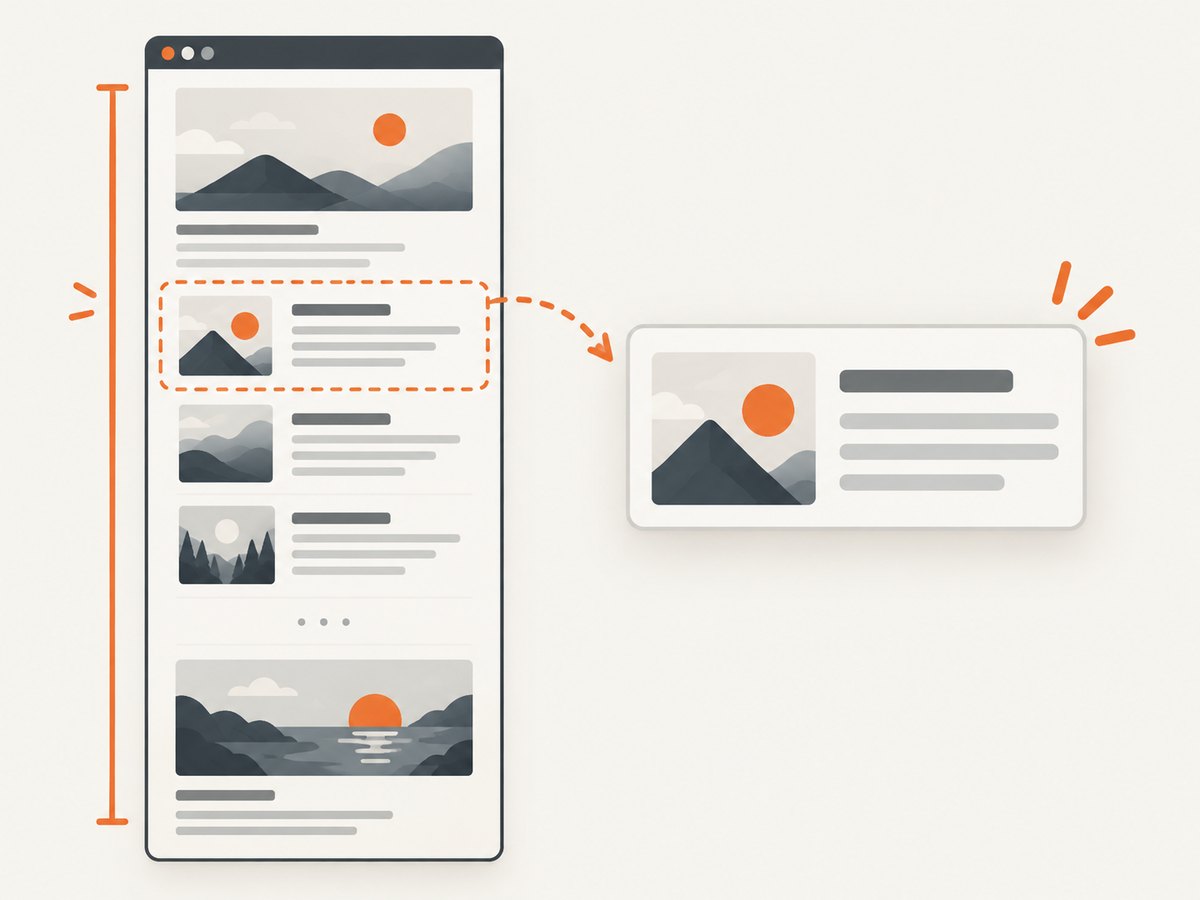
page.screenshot(path="full-page.png", full_page=True)This is useful for a page archive or a long article. Very long pages can create large images and use substantial memory. If the document has lazy-loaded images or content that appears only while scrolling, the page may need to be scrolled or otherwise prepared before capture; a screenshot call does not guarantee every site has loaded below-the-fold content.
One element
Use a locator to capture a component, chart, or result card without saving the rest of the page:
page.locator("main article").screenshot(path="article.png")Playwright scrolls the element into view before capturing its bounds. The locator must resolve to an element that is attached and visible. If a selector matches multiple elements, make it specific or select one explicitly, for example page.locator(".card").nth(0). Overlays, clipping, nested scroll containers, and an element being detached during capture can affect the result. See the Locator screenshot API for behavior and options.
Screenshot bytes
Omit path to receive the encoded image bytes. You can upload them, hash them, or store them without first writing a local file:
image_bytes = page.screenshot(type="png")
print(f"Captured {len(image_bytes)} bytes")
Use the returned bytes directly for an HTTP upload or write them with a file handle. For large captures, avoid keeping many byte buffers in memory at once.
4. Set timing and page readiness
Screenshot quality depends on capturing after the content you care about is ready. A successful navigation does not mean every asynchronous request, animation, or client-side update is finished. Pick the lightest readiness condition that fits the page:
| Approach | Use it when | Trade-off |
|---|---|---|
wait_until="load" |
You need the page load event and its dependent resources. | Some apps keep updating after load. |
wait_until="domcontentloaded" |
You need the initial document parsed and will wait for a specific target. | Images and later scripts may still be loading. |
wait_until="networkidle" |
The page settles its network activity and that is meaningful for this site. | Polling or analytics can prevent an idle period; it is not a universal readiness signal. |
| Wait for a locator | A known heading, report, or app component indicates useful content is present. | The selector must reflect the page’s actual ready state. |
For a dynamic page, navigate and then wait for a known element:
page.goto("https://example.com/dashboard", wait_until="domcontentloaded")
page.locator("[data-testid='report-ready']").wait_for(state="visible", timeout=15_000)
page.screenshot(path="report.png")
If a fixed delay is unavoidable, use page.wait_for_timeout(milliseconds) sparingly. A delay may waste time on fast loads and still be too short on slow ones. Prefer a page-specific signal when available. Navigation and locator waits have timeouts; make them explicit in production jobs so failure is bounded and diagnosable.
5. Configure image format and rendering
Playwright supports PNG, JPEG, and WebP screenshot output. PNG is lossless and a good default for text and interface details. JPEG and WebP are lossy formats; set quality when file size matters and inspect the result for artifacts. Quality is relevant to lossy output.
page.screenshot(path="capture.webp", type="webp", quality=82)Common screenshot options include:
| Option | Effect | Practical note |
|---|---|---|
full_page |
Captures beyond the viewport. | May produce a very tall image. |
type |
Selects png, jpeg, or webp. |
Match the file extension to the selected type. |
quality |
Sets lossy image quality. | Use for JPEG/WebP; compare size and legibility. |
scale |
Controls CSS-pixel or device-pixel output. | Device scale can increase pixel dimensions and output size. |
omit_background |
Allows transparency where supported. | Useful for compositing; check format support in the API reference. |
animations |
Controls how animations are handled during capture. | Can make captures more stable, but does not freeze all changing data. |
style |
Applies a stylesheet during capture. | Useful for hiding transient elements or standardizing presentation. |
mask |
Covers selected locators in the screenshot. | Useful for volatile or sensitive visual regions. |
timeout |
Limits screenshot operation time. | Set a bound appropriate to the page and capture size. |
Check the official screenshot option reference for exact accepted values and defaults. For repeatability, keep the browser engine, viewport, device scale, format, readiness condition, and handling of animations consistent. A live page can still change between runs because its data, ads, or other external content changed.
6. Complete asynchronous example
The asynchronous API is convenient in an async application or when coordinating multiple browser tasks. Use async_playwright and await browser, navigation, and screenshot operations:
import asyncio
from playwright.async_api import async_playwright

async def capture(url: str, output: str) -> None:
    async with async_playwright() as playwright:
        browser = await playwright.chromium.launch()
        try:
            page = await browser.new_page(
                viewport={"width": 1440, "height": 900},
                device_scale_factor=1,
            )
            await page.goto(url, wait_until="domcontentloaded", timeout=30_000)
            await page.locator("h1").wait_for(state="visible", timeout=15_000)
            await page.screenshot(path=output, full_page=True, timeout=30_000)
        finally:
            await browser.close()

asyncio.run(capture("https://example.com", "page.png"))
Do not call asyncio.run() inside an event loop that is already running, such as many notebook environments. In that case, await capture(...) from the existing async context.
7. Reuse browser processes for batches
Launching a browser for every URL adds setup work. For a batch, launch once and create a fresh page or context per capture, then close it. A context isolates cookies and browser state between tasks:
from playwright.sync_api import sync_playwright

urls = ["https://example.com", "https://python.org"]

with sync_playwright() as playwright:
    browser = playwright.chromium.launch()
    try:
        for index, url in enumerate(urls, start=1):
            context = browser.new_context(viewport={"width": 1280, "height": 800})
            try:
                page = context.new_page()
                page.goto(url, wait_until="domcontentloaded", timeout=30_000)
                page.screenshot(path=f"capture-{index}.png")
            finally:
                context.close()
    finally:
        browser.close()
For higher concurrency, bound the number of active pages and account for memory used by large full-page screenshots. A page that never reaches the selected wait condition can stall a batch until its timeout. Record the URL, browser engine, wait condition, and exception for each failed item so one bad destination does not hide the status of other captures.
8. When to use browser automation or a screenshot API
Use Playwright when you need browser interaction before capture, such as logging in, clicking a control, or preparing a page with custom code. Selenium is another browser automation option with screenshot support; the research available here does not establish a universal winner. Existing project stack, required browser interactions, capture scope, output options, and operational maintenance are reasonable comparison points.
For a simple URL-to-image job, a hosted screenshot API can remove the need to install and maintain a browser in your own runtime. ScreenshotNeo is a website screenshot API and MCP server from Yorker Media. One GET request can return a PNG, JPEG, WebP, or PDF. It also accepts the parameter names used by other screenshot APIs, which can make switching easier. See the ScreenshotNeo site.
9. Troubleshooting
| Symptom | Likely cause | Fix |
|---|---|---|
| Browser executable is missing | The Python package was installed without its browser binary. | Run python -m playwright install chromium in the same environment that runs the script. |
| Navigation times out | The destination is slow, unreachable, or never reaches the selected wait condition. | Check network access and the URL; choose a suitable readiness condition, wait for a specific locator, and set a bounded timeout. |
| Screenshot is blank or incomplete | The capture ran before client-rendered content appeared, or the page blocked the automated browser. | Wait for a visible page-specific target; inspect the page state and console/network failures before capture. |
| Element screenshot fails | The selector matches nothing, is hidden, or the element detached during capture. | Wait for the locator to be visible, make the selector unique, and retry only if the page can recover. |
| Image is unexpectedly large | Full-page mode, device scale, or a large page increased pixel count. | Capture the viewport or element, choose CSS-pixel scale, and consider a lossy format where appropriate. |
| Output extension and bytes disagree | The selected type differs from the filename extension. |
Use matching values, such as type="webp" and a .webp path. |
| Different runs look different | Dynamic content, animation, time, viewport, or external assets changed. | Keep environment settings consistent, wait for stable content, and use animation controls or a stylesheet where suitable. |
| Script exits but browser processes remain | An exception skipped browser cleanup. | Put browser closure in finally and close contexts created for each task. |
10. Performance, reliability, and cost
A self-hosted Playwright capture uses your compute and network. Browser startup, page complexity, image dimensions, and capture scope all affect resource use; there is no single time or memory figure that applies to every site. Reuse a browser for batches, cap concurrency, avoid unnecessary full-page captures, and use explicit navigation and screenshot timeouts. PNG preserves detail but may use more storage than a lossy format; choose based on downstream requirements.
Reliability depends on the destination as well as your code: a site can be slow, unavailable, challenge automated traffic, or render changing content. Keep per-URL outcomes, use bounded retries only for transient failures, and avoid retrying indefinitely. A retry can repeat the same site behavior and increase compute use.
Playwright itself does not charge per screenshot; operational cost comes from the machine, browser runtime, storage, and network you provide. A hosted API trades that setup for a service plan. ScreenshotNeo’s Free plan includes 1,000 shots per month with no card; Starter is $5 for 3,000, Growth $15 for 15,000, Pro $39 for 60,000, Scale $99 for 250,000, and Business $249 for 1,000,000. Yearly billing gives two months free, and every feature is on every plan. Only clean shots are billed: bot checks or CAPTCHAs, blank pages, timeouts, failed loads, and cache hits cost nothing, with the outcome identified in response headers.
11. Or skip the browser setup
For a direct URL capture, call the ScreenshotNeo endpoint with Python. This follows the documented request pattern; replace the target URL and key with your own values. The response body is the image bytes, so check the response before saving it in production.
import requests

r = requests.get(
    "https://api.screenshotneo.com/v1/shot",
    params={"access_key": "YOUR_API_KEY", "url": "https://stripe.com"},
    timeout=90,
)
r.raise_for_status()
open("shot.webp", "wb").write(r.content)
See the ScreenshotNeo API documentation for request options. Cookie banners are accepted like a visitor and more than 60 known consent platforms, newsletter popups, and chat widgets are removed before the shot; each step can be turned off. Bot checks, blank pages, and failed loads are never billed. An MCP server lets AI agents use take_screenshot, get_page_info, and capture_pdf. The free plan gives 1,000 screenshots a month with no card, and paid plans start at $5 for 3,000.
12. cURL and Node.js request examples
The same URL-to-image request can be made from a shell or Node.js. Keep the API key out of source control; use an environment variable or secret manager in applications.
curl -G "https://api.screenshotneo.com/v1/shot" \
  -d access_key=YOUR_API_KEY \
  --data-urlencode url=https://stripe.com \
  -o shot.webp
const q = new URLSearchParams({ access_key: 'YOUR_API_KEY', url: 'https://stripe.com' });
const res = await fetch(`https://api.screenshotneo.com/v1/shot?${q}`);
if (!res.ok) throw new Error(`Screenshot request failed: ${res.status}`);
const bytes = new Uint8Array(await res.arrayBuffer());
await import('node:fs/promises').then(({ writeFile }) => writeFile('shot.webp', bytes));13. Frequently asked questions
Can Python take a screenshot without opening a visible browser window?
Yes. Playwright’s browser launch can run headlessly; the examples use the default launch behavior. The browser still renders the page, but it does not need to display a desktop window.
Can I capture a page that requires a click first?
Yes. Use Playwright to locate and click the relevant control, wait for the resulting page state, then take the screenshot. Browser interaction is one reason to choose a browser automation workflow.
Can I use the screenshot in memory instead of saving a file?
Yes. Call page.screenshot() without a path to get image bytes and pass them to the next part of your program.
Which engine should I choose?
Use the engine that fits your target and environment. Playwright documents Chromium, Firefox, and WebKit; keep the choice consistent when comparing captures.