Screenshot API for Python: Quick Start and Examples
Use Playwright’s Python API to capture viewport, full-page, and element screenshots. Get runnable sync and async examples, options, and fixes for common errors.
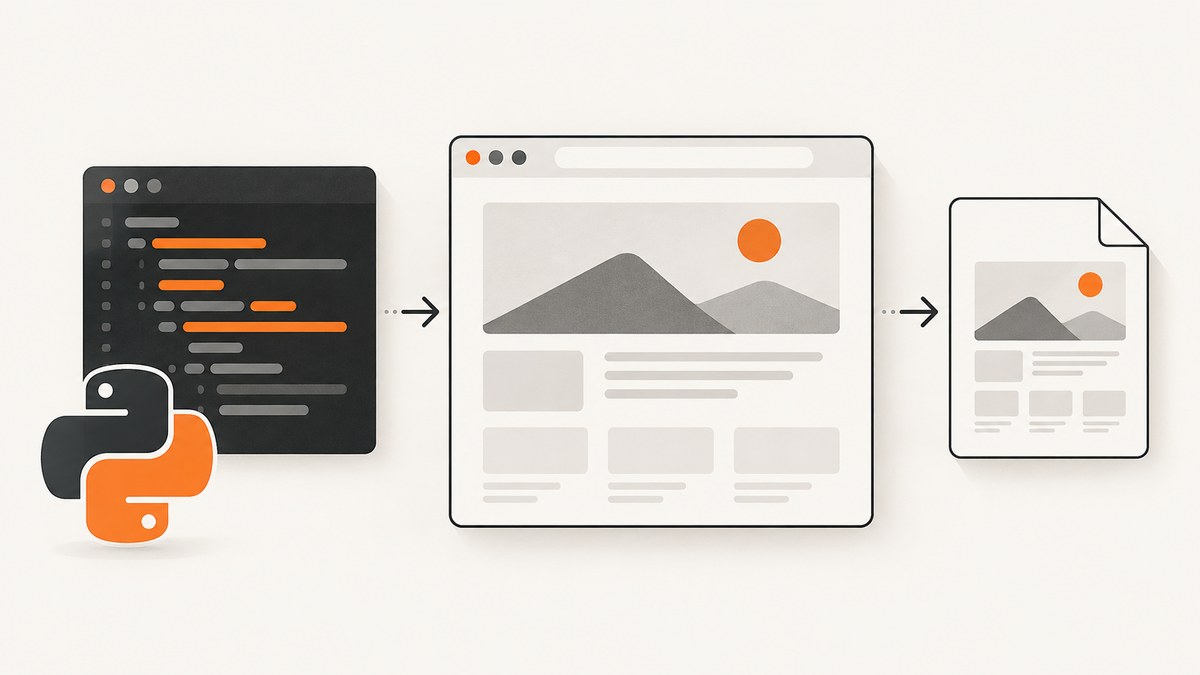
For a Python screenshot API that captures a rendered web page, use Playwright. Install its Python package and browser binaries, open a page in a browser, then call page.screenshot(). It can save the visible viewport or full page to a file, return image bytes, or capture a specific element. Playwright automates a browser; it does not capture the operating-system desktop.
This guide covers a runnable synchronous quick start, an asynchronous version, full-page and element captures, configuration choices, common failures, and when a hosted screenshot API may save setup work.
1. Install Playwright and its browsers
Install the package and then download browser binaries. These are separate steps: installing the Python package alone does not provide the browser executable used to render a page.
python -m pip install playwright
python -m playwright install
The browser installation downloads binaries for Chromium, Firefox, and WebKit. If you only need one engine, you can install that browser specifically, for example python -m playwright install chromium. Choose an engine that matches the browser behavior you want to capture; the official documentation does not establish one universal quality winner. See the Playwright Python library guide for setup details.
2. Take a screenshot with Playwright Python
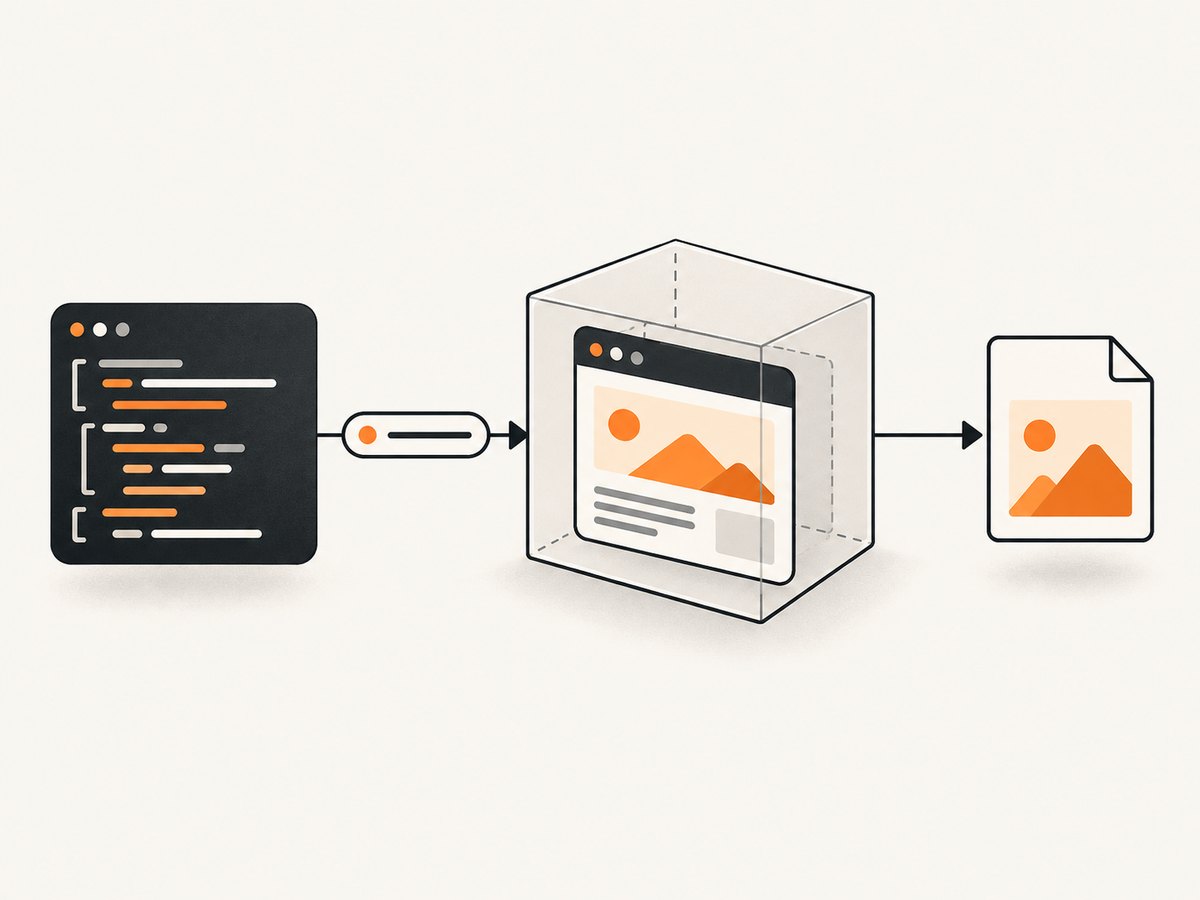
Save this as capture.py and run it with python capture.py. The script launches Chromium, navigates to a page, writes a PNG, and closes the browser even if navigation or capture raises an error.
from pathlib import Path
from playwright.sync_api import sync_playwright

OUTPUT = Path("screenshot.png")
URL = "https://example.com"

with sync_playwright() as playwright:
    browser = playwright.chromium.launch()
    try:
        page = browser.new_page()
        page.goto(URL, wait_until="load", timeout=30_000)
        page.screenshot(path=str(OUTPUT))
        print(f"Saved {OUTPUT.resolve()}")
    finally:
        browser.close()
The core sequence is: start Playwright, launch a browser, create a page, navigate to a URL, capture, and close the browser. browser.new_page() is a convenient way to create a page with a fresh browser context. For repeated captures with shared context settings, create a context explicitly and open pages within it.
The default screenshot is the visible page viewport. The output format follows the filename extension: use .png, .jpeg, or .jpg. Screenshot options are documented in the Playwright screenshot guide.
3. Pick sync or async for your Python project
Playwright provides both synchronous and asynchronous APIs. Use the sync API in a plain script or synchronous application. If the surrounding application already uses asyncio, use the async API and await each browser operation; avoid mixing sync Playwright calls into an active async event loop.
Synchronous script
from playwright.sync_api import sync_playwright

with sync_playwright() as playwright:
    browser = playwright.chromium.launch()
    try:
        page = browser.new_page()
        page.goto("https://example.com", wait_until="load")
        page.screenshot(path="sync.png")
    finally:
        browser.close()
Asynchronous script
import asyncio
from playwright.async_api import async_playwright

async def main():
    async with async_playwright() as playwright:
        browser = await playwright.chromium.launch()
        try:
            page = await browser.new_page()
            await page.goto("https://example.com", wait_until="load")
            await page.screenshot(path="async.png")
        finally:
            await browser.close()

asyncio.run(main())
Keep the browser lifetime bounded. Closing the browser releases its child processes, while the Playwright context manager cleans up the driver connection. In a server or worker that takes many screenshots, reuse a browser where appropriate and create a fresh context when you need isolation between jobs.
4. Choose viewport, full-page, bytes, or element capture
| Goal | Example | What it captures |
|---|---|---|
| Visible viewport | page.screenshot(path="view.png") |
The current page viewport. |
| Entire scrollable page | page.screenshot(path="full.png", full_page=True) |
The full page content beyond the initial viewport. |
| Image bytes | data = page.screenshot() |
Bytes that can be uploaded, processed, or passed to a pixel-diff tool. |
| One element | page.locator(".header").screenshot(path="header.png") |
The selected element, cropped to its bounds. |
Full-page screenshot
page.screenshot(path="full-page.png", full_page=True)full_page=True captures the scrollable page content. It does not mean the whole desktop or every browser window. Very long pages can produce large images and may take longer to render and encode. Lazy-loaded content may only appear after it has been brought into view; if the page needs scrolling to load images, scroll through it before capture and allow the content to settle.
Capture to memory
screenshot_bytes = page.screenshot()
with open("from-memory.png", "wb") as image_file:
    image_file.write(screenshot_bytes)
Without a path, Playwright returns image bytes. This is useful when the next step is an upload or image processing operation. The returned buffer is in memory, so account for its size when capturing large or high-resolution pages.
Capture one element
page.locator(".header").screenshot(path="header.png")A locator screenshot waits for the locator to resolve and captures the element bounds. Prefer a selector that identifies the intended element uniquely. If the selector matches nothing, is hidden, or changes after navigation, capture can fail or target an unexpected component. Locator screenshots support options such as disabling animations; consult the locator API for the options available in your installed version.
5. Set viewport and rendering behavior
Viewport dimensions affect responsive layout, so set them before navigation when you need repeatable mobile or desktop output. A viewport is the browser page area, not the physical screen. Some sites have responsive behavior that depends on more than width and height; use a browser context configuration when you need related settings to stay consistent.
page = browser.new_page(viewport={"width": 390, "height": 844})
page.goto("https://example.com", wait_until="load")
page.screenshot(path="mobile.png")
For persistent, explicit configuration, create a context:
context = browser.new_context(viewport={"width": 1440, "height": 900})
try:
    page = context.new_page()
    page.goto("https://example.com", wait_until="load")
    page.screenshot(path="desktop.png")
finally:
    context.close()
Screenshot methods have additional options for output format and quality, clipping, full-page capture, masks, and animation handling. Availability and behavior can vary by Playwright version, so check the Page API reference for the version in your environment. Use only the options needed for the capture: masks can cover dynamic or sensitive regions, while animation handling can reduce variation in visual comparisons. These options do not replace application-level controls for private data.
6. Wait for the page state you need
A successful navigation does not guarantee that every image, client-rendered widget, or remote font is ready. Pick a readiness condition that reflects the page, then wait for a specific element if the screenshot depends on it. Avoid a fixed delay as the only synchronization method when a selector or meaningful page state is available.
page.goto("https://example.com", wait_until="domcontentloaded")
page.locator("main article").wait_for(state="visible", timeout=10_000)
page.screenshot(path="article.png")
Navigation wait conditions include load and domcontentloaded. Pages with ongoing network requests may not reach a network-idle state promptly, so an unbounded wait for all activity to stop can make automation unreliable. For a site with known delayed content, wait for the relevant selector or use a bounded timeout and report a clear failure if it does not appear.
When capturing a long page with lazy images, scroll through the page in increments, allowing newly visible sections to load, then capture with full_page=True. The exact scroll strategy depends on the page; infinite-scroll pages may keep adding content and need a defined stopping rule, such as a maximum scroll count or target element.
7. Or skip the browser setup
If your application needs an image from a URL without managing a browser binary, ScreenshotNeo provides a website screenshot API. It accepts one GET request and returns an image or PDF. The API and its options are documented at ScreenshotNeo docs.
import requests

r = requests.get(
    "https://api.screenshotneo.com/v1/shot",
    params={"access_key": "YOUR_API_KEY", "url": "https://stripe.com"},
    timeout=90,
)
r.raise_for_status()
with open("shot.webp", "wb") as image_file:
    image_file.write(r.content)
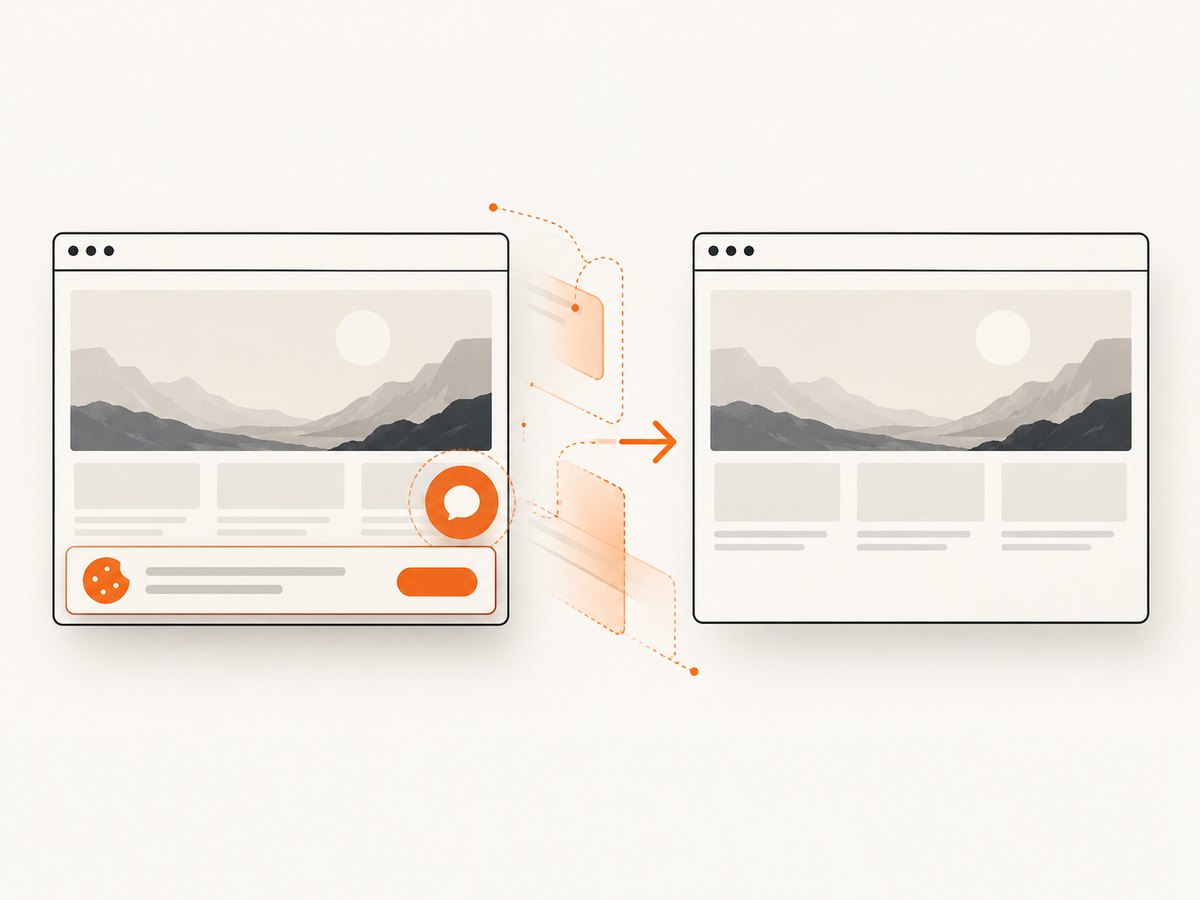
Cookie banners are accepted and removed before the shot, along with supported newsletter popups and chat widgets; each cleanup step can be turned off. Bot checks, blank pages, failed loads, timeouts, and cache hits are not billed, and response headers report the page verdict and billing status. ScreenshotNeo also has an MCP server with take_screenshot, get_page_info, and capture_pdf tools for AI agents. The free plan includes 1,000 screenshots per month without a card; paid plans start at $5 for 3,000.
Create a free ScreenshotNeo account to get 1,000 screenshots a month with no card.
8. cURL and Node.js alternatives
The same endpoint can be called from cURL or Node.js when a script or service already uses those tools. Treat the access key as a secret: keep it out of source control and avoid logging request URLs that contain credentials.
cURL
curl -G "https://api.screenshotneo.com/v1/shot" \
  -d access_key=YOUR_API_KEY \
  --data-urlencode url=https://stripe.com \
  -o shot.webp
Node.js
const q = new URLSearchParams({
  access_key: 'YOUR_API_KEY',
  url: 'https://stripe.com'
});
const res = await fetch(`https://api.screenshotneo.com/v1/shot?${q}`);
if (!res.ok) throw new Error(`Screenshot request failed: ${res.status}`);
const image = Buffer.from(await res.arrayBuffer());
await import('node:fs/promises').then(fs => fs.writeFile('shot.webp', image));
Use a response timeout appropriate to your service and handle non-success responses before treating the body as an image. For the complete parameter set, see the ScreenshotNeo API documentation.
9. Troubleshooting common errors
| Symptom | Likely cause | Fix |
|---|---|---|
| Browser executable not found | The Python package is installed, but browser binaries were not downloaded, or the environment cannot find them. | Run python -m playwright install in the target environment. In a container, install the required system dependencies as described by Playwright. |
| Navigation times out | The site is slow, a network request never settles, or the selected wait condition is too strict. | Set a reasonable explicit timeout, use domcontentloaded when appropriate, and wait for the specific content needed for the image. |
| Screenshot is blank or incomplete | The page has not rendered its content yet, scripts failed, or content is lazy-loaded below the fold. | Wait for a visible content locator, inspect navigation errors, and scroll to trigger lazy content before full-page capture. |
| Element screenshot fails | The locator does not match, is hidden, or the element is detached while the page updates. | Use a stable, specific selector; wait for it to be visible; and retry only if the page update is transient. |
| Unexpected mobile or desktop layout | The viewport was set after navigation or the site adapts to viewport dimensions. | Configure viewport on the page or context before navigating, then capture after the layout settles. |
| Process hangs or consumes memory | Browser/page instances remain open, or very tall and high-resolution images use substantial resources. | Close contexts and browsers in finally blocks, limit concurrent captures, and use viewport or element captures if a full page is unnecessary. |
| Sync API complains inside an event loop | Synchronous Playwright is being used from an async environment. | Switch to playwright.async_api and await operations. |
10. Performance, reliability, and cost
With Playwright, your service pays the practical cost of running browser processes: startup, memory, CPU, browser downloads, and maintenance of the execution environment. A browser reused for multiple jobs can reduce repeated startup work, while separate contexts help isolate cookies and page state. Limit parallelism based on available memory and the size of pages you capture; full-page images and pages with many assets generally need more resources than a small viewport capture.
For more repeatable output, pin the Playwright version in your dependency file, install the matching browser binaries during deployment, set the viewport explicitly, and wait for a meaningful page condition. A screenshot can still vary when the page itself changes, depends on time-sensitive content, or loads third-party assets. If the output is used for visual comparisons, mask or otherwise account for dynamic regions and keep the capture environment stable.
A hosted API trades local browser operations for a per-plan request allowance and network dependency. ScreenshotNeo’s published plans are Free: 1,000 shots/month; Starter: $5 for 3,000; Growth: $15 for 15,000; Pro: $39 for 60,000; Scale: $99 for 250,000; and Business: $249 for 1,000,000. Yearly billing gives two months free, and every feature is on every plan. Only clean shots are billed; the response identifies verdict and billing status. Consider request volume, whether you need local control, and whether maintaining browser infrastructure is worth the operational cost for your workload.
11. Frequently asked questions
Does Playwright take a screenshot of my desktop?
No. The Python screenshot API captures a page rendered in a Playwright-controlled browser. It is not an operating-system screen capture utility.
Can I use the screenshot without writing it to disk?
Yes. Call page.screenshot() without path; it returns bytes that you can pass to an upload or image-processing step.
Can I take screenshots with Firefox or WebKit?
Yes. Playwright supports Chromium, Firefox, and WebKit browser binaries. Install the engine you intend to launch and select it through the Playwright object.
Which option should I use for a visual regression check?
Choose the same viewport and browser engine across runs, wait for page-specific content, and capture the same region each time. Consider masking dynamic areas and disabling animations when appropriate.


