How to Name Python Screenshots Differently for Each Web Element
Save one screenshot per web element in Python with safe, unique filenames using Selenium or Playwright, plus fixes for common capture errors.
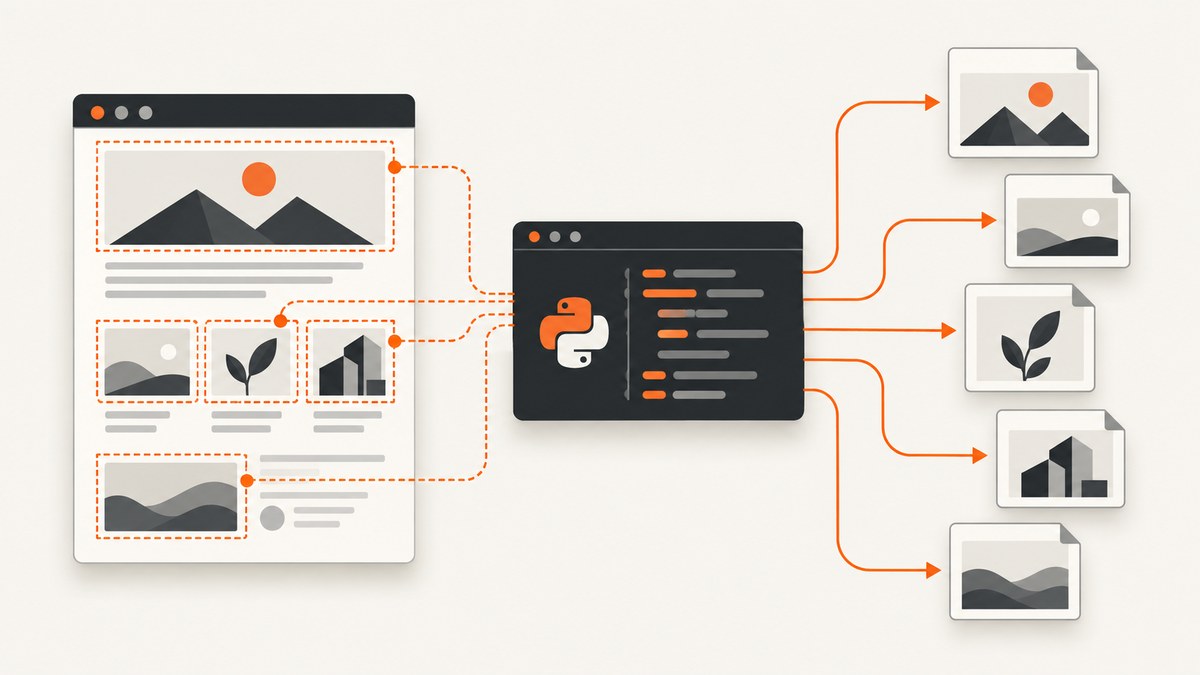
Use the element screenshot method inside a loop and build the filename yourself. With Selenium, call element.screenshot(path) for each matching element. Add a stable index, sanitize a descriptive label, and create the output directory before saving.
from pathlib import Path
import re
from selenium import webdriver
from selenium.webdriver.common.by import By


def safe_name(value: str) -> str:
    """Convert arbitrary element text into a filesystem-safe filename part."""
    value = re.sub(r"[^A-Za-z0-9._-]+", "_", value).strip("._-")
    return value or "element"


out_dir = Path("screenshots")
out_dir.mkdir(parents=True, exist_ok=True)

driver = webdriver.Chrome()
try:
    driver.get("https://example.com")

    elements = driver.find_elements(By.CSS_SELECTOR, ".card")
    for index, element in enumerate(elements, start=1):
        label = safe_name(
            element.get_attribute("aria-label")
            or element.text
            or "card"
        )
        path = out_dir / f"{index:03d}_{label}.png"
        saved = element.screenshot(str(path))
        if not saved:
            raise OSError(f"Could not save screenshot: {path}")
finally:
    driver.quit()
Selenium documents WebElement.screenshot(filename) as saving the current element to a PNG file and returning a boolean save result. The path should include a .png extension. See the Selenium WebElement API.
1. Why the filename is your responsibility
The browser automation library captures pixels, but it does not decide how a collection of files should be named. Every call receives a path supplied by your Python code. If you reuse the same path, later captures overwrite earlier ones.
A reliable name has three parts:
- Ordering: an index such as
001keeps files sorted predictably. - Meaning: an accessible label, heading, or short text identifies the element.
- Extension: Selenium element screenshots are PNG files, so use
.png.
2. A complete Selenium implementation
Install and start a driver
python -m pip install seleniumRecent Selenium versions can manage a compatible browser driver automatically when using webdriver.Chrome(). If your environment manages drivers separately, configure that driver according to your browser and deployment system.

Capture cards with unique names
from pathlib import Path
import re
from selenium import webdriver
from selenium.webdriver.common.by import By
from selenium.webdriver.support.ui import WebDriverWait


def safe_name(value: str, max_length: int = 80) -> str:
    value = re.sub(r"[^A-Za-z0-9._-]+", "_", value).strip("._-")
    return (value or "element")[:max_length]


def element_label(element, fallback: str) -> str:
    return safe_name(
        element.get_attribute("aria-label")
        or element.get_attribute("data-testid")
        or element.text
        or fallback
    )


output = Path("screenshots")
output.mkdir(exist_ok=True)

driver = webdriver.Chrome()
try:
    driver.get("https://example.com/gallery")
    wait = WebDriverWait(driver, 20)
    wait.until(lambda d: d.find_elements(By.CSS_SELECTOR, ".card"))

    cards = driver.find_elements(By.CSS_SELECTOR, ".card")
    for index, card in enumerate(cards, 1):
        label = element_label(card, "card")
        filename = f"{index:03d}_{label}.png"
        destination = output / filename
        if not card.screenshot(str(destination)):
            raise OSError(f"Selenium reported a save failure: {destination}")
        print(destination)
finally:
    driver.quit()
Use a field that is guaranteed to be unique
If the page exposes stable IDs, use them in the label. Otherwise keep the index. Visible text is often duplicated, empty, very long, or filled with punctuation that is unsafe in a filename.
for index, element in enumerate(elements, start=1):
    element_id = element.get_attribute("id")
    label = safe_name(element_id or element.text or "element")
    path = out_dir / f"{index:03d}_{label}.png"
    element.screenshot(str(path))
3. Element screenshots versus page screenshots
Use WebElement.screenshot() when each output should be cropped to one DOM element. Selenium’s WebDriver screenshot method captures the current browser window instead. Calling the window-level method inside an element loop produces repeated full-window images, not one image per element. See the Selenium WebDriver API.
| Need | Method | Result |
|---|---|---|
| One matching element | element.screenshot(path) |
Cropped PNG for that element |
| Current viewport/window | driver.save_screenshot(path) |
PNG of the browser window |
| Every matching element | Loop over find_elements() |
One explicitly named file per element |
4. Waiting for the right elements
A screenshot can be blank or incomplete if the page has not rendered the target elements yet. Wait for the selector or for a condition that means the content is ready.
from selenium.webdriver.support import expected_conditions as EC

cards = WebDriverWait(driver, 20).until(
    EC.presence_of_all_elements_located((By.CSS_SELECTOR, ".card"))
)
presence_of_all_elements_located confirms that matching nodes exist. If you need visible pixels, wait for visibility or for a page-specific marker such as a loaded state attribute.
5. Playwright alternative
Playwright’s Python API also accepts an explicit path for both page and locator screenshots. Its locator method is the equivalent of Selenium’s per-element capture.
from pathlib import Path
from playwright.sync_api import sync_playwright

out = Path("screenshots")
out.mkdir(exist_ok=True)

with sync_playwright() as p:
    browser = p.chromium.launch()
    page = browser.new_page()
    page.goto("https://example.com/gallery", wait_until="networkidle")

    cards = page.locator(".card")
    for index in range(cards.count()):
        card = cards.nth(index)
        card.screenshot(path=str(out / f"{index + 1:03d}_card.png"))

    browser.close()
Playwright also supports page.screenshot(path="screenshot.png", full_page=True) for a full-page image. Use a locator screenshot when the output must be limited to one element.
6. Naming strategies and edge cases
Duplicate labels
Two cards can have the same heading. Prefix every name with the loop index, or append a stable ID. Never rely on visible text alone for uniqueness.
Empty labels
Icons, images, and decorative containers may have no text or ARIA label. Fall back to a generic name such as element and retain the index.
Unsafe characters
Replace slashes, colons, newlines, and other punctuation before joining the label to a path. The safe_name function above keeps letters, numbers, periods, underscores, and hyphens.
Very long text
Limit the label length. Operating systems and filesystems impose path limits, and long headings make artifacts difficult to scan.
Ordering changes
An index reflects the current DOM order. If cards can be reordered between runs, include a stable ID or URL slug so you can match files across runs.
Nested or off-screen elements
Automation frameworks may scroll an element into view before capturing it, but lazy content can still change while scrolling. Wait for images or a page-ready marker before taking the screenshot.
7. Common errors and fixes
| Error or symptom | Cause | Fix |
|---|---|---|
FileNotFoundError or no output directory |
The destination directory does not exist. | Call mkdir(parents=True, exist_ok=True) before the loop. |
| Files overwrite each other | Every iteration uses the same filename. | Add an index or stable element ID. |
InvalidArgumentException for the path |
The path is malformed or lacks the expected extension. | Pass a complete filesystem path ending in .png. |
| Blank or partial element image | The DOM exists before its content finishes rendering. | Wait for visibility, a selector, images, or an application-ready condition. |
| Unexpected full-page images | The window screenshot method was used in the loop. | Call element.screenshot() for per-element crops. |
| Element is missing | The selector is wrong, the page changed, or content is inside an iframe. | Verify the selector and switch into the correct iframe before locating the element. |
| Text produces unusable filenames | Visible text contains slashes, whitespace, or unsupported characters. | Normalize it with a sanitization function and cap its length. |
Screenshot returns False |
Selenium could not write the file. | Check directory permissions, free disk space, and the destination path; raise an error instead of silently continuing. |
8. Performance, reliability, and cost
- Performance: Each element capture is a separate screenshot operation. Keep the browser session open for the whole loop and avoid reopening the browser for every file.
- Reliability: Use explicit waits, deterministic selectors, and a stable naming key. Log the selector, index, path, and save result so a failed run can be resumed or inspected.
- Filesystem safety: Write to a run-specific directory when you need reproducible artifacts, and make names deterministic when later processing depends on them.
- Memory: Saving directly to paths avoids keeping every image in memory. If you need post-processing, capture bytes only for the current element and release them after writing.
- Cost: Selenium and Playwright run in your own environment, so their expense is the browser, compute, storage, and maintenance required by that environment.
9. Or skip the browser setup
ScreenshotNeo provides a website screenshot API when you want a hosted capture instead of maintaining a browser. Its API can capture a page or a CSS-selected element, while handling the browser session for you. Read the ScreenshotNeo API documentation for the available options.

cURL
curl -G "https://api.screenshotneo.com/v1/shot" -d access_key=YOUR_API_KEY --data-urlencode url=https://stripe.com -o shot.webpPython
import requests

r = requests.get(
    "https://api.screenshotneo.com/v1/shot",
    params={"access_key": "YOUR_API_KEY", "url": "https://stripe.com"},
    timeout=90,
)
r.raise_for_status()
open("shot.webp", "wb").write(r.content)
Node.js
const q = new URLSearchParams({ access_key: 'YOUR_API_KEY', url: 'https://stripe.com' });
const res = await fetch(`https://api.screenshotneo.com/v1/shot?${q}`);
if (!res.ok) throw new Error(`Screenshot failed: ${res.status}`);
const fs = await import('node:fs/promises');
await fs.writeFile('shot.webp', Buffer.from(await res.arrayBuffer()));
ScreenshotNeo removes cookie and consent banners, newsletter popups, and chat widgets before capture. Bot checks, blank pages, timeouts, failed loads, and cache hits are not billed, and the response identifies the result with X-Page-Verdict and X-Billed headers. An MCP server lets AI agents use take_screenshot, get_page_info, and capture_pdf. The free plan includes 1,000 screenshots per month with no card; paid plans start at $5 for 3,000 screenshots.
Create a free ScreenshotNeo account and start with 1,000 screenshots per month at no charge.
10. FAQ
Can Selenium save element screenshots as JPEG or WebP?
The Selenium element screenshot API documents PNG output. Convert the PNG afterward if another format is required.
Should I use the element index or the element text?
Use both when possible: the index guarantees uniqueness and the sanitized text makes the file understandable.
Can I take screenshots of elements inside an iframe?
Yes. Switch to the iframe first, then locate and capture the element within that browsing context.
How do I capture the same elements across multiple pages?
Use a stable attribute such as an ID, test ID, or URL-derived key in the filename, and keep the page or run name in a parent directory.


