How to Set a Timeout for Website Screenshots in Python
Set separate Playwright timeouts for page navigation and screenshot capture, handle failures cleanly, and troubleshoot slow or stuck screenshots.
With Playwright for Python, set the screenshot budget in milliseconds using timeout:
page.screenshot(path="site.png", full_page=True, timeout=15_000)Navigation has a separate timeout, so give page.goto() its own budget. Playwright’s documented default for a page screenshot is 30,000 ms; pass 0 to disable the operation timeout. In most jobs, keep a finite timeout and make navigation and capture budgets fit inside a larger job deadline. See the official Page screenshot API and Page timeout API.
1. A complete Playwright example
This synchronous example gives navigation and capture distinct budgets, catches Playwright timeouts, and closes the browser even when an operation fails.
from playwright.sync_api import TimeoutError as PlaywrightTimeoutError
from playwright.sync_api import sync_playwright

URL = "https://example.com"

with sync_playwright() as p:
    browser = p.chromium.launch()
    page = browser.new_page()

    try:
        page.goto(
            URL,
            wait_until="domcontentloaded",
            timeout=60_000,
        )
        page.screenshot(
            path="example.png",
            full_page=True,
            timeout=15_000,
        )
        print("Saved example.png")
    except PlaywrightTimeoutError as exc:
        print(f"Navigation or screenshot exceeded its timeout: {exc}")
    finally:
        browser.close()
Install Playwright and its Chromium browser before running the script:
python -m pip install playwright
python -m playwright install chromium
python screenshot.py
The wait_until="domcontentloaded" choice waits for the document’s DOM to be parsed rather than every subresource. Use a different readiness strategy when the page needs application data or a specific component before capture; navigation completion does not guarantee that a page’s content is visually ready.
2. Keep navigation and screenshot budgets separate
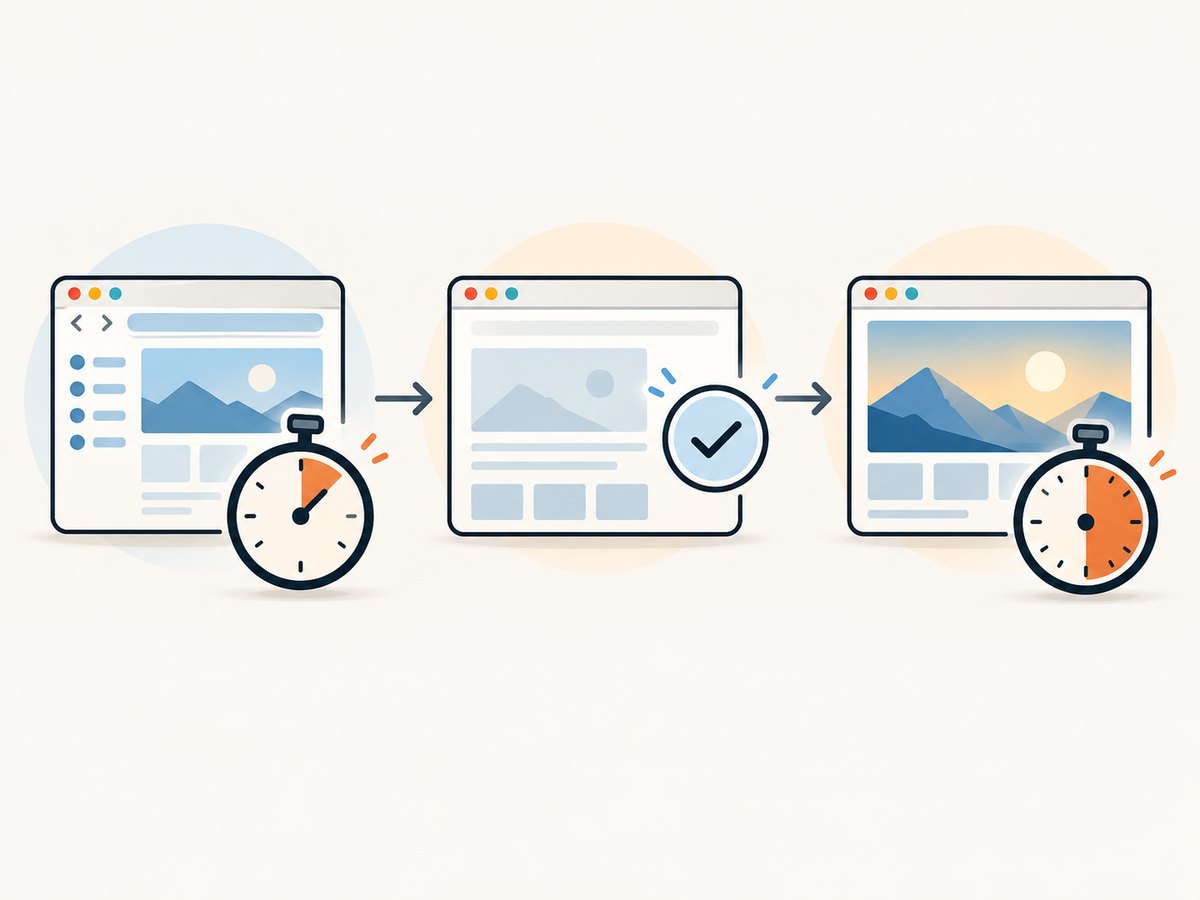
A common source of confusion is treating “the screenshot timed out” as one failure mode. The browser first has to navigate, then the screenshot call has to finish. Each operation can fail independently.
| Operation | Per-call setting | What it limits |
|---|---|---|
| Navigation | page.goto(url, timeout=...) |
Time allowed for that navigation to reach its selected lifecycle condition. |
| Screenshot | page.screenshot(timeout=...) |
Time allowed for the screenshot operation and work Playwright must complete for it. |
| General default | page.set_default_timeout(...) |
Default for timeout-aware methods when a call does not provide its own timeout. |
| Navigation default | page.set_default_navigation_timeout(...) |
Default navigation budget; it takes priority over the general default for navigation. |
For example, a site may return its initial HTML quickly while images, fonts, or client-side rendering continue afterward. A short navigation wait can be appropriate if you explicitly wait for the needed content next. A longer screenshot budget can then cover the capture work. Conversely, if the server takes a long time to respond, increasing the screenshot timeout will not fix a navigation timeout.
3. Set defaults, then override individual calls
Use page defaults when most operations share a budget. Set the navigation default separately if page loads routinely need more time than selector checks or other actions. A per-call timeout is useful for an unusually slow URL or an operation with a tighter service-level deadline.
from playwright.sync_api import sync_playwright

with sync_playwright() as p:
    browser = p.chromium.launch()
    page = browser.new_page()
    page.set_default_timeout(10_000)
    page.set_default_navigation_timeout(45_000)

    try:
        page.goto("https://example.com", wait_until="domcontentloaded")
        page.screenshot(path="default-budget.png")
        # Override the default for a known, slower capture.
        page.screenshot(path="long-budget.png", timeout=25_000)
    finally:
        browser.close()
Defaults do not create a whole-job deadline. If a job can navigate, wait for selectors, capture multiple pages, and retry, track the total elapsed time separately. Otherwise individually valid timeouts can add up to an unexpectedly long run.
4. Full-page and element screenshots
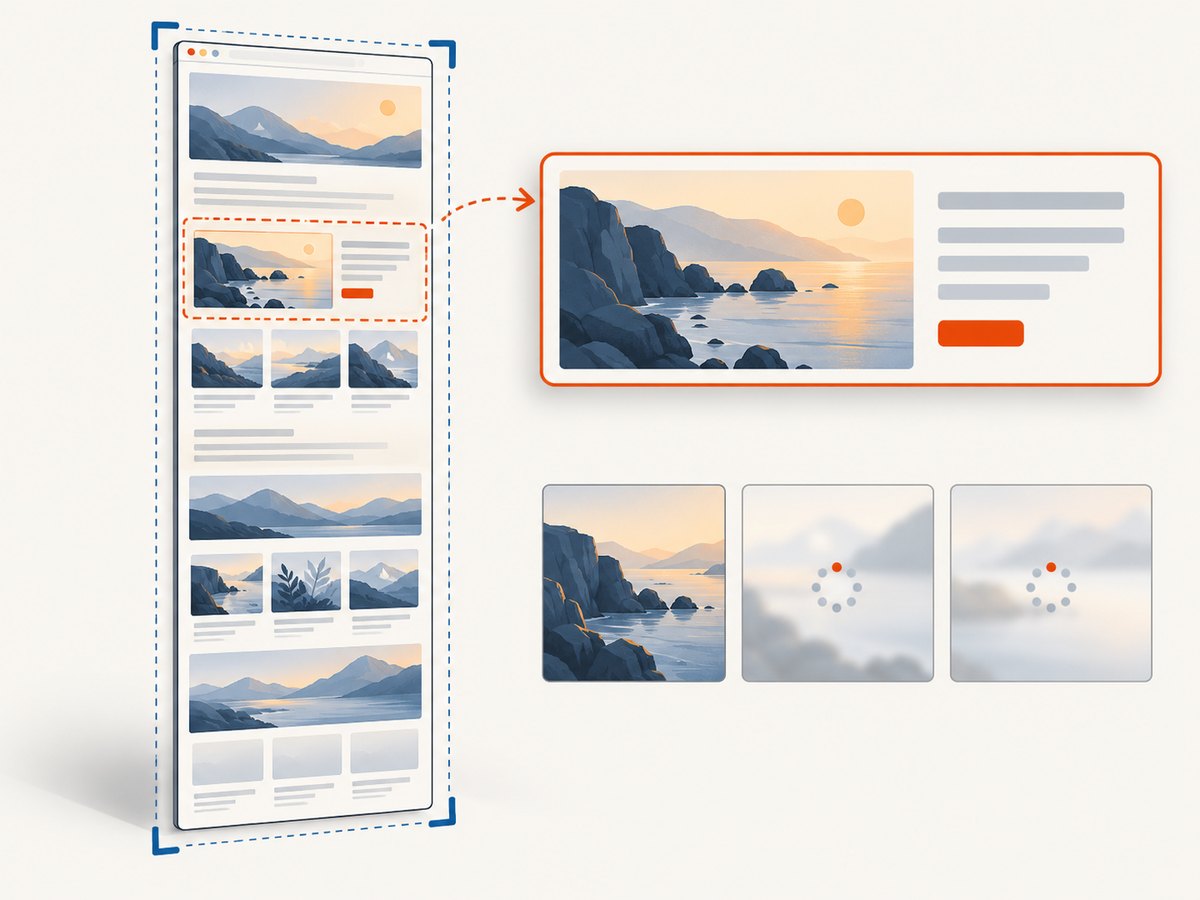
The same timeout option applies to a viewport screenshot and a full-page screenshot. Full-page capture can take longer because the output may be much taller and the page may contain lazy-loaded content. If it times out, try a viewport capture first to isolate whether the full-page work is the difference.
# Current viewport
page.screenshot(path="viewport.png", timeout=10_000)

# Entire scrollable page
page.screenshot(path="full.png", full_page=True, timeout=20_000)
For a specific element, use a locator screenshot. Locator screenshots wait for actionability checks and scroll the element into view before capturing it, so an absent, hidden, moving, or obstructed target can be the real reason for a timeout.
page.locator(".header").screenshot(
    path="header.png",
    timeout=10_000,
)
When targeting a dynamic element, first wait for the condition that makes it ready. This produces clearer failures than relying on an arbitrary delay:
header = page.locator(".header")
header.wait_for(state="visible", timeout=10_000)
header.screenshot(path="header.png", timeout=10_000)
5. Choose readiness conditions instead of waiting forever
Increasing timeouts is not the same as deciding when a page is ready. Use a lifecycle condition for navigation and a selector or application-specific condition for content that appears later. A fixed sleep can be useful for a narrowly understood animation, but fixed waits are fragile: they waste time on fast runs and may still be too short on slow ones.
page.goto("https://example.com", wait_until="domcontentloaded", timeout=45_000)
page.locator("main article").wait_for(state="visible", timeout=15_000)
page.screenshot(path="article.png", full_page=True, timeout=20_000)
If the page never reaches network idle because it uses long polling or analytics connections, do not make network quiet your only readiness condition. Wait for the content you actually need. If a consent dialog or other overlay covers that content, handle it explicitly before capture.
6. Async Playwright version
The asynchronous API uses the same timeout values and separate budgets. Catch the async API’s TimeoutError and ensure browser cleanup occurs in a finally block.
import asyncio
from playwright.async_api import TimeoutError as PlaywrightTimeoutError
from playwright.async_api import async_playwright

async def main():
    async with async_playwright() as p:
        browser = await p.chromium.launch()
        page = await browser.new_page()
        try:
            await page.goto(
                "https://example.com",
                wait_until="domcontentloaded",
                timeout=60_000,
            )
            await page.screenshot(
                path="example-async.png",
                full_page=True,
                timeout=15_000,
            )
        except PlaywrightTimeoutError as exc:
            print(f"Timed out: {exc}")
        finally:
            await browser.close()

asyncio.run(main())
7. Selenium: configure the driver timeout separately
If the project already uses Selenium, its screenshot call has a different shape. Python’s driver.save_screenshot(path) does not expose Playwright’s per-call timeout= argument. Configure page-load and script timeouts on the driver as relevant, and use an outer job or test-runner deadline if the entire screenshot task needs a hard limit.
from selenium import webdriver
from selenium.common.exceptions import TimeoutException

options = webdriver.ChromeOptions()
driver = webdriver.Chrome(options=options)
driver.set_page_load_timeout(45)
driver.set_script_timeout(15)

try:
    driver.get("https://example.com")
    saved = driver.save_screenshot("example.png")
    if not saved:
        raise RuntimeError("WebDriver did not save the screenshot")
except TimeoutException as exc:
    print(f"Navigation or script timed out: {exc}")
finally:
    driver.quit()
The Selenium page-load timeout is expressed in seconds in this Python API, unlike Playwright’s millisecond timeout values. Consult the official Selenium WebDriver API for the driver methods and current details.
8. Or skip the browser setup
For a one-request screenshot, ScreenshotNeo accepts a URL and returns an image or PDF. The service API and options are documented at ScreenshotNeo docs.
curl -G "https://api.screenshotneo.com/v1/shot" -d access_key=YOUR_API_KEY --data-urlencode url=https://example.com -o shot.webpCookie banners, popups, and chat widgets are removed before the shot. Bot checks, blank pages, and failed loads are never billed. An MCP server lets AI agents take screenshots. The free plan includes 1,000 screenshots a month with no card; paid plans start at $5 for 3,000. Create a free ScreenshotNeo account.
9. Timeout troubleshooting
| Symptom | Likely cause | Fix |
|---|---|---|
goto raises a timeout |
Navigation did not reach the requested lifecycle condition within its budget. | Identify which condition is needed, use an appropriate wait_until, and adjust the navigation timeout. Do not change the screenshot budget unless capture is also failing. |
| Navigation succeeds but screenshot times out | Capture work is slow, the page is unusually large, or content is still changing. | Try a viewport shot, wait for required content explicitly, then raise the capture budget if justified. |
| Locator screenshot times out | Selector matches no visible actionable element, or the element never becomes ready. | Check the selector, wait for visibility, and inspect whether an overlay or animation blocks the target. |
| Timeout occurs after several operations | Several individual budgets accumulate, or the failure is from a different call than expected. | Log the operation before each wait/capture and enforce a job-level deadline in addition to per-call limits. |
| Timeout exception is not caught | The imported exception is from the wrong Playwright API or another operation raises a different exception. | Import TimeoutError from the same playwright.sync_api or playwright.async_api package used by the script. |
| Setting a page default does not change navigation | A navigation-specific default is set and takes priority. | Adjust set_default_navigation_timeout or pass an explicit timeout to goto. |
To diagnose a failure, record the URL, operation name, configured timeout, and elapsed time. Avoid logging access tokens or sensitive page content. Keep browser shutdown in finally so repeated failures do not leave processes behind.
10. Performance, reliability, and cost
Timeouts control how long a caller waits; they do not make a browser faster or guarantee a successful image. A larger timeout can improve completion rates for genuinely slow pages while increasing the maximum time consumed by a stuck page. Choose values from observed workload needs and an overall job budget, then report failures distinctly from successful captures.
- Bound the work: use finite operation timeouts and an outer deadline for batches or CI jobs.
- Wait for useful readiness: selector-based conditions often avoid waiting for unrelated background traffic.
- Reduce capture cost: capture the viewport or a target element when a full-page image is unnecessary.
- Keep retries deliberate: retry transient network failures selectively, with a cap and backoff; do not retry every deterministic selector or authentication failure.
- Account for parallelism: simultaneous browsers consume memory and CPU. Limit concurrency so slow captures do not overload the host and make every timeout more likely.
With self-hosted Playwright or Selenium, the operational cost includes browser compute, memory, storage, and the engineering time to maintain browser versions and failure handling. A hosted API shifts browser execution to a service and may charge per successful capture according to its plan; check billing semantics and response status before building a cost estimate. ScreenshotNeo states that only clean shots are billed, while bot checks/CAPTCHAs, blank pages, timeouts, failed loads, and cache hits cost nothing; responses identify the page verdict and billing status in X-Page-Verdict and X-Billed headers. Its plans are Free 1,000 per month, Starter $5 for 3,000, Growth $15 for 15,000, Pro $39 for 60,000, Scale $99 for 250,000, and Business $249 for 1,000,000; yearly billing gives two months free, and every feature is on every plan.
11. Frequently asked questions
Are Playwright timeout values seconds or milliseconds?
Milliseconds. For example, 15_000 means 15 seconds.
Can I disable a screenshot timeout?
Yes. Pass timeout=0. Do this only when another layer, such as a job runner, provides a hard deadline.
Does a screenshot timeout also limit navigation?
No. Set the navigation timeout on goto or through the navigation default separately.
Does Selenium support save_screenshot(timeout=...)?
The documented Python method is save_screenshot(path). Configure driver timeouts and an outer deadline for the full operation.
Should I always wait for network idle?
No. Pages with persistent connections may not become idle. Wait for the specific content that must appear in the image.


