How to Take a Screenshot of a URL Using Python
Use Playwright to capture any URL in Python, with viewport, full-page, element, format, scaling, troubleshooting, and an API alternative.
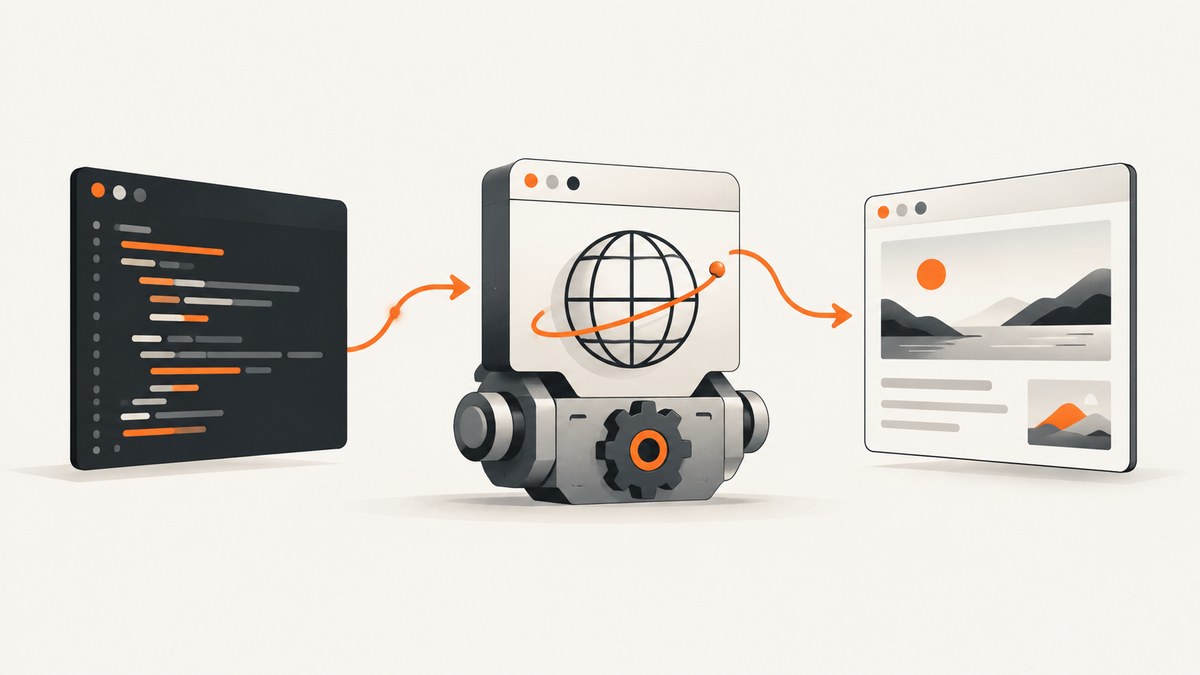
Direct answer: use Playwright’s Python API. Launch a browser, create a page, navigate to the URL, and call page.screenshot(). The smallest working script is:
from playwright.sync_api import sync_playwright

with sync_playwright() as p:
    browser = p.chromium.launch()
    page = browser.new_page()
    page.goto("https://example.com")
    page.screenshot(path="screenshot.png")
    browser.close()
Install Playwright and its browser binaries first:
python -m pip install playwright
python -m playwright install chromium
Playwright captures website content inside the page. It does not include the browser’s address bar, tabs, or operating-system window frame. A desktop or browser-window capture is a different task.
1. Choose the kind of screenshot
The default screenshot is the currently visible viewport. Use full_page=True for the page’s complete scrollable content, or capture a single element with a locator.
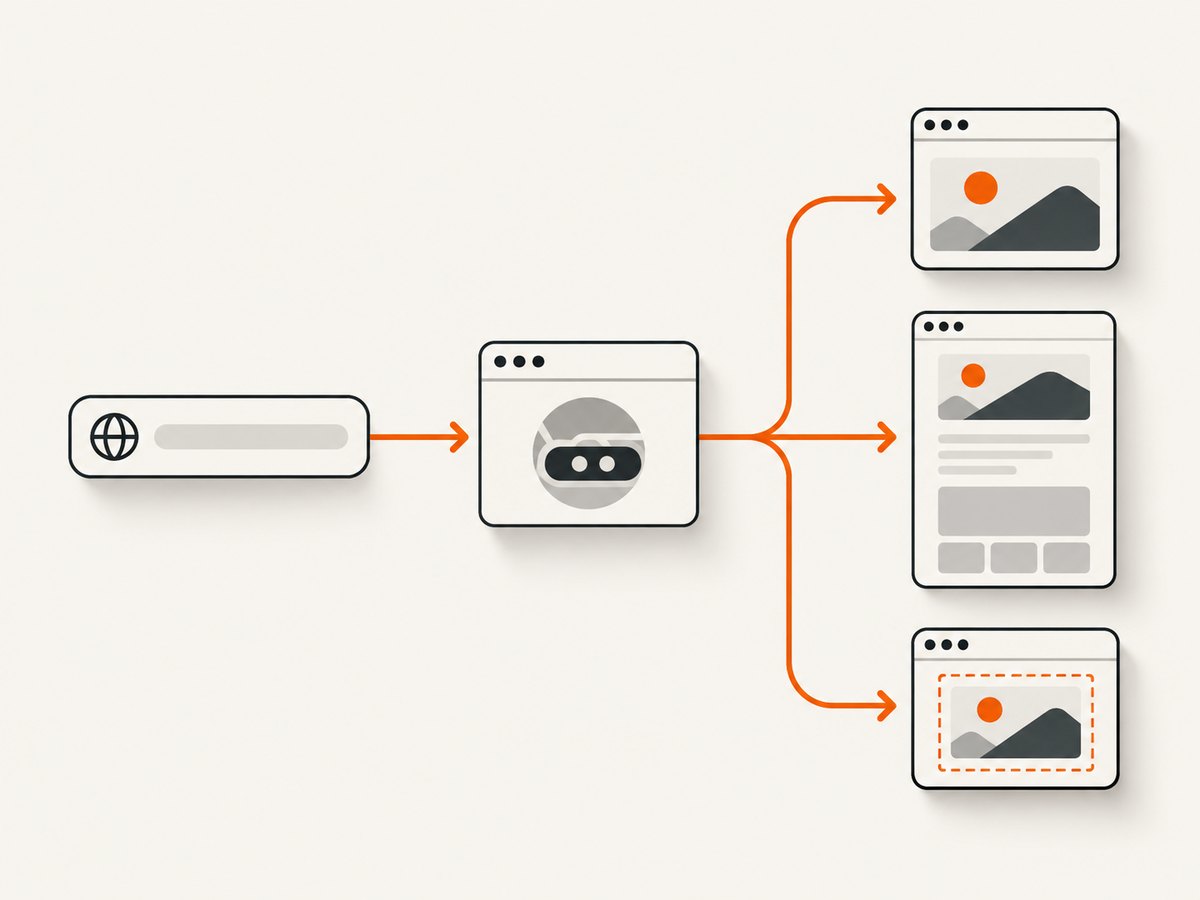
| Goal | Code | What you get |
|---|---|---|
| Visible viewport | page.screenshot(path="shot.png") |
The current page viewport |
| Entire scrollable page | page.screenshot(path="shot.png", full_page=True) |
Website content from top to bottom |
| One element | page.locator(".header").screenshot(path="header.png") |
The matching element’s visible rendering |
| In memory | data = page.screenshot() |
Image bytes for processing or upload |
The documented Playwright screenshot patterns are covered in the Python screenshots guide and the page.screenshot API reference.
2. A complete synchronous Python example
This script accepts a URL from the command line, waits for navigation, sets a predictable viewport, captures a full page, and writes a PNG. It also closes the browser in a finally block so failures do not leave a browser process running.
#!/usr/bin/env python3
import sys
from pathlib import Path
from playwright.sync_api import sync_playwright, TimeoutError as PlaywrightTimeoutError


def capture(url: str, output: str = "screenshot.png") -> None:
    with sync_playwright() as p:
        browser = p.chromium.launch(headless=True)
        try:
            page = browser.new_page(
                viewport={"width": 1440, "height": 900},
                device_scale_factor=1,
            )
            page.goto(url, wait_until="domcontentloaded", timeout=30_000)
            page.screenshot(path=output, full_page=True, type="png")
        except PlaywrightTimeoutError as exc:
            raise RuntimeError(f"Timed out while loading {url}") from exc
        finally:
            browser.close()


if __name__ == "__main__":
    if len(sys.argv) not in (2, 3):
        raise SystemExit("Usage: python capture.py URL [OUTPUT]")
    capture(sys.argv[1], sys.argv[2] if len(sys.argv) == 3 else "screenshot.png")
Run it with:
python capture.py https://example.com example-full.png3. Async Python for web applications
Use Playwright’s asynchronous client when the surrounding service already uses asyncio. Do not mix synchronous Playwright calls into an event loop.
import asyncio
from playwright.async_api import async_playwright


async def capture(url: str, output: str) -> None:
    async with async_playwright() as p:
        browser = await p.chromium.launch()
        try:
            page = await browser.new_page(viewport={"width": 1440, "height": 900})
            await page.goto(url, wait_until="networkidle", timeout=30_000)
            await page.screenshot(path=output, full_page=True)
        finally:
            await browser.close()


asyncio.run(capture("https://example.com", "example.png"))
networkidle waits for a period with no network connections, but some analytics, advertisements, and live applications continually open requests. In those cases, use domcontentloaded or load and then wait for a specific selector or a short, deliberate delay.
4. Control viewport, device scale, and output
Viewport and high-density output
Set the CSS viewport when the target site has responsive layouts. A 1440-pixel viewport can produce a desktop layout; a narrow viewport exercises a mobile breakpoint.
page = browser.new_page(
    viewport={"width": 390, "height": 844},
    device_scale_factor=2,
)
page.goto("https://example.com")
page.screenshot(path="mobile@2x.png")
A larger device_scale_factor creates a higher-density image and a larger file. Use it for retina assets, and keep it at 1 when storage or transfer size matters. Playwright also documents CSS-pixel scaling options for reducing high-DPI output.
PNG, JPEG, and WebP
The filename extension normally determines the format. You can set it explicitly with type. PNG is lossless. JPEG and WebP support a quality value; quality does not apply to PNG.
page.screenshot(path="page.jpg", type="jpeg", quality=80, full_page=True)
page.screenshot(path="page.webp", type="webp", quality=80, full_page=True)
page.screenshot(path="page.png", type="png", full_page=True)
If another service expects bytes instead of a file, omit path:
image_bytes = page.screenshot(type="webp", quality=80)
with open("page.webp", "wb") as output:
    output.write(image_bytes)
5. Capture one element reliably
Use a locator rather than manually calculating coordinates. Locators wait for the element and follow Playwright’s recommended element-capture API.
page.goto("https://example.com")
card = page.locator("article.product-card").first
card.wait_for(state="visible")
card.screenshot(path="product-card.png")
The resulting image contains what is actually visible. A covered element may not appear as expected. A scrollable element shows its currently scrolled content, rather than automatically rendering every hidden child. If the selector matches several nodes, use .first, .nth(index), or a more specific selector.
6. Wait for the page to be ready
Navigation completion and visual readiness are different. Choose a readiness signal that matches the page.
page.goto(url, wait_until="domcontentloaded")
page.locator("main.dashboard").wait_for(state="visible")
page.wait_for_timeout(500)
page.screenshot(path="dashboard.png")domcontentloaded: useful when you need the initial document quickly.load: waits for the page load event and its dependent resources.networkidle: useful for mostly static pages, but unreliable for applications with long-lived connections.- Selector wait: best when a known component indicates that data has rendered.
- Fixed delay: a last resort for animations or third-party widgets; keep it short and explicit.
For animated pages, disable or reduce motion with an injected stylesheet:
page.add_style_tag(content="""
*, *::before, *::after {
  animation: none !important;
  transition: none !important;
  caret-color: transparent !important;
}
""")
7. Hide dynamic or sensitive content
Mask or cover elements that change between runs, such as timestamps, rotating banners, or personal data. A simple CSS rule can hide known selectors before capture.
page.add_style_tag(content="""
.cookie-banner, .live-chat, .personal-data {
    display: none !important;
}
""")
page.screenshot(path="stable.png", full_page=True)
Do not hide consent controls when your capture workflow must record what a visitor sees. If a site requires interaction before content appears, perform that interaction explicitly and only with authorization.
8. Full-page edge cases
- Lazy-loaded images: scrolling or waiting for the relevant content may be necessary before a full-page shot includes every image.
- Sticky headers: a fixed header can appear repeatedly or cover content. Hide it with a temporary stylesheet when a clean document is required.
- Very tall documents: full-page images consume substantial memory. Prefer viewport shots or capture sections when the document is extremely long.
- Cross-origin frames: the parent page can be captured, but browser security rules still apply to scripted access inside another origin.
- Authentication: create a browser context with the required cookies or headers, and never hard-code secrets into source control.
- Address-bar requests: Playwright captures the web page, not browser chrome. Use an operating-system or browser-window capture library if the URL pane itself is required.
9. Requests, authentication, and repeatability
For deterministic captures, keep the environment explicit:
context = browser.new_context(
    viewport={"width": 1280, "height": 800},
    locale="en-US",
    timezone_id="UTC",
    extra_http_headers={"Authorization": "Bearer YOUR_TOKEN"},
)
page = context.new_page()
page.goto("https://example.com/private", wait_until="domcontentloaded")
Use a saved storage state when a login flow is expensive:
context = browser.new_context(storage_state="auth-state.json")Capture the same viewport, timezone, locale, user agent, and data state in scheduled jobs. Otherwise responsive breakpoints, date formatting, and personalized content can make visual comparisons noisy.
10. Troubleshooting
| Symptom | Likely cause | Fix |
|---|---|---|
Executable doesn't exist |
Browser binaries were not installed. | Run python -m playwright install chromium. |
Timeout during goto |
Slow server, blocked request, or an unsuitable wait condition. | Raise the timeout carefully, use domcontentloaded, and wait for a concrete selector. |
| Blank or partially rendered image | Screenshot happened before client-side rendering or lazy loading. | Wait for the content selector, scroll to trigger lazy loading, or use a short delay. |
| Element screenshot fails | Selector matches nothing, the element is hidden, or it is covered. | Check the selector, call wait_for(state="visible"), and inspect the page at the same viewport. |
| Full page is unexpectedly short | Content is inside a scrollable container rather than the document. | Capture the container separately or scroll it before calling its locator screenshot. |
| Images differ on every run | Animations, timestamps, ads, random data, or changing fonts. | Disable motion, hide volatile selectors, wait for fonts, and pin the test data. |
| JPEG/WebP quality has no effect | Quality is unsupported for PNG. | Set type="jpeg" or type="webp" explicitly. |
| Memory usage is high | Large viewport, high device scale, or a very tall full-page image. | Lower scale, capture sections, or use viewport screenshots. |
11. Performance, reliability, and cost
Launching a browser is expensive compared with taking another screenshot in an existing page. For batches, launch one browser and reuse it, while creating separate contexts when isolation is needed. Close pages and contexts after each job. Limit concurrency so the host does not run out of memory.
Use the smallest viewport and image format that satisfies the consumer. WebP or JPEG can reduce transfer size; PNG is appropriate for sharp text, diagrams, and pixel comparisons. Avoid an unconditional long sleep: a selector-based readiness check usually reduces latency and flaky output.
Playwright itself is software you run and operate. Your costs include the machine or container, browser installation, bandwidth, and any target-site limits. Respect authentication, robots policies, terms, and rate limits. Retry transient navigation failures with bounded backoff, but do not retry deterministic selector errors indefinitely.
12. cURL, Python, and Node.js alternatives with ScreenshotNeo
If you do not want to package Chromium, maintain browser processes, or build page-readiness logic, ScreenshotNeo provides a URL-to-image API. One GET request returns PNG, JPEG, WebP, or a PDF. Its capture can load lazy images, choose a viewport or device preset, run custom CSS or JavaScript, wait for a selector, delay, or network idle, and capture one CSS-selected element.
cURL
curl -G "https://api.screenshotneo.com/v1/shot" -d access_key=YOUR_API_KEY --data-urlencode url=https://stripe.com -o shot.webpPython
import requests
r = requests.get("https://api.screenshotneo.com/v1/shot", params={"access_key": "YOUR_API_KEY", "url": "https://stripe.com"}, timeout=90)
open("shot.webp", "wb").write(r.content)
Node.js
const q = new URLSearchParams({ access_key: 'YOUR_API_KEY', url: 'https://stripe.com' });
const res = await fetch(`https://api.screenshotneo.com/v1/shot?${q}`);
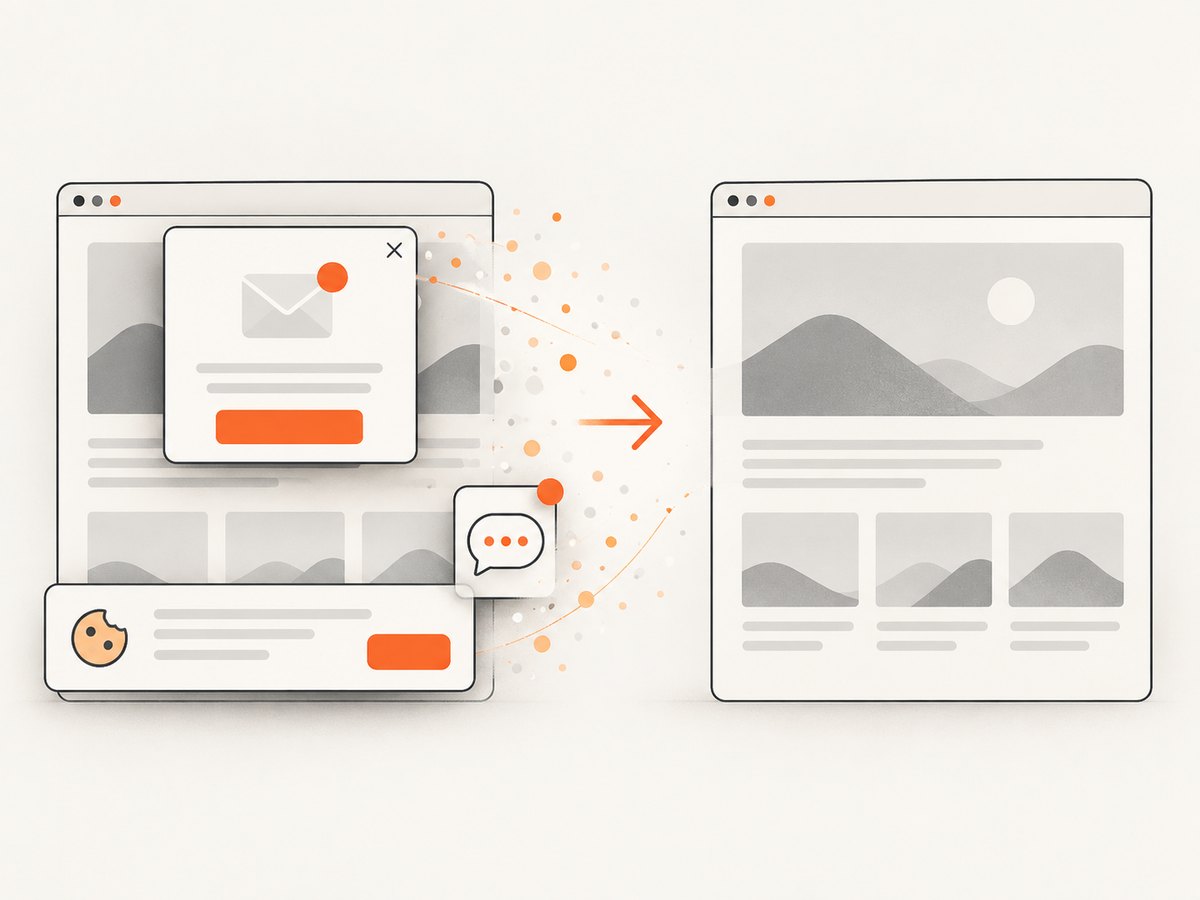
See the ScreenshotNeo API documentation for option names and response details. Cookie and consent banners are accepted and removed before capture, along with more than 60 known consent platforms, newsletter popups, and chat widgets; each step can be turned off. Bot checks, blank pages, timeouts, failed loads, and cache hits are not billed, and response headers identify the page verdict and whether the request was billed.
ScreenshotNeo also provides an MCP server with take_screenshot, get_page_info, and capture_pdf tools for Claude, Cursor, and other MCP clients. It includes bulk capture for up to 100 URLs per call, signed links, asynchronous jobs with signed webhooks, caching with a chosen TTL, usage data, an OpenAPI specification, and support for parameter names used by other screenshot APIs.
There is a free plan with 1,000 screenshots per month and no card. Paid plans start at $5 for 3,000 screenshots; yearly billing provides two months free, and every feature is available on every plan. Create a free ScreenshotNeo account to try the API.
13. Or skip the browser setup
Use the one-call ScreenshotNeo example when you want a service rather than a browser runtime:
curl -G "https://api.screenshotneo.com/v1/shot" -d access_key=YOUR_API_KEY --data-urlencode url=https://stripe.com -o shot.webpCookie banners, popups, and chat widgets are removed before the shot. Bot checks, blank pages, and failed loads are never billed. An MCP server lets AI agents take screenshots. You get 1,000 screenshots a month free with no card, and paid plans start at $5 for 3,000. Sign up free.
14. FAQ
Can Python capture the browser’s URL bar?
Not with Playwright’s page screenshot API. It captures page content. Use a browser-window or desktop capture tool for browser chrome.
Should I use synchronous or asynchronous Playwright?
Use synchronous code for scripts and command-line jobs. Use async_playwright when your application already runs on asyncio.
Does full_page=True include content below the fold?
It captures the document’s full scrollable page. Content that loads only after scrolling or interaction may require additional waits or actions.
How do I return an image from a web endpoint?
Omit path, receive the screenshot bytes, and return them with the correct content type from your Python web framework.
Is Selenium also suitable?
Yes. Selenium’s Python bindings provide current-window screenshot and byte-returning methods, plus full-document methods in supported versions. Check the API available in your installed Selenium release because the surfaced reference has older release labeling.


