How to Take a Screenshot With Python Selenium
Save a Selenium screenshot as a PNG, capture one element, or return image bytes and base64. Includes runnable examples and fixes for common errors.
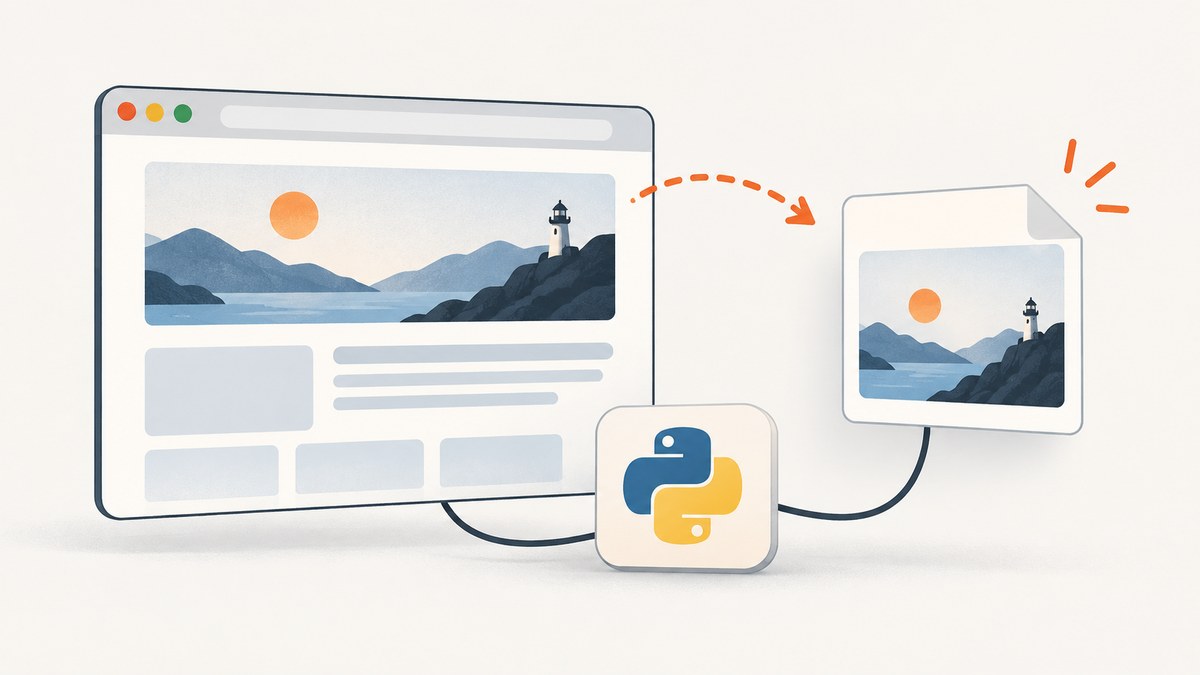
To take a screenshot with Python Selenium, navigate to the page and call driver.save_screenshot("screenshot.png"). It saves a PNG of the current browsing context. Check its boolean return value, and close the WebDriver when you are done.
from selenium import webdriver

 driver = webdriver.Chrome()
try:
    driver.get("https://www.example.com")
    saved = driver.save_screenshot("screenshot.png")
    if not saved:
        raise OSError("Selenium could not save the screenshot")
finally:
    driver.quit()
The leading space before driver in the snippet above would cause an indentation error if copied as shown. Use this corrected, runnable version:
from selenium import webdriver

driver = webdriver.Chrome()
try:
    driver.get("https://www.example.com")
    saved = driver.save_screenshot("screenshot.png")
    if not saved:
        raise OSError("Selenium could not save the screenshot")
finally:
    driver.quit()
1. Install Selenium and prepare the browser
Install the Python package in the same environment that runs your script:
python -m pip install seleniumThe examples use Selenium’s Chrome WebDriver interface. The browser must be available in the environment. Driver management and browser installation details can vary by operating system and Selenium version; consult the official Selenium documentation for your setup. The API reference used here is for Selenium 4.49.0, so check the reference matching your installed version if you use an older release.
Save the code in a Python file and run it with Python. Choose a destination whose parent directory exists and is writable. A full path makes the output location unambiguous:
output_path = "/tmp/page.png"On Windows, for example, a raw string avoids interpreting backslashes as escape sequences:
output_path = r"C:\Users\me\Pictures\page.png"2. Capture the current page
save_screenshot(path) captures the current browsing context and writes a PNG. Navigate to the target before calling it. Selenium’s official example follows this same sequence: open a page, save the screenshot, then quit the driver. The method returns True when the image is saved and False if an I/O error occurs.
from pathlib import Path
from selenium import webdriver

output = Path("artifacts/page.png")
output.parent.mkdir(parents=True, exist_ok=True)

driver = webdriver.Chrome()
try:
    driver.get("https://www.example.com")
    if not driver.save_screenshot(str(output)):
        raise OSError(f"Could not write screenshot to {output}")
finally:
    driver.quit()
Creating the directory first avoids a common file-path problem. The finally block ensures the browser is asked to close even if navigation or saving raises an exception. This is standard Python cleanup practice; it does not guarantee that a browser process can always exit cleanly after a system-level failure.
The method’s documented output is PNG. Use a filename ending in .png; changing the extension to .jpg does not turn the PNG data into JPEG.
3. Choose the screenshot scope and output type
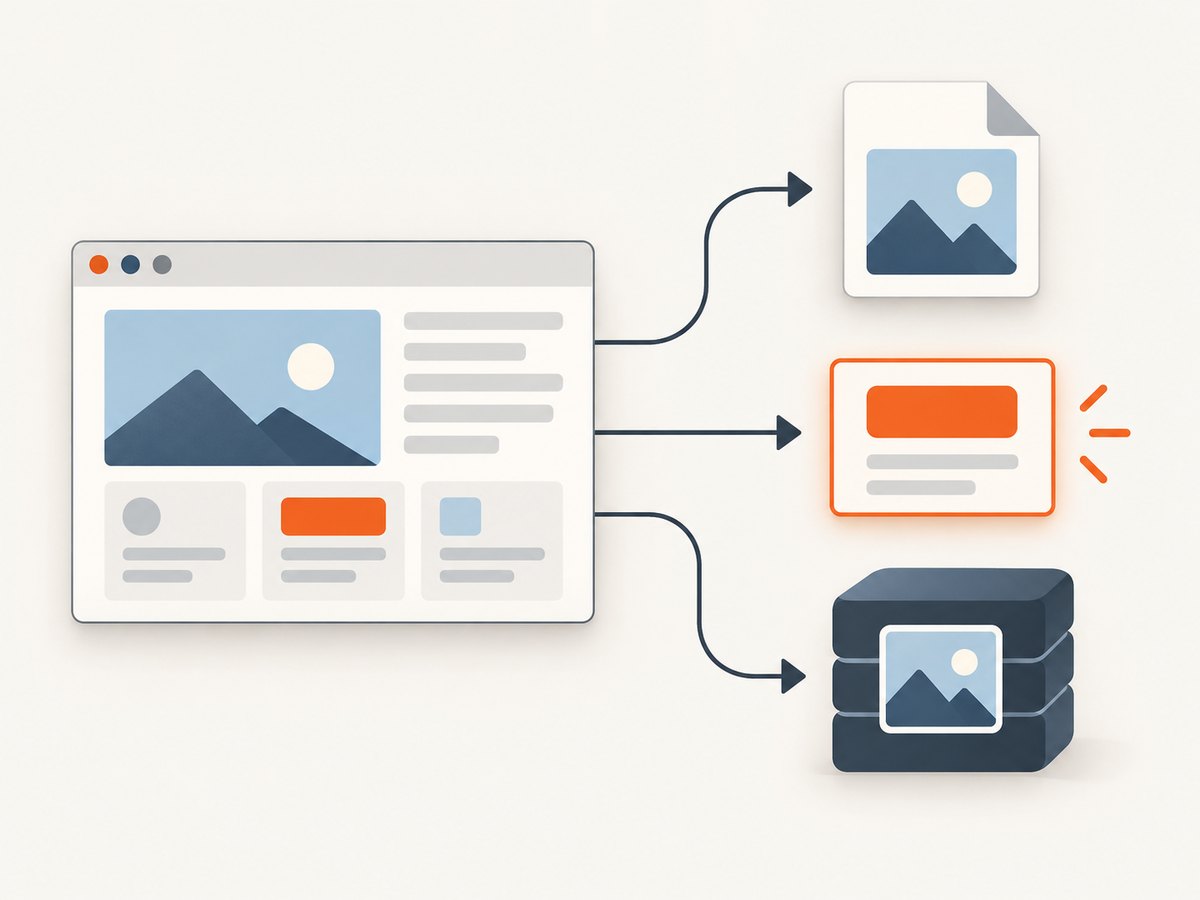
Whole current browsing context
Use driver.save_screenshot("page.png") to save the current browsing context to a file. If the site opened a new tab or window, switch to the intended one first. A screenshot captures the context currently selected by WebDriver, so navigating one tab and capturing another is a frequent source of confusing results.
One web element
Locate the element and call its own screenshot() method when you need a chart, card, heading, or other individual element rather than the page context. Selenium’s guide demonstrates selecting an h1 and saving its image.
from selenium import webdriver
from selenium.webdriver.common.by import By

 driver = webdriver.Chrome()
try:
    driver.get("https://www.example.com")
    heading = driver.find_element(By.TAG_NAME, "h1")
    if not heading.screenshot("heading.png"):
        raise OSError("Could not save element screenshot")
finally:
    driver.quit()
Remove the extra indentation before driver if copying: the runnable version is:
from selenium import webdriver
from selenium.webdriver.common.by import By

driver = webdriver.Chrome()
try:
    driver.get("https://www.example.com")
    heading = driver.find_element(By.TAG_NAME, "h1")
    if not heading.screenshot("heading.png"):
        raise OSError("Could not save element screenshot")
finally:
    driver.quit()
If the locator matches nothing, Selenium raises an exception rather than saving a useful element image. Wait for the element when the page renders it asynchronously; use an explicit wait as shown in the reliability section.
PNG bytes or base64 in memory
Use get_screenshot_as_png() when the next step accepts bytes, such as writing to a stream or passing the image to another library. Use get_screenshot_as_base64() when the consumer specifically expects a base64 string, such as an HTML embedding workflow.
from selenium import webdriver

 driver = webdriver.Chrome()
try:
    driver.get("https://www.example.com")
    png_bytes = driver.get_screenshot_as_png()
    with open("page.png", "wb") as image_file:
        image_file.write(png_bytes)

    image_base64 = driver.get_screenshot_as_base64()
    print(f"Base64 characters: {len(image_base64)}")
finally:
    driver.quit()
Again, remove the leading extra space before driver when copying. These in-memory methods produce a PNG representation; base64 is an encoding of the image bytes, not a different image format. Avoid printing the full base64 value in logs: it can be large and makes logs difficult to use.
4. Wait for the page to be ready
A screenshot can be technically successful while showing a loading state, a partially rendered page, or a placeholder. A call to get() does not tell your script that every application-specific element or image is ready. Wait for a meaningful page condition before capture.
from selenium import webdriver
from selenium.webdriver.common.by import By
from selenium.webdriver.support import expected_conditions as EC
from selenium.webdriver.support.ui import WebDriverWait

 driver = webdriver.Chrome()
try:
    driver.get("https://www.example.com")
    WebDriverWait(driver, 15).until(
        EC.visibility_of_element_located((By.TAG_NAME, "h1"))
    )
    driver.save_screenshot("ready-page.png")
finally:
    driver.quit()
For a real target, replace the heading locator with an element that indicates the content you need. Set a finite timeout so a missing element does not make a batch job wait forever. If a page updates after the heading appears, wait for the specific updated state instead.
5. Common errors and fixes
| Symptom | Likely cause | Fix |
|---|---|---|
save_screenshot() returns False |
The screenshot could not be written, often because the destination is invalid or not writable. | Create the parent directory, use a writable location, and check the return value so the script fails visibly. |
FileNotFoundError or no output file |
The parent directory does not exist, or the relative path points somewhere unexpected. | Create the directory and print or log the resolved destination path. |
IndentationError |
Copied code includes an extra leading space before a top-level statement. | Align top-level statements to the left margin and keep indentation only inside try, functions, or blocks. |
| Driver or browser startup error | The browser is absent, cannot start in the environment, or the setup does not match the installed browser and Selenium configuration. | Confirm the browser is installed and follow the current Selenium setup guidance for that environment. |
| Screenshot shows the wrong tab | WebDriver is controlling a different current window or tab than expected. | Select the intended window before capturing, and verify the current URL in the script. |
| Screenshot is blank or incomplete | The page has not reached the state needed for capture, or content loads asynchronously. | Wait for a meaningful element or state with an explicit timeout; investigate navigation errors separately. |
| Element lookup fails | The selector is wrong or the element is not present yet. | Check the locator against the page and wait for the element before calling element.screenshot(). |
| Image has PNG data despite a JPEG extension | The Selenium screenshot methods documented here save or return PNG. | Keep the .png extension, or convert the resulting PNG with an image library if JPEG is required. |
6. Reliability, performance, and cost
For occasional captures, a single browser session with a clear cleanup path is straightforward. For repeated captures, reusing one session can avoid repeatedly starting a browser, but it also means state such as cookies, local storage, open tabs, and page state can carry over between URLs. Decide whether isolation or startup time matters more for your job, and reset or recreate sessions when cross-page state could affect results.
Use bounded waits and handle failures per URL in a batch. Record the target URL, capture stage, exception type, and output path so a failed navigation can be distinguished from a failed file write. Avoid treating an existing file as proof that the latest capture succeeded; a previous run may have left a stale image.
Screenshot capture consumes browser resources, including memory and CPU, and the page’s own load time often dominates the work. Limit parallel browser instances to what the host can support. In containers or CI, browser startup settings and writable paths depend on that environment; verify them there rather than assuming local desktop behavior will match.
Selenium itself is an open-source browser automation framework, so this workflow does not add a per-screenshot ScreenshotNeo API charge. Your operating cost comes from running the machine or hosted browser environment, plus engineering and maintenance time. There is no official screenshot timing or resource benchmark in the sources used for this guide, so size capacity with your own pages and runtime environment.
7. Or skip the browser setup
ScreenshotNeo is a website screenshot API and MCP server from Yorker Media. One GET request can return a screenshot or PDF; see the ScreenshotNeo API documentation for options.
curl -G "https://api.screenshotneo.com/v1/shot" -d access_key=YOUR_API_KEY --data-urlencode url=https://stripe.com -o shot.webpimport requests
r = requests.get(
"https://api.screenshotneo.com/v1/shot",
params={"access_key": "YOUR_API_KEY", "url": "https://stripe.com"},
timeout=90,
)
open("shot.webp", "wb").write(r.content)
const q = new URLSearchParams({ access_key: 'YOUR_API_KEY', url: 'https://stripe.com' });
const res = await fetch(`https://api.screenshotneo.com/v1/shot?${q}`);
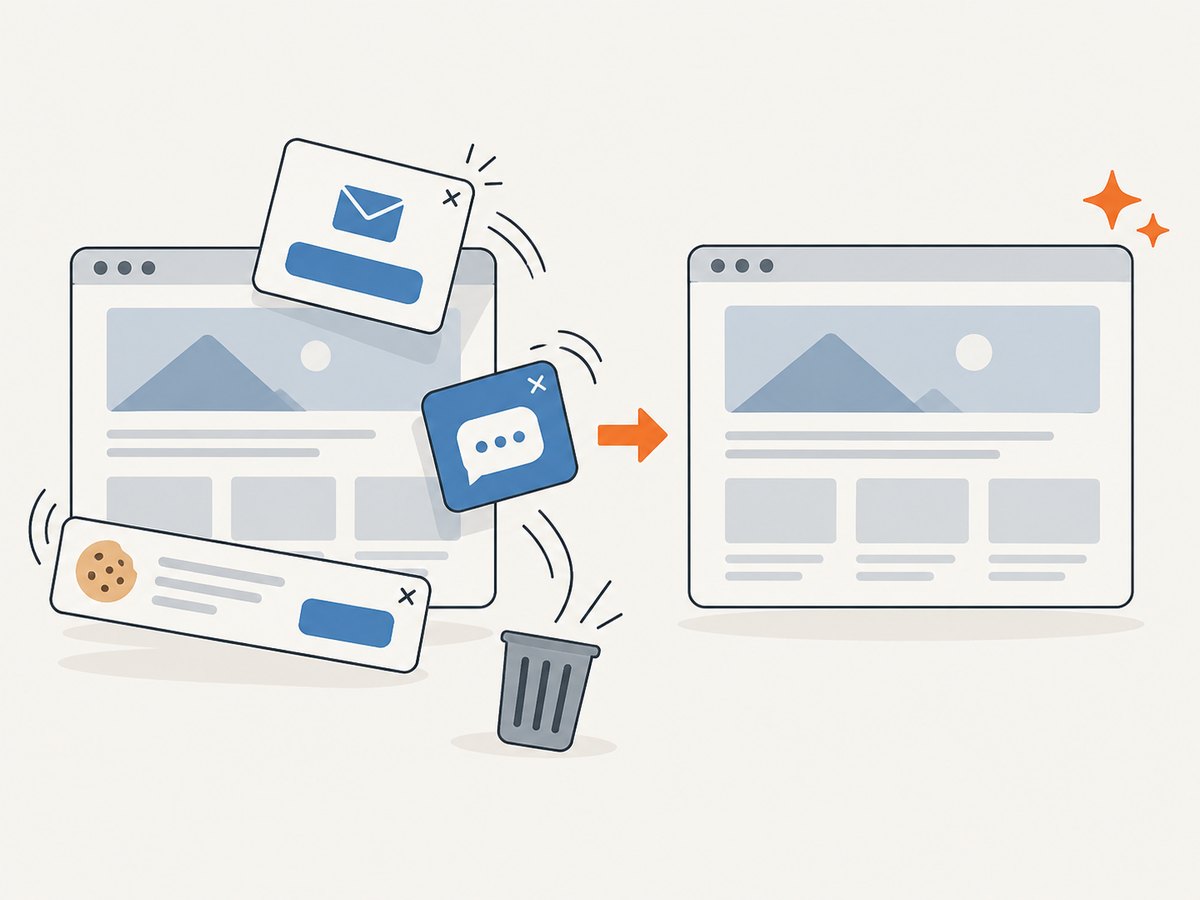
ScreenshotNeo accepts cookie or consent banners and removes more than 60 known consent platforms, newsletter popups, and chat widgets before capture; each step can be turned off. Bot checks, blank pages, timeouts, failed loads, and cache hits are not billed, and response headers report the page verdict and billing status. Its MCP server provides take_screenshot, get_page_info, and capture_pdf for Claude, Cursor, and other MCP clients. The free plan includes 1,000 shots each month without a card; paid plans start at $5 for 3,000 shots. Sign up for 1,000 free screenshots a month with no card.
8. FAQ
Does Selenium save screenshots as JPEG?
The documented WebDriver screenshot file method saves PNG. Convert the PNG separately if a downstream system specifically requires JPEG.
Can I capture an element instead of the page?
Yes. Find the element, then call element.screenshot("element.png").
Can I get the screenshot without writing a file?
Yes. Use get_screenshot_as_png() for PNG bytes or get_screenshot_as_base64() for a base64 string.
Why should I check the boolean return value?
A false result indicates an I/O error. Checking it prevents the rest of a pipeline from quietly treating a missing image as a successful capture.


