How to Screenshot Multiple Web Pages with Python Splinter and Fix Connection Refused
Loop through URLs with Splinter, save reliable screenshots, and diagnose connection refused errors by finding the failing endpoint.
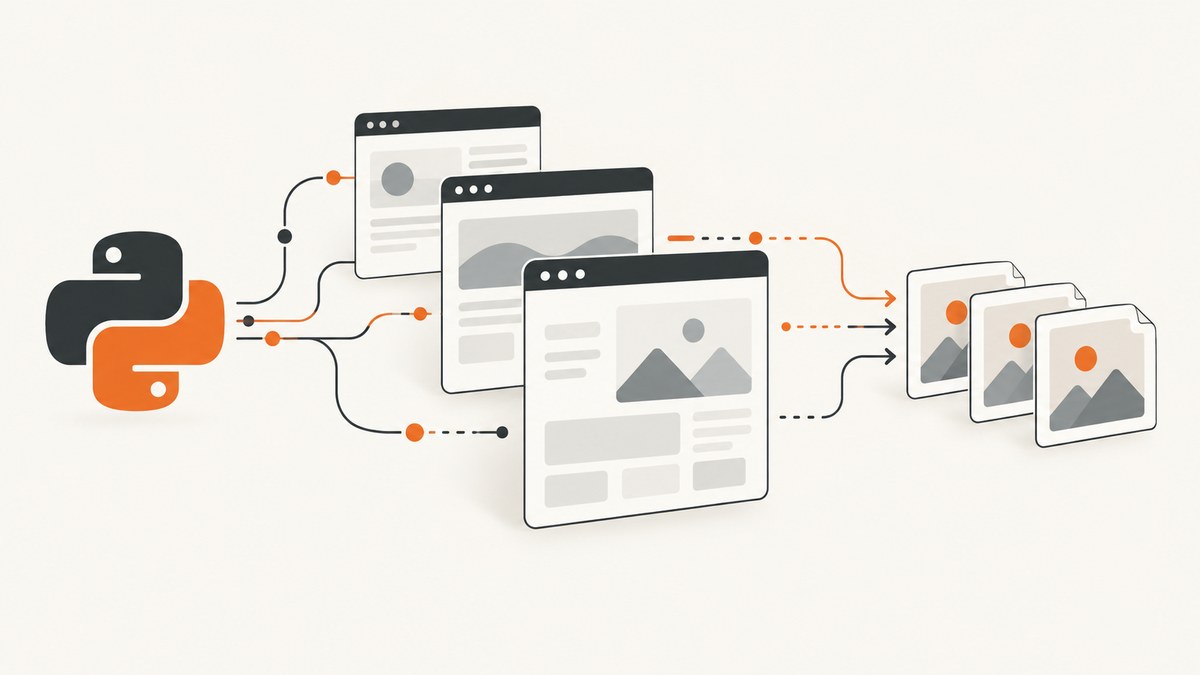
Use one Splinter browser session, visit each URL in a loop, wait for the content you need, and save every image with a unique filename. If you see ConnectionRefusedError or “Failed to establish a new connection,” first identify the refused host and port. The failure may be between Python and a local WebDriver, between your client and a remote WebDriver, or between the automated browser and the target website.
This guide shows a complete local workflow, explains driver setup and synchronization, and gives a decision tree for connection failures. The examples use Python, Splinter, Selenium, and Chrome. Splinter’s API details can vary by installed version, so check the documentation for your version before pinning production code.
1. Install Splinter, Selenium, and a browser
Install the Python packages in a virtual environment:
python -m venv .venv
source .venv/bin/activate        # Windows: .venv\Scripts\activate
python -m pip install --upgrade pip
python -m pip install splinter selenium
You also need Google Chrome or Chromium and a compatible ChromeDriver. Selenium’s troubleshooting guidance recommends checking the browser version and obtaining a matching driver. Read Selenium’s error guidance. Splinter’s Chrome documentation covers driver setup, including passing a Selenium Service object and selecting a custom Chrome binary. See the Splinter Chrome driver documentation.
2. Capture several pages with Splinter
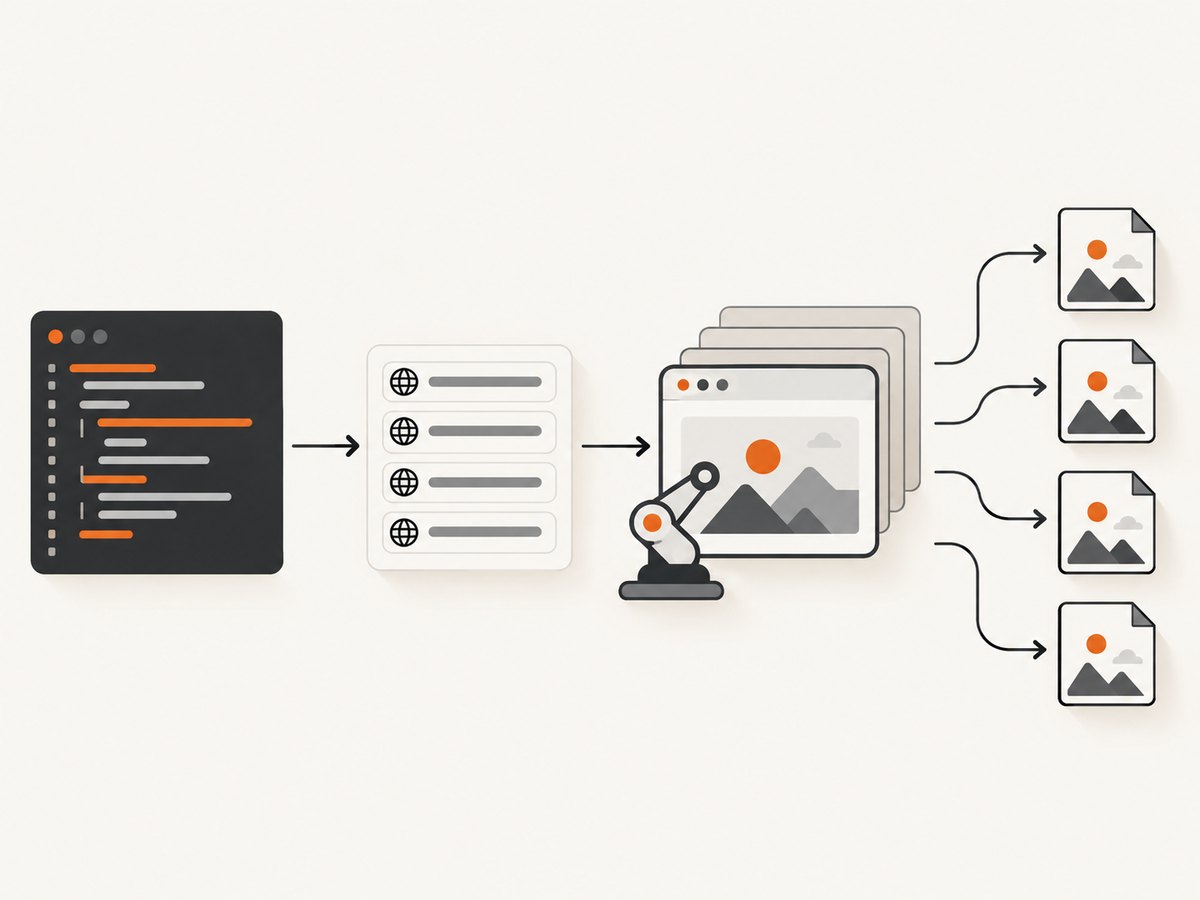
The core operation is browser.visit(url). Create the browser once, iterate over URLs, wait for a meaningful condition, and save a different file for each item. A context manager closes the browser even when an exception occurs.
from pathlib import Path
from time import sleep

from splinter import Browser

URLS = [
    "https://example.com/",
    "https://www.python.org/",
    "https://www.selenium.dev/",
]

OUTPUT_DIR = Path("screenshots")
OUTPUT_DIR.mkdir(parents=True, exist_ok=True)

with Browser("chrome", headless=True) as browser:
    for index, url in enumerate(URLS, start=1):
        print(f"Opening {url}")
        browser.visit(url)

        # Replace this diagnostic delay with a condition-based wait when possible.
        sleep(2)

        # Splinter's screenshot method accepts a name, suffix, full flag,
        # and unique_file option in the documented 0.18.0 API.
        output = browser.screenshot(
            name=str(OUTPUT_DIR / f"page-{index:03d}"),
            suffix="png",
            full=False,
            unique_file=False,
        )
        print(f"Saved {output}")
Run it with python capture.py. The result is one file per URL, such as screenshots/page-001.png. The index keeps names deterministic and prevents later pages from overwriting earlier ones. Splinter documents the browser context-manager pattern and the visit method. Browser and navigation reference. The screenshot signature cited here is from older Splinter documentation; verify it against your installed release. Screenshot API reference.
3. Make the capture reliable
Wait for a condition, not an arbitrary number
Navigation finishing does not mean that a JavaScript application has rendered the chart, image, or table you need. Selenium describes poor synchronization as its most common class of problem. Selenium troubleshooting assistance. A fixed sleep is useful for diagnosing timing, but a condition is safer in a final script.
from selenium.webdriver.common.by import By
from selenium.webdriver.support.ui import WebDriverWait
from selenium.webdriver.support import expected_conditions as EC

with Browser("chrome", headless=True) as browser:
    for index, url in enumerate(URLS, 1):
        browser.visit(url)
        WebDriverWait(browser.driver, 30).until(
            EC.presence_of_element_located((By.CSS_SELECTOR, "main"))
        )
        browser.screenshot(
            name=str(OUTPUT_DIR / f"page-{index:03d}"),
            suffix="png",
            unique_file=False,
        )
Choose a selector that represents the content required for the screenshot. For a page with no stable main element, wait for a heading, a product grid, a chart container, or another application-specific marker. If the page intentionally has no such marker, use a bounded delay and document why.
Full page versus viewport
Splinter exposes a full argument in its screenshot API, but full-page behavior depends on the driver and version. Do not assume full=True produces identical output across Chrome, Chromium, and remote drivers. If exact full-page output matters, validate the result on your target driver and inspect image dimensions. A viewport capture is more portable and usually faster.
Handle redirects, login pages, and failures per URL
One bad URL should not discard successful captures. Record the current URL and continue after expected navigation errors. Keep credentials out of source files; use environment variables or a protected secret store for authenticated sessions.
from urllib.parse import urlparse

results = []
with Browser("chrome", headless=True) as browser:
    for index, url in enumerate(URLS, 1):
        try:
            browser.visit(url)
            WebDriverWait(browser.driver, 30).until(
                EC.presence_of_element_located((By.TAG_NAME, "body"))
            )
            path = browser.screenshot(
                name=str(OUTPUT_DIR / f"page-{index:03d}"),
                suffix="png",
                unique_file=False,
            )
            results.append({"url": url, "ok": True, "path": path})
        except Exception as exc:
            results.append({
                "url": url,
                "host": urlparse(url).netloc,
                "ok": False,
                "error": repr(exc),
            })

for result in results:
    print(result)
4. Fix “Connection Refused” by locating the connection
“Connection refused” describes a TCP endpoint that rejected or could not accept a connection. The phrase alone does not identify the cause. Read the complete traceback and note the host, port, and operation that failed.
| Refused connection | What it means | Checks and fixes |
|---|---|---|
| Python → local WebDriver | The driver service did not start, is listening on another port, or is configured incorrectly. | Confirm Chrome and ChromeDriver paths, permissions, executable status, and browser-driver compatibility. Pass the correct Selenium Service object or executable path. |
| Python/Selenium → remote WebDriver | Your client cannot reach the configured Selenium server or remote endpoint. | Check the endpoint URL, port, route, service status, firewall, container network, and authentication. Make remote access intentional and restricted. |
| Browser → target website | The browser reached WebDriver but cannot load one or more destinations. | Check the URL, DNS, proxy, firewall, antivirus, site availability, redirects, and whether other sites load. |
Chrome Help lists address mistakes, network or firewall problems, browser state, and site downtime among possible loading causes. Chrome loading-error guidance. A working WebDriver session proves only that the automation endpoint works; it does not prove that every website is reachable.
5. Check Chrome and ChromeDriver configuration
When every URL fails before a page opens, test the driver branch first. Verify:
- Chrome or Chromium exists at the configured binary path.
- ChromeDriver exists, is executable, and matches the browser’s major version.
- Your user can start the browser in the execution environment.
- Headless flags are appropriate for the installed Chrome version and container.
- A previous process has not left a locked profile or occupied port.
Splinter lets you pass Selenium options and a Service. A typical explicit setup looks like this; adjust paths for your machine and installed Selenium version:
from selenium.webdriver.chrome.service import Service
from selenium.webdriver.chrome.options import Options
from splinter import Browser

options = Options()
options.add_argument("--headless")
options.add_argument("--window-size=1440,1000")
service = Service("/absolute/path/to/chromedriver")

with Browser("chrome", options=options, service=service) as browser:
    browser.visit("https://example.com/")
    print(browser.title)
If your Splinter release does not accept these keyword arguments, follow its current Chrome driver documentation and construct the driver using the supported configuration. Avoid mixing an old Splinter screenshot signature with a new Selenium release without checking compatibility.
6. Check remote WebDriver and network boundaries
In a container or hosted grid, identify the remote WebDriver URL in your configuration. Confirm the service is listening from the same network namespace as the Python process. Test DNS resolution and the port from that environment, then inspect server logs. A local ChromeDriver is normally intended for local connections; exposing it publicly gives a remote party powerful browser control.
Chrome for Developers recommends restricting remote access with allowed IPs, avoiding privileged accounts, protecting the environment and network ports, and keeping Chrome and ChromeDriver current. ChromeDriver security considerations.
7. Check the target website branch
If one domain fails while other URLs succeed, keep driver configuration unchanged and investigate the destination. Open the exact URL manually from the same machine, check redirects and DNS, and compare HTTP access from the runtime network. Corporate proxies, TLS interception, geo restrictions, bot checks, and a site outage can all affect the browser. Do not call this a ChromeDriver failure until the browser itself cannot reach the site.
8. Session lifecycle errors
An invalid session id usually means the browser or tab was closed and the code tried to reuse it. Do not call close() or quit() inside the loop unless you create a new browser afterward. Use the context manager, or put cleanup in a finally block. If a crash leaves a stale process, terminate it according to your operating system’s process controls, then start a fresh session.
9. Performance, reliability, and cost considerations
- Reuse one session: Starting Chrome is expensive compared with another
visit. Reusing one browser reduces startup work, while a fresh session per URL can isolate crashes and cookies. - Bound every wait: Use a timeout so one page cannot hold the batch forever. Log the URL, elapsed time, and exception.
- Control output size: Viewport images use less disk and memory than very tall pages. Resize or compress after capture when your downstream system permits it.
- Respect the destination: Keep concurrency modest, follow site terms and robots policies where applicable, and avoid repeatedly loading the same page unnecessarily.
- Make retries selective: Retry transient network failures, but do not blindly retry invalid URLs, authentication failures, or deterministic selector timeouts.
- Preserve evidence: Save the traceback, refused host and port, browser version, driver version, URL, and timestamp for failed jobs.
10. Or skip the browser setup
ScreenshotNeo provides a website screenshot API and MCP server. Make one GET request for each URL instead of installing and operating a browser driver. Before capture it accepts cookie and consent banners and removes more than 60 known consent platforms, newsletter popups, and chat widgets; each step can be turned off. Bot checks or CAPTCHAs, blank pages, timeouts, failed loads, and cache hits cost nothing, and the response identifies the result with X-Page-Verdict and X-Billed headers.

See the ScreenshotNeo API documentation for all options, including full-page capture with lazy images loaded, CSS-selector element capture, dark mode, device presets, arbitrary viewports, retina scale, PDF output, custom CSS and JavaScript, clicks, waits, blocked resources, headers, cookies, user agents, authorization, timezone, geolocation, transparent backgrounds, resizing, TTL caching, signed image links, asynchronous jobs and webhooks, bulk capture of up to 100 URLs per call, usage data, and the OpenAPI specification. An MCP server provides take_screenshot, get_page_info, and capture_pdf tools for Claude, Cursor, and other MCP clients.
cURL
curl -G "https://api.screenshotneo.com/v1/shot" -d access_key=YOUR_API_KEY --data-urlencode url=https://stripe.com -o shot.webpPython
import requests
r = requests.get("https://api.screenshotneo.com/v1/shot", params={"access_key": "YOUR_API_KEY", "url": "https://stripe.com"}, timeout=90)
open("shot.webp", "wb").write(r.content)
Node.js
const q = new URLSearchParams({ access_key: 'YOUR_API_KEY', url: 'https://stripe.com' });
const res = await fetch(`https://api.screenshotneo.com/v1/shot?${q}`);
There is a free plan with 1,000 screenshots each month and no card. Paid plans start at $5 for 3,000 shots; every feature is available on every plan. An MCP server lets AI agents take screenshots. Create a free ScreenshotNeo account.
11. Troubleshooting checklist
- Copy the complete traceback.
- Write down the refused host and port.
- Determine whether the failing connection is local WebDriver, remote WebDriver, or the target site.
- For driver failures, check Chrome, ChromeDriver, paths, permissions, and versions.
- For remote failures, check endpoint routing, service status, firewall rules, and container networking.
- For site failures, test the exact URL from the same runtime and compare another domain.
- For timing failures, wait for a content-specific selector with a bounded timeout.
- For session failures, remove premature
close()/quit()calls and create a fresh session after a crash. - Record enough context to reproduce the failing URL without guessing.
12. FAQ
Can I use one Splinter browser for all URLs?
Yes. Repeated browser.visit(url) calls are the normal loop pattern. Recreate the session when isolation from cookies or a crashed browser is more important than startup cost.
Does full=True always capture the entire page?
No. The result depends on the driver and installed Splinter/Selenium versions. Validate dimensions and behavior on your target environment.
Why does a page load manually but fail in automation?
The automated environment may use different DNS, proxy, certificates, user-agent behavior, permissions, or network routes. Compare the exact runtime and inspect the refused endpoint.
Should I retry every connection refusal?
No. Retry only failures that are plausibly transient. Correct a bad port, missing driver, invalid URL, or closed session instead of adding retries.


