Quote Cards for Social Media: A Complete Guide
Create clear, accessible quote cards for social media. Learn how to choose a format, design readable graphics, add alt text, and check attribution and asset rights.
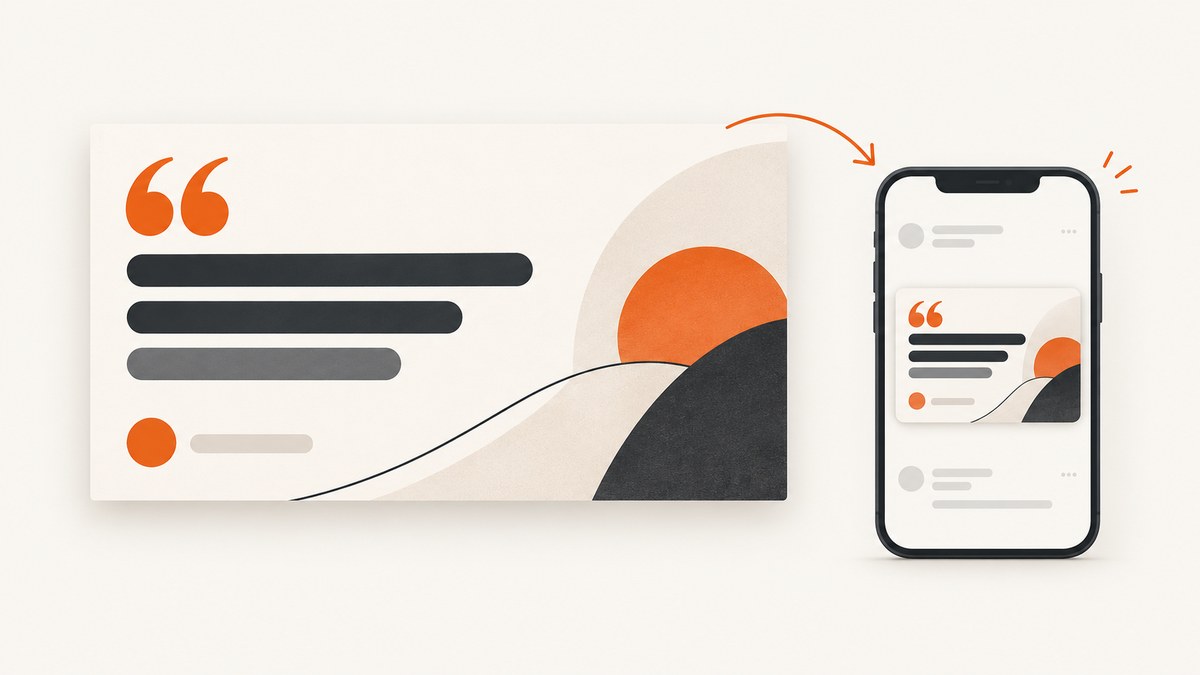
A useful quote card makes one quotation easy to read on a phone, gives readers enough context to understand it, and identifies its source without making the graphic feel crowded. Start by checking the exact wording and attribution, choose a single image or carousel based on how much context the quote needs, then design a clear hierarchy and test it at phone size. Publish alt text and repeat the essential words in the caption so the message is available beyond the image.
1. Choose the quote and verify its source
Begin with the words, not the template. Check the quotation against a reliable original source, including punctuation and any ellipses or edits. Confirm that the person or publication named on the graphic is actually the source. If you cannot verify the wording or attribution, do not present it as a confirmed quotation; you could instead label it as a paraphrase and cite the source of the idea.
Decide what job the card should do. A short passage that expresses one idea may work as a standalone graphic. A quote that depends on surrounding argument, definitions, or caveats needs that context in the caption or across a carousel. Keep one main idea on the card. Adobe recommends using less text and one clear message; the Office for National Statistics (ONS) advises no more than 50 to 60 words for quote graphics in its own social-media guidance. Treat that as a readability rule of thumb, not a platform limit. ONS social-media guidance; Adobe Express social graphic design guide.
2. Choose a single card or a carousel
| Format | Use it when | Watch for |
|---|---|---|
| Single image | The quotation is short and understandable without multiple panels. | Small type, missing context, and source details competing with the quote. |
| Carousel | A longer excerpt needs to be divided into readable sections, or you need to explain the quotation before or after showing it. | Readers may see only one panel; each slide needs to make sense in sequence and the full text should be available in the caption. |
Choose based on readability, context, access to the full text, and how the destination platform currently displays and crops posts. Adobe reports general engagement figures for carousels and single-image posts, but those figures do not establish that carousel quote cards perform better than single-card quote graphics. Do not select the format on the assumption that a general platform average predicts results for your post. Adobe Express guide.
3. Build a readable visual hierarchy
Give the quotation the strongest visual weight. Put the author or source second, then add optional brand context or a call to action last. Use spacing, scale, and alignment to communicate that order instead of adding decoration that competes with the words. Adobe describes this general structure as the main message, supporting detail, brand or context, and optional call to action. Adobe Express guide.

- Use legible type. Choose a typeface that holds up at small sizes. Avoid using several font styles to create hierarchy; size and spacing can do much of that work.
- Keep color restrained. Make sure text and its background have clear contrast. Do not rely on color alone to distinguish the quote from the attribution.
- Leave breathing room. Use generous margins and line spacing. Keep quote marks, attribution, and decorative elements away from the edges where a crop could cut them off.
- Preview on a phone. Reduce the design to the size at which readers are likely to see it. If the words are hard to scan, shorten the quote or simplify the layout rather than shrinking the type.
Section508.gov gives contrast minimums of 4.5:1 for regular text and 3:1 for large text for federal content creators. Those figures are useful checks, but the cited guidance describes federal content requirements; do not present them as a universal legal rule for every creator. Section508.gov social media guidance.
4. Add accessibility beyond the image
A quote rendered as pixels is not automatically available to a screen reader. Provide alt text using the platform’s image-description feature and include the essential quotation in the post text or caption. That gives readers more than one way to get the message and also preserves the words if the image does not load.
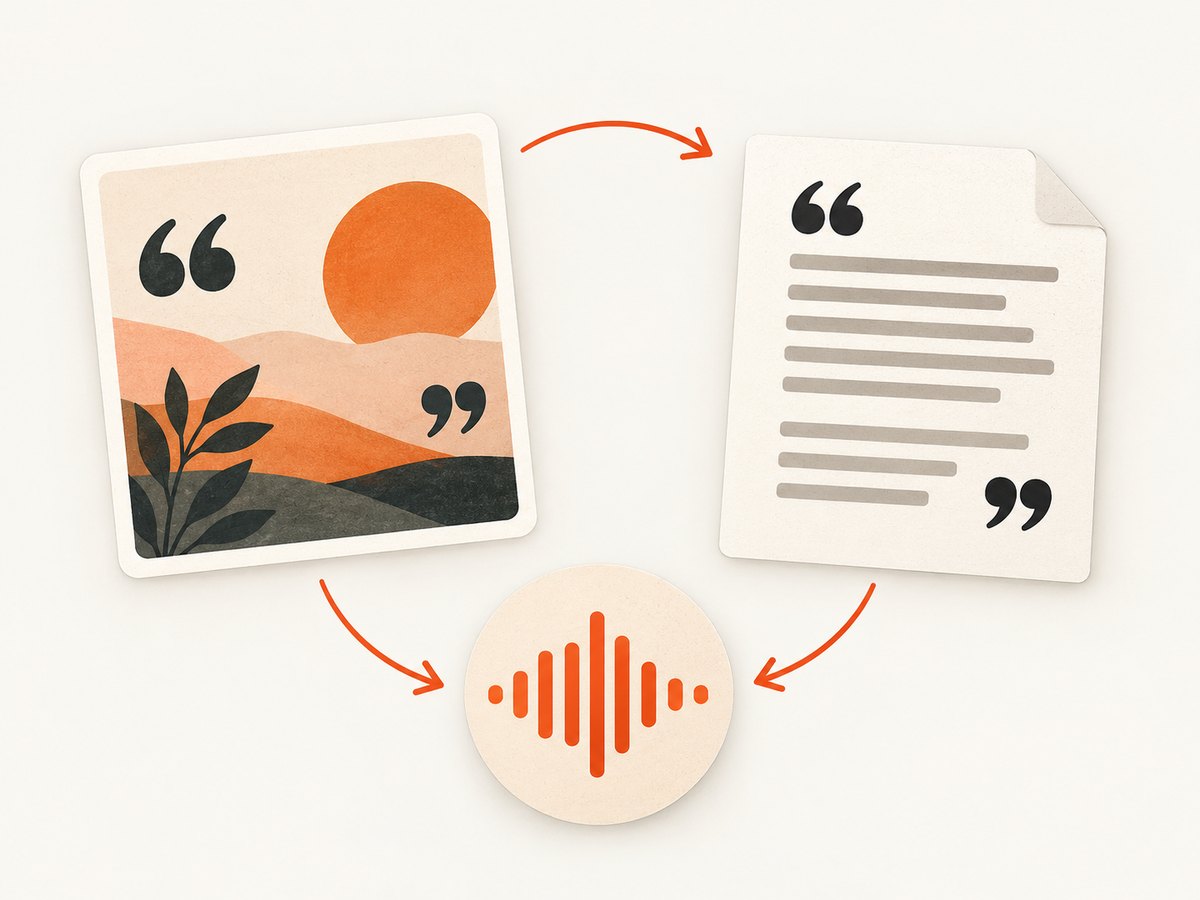
Write alt text that describes the meaningful content of the graphic rather than its decorative details. For a simple quote card, a concise description can identify it as a quote graphic, provide the quotation and attribution, and mention a relevant visual detail if it adds meaning. Do not repeat long descriptions of decorative borders or backgrounds. Section508.gov explains the purpose of alt text in social posts; the University of Arizona’s guidance recommends providing the full content in the caption as well as platform alt text. Section508.gov; University of Arizona social media accessibility guidance.
5. Make the graphic in a design tool
A repeatable workflow helps keep the quote accurate and the design consistent from post to post:
- Prepare the content. Save the verified wording, attribution, source link, and any context needed to interpret it.
- Pick a template or blank canvas. Adobe Express provides templates, resizing, background removal, brand kits, and reusable styles for social graphics. Start with a simple layout rather than adding effects before the words are readable. Adobe Express guide.
- Set hierarchy. Make the quote prominent, attribution secondary, and branding or a CTA optional and small.
- Check contrast and phone-size legibility. Look at the exported graphic on a phone-sized preview. Rework line breaks before reducing type to fit.
- Check current platform behavior. Review the destination’s current crop and display behavior before publishing. The sources in this guide do not establish current pixel dimensions or safe-area rules for each platform, so use the platform’s current publishing preview instead of relying on an unsourced fixed size.
- Export and inspect. Open the exported file and check that no text is clipped, blurred, or covered by an element. Keep a clean source file for later corrections and resizing.
- Publish accessibly. Add alt text through the available image-description feature and put the essential quote in the caption.
Canva is another relevant design option. Its terms allow its content to be used in social-media designs subject to restrictions, including limits on redistributing standalone content. Those terms do not automatically clear rights in a quotation or third-party asset included in a design. Read the terms for the actual asset and intended use. Canva Content License Agreement.
6. Check attribution, assets, and brand use
Keep the quote’s source distinct from the designer, publisher, or account sharing it. A correct author label does not necessarily explain where the quotation appeared or what context it came from; include a source in the caption when readers may need to verify or understand it.
Check the rights and usage terms for images, typefaces, templates, and other third-party assets. Canva’s content terms describe permitted use of Canva content and restrictions on standalone redistribution; they do not settle rights for every other asset or quote you place in a design. The research for this guide does not establish a general rule that all quotations are free to reproduce, so avoid assuming that attribution alone grants permission. For a specific planned use, consult the rights holder or qualified counsel.
If you use Instagram logos or screenshots, follow Meta’s asset guidance and avoid suggesting that Instagram sponsors, endorses, or partners with your post. Meta Instagram brand resources.
7. Troubleshoot common quote-card problems
| Problem | Likely cause | Fix |
|---|---|---|
| The quote is hard to read in the feed | Too much copy, small type, tight line spacing, or weak contrast. | Shorten the excerpt, increase spacing, simplify the background, and check it at phone size. |
| The attribution looks like part of the quote | The quote and source use similar size or spacing. | Separate them with whitespace and make the source visibly secondary. |
| A crop cuts off words or a signature | Important content sits too close to an edge or the platform’s presentation differs from the canvas preview. | Move key content inward and check the current publishing preview for the destination. |
| Readers cannot access the quote with assistive technology | The words exist only inside the image. | Add platform alt text and repeat the essential quote in the caption or post text. |
| The quote is attributed to the wrong person | The design was made from a repost or an unsourced quotation collection. | Verify the exact wording and source before publishing; correct or remove an uncertain attribution. |
| The graphic suggests an official Instagram relationship | Platform branding or a screenshot is used in a way that implies endorsement. | Follow Meta’s brand guidance and revise the treatment so it does not suggest sponsorship or partnership. |
| A template asset’s use is unclear | The design assumes template availability covers every use or standalone redistribution. | Check the provider’s license for the asset and intended use; do not assume that it covers separate quote rights. |
8. Publish a final quality checklist
- The quote is exact, and the attribution is checked against a credible source.
- The card has one main idea and a clear quote-first hierarchy.
- The text remains legible at phone size, with comfortable spacing and clear contrast.
- The layout has been checked in the destination platform’s current preview.
- Alt text is present, and the essential words are also in the caption or post text.
- Third-party assets and platform branding have been checked against their relevant terms.
- Any context needed to interpret the quote is in the caption or carousel sequence.
9. Frequently asked questions
How long should a quote on a social card be?
Use only enough text to convey one idea clearly. ONS recommends a maximum of 50 to 60 words for quote graphics in its own guidance; this is a practical recommendation, not a universal platform limit. If the passage needs more room, consider a carousel and provide the complete content in the caption.
Should I put the full quote in the caption?
Include the essential quote in post text or the caption so the content is available beyond the image. If the graphic shows only an excerpt, explain that in the caption and link or point to the broader context when useful.
Do quote cards need a call to action?
No. Add one only when it helps the reader take a relevant next step. A CTA is optional; it should remain visually secondary to the quote and source.
Do carousels perform better for quote cards?
The research cited here does not establish that they do. Choose a carousel when it improves readability or gives necessary context, and a single card when the quote stands on its own.
10. Or skip the browser setup
If your workflow also needs screenshots of published pages, previews, or visual references, ScreenshotNeo is a website screenshot API and MCP server. Its API returns an image or PDF from one GET request. For example, capture a public page as WebP:
curl -G "https://api.screenshotneo.com/v1/shot" -d access_key=YOUR_API_KEY --data-urlencode url=https://stripe.com -o shot.webpSee the ScreenshotNeo API documentation for configuration and response details. Cookie banners, newsletter popups, and chat widgets are removed before the shot; bot checks, blank pages, and failed loads are never billed. An MCP server lets AI agents take screenshots. The free plan includes 1,000 screenshots a month with no card, and paid plans start at $5 for 3,000. Sign up for 1,000 free screenshots a month, no card required.


