How to Send Rails HTML to Puppeteer for PDF Generation
Render a Rails view to HTML, pass it to Puppeteer, and return the PDF from Rails. Includes a Node service, Rails code, print options, and troubleshooting.
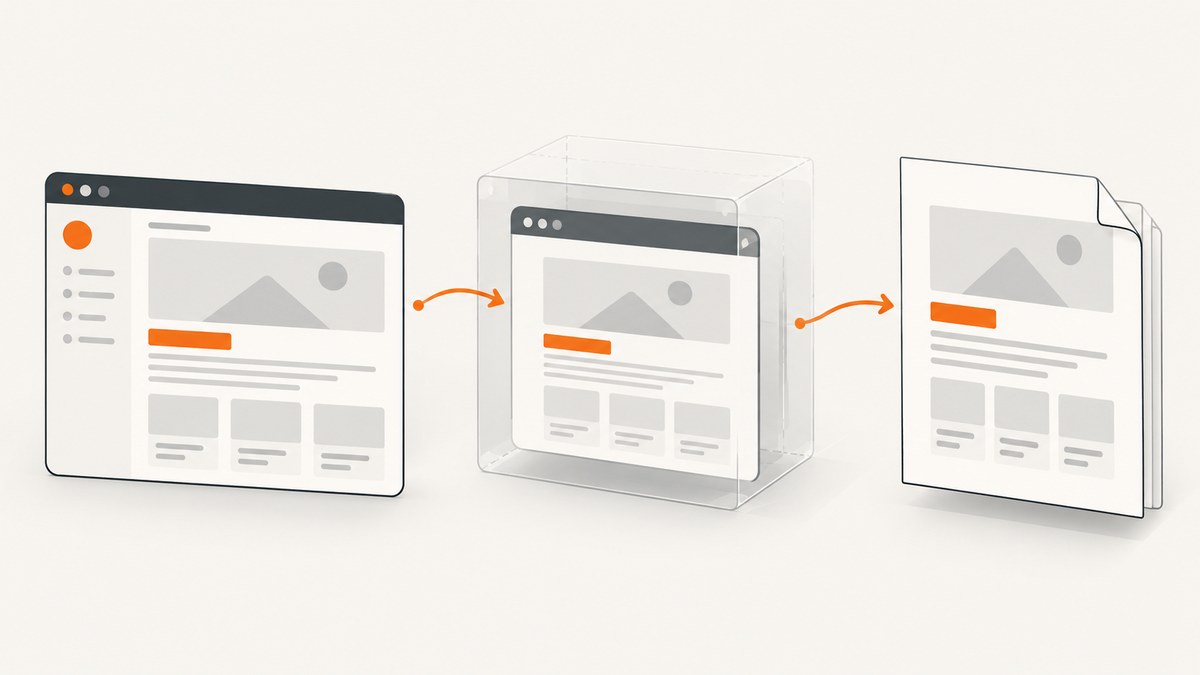
To generate a PDF from Rails HTML with Puppeteer, render the Rails template to a string, send that HTML to a Node.js process running Puppeteer, call page.pdf(), then return the resulting bytes from a Rails controller with send_data. Use render_to_string inside a controller request, or ApplicationController.renderer from a job or other context outside a controller action.
The example below uses a small internal Node service as the browser boundary. Rails retains responsibility for authentication, data access, templates, and the HTTP response; Node receives HTML and returns PDF bytes. This separation also makes it possible to scale browser workers independently. These combined snippets are an implementation pattern assembled from the documented Rails and Puppeteer APIs; adapt and verify them against your Rails, Node, and Puppeteer versions and deployment.
1. Choose where to render the Rails view
When handling a normal Rails request, render_to_string accepts the same rendering options as render and gives you the rendered HTML rather than sending it to the browser. Rails documents this in its rendering guide.
class InvoicesController < ApplicationController
  def download
    @invoice = current_account.invoices.find(params[:id])

    html = render_to_string(
      template: "invoices/pdf",
      layout: "pdf",
      formats: [:html]
    )

    pdf = PdfRenderer.new.render(html)

    send_data pdf,
      filename: "invoice-#{@invoice.id}.pdf",
      type: "application/pdf",
      disposition: "attachment"
  end
end
Prefer a dedicated PDF template and layout if the regular page contains navigation, buttons, or interactive controls. A layout can be omitted with layout: false, or set to a purpose-built layout such as "pdf". The template should produce semantic HTML and include the print styles the PDF needs.
Outside a controller action, render through ApplicationController.renderer. Its renderer can be given Rack environment details such as host and HTTPS, which matters when helpers create absolute URLs. See the ActionController::Renderer API.
html = ApplicationController.renderer.new(
  http_host: "app.example.com",
  https: true
).render(
  template: "invoices/pdf",
  layout: "pdf",
  assigns: { invoice: invoice }
)
Make the host and scheme match the environment where the PDF should load assets. A relative asset path may resolve differently in a standalone browser page than during the original Rails request. Use absolute asset URLs or embed small assets where that fits your application. Be deliberate about authenticated resources: a separate browser process does not automatically inherit the user’s Rails session.
2. Run Puppeteer in a Node service
Install Puppeteer in a Node application or worker environment, then expose a private endpoint that accepts HTML and responds with PDF bytes. This example uses Express. Keep the service reachable only by trusted application infrastructure and add authentication between Rails and Node before exposing it beyond a private network.

npm install express puppeteer// server.mjs
import express from "express";
import puppeteer from "puppeteer";
const app = express();
app.use(express.json({ limit: "5mb" }));
app.post("/render-pdf", async (req, res) => {
const html = req.body?.html;
if (typeof html !== "string" || html.length === 0) {
return res.status(400).json({ error: "html must be a non-empty string" });
}
let browser;
try {
browser = await puppeteer.launch({ headless: true });
const page = await browser.newPage();
await page.setContent(html, { waitUntil: "networkidle2" });
const pdf = await page.pdf({
format: "A4",
printBackground: true,
preferCSSPageSize: true,
margin: { top: "18mm", right: "16mm", bottom: "18mm", left: "16mm" }
});
res.type("application/pdf").send(Buffer.from(pdf));
} catch (error) {
console.error("PDF render failed", error);
res.status(500).json({ error: "PDF rendering failed" });
} finally {
if (browser) await browser.close();
}
});
app.listen(process.env.PORT || 3001, "127.0.0.1");setContent loads markup directly; use it when Rails has already rendered the exact HTML to print. If instead you want Chromium to execute a full application route, authenticate it appropriately and use page.goto(url). Puppeteer’s PDF guide demonstrates navigation with a network-idle wait and notes that PDF generation waits for fonts by default: PDF generation guide.
The networkidle2 condition is a starting point, not a universal guarantee that all application-specific work is finished. A page with persistent polling, delayed images, or client-side rendering may need a different readiness condition. For application content, a specific ready marker is usually more meaningful: have the template or its script set a known selector or flag after its data and critical assets are ready, then wait for it before printing.
3. Call the Node renderer from Rails
Install an HTTP client such as Faraday in the Rails app and configure the service URL through the environment. The request body carries HTML; the response body is the PDF. Set connection and request timeouts to fit your document sizes, and handle errors so a failed browser request does not become a misleading PDF download.
# Gemfile
 gem "faraday"
# app/services/pdf_renderer.rb
require "faraday"
class PdfRenderer
class Error < StandardError; end
def render(html)
response = Faraday.post(
"#{ENV.fetch("PDF_RENDERER_URL")}/render-pdf",
{ html: html }.to_json,
"Content-Type" => "application/json"
) do |request|
request.options.open_timeout = 5
request.options.timeout = 90
end
unless response.success? && response.headers["content-type"]&.include?("application/pdf")
raise Error, "PDF renderer returned HTTP #{response.status}"
end
response.body
rescue Faraday::Error => error
raise Error, "Could not reach PDF renderer: #{error.class}"
end
endConfigure PDF_RENDERER_URL as an internal service address in each environment. Add service authentication, request-size limits, and appropriate network controls for your deployment. Avoid logging the HTML body: it may contain personal or account data. For a simple local development setup, the Node service can run on a local port; production should use the private address and credentials managed by your platform.
Return generated bytes with Rails send_data. Rails documents it for data generated in memory, with application/pdf as the response type. The default disposition is attachment; use disposition: "inline" if the browser should display the document. If the PDF is already stored on disk, use send_file instead. See the Rails file delivery guide.
4. Style and configure the PDF
Puppeteer uses the print CSS media type when generating a PDF. Define page size and page breaks in CSS when you need layout control, and use Puppeteer options for the output settings that belong to the document generation request.
<style>
  @page { size: A4; margin: 18mm 16mm; }
  body { font: 11pt/1.45 sans-serif; color: #222; }
  h1, h2 { break-after: avoid; }
  table, img, blockquote { break-inside: avoid; }
  .page-break { break-before: page; }
  .brand-color { -webkit-print-color-adjust: exact; print-color-adjust: exact; }
</style>
The Page.pdf() API accepts options including paper format, margins, scale, landscape orientation, page ranges, headers and footers, background printing, and whether to prefer CSS page size. Check the Page.pdf API reference for the options supported by your installed version. In the example, printBackground: true includes background colors and images; without it, those may be omitted. preferCSSPageSize: true makes CSS @page dimensions take precedence over the API format where supported.
If the desired document should use screen styles instead of print styles, call await page.emulateMediaType("screen") before page.pdf(). This is an explicit choice: the normal PDF behavior is print media. Color output can also differ for printing; the CSS -webkit-print-color-adjust: exact requests exact colors where Chromium supports it, but the final PDF should be checked in the viewers and printers relevant to your use case.
5. Handle assets, fonts, and readiness
Rendered markup can refer to stylesheets, images, and fonts, but the browser still has to fetch them. For reliable output, ensure those URLs are reachable from the Node runtime, do not require unavailable cookies, and use the intended host and scheme. The Rails renderer’s host and HTTPS context helps generate correct absolute URLs outside a request; in a controller request, inspect the generated HTML if links still point at a development host.
- Fonts: Puppeteer waits for fonts by default during
page.pdf(). If the font is remote, check that the browser process can reach its URL and that the response is valid. For stronger readiness control, awaitdocument.fonts.readyafter setting content. - Images: Remote images may load after the initial markup. Wait for the images your document needs, or make important image URLs local and stable. A generic network-idle event can be delayed by unrelated requests.
- JavaScript:
setContentruns scripts in the page, but do not assume application data has loaded merely because the HTML parser finished. Wait for an app-specific marker when scripts populate content. - External dependencies: Each remote asset adds a failure point and can make generation slower. Bundle or serve critical styles and fonts from a location available to the renderer.
Keep HTML safe. Rails escapes values by default in templates and documents that raw HTML strings passed through the html: rendering option are escaped unless built with HTML-safe-aware APIs. Prefer ordinary templates and safe helpers for structured content. Do not mark arbitrary user input as safe just to make it appear in a PDF; that can turn a document field into executable markup when Puppeteer loads it.
6. Return large or asynchronous documents safely
The basic request-response example holds the rendered HTML and PDF bytes in memory and keeps the Rails request open until Puppeteer finishes. It is appropriate when document sizes and render times fit your request limits. For expensive or large reports, enqueue a job, render the PDF in a worker, store it in your application’s file storage, and notify the user when it is ready. The download action can then use send_file for a local generated file or your application’s normal protected storage flow.
Set a bounded timeout at both the Rails HTTP client and any upstream proxy. A timeout should produce an error that can be retried or surfaced clearly, not a zero-byte file with a PDF filename. Close the browser and page resources after each job, or use a managed browser lifecycle appropriate to your process model. Limit concurrent renders to the memory and CPU capacity available to the worker; PDF complexity and page length affect resource use, and the supplied documentation does not provide a universal throughput figure.
For repeatable documents, reduce unnecessary external requests and avoid rendering the same document twice when the source data has not changed. Cache generated PDFs only when authorization, data freshness, and cache keys are handled correctly. A cache key should reflect all inputs that change the output, including account or record identity, locale, and template version where applicable. Avoid shared caching of private PDFs.
7. Troubleshooting
| Symptom | Likely cause | What to check |
|---|---|---|
| PDF is blank or missing sections | Scripts or assets had not finished, or the wrong template was rendered. | Inspect the HTML string first. Add a wait for the app’s ready selector or required images, then confirm the content in Chromium before printing. |
| Styles or images are missing | Relative URLs resolve against an unexpected base, or the renderer cannot reach protected assets. | Render absolute URLs with the right host and HTTPS context. Confirm Node can access each resource without a browser session that Rails never passed along. |
| Fonts look different | The font URL failed, the font response was invalid, or PDF generation started before app-specific font work completed. | Check browser network access, font declarations, and document.fonts.ready. Remember that Puppeteer waits for fonts by default, but that does not fix an unreachable font. |
| Colors or backgrounds disappear | Print styling differs from screen styling, or background printing is disabled. | Review @media print, enable printBackground, and use print-color-adjust: exact where appropriate. |
| Rails gets a 500 or timeout | Node service is unavailable, rendering exceeded a timeout, input exceeded a request limit, or Puppeteer failed to launch. | Check service health and logs, align Rails and proxy timeouts, inspect Node’s browser launch error, and set a suitable JSON body limit. |
| PDF response is corrupt or opens as text | The Rails service treated a JSON error response as a PDF, or the response content type is wrong. | Require a successful HTTP status and PDF content type before sending bytes, as the service object does above. |
| Page breaks split a table or heading | Print layout rules differ from screen layout. | Use print-specific CSS such as break-inside: avoid and break-after: avoid, and inspect long-table behavior in the resulting PDF. |
| PDF generation is slow | Long documents, remote resources, scripts, or high render concurrency are consuming time. | Measure render stages in your environment, reduce remote fetches, wait on a meaningful readiness condition, and bound worker concurrency. |
8. Or skip the browser setup
If your task is to capture a website URL as an image or PDF rather than print a Rails-rendered private template, ScreenshotNeo offers a single-request screenshot API and an MCP server. It accepts consent banners like a visitor and removes 60+ known consent platforms, newsletter popups, and chat widgets before capture; each of those steps can be turned off. Bot checks, blank pages, failed loads, timeouts, and cache hits are not billed, and the response identifies the page verdict and billing state. Its MCP server exposes screenshot and PDF tools for AI agents. ScreenshotNeo has 1,000 shots per month free without a card; paid plans start at $5 for 3,000.

For example, this cURL request returns a WebP capture of a public page:
curl -G "https://api.screenshotneo.com/v1/shot" \
  -d access_key=YOUR_API_KEY \
  --data-urlencode url=https://stripe.com \
  -o shot.webp
See the ScreenshotNeo API documentation for API details. Learn more at ScreenshotNeo, or create a free account for 1,000 screenshots a month with no card.
9. Frequently asked questions
Can I send the rendered HTML directly to page.setContent?
Yes. It loads markup into the Puppeteer page. Make sure required resource URLs resolve from the browser process and define how you will know app-generated content is ready.
Should I return the PDF with send_data or send_file?
Use send_data for the bytes returned by Puppeteer. Use send_file when the generated PDF already exists on disk and you have a trusted path.
Can I use this from a background job?
Yes. Render the template with ApplicationController.renderer, pass the HTML to the browser service, then persist the PDF or make it available through a protected download action.
Why does the output differ from the page in my browser?
A PDF uses print media by default, may paginate differently, and may not have the same cookies or asset access as a signed-in user’s browser. Set the intended media type, print CSS, host, and resource access explicitly.


