How to Generate PDFs From HTML in React With html2canvas and jsPDF
Capture a React element with html2canvas and save it as a PDF with jsPDF. Learn page sizing, multipage output, CORS, rendering limits, and fixes for common problems.

To export a React-rendered region as a PDF in the browser, attach a ref to the region, pass its mounted DOM element to html2canvas, add the resulting canvas image to a jsPDF document, then save it. This is a client-side, image-based export: text in the PDF is generally rasterized rather than selectable, and the result can differ from the browser because html2canvas reconstructs the page from DOM information instead of taking a literal screenshot.
The short version is useful for a small report, receipt, or dashboard panel. Page sizing, long content, cross-origin images, and CSS support need extra care for a production export.
1. Install the packages
Install the packages in your React project, then import their APIs. Check the official getting-started pages for the package names and current setup details before pinning versions in a project.
npm install html2canvas jspdfThe example below uses the commonly used html2canvas package import and the named jsPDF import shown in the jsPDF README. If your selected html2canvas distribution uses a scoped package, follow its getting-started import instructions.
import html2canvas from 'html2canvas';
import { jsPDF } from 'jspdf';
References: html2canvas getting started and jsPDF repository.
2. Add a Download PDF button in React
This component captures the content inside the section. It places the complete image on one A4 portrait page, scaled to the page width. If the content is taller than the page, the image will extend past the page boundary: jsPDF does not automatically paginate a tall image into neatly laid-out pages.
import { useRef, useState } from 'react';
import html2canvas from 'html2canvas';
import { jsPDF } from 'jspdf';

export default function Report() {
  const reportRef = useRef(null);
  const [busy, setBusy] = useState(false);
  const [error, setError] = useState('');

  async function downloadPdf() {
    const element = reportRef.current;
    if (!element || busy) return;

    setBusy(true);
    setError('');
    try {
      const canvas = await html2canvas(element, {
        scale: 2,
        useCORS: true,
        backgroundColor: '#ffffff',
      });
      const image = canvas.toDataURL('image/png');
      const pdf = new jsPDF({ orientation: 'portrait', unit: 'mm', format: 'a4' });
      const pageWidth = pdf.internal.pageSize.getWidth();
      const imageHeight = (canvas.height * pageWidth) / canvas.width;
      pdf.addImage(image, 'PNG', 0, 0, pageWidth, imageHeight);
      pdf.save('report.pdf');
    } catch (err) {
      console.error('PDF export failed', err);
      setError('The PDF could not be created. Try again or print the page.');
    } finally {
      setBusy(false);
    }
  }

  return (
    <main>
      <button type="button" onClick={downloadPdf} disabled={busy}>
        {busy ? 'Preparing PDF…' : 'Download PDF'}
      </button>
      {error && <p role="alert">{error}</p>}
      <section ref={reportRef} className="report">
        <h1>Quarterly report</h1>
        <p>The content to export goes here.</p>
      </section>
    </main>
  );
}
The angle brackets in the returned JSX are escaped for HTML display; use normal JSX brackets in your .jsx or .tsx source. Keep the export function inside the component so it can read the ref. The null check handles the time before the section mounts, and the busy state prevents duplicate captures from repeated clicks.
3. Understand the capture and PDF sizing
html2canvas(element, options) returns a Promise that resolves to a canvas. The basic pipeline is DOM element → canvas → encoded image → image placement in a PDF → saved file. See the html2canvas documentation and the jsPDF API and README.
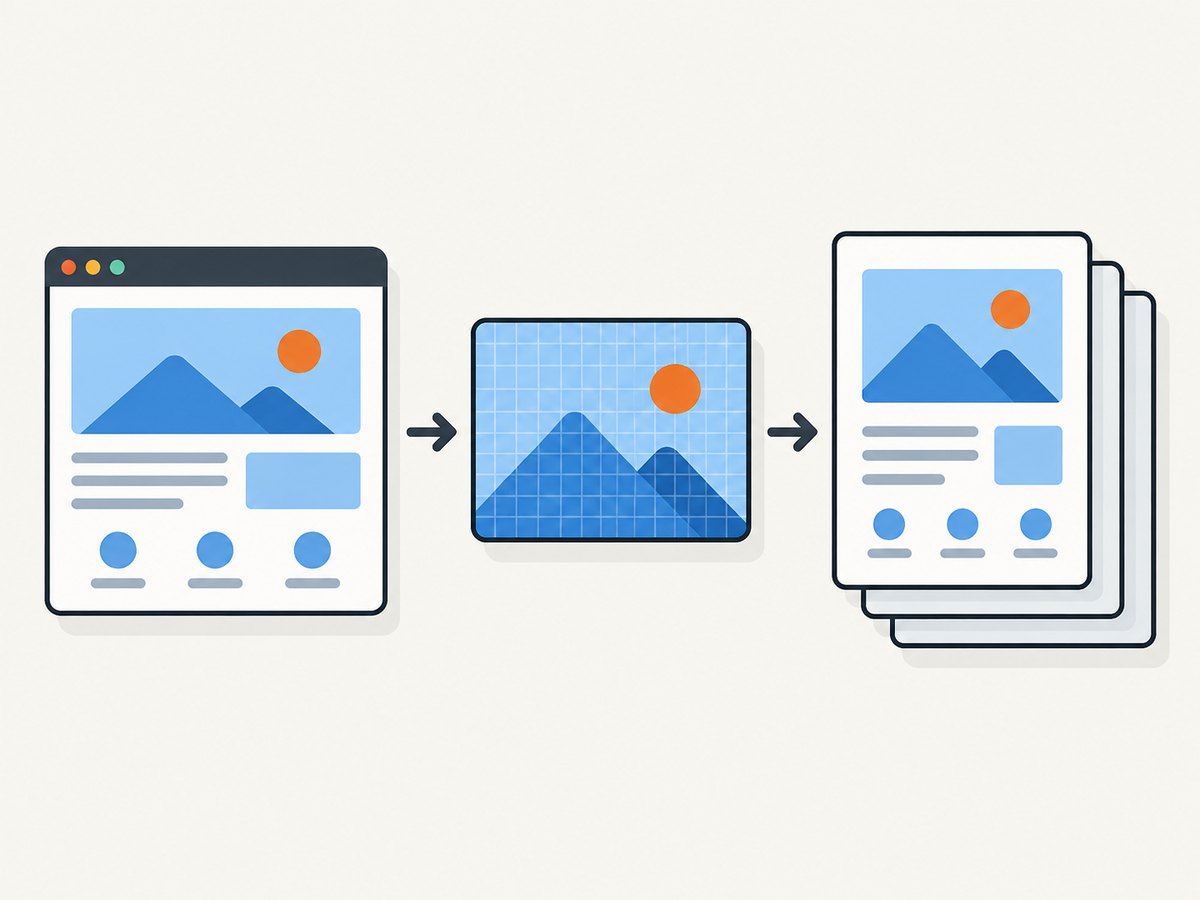
In the example, jsPDF uses millimeters, while the canvas dimensions are pixels. The formula canvas.height × pageWidth ÷ canvas.width converts the image aspect ratio to the PDF’s unit space. This preserves proportions while filling the page width. It does not fit the height, add margins, or split pages.
Choose the page size and orientation
jsPDF accepts orientation, unit, and paper format options. For example, use format: 'letter' for US Letter, orientation: 'landscape' for a wide report, or a custom format supported by jsPDF. Compute placement from the actual page dimensions rather than assuming A4. To add margins, subtract the left and right margins from the usable page width and offset the image by the left and top margins.
const pdf = new jsPDF({ orientation: 'landscape', unit: 'mm', format: 'a4' });
const margin = 12;
const usableWidth = pdf.internal.pageSize.getWidth() - margin * 2;
const imageHeight = canvas.height * usableWidth / canvas.width;
pdf.addImage(image, 'PNG', margin, margin, usableWidth, imageHeight);
When the image height is greater than the page height minus margins, it will run beyond the page. Decide explicitly whether to scale the whole image down to fit one page, accept a very small result, or paginate by sections or slices.
One page versus multiple pages
For a compact summary, fitting one image to one page may be acceptable. To fit it fully, use the smaller of the width-based and height-based scale factors, then center the image in the available area. This can make a long report unreadable. For multipage output, either make distinct page-sized DOM regions and capture each, or implement image slicing and add each slice to its own PDF page. Choose boundaries that do not cut through headings, tables, or charts, and inspect the rendered page edges. There is no universal pagination algorithm in the library APIs.
For invoices and documents where selectable text, accessible reading order, predictable page breaks, or small output files matter, consider a print stylesheet and the browser’s print-to-PDF flow or a PDF-generation method designed around document content. Compare fidelity, text selection, pagination control, runtime, asset handling, file size, and maintenance needs.
4. Tune html2canvas options
Options affect the cloned render and its canvas dimensions. Start with defaults, then change only what your page needs. The complete and current option list is in the configuration reference.
| Option | What it controls | Practical note |
|---|---|---|
scale |
Pixel density of the output canvas; defaults to window.devicePixelRatio. |
Higher scale can sharpen small text but multiplies canvas dimensions and memory use. Try 1 or 2 and inspect on target devices. |
useCORS |
Attempts CORS-enabled loading of remote images. | The image host must grant access with a suitable response header; this option cannot override browser security. |
backgroundColor |
Canvas background color. | Set a solid color such as white when transparent areas should print on white. |
width, height |
Render dimensions. | Set deliberately when the capture should use dimensions other than the element’s computed bounds. |
windowWidth, windowHeight |
Viewport dimensions used for rendering. | For clipped long elements, the FAQ suggests matching these to the element’s scroll dimensions in relevant cases. |
scrollX, scrollY |
Scroll offsets for the cloned render. | Useful when fixed or sticky positioning depends on scroll state; validate the resulting composition. |
onclone |
Callback for the cloned document before rendering. | Adjust export-only styles without changing the live page. |
ignoreElements |
Predicate for excluding elements. | Omit buttons, loading controls, or content that should not appear in the PDF. |
You can also mark an element with data-html2canvas-ignore to leave it out. For example, exclude a Download button from the captured report rather than letting it appear in the PDF.
5. Handle images, fonts, and browser-only rendering
Cross-origin images
Canvas security rules restrict reading pixels from images loaded from another origin unless that server permits it. html2canvas skips images that would taint the canvas when its default allowTaint behavior is in effect. Set useCORS: true only when the remote server sends an appropriate Access-Control-Allow-Origin header. Otherwise, serve the image from your own origin or use a server-side proxy that you control and are authorized to use. The library cannot grant itself access. See the html2canvas FAQ.
Wait for the page to be ready
Start export only after the React content has mounted and its data is ready. If images or web fonts load asynchronously, wait for those resources before capturing. A page that is still rendering can produce missing images or fallback fonts. Avoid changing the report’s layout during capture; disable relevant controls or capture a stable export-specific region.
Server rendering
html2canvas relies on browser APIs such as window, document, and computed styles. Do not run it during React server rendering or directly in Node.js. Invoke it from a client-side event after mount. If the PDF must be generated server-side, use a real browser automation and printing architecture or a PDF tool designed for server execution. The html2canvas FAQ names Puppeteer and Playwright for server-side screenshot generation.
6. Common problems and fixes
| Symptom | Likely cause | Fix |
|---|---|---|
| Remote images are absent | The image origin does not grant CORS access, or the image is not loaded yet. | Wait for the asset; configure the image server’s CORS response, use a same-origin asset, or use an authorized proxy. useCORS alone is not permission. |
| Output is blank or cut off | Viewport dimensions clip the target, or the canvas exceeded a browser/device limit. | For clipping, try windowWidth: element.scrollWidth and windowHeight: element.scrollHeight. For very long content, capture smaller sections or page regions. |
| Styling differs from the browser | html2canvas reimplements rendering and does not support every CSS property. | Check the supported features, simplify unsupported styling, adjust a cloned document with onclone, or use browser printing when fidelity is essential. |
| Text is blurry | The raster image is being enlarged, or capture scale is low. | Capture at a higher scale and place at the intended physical size. Check memory usage on phones and avoid needlessly large scale. |
| PDF has one enormous page | A tall canvas was added once as one image. | Use page-sized regions or explicit slicing and add one segment per page; verify page breaks with tables and headings. |
| PDF export fails only in SSR/build | Browser-dependent code ran on the server. | Load or invoke the library only in a client-side path after mount; use a server-compatible PDF architecture for server jobs. |
| Transparent areas look black or odd | The canvas background is transparent or viewer handling differs. | Set backgroundColor to the intended paper color, usually white. |
| Large reports exhaust memory | Canvas pixel count grows with width × height × scale². | Reduce scale, capture sections independently, and avoid retaining multiple full-size canvases and data URLs at once. |
Canvas limits vary by browser, platform, graphics hardware, and available memory. The html2canvas FAQ gives rough guidance for current browsers, including maximum dimensions around 32,767 pixels for Chrome/Chromium and desktop Safari, and approximate area figures that vary by browser. Treat these as warning signs, not guaranteed thresholds; mobile devices can fail sooner. The FAQ documents the project’s current guidance.
7. Performance, reliability, and cost
Both libraries run in the user’s browser for this approach, so there is no per-export server call or hosted rendering charge from these libraries. The practical cost is browser work: traversing DOM, loading assets, rasterizing pixels, encoding an image, and building the PDF. The dominant memory pressure comes from the canvas. Doubling the scale doubles each dimension and roughly quadruples the pixel count.
Keep captures bounded. Export only the report region, choose the lowest scale that remains legible, avoid oversized hidden content, and release references to temporary canvases and data URLs after saving if the interface retains them. For repeated exports, prevent overlapping jobs and provide a busy state. If captures must be consistent across browsers or generated without a user interaction, a browser-based client export may not be the right architecture.
Reliability depends on stable layout and assets: test representative desktop and mobile sizes, slow image loads, long tables, and the actual browsers your users run. CSS support is incomplete, cross-origin assets require permission, and canvas limits are environmental. Treat exports as a render path that deserves its own visual review.
8. Or skip the browser setup
If your goal is a screenshot or PDF of a web page rather than a PDF export of private React state, ScreenshotNeo provides a website screenshot API and MCP server. One GET request can return an image or PDF; see the API documentation. It removes cookie and consent banners, newsletter popups, and chat widgets before capture; bot checks, blank pages, failed loads, and cache hits are not billed, and response headers identify the page verdict and billing. AI agents can use its MCP tools, and 1,000 screenshots per month are free with no card; paid plans start at $5 for 3,000.

curl -G "https://api.screenshotneo.com/v1/shot" -d access_key=YOUR_API_KEY --data-urlencode url=https://stripe.com -o shot.webpimport requests
r = requests.get(
"https://api.screenshotneo.com/v1/shot",
params={"access_key": "YOUR_API_KEY", "url": "https://stripe.com"},
timeout=90,
)
r.raise_for_status()
open("shot.webp", "wb").write(r.content)const q = new URLSearchParams({ access_key: 'YOUR_API_KEY', url: 'https://stripe.com' });
const res = await fetch(`https://api.screenshotneo.com/v1/shot?${q}`);
if (!res.ok) throw new Error(`Screenshot request failed: ${res.status}`);
await Bun.write('shot.webp', new Uint8Array(await res.arrayBuffer()));The Node.js snippet uses Bun’s file writer for a directly runnable save step; with Node.js, write the response bytes using writeFile from node:fs/promises. ScreenshotNeo also supports full-page capture, selector capture, PDF settings, custom CSS and JavaScript, wait conditions, request blocking, caching, signed links, async jobs, bulk capture, and a usage API. Its MCP server includes take_screenshot, get_page_info, and capture_pdf.
Sign up for 1,000 free screenshots a month with no card.
FAQ
Can html2canvas export a React component without a ref?
It needs a DOM element. A ref is the usual React way to get that mounted element; other DOM lookup methods are possible but less directly tied to the component.
Will the PDF text be searchable?
In this image-based workflow, the captured content is added as a raster image, so text generally is not selectable or searchable.
Can I use this for a whole page?
Yes, if the page can be represented within browser canvas limits and the layout is captured correctly. Long pages are safer as page-sized captures or deliberately paginated output.
Does useCORS solve every missing image?
No. The image server must allow cross-origin access, and the asset must be loaded when capture begins.


