React Libraries for Converting HTML to PDF
Compare react-to-print, html2pdf.js, Puppeteer and Playwright for converting React HTML to PDF, with runnable code and selection guidance.
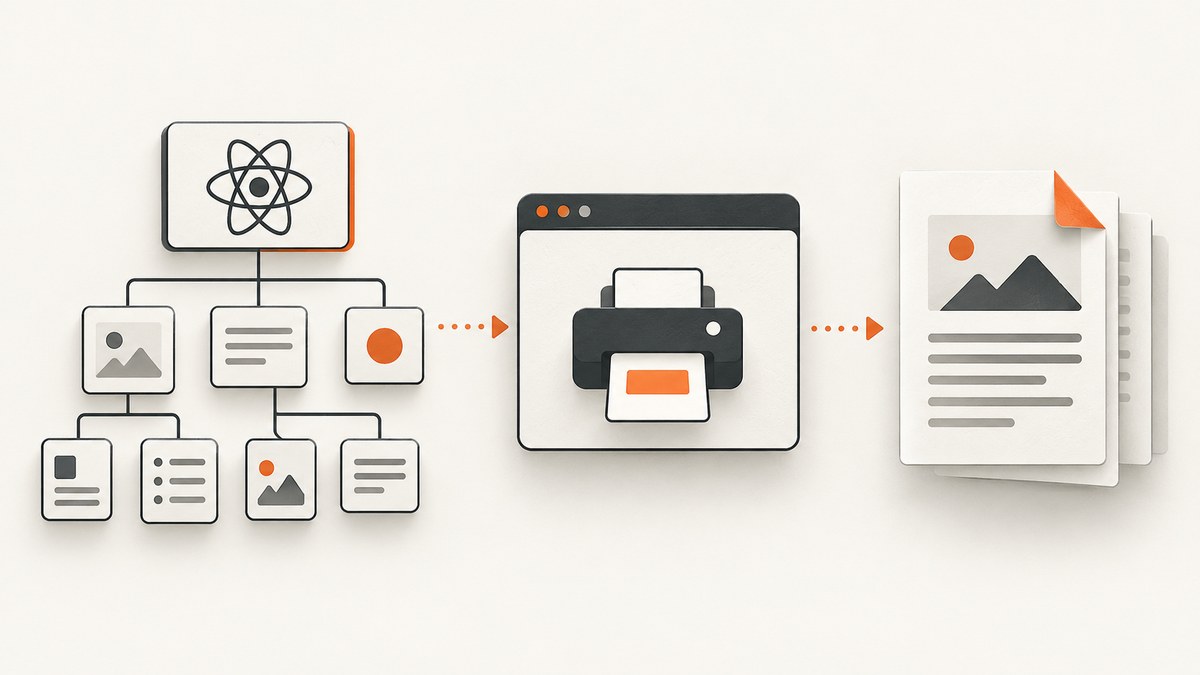
Short answer: choose the library based on where the PDF is created and what the output must do. Use react-to-print when a user should print a selected React component through the browser. Use html2pdf.js for a browser-only “download this element” flow when image-based output is acceptable. Use Puppeteer or Playwright when a server or worker must render pages automatically.
These tools solve different problems. Printing a component, exporting a client-side snapshot, and generating repeatable server-side documents should not be treated as the same workflow.
Which React HTML-to-PDF library should you use?
| Requirement | Starting point | Main trade-off |
|---|---|---|
| Let a user select “Save as PDF” from a print dialog | react-to-print | The browser owns the dialog and print settings; the library does not directly download a PDF without opening print preview. |
| Create a PDF in the user’s browser from one element | html2pdf.js | Browser-only convenience, but the rendered output is image-based and text may not remain selectable or searchable. |
| Generate PDFs automatically on a server | Puppeteer or Playwright | Requires a headless-browser runtime; PDF output uses print CSS media by default. |
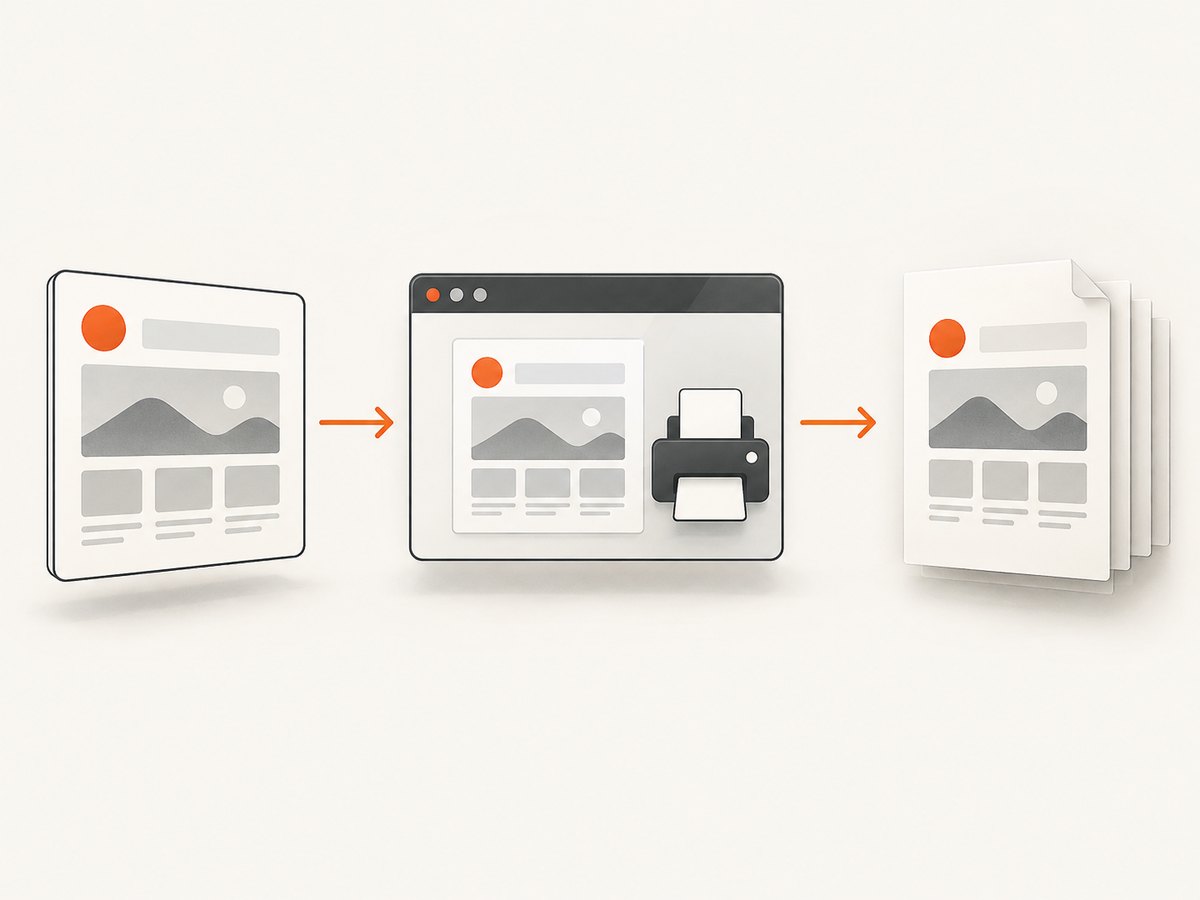
1. Print a React component with react-to-print
react-to-print prepares the selected component and invokes the browser’s native print flow. It is the closest match when the user should review page settings, choose a printer, or select “Save as PDF.” It does not itself provide a direct PDF download without print preview.
Install
npm install react-to-printComplete React example
import React, { useRef } from 'react';
import { useReactToPrint } from 'react-to-print';

function Invoice({ invoice }) {
  return (
    <article className="invoice">
      <header className="invoice__header">
        <h1>Invoice {invoice.number}</h1>
        <p>Issued {invoice.issuedAt}</p>
      </header>
      <dl>
        <div><dt>Customer</dt><dd>{invoice.customer}</dd></div>
        <div><dt>Total</dt><dd>{invoice.total}</dd></div>
      </dl>
      <ol>
        {invoice.items.map((item) => (
          <li key={item.id}>{item.description}: {item.amount}</li>
        ))}
      </ol>
    </article>
  );
}

export default function InvoicePage() {
  const printRef = useRef(null);

  const print = useReactToPrint({
    contentRef: printRef,
    documentTitle: 'invoice-1042',
    pageStyle: `
      @page { size: A4; margin: 16mm; }
      @media print {
        .screen-only { display: none !important; }
        .invoice { color: #000; background: #fff; }
      }
    `
  });

  const invoice = {
    number: '1042',
    issuedAt: '2026-09-30',
    customer: 'Example customer',
    total: '$240.00',
    items: [
      { id: 1, description: 'Implementation', amount: '$200.00' },
      { id: 2, description: 'Support', amount: '$40.00' }
    ]
  };

  return (
    <>
      <button className="screen-only" onClick={() => print()}>
        Print or save as PDF
      </button>
      <main ref={printRef}>
        <Invoice invoice={invoice} />
      </main>
    </>
  );
}
Print-specific CSS
@media print {
  .screen-only,
  nav,
  .toast,
  .actions { display: none !important; }

  .invoice {
    break-inside: avoid;
    font-size: 11pt;
  }

  h1, h2, h3 {
    break-after: avoid;
  }

  table, figure {
    break-inside: avoid;
  }
}

@page {
  size: A4;
  margin: 16mm;
}
Important react-to-print constraints
- Styles must target the nodes that are actually printed. Ancestor elements outside the printed subtree may not be present, so selectors that depend on those ancestors can stop matching.
- Browser print settings cannot be controlled through
window.printor the library. The user or browser decides options such as destination, paper handling, and headers. - Mobile WebViews and Firefox for Android have documented limitations. Test the exact browsers and embedded environments your users rely on. See the project’s compatibility notes at the official repository.
- If the component contains images, wait until they are loaded before invoking print. For charts or canvases, make sure the component has finished rendering.
2. Create a browser-side PDF with html2pdf.js
html2pdf.js converts a webpage or selected element in the browser by combining html2canvas and jsPDF. It is useful when you need a button that starts a download without opening the browser print dialog.
Install and use
npm install html2pdf.jsimport html2pdf from 'html2pdf.js';
export async function downloadReport(element) {
if (!element) throw new Error('Report element was not found');
await html2pdf()
.set({
margin: [12, 12, 12, 12],
filename: 'report.pdf',
image: { type: 'jpeg', quality: 0.95 },
html2canvas: {
scale: 2,
useCORS: true,
backgroundColor: '#ffffff'
},
jsPDF: {
unit: 'mm',
format: 'a4',
orientation: 'portrait'
},
pagebreak: {
mode: ['css', 'legacy']
}
})
.from(element)
.save();
}
// In a component:
// const reportRef = useRef(null);
// <button onClick={() => downloadReport(reportRef.current)}>Download</button>
// <section ref={reportRef}>...</section>What html2pdf.js changes about the output
- It runs in a browser and does not run in Node.js.
- The html2canvas stage renders the content as images. Text may therefore lose selectable and searchable behavior, and files can become larger than a text-based PDF.
- Cross-origin images need suitable CORS headers or they may be omitted or taint the canvas.
- Very tall elements can exceed browser canvas limits. Split large reports into sections when necessary.
- Use print-oriented CSS only if it matches the canvas renderer’s behavior; inspect page breaks with representative data.
3. Generate PDFs automatically with Puppeteer
Puppeteer’s page.pdf() renders a page in a headless browser and returns a PDF buffer. PDF generation uses print CSS media. Call page.emulateMediaType('screen') first when the document should use screen styles instead.
Complete Node.js example
import puppeteer from 'puppeteer';

const browser = await puppeteer.launch({ headless: true });
try {
  const page = await browser.newPage();
  await page.setViewport({ width: 1280, height: 900, deviceScaleFactor: 1 });
  await page.goto('http://localhost:3000/invoice/1042', {
    waitUntil: 'networkidle0'
  });
  await page.emulateMediaType('print');
  await page.pdf({
    path: 'invoice-1042.pdf',
    format: 'A4',
    printBackground: true,
    preferCSSPageSize: true,
    margin: { top: '16mm', right: '16mm', bottom: '16mm', left: '16mm' }
  });
} finally {
  await browser.close();
}
Page readiness checklist
- Navigate to the application route.
- Wait for the data request and fonts to finish.
networkidle0is a useful baseline, but an explicit application-ready selector is more deterministic. - Wait for images or charts that render after the initial load.
- Choose print or screen media deliberately.
- Set
printBackground: trueif colored backgrounds are part of the design. - Use
preferCSSPageSize: truewhen your stylesheet defines@pagesize.
4. Generate PDFs with Playwright
Playwright’s page.pdf() follows the same print-media model and is a good fit when your project already uses Playwright for browser automation.
import { chromium } from 'playwright';

const browser = await chromium.launch();
try {
  const page = await browser.newPage({
    viewport: { width: 1280, height: 900 },
    deviceScaleFactor: 1
  });
  await page.goto('http://localhost:3000/report/1042', {
    waitUntil: 'networkidle'
  });
  await page.locator('[data-pdf-ready="true"]').waitFor();
  await page.pdf({
    path: 'report-1042.pdf',
    format: 'A4',
    printBackground: true,
    preferCSSPageSize: true,
    margin: { top: '16mm', right: '16mm', bottom: '16mm', left: '16mm' }
  });
} finally {
  await browser.close();
}
Print CSS and layout details that affect every option
Use a dedicated document route when possible
A route such as /reports/:id/print can remove navigation, animations, interactive controls, and transient notifications before any library captures the page. It also makes authentication, data loading, and readiness easier to reason about.
Control page breaks
.keep-together { break-inside: avoid; }
.start-new-page { break-before: page; }
.no-break-after { break-after: avoid; }

@media print {
  .report-section { break-inside: avoid-page; }
}
Fonts, images, and charts
- Wait for web fonts before capture when typography changes wrapping. In a browser context, use
await document.fonts.ready. - Use absolute or stable asset URLs for server-side rendering.
- Give images explicit dimensions to reduce layout shifts.
- For SVG and canvas charts, render them before the ready marker and verify their print colors.
- Remove animations and transitions in print CSS so the captured frame is deterministic.
Choosing by deployment and output requirements
| Question | Use this signal |
|---|---|
| Must the user choose printer and paper settings? | react-to-print |
| Must a button download without a dialog? | html2pdf.js, if image-based output is acceptable |
| Must a worker generate files unattended? | Puppeteer or Playwright |
| Must text be searchable and selectable? | Prefer browser PDF generation; validate the actual output. Canvas-based html2pdf.js output may not preserve text semantics. |
| Must the result match print styles? | Use print CSS and Puppeteer or Playwright, or the native print flow. |
| Must it work inside a mobile WebView? | Test react-to-print carefully; the project documents WebView limitations. |
Performance, reliability, and cost
- Client-side printing: moves rendering to the user’s browser and avoids maintaining a browser worker, but output depends on browser settings and device behavior.
- html2pdf.js: avoids server infrastructure, but large DOM trees and high canvas scale consume browser memory. Lower
scale, paginate content, or split exports when the browser struggles. - Puppeteer and Playwright: provide repeatable automation, but each worker needs a compatible browser runtime and enough CPU and memory for concurrent pages. Reuse a browser process where your hosting model permits it and always close pages.
- Reliability: use an explicit ready marker, bounded navigation timeouts, deterministic fixture data, and cleanup in
finallyblocks. Record the URL, viewport, media type, and library version for failed jobs. - Cost: native printing has no server rendering cost; html2pdf.js consumes the user’s resources; headless browsers add compute, storage, and operational overhead. Measure your own document sizes and concurrency because the cited projects do not provide a universal benchmark.
Common errors and fixes
| Symptom | Likely cause | Fix |
|---|---|---|
| Print preview is blank | The ref points to an unmounted node or data has not loaded. | Render the component first, verify the ref, and wait for a visible ready state. |
| Print styles do not apply | A selector depends on an ancestor outside the printed subtree. | Target the printed node directly and move required styles into print-aware CSS. |
| PDF uses screen colors unexpectedly | The renderer is using print media. | Define @media print intentionally, or emulate screen media before page.pdf() when appropriate. |
| Images are missing in html2pdf.js | Cross-origin images lack usable CORS headers. | Serve images with CORS enabled, proxy them through your origin, or use same-origin assets. |
| Text cannot be selected | html2canvas rasterized the content. | Use Puppeteer, Playwright, or the browser print flow for a text-oriented PDF. |
| Server PDF captures a loading spinner | The job starts before application data is ready. | Expose a deterministic data-pdf-ready="true" marker and wait for it. |
| Pages split tables or cards badly | No break rules are defined, or the element is too large for one page. | Use break-inside: avoid for small blocks and design explicit page boundaries for large sections. |
| Headless job hangs | A request, font, or script never completes. | Set navigation and job timeouts, inspect pending resources, and avoid waiting solely on network idle for applications with long polling. |
Or skip the browser setup
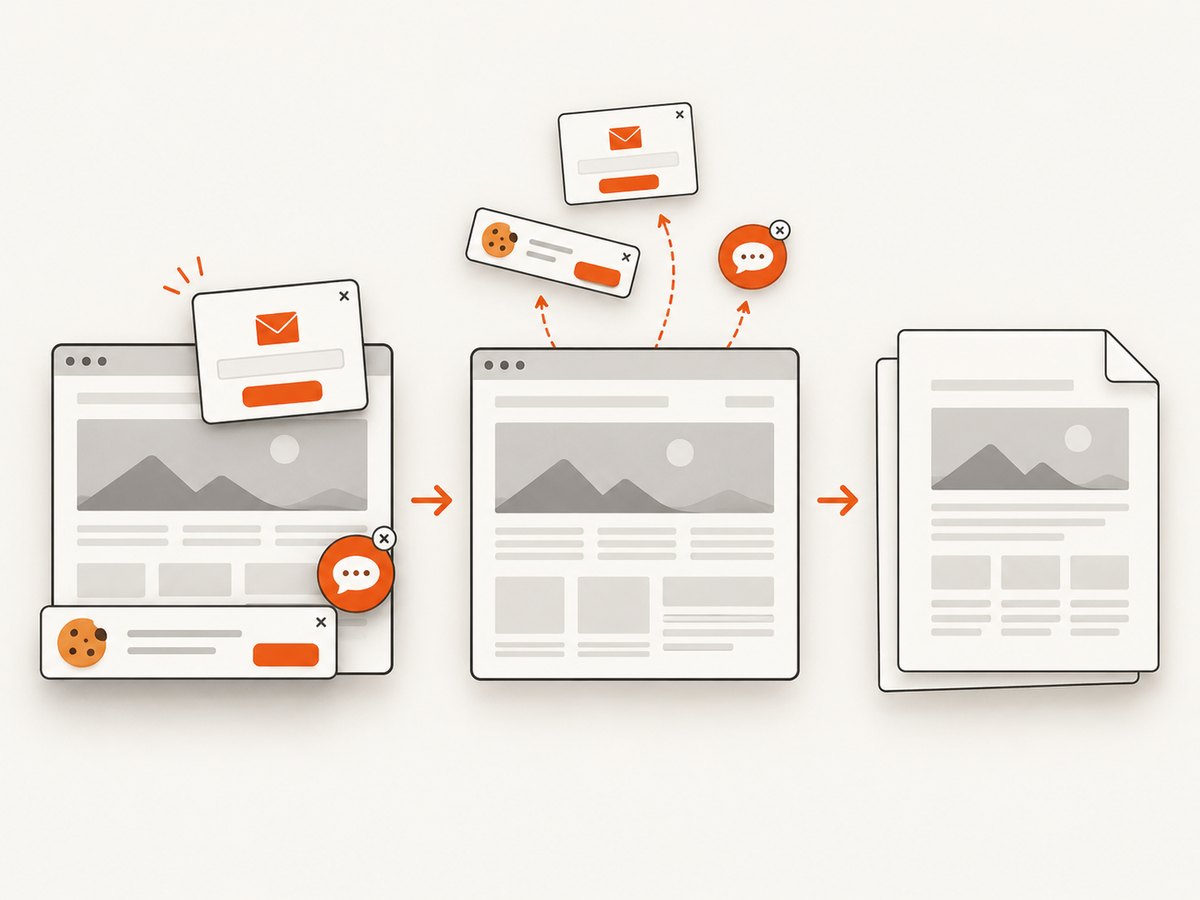
For a hosted screenshot or PDF endpoint, ScreenshotNeo accepts one GET request and returns an image or PDF. Its capture flow accepts cookie and consent banners before the shot and removes more than 60 known consent platforms, newsletter popups, and chat widgets. Bot checks, blank pages, failed loads, timeouts, and cache hits are not billed, and the response identifies the result with X-Page-Verdict and X-Billed headers. It also provides an MCP server so Claude, Cursor, and other MCP clients can call take_screenshot, get_page_info, and capture_pdf.
See the ScreenshotNeo API documentation for the full option list. This is a direct PDF call:
curl -G "https://api.screenshotneo.com/v1/shot" \
  -d access_key=YOUR_API_KEY \
  --data-urlencode url=https://example.com/report/1042 \
  -d format=pdf \
  -o report.pdf
Create a free ScreenshotNeo account: 1,000 screenshots each month, no card required. Paid plans start at $5 for 3,000 shots, and every feature is included on every plan.
FAQ
Can react-to-print download a PDF without opening print preview?
No. It prepares the component for the browser’s print flow. A custom print function can hand the prepared content to another generator, but the library itself does not directly create the download.
Is html2pdf.js usable in a Node.js service?
No. It is a browser-only package based on html2canvas and jsPDF.
Why does Puppeteer produce different output from my screen?
PDF generation uses print CSS media. Your @media print rules may change colors, visibility, and layout. Emulate screen media when that is the intended design, then verify page breaks.
Which option is best for a long invoice or report?
For unattended generation and selectable text, start with Puppeteer or Playwright. For a user-controlled one-off export, start with react-to-print. Validate the final PDF with your actual fonts, tables, images, and page counts.
Do these libraries render React directly?
They render the DOM produced by React. React must finish rendering data and assets before the print or PDF operation begins.


