How to Generate and Download HTML-to-PDF Files in React Native on Android and iOS
Generate an HTML PDF in React Native, save it safely, and share or export it on Android and iOS with platform-specific caveats.

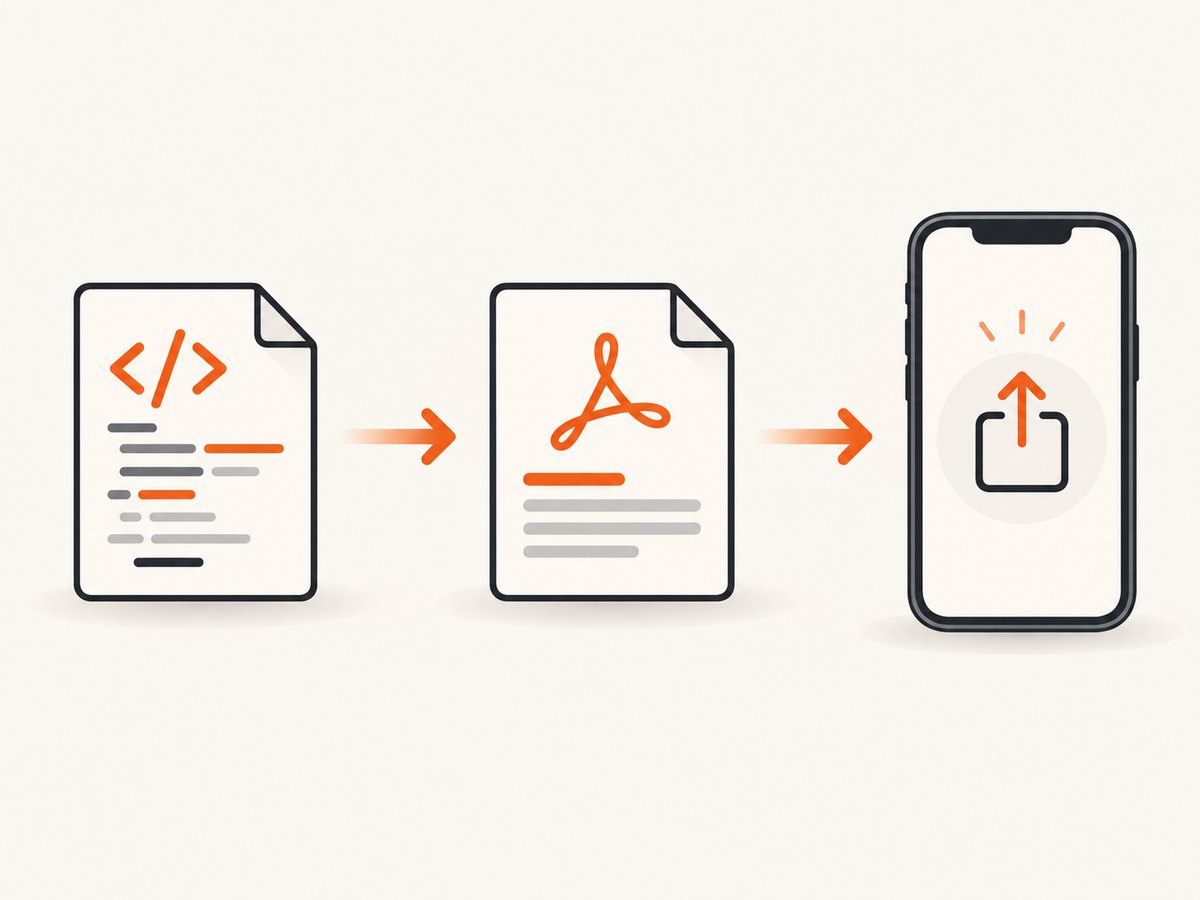
Generating an HTML-to-PDF document in React Native has three separate parts: render the HTML as a PDF, keep the resulting file at a usable local path, and let the user export, share, or save it. Treating those as separate jobs avoids most Android and iOS implementation problems.
For a bare React Native application, the documented library route is react-native-html-to-pdf. For a print dialog rather than a predictable file, Android’s native WebView printing API is the appropriate route. For sharing an existing PDF, pass a local file URI to a share flow such as React Native Share.
1. Choose the operation you actually need
| Goal | Recommended path | What you receive |
|---|---|---|
| Create a PDF file in the app | react-native-html-to-pdf |
A local PDF path, with optional base64 output |
| Show the system print UI on Android | Android WebView plus PrintManager |
A print job handled by the Android print service |
| Share or export an existing PDF | Download or generate the file, then share its local URI | A chooser or Files flow; the receiving app decides whether it accepts PDFs |
A generated file is not the same thing as a print job. Android printing does not automatically save a PDF to a known application folder, and sharing a remote URL is different from sharing a file:// URI.
2. Install and verify the HTML-to-PDF package
npm install react-native-html-to-pdf
# or
 yarn add react-native-html-to-pdf

cd ios && pod install && cd ..
Check the package release history, native build instructions, and compatibility with your React Native version before adopting it. The available documentation describes the API and options, but it does not establish a current version-by-version compatibility matrix.
3. Generate a PDF from HTML
The following screen renders HTML, creates a PDF, displays the returned path, and exposes a share action. The package documents html, fileName (without .pdf), base64, directory, height, and width. Its documented default page dimensions are 792 by 612 points.
import React, {useState} from 'react';
import {Alert, Button, SafeAreaView, Share, Text, View} from 'react-native';
import RNHTMLtoPDF from 'react-native-html-to-pdf';

const html = `
<!doctype html>
<html>
  <head>
    <meta name="viewport" content="width=device-width, initial-scale=1" />
    <style>
      @page { margin: 36pt; }
      body { font-family: Arial, sans-serif; color: #1f2937; }
      h1 { font-size: 24pt; margin-bottom: 12pt; }
      p { font-size: 11pt; line-height: 1.5; }
      .total { margin-top: 24pt; font-size: 16pt; font-weight: bold; }
    </style>
  </head>
  <body>
    <h1>Invoice 1042</h1>
    <p>Generated in React Native from an HTML string.</p>
    <p class="total">Total: $125.00</p>
  </body>
</html>`;

export default function PdfScreen() {
  const [path, setPath] = useState('');

  async function createPdf() {
    try {
      const result = await RNHTMLtoPDF.convert({
        html,
        fileName: 'invoice-1042',
        directory: 'Documents',
        width: 792,
        height: 612,
        base64: false,
      });

      if (!result.filePath) {
        throw new Error('The PDF was generated without a file path');
      }
      setPath(result.filePath);
    } catch (error) {
      Alert.alert('PDF error', error instanceof Error ? error.message : String(error));
    }
  }

  async function sharePdf() {
    if (!path) {
      Alert.alert('Create the PDF first');
      return;
    }
    await Share.share({
      url: path,
      title: 'Invoice 1042',
      message: 'Invoice 1042 PDF',
    });
  }

  return (
    <SafeAreaView>
      <View>
        <Button title="Generate PDF" onPress={createPdf} />
        <Button title="Share PDF" onPress={sharePdf} disabled={!path} />
        <Text selectable>{path || 'No file generated yet'}</Text>
      </View>
    </SafeAreaView>
  );
}
On iOS, the package documentation says that Documents is the only accepted custom directory value. Do not assume that an arbitrary directory name works on both platforms. If you omit directory, use the path returned by the package and apply your own retention policy.
Images and remote assets
Images must be resolvable by the native renderer. Prefer absolute HTTPS URLs or data URIs, and make sure the server is reachable from the device. A relative browser path such as ./images/logo.png may not resolve because there is no ordinary browser document directory behind the HTML string.
const html = `
<html><body>
  <img
    src="https://example.com/assets/logo.png"
    width="180"
    height="48"
    alt="Company logo"
  />
</body></html>`;
For private images, download them first or embed them as a data URI. Keep image dimensions explicit to reduce layout shifts and unexpectedly large files.
4. Save and retain the generated file
- Use the returned
filePathas the source of truth. - Give each document a distinct filename; do not overwrite concurrent exports.
- Keep files in an app-owned directory until the user has finished sharing or saving them.
- Delete temporary files according to a deliberate cache policy, such as after a successful upload or after a user-configurable number of days.
Do not convert a large PDF to base64 unless you have a specific reason. The package README marks base64 as not recommended because it duplicates the document in memory and increases the risk of memory pressure.
5. Share or export the PDF
For a generated or downloaded document, pass the local file URI to the share API. React Native Share’s guidance recommends downloading remote content into an app-owned cache file before sharing and using the MIME type application/pdf where the API supports it.
import Share from 'react-native-share';

await Share.open({
  url: `file://${path.replace(/^file:\/\//, '')}`,
  type: 'application/pdf',
  filename: 'invoice-1042.pdf',
  failOnCancel: false,
});
Keep the local file available after the share promise resolves. A selected receiving application may still be reading it. The recipient also decides whether it accepts PDF attachments. On iOS 11 and later, React Native Share documents saveToFiles as the Files-only flow; verify the current option support table before presenting it as a universal download button.
6. Android print-dialog alternative
When the requirement is “let the user print this page” rather than “save a PDF at this path,” use an Android WebView and invoke the platform print service after loading completes. Android’s guidance requires waiting for page load and keeping a reference to the WebView while creating the print job.

// Android-side pseudocode based on the WebView print flow
webView.loadDataWithBaseURL(null, html, "text/HTML", "UTF-8", null);
webView.setWebViewClient(new WebViewClient() {
  @Override public void onPageFinished(WebView view, String url) {
    PrintManager printManager = (PrintManager) getSystemService(PRINT_SERVICE);
    PrintDocumentAdapter adapter = view.createPrintDocumentAdapter("invoice-1042");
    printManager.print("invoice-1042", adapter, new PrintAttributes.Builder().build());
  }
});
This route has documented limitations: no headers or footers (including page numbers), no page-range printing, unsupported CSS print orientation properties such as landscape, no JavaScript-triggered printing, and one print job at a time per WebView instance. It invokes the Android print service; it should not be described as a deterministic save-to-folder operation.
7. Pagination, layout, and HTML edge cases
- Long tables: add explicit column widths and test row breaks on both platforms.
- Fonts: use fonts available to the native renderer or bundle them according to the library’s native instructions.
- Page size: choose
widthandheightintentionally; do not rely on the documented defaults for every document type. - JavaScript: avoid depending on browser-only APIs. A native HTML renderer may not execute scripts the way a full browser does.
- Large documents: generate sections separately or reduce image resolution when memory is limited.
- Untrusted HTML: sanitize user-provided markup and URLs before rendering. Never interpolate untrusted values into executable script.
- Offline mode: bundle required images and fonts or provide a clear failure state when remote assets cannot load.
8. Troubleshooting
| Symptom | Likely cause | Fix |
|---|---|---|
| No file path returned | Native generation failed or the result was not checked | Wrap conversion in try/catch, inspect the complete result, and verify native installation and pods. |
| Images are blank | Relative or unreachable image URL | Use an absolute HTTPS URL or data URI; test on a physical device and wait for assets where supported. |
| iOS rejects the directory | Unsupported custom directory name | Use the documented Documents value or omit the custom directory. |
| Share chooser opens but attachment is missing | A remote URL was supplied or the temporary file was deleted | Share a local file URI, set application/pdf, and retain the file until the receiving app has read it. |
| Print dialog shows the wrong layout | WebView print limitations or print CSS unsupported | Use the file-generation route when you need controlled pagination, page ranges, headers, or footers. |
| App runs out of memory | Large HTML, high-resolution images, or base64 duplication | Compress images, split documents, stream downloads to disk, and leave base64 disabled. |
| Different output on Android and iOS | Different native renderers and fonts | Use conservative CSS, explicit dimensions, bundled assets, and snapshot representative documents on both platforms. |
9. Performance, reliability, and cost considerations
- Generate on demand and show progress for large documents; do not block the UI thread with expensive string construction.
- Cache immutable source data, but give each output a unique filename when users can create multiple versions.
- Download remote assets to disk instead of holding several base64 strings in memory.
- Handle retries at the asset-download layer and make generation idempotent when a user taps the button twice.
- Test cold starts, offline mode, interrupted shares, backgrounding during generation, and low-storage devices.
- The native library route has no API-per-page charge, but it consumes device CPU, memory, storage, and network data. A hosted renderer moves those costs to a service and introduces network and service availability dependencies.
10. Or skip the browser setup
If your source is already a public web page, ScreenshotNeo can return a screenshot or PDF from one GET request. It accepts consent banners as a visitor and removes more than 60 known consent platforms, newsletter popups, and chat widgets before capture. Bot checks, blank pages, timeouts, failed loads, and cache hits are not billed, and the response identifies the result with X-Page-Verdict and X-Billed headers. Its MCP server provides take_screenshot, get_page_info, and capture_pdf tools for Claude, Cursor, and other MCP clients.
See the ScreenshotNeo API documentation for request options. The basic request shape is:
curl -G "https://api.screenshotneo.com/v1/shot" -d access_key=YOUR_API_KEY --data-urlencode url=https://stripe.com -o shot.webpimport requests
r = requests.get("https://api.screenshotneo.com/v1/shot", params={"access_key": "YOUR_API_KEY", "url": "https://stripe.com"}, timeout=90)
open("shot.webp", "wb").write(r.content)const q = new URLSearchParams({ access_key: 'YOUR_API_KEY', url: 'https://stripe.com' });
const res = await fetch(`https://api.screenshotneo.com/v1/shot?${q}`);ScreenshotNeo includes full-page capture, element selectors, device presets, retina scale, custom CSS and JavaScript, waits, request blocking, headers, cookies, user agents, timezone, geolocation, caching, signed links, asynchronous jobs, bulk capture, and usage reporting. One thousand screenshots per month are free with no card; paid plans start at $5 for 3,000. Create a free ScreenshotNeo account.
11. FAQ
Does generating a PDF automatically download it to the user’s device?
No. Generation creates a local file. You still need a share, Files, upload, or another export action.
Should I use Android printing or an HTML-to-PDF library?
Use printing for a system print dialog. Use file generation when your app needs a predictable PDF path and controlled export flow.
Can I share a remote PDF URL directly?
Use a local file URI for the reliable attachment flow. Download the remote file into app-owned storage first.
Is base64 a good way to transfer the PDF?
It is available as a package option, but the package documentation does not recommend it for ordinary generation because it increases memory use.
Will the same HTML paginate identically on Android and iOS?
Do not assume that. Native renderers, fonts, and platform defaults can differ, so test representative documents on both platforms.


