How to Control Page Breaks With react-native-html-to-pdf
Force page breaks, keep content together, and troubleshoot pagination in react-native-html-to-pdf on iOS and Android.
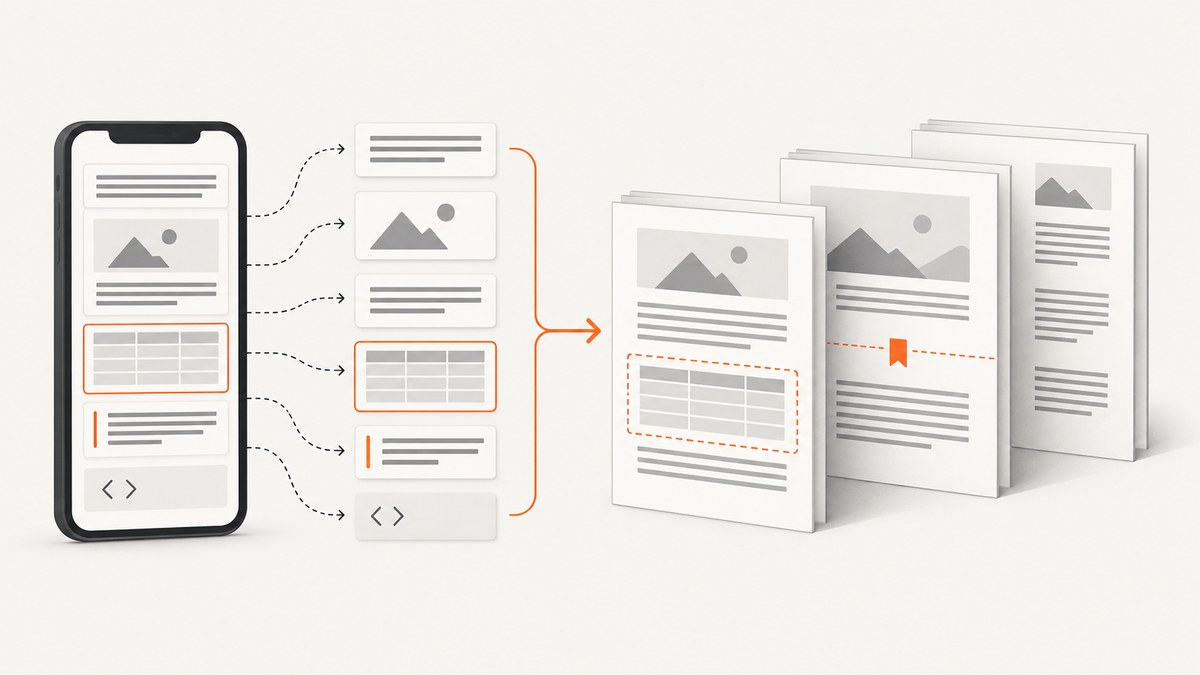
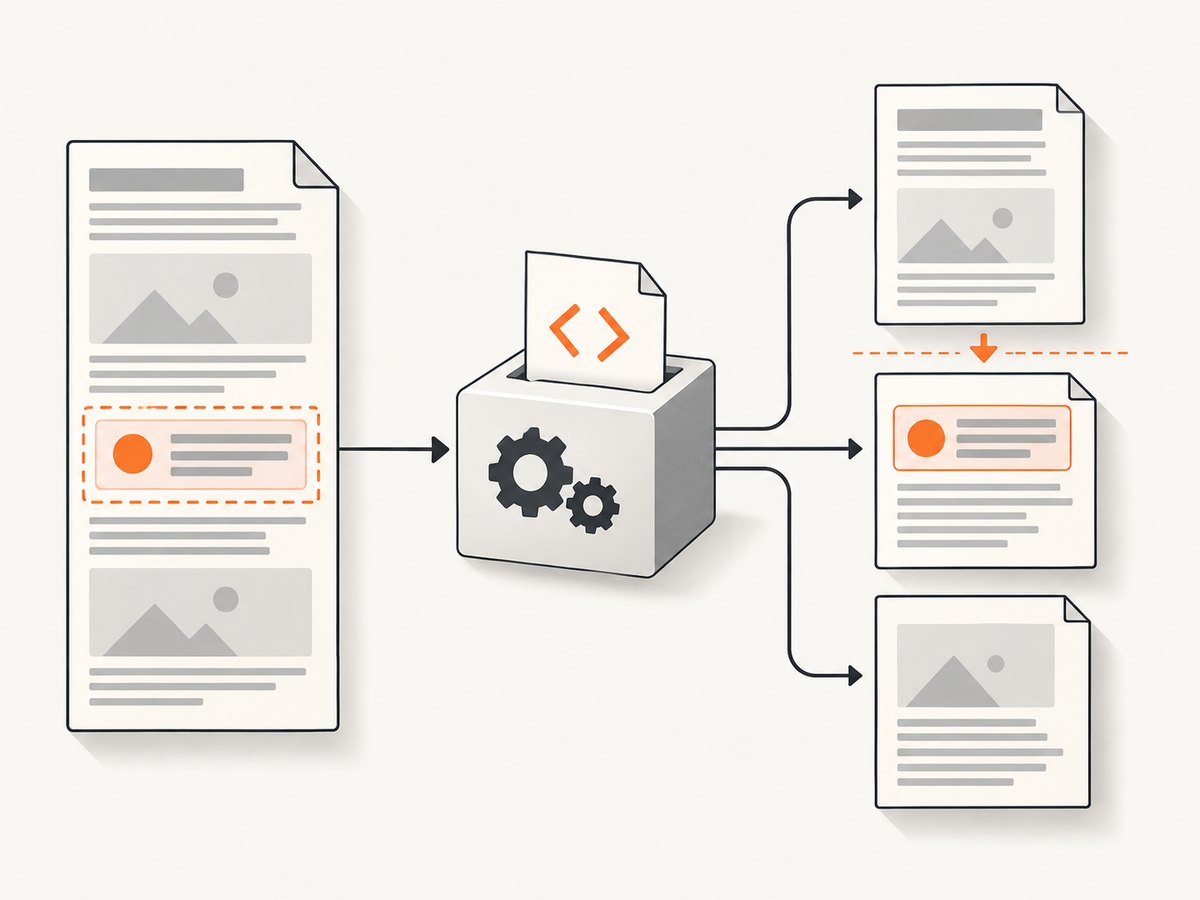
Direct answer: put print CSS in the HTML string passed to react-native-html-to-pdf. Use page-break-before: always (and break-before: page) on the element that must start a new page, page-break-after: always for a break after a section, and page-break-inside: avoid for cards, figures, headings with their following content, and table-like groups.
The package converts an HTML string to a PDF through native iOS and Android rendering. Its documented options include html, fileName, base64, directory, height, and width, with additional iOS padding and Android font settings. There is no documented page-break-specific API option, so pagination rules belong in the HTML and CSS you provide. See the package documentation for the API surface.
1. Install and generate a PDF
Install the package with npm, then pass a complete HTML document to RNHTMLtoPDF.convert.
npm install react-native-html-to-pdfimport React from 'react';
import {Button, SafeAreaView} from 'react-native';
import RNHTMLtoPDF from 'react-native-html-to-pdf';
const html = `
<meta charset="utf-8">
<style>
@page { margin: 24px; }
body { font-family: Arial, sans-serif; color: #222; }
h1, h2, h3 { color: #111; }
.page-break-before {
page-break-before: always;
break-before: page;
}
.page-break-after {
page-break-after: always;
break-after: page;
}
.keep-together {
page-break-inside: avoid;
break-inside: avoid;
}
table { width: 100%; border-collapse: collapse; }
th, td { border: 1px solid #bbb; padding: 6px; }
</style>
</head>
<body>
<h1>Chapter 1</h1>
<p>Content for the first page.</p>
<h1 class="page-break-before">Chapter 2</h1>
<section class="keep-together">
<h2>A grouped section</h2>
<p>This heading and paragraph should stay together when they fit.</p>
</section>
<div class="page-break-after"></div>
<h1>Chapter 3</h1>
<table class="keep-together">
<tr><th>Name</th><th>Value</th></tr>
<tr><td>Example</td><td>42</td></tr>
</table>
</body>
</html>`;
export default function PdfButton() {
const createPdf = async () => {
const file = await RNHTMLtoPDF.convert({
html,
fileName: 'page-break-example',
base64: false,
});
console.log('PDF path:', file.filePath);
};
return (
<SafeAreaView>
<Button title="Create PDF" onPress={createPdf} />
</SafeAreaView>
);
}The legacy page-break-* properties are retained for compatibility. The modern break-* aliases provide progressive enhancement. CSS 2.1 defines the before and after properties as controls that force breaks before or after generated boxes; the W3C paged-media specification describes this behavior.
2. Choose the right break rule
| Goal | CSS | Apply it to |
|---|---|---|
| Start a chapter on a new page | page-break-before: always; break-before: page; |
The chapter heading or wrapper |
| End a section before the next one | page-break-after: always; break-after: page; |
The section wrapper |
| Keep a block intact | page-break-inside: avoid; break-inside: avoid; |
Cards, figures, callouts, and small tables |
| Avoid a stranded heading | page-break-inside: avoid; |
A wrapper containing the heading and its first paragraph |
Forced break before a heading
<h2 class="page-break-before">Chapter 2</h2>Put the rule on the element that should move. Adding it to the previous paragraph can produce an unexpected blank area when margins collapse or the renderer groups boxes differently.
Forced break after a section
<section class="page-break-after">
  <h2>Summary</h2>
  <p>The summary ends here.</p>
</section>
Keep a card, figure, or short table together
<article class="keep-together">
  <h3>Important note</h3>
  <p>A short block that should not split across pages.</p>
</article>
avoid is a request the renderer can honor only when the block fits in the available page area. A block taller than one page must split.
3. Control margins and page dimensions
Use @page for document margins and the package’s dimensions for the native rendering surface. Keep the HTML fixture and production dimensions identical while debugging; a break that works at one width can move when text wraps at another width.
<style>
  @page { margin: 32px 24px 40px; }
  body { margin: 0; }
</style>
The documented conversion options include height and width. iOS also exposes padding options, and Android exposes font options. Set these consistently with your supported platform versions and verify the resulting PDF on each platform.
4. Tables, images, and long content
Tables
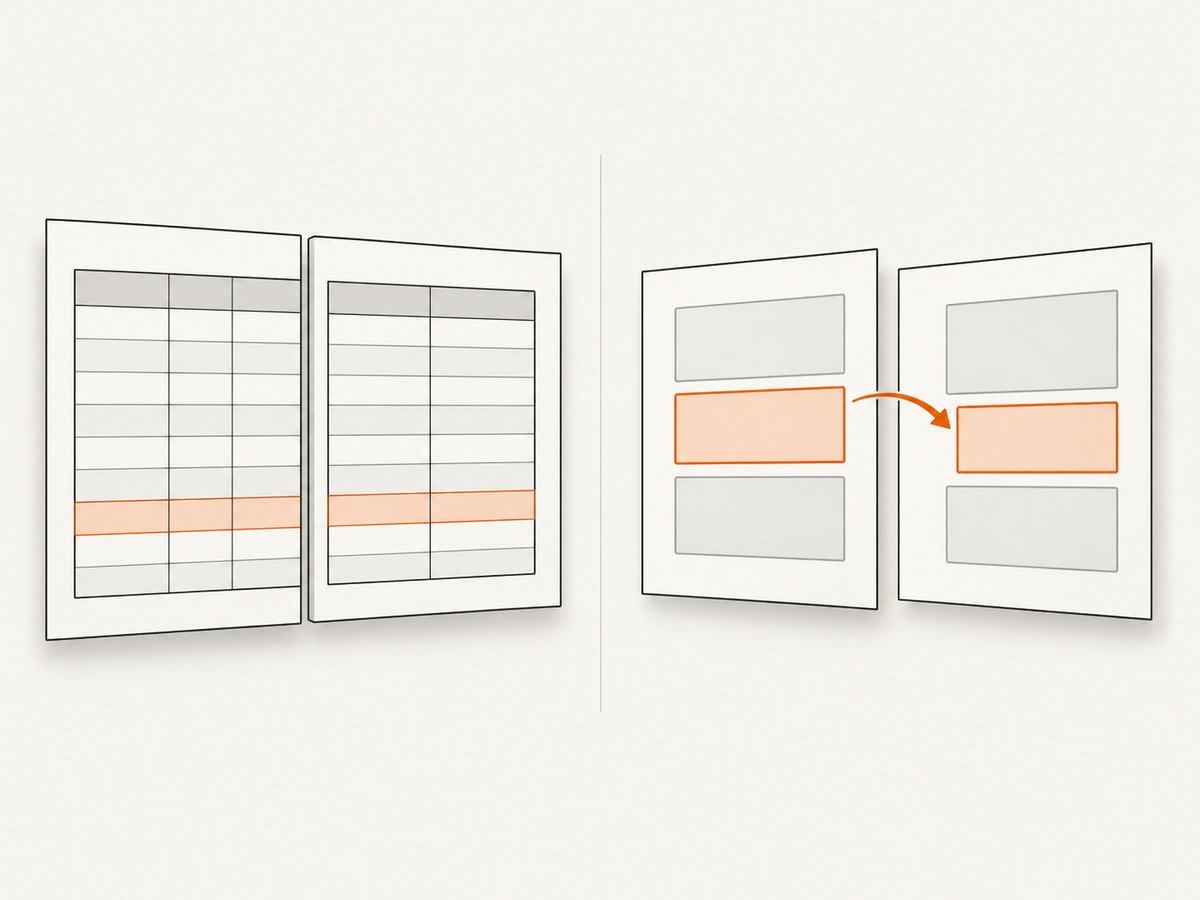
Wrap a small table in keep-together when it must remain intact. For long tables, allow rows to flow and repeat the header in your HTML rather than trying to keep the entire table together.
<table>
  <thead>
    <tr><th>Item</th><th>Status</th></tr>
  </thead>
  <tbody>
    <tr><td>A</td><td>Ready</td></tr>
  </tbody>
</table>
Native WebView pagination can handle tables and nested containers differently from ordinary blocks. Test the exact table markup you ship.
Images and figures
Keep an image and its caption together, but do not wrap an image whose rendered height can exceed one page in keep-together. Constrain dimensions explicitly so a large asset does not push a following heading onto an almost empty page.
<figure class="keep-together">
  <img src="data:image/png;base64,..." style="max-width:100%;" />
  <figcaption>Figure caption</figcaption>
</figure>
Long paragraphs
Do not apply page-break-inside: avoid to an unbounded article body. It can force large blank areas and still cannot prevent a split when the content exceeds one page.
5. A repeatable validation workflow
- Create a minimal HTML fixture with one forced break, one
avoidblock, a long paragraph, and a table. - Generate it with the same
generatePDFoptions, page dimensions, margins, and fonts used in production. - Inspect PDFs produced on every supported iOS and Android version.
- Adjust margins, element heights, and break placement when a heading is stranded at the bottom of a page.
- Pin the package version and keep the fixture as a regression case when upgrading.
The npm registry currently lists version 1.3.0 with built-in TypeScript declarations. Native pagination is not documented as a complete CSS fragmentation engine, so platform validation remains necessary.
6. Troubleshooting
| Symptom | Likely cause | Fix |
|---|---|---|
page-break-before is ignored |
The rule is outside the HTML passed to the converter, or the target is an inline element. | Put the CSS in the HTML string and apply it to a block-level heading or wrapper. Include break-before: page as well. |
| A card still splits | The card is taller than the remaining page space, or nested markup prevents the renderer from honoring avoid. |
Move the card to the next page with a before break, reduce its height, or allow a controlled split. |
| A heading is stranded at the page bottom | The heading and following content are separate boxes. | Wrap them together and apply page-break-inside: avoid to the wrapper. |
| Unexpected blank pages | Adjacent forced breaks, oversized margins, or a break after the final block. | Remove duplicate break rules, reduce margins, and avoid placing page-break-after on the final element. |
| Margins change when content spills | Platform-specific native pagination behavior. | Reproduce with the minimal fixture on both platforms, then tune @page, padding, and element heights. |
| Android PDF export fails | Native WebView AwPrintDocumentAdapter/AwPdfExporter plumbing can fail independently of CSS. |
Confirm the failure with a minimal document, check the supported Android versions, and isolate native export from pagination rules. |
| Fonts or line wrapping differ | Different native fonts or Android font settings change box heights. | Use explicit font settings where supported, embed stable assets when appropriate, and validate each target platform. |
7. Performance, reliability, and cost
- Performance: Smaller HTML, fewer large images, and explicit dimensions reduce layout work and reflow. Avoid repeatedly generating the same large document when a cached file is acceptable.
- Reliability: Keep a deterministic fixture in your test suite, pin the package version, and inspect output on every supported iOS and Android release. Open repository issues include reports about margins when content spills to another page and platform rendering problems.
- Cost: The package itself runs in your app; your operational cost comes from app storage, native processing, and any services used to assemble or deliver HTML assets. No independent performance or success-rate benchmark was published in the available research.
8. Or skip the browser setup
If your actual requirement is a clean visual capture or PDF of a web page rather than rendering app-owned HTML, ScreenshotNeo provides a single HTTP endpoint. It removes cookie banners, newsletter popups, and chat widgets before capture; bot checks, blank pages, timeouts, failed loads, and cache hits are not billed. Responses identify the result with X-Page-Verdict and X-Billed headers. Its MCP server also lets Claude, Cursor, and other MCP clients call take_screenshot, get_page_info, and capture_pdf.
See the ScreenshotNeo API documentation for the full option list.
curl -G "https://api.screenshotneo.com/v1/shot" -d access_key=YOUR_API_KEY --data-urlencode url=https://stripe.com -o shot.webpimport requests
r = requests.get("https://api.screenshotneo.com/v1/shot", params={"access_key": "YOUR_API_KEY", "url": "https://stripe.com"}, timeout=90)
open("shot.webp", "wb").write(r.content)const q = new URLSearchParams({ access_key: 'YOUR_API_KEY', url: 'https://stripe.com' });
const res = await fetch(`https://api.screenshotneo.com/v1/shot?${q}`);There are 1,000 free shots per month with no card. Paid plans start at $5 for 3,000 shots, and every feature is included on every plan. Create a free ScreenshotNeo account.
9. FAQ
Is there a react-native-html-to-pdf option named pageBreak?
No documented option controls breaks directly. Put print CSS in the HTML string.
Should I use only the modern break-before property?
Use both forms. The legacy page-break-* properties improve compatibility while the break-* aliases provide progressive enhancement.
Can an element always be kept on one page?
Only when it fits in the available page area. An element taller than one page must split.
Why does the same HTML paginate differently on iOS and Android?
The package relies on native rendering paths, and WebView pagination and PDF export can differ by platform and version. Validate both with the same fixture.
When should I use a different PDF engine?
If you need stronger guarantees for CSS fragmentation, complex tables, or cross-platform pagination, compare engines on those axes, along with JavaScript needs, licensing, platform coverage, and operating cost. PDFreactor documents manual breaks and CSS 2.1 before and after support, but its commercial terms were not verified here.


