How to Read JavaScript Confirmation Prompt Text in Selenium
Read native JavaScript confirmation text in Selenium, handle alerts reliably, troubleshoot failures, and capture evidence with ScreenshotNeo.
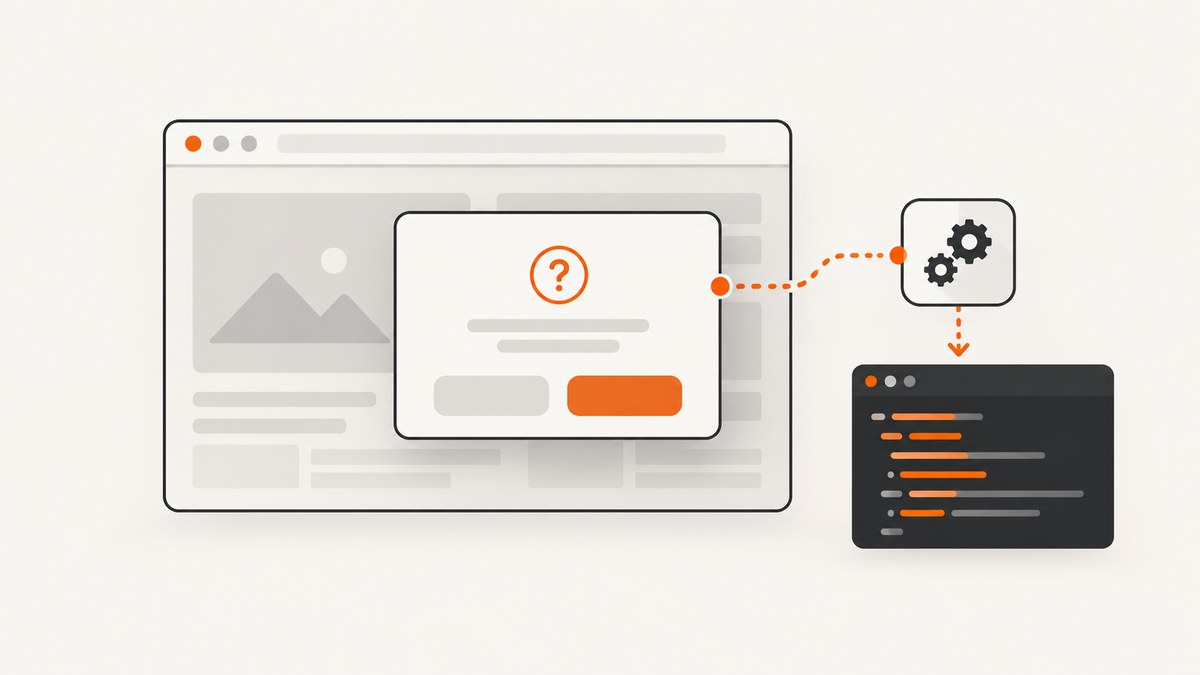
To read text from a native JavaScript confirm() dialog in Selenium, wait for the alert, switch to it, call getText(), then accept or dismiss it:
await driver.wait(until.alertIsPresent());
const alert = await driver.switchTo().alert();
const text = await alert.getText();
console.log(text);
await alert.accept(); // or await alert.dismiss()
The dialog is browser chrome exposed through WebDriver. Its message is not a DOM node, so searching with CSS selectors, XPath, or document.querySelector() will not find it. Selenium documents this alert workflow for native alert, confirm, and prompt dialogs. Read the Selenium alerts documentation and the JavaScript Alert API reference.
What you are reading: alert, confirm, prompt, or HTML modal?
JavaScript has three native dialog functions:
alert('message')displays a message and has only an OK action.confirm('message')displays a message with OK and Cancel. Selenium maps these toaccept()anddismiss().prompt('message')displays a message and an input field. Selenium can read the message withgetText()and enter a response withsendKeys().
A custom HTML modal is different. It is regular page content, so locate its elements and read textContent or the WebElement’s text. Do not call switchTo().alert() for a component built with a <div>, dialog library, or framework overlay.
Complete JavaScript Selenium example
Install Selenium’s JavaScript binding and run this example against a page that calls confirm().
npm install selenium-webdriverconst { Builder, By, until } = require('selenium-webdriver');
const chrome = require('selenium-webdriver/chrome');
(async function readConfirmText() {
const options = new chrome.Options();
// Remove this line when you want to watch the browser.
options.addArguments('--headless=new');
const driver = await new Builder()
.forBrowser('chrome')
.setChromeOptions(options)
.build();
try {
await driver.get('https://example.test/confirmation');
await driver.findElement(By.css('#delete-button')).click();
// Wait until the native dialog exists before switching to it.
const alert = await driver.wait(until.alertIsPresent(), 10000);
const message = await alert.getText();
if (message !== 'Are you sure you want to delete this item?') {
throw new Error(`Unexpected confirmation text: ${message}`);
}
await alert.dismiss();
} finally {
await driver.quit();
}
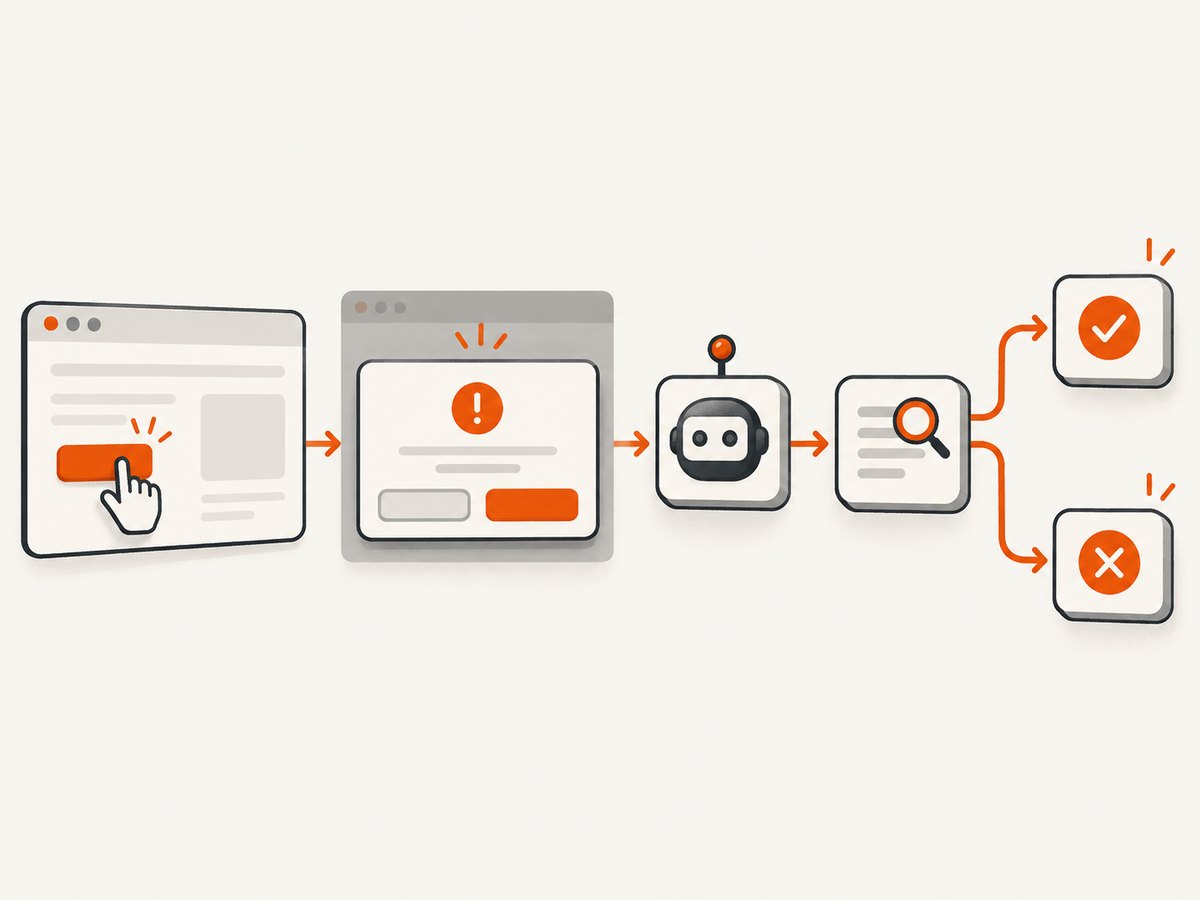
})();Replace the example URL and selector with your application. The important ordering is: trigger the dialog, wait for presence, switch to the alert, read its text, assert or store it, and choose an outcome before continuing.
Why getText() is the essential operation
In Selenium’s JavaScript API, alert.getText() returns a promise that resolves to the message displayed by the native dialog. Because it is asynchronous, use await or return the promise. Calling it without waiting can produce an unresolved promise in your assertion or cause later commands to run in the wrong order.
Read the message before closing the dialog. After accept() or dismiss(), the alert is no longer present and attempting to read it again can raise a no-such-alert error.
Waiting correctly and avoiding race conditions
A confirmation may appear immediately after a click or after asynchronous application work. A fixed sleep is fragile: it wastes time when the dialog is fast and still fails when the page is slow. Selenium’s explicit wait polls until an alert is present:
const alert = await driver.wait(until.alertIsPresent(), 10000);
const message = await alert.getText();The timeout is in milliseconds for the JavaScript binding. Choose a limit appropriate for your application and keep it bounded so a broken page does not stall the suite indefinitely. Trigger the action immediately before the wait when possible; this narrows the chance of consuming an unrelated alert.
Handling a dialog that may or may not appear
If an alert is optional, catch the timeout and continue deliberately:
const { error: TimeoutError } = require('selenium-webdriver').error;

try {
  const alert = await driver.wait(until.alertIsPresent(), 3000);
  const message = await alert.getText();
  await alert.accept();
  console.log({ shown: true, message });
} catch (err) {
  if (err.name !== 'TimeoutError') throw err;
  console.log({ shown: false });
}
Do not swallow every exception. A stale session, disconnected driver, or unexpected browser error needs to fail the test rather than look like an absent confirmation.
Accepting, dismissing, and testing the result
Use accept() for the affirmative branch and dismiss() for Cancel. A confirm dialog’s return value is controlled by this choice, so verify the resulting page state when it matters:
const alert = await driver.wait(until.alertIsPresent());
const text = await alert.getText();
await alert.accept();
await driver.wait(until.urlContains('/deleted'), 10000);
For a cancel path:
const alert = await driver.wait(until.alertIsPresent());
const text = await alert.getText();
await alert.dismiss();
await driver.wait(until.elementLocated(By.css('.item-row')), 10000);
Capture the text in your test report before taking the action. Exact wording belongs to the application; Selenium’s “Are you sure?” example is illustrative, not universal. Prefer stable expected strings supplied by product requirements, and avoid assertions that depend on punctuation or localization unless that is what you are testing.
Python equivalent
Python exposes the same message as the alert object’s text property. Selenium’s expected-conditions helper waits for presence:
from selenium import webdriver
from selenium.webdriver.common.by import By
from selenium.webdriver.support.ui import WebDriverWait
from selenium.webdriver.support import expected_conditions as EC

options = webdriver.ChromeOptions()
options.add_argument('--headless=new')
driver = webdriver.Chrome(options=options)

try:
    driver.get('https://example.test/confirmation')
    driver.find_element(By.CSS_SELECTOR, '#delete-button').click()

    alert = WebDriverWait(driver, 10).until(EC.alert_is_present())
    message = alert.text
    assert message == 'Are you sure you want to delete this item?'
    alert.dismiss()
finally:
    driver.quit()
Use alert.accept() for OK. A prompt can additionally receive input with alert.send_keys('value'); send_keys() is not supported for alert or confirm dialogs.
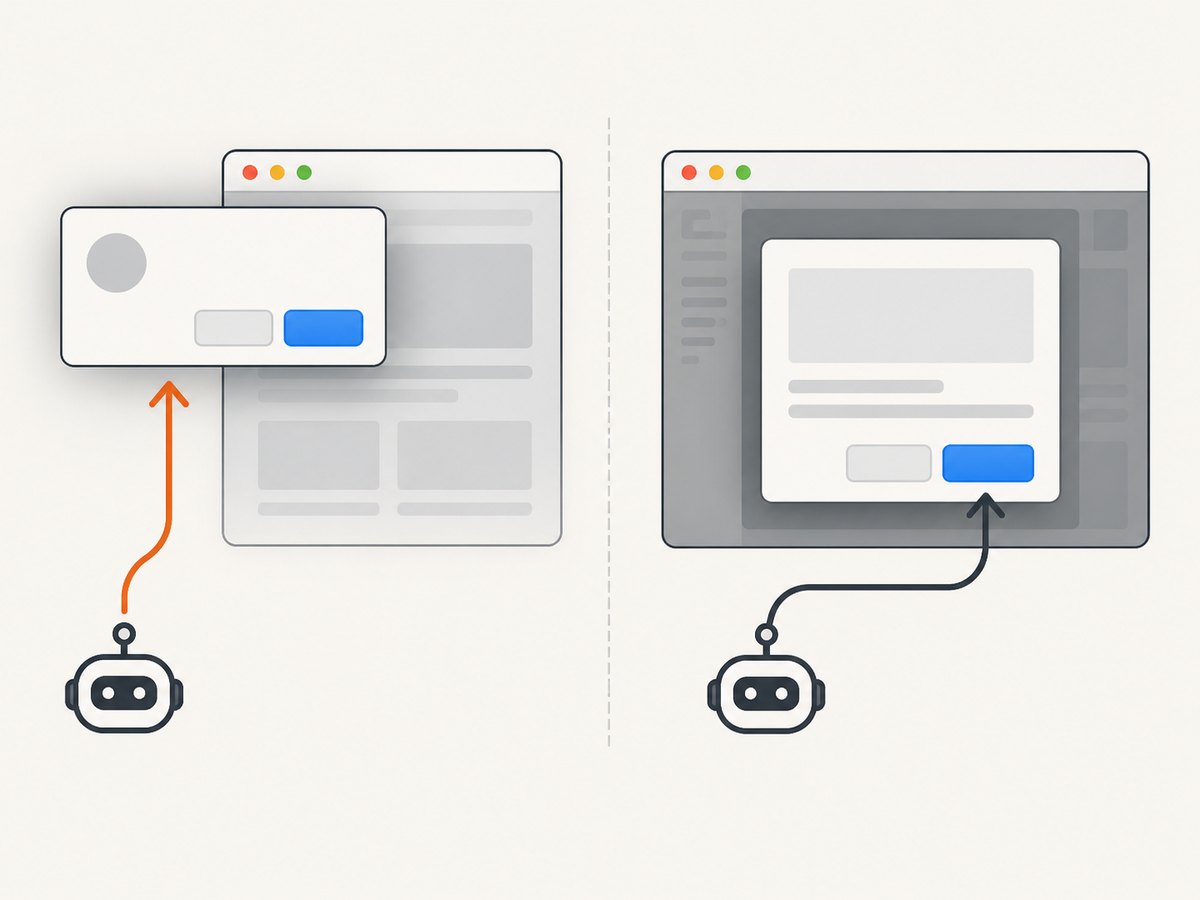
Native dialogs versus custom modals
When a selector such as .modal works in browser developer tools, the component is probably an HTML modal. Handle it as an element:
const modal = await driver.findElement(By.css('[role="dialog"]'));
const message = await modal.getText();
await modal.findElement(By.css('button.cancel')).click();
Native dialogs block normal page interaction while open. You cannot inspect their message through the DOM, and browser automation APIs may expose only the WebDriver alert interface. If the application replaces window.confirm with a custom function, inspect the implementation and test the resulting DOM instead.
Common errors and fixes
| Error | Likely cause | Fix |
|---|---|---|
NoSuchAlertError |
The wait ran before the action, the dialog was already closed, or the page never opened one. | Trigger the action first, wait with until.alertIsPresent(), and inspect whether the application actually calls confirm(). |
| Timeout waiting for alert | The click did not happen, a validation branch prevented the dialog, or the timeout is too short. | Assert the trigger element is clickable, check browser logs and page state, and increase the bounded timeout only after diagnosing the page. |
| Element not interactable after dialog | The native dialog is still open. | Read the text and call accept() or dismiss() before interacting with page elements. |
| CSS selector cannot find message | The message is browser UI, not page DOM. | Switch to the alert and call getText(). |
| Unexpected text | Locale, dynamic data, whitespace, or a different confirmation branch. | Log the returned string, normalize only where appropriate, and assert the contract for the active locale. |
sendKeys() fails |
The dialog is an alert or confirm, not a prompt. | Use sendKeys() only with a prompt that has an input field. |
| Works headed but not headless | Timing, permissions, browser version, or a different code path. | Run the same browser version in CI, capture logs, and use explicit waits rather than sleeps. |
Reliability and performance checklist
- Use explicit alert waits with a finite timeout.
- Keep the trigger and alert wait adjacent in the test.
- Read text before accepting or dismissing.
- Assert the message when wording is part of the requirement; otherwise record it for diagnostics.
- Test both OK and Cancel branches for destructive actions.
- Run locale-specific cases when message text is translated.
- Always quit the driver in a
finallyblock. - Keep browser and driver versions compatible in CI.
- Do not add arbitrary sleeps to compensate for a missing synchronization condition.
Alert handling itself is normally quick; overall test time is dominated by browser startup, navigation, network conditions, and page JavaScript. Reuse a driver for a test suite when isolation rules allow it, while creating a fresh session for tests that could leave modal or authentication state behind.
Capturing evidence of the dialog
Selenium can save a screenshot of the browser viewport, but a native dialog’s exact message may not be represented consistently in image output across operating systems. Store the string returned by getText() in your test report and attach the screenshot as supplementary evidence. If the target is a web page rather than browser chrome, a screenshot service can provide repeatable image or PDF artifacts.
Or skip the browser setup
If your goal is a clean page screenshot after handling a site, ScreenshotNeo provides a one-call capture API and an MCP server for Claude, Cursor, and other MCP clients. It accepts consent banners like a visitor and removes more than 60 known consent platforms, newsletter popups, and chat widgets before capture; each step can be disabled. Bot checks, blank pages, timeouts, failed loads, and cache hits are not billed, and response headers identify the page verdict and billing status.
See the ScreenshotNeo API documentation for all options. cURL:
curl -G 'https://api.screenshotneo.com/v1/shot' -d access_key=YOUR_API_KEY --data-urlencode url=https://stripe.com -o shot.webpPython:
import requests
r = requests.get('https://api.screenshotneo.com/v1/shot', params={'access_key': 'YOUR_API_KEY', 'url': 'https://stripe.com'}, timeout=90)
open('shot.webp', 'wb').write(r.content)
Node.js:
const q = new URLSearchParams({ access_key: 'YOUR_API_KEY', url: 'https://stripe.com' });
const res = await fetch(`https://api.screenshotneo.com/v1/shot?${q}`);
const image = Buffer.from(await res.arrayBuffer());
ScreenshotNeo supports PNG, JPEG, WebP, and PDF output; full-page and element capture, dark mode, device presets, retina scale, custom CSS and JavaScript, waits, request blocking, headers, cookies, user agents, geolocation, caching, signed links, async webhooks, bulk capture, usage reporting, and HTML/CSS rendering. The MCP tools are take_screenshot, get_page_info, and capture_pdf.
The Free plan includes 1,000 screenshots each month with no card. Paid plans start at $5 for 3,000 shots; yearly billing gives two months free, and every feature is included on every plan. Create a free ScreenshotNeo account.
FAQ
Can Selenium read a confirm message without clicking OK or Cancel?
Yes. Call getText() first. The dialog remains open until you call accept() or dismiss().
Does getText() return the page’s HTML?
No. It returns only the message displayed by the native alert, confirm, or prompt.
Can I use JavaScript to inspect the dialog?
Do not rely on DOM inspection. Native dialogs are outside the page DOM; use WebDriver’s alert interface.
How do I test a prompt response?
Wait for the alert, read getText(), call sendKeys() with the response, then call accept().
Why does the same test have different text on different machines?
Application locale, browser configuration, user data, and dynamic values can change the message. Make the test environment explicit and assert the intended localized contract.


