How to Read a PDF with Puppeteer and Display It in HTML
Puppeteer creates PDFs from web pages; PDF.js renders existing PDFs in HTML. Learn which tool fits, how to wire up both workflows, and how to troubleshoot them.

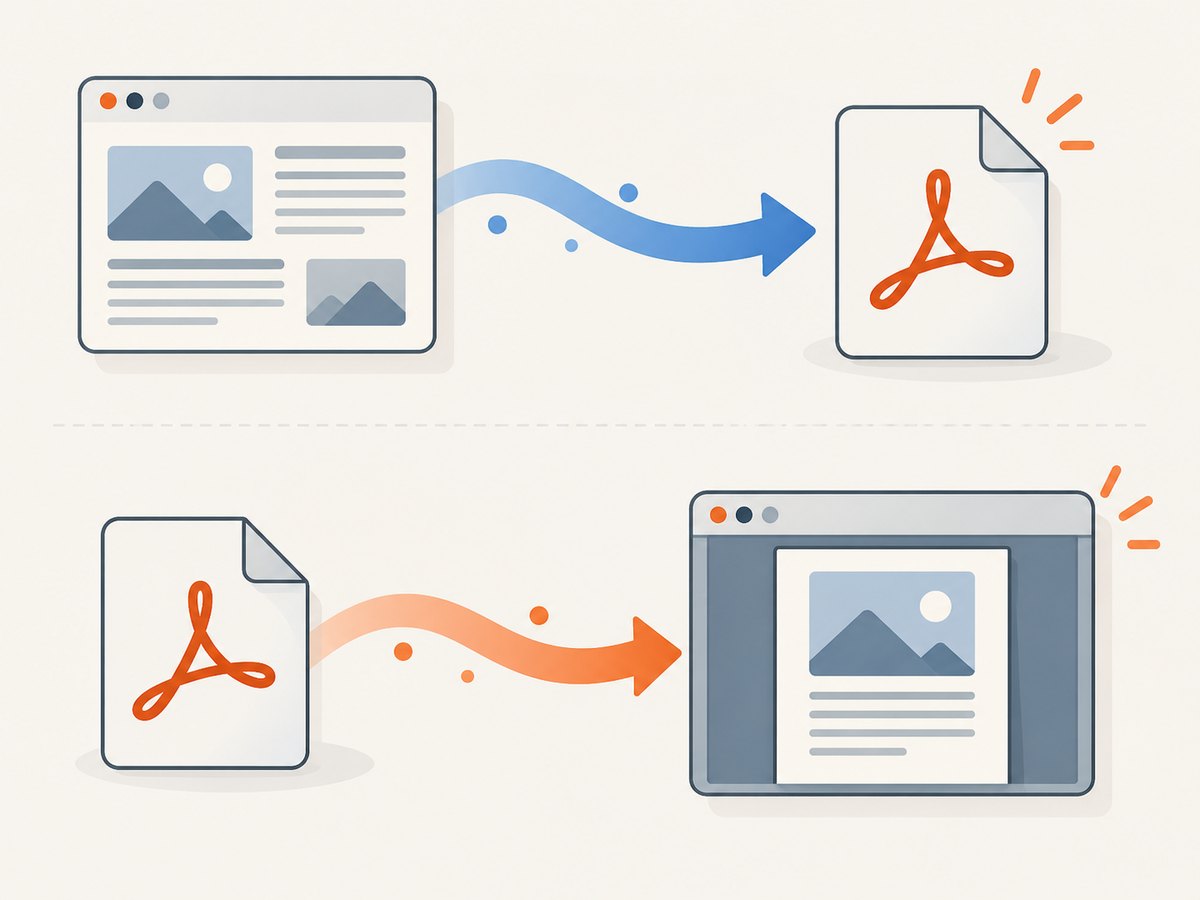
Short answer: Puppeteer is for creating a PDF from a web page. To display an existing PDF inside an HTML application, use Mozilla’s PDF.js: load the document, fetch a page, size a canvas, and render that page into it. Puppeteer’s PDF guide says, “For printing PDFs use Page.pdf().” That API is not a PDF-to-HTML parser. Puppeteer PDF generation guide; PDF.js browser example.
These are related tasks, but they have different inputs and outputs. The distinction matters if your goal is to show a document to a user rather than print your own web page. PDF.js renders the page visually into a canvas; that does not turn the document’s text into semantic HTML. If you need searchable text, accessible text structure, or content extraction, plan that as a separate requirement and choose an appropriate text extraction workflow.
1. Choose the workflow that matches the PDF
| What you have | What you need | Use |
|---|---|---|
| A web page you control or can navigate to | A downloadable PDF | Puppeteer page.pdf() |
| An existing PDF file or URL | Its pages visible in a web application | PDF.js display API and an HTML canvas |
| A PDF URL you want a headless browser to open | Browser automation around the PDF document | Do not assume Puppeteer headless shell can navigate to it; its Page API documents that PDF navigation limitation |
page.setContent() assigns HTML markup to a page, and page.content() returns the page’s HTML. Neither API reads an existing PDF. Likewise, page.goto(pdfUrl) is not a dependable way to read a PDF in Puppeteer’s headless shell. See the setContent API, content API, and Page API.
2. Display an existing PDF with PDF.js
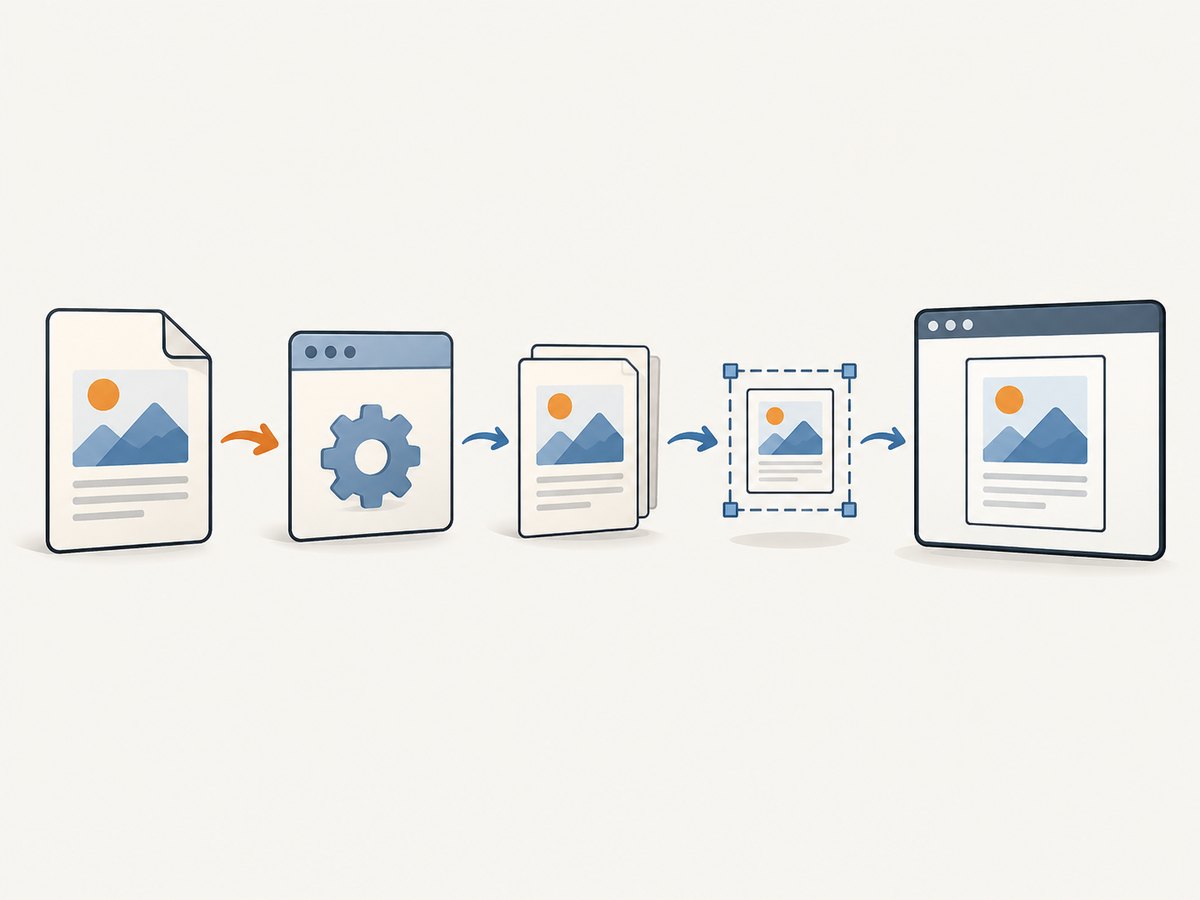
The minimal browser-side rendering sequence is: load PDF.js and its worker, request the document, get a page, compute a scaled viewport, size a canvas, and render. The example below uses the browser module build distributed with PDF.js. Pin a PDF.js release in your application and verify its documented module and worker paths for that release; package layouts can change.
Runnable HTML example
Save as index.html in a project where the pdfjs-dist package is installed and served by a development server. Put a sample PDF at ./sample.pdf. The example uses a same-origin PDF so that the browser does not need cross-origin permission.
<!doctype html>
<html lang="en">
<head>
  <meta charset="utf-8">
  <meta name="viewport" content="width=device-width, initial-scale=1">
  <title>PDF page viewer</title>
  <style>
    body { font: 16px system-ui, sans-serif; margin: 2rem; }
    canvas { display: block; max-width: 100%; height: auto; border: 1px solid #ccc; }
    .controls { display: flex; gap: .75rem; align-items: center; margin-bottom: 1rem; }
  </style>
</head>
<body>
  <h1>PDF page viewer</h1>
  <div class="controls">
    <button id="prev" type="button" disabled>Previous</button>
    <span id="status">Loading PDF…</span>
    <button id="next" type="button" disabled>Next</button>
  </div>
  <canvas id="pdf-canvas"></canvas>
  <p id="error" role="alert"></p>

  <script type="module">
    import * as pdfjsLib from './node_modules/pdfjs-dist/build/pdf.mjs';

    // Keep the worker from the same installed PDF.js package and version.
    pdfjsLib.GlobalWorkerOptions.workerSrc =
      './node_modules/pdfjs-dist/build/pdf.worker.mjs';

    const canvas = document.querySelector('#pdf-canvas');
    const context = canvas.getContext('2d');
    const status = document.querySelector('#status');
    const errorBox = document.querySelector('#error');
    const previous = document.querySelector('#prev');
    const next = document.querySelector('#next');
    let pdf;
    let pageNumber = 1;
    let rendering = false;
    let queuedPage = null;

    async function renderPage(number) {
      if (rendering) {
        queuedPage = number;
        return;
      }
      rendering = true;
      try {
        const page = await pdf.getPage(number);
        const cssScale = 1.25;
        const viewport = page.getViewport({ scale: cssScale });
        const outputScale = window.devicePixelRatio || 1;

        canvas.width = Math.floor(viewport.width * outputScale);
        canvas.height = Math.floor(viewport.height * outputScale);
        canvas.style.width = `${Math.floor(viewport.width)}px`;
        canvas.style.height = `${Math.floor(viewport.height)}px`;

        await page.render({
          canvasContext: context,
          viewport,
          transform: outputScale !== 1
            ? [outputScale, 0, 0, outputScale, 0, 0]
            : null
        }).promise;

        pageNumber = number;
        status.textContent = `Page ${pageNumber} of ${pdf.numPages}`;
        previous.disabled = pageNumber <= 1;
        next.disabled = pageNumber >= pdf.numPages;
      } finally {
        rendering = false;
        if (queuedPage !== null) {
          const nextPage = queuedPage;
          queuedPage = null;
          void renderPage(nextPage);
        }
      }
    }

    previous.addEventListener('click', () => {
      if (pageNumber > 1) void renderPage(pageNumber - 1);
    });
    next.addEventListener('click', () => {
      if (pageNumber < pdf.numPages) void renderPage(pageNumber + 1);
    });

    try {
      const loadingTask = pdfjsLib.getDocument({ url: './sample.pdf' });
      pdf = await loadingTask.promise;
      next.disabled = pdf.numPages <= 1;
      await renderPage(1);
    } catch (error) {
      status.textContent = 'Could not load the PDF.';
      errorBox.textContent = error instanceof Error ? error.message : String(error);
      console.error(error);
    }
  </script>
</body>
</html>
The PDF.js example documents the same core calls: getDocument, getPage, getViewport, and page.render. It also configures GlobalWorkerOptions.workerSrc and accounts for the device output scale. Those details are part of a working setup, not optional decoration. Consult the official example when adapting package paths or APIs.
Serve the page over HTTP
Use your framework’s development server or another local HTTP server. Opening the HTML directly as a file: URL can prevent module and worker loading. The sample paths above assume the server exposes node_modules; many production servers deliberately do not. In a bundled app, import the package through the bundler and configure the worker asset according to that bundler’s conventions.
Remote PDFs and CORS
If the PDF URL is on another origin, the PDF host must allow the browser page’s origin through its CORS response headers. A successful request in a server-side script does not prove that browser JavaScript can fetch the same resource: browser cross-origin rules still apply. Configure the PDF-serving host, or proxy the file through an application server that you control and that has permission to retrieve it. Do not try to fix a CORS denial by disabling browser security for users.
3. Render size, resolution, and multiple pages
Choose an appropriate scale
getViewport({ scale }) determines the page’s CSS dimensions. A larger scale draws more pixels and improves detail, but consumes more memory and rendering time. The output-scale transform multiplies the backing canvas dimensions by devicePixelRatio while retaining CSS dimensions, which keeps the page crisp on high-density displays. For a fit-to-container viewer, calculate a scale from the available width and the page’s unscaled viewport width, then rerender on resize. Avoid letting a long document allocate a canvas for every page at once.
Navigate without overlapping renders
The example has previous/next controls, tracks pdf.numPages, and queues the latest requested page if a render is already underway. This matters because canvas rendering is asynchronous. More complete viewers can add a page number input, zoom controls, download links, loading indicators, and cancellation for obsolete renders. Keep the example’s state tied to the currently displayed page and disable navigation at the document boundaries.
Canvas display is visual rendering
A canvas does not provide normal selectable HTML text for the rendered page. If your interface needs selectable/searchable text or accessibility semantics, visual canvas output alone does not meet that need. PDF.js has distinct core, display, and viewer layers; its viewer can be a starting point for a richer interface, but Mozilla asks sites embedding it not to use it unmodified. See the PDF.js viewer guidance.
4. Generate a PDF from a page with Puppeteer
If by “read a PDF with Puppeteer” you mean “open a web page and produce its PDF,” Puppeteer is the relevant tool. The documented page.pdf() method prints using print CSS by default and returns a Promise<Uint8Array>. Here is a complete Node.js example that writes a PDF to disk.
import puppeteer from 'puppeteer';

const browser = await puppeteer.launch();
try {
  const page = await browser.newPage();
  await page.goto('https://example.com', { waitUntil: 'networkidle0' });
  await page.pdf({
    path: 'page.pdf',
    format: 'A4',
    printBackground: true,
    margin: { top: '12mm', right: '12mm', bottom: '12mm', left: '12mm' }
  });
} finally {
  await browser.close();
}
Install Puppeteer in the project using its documented installation instructions, then run this as an ES module. Replace the target URL with a page you are authorized to capture. waitUntil: 'networkidle0' is one navigation option; applications with long-lived network connections may need a more specific readiness signal, such as waiting for a selector that indicates the page’s content is ready.
The Puppeteer options let you set a paper format or explicit width and height, margins, landscape orientation, background printing, page ranges, and scale. If the page should use screen styles, call await page.emulateMediaType('screen') before page.pdf(). The documented default is print media; colors may be adjusted for printing. For exact colors, the API documents -webkit-print-color-adjust. See the Page.pdf API and PDF guide for the supported options and behavior.
5. Troubleshooting
| Symptom | Likely cause | Fix |
|---|---|---|
| “Setting up fake worker” or worker load failure | The worker path is missing, inaccessible, or from a different PDF.js package version | Set GlobalWorkerOptions.workerSrc to the worker shipped with the installed PDF.js version. Check the browser network panel for a 404 or module error. |
| PDF request fails only in the browser | Cross-origin access is not allowed by the PDF server | Serve the PDF same-origin, configure the PDF host’s CORS headers, or fetch it through an authorized server-side proxy. |
| Blank or clipped canvas | Canvas backing dimensions were not set from the viewport, CSS constrained it, or a render is still pending | Set canvas width and height from the viewport and output scale, preserve its CSS aspect ratio, and serialize rendering. |
| PDF fails when opened with Puppeteer | The job is trying to navigate headless shell to a PDF document | Use PDF.js in a browser for existing-PDF display. Use Puppeteer page.pdf() when generating a PDF from a web page. |
| Generated PDF omits styles or content | The page was printed before its content was ready, or print CSS hides/reflows the desired content | Wait for an application-specific ready selector; inspect print styles. Emulate screen media before printing if screen styling is the required output. |
| Colors differ from the page | PDF printing uses print behavior and can modify colors | Use print CSS deliberately; where exact colors are required, apply the documented -webkit-print-color-adjust setting and verify the output. |
| PDF.js works in development but breaks after deployment | The bundler or static server did not publish the worker asset at the configured path | Configure the worker as an emitted asset or use the bundler’s supported worker import pattern, keeping the library and worker versions aligned. |
6. Performance, reliability, and cost
For browser rendering, the main practical costs are downloading the PDF, decoding its pages, and allocating canvas memory. Render the visible page on demand, reuse a canvas, and avoid very high scale values unless the user needs them. Large documents should be tested with the range of file sizes and page dimensions your application expects. Give the loading state a useful failure message and handle rejected loading and rendering promises; a PDF URL can be unavailable, malformed, or blocked by browser policy.
For PDF generation, wait for the content that matters instead of relying on a fixed sleep. If a page has animations or dynamic data, make readiness explicit and consider a print stylesheet. Always close the browser in a finally block, as in the example, so errors do not leave browser processes running. Puppeteer’s browser dependency has deployment and resource costs, while PDF.js rendering shifts work to the client browser. Neither approach has a universal cost figure in the cited documentation; estimate using your own document sizes, concurrency, runtime, and infrastructure.
Pin library versions and deploy the PDF.js worker that matches the display library. Verify browser support and your bundler’s asset handling against those pinned versions. The official examples describe APIs, not independent compatibility tests for every build setup.
7. Or skip the browser setup
If the result you need is a screenshot of a web page or a PDF capture of a web page, ScreenshotNeo offers a website screenshot API and MCP server. A single GET request returns an image or PDF. It does not convert an existing PDF into semantic HTML; use PDF.js for that job. See the ScreenshotNeo API documentation.
curl -G "https://api.screenshotneo.com/v1/shot" \
  -d access_key=YOUR_API_KEY \
  --data-urlencode url=https://stripe.com \
  -o shot.webp
import requests
r = requests.get(
"https://api.screenshotneo.com/v1/shot",
params={"access_key": "YOUR_API_KEY", "url": "https://stripe.com"},
timeout=90,
)
r.raise_for_status()
open("shot.webp", "wb").write(r.content)const q = new URLSearchParams({
access_key: 'YOUR_API_KEY',
url: 'https://stripe.com'
});
const res = await fetch(`https://api.screenshotneo.com/v1/shot?${q}`);
if (!res.ok) throw new Error(`Screenshot request failed: ${res.status}`);
await Bun.write('shot.webp', res);ScreenshotNeo accepts cookie banners like a visitor and removes more than 60 known consent platforms, newsletter popups, and chat widgets before capture; each step can be turned off. Bot checks, blank pages, timeouts, failed loads, and cache hits cost nothing, and response headers report the page verdict and billing status. Its MCP server provides take_screenshot, get_page_info, and capture_pdf for Claude, Cursor, and other MCP clients. The Free plan includes 1,000 shots a month with no card; paid plans start at $5 for 3,000. Sign up for 1,000 free screenshots a month, with no card required.
FAQ
Can Puppeteer convert an existing PDF into HTML?
The cited Puppeteer APIs do not document that conversion. Page.pdf() creates a PDF from a page; Page.content() returns page HTML. PDF.js can render an existing PDF visually into a canvas.
Can I use PDF.js with a PDF on another domain?
Yes, if that PDF server permits the browser page’s origin with CORS headers. Otherwise serve it from the same origin or use an authorized proxy.
Does the canvas make PDF text selectable?
The rendering shown here paints the page into a canvas. It is a visual display; do not treat it as semantic HTML text.
When should I use Puppeteer?
Use it when your input is a web page and your output should be a PDF. Use PDF.js when your input is already a PDF and your output should be pages displayed in a web interface.


