How to Generate Real Estate Listing Images in Multiple Sizes
Make listing photo sets for different MLS and client requirements with a repeatable batch-export workflow that preserves originals and aspect ratio.
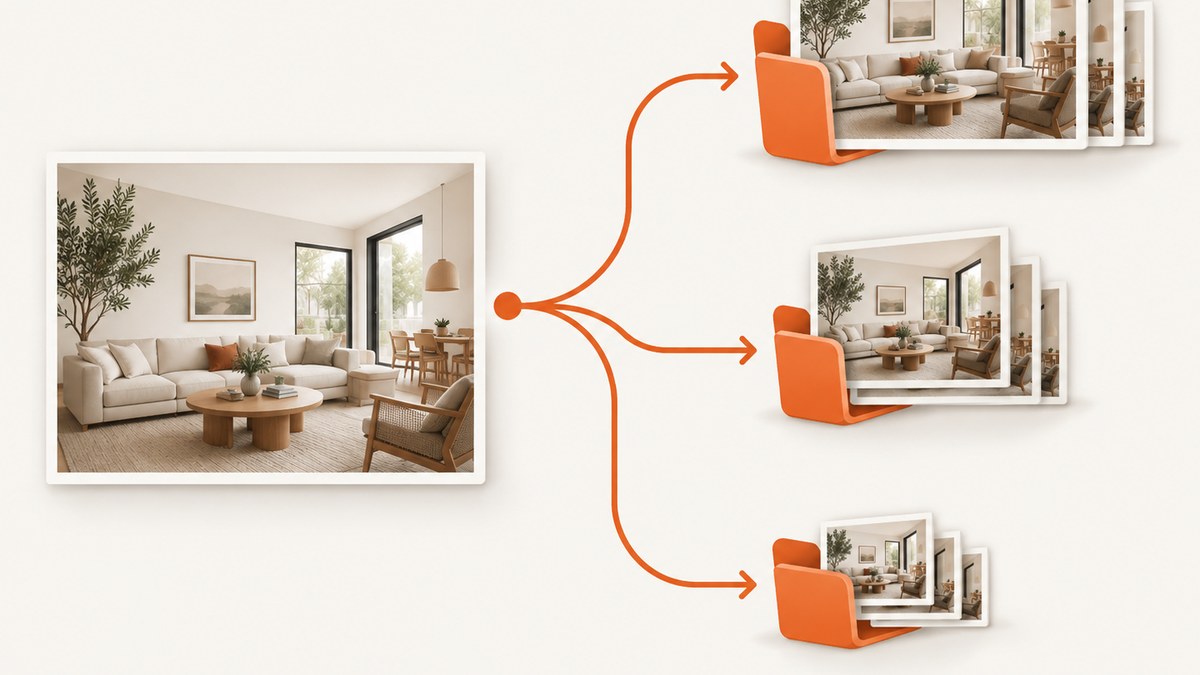
To generate real estate listing images in multiple sizes, keep the original photos untouched, identify each destination’s current requirements, then batch-export a separate copy for each required dimension or file-size limit. Preserve aspect ratio unless the destination specifically requires a crop. There is no single universal MLS photo size: the rules differ by system, and a file can meet a pixel limit while exceeding a file-size cap.
This workflow works in a photo editor with batch export. Lightroom Classic is one documented example: its export controls can resize selected photos to fit width and height constraints while retaining their aspect ratio. The same basic process applies to other editors, though names and controls vary. [Adobe’s Lightroom Classic export documentation]
1. Collect the requirements for every destination
Before resizing, list where each set will go: the local MLS, brokerage listing system, property website, print or client delivery service. For each destination, check its current official photo specifications. Record:
- Minimum and maximum pixel dimensions, including whether the rule applies to width, height, or either side.
- Maximum file size per photo.
- Accepted file formats.
- Whether the system resizes uploaded images automatically.
- Aspect-ratio, crop, resolution or DPI requirements.
- Rules for altered, enhanced or virtually staged images.
Treat these as separate constraints. Pixel dimensions describe the image’s width and height; file size describes how much storage the encoded file uses. A high-detail JPEG can exceed a megabyte limit at dimensions that otherwise comply, while compressing a file does not change its pixel dimensions.
Official examples show why checking matters. Flexmls lists a 15 MB or 3000 × 2000 pixel maximum and says the local MLS sets the photo count. MLSListings says its system has a 10 MB per-photo limit and automatically optimizes uploads to 1440 × 1080; its 3000–4000 pixel-wide “sweet spot” is specific to that service. SmartMLS connectMLS recommends JPEGs at 1920 × 1080 or larger, automatically resizes other dimensions, and lists a 40 MB limit. Unlock MLS guidance specifies a 2048 × 1536 minimum and a 90 DPI maximum. RealMLS lists a 15 MB or 3000 × 2000 maximum and says enhanced or virtually staged images must display before-and-after images. These are examples for named systems, not a shared standard. [Flexmls photo requirements] [MLSListings photo requirements] [SmartMLS connectMLS photo requirements] [Unlock MLS guidance] [RealMLS photographer toolkit]
Confirm the exact current specification with the system receiving your upload. Requirements can change, and a nearby MLS may have different rules. If the official page is unclear, check with the MLS or brokerage support team rather than choosing a size based on another market’s guidance.
2. Preserve the originals and plan the output sets
Keep a full-resolution master of every delivered photo. Make a working copy or export resized versions to separate folders; do not overwrite the only original. This lets you create a different delivery later without enlarging a smaller export, which cannot restore lost detail.
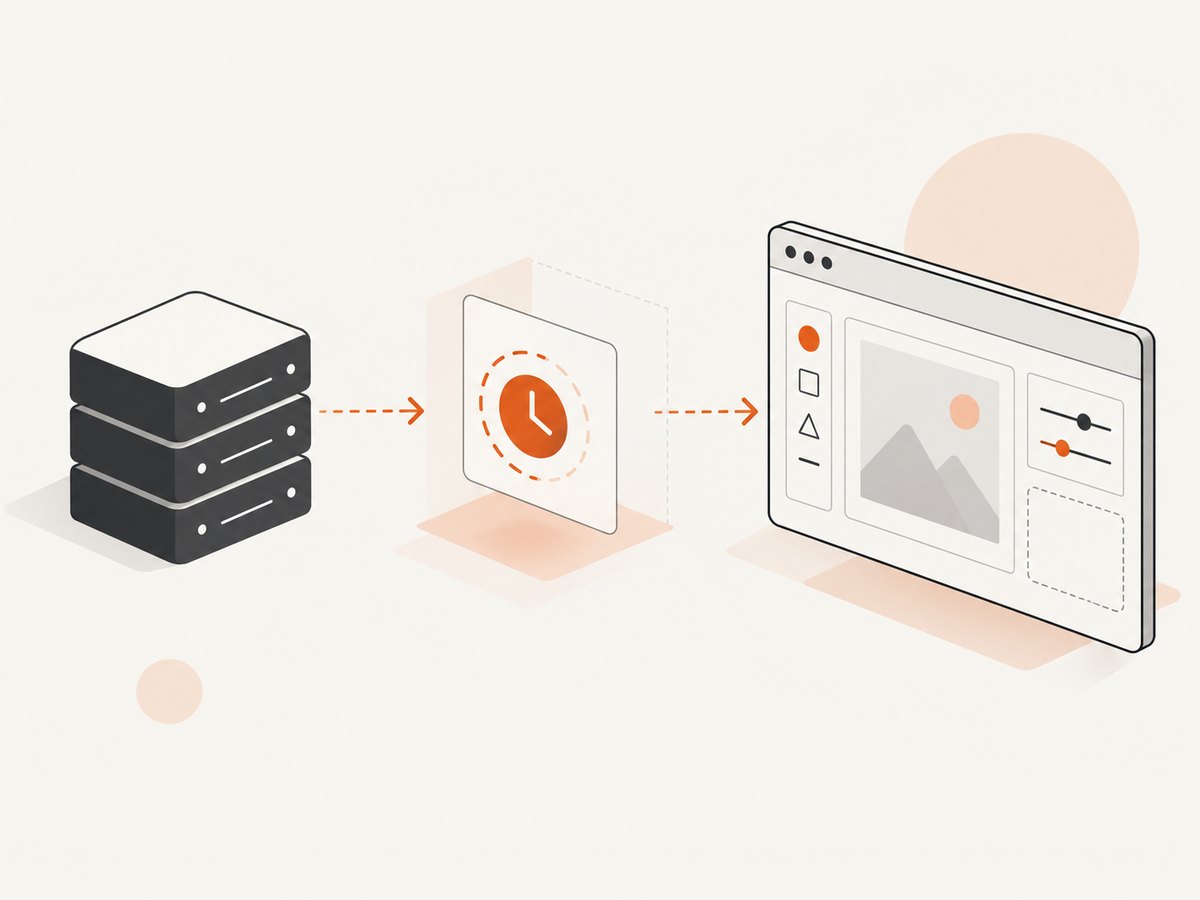
A simple folder structure makes it harder to upload the wrong version:
Property-123/
  originals/
  exports/
    local-mls/
    brokerage-site/
    client-full-resolution/
Name presets and folders for the destination or requirement, not just “small” and “large.” Two destinations may have similar dimensions but different format, size-cap or content rules. Preserve a full-resolution client set when requested, even if the MLS copy must be smaller.
3. Set dimensions without accidentally cropping
For resizing without changing composition, constrain the image to a maximum width and height and preserve its aspect ratio. A landscape photo that is 6000 × 4000 pixels, for example, scales to fit inside a 3000 × 2000 box. A portrait or panorama may use fewer pixels on one side because it retains its original shape.
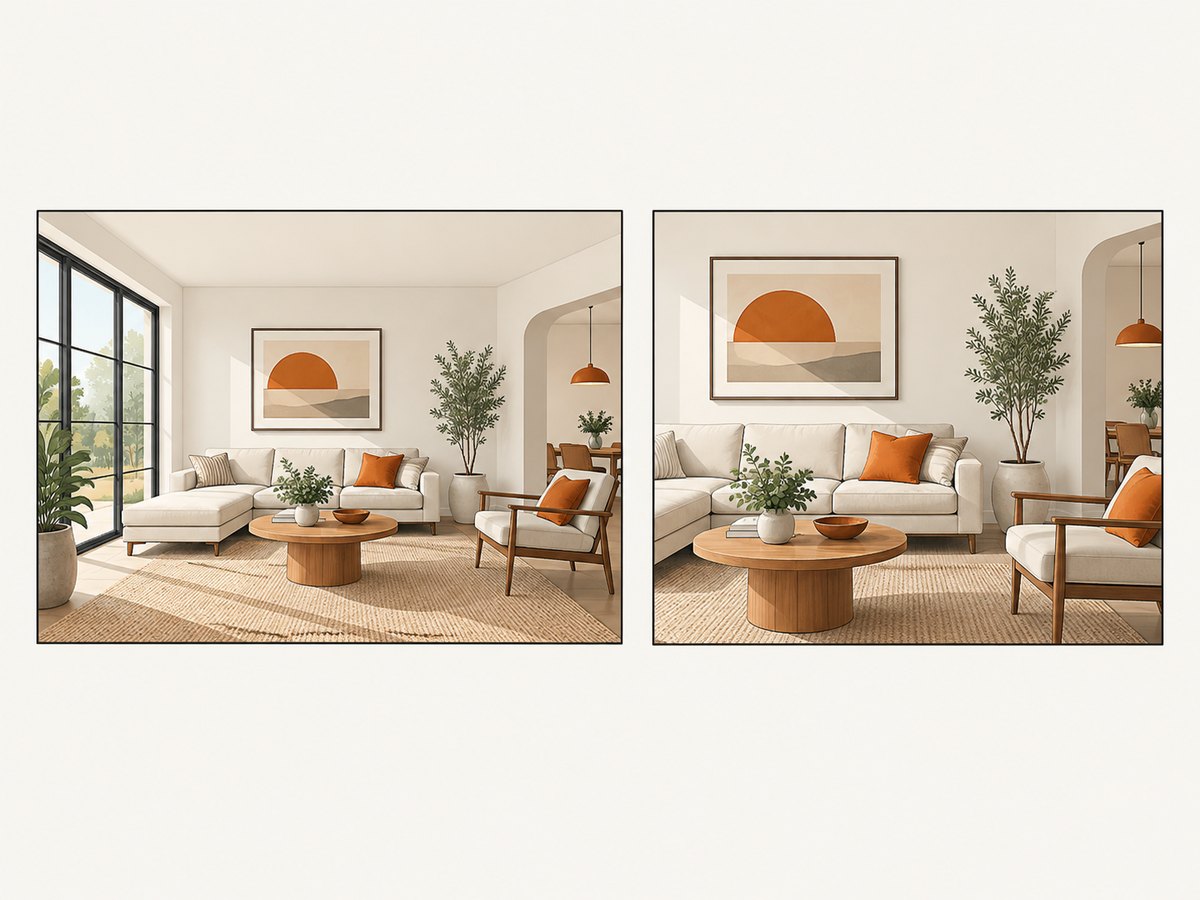
Resizing and cropping are different operations. Resizing changes the number of pixels while keeping the same scene boundaries. Cropping removes some of the scene to reach a target ratio or composition. If a destination needs a specific ratio, decide whether to crop, pad, or let the platform resize; inspect the result so you do not cut off a room feature or distort the view. Avoid stretching one dimension independently, which changes the proportions of walls, windows and furniture.
In Lightroom Classic, select the photos, open the export dialog, enable its “Resize To Fit” control, then choose a width-and-height constraint and enter the destination’s maximum pixel dimensions. Adobe says the Width & Height mode fits within the box while retaining aspect ratio. Keep the editor’s output separate from the originals. Labels may vary by version. [Adobe resize reference]
4. Batch-export one set per destination
- Select the final, edited listing photos. Make sure the edits and any permitted enhancements are complete before creating delivery versions.
- Choose the destination preset or configure its dimensions, output format, quality and file-size target.
- Export to that destination’s folder using a recognizable naming pattern.
- Repeat for each destination whose requirements differ. Avoid reusing an export preset until you have confirmed all relevant settings match.
- Keep the originals and, where requested, a full-resolution delivery separate from constrained upload copies.
Adobe documents exporting multiple selected photos in Lightroom Classic. Batch export saves repetitive work, but the preset still needs to match the particular destination. [Adobe batch export workflow]
For JPEG, adjust quality only as needed to satisfy a stated file-size cap while keeping image detail acceptable. There is no single quality number that guarantees the same file size for every scene: detailed foliage, room textures and smooth walls compress differently. Use the platform’s required format if it names one. Do not convert to a format simply because it produces a smaller file if that format is not accepted.
5. Verify the exported files before upload
- Check pixel width and height for a sample and then verify the whole batch.
- Check every file’s format and size against the target system’s limits.
- Open images at normal viewing size to review sharpness, color, orientation and crop.
- Compare each crop with the original to ensure important property details remain visible.
- Confirm that filenames, order and required before-and-after pairs are correct.
When a batch is large, use your editor’s metadata or file browser details to inspect dimensions and sizes, or use an image utility that reports them. Do not assume a preset guarantees compliance if it only controls dimensions and leaves format or compression settings untouched.
Example specifications: why there is no universal MLS size
| System | Published example | What to verify |
|---|---|---|
| Flexmls | Up to 15 MB or 3000 × 2000 px; local MLS sets photo count | Accepted formats and local count |
| MLSListings | 10 MB per photo; uploads optimized to 1440 × 1080 px | Whether automatic optimization meets your delivery needs |
| SmartMLS connectMLS | JPEG at 1920 × 1080 px or larger recommended; 40 MB cap | Current recommendation and automatic resize behavior |
| Unlock MLS | 2048 × 1536 px minimum; 90 DPI maximum in cited guidance | Current dimension combinations and resolution rule |
| RealMLS | 15 MB or 3000 × 2000 px maximum | Before-and-after display rule for enhanced or virtually staged images |
Use this table to see the range, not to pick a setting for a listing. The governing specification is the one published by the destination for your property. [Flexmls] [MLSListings] [SmartMLS] [Unlock MLS] [RealMLS]
Or skip the browser setup
If you also need screenshots of listing pages, property websites or other web content, ScreenshotNeo is a website screenshot API and MCP server. One GET request returns a PNG, JPEG, WebP or PDF. It does not resize a set of source property photos for MLS delivery; use the photo-export workflow above for that job.
For a web-page capture, the API can remove cookie banners, newsletter popups and chat widgets before the shot. Bot checks, blank pages, failed loads and cache hits are not billed. AI agents can take screenshots through its MCP server. The free plan includes 1,000 shots a month with no card; paid plans start at $5 for 3,000.
cURL:
curl -G "https://api.screenshotneo.com/v1/shot" -d access_key=YOUR_API_KEY --data-urlencode url=https://stripe.com -o shot.webpPython:
import requests
r = requests.get("https://api.screenshotneo.com/v1/shot", params={"access_key": "YOUR_API_KEY", "url": "https://stripe.com"}, timeout=90)
open("shot.webp", "wb").write(r.content)
Node.js:
const q = new URLSearchParams({ access_key: 'YOUR_API_KEY', url: 'https://stripe.com' });
const res = await fetch(`https://api.screenshotneo.com/v1/shot?${q}`);
See the ScreenshotNeo API documentation for request options, response details and setup. Sign up for 1,000 free screenshots a month with no card.
Troubleshooting
The upload is rejected for dimensions
Check whether the system enforces a minimum as well as a maximum, and whether it uses width/height combinations or a long-edge limit. Re-export from the original at the required dimensions. Do not enlarge a previously reduced file when a full-resolution original is available.
The file is too large despite correct pixel dimensions
Pixel dimensions and encoded file size are independent. Confirm the required format, then adjust JPEG quality or use the platform’s accepted compression workflow. Recheck each output’s actual file size; a batch can contain a few unusually detailed images that exceed the cap.
The image looks cropped or stretched
Confirm aspect-ratio preservation is enabled and that the export did not use a fixed crop. If a specific ratio is required, crop intentionally and review the whole frame. Re-export from the original rather than trying to reverse a crop in a smaller copy.
The destination changes the image after upload
Some services resize automatically. Compare the uploaded result with your local export and consult the destination’s documentation. MLSListings and SmartMLS publish automatic-resizing behavior, but this should not be assumed for other systems.
The photo format is refused
Check the current accepted-format list for that system and export a supported type. A format accepted by one MLS may not be accepted by another. Avoid changing the extension alone; convert or export the image properly.
A virtually staged or enhanced photo is flagged
Review the content policy in addition to technical limits. RealMLS’s photographer toolkit says enhanced or virtually staged images must display before-and-after images. Follow the specific MLS’s current disclosure and display rules.
Performance, reliability and cost
Batch exporting is efficient when destinations have stable requirements: configure a preset once, select a photo set, and export. The main reliability risk is a stale or mismatched preset, so review destination rules periodically and inspect representative results after software updates. Keep originals so revised rules or client requests do not require reacquiring or reconstructing images.
Exporting several sizes consumes additional disk space because each output is another file. A JPEG quality setting can reduce output size, but the exact result varies with the content. A workflow that generates only required sets and archives originals separately keeps delivery folders easier to manage. Cost depends on the editor and tools you already use; resizing itself does not require buying a particular camera accessory or service. Lightroom Classic is one option with documented resize and multi-photo export controls, not the only option.
FAQ
Should I upload the largest possible photo?
Only if the destination accepts it and the workflow benefits from the extra detail. Follow that system’s dimension and file-size limits; some systems resize uploads automatically.
Can one export preset serve every MLS?
Only when the destinations’ current requirements match across dimensions, format, file-size limit and content rules. Keep separate presets when any of those differ.
Does changing DPI make an image larger on screen?
For pixel-based web and MLS uploads, the pixel dimensions are the central size constraint. Still follow a destination’s explicit DPI rule, such as the one cited in Unlock MLS guidance.
Can screenshots replace listing photographs?
No. Screenshots capture a rendered web page. Use properly prepared original property photos for listing image uploads and follow the MLS’s image and alteration policies.


