How to Create Real Estate Listing Sheets with Website Screenshots
Build a clear, printable property sheet with website screenshots while checking image rights, map terms, and local MLS rules before sharing.
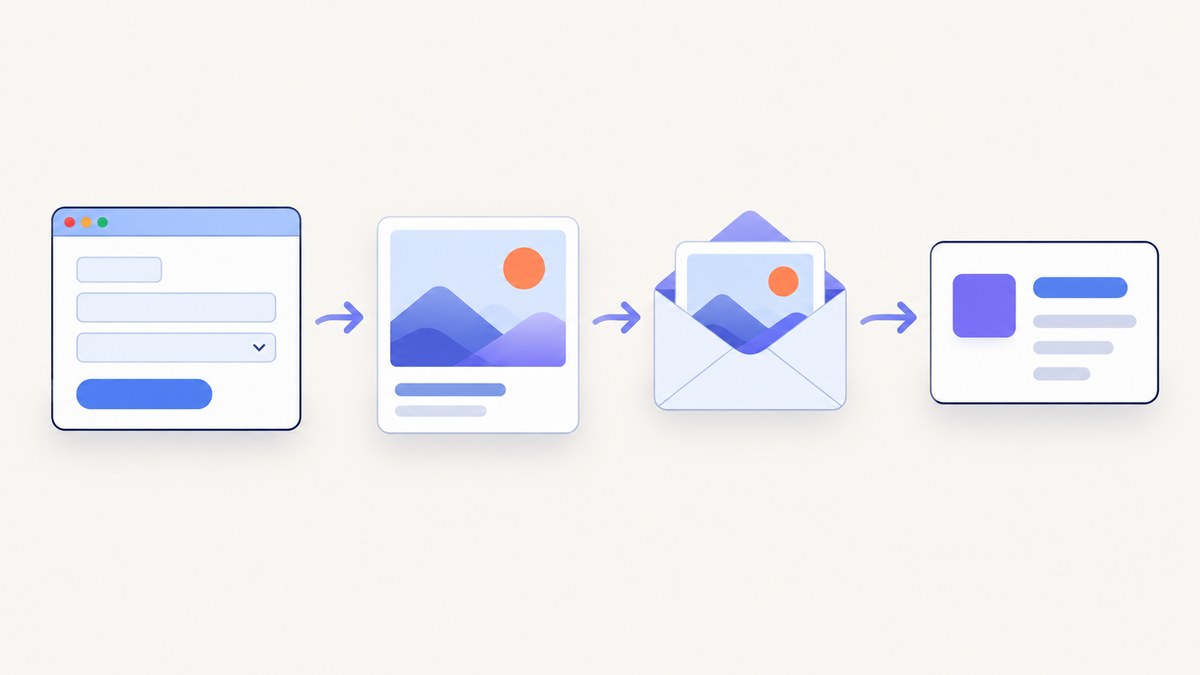
A website screenshot can help you reference a property page while creating a real estate listing sheet, but capturing a page does not give you permission to reuse its photos, map, description, floor plan, or other protected material. Check rights for every asset and the rules of your MLS and brokerage before you distribute the sheet.
For a useful one-page sheet, choose the destination first, work from the current approved listing record, use authorized images, and design for the final print or screen size. A screenshot is best treated as a reference or as an asset you have permission to use—not as a shortcut around licensing.
1. Decide what the listing sheet is for
Start by identifying who will see the sheet and how they will receive it. A handout at an open house, a PDF sent to a prospective buyer, a public property page, and media uploaded to an MLS may have different branding, disclosure, image, and attribution requirements.
| Destination | Questions to settle before layout |
|---|---|
| Printed handout | What page size and printer are planned? Must a map or image carry attribution in print? |
| PDF attachment | Will recipients print it? Are links, contact details, and disclosures readable on a phone and on paper? |
| Public property page or social post | Does the image license allow promotional use on that channel? Are third-party map or page terms compatible? |
| MLS upload | What does this specific MLS allow in media, overlays, contact information, and branding? |
Rules are local and may distinguish public marketing from MLS media. For example, ARMLS restricts agent contact information and branding in MLS media and limits image overlays. That example is not a universal rule; consult the current rules for your own MLS and brokerage before uploading anything.
2. Check rights before using screenshots or page assets
A screenshot may bundle several separate works and restrictions: listing photography, a virtual tour still, a floor plan, a rendering, a map, and creative description text. A page being publicly viewable does not establish that you may republish it in a flyer, advertisement, PDF, or MLS record.
The National Association of REALTORS® (NAR) identifies photos, virtual tours, artistic renderings, floor plans, architectural drawings, and creative listing descriptions as content that may be protected. It distinguishes raw facts from creative wording: “Four bedroom, two bath, single family home” is a factual statement, while embellished descriptive copy can involve protected expression. Treat the factual listing record as your source for claims, and separately verify the rights to expressive assets and wording.
- Photos and media: Prefer original listing photos taken or commissioned with a written license that covers the intended use. Do not copy a competitor’s gallery just because it appears online.
- Descriptions: Write your own concise copy from verified facts unless you have permission to reuse the source text.
- Floor plans, tours, and renderings: Confirm that the license includes the medium and purpose. A license for an MLS display may not automatically cover a printed promotional handout.
- Page screenshots: Check the site’s terms and rights for every visible component. Cropping or annotating a screenshot does not itself establish permission.
- Records: Keep written permissions, licenses, attribution instructions, and any relevant approvals with the project files.
CRMLS’s media FAQ provides a concrete example of a local requirement: its participants and subscribers must own or appropriately license media submitted to its MLS, and third-party media requires pre-entry written documentation authorizing the agent and broker. CRMLS also describes Google and Bing image use as limited to non-commercial uses and MLS publication as commercial. This is CRMLS guidance; check your own MLS’s current policy.
Maps need an asset-specific check
Do not assume a map screenshot is reusable because it is easy to capture. Google’s geo guidelines state: “Google Earth content may not be used for any commercial or promotional purposes.” The guidance lists real estate listings among prohibited commercial or promotional web uses for Earth imagery and says Street View imagery may not be screenshotted for any purpose.
Google Maps has different rules, including attribution requirements and limits on alteration; print, advertising, video, and commercial uses have their own conditions. Review the current terms for the specific asset and channel. When uncertain, link to the map or use a map product you are authorized to publish.
3. Gather current facts and authorized visuals
Make a content checklist before opening a design tool. Use the current approved listing record for price, status, address, beds, baths, dimensions, and other claims. These details can change, so recheck volatile facts immediately before exporting or printing. Do not let an old screenshot override the approved record.
Collect the assets and source notes together:
- Property identity: address or approved public-facing location label, listing identity, and current status.
- Key facts: price, beds, baths, area, lot size, and a small number of verified features that matter to the intended audience.
- Visuals: one strong lead image plus supporting images only where the license permits the planned use.
- Contact path: the appropriate agent or brokerage contact details for this distribution channel.
- Required material: brokerage-approved branding, disclosures, attribution, or other local requirements.
- Rights record: the asset owner, license or written permission, allowed channels, and any required credit.
If you use screenshots as references during production, capture the page only for a purpose you are allowed to pursue and avoid incorporating protected portions into the final sheet without clearance. Record the source and date so you can revisit it if facts or terms change.
4. Choose a page size and design workflow
Choose the final page dimensions before arranging content. Canva lists 8.5 × 11 inches, 11 × 17 inches, and 5.5 × 8.5 inches as common real estate flyer sizes; these are options, not universal specifications. A full letter page can suit a detailed handout, while a smaller sheet may be easier to distribute. Confirm the printer’s supported size and the intended reading distance.
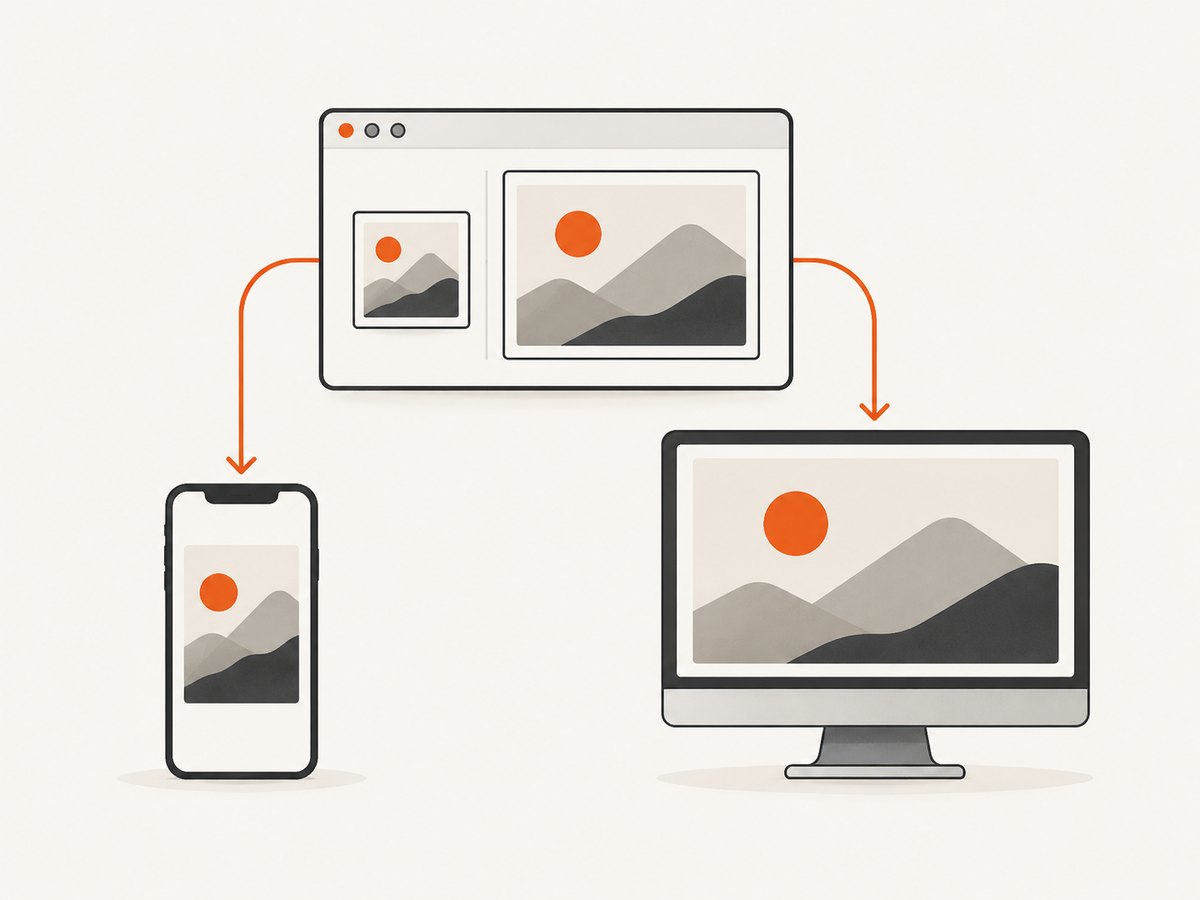
Canva’s documented workflow is to open Canva, search for “Real Estate Flyer,” choose a template, customize it with uploaded photos and branding, then print or share the design. Its template catalog supports customization of colors, fonts, logos, and property images. A brokerage-approved template may be the better starting point where branding, disclosures, or MLS-related requirements prescribe a layout.
- Select the output size. Create the design at the intended page dimensions rather than hoping a later resize preserves legibility.
- Start from an approved template or blank page. Check that the template has room for the content and mandatory elements you need.
- Place the lead image and identity. Use a representative, authorized property image and make the address or approved property name easy to find.
- Group facts. Keep price and status prominent, then place the bed/bath count, area, and a few substantiated details in a compact group.
- Add the contact path. Include the authorized agent or brokerage details and a clear next action, such as contacting the agent for a showing.
- Add attribution and disclosures. Keep credits near the relevant material and large enough to read at the final size.
- Export and inspect at actual size. Check both the digital file and a printed proof if the sheet will be handed out.
5. Make the sheet easy to scan
A one-page sheet works best when the reader can identify the property, understand a few key facts, and see how to follow up without hunting through dense copy. This is practical layout guidance, not a mandated industry standard.
- Lead with one clear property image rather than a crowded montage.
- Give the property identity and current price or status a consistent, visible position.
- Group related facts into a short row or block; use labels so units and meanings are clear.
- Limit descriptive copy to useful, verified information. Avoid unsupported claims and copied marketing language.
- Use enough contrast and type size for the intended viewing distance and print dimensions.
- Leave space around the contact details, disclosures, and image credits so they do not disappear into decoration.
- Use brokerage colors and logos according to the brand rules that apply to this material.
Do not assume a layout allowed for a public flyer is acceptable as an MLS image. Some MLSs restrict overlays, logos, or agent contact information in uploaded media. Keep a separate export if the same property needs a public handout and an MLS-compliant image, and verify each against its own rules.
6. Use website screenshots carefully in the workflow
A screenshot can help you compare a property page’s structure, locate information to verify, or document how a page appeared at a particular time. Before capturing or reusing it, decide whether it is only a private reference or is intended to appear in the finished sheet. The latter requires rights and terms review for all visible content.
For a manual reference capture, open the page in a browser, wait until the relevant content is visible, and use the operating system’s screenshot function or browser capture feature. Crop only for your internal reference if needed. If you later want an image in the flyer, source an authorized original asset or get permission for that exact reuse; do not treat the reference capture as a license.
When you are assembling many sheets, a capture API can automate the technical act of saving pages, but it does not resolve content rights. Keep the destination, URL, capture date, asset permissions, and review status together. A fresh capture also does not guarantee that the page contains current listing facts.
7. Proof, export, and distribute
Canva documents options to print or share a finished flyer. Whichever design tool you use, review the exported file rather than relying only on the editor preview. If you are printing, inspect a proof at the actual page size before making a batch.
- Confirm address, price, status, measurements, and contact details against the current approved record.
- Check spelling, punctuation, and that descriptive claims have a source.
- Verify image, map, and description permissions for the distribution channel.
- Confirm that attribution and disclosures remain visible after export and printing.
- Inspect readability at actual size, including small print and image captions.
- Check that the PDF opens and that links or contact details work as intended.
- Confirm local MLS and brokerage rules if you will upload, repost, or repurpose the sheet.
- Save the final export and its permissions record together so later updates can be made safely.
8. Or skip the browser setup
ScreenshotNeo is a website screenshot API and MCP server from Yorker Media. A single GET request can return a PNG, JPEG, WebP, or PDF. It can capture a reference page without setting up a browser automation environment. Screenshot capture still does not grant reuse rights: clear every asset and the applicable site, MLS, and brokerage rules before putting captured content in a listing sheet.
For example, save a WebP reference of a property page with cURL:
curl -G "https://api.screenshotneo.com/v1/shot" -d access_key=YOUR_API_KEY --data-urlencode url=https://example.com/property -o property-reference.webpPython:
import requests

r = requests.get(
    "https://api.screenshotneo.com/v1/shot",
    params={"access_key": "YOUR_API_KEY", "url": "https://example.com/property"},
    timeout=90,
)
r.raise_for_status()
open("property-reference.webp", "wb").write(r.content)
Node.js:
const q = new URLSearchParams({
  access_key: 'YOUR_API_KEY',
  url: 'https://example.com/property'
});
const res = await fetch(`https://api.screenshotneo.com/v1/shot?${q}`);
if (!res.ok) throw new Error(`Screenshot request failed: ${res.status}`);
await require('node:fs/promises').writeFile('property-reference.webp', Buffer.from(await res.arrayBuffer()));
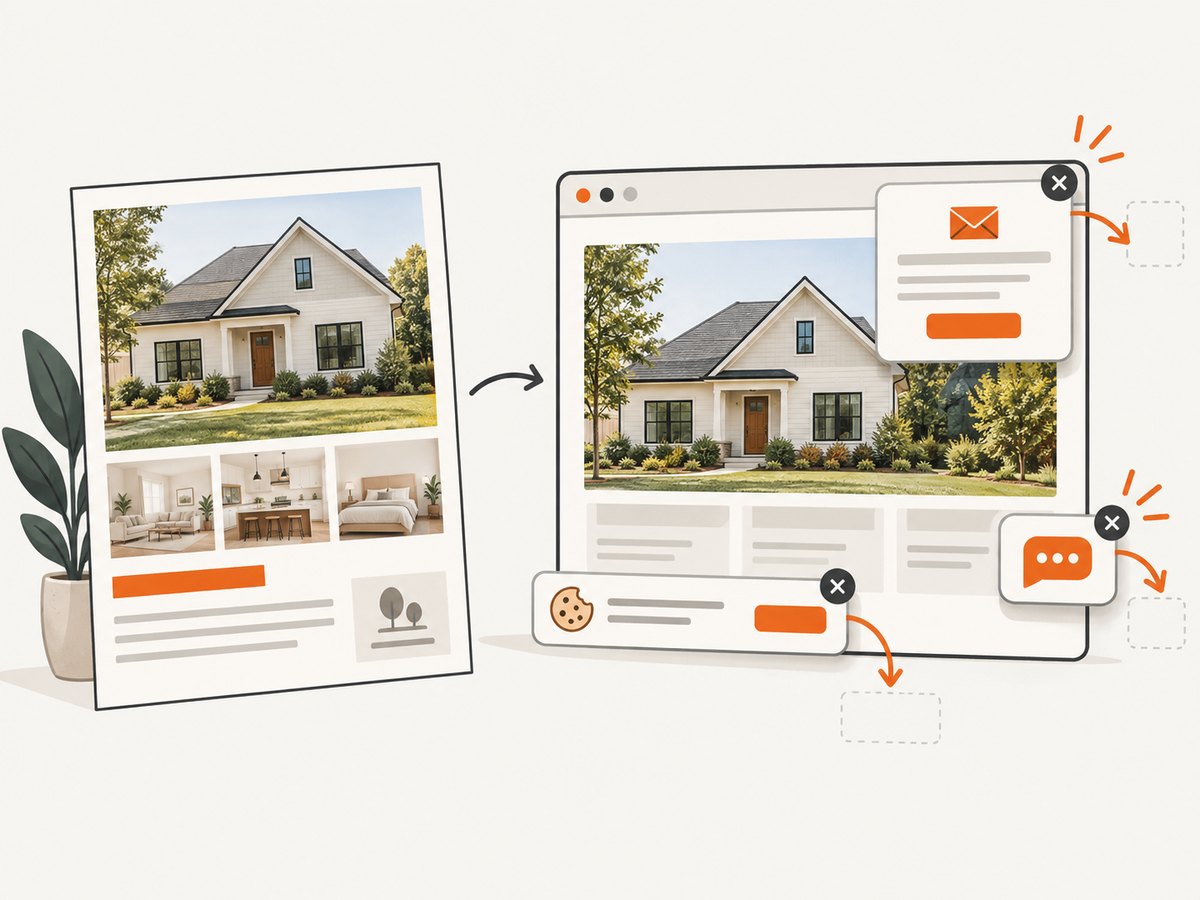
See the ScreenshotNeo API documentation for request options, response details, and supported formats. Its clean-shot flow accepts cookie or consent banners like a visitor and removes more than 60 known consent platforms, newsletter popups, and chat widgets; each step can be disabled. Bot checks/CAPTCHAs, blank pages, timeouts, failed loads, and cache hits cost nothing, and response headers report the page verdict and billing status. Its MCP server gives AI agents tools to take screenshots, get page information, and capture PDFs. The free plan includes 1,000 screenshots a month with no card; paid plans start at $5 for 3,000.
Sign up for 1,000 free screenshots a month, with no card.
9. Troubleshooting common problems
| Problem | Likely cause | What to do |
|---|---|---|
| A screenshot shows a consent dialog or chat overlay | The capture method does not interact with or remove that page element. | For a manual capture, close it only if the site allows and the intended reference remains accurate. With ScreenshotNeo, consent, popup, and chat cleanup is part of its clean-shot flow; individual steps can be turned off. Recheck the result before relying on it. |
| The page is blank or only partly loaded | The page may still be loading, may require interaction, or may have failed. | Wait for the specific content, retry, and verify the page in a normal browser. Do not use a blank result as evidence of listing details. ScreenshotNeo’s response indicates page verdict and billing status. |
| Price or status differs from the flyer | The source page or exported sheet is stale. | Use the current approved listing record, confirm volatile facts immediately before export, and regenerate affected copies. |
| A photo or map cannot be cleared | The asset’s owner, license, or attribution terms do not cover the planned promotional use. | Replace it with a rights-cleared asset, get written permission, or link to the source where appropriate. Do not assume that cropping or credit alone supplies permission. |
| MLS rejects or flags the media | The MLS has channel-specific rules on overlays, branding, contact information, or third-party assets. | Consult the current local MLS media rules and prepare a compliant version. Do not generalize rules from another MLS. |
| Printed text or credits are hard to read | The design was checked only at screen scale or resized after layout. | Set final dimensions first, export at the required quality, and inspect a printed proof at actual size. |
| An API request fails | The key, URL encoding, network, or request timeout may be wrong. | Check the API key, encode the full target URL as a parameter, use a reachable page, and inspect the HTTP response. Keep secrets out of shared documents and client-side public code. |
10. Reliability, updates, and cost
For a single sheet, the design and rights review usually deserve more attention than automating capture. For repeated work, standardize the approved dimensions, template, source record, asset permissions, and proof checklist so updates are predictable. Treat price and status as volatile fields and refresh them at the last responsible moment.
Browser screenshots can vary with page loading, overlays, responsive layout, and content changes. A capture records what the page rendered at that time; it is not a canonical listing record or a guarantee that the content is current. Save the capture date and source URL if it serves as documentation.
For manual capture, costs are the time to navigate, capture, crop, and verify. For an API, compare the number of captures needed and the provider’s published plan terms. ScreenshotNeo’s stated options are Free: 1,000 shots/month with no card; Starter: $5 for 3,000; Growth: $15 for 15,000; Pro: $39 for 60,000; Scale: $99 for 250,000; Business: $249 for 1,000,000. Yearly billing gives two months free, and every feature is on every plan. Those prices describe capture service only; they do not supply rights, MLS approval, or design and print services.
Frequently asked questions
Can I use a screenshot if I credit the website?
Credit may be required, but it does not by itself grant permission. Check the asset license and the site’s terms for the exact use.
Can I copy the listing facts but write my own description?
Use verified facts from the current approved listing record and write original copy. Confirm local rules and avoid copying distinctive descriptive wording without permission.
Is one flyer size required?
No universal size is established here. Common choices include 8.5 × 11, 11 × 17, and 5.5 × 8.5 inches; choose based on the destination, template, printer, and readability.
Does an API capture make an image safe to publish?
No. It automates capture. Rights, licenses, attribution, and MLS or brokerage requirements remain your responsibility.
Should the same design be used for an open house and an MLS upload?
Only after checking each channel’s rules. A public handout and MLS media can have different requirements, so separate versions may be needed.


