How to Make reCAPTCHA Work With Screen Readers
Learn how to reach reCAPTCHA with a screen reader, use the audio challenge, and request an accessible fallback when the widget fails.
reCAPTCHA can be difficult to use with a screen reader when the widget is not in the expected keyboard order, when an image challenge appears, or when the audio option is unavailable. Start by moving through the page with your screen reader’s normal keyboard navigation until it announces the reCAPTCHA widget. If an audio challenge is offered, switch to it, listen to the spoken prompt, and enter the response in the answer field. If you cannot reach or understand the widget, ask the website operator for an accessible alternative.
The exact keystrokes depend on your screen reader, browser, operating system, and mode. Google documents a tabindex setting for site developers, but there is no single keyboard sequence that works across every setup. The site owner controls the integration, including keyboard order, language, error handling, and whether a different verification flow is available.
1. Navigate to the reCAPTCHA widget
Load the page and use the screen reader commands you normally use to move through interactive controls. In many configurations this means moving through form fields and buttons in order, but do not rely on a particular key combination: browse mode, focus mode, and browser shortcuts differ.
- Place focus near the beginning of the form or page section that contains the verification.
- Move forward through controls until the screen reader announces reCAPTCHA, a checkbox, or a security verification control.
- Activate the control using your screen reader’s usual command.
- Listen for the result. Some users will pass the checkbox without another challenge; others will receive an image or audio challenge.
If focus appears to skip over the widget, move backward and forward again from nearby controls. A page can contain custom tabindex values that place the widget later or earlier than expected. Google’s reCAPTCHA v2 documentation says the widget and challenge default to tabindex=0 and recommends coordinating the value with the rest of the page to make navigation easier.
Google’s reCAPTCHA v2 configuration reference lists the data-tabindex attribute, explicit rendering options, and response callbacks.
2. Switch from an image challenge to audio
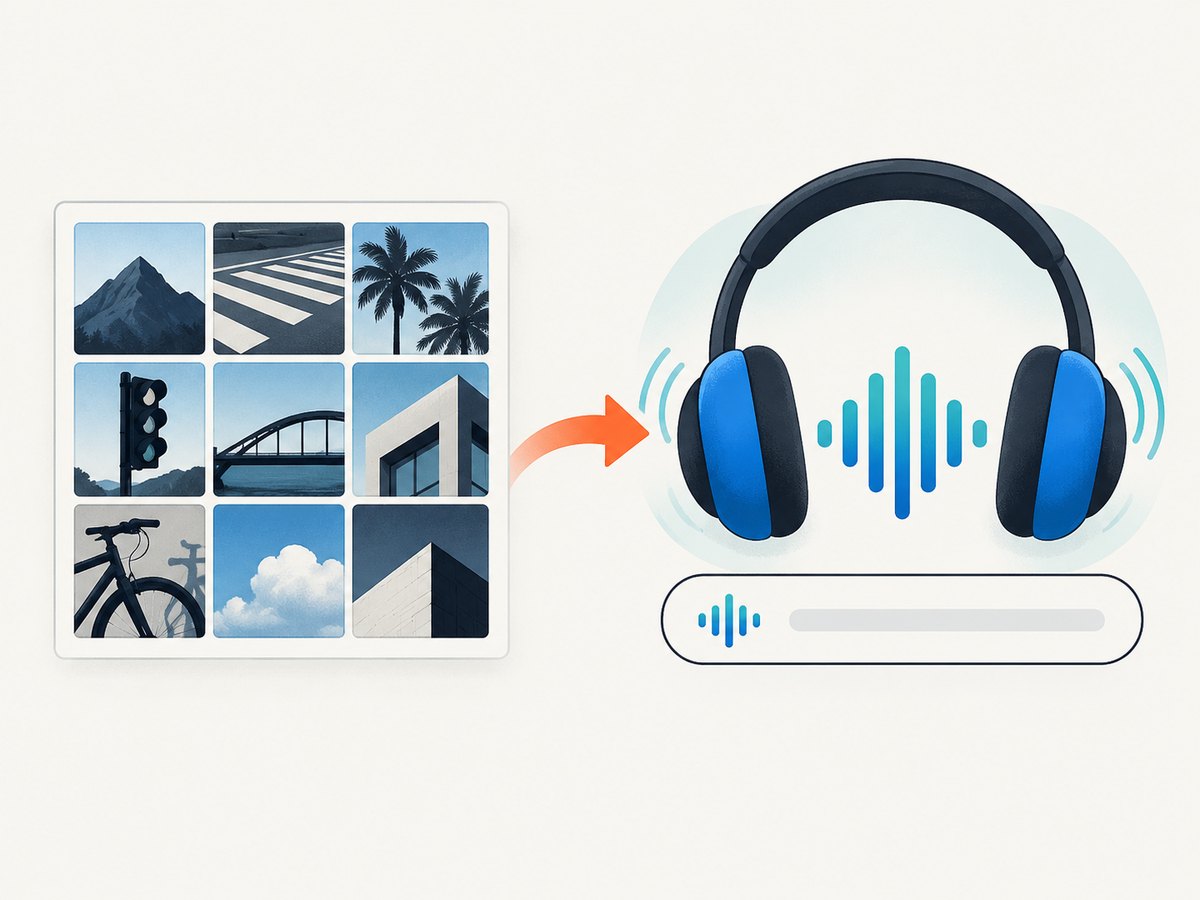
An image challenge may ask you to identify objects in a grid. Look for the control that changes the challenge to audio. The label varies by widget version and language, so listen to every control announced after the challenge opens.
- Move through the challenge controls until your screen reader announces an audio option.
- Activate the audio option and wait for the spoken prompt or audio player.
- Listen carefully, then enter the spoken characters in the response field.
- Submit the answer using the challenge’s verification button.
- If the response is rejected, request another audio challenge and try again. A retry can help, but it is not guaranteed to solve an integration or network problem.
Audio is not available in every widget language. Google’s language table marks audio support in the checkbox widget for languages including English (US), Dutch, French, German, Italian, Portuguese, and Spanish. It does not mark every language as audio-capable, so do not assume that changing your screen reader language will create an audio option.
See Google’s reCAPTCHA language table before selecting a language for an international form.
3. What to do when the widget is unreachable
If the widget is not announced, its controls have no useful names, or the audio challenge is missing or unusable, contact the website operator. Explain the exact page, browser, screen reader, and step where the process stopped. Ask for an accessible alternative such as manual review, an accessible verification method, or another way to complete the protected action.
The operator, rather than the visitor, can change the integration. They can review the page’s keyboard order, make error messages available to assistive technology, select a suitable reCAPTCHA version, and provide a support path for users who cannot complete the challenge.
Do not describe reCAPTCHA v3 as a setting that a visitor can turn on. Google describes v3 as a score-based integration that returns a score so the site can choose an action. The site owner registers the keys, calls the API, verifies the result, and decides what happens at each threshold.
4. Guidance for site owners
If you maintain the site, test the deployed experience with the screen readers and browsers your audience uses. The presence of a tabindex value does not prove that the complete challenge is usable.
Set a deliberate keyboard order
For an automatically rendered v2 widget, add a tabindex that fits the surrounding form. The default is zero. If the rest of your form uses custom positive values, coordinate the widget and challenge with that sequence; otherwise, prefer a normal document order.
<form action="/signup" method="post">
  <label for="email">Email</label>
  <input id="email" name="email" type="email" autocomplete="email" required>

  <div class="g-recaptcha"
       data-sitekey="YOUR_SITE_KEY"
       data-tabindex="0"
       data-callback="onCaptchaSuccess"
       data-expired-callback="onCaptchaExpired"
       data-error-callback="onCaptchaError">
  </div>

  <button type="submit">Create account</button>
</form>

<script src="https://www.google.com/recaptcha/api.js" async defer></script>
<script>
  const form = document.querySelector('form');
  const submitButton = form.querySelector('button[type="submit"]');
  let captchaToken = '';

  function onCaptchaSuccess(token) {
    captchaToken = token;
    submitButton.disabled = false;
  }

  function onCaptchaExpired() {
    captchaToken = '';
    submitButton.disabled = true;
    announce('Verification expired. Please complete it again.');
  }

  function onCaptchaError() {
    captchaToken = '';
    submitButton.disabled = true;
    announce('Verification could not load. Check your connection and try again.');
  }

  function announce(message) {
    document.querySelector('#captcha-status').textContent = message;
  }
</script>
<p id="captcha-status" role="status" aria-live="polite"></p>
The callbacks above illustrate the responsibility Google assigns to the site: tell the user when a response expires or when an error prevents the challenge from continuing. Keep the message in an element exposed through an appropriate live-region pattern, and make sure the user can find the widget again without losing their place.
Choose a language intentionally
The widget can auto-detect a language or be forced with a language parameter. Select a language your users understand and confirm whether the checkbox widget offers audio in that language. A translated label alone does not guarantee an audio challenge.
Consider the integration type
reCAPTCHA v2 commonly presents a checkbox and may open a challenge. v3 runs in the background and returns a score. Google’s v3 documentation states: “reCAPTCHA v3 will never interrupt your users, so you can run it whenever you like without affecting conversion.” That describes the intended score-based flow; it is not an accessibility guarantee for every site or every surrounding form.
With v3, the operator must verify the token on the server, check the expected action, and decide how to handle the score. The operator should still provide clear errors and a support route if the protected action is rejected.
Use recaptcha.net when Google is inaccessible
If your users cannot reach www.google.com from their network, Google’s FAQ documents using www.recaptcha.net instead. Replace the script host and other reCAPTCHA URLs consistently in the site implementation. This is a developer-side configuration, not a setting a screen-reader user can change.
<script src="https://www.recaptcha.net/recaptcha/api.js" async defer></script>Read Google’s FAQ for the host replacement guidance.
5. Testing checklist for an accessible deployment
- Navigate from the page heading to the form and reach the widget in a predictable order.
- Confirm that the widget, challenge, audio control, answer field, and submit control receive useful announcements.
- Test with the page zoomed and with a keyboard only.
- Test at least one language with documented audio support and one language without it.
- Trigger an expired response and verify that the user receives an actionable message.
- Simulate a network failure and verify the error callback and retry instructions.
- Confirm that a user who cannot complete the challenge can contact support or use an alternative path.
- Test the production integration, not only a staging page. Site scripts, consent tools, content security policy, and other overlays can change focus behavior.
6. Troubleshooting common problems
| Problem | Likely cause | Fix |
|---|---|---|
| The widget is skipped | Custom tabindex values or focus moved by JavaScript | Review the document order, remove unnecessary positive tabindex values, and set the widget tabindex to fit the form. |
| The checkbox is announced but the challenge is silent | Audio is unavailable for the selected widget language, or the challenge did not finish loading | Check Google’s language table, wait for the challenge, reload it, and ask the operator for an alternative if audio remains unavailable. |
| An audio answer is rejected repeatedly | Misheard prompt, expired challenge, or a service/network error | Request a fresh audio challenge, enter the answer promptly, and report the failure with browser and screen-reader details. |
| The user sees an error with no explanation | No error callback or no accessible status message | Implement the error callback, expose a concise live status, and tell the user how to retry. |
| The response expires before submission | The user waited too long or the form was edited after verification | Use the expired callback, explain that verification must be repeated, and avoid silently discarding the user’s form data. |
| reCAPTCHA never loads | Network filtering, content security policy, blocked third-party scripts, or an unavailable Google host | Inspect browser and server logs, permit the required hosts, and consider the documented recaptcha.net host when Google is inaccessible. |
| The site asks for an image challenge with no usable alternative | The integration does not provide an accessible fallback | Contact the site operator. Only the operator can provide another verification path or change the integration. |
7. Performance, reliability, and privacy decisions
For visitors, the main reliability variable is whether the third-party script and challenge can load through the current network. A retry may recover from a transient failure, but the site should not treat retrying as a guaranteed accessibility solution.
For site owners, v3 can run without interrupting a user, but it still requires server-side verification and a policy for low scores. v2 gives users an explicit interaction and therefore needs careful focus, language, error, and expiration handling. Measure completion and support requests in your own deployment rather than applying an unverified success rate; the official guidance does not provide a universal screen-reader success statistic.
Keep the verification step close to the protected action. For v3, Google notes that tokens expire after two minutes, so call the verification when the user takes the action rather than only when the page loads. Keep your fallback path documented and usable without relying on a CAPTCHA challenge.
Or skip the browser setup
If your goal is to document or monitor the page rather than complete the CAPTCHA as a user, ScreenshotNeo can capture a URL with one request. It does not solve reCAPTCHA or replace an accessible verification path, but it removes the browser automation setup needed to collect page screenshots.
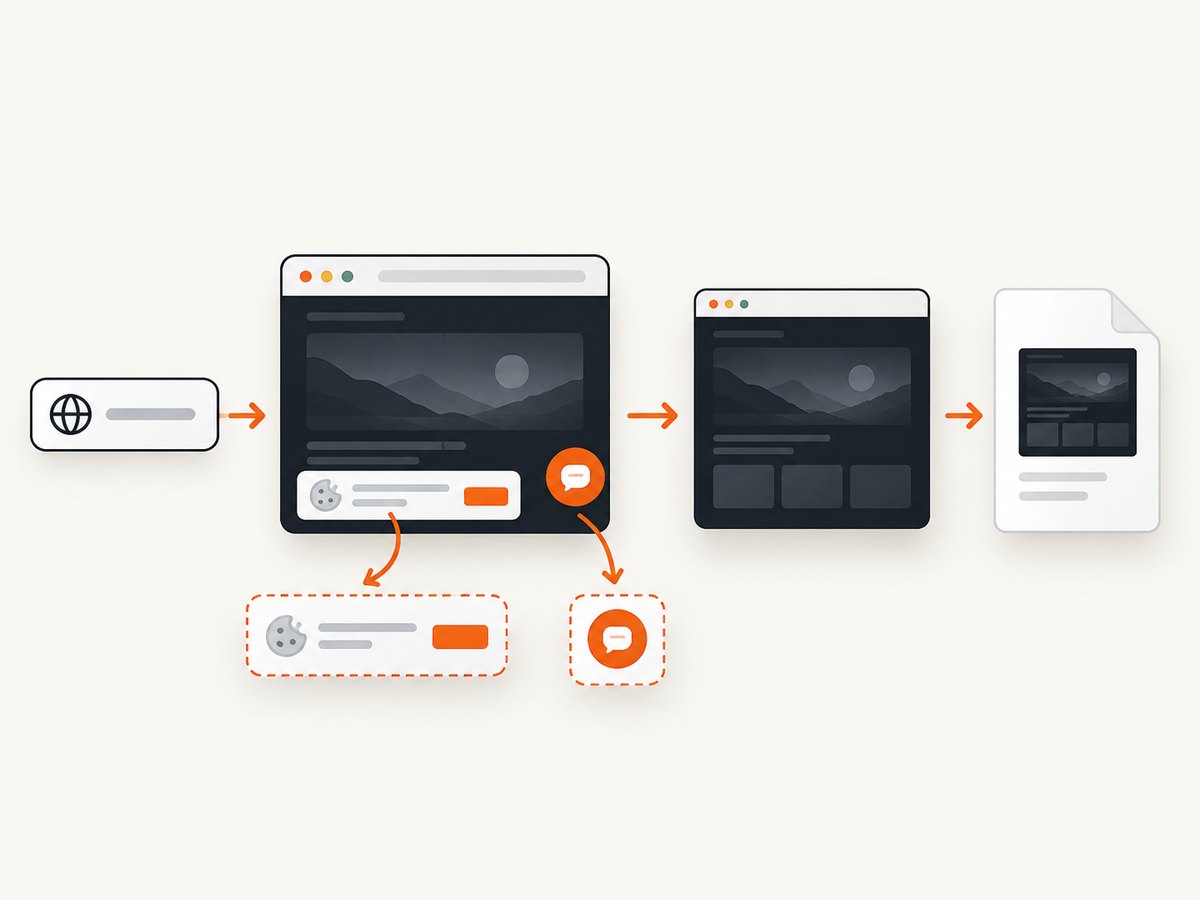
ScreenshotNeo accepts cookie and consent banners before capture and removes more than 60 known consent platforms, newsletter popups, and chat widgets; each step can be turned off. Bot checks and CAPTCHAs, blank pages, timeouts, failed loads, and cache hits are not billed, and response headers identify the page verdict and whether the shot was billed. Its MCP server provides take_screenshot, get_page_info, and capture_pdf tools for Claude, Cursor, and other MCP clients.
See the ScreenshotNeo documentation for all options.
cURL
curl -G "https://api.screenshotneo.com/v1/shot" \
  -d access_key=YOUR_API_KEY \
  --data-urlencode url=https://stripe.com \
  -o shot.webp
Python
import requests

r = requests.get(
    "https://api.screenshotneo.com/v1/shot",
    params={"access_key": "YOUR_API_KEY", "url": "https://stripe.com"},
    timeout=90,
)
r.raise_for_status()
open("shot.webp", "wb").write(r.content)
Node.js
const q = new URLSearchParams({
  access_key: 'YOUR_API_KEY',
  url: 'https://stripe.com'
});
const res = await fetch(`https://api.screenshotneo.com/v1/shot?${q}`);
if (!res.ok) throw new Error(`Screenshot failed: ${res.status}`);
const data = Buffer.from(await res.arrayBuffer());
require('fs').writeFileSync('shot.webp', data);
You can request PNG, JPEG, WebP, or PDF output and configure full-page capture, a CSS selector, dark mode, device presets, viewport and retina scale, waits, custom CSS or JavaScript, headers, cookies, user agent, timezone, geolocation, blocking rules, caching, signed links, asynchronous jobs, bulk capture, and usage reporting. Clean shots are the only billable results. Plans include 1,000 free shots per month with no card; paid plans start at $5 for 3,000 shots.
Create a free ScreenshotNeo account to get 1,000 screenshots each month without a card.
8. FAQ
Can I force a website to use reCAPTCHA v3?
No. The website operator chooses and implements the reCAPTCHA integration. A visitor cannot switch a particular site from v2 to v3.
Is an audio challenge guaranteed?
No. Audio support depends on the selected widget language, and Google’s language table does not mark every language as supported.
What should I report to support?
Include the page URL, browser, operating system, screen reader and version, the last control you could reach, and whether an audio option appeared. This gives the operator enough context to reproduce the focus or loading problem.
Does ScreenshotNeo make a CAPTCHA accessible?
No. It captures pages for documentation and monitoring. An accessible way to complete the protected action remains the site owner’s responsibility.
Where can developers find the official parameters?
Use Google’s v2 display documentation, language table, v3 guide, and FAQ.


