How to Record Browser Videos with Playwright
Record Playwright test runs or browser sessions as video. Configure retention and dimensions, wait for recordings to finish, and save or find the output.
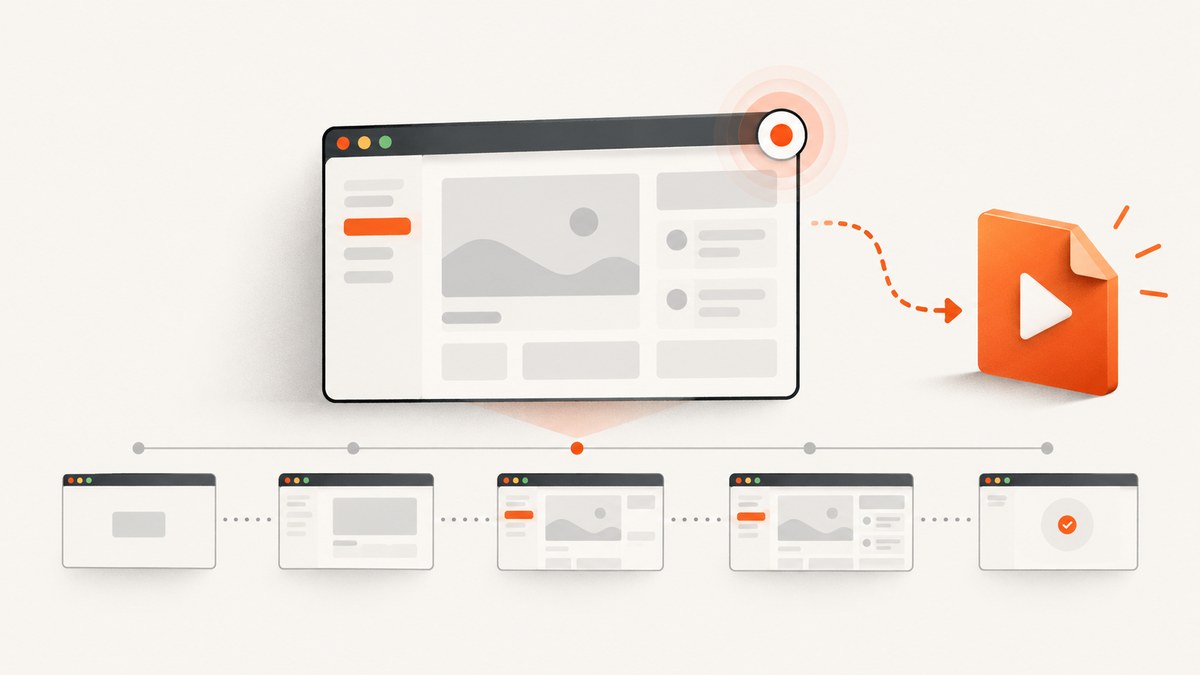
To record browser videos with Playwright, choose the API that matches how you run the browser. In Playwright Test, set the use.video option in playwright.config.ts. When using Playwright directly, pass recordVideo to browser.newContext(). In both cases, the browser context must close before a normal recording is finalized. For explicit start and stop control, use the Screencast API.
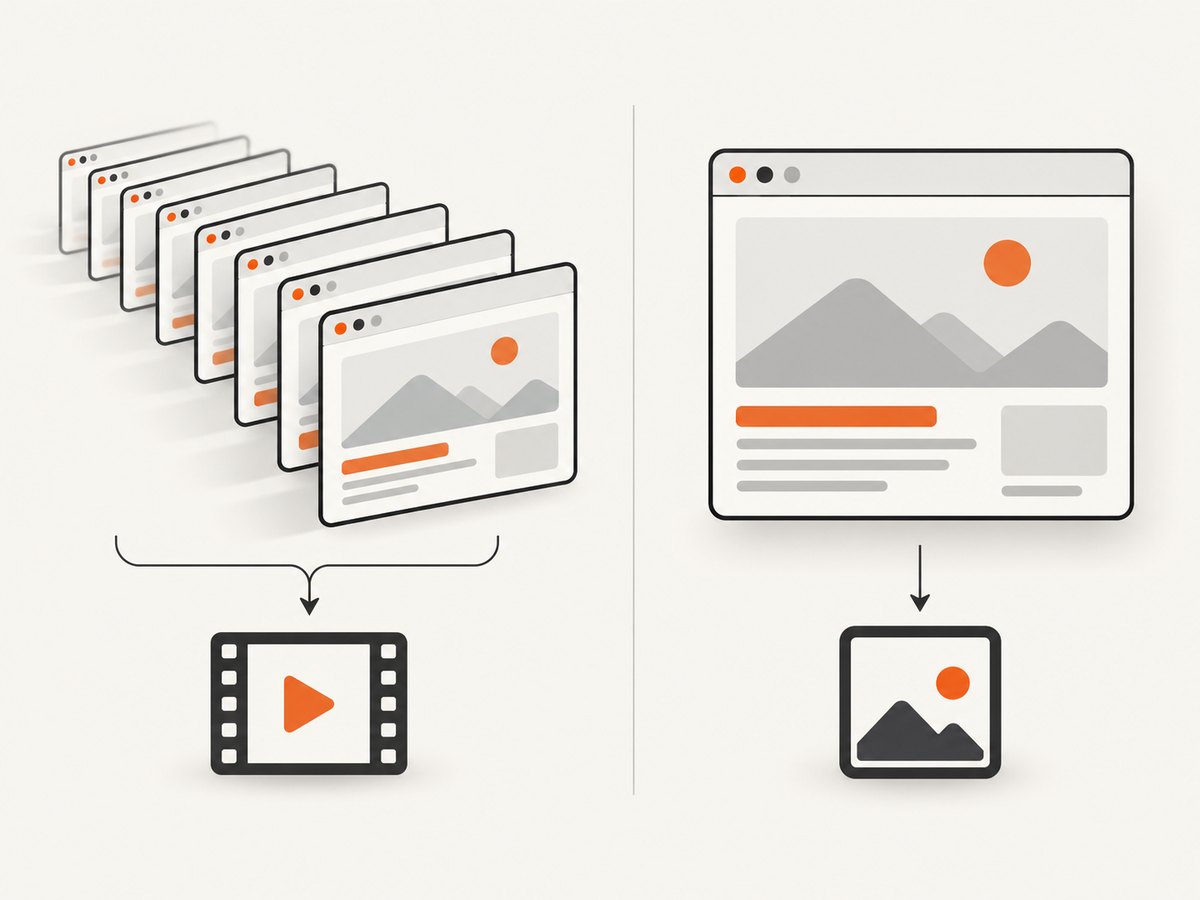
This records browser activity as a video artifact for debugging, review, or test evidence. It is different from taking a screenshot: a screenshot captures one state; a video captures a sequence of states over time.
1. Choose the recording workflow
| Use case | API | When the video is saved |
|---|---|---|
| Automated tests using Playwright Test | use.video in the test configuration |
At the end of the test, as its browser context closes |
| A standalone script using Playwright | recordVideo in browser.newContext() |
When you close the context |
| Recording a selected part of a session with explicit control | page.screencast.start() and page.screencast.stop() |
When you stop the screencast |
For test suites, configure retention based on how much debugging evidence you need. For a script or interactive automation, use the browser library API. Use Screencast when the point at which recording starts and stops is part of the workflow.
2. Record videos in Playwright Test
Video recording is off by default in Playwright Test. Add a video mode under use in your configuration. This complete configuration records on the first retry:
import { defineConfig } from '@playwright/test';

export default defineConfig({
  use: {
    video: 'on-first-retry',
  },
});
Save it as playwright.config.ts in the project root. Run your tests with the project’s normal Playwright Test command. The video is attached to the test output; the output directory is typically test-results, and the exact path may include the test and retry details.
Choose a retention mode
| Mode | What it records | When to use it |
|---|---|---|
'off' |
No video. This is the default. | Use when recordings are not needed. |
'on' |
Every test. | Use when you need a complete video trail or are investigating a broad issue. This produces the most artifacts. |
'retain-on-failure' |
Records tests, then removes videos for successful runs. | Use when failure evidence matters and successful-run videos do not. |
'on-first-retry' |
Records on the first retry. | Use when you want a recording to help investigate a test that failed on its initial attempt and is retried. |
These modes control retention and test-run behavior; they do not make an unclosed context’s video file ready for use. Let Playwright Test finish the test and close its context before consuming the artifact.
Retrieve a test video
Playwright Test manages each test’s context and output. After a run, look in the configured test output directory, commonly test-results, or inspect the test result and its attachments with the runner or report tooling you already use. Avoid guessing a stable filename: output paths are organized by test output and can vary with the run and project configuration.
3. Record a video with the Playwright library
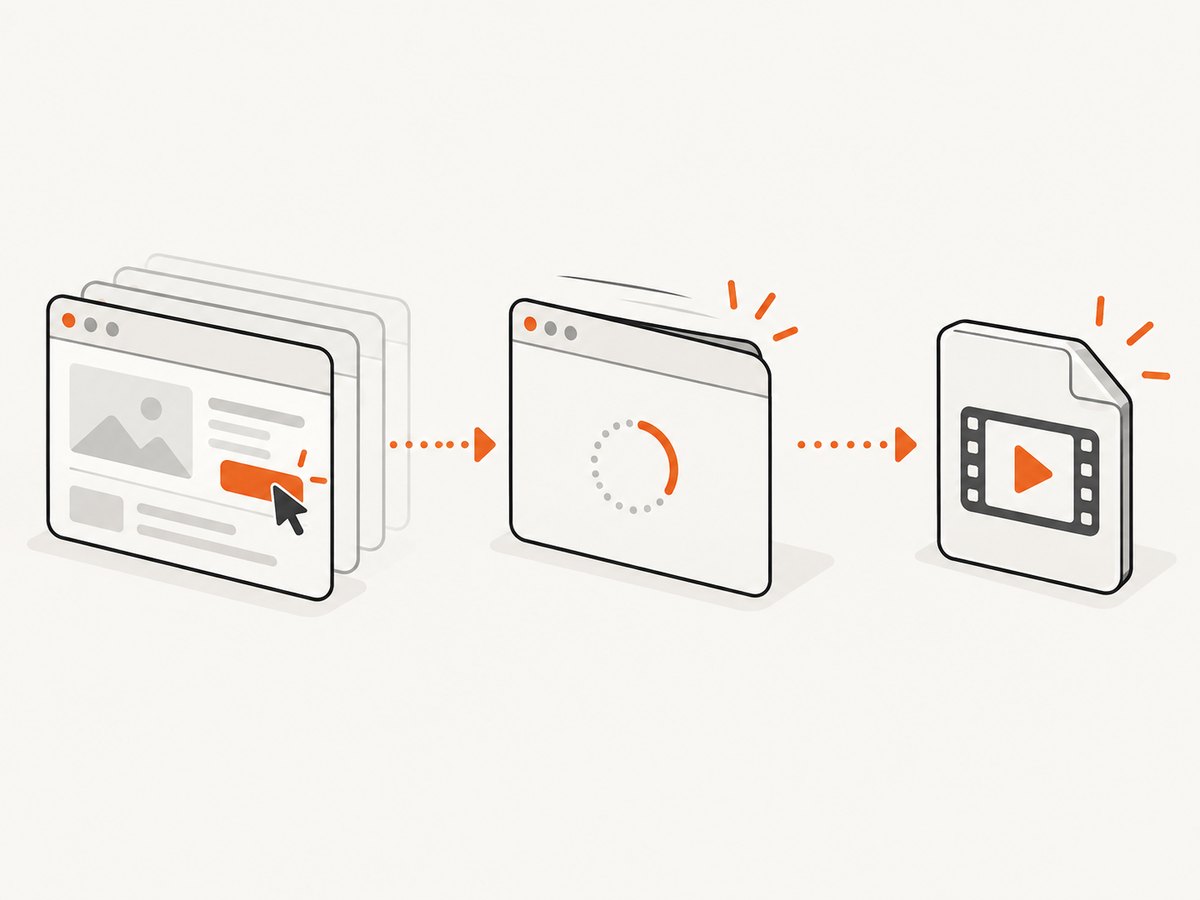
For a standalone Node.js script, configure recording on the browser context. The following example uses Playwright’s Chromium browser and writes the video into a videos directory. Create that directory before running the script.
import { chromium } from 'playwright';

const browser = await chromium.launch();
const context = await browser.newContext({
  recordVideo: {
    dir: 'videos/',
    size: { width: 1280, height: 720 },
  },
  viewport: { width: 1280, height: 720 },
});

const page = await context.newPage();
await page.goto('https://example.com');
await page.getByRole('link').first().click();

// Closing the context finalizes its recordings.
await context.close();
await browser.close();
Install the Playwright library and its browser binaries using the official installation instructions for your project. The script is an ES module example; run it in an environment configured for top-level await, or put the code inside an async function. Replace the example URL and interaction with the scenario you want to capture.
Set output dimensions
recordVideo.dir chooses the output directory. You can also set recordVideo.size to an explicit frame width and height. If you omit the dimensions, Playwright scales the recording to fit within 800×800. If you do not configure a viewport, the documented default viewport is 800×450.
Choose dimensions with the output use in mind. A recording meant to show a desktop layout should use a desktop viewport; a narrow viewport is more useful for a responsive mobile layout. The video frame size and viewport are related but distinct settings, so set both explicitly when consistent output dimensions matter. If you use a device preset, check the resulting viewport and choose a recording size that fits the scenario.
Save or locate a specific page’s video
Each page associated with a recording has a Video object. Keep a reference to the page’s video before closing the context, then use saveAs() to copy the completed recording to a path you choose. saveAs() waits for the page to close and the video to be fully saved, so it can be called while recording is in progress.
import { chromium } from 'playwright';

const browser = await chromium.launch();
const context = await browser.newContext({ recordVideo: { dir: 'videos/' } });
const page = await context.newPage();
const video = page.video();

await page.goto('https://example.com');
// Perform the interaction to record.

await context.close();
if (video) {
  await video.saveAs('videos/example-session.webm');
}
await browser.close();
The recording path and format are managed by Playwright. video.path() returns the file path after the context closes. It throws when the browser is connected remotely, where a local path is not available; use video.saveAs() to save the video instead. You can call video.delete() when you no longer need the artifact.
4. Control recording with Screencast
Use the Screencast API when recording should start and stop at particular points in a script. It accepts a path and optional output dimensions. Unlike context recording, you call stop() to end and save the screencast.
import { chromium } from 'playwright';

const browser = await chromium.launch();
const page = await browser.newPage();
await page.goto('https://example.com');

await page.screencast.start({
  path: 'video.webm',
  size: { width: 1280, height: 800 },
});

// Perform only the browser actions that should appear in the recording.
await page.getByRole('link').first().click();

await page.screencast.stop();
await browser.close();
Start the screencast after the page is in the state you want as the beginning of the clip. Stop it after the final action you want included. If the page or browser is closed before your script reaches stop(), the intended recording lifecycle is interrupted.
5. Make recordings useful and reliable
- Decide the artifact’s job. For failure debugging, use a failure-focused retention mode. For a complete record of every test, use
'on'. For a selected segment in a script, use Screencast. - Set dimensions deliberately. Use an explicit viewport and video size when the output must be predictable. Otherwise, remember the documented scale-to-fit behavior and default viewport.
- Wait for the save boundary. With context recording, await
context.close(). With Screencast, awaitpage.screencast.stop(). Do not move, upload, or inspect a file before its save operation has completed. - Keep artifacts associated with the scenario. In tests, let the runner manage per-test output. In a standalone script, use a directory and destination name that identify the run, and retain the Video object when you need to save under your own name.
- Limit unnecessary recordings. Recording every test creates more artifacts to store and review. Failure-focused modes reduce retained video output when successful runs do not need to be inspected.
Recording is an additional test artifact. Playwright’s cited documentation describes the recording modes, lifecycle, and dimensions; it does not provide a universal file-size or speed figure. Actual storage needs depend on the pages, duration, resolution, and recording volume. Set retention and cleanup according to your artifact-storage policy, and measure in your own workload if capacity or runtime is constrained.
6. Troubleshooting
| Symptom | Likely cause | Fix |
|---|---|---|
| No video appears after a test run. | Video is off, which is the Playwright Test default, or the chosen mode did not record this attempt. | Set use.video to a mode that records the test you need. For a broad diagnostic run, use 'on'; for retry capture, use 'on-first-retry'. |
| The file exists but is empty, incomplete, or cannot be read yet. | The browser context or page has not finished closing and saving. | Await context.close() for context recording, or await video.saveAs(). For Screencast, await page.screencast.stop(). |
video.path() throws. |
The browser is connected remotely; the API cannot return a local file path in that case. | Use video.saveAs(destination) to retrieve the completed video. |
| The recording dimensions do not match the expected frame. | The video size was omitted, or the viewport and video frame were configured differently. | Set both viewport and recordVideo.size explicitly, and check the requested width and height. |
| The output directory is missing or the recording cannot be written. | The configured destination is not available to the process. | Create the directory and ensure the process can write there before creating the recording context. |
| The clip includes setup navigation that should not be recorded. | Context recording covers the context’s page recording lifecycle. | Use Screencast start/stop to bracket only the browser actions you want in the clip. |
| A test video disappears for a passing test. | 'retain-on-failure' removes videos for successful runs by design. |
Choose 'on' if successful-run videos must be kept, or inspect the failing test’s output. |
| A recording begins on a retry, but not on the first attempt. | 'on-first-retry' is specifically a retry recording mode. |
Use 'on' to record the initial attempt, or keep the retry mode if the retry is the desired evidence. |
7. Browser video versus a screenshot
A video helps answer “what sequence of actions led to this state?” A screenshot helps answer “what did the page look like at this point?” If a test failure is visual and the final state is enough, a screenshot can be a smaller, faster artifact to inspect. If the sequence matters, record a video. The official Playwright video workflow covers browser video artifacts; a website screenshot API is a separate way to capture a page as an image or PDF.
8. Or skip the browser setup
If you need a page image rather than a recording of interactions, ScreenshotNeo captures a website from one GET request. It is a screenshot API and MCP server from Yorker Media. It does not create browser videos; it returns a PNG, JPEG, WebP, or PDF for a URL. The API options and response details are in the ScreenshotNeo documentation.
curl -G "https://api.screenshotneo.com/v1/shot" \
  -d access_key=YOUR_API_KEY \
  --data-urlencode url=https://example.com \
  -o shot.webp
Equivalent Python request:
import requests

r = requests.get(
    "https://api.screenshotneo.com/v1/shot",
    params={"access_key": "YOUR_API_KEY", "url": "https://example.com"},
    timeout=90,
)
open("shot.webp", "wb").write(r.content)
Equivalent Node.js request:
const q = new URLSearchParams({
  access_key: 'YOUR_API_KEY',
  url: 'https://example.com',
});
const res = await fetch(`https://api.screenshotneo.com/v1/shot?${q}`);
const bytes = new Uint8Array(await res.arrayBuffer());
await import('node:fs/promises').then(fs => fs.writeFile('shot.webp', bytes));
Cookie banners, popups, and chat widgets are removed before the shot. Bot checks, blank pages, and failed loads are never billed. Its MCP server lets AI agents take screenshots. The free plan includes 1,000 screenshots a month with no card; paid plans start at $5 for 3,000. Use it when you need a clean page capture without setting up a browser script, and keep Playwright video when you need a recording of interactions.
Sign up free for 1,000 screenshots a month, no card required.
9. FAQ
Does Playwright save videos as soon as each action finishes?
No. For context recordings, treat context closure as the save boundary. video.saveAs() waits for the page to close and the video to be fully saved.
Can I record only a portion of a test?
Use the Screencast API’s explicit start and stop calls in a library script. The test runner’s use.video modes are configured around test attempts and retention.
Should I use video for every test?
Only if the extra artifacts help your workflow. For failure investigation, failure-focused retention or first-retry recording can preserve useful evidence while avoiding retained video for every successful test.
Can a screenshot replace a browser video?
Only when the page’s appearance at a point in time is enough. A screenshot cannot show the interaction sequence that led there.
Official Playwright references
- Videos | Playwright: test video modes and direct library setup.
- Browser | Playwright: context recording options and dimensions.
- Video | Playwright: path, save, and delete behavior.
- Screencast | Playwright: explicit start and stop API.


