How to Record Capybara Headless Chrome Tests
Capture screenshots when Rails system tests fail, or record Capybara interactions as WebM or MP4. Configure headless Chrome locally and in CI.

To record Capybara headless Chrome tests, first choose the artifact you need. Rails system tests can automatically save a screenshot when a test fails, and you can call take_screenshot at a specific point. For a video of the interaction sequence, add the optional selenium_screencast gem and run the specs with RECORD_VIDEO=1. Capybara registers the Selenium Chrome headless driver as :selenium_chrome_headless; Rails system tests select it with driven_by :selenium, using: :headless_chrome. (Capybara driver documentation; Rails testing guide)
1. Pick the right recording
A screenshot is a still image of one browser state. Use it to see what the page looked like at failure or at a meaningful checkpoint. A video preserves the order and timing of interactions, which is more helpful for intermittent issues, animations, navigation, or a click that appears to do nothing.
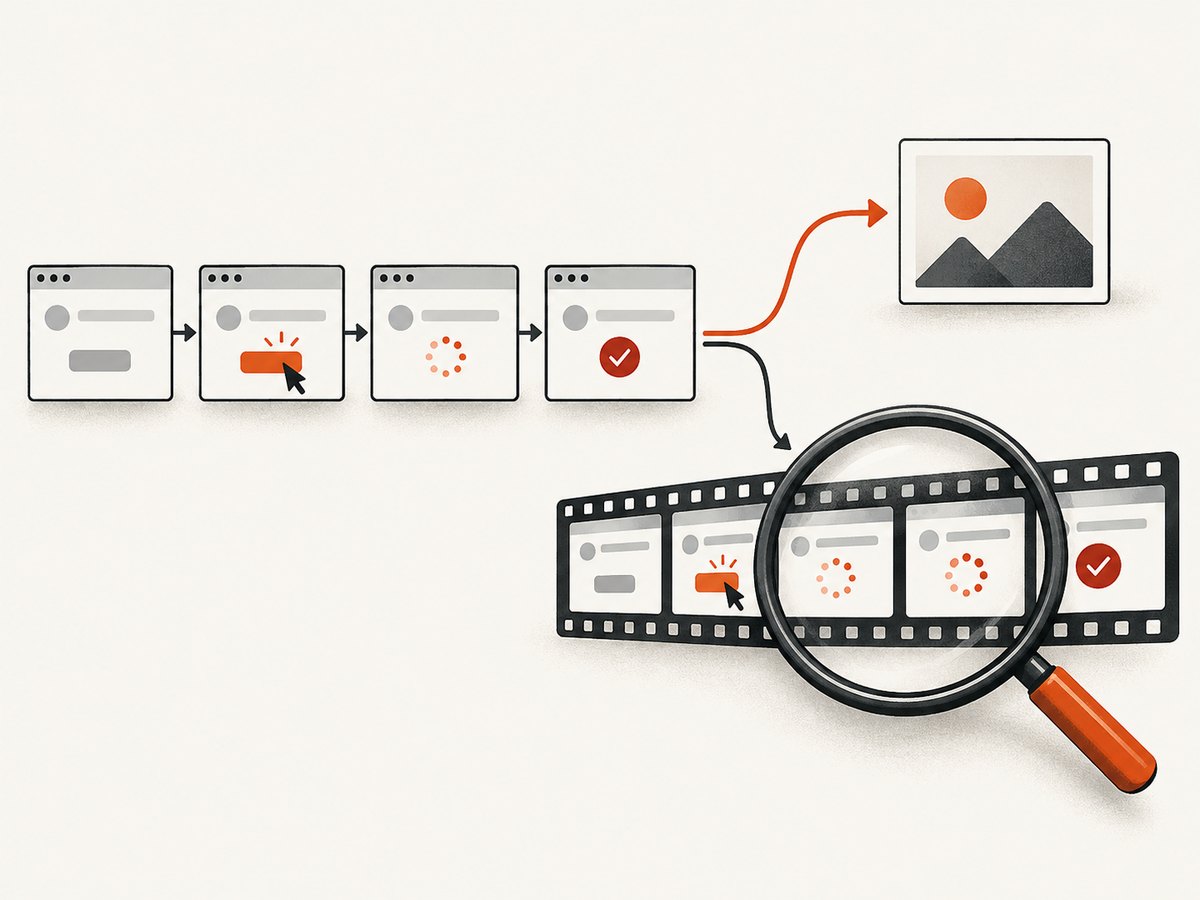
| Need | Use | Where it fits |
|---|---|---|
| Inspect the page after a failed Rails system test | take_failed_screenshot |
Rails system-test teardown |
| Save the current page during a test | take_screenshot |
At the point in the test you want to inspect |
| Reconstruct the interaction and its timing | selenium_screencast |
RSpec system examples using Chrome through Selenium |
| Run browser tests in a separate container | Remote Selenium configuration | CI or Docker where browser and app are separated |
These mechanisms are complementary. Keep screenshots as the low-friction default, then enable video for a narrow set of specs or failed examples when the still image does not explain the failure.
2. Configure Rails system tests for headless Chrome
In a Rails app using Minitest system tests, configure the base system test class. Rails’ generated setup may already have this file; adjust the driver declaration rather than adding a second base class.
# test/application_system_test_case.rb
require "test_helper"

class ApplicationSystemTestCase < ActionDispatch::SystemTestCase
  driven_by :selenium, using: :headless_chrome
end
Run a system test with bin/rails test:system or a selected file with bin/rails test test/system/checkout_test.rb. This expects the test environment to have Selenium WebDriver and a compatible Chrome or Chromium browser/driver setup. Capybara’s built-in :selenium_chrome_headless registration is another way to select headless Chrome when configuring Capybara directly. Avoid mixing registration styles without a reason; use the Rails driven_by interface in Rails system tests. (See Capybara’s registered drivers.)
Save an explicit screenshot
Call the helper at the point whose state you want to inspect. Rails provides both take_screenshot and take_failed_screenshot; the latter is included in teardown in the documented system-test setup.
class CheckoutTest < ApplicationSystemTestCase
  test "customer can review an order" do
    visit checkout_path
    fill_in "Email", with: "dev@example.test"
    click_on "Continue"

    take_screenshot
    assert_text "Review your order"
  end
end
The explicit call saves the browser state at that point, even if a later assertion is the one that fails. A failure screenshot is better for general diagnostics because you do not need to predict which step will break. Check the Rails guide and your Rails version’s generated system-test setup if no image appears; helper setup and output behavior can vary with framework version. (Rails Screenshot Helper)
3. Add video recording to RSpec system specs
For a video trace, selenium_screencast captures Chrome DevTools screencast frames and encodes them with ffmpeg. It supports WebM by default and MP4 when configured. Install it in the test group, require its RSpec adapter once, then opt in with an environment variable. Its documentation lists Chrome through Selenium and ffmpeg as requirements; MP4 output requires an ffmpeg build with the H.264 libx264 encoder. (selenium_screencast documentation)
- Add the test dependency:
bundle add selenium_screencast --group test- Load the adapter once from
rails_helper.rbor a file inspec/supportthat Rails Helper loads:
# spec/rails_helper.rb
require "selenium_screencast/rspec"- Enable recording for a selected spec file:
RECORD_VIDEO=1 bundle exec rspec spec/system/checkout_spec.rbWith the adapter loaded, enabled RSpec system examples are recorded. By default, the output directory in a Rails app is tmp/videos, and files are named from the example description with a random suffix. The video is normally saved after each recorded example, whether it passes or fails. Do not commit these generated files: preserve them as CI artifacts when they are useful, and apply a retention policy appropriate to your project.
Limit recording to selected specs or failures
Recording the whole suite creates more video files and performs frame capture for more examples. You can keep the suite run broad while limiting which spec files are recorded:
RECORD_VIDEO=1 \
RECORD_VIDEO_TESTS="spec/system/checkout_spec.rb,spec/system/login_spec.rb" \
bundle exec rspec
For a maintained list, set RECORD_VIDEO_TESTS_FILE to a file containing spec paths, one per line. The gem documentation says that when both this file and RECORD_VIDEO_TESTS are configured, their targets are combined. A missing list file raises an error. To retain video only for failed examples, set RECORD_VIDEO_FAILED_ONLY=1. This reduces saved artifacts; recording still incurs capture work while each selected example runs.
Useful recorder options
| Setting | Purpose | Trade-off or detail |
|---|---|---|
RECORD_VIDEO_FORMAT |
Choose webm or mp4 |
WebM is the default; MP4 requires ffmpeg with H.264 support. |
RECORD_QUALITY |
Set requested JPEG frame quality from 0 to 100 | Lower quality reduces frame transfer and disk I/O. |
RECORD_EVERY_NTH_FRAME |
Capture every Nth frame; must be at least 1 | Higher values make motion less smooth but preserve the video timing. |
RECORD_SLOW_FACTOR |
Override playback slow-motion multiplier | Default is 8, per the gem documentation. |
FFMPEG_BIN |
Point to a specific ffmpeg executable | Useful when it is installed outside PATH. |
RECORD_DEBUG |
Keep intermediate frame files | Useful for diagnosing encoding issues; increases retained files. |
The recorder’s frame-skip option does not shorten playback: it reduces temporal detail, and the remaining frames keep durations based on their timestamps. Treat these knobs as artifact-size and visual-detail controls, not as a substitute for measuring your own CI runtime and storage.
4. Configure remote Selenium in CI or Docker
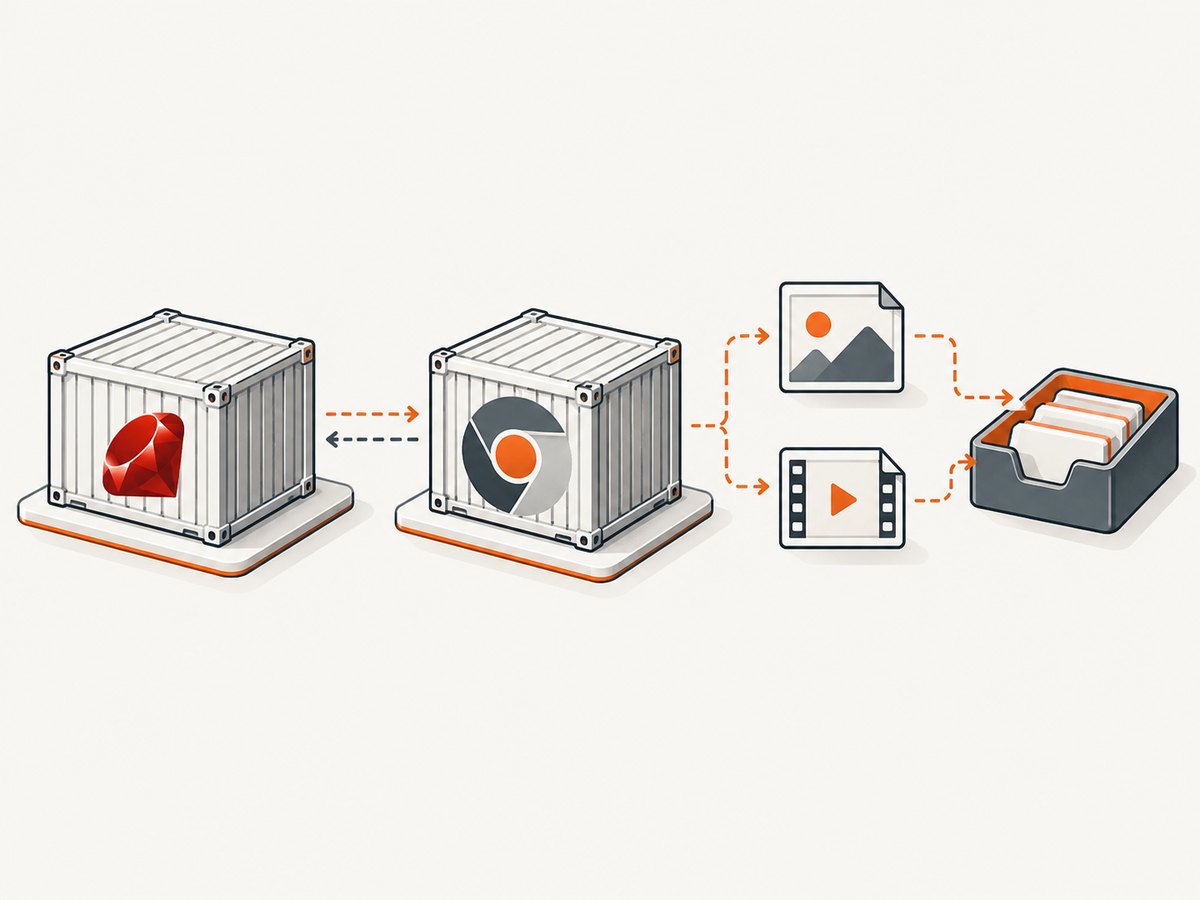
When Chrome runs in a different container from the Rails app, use a remote Selenium URL. Rails documents selecting a remote browser when SELENIUM_REMOTE_URL is present and a local Chrome browser otherwise:
# test/application_system_test_case.rb
require "test_helper"

class ApplicationSystemTestCase < ActionDispatch::SystemTestCase
  url = ENV.fetch("SELENIUM_REMOTE_URL", nil)
  options = if url
    { browser: :remote, url: url }
  else
    { browser: :chrome }
  end

  driven_by :selenium, using: :headless_chrome, options: options
end
Then point the test process at the Selenium endpoint when running the suite, for example:
SELENIUM_REMOTE_URL=http://localhost:4444/wd/hub bin/rails test:systemThe address is environment-specific: in a container network, use a hostname and port reachable from the test container rather than assuming localhost identifies the Selenium service. The browser also has to reach the app’s Capybara server. Rails’ Docker guidance shows setting Capybara.server_host to 0.0.0.0 and configuring Capybara.app_host to an address reachable by the browser container when a remote Selenium URL is set. Do not bind publicly beyond the isolated test network. (Rails remote Selenium and Docker guidance)
5. Or skip the browser setup
If your goal is a screenshot of a public page rather than exercising your own app’s interactive test flow, ScreenshotNeo offers a website screenshot API and MCP server. One GET request accepts a URL and returns an image or PDF. See the ScreenshotNeo API documentation for request options.
curl -G "https://api.screenshotneo.com/v1/shot" -d access_key=YOUR_API_KEY --data-urlencode url=https://stripe.com -o shot.webpimport requests
r = requests.get(
"https://api.screenshotneo.com/v1/shot",
params={"access_key": "YOUR_API_KEY", "url": "https://stripe.com"},
timeout=90,
)
open("shot.webp", "wb").write(r.content)const q = new URLSearchParams({ access_key: 'YOUR_API_KEY', url: 'https://stripe.com' });
const res = await fetch(`https://api.screenshotneo.com/v1/shot?${q}`);ScreenshotNeo removes cookie banners, popups and chat widgets before the shot. Bot checks, blank pages and failed loads are never billed. Its MCP server lets AI agents take screenshots. The free plan includes 1,000 screenshots per month with no card; paid plans start at $5 for 3,000. This is for capturing pages; it does not replace Capybara assertions or record your app’s test interaction sequence. Visit ScreenshotNeo or sign up free for 1,000 screenshots a month, with no card required.
6. Troubleshooting
| Symptom | Likely cause | What to check |
|---|---|---|
| No screenshot on failure | The class is not using Rails system-test helpers, or teardown setup differs in this app/version. | Confirm the failing test inherits from ApplicationSystemTestCase and inspect the generated setup. Call take_screenshot explicitly to check that the browser supports screenshots. |
| No video files appear | The adapter was not required, recording is disabled, or no matching system example ran. | Require selenium_screencast/rspec once and set a non-empty RECORD_VIDEO. Check the configured output directory and target-list filters. |
| Video encoding fails | ffmpeg is missing or not executable, or MP4 lacks H.264 support. |
Install ffmpeg in the test environment, make it available on PATH or set FFMPEG_BIN. For MP4, use a build with libx264, or choose WebM. |
| Remote browser cannot open the app | The browser container cannot resolve or connect to the Capybara server host. | Bind the server to a reachable interface, set app_host to a browser-reachable address, and confirm both containers share the expected network. |
| Remote session cannot start | The remote URL is missing, malformed, or unreachable from the test process. | Check SELENIUM_REMOTE_URL, endpoint path, service readiness, and network access from the test container. |
| Headless Chrome fails to launch | Chrome/Chromium or its Selenium-compatible driver is absent or incompatible with the environment. | Check browser and driver installation in the same execution environment as the test, then reproduce with one system spec. |
| Video exists but misses useful motion | Frames are being skipped or capture quality is too low for the transition. | Lower RECORD_EVERY_NTH_FRAME toward 1 and raise RECORD_QUALITY, accepting larger artifacts and more capture I/O. |
7. Performance, reliability, and artifact cost
Screenshots and videos have different operational costs. A still screenshot is a single image. A video recorder captures a stream of frames and then runs ffmpeg to encode it, so expect additional work and disk output for each recorded example; the supplied project documentation does not publish numeric runtime or storage benchmarks. Measure on your own CI workers, with your browser version, page sizes, and test mix.
- Keep video disabled for routine suite runs unless it answers a debugging need.
- When investigating a flaky spec, target it with
RECORD_VIDEO_TESTSor preserve only failed examples withRECORD_VIDEO_FAILED_ONLY=1. - Set CI artifact retention and size limits. Video files and, when debug mode is enabled, intermediate frames can consume workspace storage.
- For repeatable diagnosis, keep browser execution location, viewport, and CI environment consistent across reruns; record relevant job metadata alongside artifacts.
- Use screenshots for broad failure coverage and video where sequence or timing is important. Neither artifact alone proves the root cause; inspect logs and assertions too.
FAQ
Does Capybara record a video by default?
No. Capybara provides Selenium-backed Chrome drivers; video is an optional recording layer such as selenium_screencast.
Can I use a screenshot instead of video?
Yes. Rails can capture at failure or at an explicit point in a test. Use video when the order or timing of events matters.
Where are selenium_screencast files saved?
The documented Rails default is tmp/videos. The recorder also allows configuring its output directory.
Can video recording cover a browser in a remote Selenium container?
The gem depends on Selenium’s Chrome DevTools connection. Confirm your remote setup exposes the required Chrome bridge before relying on recording; Rails’ remote-browser configuration alone does not promise that video capture is available.
Does every failed system test automatically get a video?
Only if video recording is enabled and the example matches the recorder’s configuration. Rails failure screenshots and optional videos are separate mechanisms.


