How to Record Cypress Tests and Capture Screenshots
Capture Cypress screenshots on demand or on failure, record videos in headless runs, and keep local or Cypress Cloud artifacts organized.
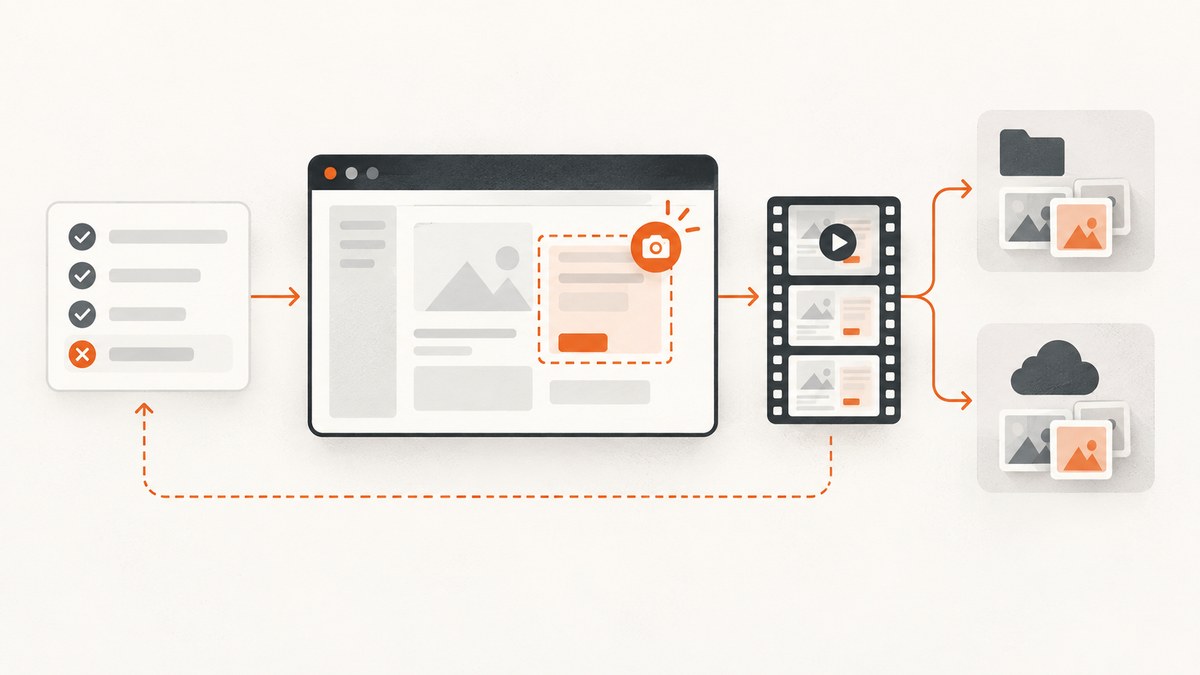
Use cy.screenshot() inside a Cypress test to capture a chosen moment. Cypress also captures screenshots automatically when tests fail during cypress run by default. To record a video of each spec in a headless run, set video: true in Cypress configuration. Both features are off or limited in interactive mode: failure screenshots are not automatic in cypress open, and video recording does not run there.
For centralized review of CI artifacts, configure the project for Cypress Cloud and run with --record plus a record key. Keep in mind that screenshots and videos can contain sensitive page data; review the Cloud data controls before recording.
1. Capture a screenshot at a chosen point
Call cy.screenshot() after the page reaches the state you want to inspect. The command can take a filename and options. Cypress saves screenshots under cypress/screenshots by default, organized relative to the spec.

describe('dashboard', () => {
  it('shows the loaded dashboard', () => {
    cy.visit('/dashboard')
    cy.get('[data-cy=dashboard]').should('be.visible')
    cy.screenshot('dashboard-after-load')
  })
})
The visibility assertion gives the test a meaningful readiness condition before the capture. For an application-specific state, assert the state itself rather than relying on an arbitrary delay. Screenshot capture is asynchronous and takes around 100 ms, so the page can change before the image is actually captured. Avoid scheduling an animation or navigation immediately after the call if the image needs to show the settled state.
Capture a single element
To capture just one element, call .screenshot() on its Cypress chain:
cy.get('[data-cy=invoice-summary]')
  .should('be.visible')
  .screenshot('invoice-summary')
This is useful for focused visual evidence, while a page-level screenshot is better when surrounding layout or context matters. Choose a stable selector, preferably a dedicated test attribute, so the capture does not depend on presentation classes.
2. Choose the capture area
The capture option controls the screenshot scope. Use viewport for the visible application area, fullPage for the page from top to bottom, and runner when the Cypress browser viewport and Command Log are useful debugging context.
| Value | What it includes | Typical use |
|---|---|---|
viewport |
The current application viewport | Checking a specific visible state |
fullPage |
The application page top to bottom | Reviewing a long page or layout |
runner |
The browser viewport and Cypress Command Log | Sharing debug context |
cy.screenshot('checkout-viewport', { capture: 'viewport' })
cy.screenshot('article-full-page', { capture: 'fullPage' })
cy.screenshot('checkout-debug-context', { capture: 'runner' })
Failure screenshots are coerced to runner capture. The blackout option can hide matched elements in eligible captures, but it does not apply to runner captures. For example:
cy.screenshot('account-page', {
  capture: 'fullPage',
  blackout: ['[data-sensitive]', '.private-value'],
})
Use blackout selectors as one layer of handling sensitive content, and confirm the resulting artifact policy for your environment. Do not assume blackout affects every capture mode.
3. Capture screenshots automatically when a test fails
When running with cypress run, Cypress captures a screenshot after a test failure by default. This is useful when a CI run fails and no manual screenshot call was made. The automatic capture is not enabled for cypress open.
You can disable failure screenshots in the project configuration when page content must not be written to disk:
const { defineConfig } = require('cypress')

module.exports = defineConfig({
  screenshotOnRunFailure: false,
})
For a normal diagnostic setup, keep the default behavior and collect the artifact from the configured screenshot folder. For a privacy-sensitive test suite, decide explicitly whether the convenience of failure images is appropriate, and ensure CI artifact collection follows your data-handling rules.
4. Record a video for each spec run
Video is disabled by default. Set video: true to record videos during cypress run. Cypress creates a video for each spec run and writes it to cypress/videos by default. Video recording does not occur during cypress open.
const { defineConfig } = require('cypress')

module.exports = defineConfig({
  video: true,
})
You can enable screenshots and video together:
const { defineConfig } = require('cypress')

module.exports = defineConfig({
  video: true,
  screenshotOnRunFailure: true,
  screenshotsFolder: 'cypress/screenshots',
  videosFolder: 'cypress/videos',
})
The folder settings are shown explicitly for clarity; those are the default locations. Video compression is controlled separately with videoCompression. The documented default is false; setting it to true uses a default CRF of 32. When compression is enabled with video, Cypress can embed chapters for each test attempt.
5. Run locally and find the artifacts
Use the interactive runner for local debugging, and use cypress run to exercise the headless artifact behavior:
# Interactive runner: manual screenshots are available from test code.
npx cypress open

# Headless run: failure screenshots are automatic by default;
# video is captured only when video: true is configured.
npx cypress run
By default, Cypress clears its screenshots, videos, and downloads asset folders before a cypress run, including nested files and folders. Therefore, artifacts from an earlier run may disappear when the next run starts. If a workflow intentionally preserves existing files, set trashAssetsBeforeRuns: false and manage cleanup yourself:
const { defineConfig } = require('cypress')

module.exports = defineConfig({
  video: true,
  trashAssetsBeforeRuns: false,
})
Disabling cleanup can cause old and new files to coexist. Make CI artifact paths and retention rules clear so stale screenshots are not mistaken for the current run.
6. Record a run in Cypress Cloud
Cypress Cloud can make recorded run results and artifacts available through its interface. Configure the project for Cloud recording, then provide a record key through an environment variable or the CLI. In CI, keep the key in the CI secret store rather than source code.
# Supply CYPRESS_RECORD_KEY in the environment, then run:
npx cypress run --record
Alternatively, supply the key directly to the command in a protected shell context:
npx cypress run --record --key <record-key>A recorded run can include standard output, test results and definitions, Cypress configuration (excluding Cypress environment variables), screenshots, videos, and CI/git-related environment information. Review Cypress Cloud’s current data storage controls and your organization’s policy before enabling it, particularly if tests render user records, tokens, or other private data.
7. Or skip the browser setup
If you need a screenshot of a public page outside the Cypress test lifecycle, ScreenshotNeo provides a website screenshot API and MCP server. One GET request returns an image or PDF. See the ScreenshotNeo API documentation for request options and setup.

curl -G "https://api.screenshotneo.com/v1/shot" \
  -d access_key=YOUR_API_KEY \
  --data-urlencode url=https://stripe.com \
  -o shot.webp
import requests
r = requests.get(
"https://api.screenshotneo.com/v1/shot",
params={"access_key": "YOUR_API_KEY", "url": "https://stripe.com"},
timeout=90,
)
open("shot.webp", "wb").write(r.content)const q = new URLSearchParams({
access_key: 'YOUR_API_KEY',
url: 'https://stripe.com',
})
const res = await fetch(`https://api.screenshotneo.com/v1/shot?${q}`)
if (!res.ok) throw new Error(`Screenshot request failed: ${res.status}`)
await Bun.write('shot.webp', new Uint8Array(await res.arrayBuffer()))ScreenshotNeo accepts cookie or consent banners as a visitor and removes more than 60 known consent platforms, newsletter popups, and chat widgets before capture; each step can be turned off. Bot checks and CAPTCHAs, blank pages, timeouts, failed loads, and cache hits cost nothing, and response headers report the page verdict and billing status. Its MCP server offers take_screenshot, get_page_info, and capture_pdf for Claude, Cursor, and other MCP clients. The free plan includes 1,000 screenshots a month without a card; paid plans start at $5 for 3,000 screenshots.
Sign up free for 1,000 screenshots a month, with no card required.
8. Troubleshooting
| Symptom | Likely cause | Fix |
|---|---|---|
| No failure screenshot appears | The run used cypress open, or failure screenshots were disabled. |
Use cypress run and check screenshotOnRunFailure. |
| No video file appears | Video is off by default, or the run used the interactive runner. | Set video: true and run cypress run. |
| Artifacts from the prior run vanished | Cypress clears asset folders before runs by default. | Collect artifacts before the next run, or set trashAssetsBeforeRuns: false. |
| Screenshot shows an unexpected state | Capture is asynchronous; the page changed during capture. | Wait for the relevant app state to settle and avoid immediate navigation or animation. |
| Sensitive element is still visible | The blackout selector did not match, or capture used runner mode. | Verify the selector against the page and remember blackout does not apply to runner captures. |
| Cloud run is rejected or not recorded | Project setup or record key is missing or incorrect. | Confirm the project is configured and the CI secret or --key value is available. |
| Old files are mixed with new artifacts | Asset cleanup was disabled or a shared folder is reused. | Use per-run output handling or explicitly clean the folder after artifact upload. |
9. Performance, reliability, and cost considerations
- Keep captures purposeful. A screenshot adds work to the test flow. Capture at meaningful checkpoints and rely on automatic failure screenshots for general failure evidence.
- Prefer state assertions over fixed sleeps. Waiting for the element or content that matters makes the capture less dependent on machine speed and transient network timing.
- Budget video storage and upload. Enabling video creates an artifact per spec run, and compression settings affect output handling. Include artifact storage and transfer in CI planning.
- Plan cleanup explicitly. Default cleanup prevents stale assets, but it also removes prior run files. Upload artifacts before a subsequent run clears them.
- Keep diagnostic value and privacy in balance. Screenshots and video can contain rendered page content. Limit collection and Cloud recording to the data your workflow is permitted to store.
- Use Cloud when centralized review helps. Local folders are sufficient for local inspection; recorded Cloud runs provide a shared review path and include run metadata and artifacts. Confirm current data controls before enabling recording.
Cypress documentation does not establish a universal runtime or storage cost for screenshots and video; the impact depends on the suite, browser, page, artifact volume, and CI environment. Measure the effect in your own pipeline before expanding capture across every test.
10. Frequently asked questions
Can I take a screenshot while using cypress open?
Yes. A manual cy.screenshot() call in a test can capture an image. Automatic failure screenshots and video recording are behaviors of cypress run, not the interactive runner.
Does Cypress record a video by default?
No. Set video: true in configuration for videos during headless runs.
Can I preserve artifacts between runs?
Yes. Set trashAssetsBeforeRuns: false, then take responsibility for separating and cleaning old files.
Is Cypress Cloud required for screenshots?
No. Cypress writes screenshots and videos to local asset folders. Cloud recording is an option for sharing run results and artifacts through the Cloud interface.


