How to Record Page Videos with Puppeteer
Record browser interactions to MP4 with Puppeteer’s experimental Page.record() API, handle cleanup and failures, and compare it with the obsolete screencast API.
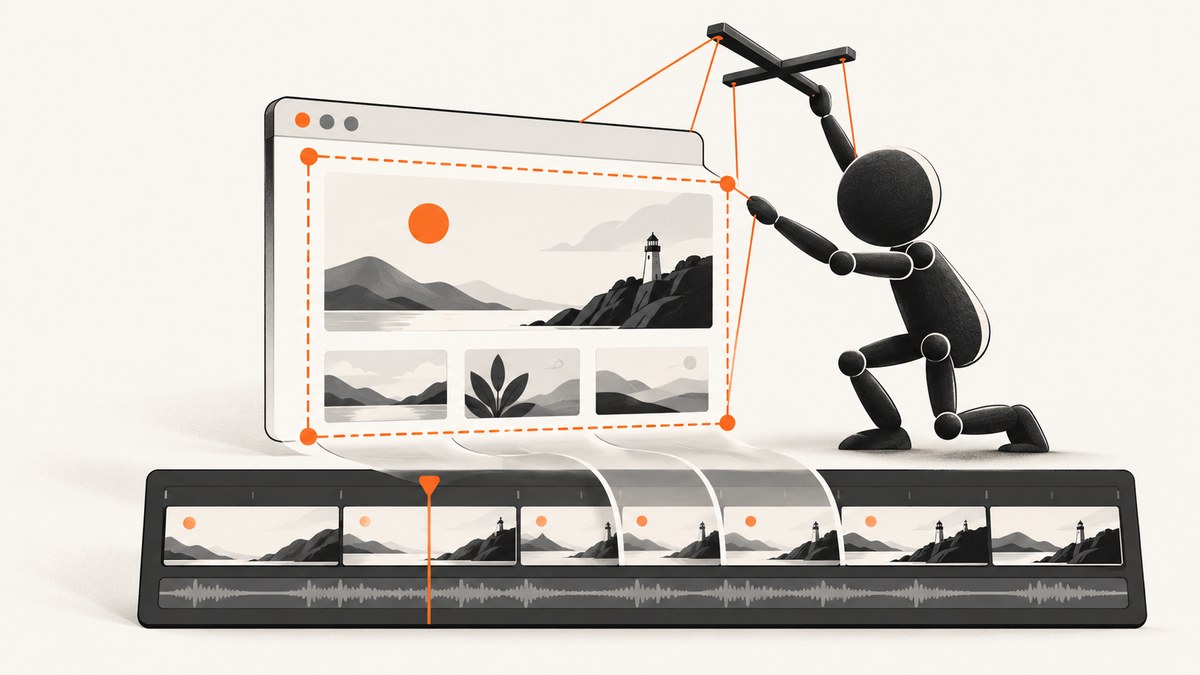
Use Puppeteer’s page.record() method to capture a page video. In Puppeteer 25.12.0, the method is documented as experimental. It records through the Chrome DevTools Protocol Page.startScreenRecording API and writes an MP4 stream. Start recording before the interactions you want to show, call await recorder.stop() when those interactions finish, then close the browser.
This is the current API documented by Puppeteer. The older page.screencast() method is obsolete and its reference points readers to Page.record(). The legacy page documents different behavior—WebM/VP9 at 30 FPS, Chrome 153 or newer, and an FFmpeg dependency—so do not automatically apply those requirements to the current recorder.
Record a page video: complete example
Install Puppeteer, save this file as record-page.mjs, and run it with Node.js:
npm install puppeteer
node record-page.mjs
import puppeteer from 'puppeteer';
const browser = await puppeteer.launch();
const page = await browser.newPage();
try {
await page.goto('https://www.example.com', {
waitUntil: 'networkidle2'
});
const recorder = await page.record({
path: 'recording.mp4'
});
// Everything after record() is included in the capture.
await page.waitForTimeout(1000);
await page.evaluate(() => window.scrollTo({ top: 500, behavior: 'smooth' }));
await page.waitForTimeout(1500);
await recorder.stop();
} finally {
await browser.close();
}The ScreenRecording object returned by page.record() is a readable stream with a stop() method. Passing path tells Puppeteer where to write the MP4 file. The try/finally block matters: if navigation or an interaction throws, the browser is still closed. For a normal recording, stop the recorder before closing the browser.
See the Puppeteer Page.record() API reference and the ScreenshotNeo documentation for the version-specific details of each approach.
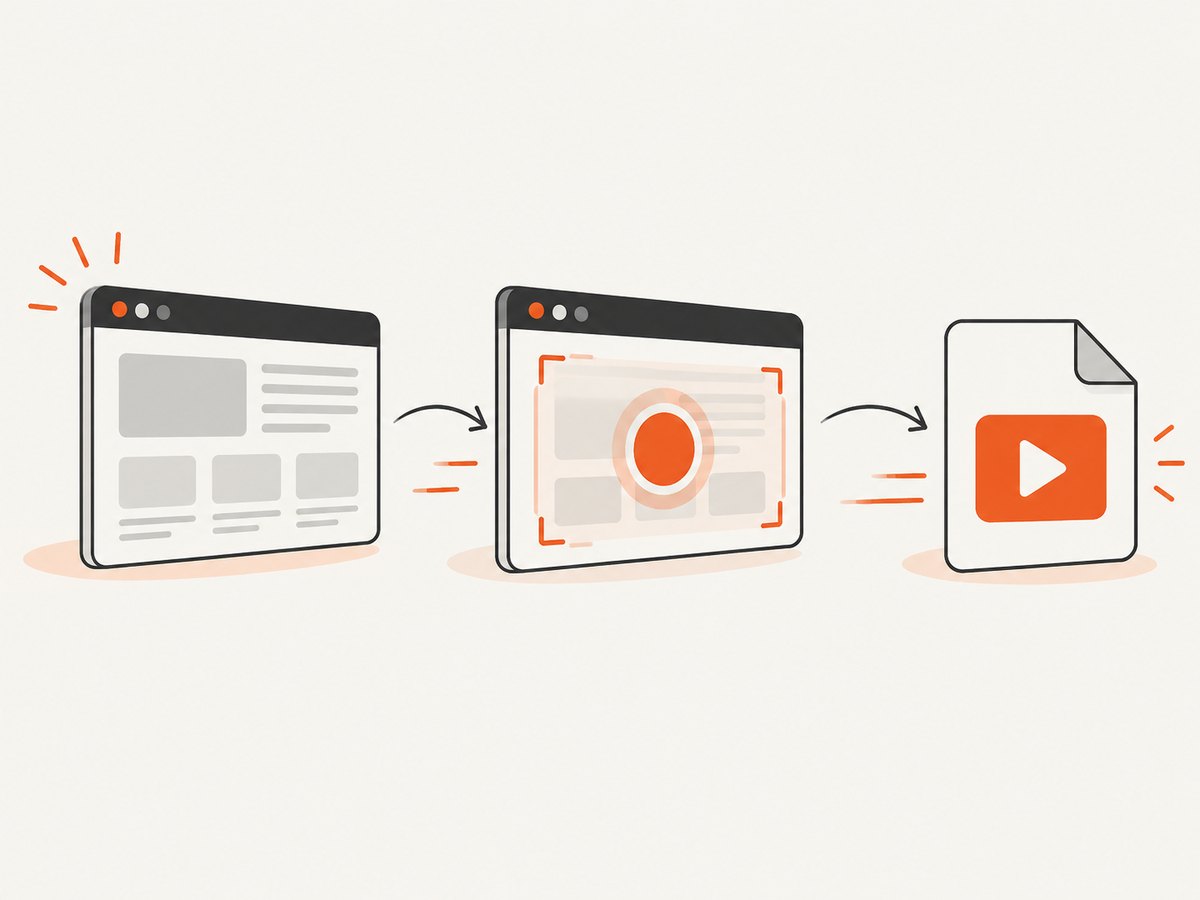
How the recording lifecycle works
- Launch Chromium.
puppeteer.launch()starts the browser process that will render the page. - Create a page. A new tab gives you an isolated target for navigation and actions.
- Navigate and prepare. Wait for the page state you need before recording. This can be a network-idle state, a selector, or an application-specific readiness signal.
- Start recording. Call
await page.record({ path: 'recording.mp4' }). Actions before this call are not part of the video. - Perform actions or wait. Click controls, scroll, type, open menus, or let an animation run.
- Stop recording. Call
await recorder.stop()so the stream is finalized and the MP4 can be closed correctly. - Close the browser. Call
await browser.close()after stopping the recorder.
Keep the recorder variable in scope until stopping completes. A process exit, browser close, or uncaught exception before stop() can leave an incomplete file.
Preparing a deterministic page
Video capture is only as useful as the page state it records. Make the page deterministic before starting:
Wait for a meaningful readiness signal
await page.goto('https://app.example.test/dashboard', {
  waitUntil: 'domcontentloaded'
});
await page.waitForSelector('[data-test="dashboard"]');
waitUntil controls when navigation resolves; it does not guarantee that a single-page application has finished fetching data. A selector that your application adds after rendering is usually a stronger signal. If the page has an explicit promise or global readiness flag, wait for that condition with page.waitForFunction().
Control time-dependent behavior
Pause long enough for transitions to be visible, but avoid arbitrary delays when a state can be observed directly. Disable rotating carousels or close transient dialogs before recording if they make the result unpredictable. Use a fixed viewport when layout matters:
await page.setViewportSize({ width: 1440, height: 900 });Record at the same viewport and browser configuration in each run when you need comparable output. Puppeteer’s current Page.record() reference does not document duration, resolution, frame-rate, or codec options. Do not assume that options from another recorder or from the obsolete screencast API are accepted.
Capture interactions explicitly
await page.getByRole('button', { name: 'Show details' }).click();
await page.waitForSelector('#details-panel');
await page.evaluate(() => window.scrollTo({ top: 800, behavior: 'smooth' }));
await page.waitForTimeout(1200);
Use stable selectors such as data attributes where possible. A text selector tied to marketing copy can break when content changes. If an interaction opens a new tab or popup, capture the target page deliberately instead of assuming the original page changed.
Handling errors and cleaning up safely
A robust script separates setup, capture, and cleanup. This pattern preserves the original error while still attempting to stop the recorder and close Chromium:
import puppeteer from 'puppeteer';

const browser = await puppeteer.launch();
let recorder;

try {
  const page = await browser.newPage();
  await page.goto('https://www.example.com', { waitUntil: 'networkidle2' });
  recorder = await page.record({ path: 'recording.mp4' });

  await page.waitForTimeout(3000);
} catch (error) {
  console.error('Capture failed:', error);
  process.exitCode = 1;
} finally {
  if (recorder) {
    try {
      await recorder.stop();
    } catch (stopError) {
      console.error('Could not finalize recording:', stopError);
      process.exitCode = 1;
    }
  }
  await browser.close();
}
If page.record() itself fails, there is no recorder to stop. If stopping fails, treat the resulting file as unreliable and rerun the capture rather than publishing it.
Current API versus the obsolete screencast API
| Area | Page.record() |
page.screencast() |
|---|---|---|
| Status | Experimental in Puppeteer 25.12.0 | Obsolete; documentation recommends Page.record() |
| Output documented by Puppeteer | MP4 | WebM using VP9 by default |
| Legacy frame rate | Not specified in the researched reference | 30 FPS by default |
| Legacy environment notes | No FFmpeg requirement stated in the researched reference | Chrome 153+ and FFmpeg are stated by the legacy reference |
The compatibility notes in the right column belong to the obsolete method. They are not evidence that the current recorder accepts the same flags or has the same dependencies. Pin and review the Puppeteer version used by your project, because an experimental API can change.
Troubleshooting Puppeteer recordings
The method is undefined
Cause: The installed Puppeteer version does not expose the experimental API, or your import resolves to a different package version.
Fix: Check the installed version with npm ls puppeteer, compare it with the 25.12.0 API reference, and update or pin the version your project supports. Do not silently switch to page.screencast() as a long-term solution; that method is obsolete.
The MP4 is missing or unplayable
Cause: The process ended before recorder.stop() completed, the browser was closed first, or the output path is not writable.
Fix: Stop the recorder in a finally block, close the browser afterward, and use an absolute path during diagnosis. Confirm that the parent directory exists and that the Node process has write permission.
The video is blank or shows the wrong state
Cause: Recording started before the application rendered, a consent dialog covered the page, or an interaction did not complete.
Fix: Wait for an application-specific selector, dismiss blocking UI, and verify each action with a postcondition such as a visible panel or changed URL before continuing.
Navigation hangs
Cause: Pages can keep connections open for analytics, ads, WebSockets, or live data. A network-idle condition may therefore take longer than expected.
Fix: Use a readiness selector instead of relying only on network idleness. Set an outer application timeout and report which step failed. Avoid claiming that a timeout proves the site is unavailable; it may only indicate that the chosen readiness condition was unsuitable.
Clicks fail intermittently
Cause: The element is moving, covered by an overlay, outside the viewport, or not yet attached.
Fix: Wait for the element, scroll it into view, close overlays, and assert visibility before clicking. Prefer stable test attributes over brittle CSS paths.
CI cannot launch Chromium
Cause: The runner may lack required system libraries, sandbox permissions, or a compatible browser binary.
Fix: Use a CI image supported by your Puppeteer version, inspect the launch error rather than guessing flags, and keep browser setup separate from recording logic. The researched Page.record() documentation does not promise platform-specific reliability, so validate the exact CI image you deploy.
Performance, reliability, and cost considerations
The official reference reviewed for this guide does not provide benchmarks for encoding speed, frame pacing, maximum duration, resolution limits, or cross-platform reliability. Treat those as deployment questions to measure in your own environment. For repeatable jobs:
- Reuse a browser process for related captures, while creating a fresh page per job.
- Keep recordings focused; long videos consume more disk and take longer to finalize.
- Write to local storage with enough free space, then move completed files to durable storage.
- Record structured logs for URL, Puppeteer version, start time, stop time, output path, and failure stage.
- Retry navigation failures selectively, but do not duplicate a successful file just because a later upload failed.
- Clean temporary files after an upload or failed finalization.
Because Page.record() is experimental, pinning a known Puppeteer version and reviewing release notes before upgrades reduces surprise changes. A small smoke recording in CI can detect API or browser changes before a larger batch runs.
Or skip the browser setup
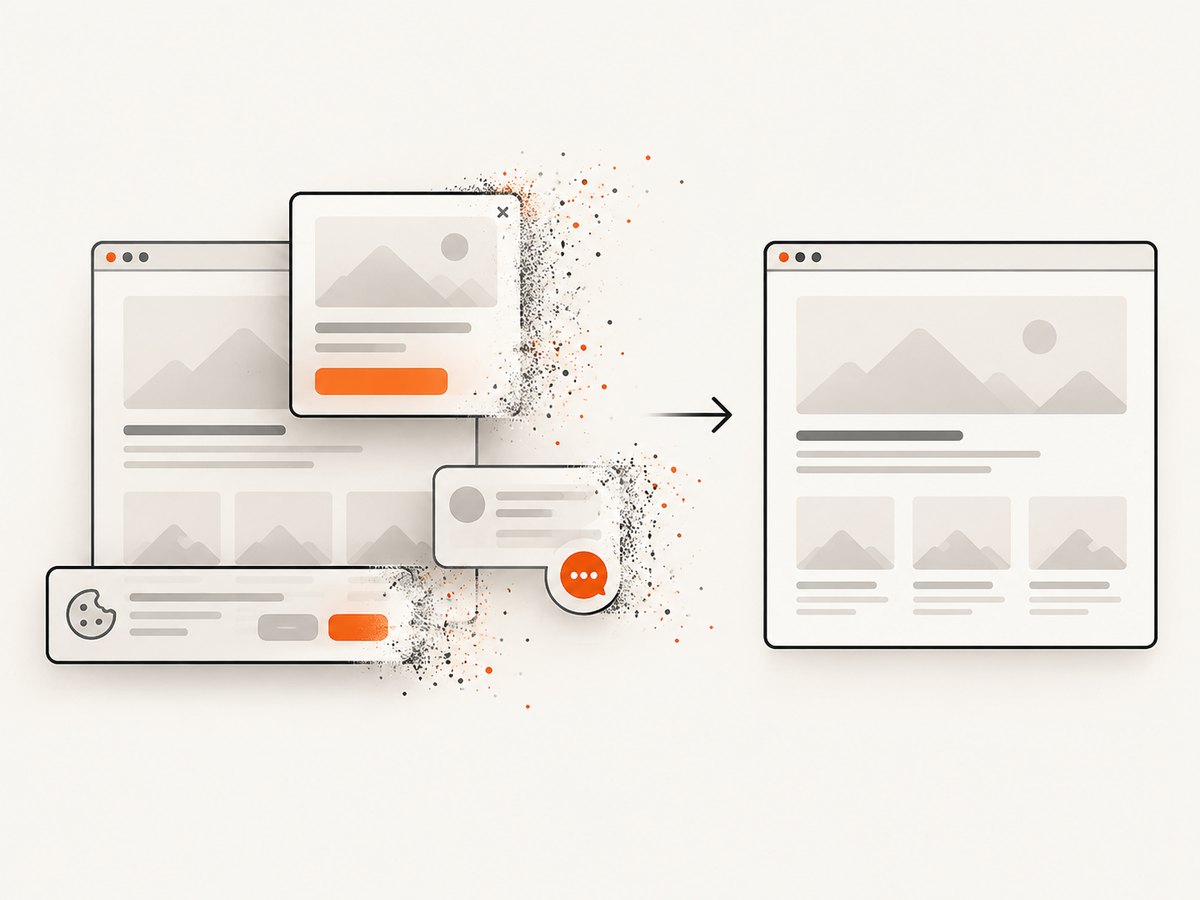
If you need still screenshots or PDFs rather than an interaction video, ScreenshotNeo provides a one-request website capture API. It accepts the cookie or consent banner like a visitor, removes more than 60 known consent platforms plus newsletter popups and chat widgets, and lets you turn each step off. Bot checks, blank pages, timeouts, failed loads, and cache hits are not billed; response headers identify the page verdict and whether the request was billed.
cURL:
curl -G "https://api.screenshotneo.com/v1/shot" \
  -d access_key=YOUR_API_KEY \
  --data-urlencode url=https://stripe.com \
  -o shot.webp
Python:
import requests

r = requests.get(
    "https://api.screenshotneo.com/v1/shot",
    params={"access_key": "YOUR_API_KEY", "url": "https://stripe.com"},
    timeout=90,
)
r.raise_for_status()
open("shot.webp", "wb").write(r.content)
Node.js:
const q = new URLSearchParams({ access_key: 'YOUR_API_KEY', url: 'https://stripe.com' });
const res = await fetch(`https://api.screenshotneo.com/v1/shot?${q}`);
if (!res.ok) throw new Error(`Screenshot failed: ${res.status}`);
const file = Buffer.from(await res.arrayBuffer());
await import('node:fs/promises').then(fs => fs.writeFile('shot.webp', file));
ScreenshotNeo also supports full-page captures with lazy images loaded, CSS-element captures, dark mode, 12 device presets and custom viewports, retina scale, PDFs, custom CSS and JavaScript, clicks, selector or network-idle waits, request blocking, headers, cookies, user agents, authorization, timezone, geolocation, transparent backgrounds, resizing, caching with a chosen TTL, signed image links, asynchronous jobs with signed webhooks, bulk capture for up to 100 URLs per call, usage reporting, and an OpenAPI specification. An MCP server exposes take_screenshot, get_page_info, and capture_pdf for Claude, Cursor, and other MCP clients.
There is a free allowance of 1,000 screenshots per month with no card. Paid plans start at $5 for 3,000 shots; yearly billing gives two months free, and every feature is available on every plan. Create a free ScreenshotNeo account to get started.
FAQ
Does Page.record() record audio?
The researched Puppeteer reference describes page recording through the DevTools screen-recording API and an MP4 stream, but it does not document audio capture. Do not assume microphone or page-audio support without version-specific documentation.
Can I choose WebM instead of MP4?
The current reference documents MP4 output. WebM/VP9 belongs to the obsolete screencast reference, so do not rely on it as a current Page.record() option.
Do I need FFmpeg?
The legacy screencast page states an FFmpeg requirement. The researched Page.record() reference does not state one. Follow the current version’s documentation and your own deployment test.
How do I record only one element?
The researched Page.record() API reference does not document an element-only recording option. You can alter the viewport or page layout before recording, but do not present that as a built-in crop feature.
Is this API stable?
No. Puppeteer labels Page.record() experimental in version 25.12.0. Pin versions, keep a smoke test, and review changes before upgrading.