How to Record Remote Browser Video with Selenium and Express.js
Connect Node.js Selenium to a remote Grid, enable Docker Selenium recording, save videos reliably, and troubleshoot common failures.

Direct answer: Express.js does not record the browser. Your Node.js process uses Selenium WebDriver to send commands to a remote Selenium Grid, while the Grid deployment runs a separate video recorder alongside the browser. Configure recording in the Docker Selenium topology you are running, keep the output directory mounted, and always call driver.quit() so the recorder can finish the file.
This architecture works for a standalone Docker Selenium container, a Hub/Node deployment, or Dynamic Grid. The recorder settings, capabilities, container names and output paths vary by topology, so identify that topology before copying configuration. The examples below use Node.js, Express and a remote endpoint at http://localhost:4444.
1. Understand the recording architecture
There are three separate components:
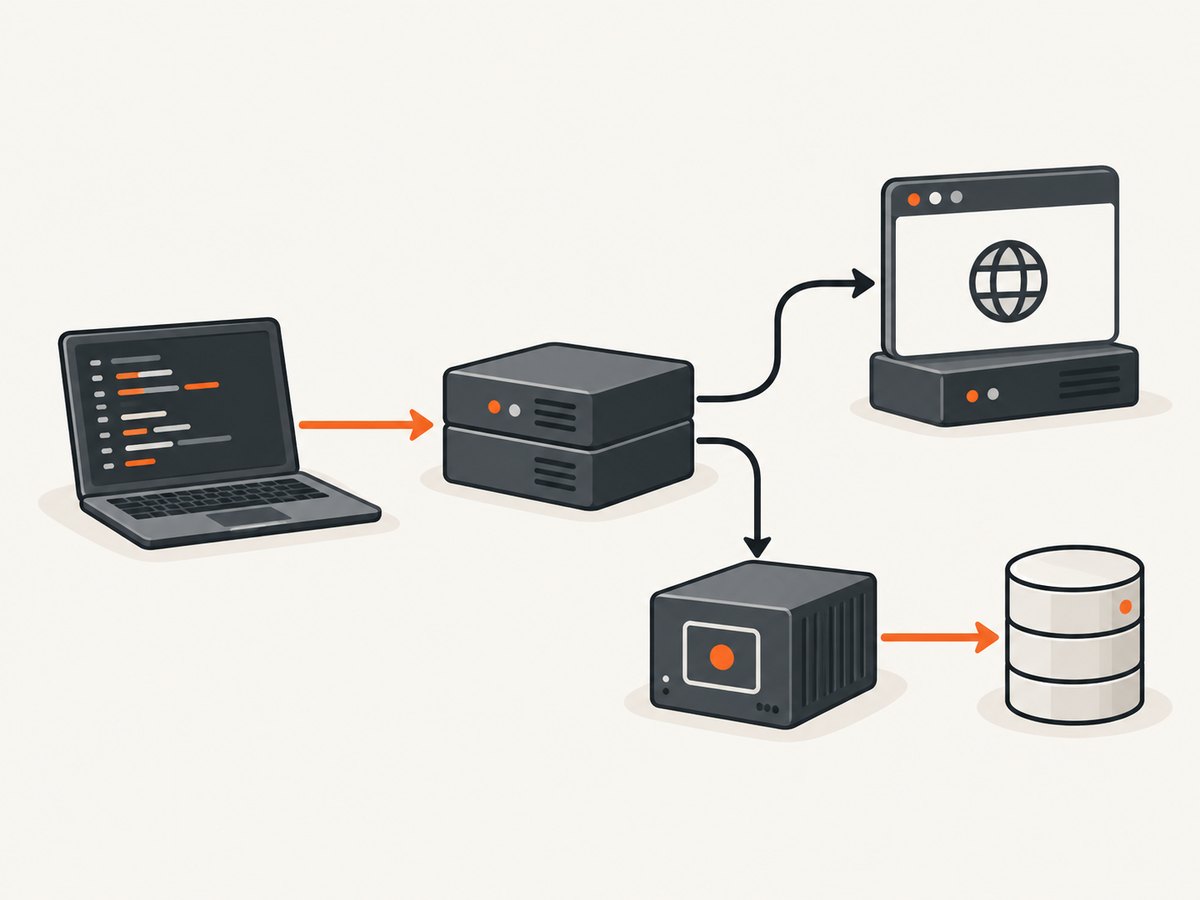
- Express or another Node.js process: accepts a request, starts an automation job and returns a result or artifact location.
- Selenium WebDriver client: the JavaScript code that creates a session and sends navigation, click and script commands.
- Remote Grid and recorder: the browser runs on a Grid node; Docker Selenium’s video service captures that session and writes or uploads the recording.
The browser is remote even though your Express process may run on your laptop or an application server. Video capture is a deployment feature of the Grid environment, not an Express middleware or a video stream produced by Selenium’s JavaScript binding. Selenium’s JavaScript API supports Builder().usingServer() and the SELENIUM_REMOTE_URL environment variable for the client connection. See the Selenium JavaScript API and Grid getting-started guide.
| Layer | Runs where | Responsibility |
|---|---|---|
| Express API | Your Node.js service | Trigger jobs, validate input, report status |
| WebDriver client | Your Node.js service | Send commands to the remote session |
| Browser | Grid node/container | Render the target site and execute commands |
| Video recorder | Docker Selenium deployment | Capture, stop and store the session video |
2. Choose a Selenium topology
Standalone Docker Selenium
A standalone image combines the Grid endpoint and browser node. A separate video-recorder container is commonly paired with it. Share a host directory or Docker volume with the recorder and follow the matching example in the docker-selenium README. This is the smallest setup for local development or a single worker.
Hub and Node
The Hub accepts WebDriver sessions and schedules them onto one or more nodes. Place the recorder with the browser node as directed by the selected Docker Selenium configuration, and mount a unique output location for each recorder when sessions can run in parallel.
Dynamic Grid
Dynamic Grid creates browser containers for sessions. Its documented recording control includes the se:recordVideo session capability. Use the Dynamic Grid instructions for the compatible image versions and asset mount. Do not assume that a standalone environment variable or path works unchanged in Dynamic Grid.
Image tags and defaults change. Pin mutually compatible Selenium and video image versions in a real deployment, then check the current README before publishing a production Compose file. The repository’s examples include mounted output and Rclone-based uploads to S3-compatible and GCS storage.
3. Prepare the Node.js project
The current Selenium JavaScript API documentation requires Node.js 22 or later. Create a project and install the two application dependencies:
mkdir remote-video-demo
cd remote-video-demo
npm init -y
npm install express selenium-webdriver
Set the Grid address in an environment variable rather than hard-coding it:
export SELENIUM_REMOTE_URL=http://localhost:4444The remote URL must be reachable from the Node.js process. If Node.js runs in a container, localhost means that container, not the host or another Compose service; use the service name on the shared Docker network instead.
4. Complete Express and Selenium example
This example exposes POST /record. It opens a remote Chrome session, performs a few actions, waits for the page to settle and closes the session in a finally block. The recorder watches the session lifecycle; closing the driver is therefore part of producing a complete file.
const express = require('express');
const { Builder, Browser, By, until } = require('selenium-webdriver');

const app = express();
app.use(express.json());

const gridUrl = process.env.SELENIUM_REMOTE_URL || 'http://localhost:4444';
const port = Number(process.env.PORT || 3000);

async function runRecording(targetUrl) {
  const driver = await new Builder()
    .forBrowser(Browser.CHROME)
    .usingServer(gridUrl)
    .build();

  try {
    await driver.manage().setTimeouts({
      implicit: 0,
      pageLoad: 60_000,
      script: 30_000
    });

    await driver.get(targetUrl);
    await driver.wait(until.titleIs(await driver.getTitle()), 1_000)
      .catch(() => {});

    // Example interaction. Replace this selector with one on your target page.
    const links = await driver.findElements(By.css('a'));
    if (links.length > 0) {
      await driver.executeScript(
        'arguments[0].scrollIntoView({block: "center"})',
        links[0]
      );
    }

    // Leave time for the recorder to capture the final state.
    await driver.sleep(2_000);
    return { title: await driver.getTitle(), url: await driver.getCurrentUrl() };
  } finally {
    await driver.quit();
  }
}

app.post('/record', async (req, res) => {
  const targetUrl = req.body && req.body.url;
  if (typeof targetUrl !== 'string' || !/^https?:\/\//i.test(targetUrl)) {
    return res.status(400).json({ error: 'url must be an http or https URL' });
  }

  try {
    const result = await runRecording(targetUrl);
    res.json({ ok: true, result });
  } catch (error) {
    console.error('recording failed', error);
    res.status(502).json({ ok: false, error: 'remote browser job failed' });
  }
});

app.listen(port, () => {
  console.log(`recording API listening on http://localhost:${port}`);
});
Start the service and trigger a job:
node server.js
curl -X POST http://localhost:3000/record \
  -H 'content-type: application/json' \
  -d '{"url":"https://example.com"}'
The HTTP response only reports the WebDriver result. The video itself appears in the recorder’s mounted output directory or in the configured object-storage destination. Add a job ID to your application data if you need to associate a response with a particular recording.
5. Enable recording in Docker Selenium
Use the recorder configuration for your exact Docker Selenium deployment. The general pattern is:
- Run the browser/Grid service and a compatible video-recorder service.
- Give the recorder access to the browser session events and the same output volume or host directory.
- Mount that directory on the host, for example under
./videos, so files survive container removal. - For Dynamic Grid, set the documented
se:recordVideocapability when the session must be recorded. - Keep recorder and browser image versions compatible and use unique file naming for parallel sessions.
The exact Compose service names, environment variables and mounts are intentionally topology-specific. Copy the matching section from the current docker-selenium documentation rather than combining snippets from different releases. Docker Selenium documents both mounted-file output and Rclone upload destinations, including S3 and GCS configurations.
Video recording for headless browsers is not supported in the documented Docker Selenium setup. Configure a display-capable browser mode when recordings are required. Recording also consumes substantial CPU; the project suggests planning around one CPU for each video container and one CPU for each browser container. Treat that as a capacity guideline, not a benchmark.
6. Store and retrieve the video
| Output method | Advantages | Operational concerns |
|---|---|---|
| Mounted directory | Simple local access; easy to inspect in CI | Requires shared volume permissions and retention cleanup; files disappear if not mounted |
| Object-storage upload | Persists beyond container lifetime; central artifact access | Requires credentials, bucket policy, lifecycle rules and network access |
Keep S3 or GCS credentials in deployment secrets, never in an Express route or committed source. Restrict the bucket to the recorder’s required permissions. In CI, upload or copy the file before the workspace is destroyed and include the session or job ID in the artifact name.
7. Make Express reliable under load
- Do not hold an HTTP request open indefinitely. For long jobs, enqueue work and return a job ID. Add a status endpoint and a retention policy for completed videos.
- Limit concurrency. Each browser and recorder consumes CPU and memory. A queue prevents a traffic spike from starting more sessions than the Grid can run.
- Always clean up. Put
driver.quit()infinally, including error paths and application shutdown handling. - Use explicit waits. Replace arbitrary sleeps with
until.elementLocated,until.elementIsVisibleor a page-specific readiness condition where possible. - Use unique artifact names. Parallel recorders writing the same filename can overwrite or corrupt expected output.
- Protect the Grid. Selenium’s guide states: “Selenium Grid must be protected from external access using appropriate firewall permissions.” Keep port 4444 private or firewall-restricted. An exposed Grid can provide access to internal applications, files or arbitrary binaries.
8. Troubleshooting common failures
| Symptom | Likely cause | Fix |
|---|---|---|
| Connection refused on port 4444 | Grid is stopped, the URL is wrong, or a container uses the wrong meaning of localhost |
Check Grid health, use the Compose service hostname from Node.js, and verify firewall/network rules. |
| Session starts but no video appears | Recorder is not paired with the browser, output is not mounted, or the session never closes | Use the topology’s recorder configuration, inspect recorder logs, mount the output directory and ensure driver.quit() runs. |
| Video is empty or truncated | The process crashed, the browser was killed, or the recorder did not observe session closure | Use try/finally, allow the final page state to render, and wait for recorder completion before collecting artifacts. |
| Recording fails in headless mode | Documented Docker Selenium recorder limitation | Run a display-capable browser configuration. |
| Two sessions overwrite one file | Static recorder filename in a parallel deployment | Use automatic or unique names containing a job/session identifier. |
| Express request times out | Browser work exceeds proxy or server timeout | Queue the job, return an ID, poll status, and retrieve the artifact asynchronously. |
| Page-load timeout | Target site is slow, blocked, or waiting on a resource | Set a bounded page-load timeout, capture diagnostic logs, and decide whether to retry the job. |
| Cloud upload fails | Bad credentials, bucket policy, region or network configuration | Validate secrets and destination from the recorder container; do not place credentials in application code. |
9. Performance, reliability and cost planning
Recording adds a second workload to browser automation. Budget CPU for both the browser and video container, then measure memory, disk growth and upload time in your own deployment. Keep recordings short when a full session is unnecessary, and use retention or object-storage lifecycle rules so artifacts do not fill the mounted disk.
Retries should create a new session and a new artifact name. Retrying inside a half-closed WebDriver session can leave the recorder waiting for an event that will never arrive. Record the Grid session ID, target URL, start time and final status with each job so a failed capture can be traced without opening the video.
There is no Selenium license fee for this workflow, but infrastructure costs include browser containers, recorder CPU, disk and any object-storage or egress charges. The research sources do not provide a universal cost benchmark; size the deployment from your concurrency, video duration and retention requirements.
10. Or skip the browser setup
If your goal is a clean image or PDF of a page rather than a time-based video of browser interactions, ScreenshotNeo provides a single screenshot request. Its API accepts cookie banners before capture and removes more than 60 known consent platforms, newsletter popups and chat widgets. Bot checks, blank pages, failed loads, timeouts and cache hits are not billed, and response headers identify the page verdict and billing result. It also provides an MCP server with take_screenshot, get_page_info and capture_pdf for Claude, Cursor and other MCP clients.
Read the ScreenshotNeo API documentation for all options, including full-page capture, element selectors, dark mode, device presets, retina scale, PDF settings, custom CSS and JavaScript, clicks, waits, request blocking, headers, cookies, geolocation, caching, signed links, asynchronous jobs, bulk capture and usage reporting.
cURL
curl -G "https://api.screenshotneo.com/v1/shot" \
  -d access_key=YOUR_API_KEY \
  --data-urlencode url=https://stripe.com \
  -o shot.webp
Python
import requests

r = requests.get(
    "https://api.screenshotneo.com/v1/shot",
    params={"access_key": "YOUR_API_KEY", "url": "https://stripe.com"},
    timeout=90,
)
r.raise_for_status()
open("shot.webp", "wb").write(r.content)
Node.js
const q = new URLSearchParams({
  access_key: 'YOUR_API_KEY',
  url: 'https://stripe.com'
});
const res = await fetch(`https://api.screenshotneo.com/v1/shot?${q}`);
if (!res.ok) throw new Error(`Screenshot failed: ${res.status}`);
require('fs').writeFileSync('shot.webp', Buffer.from(await res.arrayBuffer()));
ScreenshotNeo has a free plan with 1,000 screenshots per month and no card requirement. Paid plans start at $5 for 3,000 screenshots, and every feature is available on every plan. Create a free ScreenshotNeo account.
11. Checklist before production
- Grid URL is private, reachable from Node.js and protected by firewall rules.
- Browser and video images are compatible and pinned to known versions.
- Recorder output is mounted or uploaded to durable storage.
- Headless mode is disabled when using the documented recorder.
driver.quit()runs on success, timeout and exception.- Parallel sessions receive unique filenames.
- Express jobs have bounded timeouts, concurrency limits and cleanup.
- Secrets are supplied through deployment configuration, not source code.
- Artifact retention and disk alerts are configured.
FAQ
Does Selenium itself save an MP4?
The WebDriver client sends browser commands. In Docker Selenium, a separate recorder service captures the session and writes or uploads the video.
Is Express required?
No. A Node.js script, test runner or worker can use the same remote WebDriver pattern. Express is useful when another application needs to trigger and monitor jobs.
Where is the recording file?
It is in the recorder’s mounted output directory or the configured object-storage destination. The exact path depends on the Docker Selenium topology.
Can I record a headless Chrome session?
The documented Docker Selenium video setup does not support headless browsers. Use a display-capable browser node for recording.
Can I expose Grid port 4444 publicly?
Do not expose an unauthenticated Grid to the public internet. Restrict it with firewall rules and place any external API behind an authenticated application layer.


