How to Record Screens With Playwright MCP
Record browser sessions as WebM with Playwright MCP, add chapters and action callouts, find the saved file, and fix common setup errors.
Use Playwright MCP’s video tools when you need a watchable recording of a browser session. Start the MCP server with the devtools capability, call browser_start_video, perform the browser actions, and call browser_stop_video. Playwright saves a WebM file. You can add chapter cards and action callouts while the session runs.
This guide explains the complete workflow, configuration, file locations, annotation tools, troubleshooting, and the difference between a session video, generated Playwright code, and an execution trace.
What Playwright MCP records
Playwright’s documented video feature records a browser session as a WebM video. The recording shows the visual interaction, making it suitable for bug reports, test reviews, tutorials, and handoffs. It is different from a screenshot, which captures one still image, and the documentation does not describe audio capture.
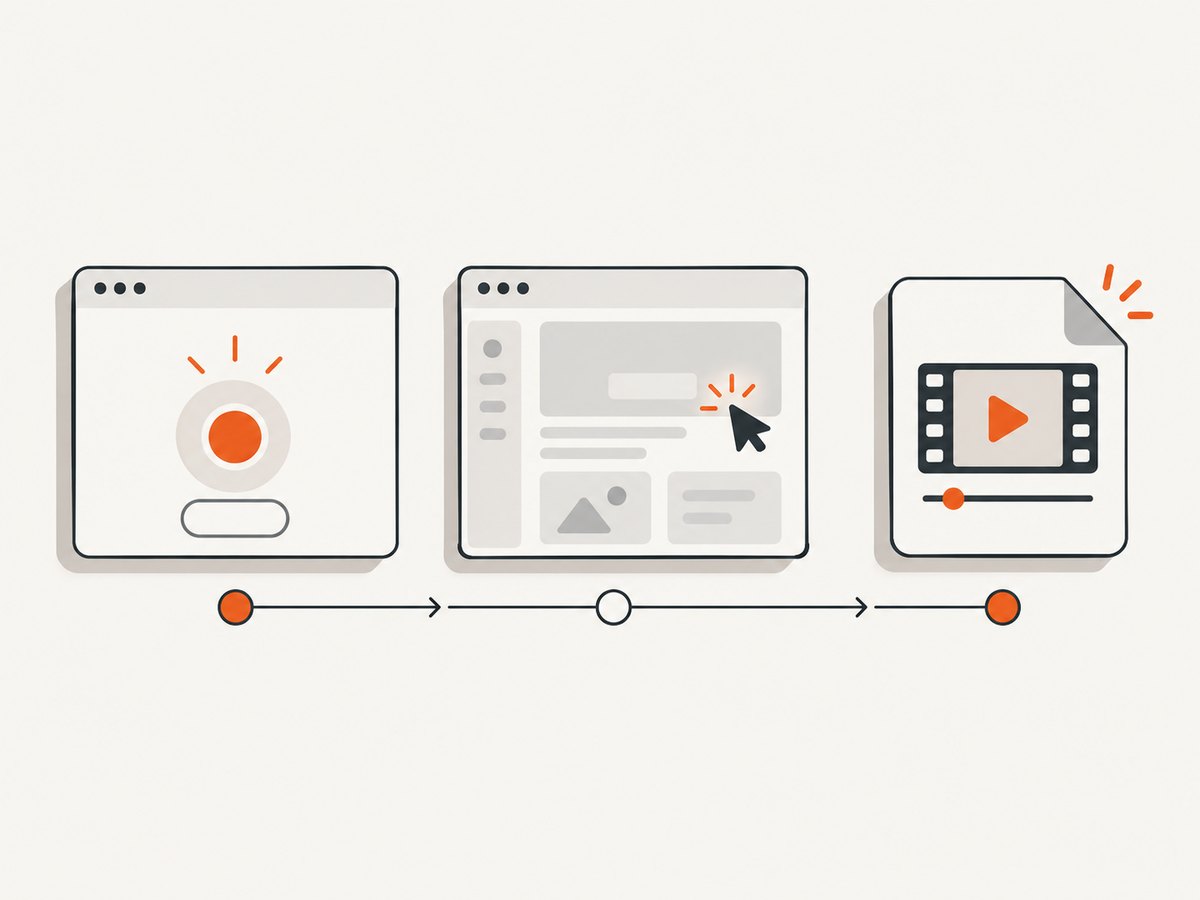
The video workflow has four parts:
- Enable the
devtoolscapability when launching Playwright MCP. - Start a video with
browser_start_video. - Perform browser actions and optionally add chapters or callouts.
- Stop the video with
browser_stop_videoand inspect the returned file.
Playwright describes the feature as recording browser sessions “as WebM videos with chapter cards and action callouts.” See the official Video Recording documentation for the current tool parameters.
Prerequisites and MCP configuration
The Playwright MCP getting-started guide lists Node.js 20 or newer and an MCP-compatible client as prerequisites. The standard server command uses npx @playwright/mcp@latest. Video recording requires the additional --caps=devtools argument.
{
  "mcpServers": {
    "playwright": {
      "command": "npx",
      "args": ["@playwright/mcp@latest", "--caps=devtools"]
    }
  }
}
Put this configuration in the MCP client’s server configuration, then restart or reconnect the Playwright MCP server. Updating the file while an existing server process is running does not retroactively add the capability. If the video tools do not appear, fully stop the old process and start it again.
Browser and profile options
Playwright MCP also supports browser and profile configuration options. Keep those options in the same MCP server configuration used by your client. For example, you may choose a browser, persistent profile, or other supported launch setting when your workflow needs a specific environment. Check the current configuration options before copying a setting because option names and supported values are version-sensitive.
Record a browser session step by step
1. Start the recording
Call browser_start_video before the actions you want to capture. The optional filename parameter chooses the output name. A relative filename resolves against the workspace root. If you omit it, the documented default is a timestamped name such as video-{timestamp}.webm in the output directory.
{
  "filename": "checkout-bug.webm",
  "size": {
    "width": 1280,
    "height": 720
  }
}
The size object is optional. Use it when a consistent video dimension matters for review or publishing. If you omit it, the client and browser environment determine the recording size.
2. Perform the browser actions
Use the normal Playwright MCP browser tools to open a page, click controls, fill fields, and reproduce the behavior you want to document. Start the video before the first relevant action so navigation and setup are included.
A compact prompt to an MCP client could be:
Start a video named checkout-bug.webm at 1280x720.
Open the checkout page, add the first product to the cart, and proceed to checkout.
Stop the video after the error is visible.
The client translates that request into calls to browser_start_video, browser interaction tools, and browser_stop_video. If you need a deterministic artifact, name the file explicitly and use a fixed video size.
3. Add chapter cards
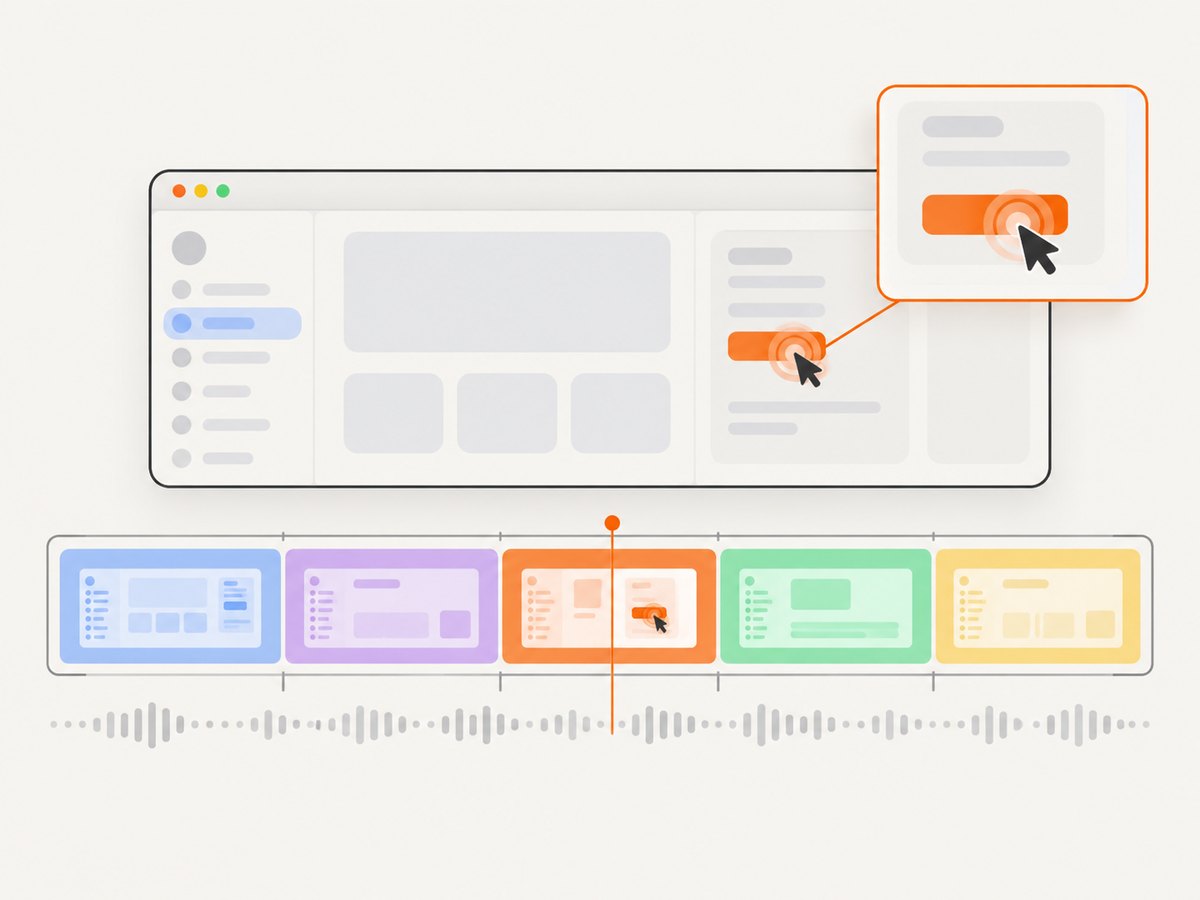
Long recordings are easier to review when they have named sections. Call browser_video_chapter during the recording. A chapter requires a title and accepts an optional description and duration. It inserts a full-screen chapter card into the video.
{
  "title": "Reproduce the checkout error",
  "description": "The payment form returns an error after submission",
  "duration": 2
}
Use short titles that tell the reviewer what changes. Useful chapter boundaries include setup, the normal path, the failing step, and the observed result. Add a chapter before each major phase rather than after every click.
4. Show action callouts
Call browser_video_show_actions to annotate subsequent actions with visual callouts. The video guide documents options for callout duration and position, plus a pointer decoration. This is useful when a reviewer must notice the exact control being clicked.
{
  "duration": 1.5,
  "position": "bottom",
  "pointer": true
}
Keep callouts enabled while demonstrating one coherent sequence. Call browser_video_hide_actions when the explanatory overlays would obscure the page or when you want a clean view of the final state.
5. Stop and locate the file
Call browser_stop_video after the final state is visible. The tool stops the recording and returns the recorded file. With a supplied relative filename, look for that name under the workspace root. Without one, look in the client’s configured output directory for the timestamped WebM file.
Stop the video recording and return the saved file.Do not assume every MCP client exposes the same absolute output path. The documented behavior guarantees the filename resolution rules, while the surrounding client or workspace determines how the returned artifact is presented.
A complete bug-reproduction example
This sequence gives a reviewer a clear narrative without making the video unnecessarily long:
- Start
checkout-bug.webmat a fixed size. - Add a chapter titled Setup.
- Open the application and sign in using a test account.
- Hide irrelevant banners or move to the page needed for the reproduction.
- Add a chapter titled Submit payment.
- Enable action callouts.
- Fill the form and click the submit button.
- Disable action callouts once the error is visible.
- Add a chapter titled Observed error with a short description.
- Leave the page still for a moment so the reviewer can read it.
- Stop the video and share the returned WebM file with the issue.
When writing the MCP prompt, state the stopping condition explicitly. “Stop after the error message is visible” is more reliable than “record the checkout flow,” which may leave the client uncertain about when to finish.
Choose the right Playwright recording tool
| Tool pair | Output | Best for |
|---|---|---|
browser_start_video / browser_stop_video |
Watchable WebM session video | Bug reports, reviews, tutorials, and demonstrations |
browser_start_recording / browser_stop_recording |
Playwright code generated from user actions | Turning a demonstrated flow into automation code |
browser_start_tracing / browser_stop_tracing |
Diagnostic trace with DOM snapshots, screenshots, network activity, and console logs | Investigating behavior and debugging failures |
These outputs are not interchangeable. A video helps a human watch what happened. Action recording helps a developer author code. A trace helps diagnose why the browser behaved a certain way. The MCP introduction, debugging tools documentation, and tracing documentation describe those distinctions.
Make recordings understandable
- Give the file a meaningful name. Include the feature and failure, such as
search-empty-state.webm. - Use chapters for intent. Titles such as “Open account settings” are more useful than “Step 4.”
- Keep the viewport consistent. A fixed
sizemakes comparisons easier. - Show the final state. Pause after an error or assertion so it can be read.
- Use callouts selectively. Overlays should identify an important action, not cover every interaction.
- Record safe data. Use test accounts and redact secrets before sharing the WebM.
Common errors and fixes
| Symptom | Cause | Fix |
|---|---|---|
browser_start_video is unavailable |
The server was started without the devtools capability, or the client is connected to an old process. | Add --caps=devtools, then stop and restart or reconnect the MCP server. |
| The server command fails immediately | Node.js is missing or older than the documented Node.js 20 prerequisite. | Install or select Node.js 20 or newer, then rerun npx @playwright/mcp@latest. |
| The file name is not where expected | A relative path is resolved from the workspace root, while the default name is written to the output directory. | Supply an explicit relative filename and inspect the workspace returned by the MCP client. |
| The recording is empty or ends too early | Recording was stopped before navigation or the target state completed. | Start video before the first relevant action and stop only after the final state is visible. |
| Callouts cover the page | Action overlays remain enabled during a detailed visual inspection. | Call browser_video_hide_actions before showing the important final state. |
| Reviewers cannot follow a long video | There are no semantic section markers. | Add browser_video_chapter cards for setup, reproduction, and result. |
| A trace was shared instead of a video | Tracing tools were used for diagnosis rather than video tools. | Use browser_start_video and browser_stop_video when the deliverable must be watchable. |
Performance, reliability, and storage considerations
Video recording adds an artifact-writing step to the browser session. Keep recordings focused: shorter flows are faster to review and create smaller files than an entire exploratory session. A fixed size gives predictable dimensions, while chapters and callouts add explanatory frames and overlays.
For reliable reproductions, control the starting state, use stable test data, and include a clear stopping condition. If a page loads asynchronously, wait for the relevant UI state before declaring the step complete. When diagnosing a flaky failure, pair a short video with a Playwright trace so the video communicates the symptom and the trace supplies DOM, network, and console details.
The official material documents WebM output and tool behavior but does not publish universal file-size, duration, performance, or retention limits. Treat storage and sharing limits as properties of your MCP client and workspace rather than promises of the video tool.
Or skip the browser setup
If you need still screenshots rather than a video, ScreenshotNeo captures a URL with one API request. Its cleanup step accepts cookie and consent banners like a visitor, then removes more than 60 known consent platforms, newsletter popups, and chat widgets. Each step can be turned off. Bot checks, blank pages, timeouts, failed loads, and cache hits are not billed, and the response reports the result through X-Page-Verdict and X-Billed headers.
See the ScreenshotNeo API documentation for all options, including full-page capture, element selectors, device presets, custom viewports, dark mode, retina scale, custom CSS and JavaScript, waits, request blocking, cookies, headers, authorization, timezone, geolocation, PDF output, caching, signed links, asynchronous jobs, bulk capture, and usage reporting.
cURL
curl -G "https://api.screenshotneo.com/v1/shot" \
  -d access_key=YOUR_API_KEY \
  --data-urlencode url=https://stripe.com \
  -o shot.webp
Python
import requests

r = requests.get(
    "https://api.screenshotneo.com/v1/shot",
    params={"access_key": "YOUR_API_KEY", "url": "https://stripe.com"},
    timeout=90,
)
r.raise_for_status()
open("shot.webp", "wb").write(r.content)
Node.js
const q = new URLSearchParams({ access_key: 'YOUR_API_KEY', url: 'https://stripe.com' });
const res = await fetch(`https://api.screenshotneo.com/v1/shot?${q}`);
if (!res.ok) throw new Error(`HTTP ${res.status}`);
const buffer = Buffer.from(await res.arrayBuffer());
require('fs').writeFileSync('shot.webp', buffer);
ScreenshotNeo also provides an MCP server with take_screenshot, get_page_info, and capture_pdf, so Claude, Cursor, and other MCP clients can request captures without you managing a browser process. The Free plan includes 1,000 shots per month with no card; paid plans start at $5 for 3,000 shots. Create a free ScreenshotNeo account.
FAQ
Does Playwright MCP save MP4 files?
The documented video workflow returns WebM. Convert it afterward if your publishing system requires another format.
Can I record only one tab?
Start the video while the target browser context and page are active, then keep the recorded flow focused on that page. The official workflow describes browser-session recording rather than an independent screen recorder.
Should I use video or tracing for a bug?
Use video when a reviewer needs to watch the reproduction. Add tracing when you need DOM snapshots, screenshots, network activity, and console logs to diagnose the cause.
What if I only need generated automation code?
Use browser_start_recording and browser_stop_recording. That workflow returns Playwright code instead of a watchable WebM.
Where does a custom relative filename go?
It resolves against the workspace root. The default timestamped filename goes to the output directory documented for the video workflow and exposed by your MCP client.


