How to Record Selenium WebDriver Browser Sessions as Video
Record Selenium tests with Docker Selenium, collect videos in CI, and retain only failed sessions. Includes setup, code, troubleshooting, and alternatives.
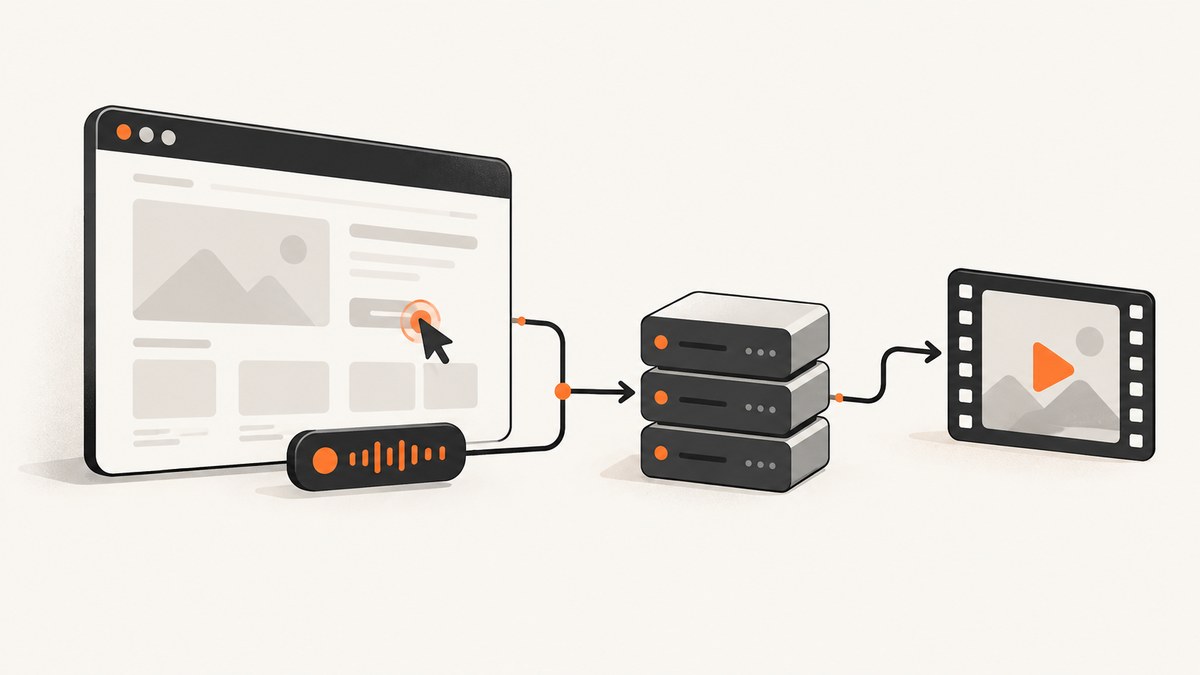
Short answer: Selenium WebDriver controls the browser; it does not provide one universal command that records every session to MP4 or WebM. If your tests run on Selenium Grid using Docker Selenium, request recording when creating the session with the se:recordVideo capability, then make the container’s artifacts available to your CI job. For local runs, use a recorder integration that supports your browser and test runner, or capture screenshots when a video is unnecessary.
This guide uses Python with RemoteWebDriver and Docker Selenium for a complete example. The same Grid capability can be sent from other Selenium language bindings. Follow your pinned image’s documentation: recorder behavior and configuration depend on the Docker Selenium version.
1. Choose where recording happens
A WebDriver session can run in a local browser, on a self-hosted Grid node, or in a managed browser service. Video comes from the environment or an integration around WebDriver. This distinction matters: changing a Selenium browser option alone does not create a portable video artifact across browsers and execution environments. Selenium describes WebDriver as browser automation and Grid as a way to run sessions on remote machines; neither defines a universal video-file command. See the WebDriver documentation and Grid documentation.
| Approach | Best fit | Things to verify |
|---|---|---|
| Docker Selenium video service | Tests already running on self-hosted Grid or containerized CI | Image/version, capability support, output mount, upload and retention |
| Browser protocol or BiDi integration | Teams needing live browser events or viewport capture | Browser and binding support; behavior can differ by implementation |
| Test-library extension | A specific framework already supplies a recorder integration | Supported browsers, encoder dependencies, file format and lifecycle |
| Managed browser testing | Teams that prefer hosted execution and artifact collection | Coverage, retention, access, data residency and current service pricing |
2. Run Docker Selenium with video recording
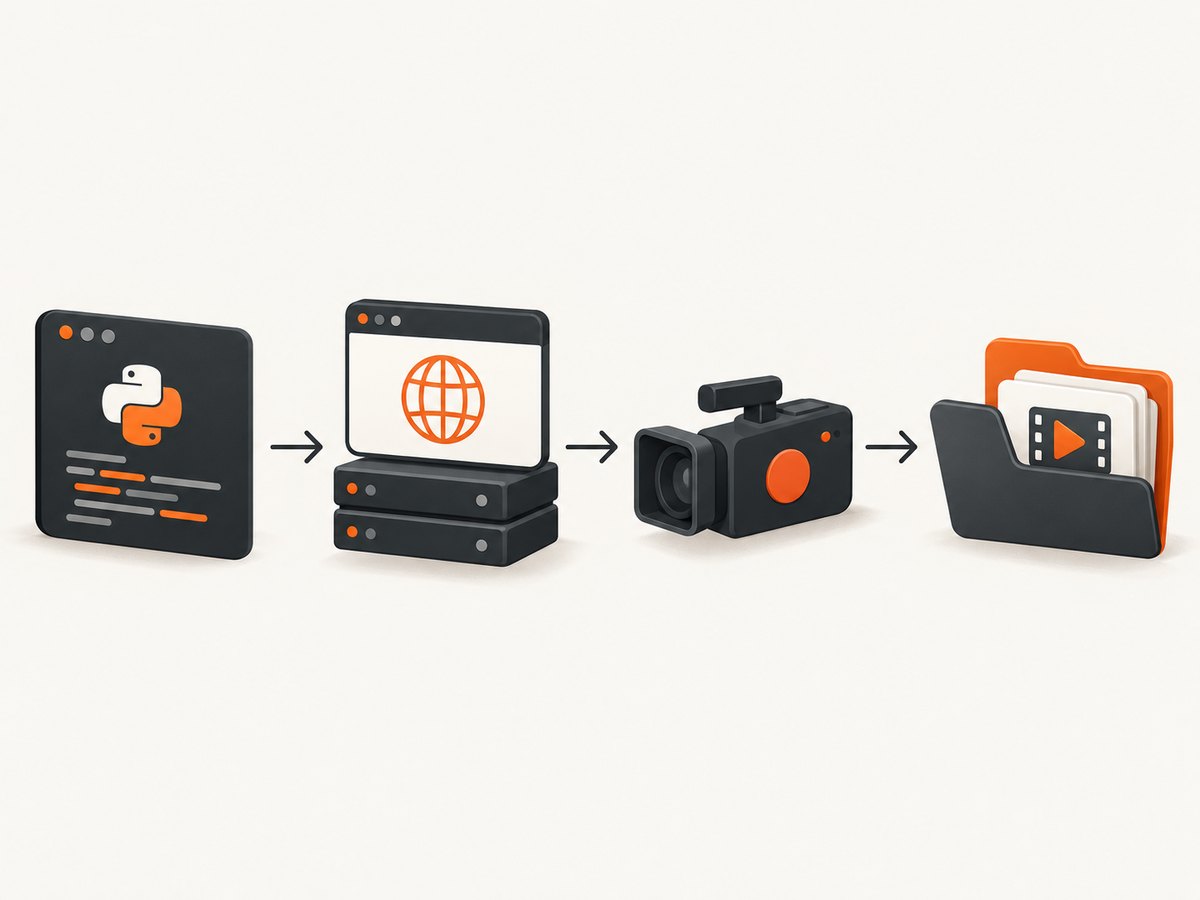
Docker Selenium documents se:recordVideo as the session capability for requesting a recording. It also documents optional screen-resolution and time-zone capabilities. The video service needs to be part of the Grid deployment, and the output directory must persist outside a disposable container if CI is expected to collect files afterward. Read the project’s video recording documentation and its volume guidance for the exact setup matching your version.
Start a local standalone Grid
For a quick local run, Docker Selenium’s standalone browser image exposes the WebDriver endpoint on port 4444. Use a full version tag in a repeatable pipeline, and provide shared memory as shown in the project’s quick start. A Grid without the video service will not record simply because the client requests a capability.
docker run -d --rm \
  --name selenium \
  -p 4444:4444 \
  --shm-size="2g" \
  selenium/standalone-firefox:4.48.0-20260905
The tag above is an example of a full tag shown in the Docker Selenium project; pin the version you actually use. For recording output, configure the video service and a persistent assets mount using the documented video Compose setup for that version. In CI, mount a workspace directory and archive the resulting files before the job removes containers. Do not assume an artifact inside a container will remain after cleanup.
Create a recording session in Python
Install Selenium with python -m pip install selenium. Save this as record_test.py and run it while the Grid endpoint is available:
from selenium import webdriver
from selenium.webdriver.common.by import By
from selenium.webdriver.firefox.options import Options

options = Options()
options.set_capability("se:recordVideo", "true")
options.set_capability("se:screenResolution", "1920x1080")
options.set_capability("se:timeZone", "US/Pacific")

# RemoteWebDriver sends these capabilities when the session is created.
driver = webdriver.Remote(
    command_executor="http://localhost:4444",
    options=options,
)

try:
    driver.get("https://example.com")
    print(driver.title)
    # Put the test actions you want in the video here.
finally:
    # Closing the session is important: the recorder uses the session lifecycle.
    driver.quit()
The capability example uses the documented values and names. se:screenResolution controls the recorded browser dimensions; choose a resolution that matches the viewport you want reviewers to see. Larger frames can increase the size of the resulting artifact, though exact size and encoding depend on the image and recorder version. Set the time zone explicitly when the page or test output depends on local time.
Capabilities in other language bindings
Capabilities are part of the new remote session request, so use the corresponding options/capabilities API for your Selenium binding. For example, the capability payload is:
{
  "browserName": "firefox",
  "platformName": "linux",
  "se:recordVideo": "true",
  "se:timeZone": "US/Pacific",
  "se:screenResolution": "1920x1080"
}
Use the browser name and options object required by your selected Grid node. The example does not install or start the video service; server-side recording must be configured separately. Consult the binding’s official Selenium API documentation for how it constructs a remote session.
3. Make videos survive CI cleanup
- Run Grid and the video service. Use the Docker Selenium Compose example that matches your deployment mode—standalone, hub/node, or dynamic Grid.
- Mount persistent artifacts. Bind the documented assets/output directory to a host or CI workspace. Confirm the mount is writable by the container process.
- Use an unambiguous name. Where supported by the recorder configuration, include test or build metadata so parallel sessions do not produce confusing artifacts.
- Wait for session shutdown. The recording is finalized when the session closes. Ensure teardown executes even after assertion failures.
- Upload before cleanup. Archive the mounted files as CI artifacts, then apply your repository’s retention policy.
Docker Selenium’s recent event-driven recording behavior uses Grid lifecycle events: recording starts for session-created and stops for session-closed. The project’s Grid 4.41.0 release post also describes uploading only failed or abnormally closed sessions when failure-only retention is enabled. Check the version you deploy before relying on that behavior; do not assume an older video service has the same lifecycle or retention features.
4. Keep recordings only for failed tests
Failure-only retention is useful when successful runs do not need visual review. If your Docker Selenium video service version supports it, configure its documented failed-session upload/retention mechanism, and verify the definition of failure in your pipeline. A test assertion failure, browser crash, worker termination, and CI cancellation may not all have identical outcomes.
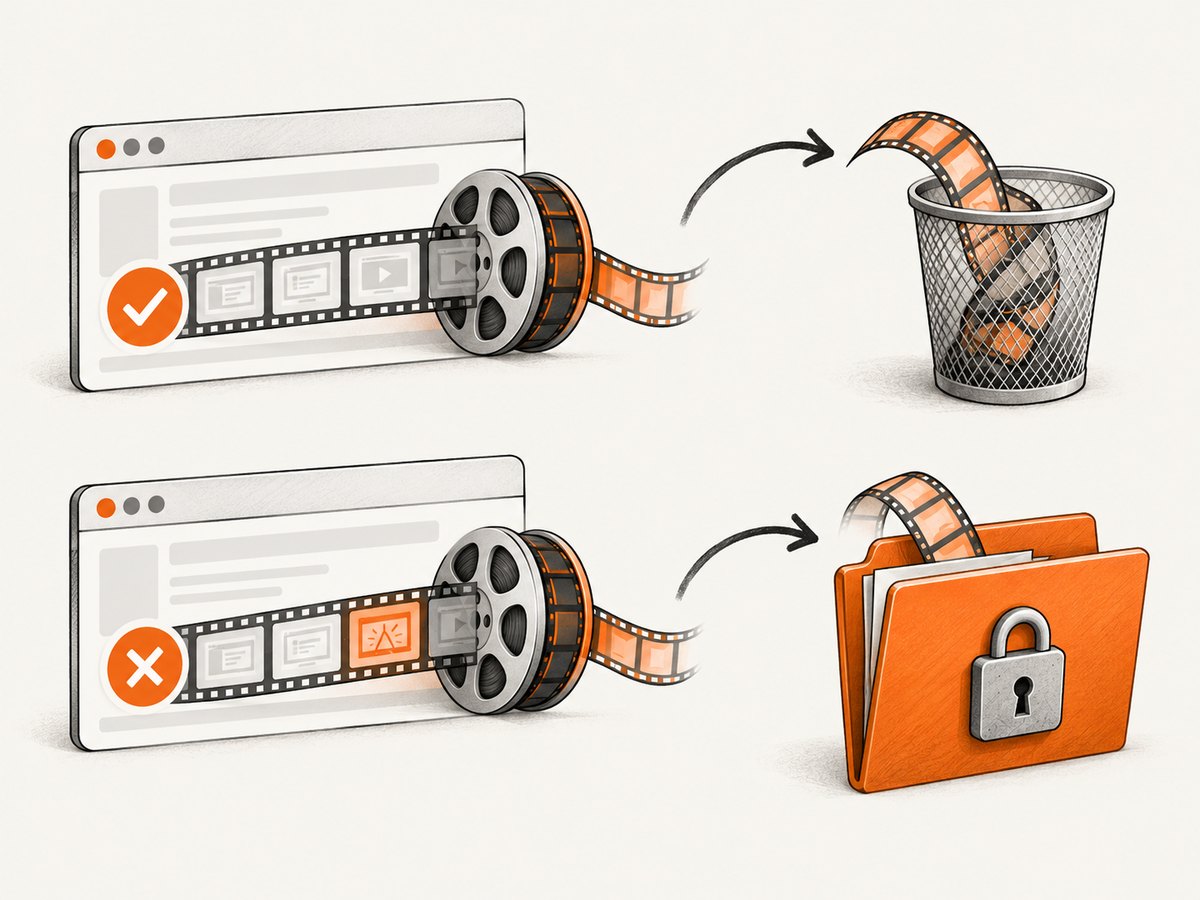
If your setup lacks built-in failure-only retention, a robust alternative is to keep artifacts in a temporary job directory and upload them conditionally after the test result is known. Preserve videos for failed or errored cases; remove passing-run files once the upload decision is complete. Ensure teardown still closes the WebDriver session, otherwise the recording can be truncated or the lifecycle event may never arrive.
5. Other recording approaches and their limits
WebDriver BiDi screencasting
Selenium describes WebDriver BiDi as a bidirectional protocol using a WebSocket connection to stream browser events. The W3C working draft includes a screencast operation that creates a live video track of the viewport, but implementations may respond that the operation is unsupported. Treat this as implementation-dependent functionality: check the exact browser and Selenium binding support before building a default recording pipeline around it. A live viewport stream also differs from a Grid recorder that automatically writes and stores a file for every session.
Library integrations and hosted browsers
Some test integrations offer their own session screencast behavior. For example, WebdriverIO documents Selenium DevTools recording support, including browser-specific behavior and an ffmpeg dependency for WebM encoding in its Python path; check the integration’s current documentation for its exact support matrix. Selenium-Jupiter documents an integration pattern that stops a recording and downloads a WebM file to the browser downloads directory; see its project documentation. These are library-specific facilities, not a core WebDriver guarantee.
A managed service can handle execution and artifact collection. AWS Device Farm’s desktop browser testing documentation says it generates video recordings and Selenium logs for each browser a test runs on. Review the AWS Device Farm documentation and check current limits and prices before adopting it. Compare hosted and self-managed approaches on supported browsers, data residency, retention, private-network access, debugging detail, and total cost.
6. Video, screenshots, and ScreenshotNeo
Video is the right artifact when sequence and timing matter: it can show a menu that closed too quickly, a layout shift, or the order of actions. A screenshot is better for inspecting a single final state, comparing page appearance, or capturing a URL without running an interactive Selenium session. ScreenshotNeo is a website screenshot API and MCP server; it captures clean images or PDFs from a URL, but it is not a Selenium session video recorder.
Or skip the browser setup
If the debugging task needs a page image rather than an interaction video, one request can capture a URL. See the ScreenshotNeo API documentation for supported parameters and formats.
curl -G "https://api.screenshotneo.com/v1/shot" \
  -d access_key=YOUR_API_KEY \
  --data-urlencode url=https://stripe.com \
  -o shot.webp
import requests
r = requests.get(
"https://api.screenshotneo.com/v1/shot",
params={"access_key": "YOUR_API_KEY", "url": "https://stripe.com"},
timeout=90,
)
r.raise_for_status()
open("shot.webp", "wb").write(r.content)const q = new URLSearchParams({
access_key: 'YOUR_API_KEY',
url: 'https://stripe.com'
});
const res = await fetch(`https://api.screenshotneo.com/v1/shot?${q}`);
if (!res.ok) throw new Error(`Screenshot request failed: ${res.status}`);
const image = Buffer.from(await res.arrayBuffer());
await import('node:fs/promises').then(fs => fs.writeFile('shot.webp', image));- Cookie and consent banners are accepted and removed before capture, along with supported newsletter popups and chat widgets.
- Bot checks, blank pages, failed loads, timeouts, and cache hits are not billed; response headers identify page verdict and billing.
- An MCP server provides
take_screenshot,get_page_info, andcapture_pdftools for AI agents. - The free plan includes 1,000 screenshots per month without a card. Paid plans start at $5 for 3,000 screenshots.
Create a free ScreenshotNeo account to try URL screenshots with 1,000 shots a month and no card.
7. Troubleshooting
| Symptom | Likely cause | Fix |
|---|---|---|
| No video appears | The Grid deployment lacks the video service, capability was omitted, or artifacts were not mounted. | Check the service topology, confirm se:recordVideo is in the new session request, then inspect the configured output directory before container cleanup. |
| Capability rejected or ignored | Wrong capability name/value, incompatible Grid/video version, or a non-Docker-Selenium endpoint. | Use the documented se: capability names and verify support against the exact image and Grid version. |
| File exists but is empty or cut off | Session was killed before close/finalization, or the output mount is unwritable. | Run driver teardown in a finally block, allow session closure, and check container logs and volume permissions. |
| Recording resolution is unexpected | The browser window size differs from requested screen size, or the capability was not applied to the node. | Set the documented resolution capability and inspect actual window dimensions. Confirm the session landed on a node that honors it. |
| Parallel tests overwrite or confuse artifacts | Output naming does not identify sessions or tests clearly. | Use supported metadata-based naming and preserve session IDs in CI logs. Verify names remain unique across workers. |
| Only some browsers record | Recorder or protocol support differs by browser. | Check the recorder’s browser matrix. Prefer a tested Grid recorder or managed service when consistent cross-browser artifacts are required. |
| CI job runs out of disk or slows down | Video adds CPU, I/O, and storage work; resolution, duration, and concurrency affect resource use. | Record only the needed jobs, reduce capture resolution or retention where supported, and measure resource use in your own environment. |
8. Reliability, performance, security, and cost
Recording adds work alongside browser automation. The actual impact depends on browser, image, resolution, test duration, concurrency, and encoder configuration; there is no universal benchmark to apply. Start with the smallest useful recording scope and compare job duration, node CPU, workspace storage, and artifact upload time against a run without video. Avoid increasing parallelism until the nodes have capacity for both browser sessions and recording.
For reliable artifacts, pin compatible Grid and browser image versions, mount persistent storage, close sessions in teardown, and retain test identifiers with the artifact. Decide what happens when the recorder or upload service fails: should the test fail, or should the artifact be marked unavailable while the test result remains authoritative? Make that behavior explicit in CI.
Videos can contain authenticated pages, user data, or secrets rendered in the browser. Restrict artifact access, use short retention for routine runs, and avoid recording sensitive flows unless necessary. For a hosted provider, check its data location, retention and access controls. Self-hosting avoids a hosted artifact path but makes storage, updates, access, and cleanup your responsibility. Include node time, disk, and engineering operations in cost comparisons; for managed services, confirm current pricing and usage limits directly.
FAQ
Can Selenium save a browser session directly as MP4?
WebDriver itself does not define a universal MP4 recording command. The output format depends on the recorder or integration. Docker Selenium’s video service, library integrations, and hosted platforms each document their own artifact behavior.
Does se:recordVideo work with every Selenium Grid?
No. It is a Docker Selenium capability, and recording requires compatible server-side video components. Verify the image and recorder version in your deployment.
Can I record headless browser sessions?
It depends on the browser image and recorder setup. Confirm the selected environment supports recording in its headless configuration, and check the output in a representative CI run.
Should I use video or screenshots for a failed test?
Use video when timing and action sequence are needed. Use a screenshot when the final page state is enough. They answer different debugging questions and can be collected together when your artifact policy allows it.


