How to Record Video of Selenium Tests in Python
Selenium controls the browser but does not record video. Learn how to wrap pytest runs with a separate recorder, keep videos on failure, and publish CI artifacts.
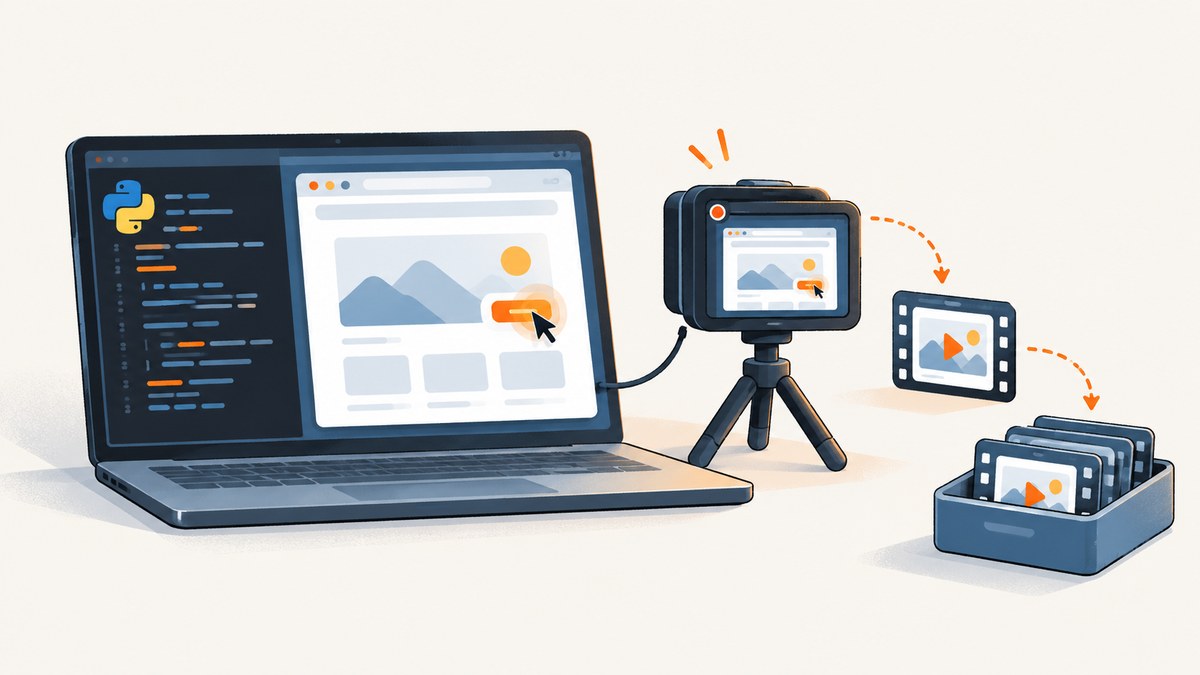
Selenium’s Python bindings control a browser; they do not provide a documented native command to start recording a video. To record a test, run a separate recorder alongside WebDriver: start it before browser actions, stop it during guaranteed cleanup, and upload the finalized file as a CI artifact. The right recorder depends on whether you need the browser viewport, the whole desktop, or a remote grid session.
This guide uses pytest fixtures to manage that lifecycle. It also explains plugin and BiDi boundaries, local and CI decisions, failure handling, artifact retention, and troubleshooting. Selenium describes WebDriver as driving a browser natively, while its WebDriver documentation covers browser automation rather than video encoding. [Selenium WebDriver documentation]
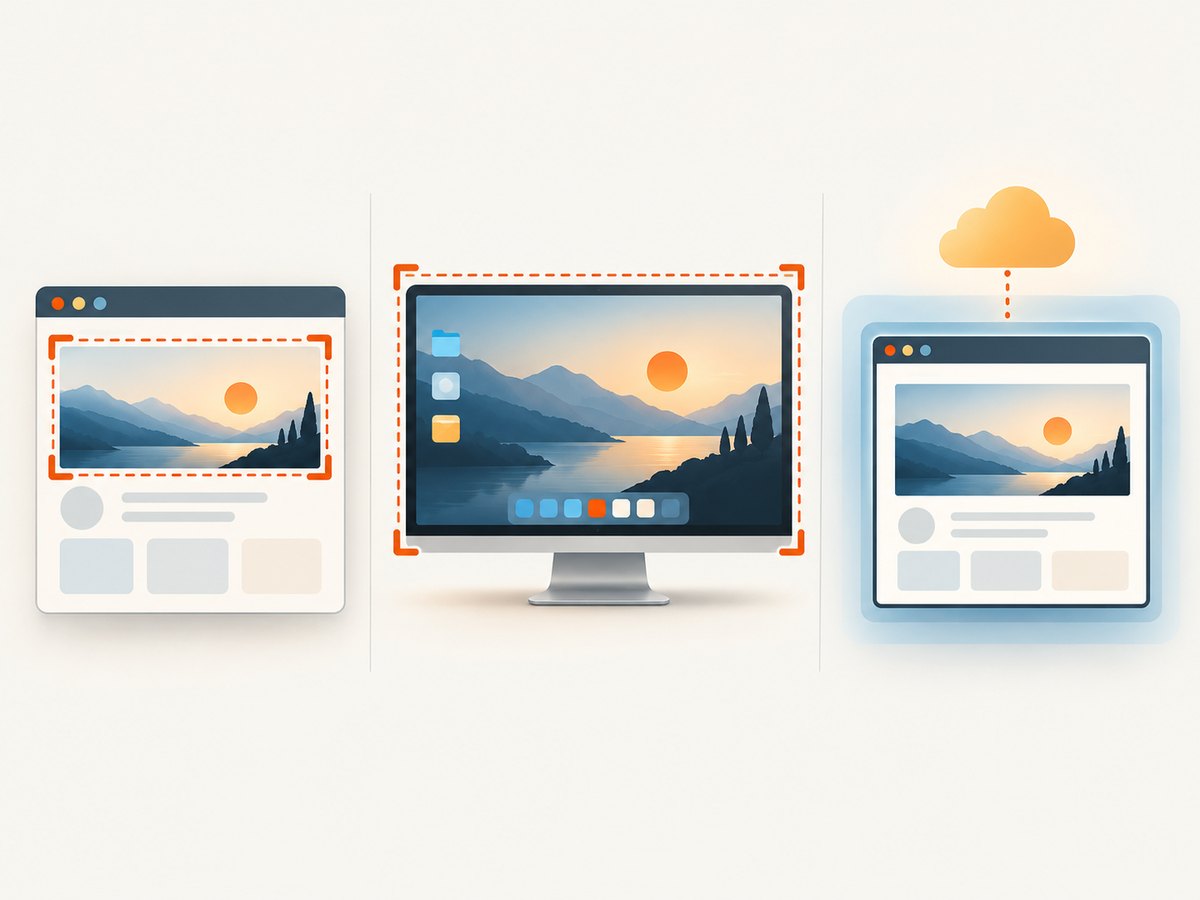
1. Choose what the recording needs to show
Before choosing a recorder, decide what evidence you need. Video is useful for reproducing timing, animation, and interaction problems, but the capture scope and execution environment determine the implementation.
| Approach | What it captures | Tradeoffs to check |
|---|---|---|
| OS-level recorder | The visible desktop, potentially including browser chrome and other windows | May need a display server; verify headed and headless behavior, resolution, and cleanup. |
| Browser-level recorder | Usually the browser viewport or browser session | Check browser support, output format, lifecycle, and whether it works in your automation mode. |
| Grid or hosted-provider recording | A remote browser session, depending on provider settings | Configure and retrieve recordings according to that provider’s current documentation; settings and costs vary. |
| Pytest plugin | Depends on the plugin’s recorder and configuration | Less fixture code, but confirm supported browsers, codecs, output paths, and maintenance status. |
There is no universal recorder implementation that behaves identically in local headed Chrome, headless CI, and remote browsers. Validate each mode you run. Keep the recorder choice behind a small interface so the test fixture can stay stable if the underlying capture mechanism changes.
2. Structure recording as a pytest fixture
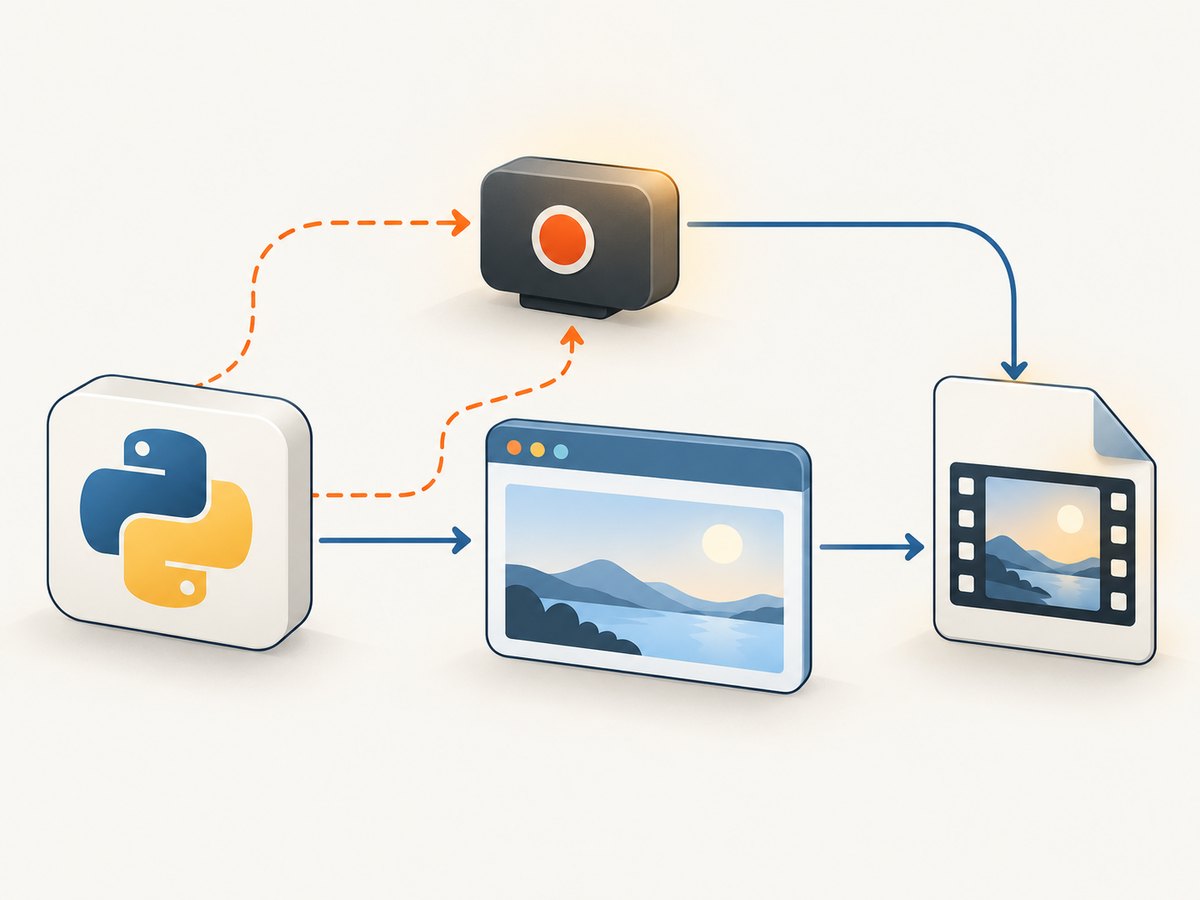
The fixture should create a unique output location, start capture before the first browser action, yield the WebDriver to the test, and clean up both processes even when an assertion fails. The following is a runnable lifecycle template once you provide an adapter for your chosen recorder:
from pathlib import Path
import pytest
from selenium import webdriver


def create_recorder(output_path: Path):
    """Replace with an adapter for your selected recorder.

    It must start capture before the test and expose stop(), which
    waits until the video file is finalized.
    """
    raise NotImplementedError("Configure a recorder for this environment")


@pytest.fixture
def browser_video(tmp_path):
    video_path = tmp_path / "test.mp4"
    recorder = create_recorder(video_path)
    driver = None
    try:
        driver = webdriver.Chrome()
        yield driver, video_path
    finally:
        if driver is not None:
            driver.quit()
        recorder.stop()


def test_example(browser_video):
    driver, video_path = browser_video
    driver.get("https://example.com")
    assert "Example Domain" in driver.title
This template makes the lifecycle explicit, but it is not a recorder: replace create_recorder with an implementation supported by your selected tool. A recorder adapter should define what happens if startup fails, whether stop() blocks until the container is finalized, and where it writes the output. Avoid silently treating a missing or empty file as a successful recording.
Make teardown resilient
If driver.quit() raises, recorder cleanup still needs to run. Nest cleanup in a second finally so one failure does not prevent the other resource from being released:
finally:
    try:
        if driver is not None:
            driver.quit()
    finally:
        recorder.stop()
For production fixtures, preserve the original test failure while also reporting teardown errors. A process interruption such as a forced worker kill may bypass ordinary Python cleanup, so use CI job timeouts and an external cleanup mechanism where your environment supports one.
3. Keep recordings when tests fail
Use pytest’s test identity and run metadata to create predictable, collision-resistant names. Include the test node ID, browser, and build or job identifier. Sanitize path characters in parametrized test names; do not use raw IDs as paths.
import re

def safe_name(value: str) -> str:
    return re.sub(r"[^A-Za-z0-9_.-]+", "_", value).strip("._") or "test"
For CI, write recordings to a dedicated directory such as artifacts/videos rather than a temporary directory that disappears at process exit. A session-scoped pytest fixture can create the directory, while a function-scoped fixture gives each test a distinct path. Configure artifact upload to run even when the test command fails, and ensure it runs after recorder teardown has finalized the file.
- Start the recorder before
driver.get()or any action that could reproduce the issue. - Run the assertions and collect useful diagnostics, such as logs and a failure screenshot.
- Quit WebDriver and stop the recorder through guaranteed cleanup.
- Check that the expected file exists and has nonzero size.
- Upload the file, logs, and screenshots as CI artifacts even if pytest exits nonzero.
Keep videos for failed tests if storage is limited, or retain all videos for a short diagnostic window. The retention policy depends on your CI system and data requirements; make it explicit rather than assuming temporary files persist.
4. Plugin option: inspect current project documentation
The official pytest plugin index lists pytest-selenium as a production/stable Selenium plugin and includes a pytest-record-video entry described as recording video during test execution. The index does not specify the video plugin’s current flags, supported browsers, codecs, output naming, or maintenance guarantees. Check the plugin’s own documentation and release history before relying on it. [pytest plugin index]
pytest-selenium installation is documented as pip install pytest-selenium, and its documentation states Python 3.7 or newer support. This is Selenium integration, not a guarantee that a particular video plugin works with the same browser or environment. [pytest-selenium user guide]
python -m pip install pytest-selenium
pytest --version
pytest --help
After identifying a video plugin, install its documented package and inspect pytest --help for the options actually installed. Run one passing test and one intentionally failing test; verify the recording path, finalization, and artifact upload in both cases. A plugin is attractive when its supported setup matches your CI, but a custom fixture is easier to adapt when you need precise naming, failure policy, or recorder lifecycle behavior.
5. Use BiDi for events, not rendered video
WebDriver BiDi adds a WebSocket connection for scripts to stream and react to browser events. Selenium presents it as the cross-browser replacement for CDP and documents enabling it with a WebSocket URL capability. Those event streams can help explain navigation, console, or network behavior, but the cited Selenium documentation does not describe turning the rendered viewport into an MP4 or WebM file. Use a recorder for visual playback and BiDi for event-level diagnostics. [Selenium WebDriver BiDi documentation]
Keep these outputs separate: the video answers “what did the user-visible page do?” while event logs answer “what did the browser report?” Together with a screenshot at failure and pytest output, they make a more useful artifact bundle than video alone.
6. Configure browser startup for your environment
For a local headed run, an OS-level capture tool may record the desktop, subject to its display and permission requirements. In headless CI, there may be no physical display to capture; choose a recorder that supports your headless setup or run the browser in a virtual display provided by your environment. For remote WebDriver, a local desktop recorder sees the client machine, not necessarily the remote browser. Use a recorder integrated with the remote session or the grid provider’s supported recording mechanism.
Keep browser and recorder settings explicit. Record the browser name, viewport dimensions, headless setting, and recorder format alongside artifacts. If you use parallel pytest workers, give each test a unique filename and avoid multiple workers writing to one fixed path. Consider recording only on failure to reduce storage and processing, but confirm that the recorder can start early enough to capture the failing interaction; post-failure capture cannot recover earlier frames.
7. Performance, reliability, privacy, and cost
- Performance: Screen capture and video encoding consume CPU, memory, and disk I/O. The impact varies by recorder, resolution, frame rate, browser load, and CI host; measure in your own pipeline rather than assuming a fixed overhead.
- Reliability: Start capture before the behavior under investigation, stop it in teardown, wait for finalization, and check file existence before upload. Treat recorder startup failure as a visible diagnostic condition.
- Storage: Video sizes depend on duration, resolution, codec, and content. Set artifact retention and size limits in your CI configuration, and avoid recording every run indefinitely if you do not need it.
- Cost: A local recorder has no separate hosted recording fee, but uses runner resources and artifact storage. Hosted grid recording may have provider-specific settings and costs; check current provider terms. No general price or size benchmark applies across these options.
- Privacy: A recording can expose credentials, customer data, browser notifications, and sensitive URL parameters. Use test accounts and synthetic data, redact secrets in the application, and restrict artifact access and retention.
8. Troubleshooting
| Symptom | Likely cause | Fix |
|---|---|---|
| No video file | Recorder did not start, output path differs, or teardown did not run. | Log the resolved path, verify startup, and check cleanup on both passing and failing tests. |
| File exists but will not play | The recorder was stopped abruptly or the container was not finalized. | Use the recorder’s documented stop/wait operation before upload; inspect its logs and exit status. |
| Black or empty frames in headless CI | The selected recorder expects a display or captures a different display than the browser uses. | Use a headless-compatible capture method or configure the environment’s virtual display and verify its dimensions. |
| Video shows the wrong screen for Remote WebDriver | Capture runs on the pytest worker while the browser runs remotely. | Capture on the remote browser host or use the grid/provider’s session recording support. |
| Only the last part of the test appears | Recording started after navigation or after the failure condition began. | Start capture before the first browser action; record the full test when diagnosing timing issues. |
| Parallel runs overwrite recordings | Workers share a fixed filename. | Include a sanitized test ID, worker ID, and build identifier in each path. |
| Artifact upload finds no file | Upload runs before teardown or ignores the job’s failure status. | Order upload after pytest teardown and configure the CI artifact step to run after failures. |
| Test cleanup hangs | The recorder or driver shutdown blocks indefinitely. | Use documented shutdown timeouts, report the stalled process, and configure an overall job timeout. |
9. Or skip the browser setup
If you need a website screenshot for a report, visual check, or page artifact rather than a time-based recording of Selenium interactions, ScreenshotNeo provides a website screenshot API and MCP server. It takes one GET request with a URL and returns PNG, JPEG, WebP, or PDF. It does not record a Selenium test video; it is for capturing a page.
curl -G "https://api.screenshotneo.com/v1/shot" -d access_key=YOUR_API_KEY --data-urlencode url=https://stripe.com -o shot.webpimport requests
r = requests.get(
"https://api.screenshotneo.com/v1/shot",
params={"access_key": "YOUR_API_KEY", "url": "https://stripe.com"},
timeout=90,
)
open("shot.webp", "wb").write(r.content)const q = new URLSearchParams({ access_key: 'YOUR_API_KEY', url: 'https://stripe.com' });
const res = await fetch(`https://api.screenshotneo.com/v1/shot?${q}`);
See the ScreenshotNeo API documentation for request options. Cookie banners, popups, and chat widgets are removed before the shot; bot checks, blank pages, and failed loads are never billed. An MCP server lets AI agents take screenshots. The free plan includes 1,000 screenshots a month with no card, and paid plans start at $5 for 3,000. Sign up free for 1,000 screenshots a month, with no card.
10. FAQ
Does Selenium save an MP4 automatically?
No native video-recording command is documented in the Selenium Python API. Run a separate recorder or use a plugin or remote-browser recording feature that you have verified for your setup.
Can WebDriver BiDi replace video capture?
No. BiDi provides browser event communication; the cited documentation does not provide viewport video encoding. Use it alongside a recorder when event details help diagnose a visual failure.
Should every test produce a video?
That depends on the debugging value and artifact budget. A common policy is to retain videos for failures, while capturing all runs temporarily when investigating a flaky test.
Can a screenshot API record a test session?
A screenshot API captures a page state, not a sequence of Selenium interactions. Use it for point-in-time page images and a recorder for playback of a test.
Recording checklist
- Choose viewport, desktop, or remote-session capture deliberately.
- Start the recorder before browser actions and stop it through guaranteed cleanup.
- Use unique, sanitized filenames and verify finalized files before upload.
- Test headed, headless, and remote modes separately when you use them.
- Publish artifacts after failures and protect recordings that may contain sensitive data.


