How to Record Selenium Tests Running Headlessly in Docker
Record Selenium tests in Docker reliably: use Xvfb, the selenium/video recorder, persistent volumes, capabilities, CI artifacts, and troubleshooting.
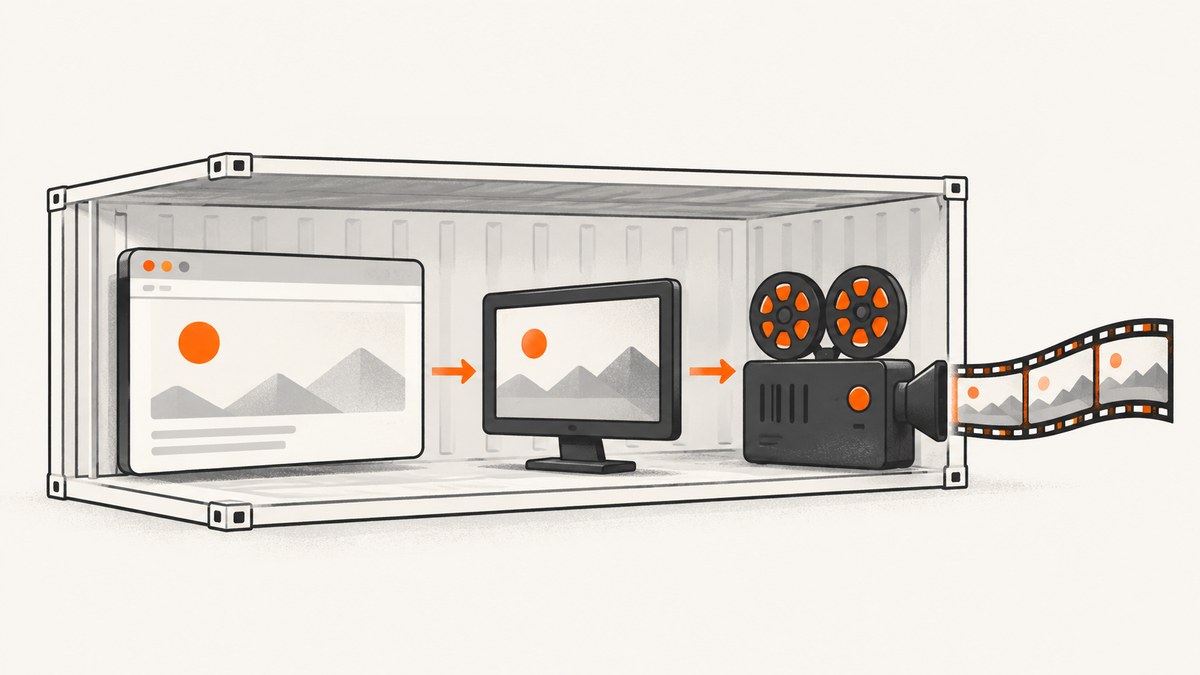
Short answer: the official docker-selenium recorder does not capture a purely headless browser. SeleniumHQ states that “Video recording for headless browsers is not supported.” Run Chrome in the display-backed Docker path with Xvfb, attach one selenium/video FFmpeg container to each browser container, enable se:recordVideo, and bind-mount the video directory so the MP4 survives container cleanup.
This guide shows a complete Docker setup, a Python test, Node.js usage, WebDriver API inspection with cURL, recording options, CI artifact handling, performance planning, and fixes for empty or missing files.
How Selenium video recording works
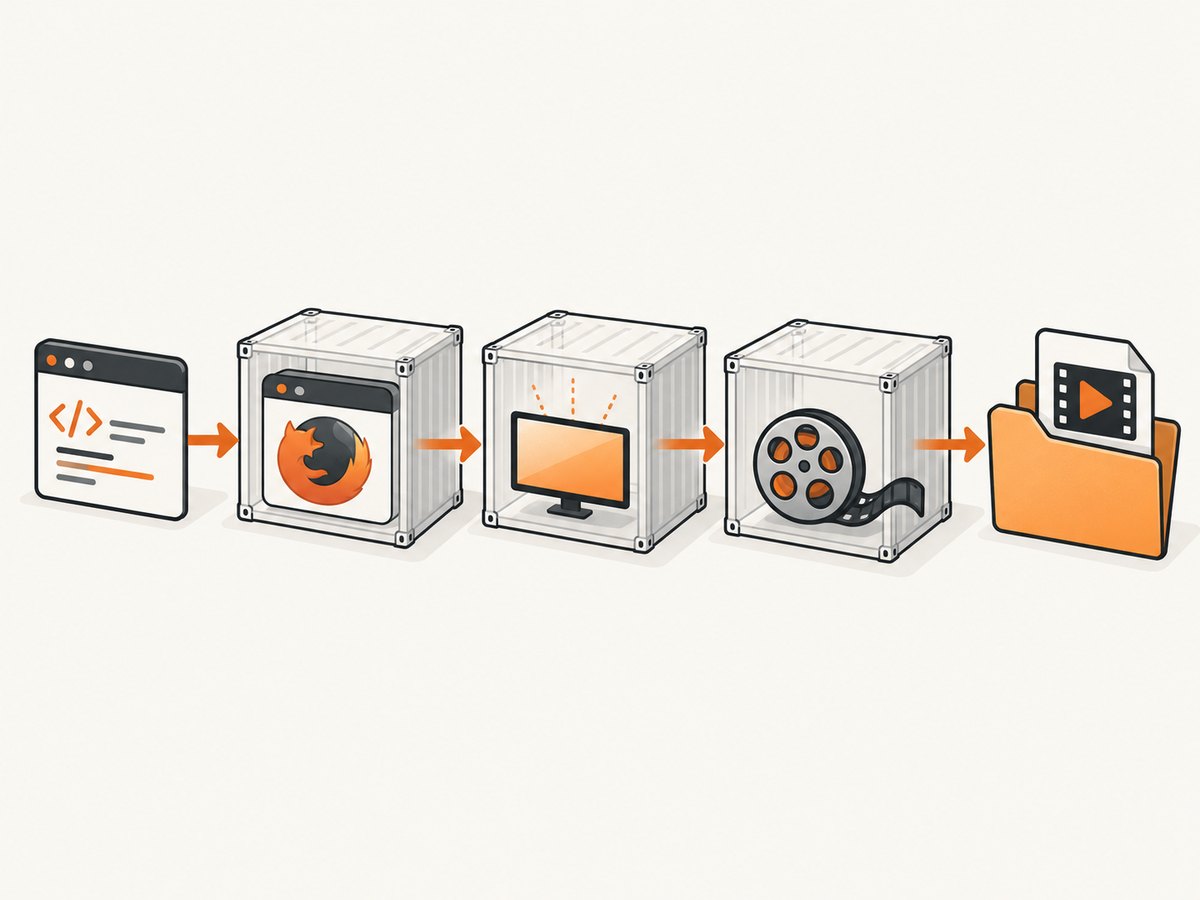
The recorder is a separate service. Your test talks to a Selenium browser container; an FFmpeg-based selenium/video container captures that browser’s display. The mapping is one browser container to one recorder container. Recordings are written inside the recorder at /videos (or the Grid assets directory in Dynamic Grid deployments), so a host bind mount is required when you want files after the containers stop.
“Headless” can mean two different things in Docker:
- Pure browser headless: Chrome renders without a display. The official recorder cannot capture this mode.
- Unattended display-backed execution: Chrome runs against Xvfb inside the container. There is no physical monitor, but FFmpeg can capture the virtual display.
For Chrome 127 and later, the Docker Selenium guidance requires SE_START_XVFB=true when using --headless=new. In Chrome 132 and later, --headless selects the new mode, so keep SE_START_XVFB=true for recording.
Complete Docker Compose setup
Create a directory with compose.yml and a videos folder:
services:
  chrome:
    image: selenium/standalone-chrome:latest
    shm_size: '2g'
    environment:
      SE_START_XVFB: 'true'
    ports:
      - '4444:4444'
    networks: [selenium]

  video:
    image: selenium/video:ffmpeg-8.1-20260905
    depends_on: [chrome]
    shm_size: '2g'
    environment:
      DISPLAY_CONTAINER_NAME: chrome
      SE_VIDEO_FILE_NAME: test-session.mp4
    volumes:
      - ./videos:/videos
    networks: [selenium]

networks:
  selenium:
Pin a recorder tag that you have validated in CI rather than relying on latest. The exact image tag changes over time; the example follows the documented Selenium image naming pattern.
- Start the services with
docker compose up -d. - Wait until the browser endpoint at
http://localhost:4444/statusreports ready. - Run a test with
se:recordVideoset totrue. - End the WebDriver session cleanly.
- Wait for the recorder to finish, then collect
videos/*.mp4as a CI artifact.
Use --shm-size='2g' (or the Compose equivalent) for realistic browser workloads. Chrome can crash with the default small shared-memory area when pages contain large canvases, video, or many tabs.
Standalone, Hub/Node, and Dynamic Grid
Standalone is simplest: one browser and one recorder on one network. With Hub/Node, place the recorder beside its matching browser node and ensure both containers can resolve each other and reach the Selenium session events. In Dynamic Grid, mount the documented assets directory and configure the recorder service according to the Grid deployment. Keep the one-to-one recorder mapping even when sessions run in parallel.
Enable recording with capabilities
Use the vendor-prefixed capabilities below. They are passed when creating the session:
{"browserName":"chrome","platformName":"linux","se:recordVideo":true,"se:screenResolution":"1920x1080","se:name":"checkout_regression"}| Capability or setting | Purpose | Guidance |
|---|---|---|
se:recordVideo |
Turns recording on for the session. | Set it to the Boolean value true. |
se:screenResolution |
Controls the captured display dimensions. | Use a fixed value such as 1920x1080 when comparing videos. |
se:name |
Gives the recording a readable test label. | Use short, unique names. Spaces are replaced with underscores, unsupported characters are sanitized, and the name is limited to 255 characters before the session identifier is added. |
SE_START_XVFB |
Starts the virtual X display used by the recorder. | Set to true for modern Chrome recording. |
SE_VIDEO_FILE_NAME |
Sets a recorder-side output filename. | Make it unique when several recorders write to one mounted directory. |
Do not pass a pure --headless configuration and expect a video. If your framework adds that argument automatically, remove it or use the display-backed Docker configuration while retaining unattended execution.
Runnable Python Selenium test
Install Selenium with pip install selenium, save this as test_recording.py, and run it while the Compose stack is up:
from selenium import webdriver
from selenium.webdriver.chrome.options import Options
from selenium.webdriver.common.by import By
import time

options = Options()
options.set_capability('browserName', 'chrome')
options.set_capability('platformName', 'linux')
options.set_capability('se:recordVideo', True)
options.set_capability('se:screenResolution', '1920x1080')
options.set_capability('se:name', 'checkout_regression')

driver = webdriver.Remote(
    command_executor='http://localhost:4444/wd/hub',
    options=options,
)
try:
    driver.get('https://example.com')
    print(driver.title)
    time.sleep(3)
finally:
    driver.quit()
The finally block matters. The recorder uses session closure to know when to stop. A process killed with SIGKILL can leave an incomplete file or prevent final MP4 metadata from being written.
Node.js example
With the Selenium WebDriver package installed, the same capabilities can be used from Node.js:
import { Builder } from 'selenium-webdriver';

const driver = await new Builder()
  .usingServer('http://localhost:4444/wd/hub')
  .withCapabilities({
    browserName: 'chrome',
    platformName: 'linux',
    'se:recordVideo': true,
    'se:screenResolution': '1920x1080',
    'se:name': 'checkout_regression'
  })
  .forBrowser('chrome')
  .build();

try {
  await driver.get('https://example.com');
  console.log(await driver.getTitle());
} finally {
  await driver.quit();
}
Inspect the Grid with cURL
cURL does not record a session by itself, but it is useful for checking readiness and active sessions:
curl -s http://localhost:4444/status
curl -s http://localhost:4444/status | jq
curl -s http://localhost:4444/sessions
If your deployment exposes the endpoint on another host or port, replace the base URL. Keep the browser and recorder on the private Docker network; expose only the WebDriver endpoint required by your test runners.
Control recorder lifecycle and collect artifacts
Grid 4.41.0 uses session events: recording starts on session-created and stops on session-closed. This event-driven lifecycle avoids timer-based guesses that can cut off the beginning or end of a test.
In CI, make artifact collection run even when tests fail:
set +e
docker compose up -d
pytest -q
TEST_EXIT=$?
docker compose down
# videos is a mounted workspace directory; upload it as a CI artifact
exit $TEST_EXIT
Allow the recorder a short shutdown window before archiving. If your CI immediately removes containers after quit(), stop the browser service only after the recorder has observed the closed session. For ephemeral workers, upload MP4 files to S3-compatible or GCS-compatible storage with your own credentials, encryption, bucket policy, and retention rules. Selenium’s examples include rclone-based upload settings, but storage policy remains a deployment decision.
Recording in parallel and managing filenames
Parallel sessions need parallel recorders. One recorder cannot reliably infer which display belongs to which browser when multiple containers share a display or output directory. Give each browser and recorder a distinct service identity and set a unique se:name or SE_VIDEO_FILE_NAME.
Keep names short and deterministic, for example login_chrome_01. Include a build number in the directory path rather than making a very long filename. The recorder appends a session identifier where required, which prevents collisions when labels are reused.
Headless and missing-video troubleshooting
| Symptom | Likely cause | Fix |
|---|---|---|
| No file or a zero-byte file | The browser is running in pure headless mode. | Remove the pure headless argument and run with the Docker display-backed path. Set SE_START_XVFB=true. |
| Chrome 127+ fails to record | --headless=new is used without Xvfb. |
Set SE_START_XVFB=true in the browser container. |
| Chrome 132+ behaves the same | --headless now selects the new headless mode. |
Retain SE_START_XVFB=true and verify the display-backed setup. |
| Video starts late or stops early | Recorder lifecycle is based on timers or the session was killed. | Use event-driven Grid recording where available, call driver.quit(), and let the recorder observe session closure. |
| Video exists only inside the container | No bind mount was configured. | Mount ./videos:/videos (or the documented Grid assets path) and collect it after shutdown. |
| Several tests overwrite one file | Recorder filenames collide. | Set distinct se:name or SE_VIDEO_FILE_NAME values and use one recorder per browser. |
| Browser crashes during capture | Insufficient shared memory or CPU contention. | Increase shm_size, allocate CPU, and reduce concurrent sessions. |
| Recorder cannot see the browser | Containers are on different networks or the display container name is wrong. | Put both services on the same Docker network and set DISPLAY_CONTAINER_NAME to the browser service name. |
Performance, reliability, and cost planning
Video recording uses considerable CPU. SeleniumHQ recommends estimating about one CPU for each video container and one CPU for each browser container. Treat that as a capacity-planning starting point, then measure your own page complexity and resolution. Higher resolutions, animations, canvas content, and multiple tabs increase encoding work and storage use.
- Record selectively: retain videos for failed tests or nightly diagnostics instead of every pull request.
- Control dimensions: set
se:screenResolutionto a known size; avoid recording a larger desktop than the test needs. - Limit concurrency: one recorder per browser makes parallelism predictable but doubles container count.
- Use retention rules: keep failure artifacts longer than passing-run videos and delete old files from shared workspaces.
- Persist outside workers: upload to object storage when CI disks are ephemeral.
The main reliability risks are display mode, recorder-to-browser mapping, lifecycle timing, and artifact persistence. The test language has less impact than those deployment choices.
Or skip the browser setup
If your goal is a clean image or PDF of a page rather than a diagnostic video, ScreenshotNeo provides a single HTTP capture endpoint. See the ScreenshotNeo API documentation for the complete option list.
curl -G "https://api.screenshotneo.com/v1/shot" -d access_key=YOUR_API_KEY --data-urlencode url=https://stripe.com -o shot.webpimport requests
r = requests.get("https://api.screenshotneo.com/v1/shot", params={"access_key": "YOUR_API_KEY", "url": "https://stripe.com"}, timeout=90)
open("shot.webp", "wb").write(r.content)const q = new URLSearchParams({ access_key: 'YOUR_API_KEY', url: 'https://stripe.com' });
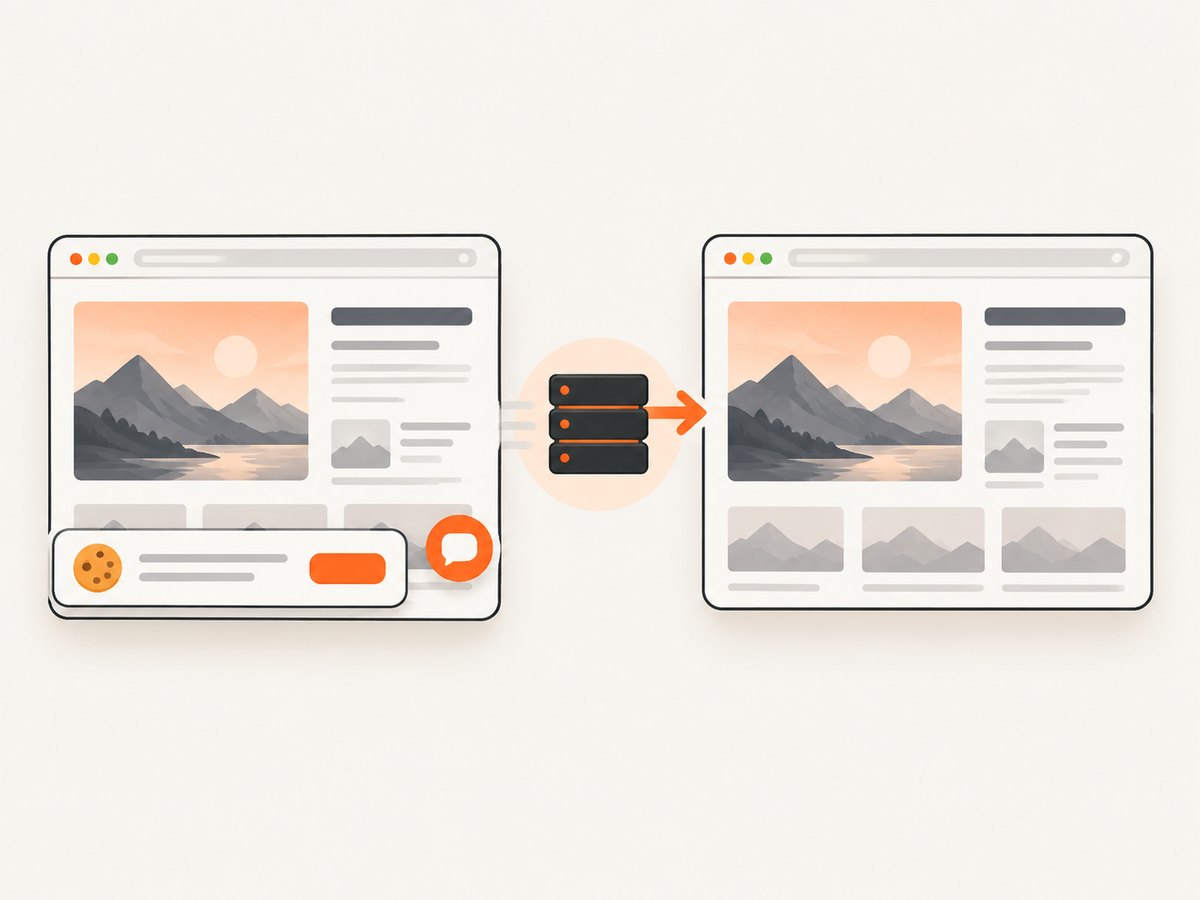
const res = await fetch(`https://api.screenshotneo.com/v1/shot?${q}`);ScreenshotNeo accepts cookie and consent banners before capture and removes more than 60 known consent platforms, newsletter popups, and chat widgets. Bot checks, blank pages, failed loads, timeouts, and cache hits are not billed; response headers identify the page verdict and billing status. Its MCP server provides take_screenshot, get_page_info, and capture_pdf tools for Claude, Cursor, and other MCP clients. The free plan includes 1,000 screenshots per month with no card, and paid plans start at $5 for 3,000 shots. Create a free ScreenshotNeo account.
FAQ
Can Selenium record a truly headless Chrome process?
No. The official Selenium recorder documents pure headless recording as unsupported. Use Xvfb and the display-backed Docker path.
Do I need FFmpeg installed in my test image?
No. The official design puts FFmpeg in the separate selenium/video container.
Why is the MP4 playable only after the test ends?
Final MP4 metadata is written when the recorder closes. Wait for session closure and recorder shutdown before uploading it.
Can one recorder capture several browsers?
Use one recorder per browser container. This keeps display ownership and filenames deterministic.
Should every CI run keep its videos?
Usually keep failure videos and a limited sample of passing runs. Apply retention and object-storage policies that match your debugging needs.


