How to Record Video With Headless Chrome
Record headless Chrome sessions with Playwright or Puppeteer, finalize files reliably, tune dimensions, and troubleshoot failed or blurry videos.
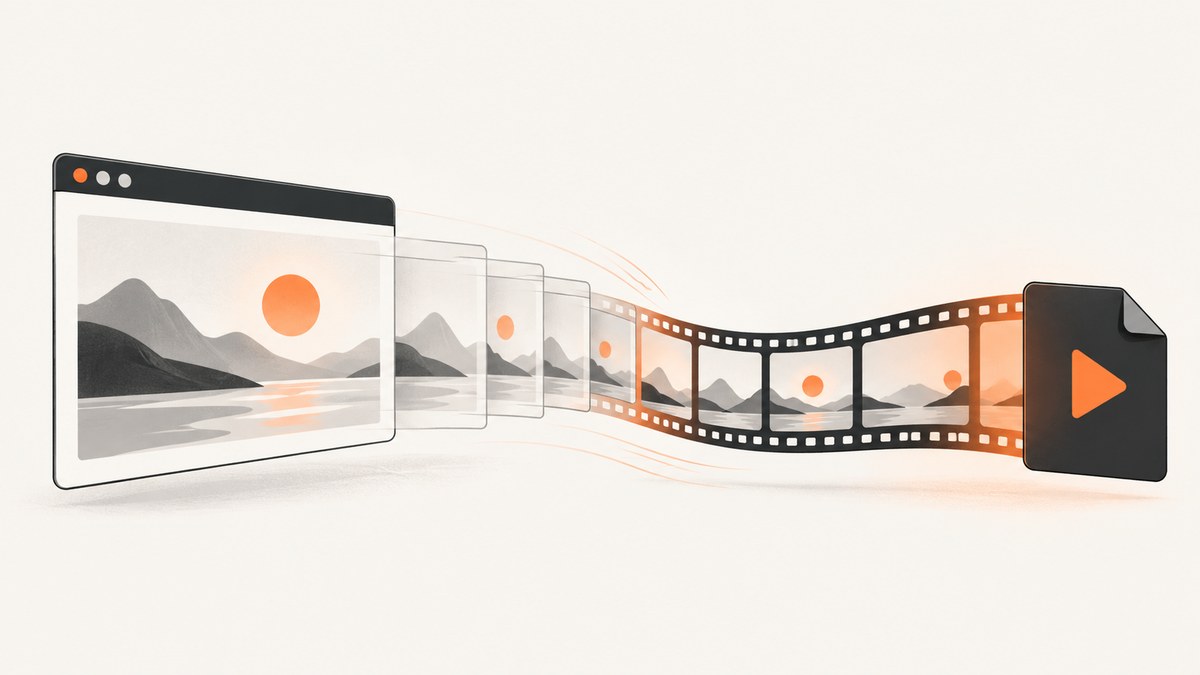
Headless Chrome can record a browser session without a physical display or camera. The practical choice depends on what you are capturing:
- Use Playwright Test video when the recording belongs to a test and you want videos for every run, failures, or retries.
- Use Playwright page screencast when a scripted flow needs explicit start and stop boundaries, or when you want frame callbacks.
- Use Puppeteer
Page.record()for a current Puppeteer workflow that produces an MP4 stream.
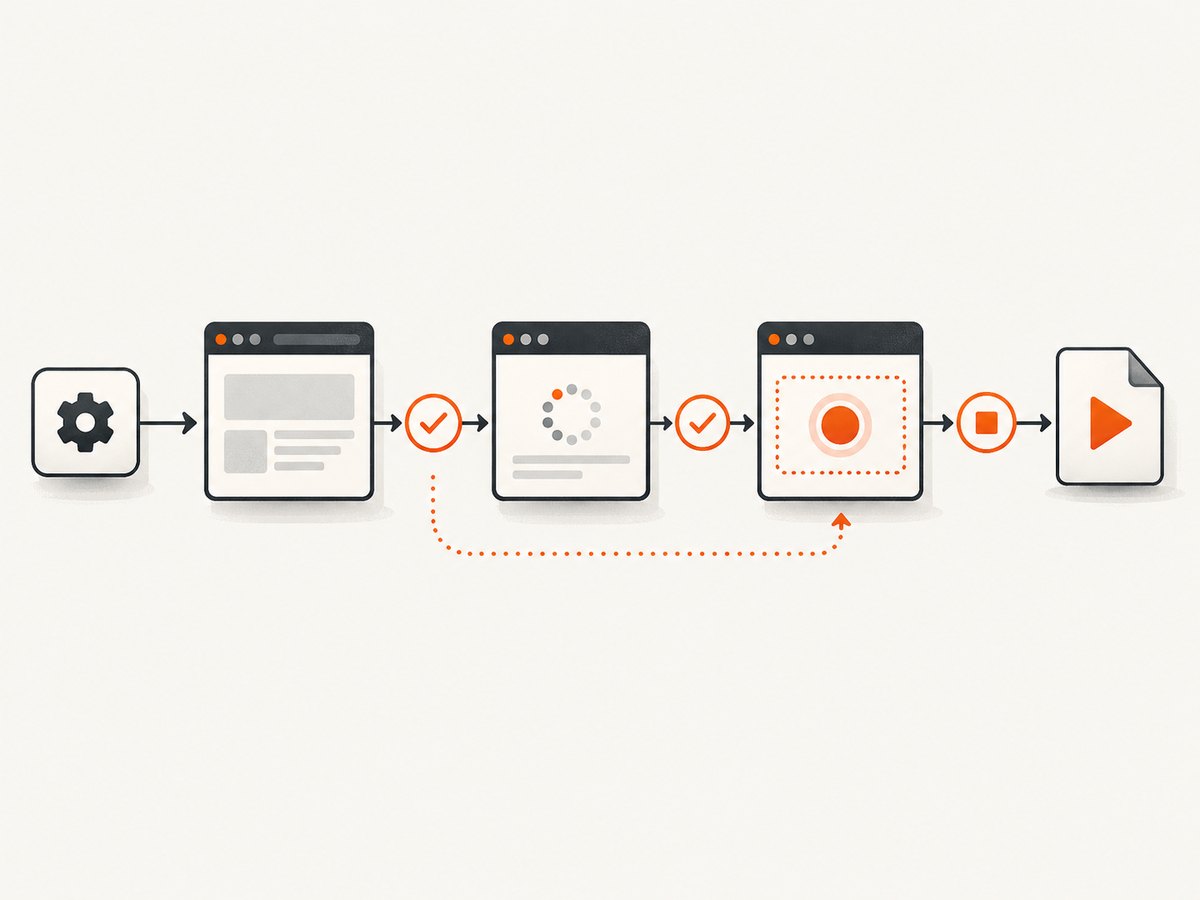
The most common reliability issue is lifecycle management: Playwright context videos are finalized when the context closes, direct screencasts are finalized by stop(), and Puppeteer recordings must be stopped before the browser exits.
Choose the recording API
| Goal | Recommended path | Capture boundary | Typical output handling |
|---|---|---|---|
| Debug failed tests | Playwright Test video |
Test and retry lifecycle | Video appears after context closure |
| Record a deliberate walkthrough | Playwright page.screencast |
Explicit start()/stop() |
Configured file path or frame callback |
| Record with Puppeteer | Page.record() |
Explicit recorder stop | Documented MP4 stream |
Playwright’s guide documents test video modes and context recording, while its direct screencast API provides explicit control and optional JPEG frames. Puppeteer’s current documentation recommends Page.record(); the older Page.screencast() page is marked obsolete. See the Playwright video guide, Playwright screencast API, and Puppeteer Page.record API.
Record Playwright tests
Playwright Test’s video setting is off by default. Set it in the project or test configuration:
import { defineConfig } from '@playwright/test';

export default defineConfig({
  use: {
    video: 'retain-on-failure'
  }
});
Available documented modes are:
on: record every test.retain-on-failure: record tests, then remove videos for successful tests.on-first-retry: record on the first retry, useful when the initial run fails.
A complete test can then run normally:
import { test, expect } from '@playwright/test';

test('checkout flow', async ({ page }) => {
  await page.goto('https://example.com/checkout');
  await page.getByRole('button', { name: 'Continue' }).click();
  await expect(page).toHaveURL(/confirmation/);
});
Videos are saved when Playwright closes the browser context at the end of the test. If you create a context yourself, explicitly await browserContext.close() before reading or moving the artifact.
Set the video dimensions
import { chromium } from 'playwright';

const browser = await chromium.launch({ headless: true });
const context = await browser.newContext({
  viewport: { width: 1440, height: 900 },
  recordVideo: {
    dir: 'videos',
    size: { width: 1280, height: 800 }
  }
});
const page = await context.newPage();
await page.goto('https://example.com');
await page.waitForLoadState('networkidle');
await page.screenshot({ path: 'reference.png' });
await context.close();
await browser.close();
With no explicit video size, Playwright scales output to fit 800×800. With no explicit viewport, its documented default is 800×450. Set both when text legibility and a predictable frame are important. The output can still be smaller than your requested bounds because the aspect ratio is preserved.
Record a scripted flow with Playwright screencast
Use the direct page API when recording should begin after setup and end before cleanup:
import { chromium } from 'playwright';

const browser = await chromium.launch({ headless: true });
const page = await browser.newPage({
  viewport: { width: 1280, height: 800 }
});

await page.goto('https://example.com');
await page.screencast.start({
  path: 'video.webm',
  size: { width: 1280, height: 800 }
});

await page.getByRole('link', { name: 'More information' }).click();
await page.waitForLoadState('networkidle');
await page.waitForTimeout(1000);

await page.screencast.stop();
await browser.close();
The size option specifies maximum width and height. The API can also deliver JPEG-encoded frames to an onFrame callback for custom processing. Stop the screencast before closing the browser so the configured file is written.
Consume frames instead of writing a file
await page.screencast.start({
  onFrame: ({ data, metadata }) => {
    // data is JPEG-encoded frame data.
    // Send it to your own pipeline or buffer it for processing.
    console.log(metadata.timestamp, data.length);
  }
});
// Perform the actions to capture.
await page.screencast.stop();
If another recording or screencast is already active, its settings may take precedence. Keep one capture owner per page and make start/stop calls explicit.
Record with Puppeteer
Puppeteer’s current recording route is Page.record(), which uses Chrome DevTools Protocol and outputs an MP4 video stream:
import puppeteer from 'puppeteer';

const browser = await puppeteer.launch({ headless: true });
const page = await browser.newPage();
await page.setViewport({ width: 1280, height: 800 });
await page.goto('https://example.com', { waitUntil: 'networkidle2' });

const recorder = await page.record({ path: 'recording.mp4' });
await page.getByRole('link', { name: 'More information' }).click();
await new Promise(resolve => setTimeout(resolve, 1000));

await recorder.stop();
await browser.close();
The older Puppeteer Page.screencast() documentation is explicitly obsolete. Do not copy its legacy format, frame-rate, or FFmpeg requirements into new Page.record() deployments; those details belong to the old API page.
Make recordings readable and deterministic
Fix the viewport before capture
Choose a viewport that matches the audience and keep it constant. Responsive breakpoints can otherwise change the page layout during navigation. If the video will be reviewed on a small screen, prefer a moderate width and verify that controls and text remain visible.
Wait for the state you intend to show
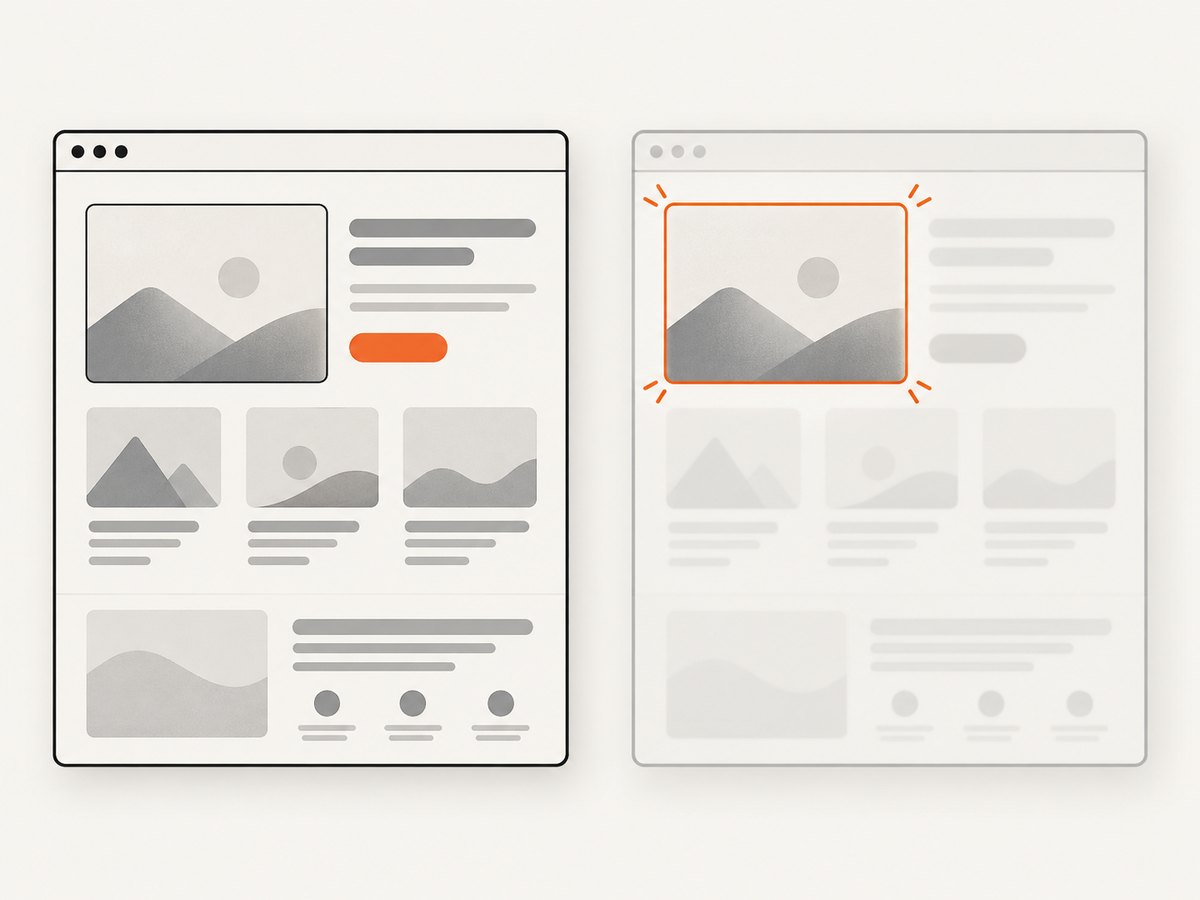
Navigation completion does not guarantee that an application is visually ready. Wait for a meaningful selector, a known network state, or a short delay after an animation:
await page.goto('https://example.com/dashboard');
await page.locator('[data-testid="dashboard-ready"]').waitFor();
await page.waitForTimeout(300);
For test evidence, prefer assertions and stable selectors over arbitrary long sleeps. For a product walkthrough, a short deliberate pause can make transitions understandable.
Control motion and loading noise
Disable animations with an injected stylesheet when they obscure the interaction:
await page.addStyleTag({
  content: `*, *::before, *::after {
    animation-duration: 0s !important;
    transition-duration: 0s !important;
    caret-color: transparent !important;
  }`
});
Use a fixed locale, timezone, and test data when the page supports them. Avoid recording secrets in URLs, headers, or visible form fields.
Lifecycle, files, and cleanup
- Create a dedicated output directory for each job or test shard.
- Start capture only after browser setup is complete.
- Perform the actions and wait for the final visual state.
- Stop the recorder or close the context and await it.
- Check that the file exists and has a nonzero size before uploading it.
- Delete temporary artifacts after a successful upload.
When a process is interrupted, a partially written file may remain. Use a shutdown handler where your runner supports it, but still treat interrupted recordings as incomplete rather than trying to repair them silently.
Common errors and fixes
| Symptom | Likely cause | Fix |
|---|---|---|
| No Playwright video file | Context was not closed | Await context.close() before reading the artifact. |
| Empty or truncated screencast | stop() was skipped or the process exited |
Stop capture in normal and error paths, then close the browser. |
| MP4 is missing in Puppeteer | Browser closed before recorder stop | Await recorder.stop() before browser.close(). |
| Text is blurry | Video was scaled to fit default bounds | Set an explicit viewport and recordVideo.size or screencast size. |
| Wrong responsive layout | Viewport was implicit or changed | Set a fixed viewport before navigation and keep it for the whole recording. |
| Blank first seconds | Capture started before the page was ready | Navigate and wait for a readiness selector before starting. |
| Flaky test videos | Animations, ads, or live data changed between runs | Freeze test data, disable motion, and wait on stable selectors. |
| Recording already active | Two capture APIs were started on one page | Use one recorder and centralize lifecycle ownership. |
Performance, reliability, and cost notes
Recording adds encoding and disk I/O to browser work. Keep output directories on local or fast ephemeral storage, avoid recording every test when only failures matter, and cap parallel workers if CPU saturation causes navigation timeouts. The documented Playwright defaults are implementation defaults, not performance guarantees.
For reliable CI artifacts, include the video path in your test reporter output, preserve videos only for failed or retried tests, and upload after the context has closed. Retrying a test can create multiple artifacts; name or archive them with the retry index.
Headless recording itself does not provide audio capture. The cited APIs cover browser imagery; audio, codecs, and operating-system behavior depend on the runtime and are not settled by the referenced documentation. Re-check the current API pages when upgrading browser or automation versions.
Or skip the browser setup
If your goal is a still image or PDF rather than a time-based video, ScreenshotNeo gives you a single HTTP request. It captures a clean page after accepting cookie or consent banners and removing more than 60 known consent platforms, newsletter popups, and chat widgets. You can turn each cleanup step off. Bot checks or CAPTCHAs, blank pages, timeouts, failed loads, and cache hits are not billed, and response headers report the page verdict and billing result.
See the full option list and request details in the ScreenshotNeo documentation.
curl -G "https://api.screenshotneo.com/v1/shot" -d access_key=YOUR_API_KEY --data-urlencode url=https://stripe.com -o shot.webpimport requests
r = requests.get("https://api.screenshotneo.com/v1/shot", params={"access_key": "YOUR_API_KEY", "url": "https://stripe.com"}, timeout=90)
open("shot.webp", "wb").write(r.content)const q = new URLSearchParams({ access_key: 'YOUR_API_KEY', url: 'https://stripe.com' });
const res = await fetch(`https://api.screenshotneo.com/v1/shot?${q}`);ScreenshotNeo also supports full-page capture with lazy images loaded, element selectors, dark mode, device presets and custom viewports, retina scale, PDF settings, custom CSS and JavaScript, clicks, selector or network-idle waits, request blocking, headers, cookies, user agents, authorization, timezone and geolocation, transparent backgrounds, resizing, chosen cache TTLs, signed links, asynchronous jobs with signed webhooks, bulk capture of up to 100 URLs per call, a usage API, and an OpenAPI specification. Its MCP server exposes take_screenshot, get_page_info, and capture_pdf to Claude, Cursor, and other MCP clients.
There are 1,000 free screenshots each month with no card. Paid plans start at $5 for 3,000 shots; yearly billing gives two months free, and every feature is on every plan. Create a free ScreenshotNeo account.
FAQ
Can headless Chrome record a page without X11 or a virtual display?
Yes. Playwright and Puppeteer use browser automation and DevTools recording APIs, so a physical display is not required for the documented workflows.
Which Playwright mode keeps only useful videos?
Use retain-on-failure to remove successful-run videos, or on-first-retry when you want evidence from the first retry.
When is Playwright screencast better than test video?
Choose screencast when a script needs precise capture boundaries or frame callbacks. Choose test video when recording should follow test lifecycle automatically.
Does Puppeteer’s old screencast API remain the best option?
No. Current Puppeteer documentation marks Page.screencast() obsolete and points new work to Page.record().
Why is my video smaller than the requested size?
Playwright preserves aspect ratio and may scale imagery down to fit the configured maximum dimensions. Set a matching viewport and output size, then inspect the resulting artifact.


