How to Record Videos for Allure Reports in Playwright
Configure Playwright video recording and attach completed recordings to Allure reports. Choose a retention mode, handle context closure, and troubleshoot missing videos.
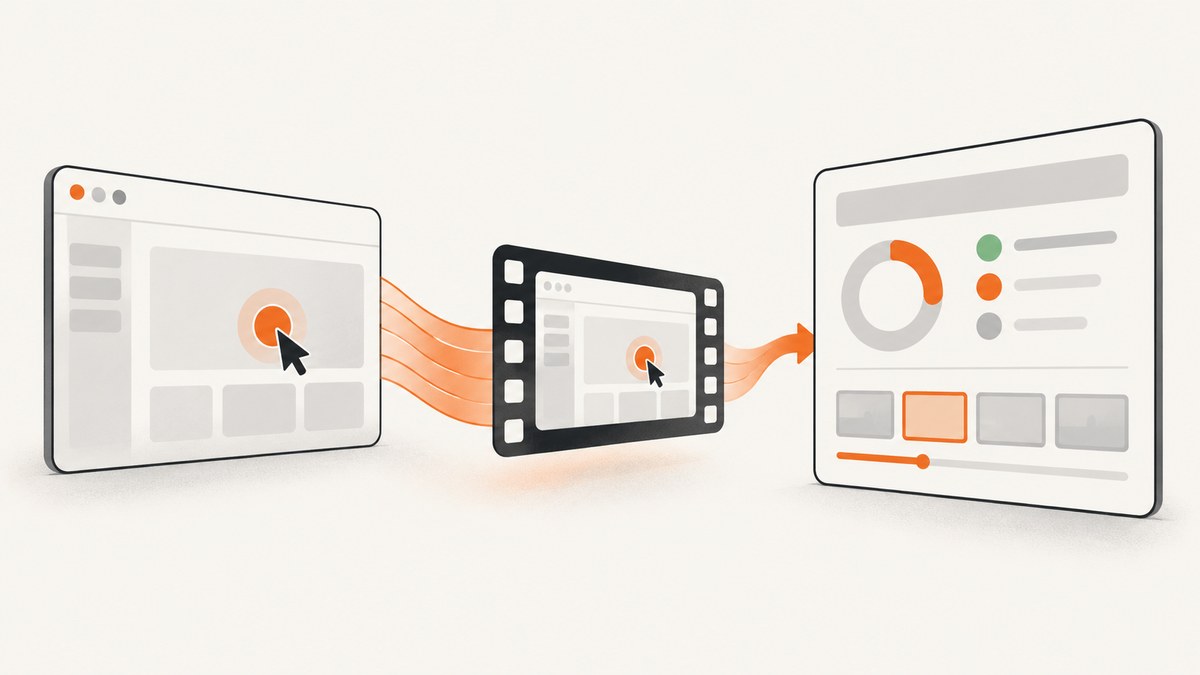
To record browser videos for Allure in JavaScript or TypeScript Playwright Test, set Playwright’s use.video option in playwright.config.ts, then let the test’s browser context close so Playwright can finish the video. Allure’s Playwright reporter supports Playwright’s built-in testInfo.attach() API, so a completed video can be attached to the test result. For ordinary Playwright Test projects, start with a retention mode such as retain-on-failure and attach the video from an afterEach hook after the context has closed.
The key lifecycle detail: a video file may not exist or be complete while the test is still using its page. Playwright saves videos when the browser context closes. The examples below show a reporter setup, a failure-only attachment fixture, the retention options, a separate Python route, and ways to diagnose missing artifacts. Confirm option availability against your installed Playwright version.
1. Install and configure Playwright and Allure
In an existing JavaScript or TypeScript project, install the Playwright Test runner and Allure reporter. The following commands use npm:
npm install --save-dev @playwright/test allure-playwright
npx playwright install
Create or update playwright.config.ts. This minimal configuration records all test runs and keeps recordings only when the test fails:
import { defineConfig } from '@playwright/test';

export default defineConfig({
  testDir: './tests',
  reporter: [
    ['list'],
    ['allure-playwright'],
  ],
  outputDir: 'test-results',
  use: {
    video: 'retain-on-failure',
    trace: 'on-first-retry',
  },
});
Playwright’s video option is off by default. The Playwright video guide documents configuring it in the Playwright config; Allure’s Playwright integration guide documents the reporter and confirms support for Playwright’s built-in attachment method. The trace setting above is optional. A trace and a video are separate artifacts: Allure recognizes Playwright traces and attaches them as trace attachments, while the video is a WebM recording.
If you do not already have a Playwright project, add a test such as tests/home.spec.ts:
import { test, expect } from '@playwright/test';

test('home page has a title', async ({ page }) => {
  await page.goto('https://playwright.dev/');
  await expect(page).toHaveTitle(/Playwright/);
});
Run tests with npx playwright test. The reporter writes Allure result files; generate and open the report using the Allure commands configured for your project. If the reporter does not appear to run, check the installed package and your project’s configured reporters before investigating the video.
2. Attach the completed video to each failed test
With retain-on-failure, Playwright records each run but retains the video only for a failed run. For a reliable explicit attachment path, use a test-scoped fixture that closes the context before looking up the video, then passes the completed file to testInfo.attach(). The custom fixture below owns the page and context so the order of operations is explicit:
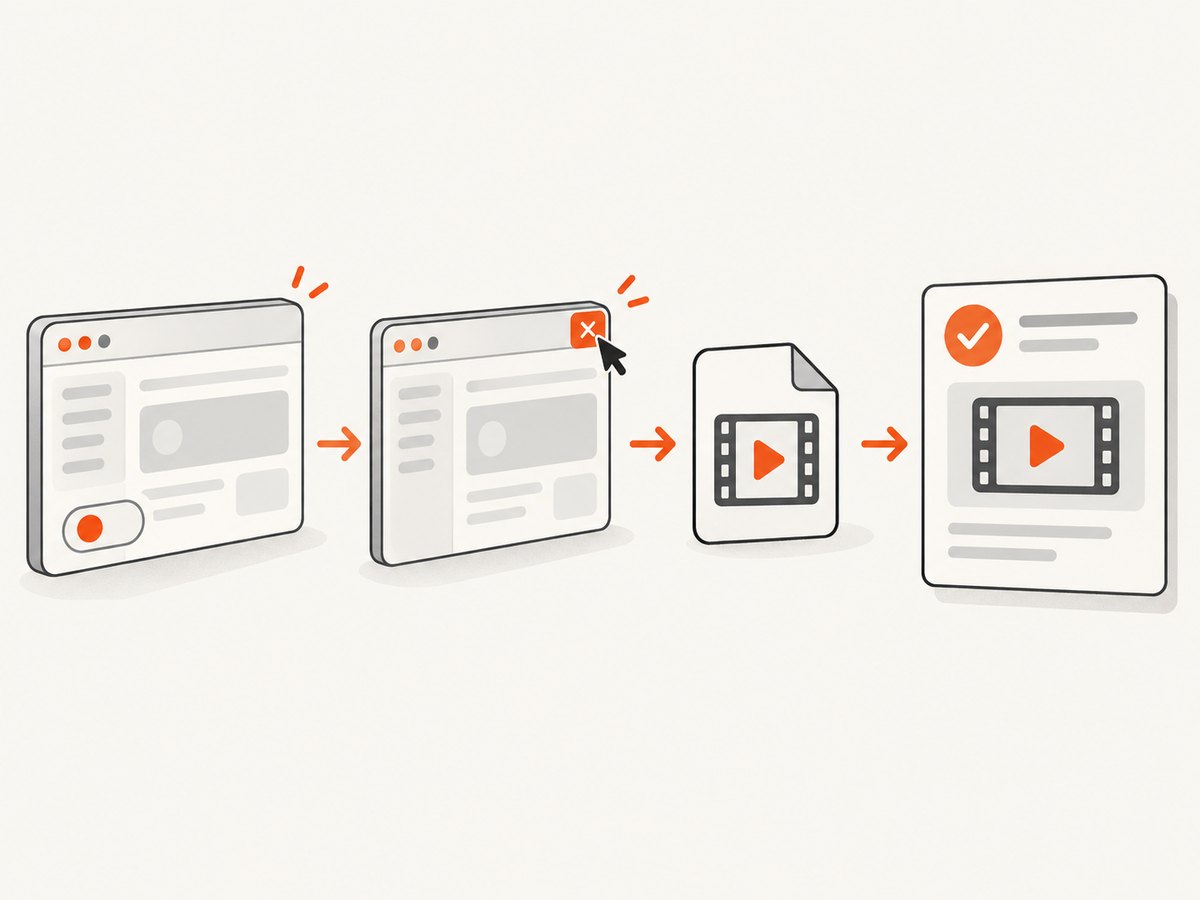
import { test as base, expect, type Page } from '@playwright/test';

export const test = base.extend<{ recordedPage: Page }>({
  recordedPage: async ({ browser }, use, testInfo) => {
    const context = await browser.newContext({
      recordVideo: {
        dir: testInfo.outputPath('videos'),
        size: { width: 1280, height: 720 },
      },
    });
    const page = await context.newPage();

    await use(page);

    // Closing the context finalizes its video file.
    await context.close();
    const video = page.video();

    if (video && testInfo.status !== testInfo.expectedStatus) {
      const videoPath = await video.path();
      await testInfo.attach('Playwright video', {
        path: videoPath,
        contentType: 'video/webm',
      });
    }
  },
});

export { expect };
Use the fixture in a test file in place of importing test from @playwright/test:
import { test, expect } from './fixtures';

test('account page loads', async ({ recordedPage }) => {
  await recordedPage.goto('https://example.com/account');
  await expect(recordedPage.locator('h1')).toBeVisible();
});
This fixture manually creates a context, so its recordVideo setting controls the recording. It is a self-contained pattern for attaching a failure recording after closure. It does not use Playwright Test’s use.video retention policy; manual recording and built-in video configuration are alternative ways to create the recording. If you use the built-in use.video setting instead, determine the completed video’s location after Playwright closes the test context, then attach it using testInfo.attach(). The exact timing and path depend on your test structure and Playwright version. Avoid guessing a filename or attaching a path before the context has closed.
The Playwright TestInfo reference describes testInfo.attach(): it accepts a file path or a body, and copies the file to a location accessible to reporters. Await the attachment before removing or moving its source file. The Allure Playwright guide identifies this API as supported by the integration.
3. Choose the right video retention mode
Video mode determines which test runs are recorded and which resulting recordings are kept. In a retried test, an “attempt” is one run of that test; a retry is an additional run after the first attempt. Review the behavior you need before choosing a mode. The Playwright TestOptions reference lists the supported values; availability may vary by installed version.
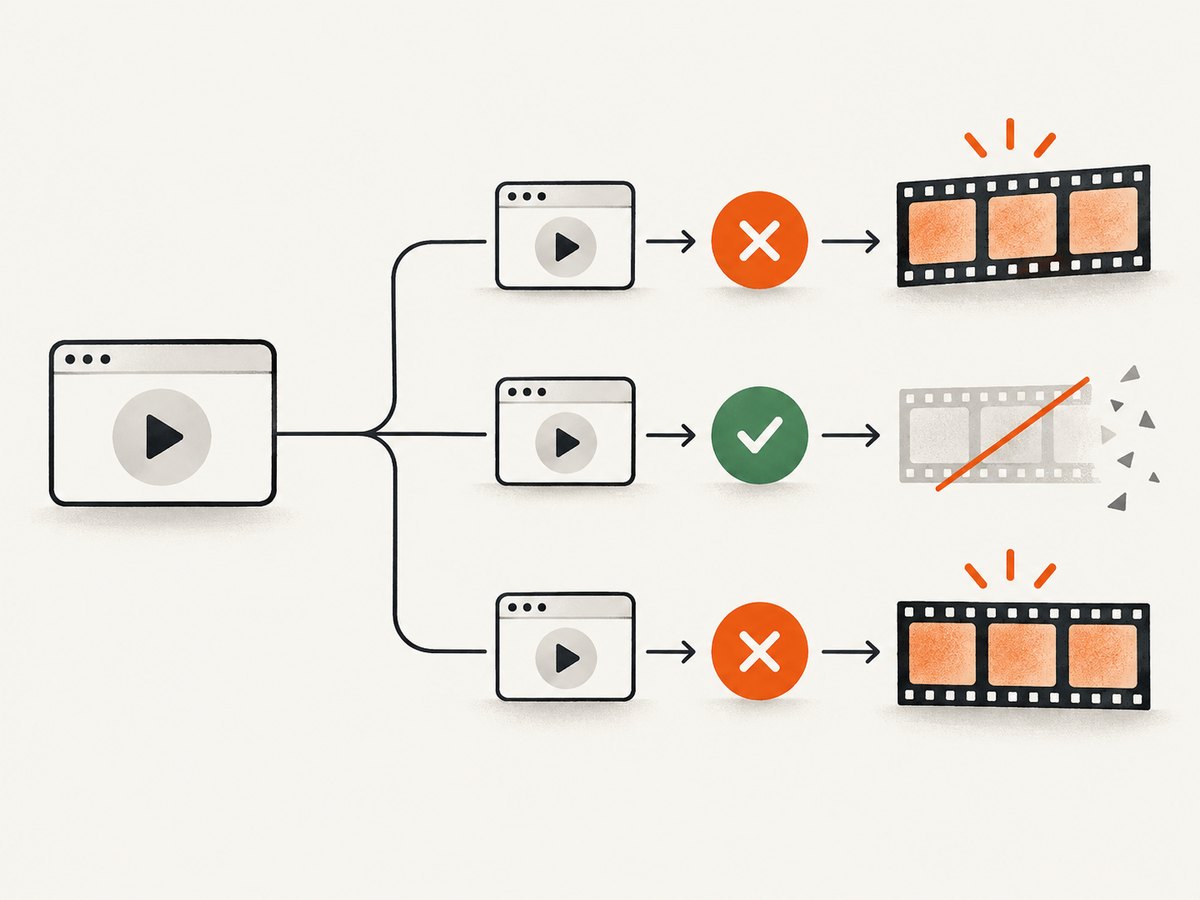
| Mode | Which runs are recorded or kept | Useful when |
|---|---|---|
on |
Records and keeps a video for every run. | You need visual evidence for passes as well as failures and can store the extra artifacts. |
on-first-retry |
Records the first retry, not the initial attempt. | You want evidence from a rerun after a test first fails. The first failed attempt itself has no video. |
on-all-retries |
Records each retry, not the initial attempt. | You need to compare repeated retry behavior. |
retain-on-failure |
Records each run and keeps recordings for runs that fail. | You want failed-run evidence while discarding successful-run video files. |
retain-on-first-failure |
Records only the initial run and keeps its recording if that run fails. | You need evidence of the original failure without retaining retry recordings. |
retain-on-failure-and-retries |
Keeps the failed run and retry recordings. | You need to inspect both the failure and later retry behavior. |
For example, to record every run rather than only failed runs, change the config to:
use: {
  video: 'on',
}
Or to capture retries only:
use: {
  video: 'on-all-retries',
  retries: 2,
}
Recording and attachment are related but distinct. Playwright’s mode controls what video it creates and retains. Allure displays attachments included with the test result. If you need every retained video to appear in Allure, make sure the attachment logic covers those runs and executes after each relevant context closes. A configuration that retains failure videos does not, by itself, prove that a custom hook has found and attached the correct path.
4. Set the recording size and understand the output
By default, Playwright scales the page picture to fit within 800 by 800 pixels. If no viewport is explicitly configured, the API reference describes a default video size of 800 by 450. Set the viewport and video size deliberately if the report will be reviewed at a specific aspect ratio or resolution. For example:
use: {
  viewport: { width: 1280, height: 720 },
  video: {
    mode: 'retain-on-failure',
    size: { width: 1280, height: 720 },
  },
}
Check the type accepted by your installed Playwright version if this object form is rejected; supported configuration shapes can evolve. The size setting affects the recorded image dimensions and scaling, not the browser’s page layout. Set viewport as well when the test itself needs a known layout.
Playwright writes video files in its test output area, commonly test-results or the configured outputDir. A video is finalized when the context closes, so do not assume a file exists at the beginning of a test. Playwright may use per-test directories and generated names; use the Playwright video API or known test output paths rather than hardcoding an assumed filename. Each test should have its own output location to prevent parallel tests from overwriting each other.
5. Python projects: use the separate pytest integration
The JavaScript fixture above is for Playwright Test and allure-playwright. A Python project typically uses pytest, the pytest-playwright plugin, and allure-pytest. Do not paste the TypeScript reporter configuration into a Python project. Install the Python packages and browser binaries according to your project setup:
pip install pytest-playwright allure-pytest
playwright install
For the pytest-playwright plugin, configure video retention from the command line. This example records videos and retains failed runs:
pytest --video retain-on-failure --tracing retain-on-failureTo direct videos to a particular directory in a manually managed context, use record_video_dir, then close the context before using the saved file:
from pathlib import Path
from playwright.sync_api import sync_playwright

with sync_playwright() as p:
    browser = p.chromium.launch()
    context = browser.new_context(
        record_video_dir="videos",
        record_video_size={"width": 1280, "height": 720},
    )
    page = context.new_page()
    page.goto("https://example.com")
    # Run interactions and assertions here.
    context.close()  # Finalizes recorded video files.
    browser.close()
Attach an existing video file to a pytest Allure result with allure.attach.file after the context has closed. The following standalone example demonstrates the attachment call; integrate the path and failure condition with your own fixture lifecycle:
import allure
from pathlib import Path

video_path = Path("videos/example.webm")
if video_path.exists():
    allure.attach.file(
        str(video_path),
        name="Playwright video",
        attachment_type="video/webm",
        extension="webm",
    )
For plugin-managed pytest video, let the plugin’s lifecycle and retention option manage the recording, and follow the official integration guidance for making the completed file available to the report. The Allure pytest and Playwright video guide covers its Python route, including record_video_dir and pytest’s --video retain-on-failure option.
6. Troubleshoot missing or unusable video attachments
| Symptom | Likely cause | Fix |
|---|---|---|
| No video file is created. | Video recording is off, the selected mode did not record this attempt, or the context has not closed. | Set an appropriate use.video mode or recordVideo option. Check whether the test was an initial attempt or retry, and await context closure before checking for output. |
| The test result has no video attachment. | A file was retained but never passed to the reporter, or attachment code ran before the file was ready. | Call and await testInfo.attach() with the completed path after closure. Ensure the Allure reporter is configured for the run. |
video.path() errors or returns no usable path. |
The video lifecycle has not finished, or recording was not enabled for that page’s context. | Confirm that recording is enabled on the relevant context, close it, and only then request the path. Check the installed API’s documented lifecycle. |
| Allure shows a generic download instead of a video preview. | The attachment content type or file extension is missing or incorrect, or the report viewer does not preview that artifact in the current setup. | Use contentType: 'video/webm' for Playwright WebM files. In Python, set the attachment type and extension. Keep the file extension consistent with the actual format. |
| Only retry recordings appear. | on-first-retry or on-all-retries intentionally skips the initial attempt. |
Choose retain-on-failure to preserve the failed initial run, or on when every run needs a recording. |
| Video size or framing is unexpected. | The configured viewport and video dimensions differ, or the default scaling is being used. | Set both viewport and video size intentionally, then inspect the recorded dimensions in a local run. |
| Parallel tests overwrite or pick up each other’s files. | Custom code writes all recordings to one shared path or selects files by a broad directory scan. | Use Playwright’s per-test output directory, such as testInfo.outputPath(), and associate a video with its owning page/context. |
| Python videos do not show in a JS Allure setup. | The project is mixing the pytest and Playwright Test integration routes. | Use allure-pytest attachments in pytest or allure-playwright with Playwright Test. Keep each runtime’s configuration in its own project. |
7. Performance, reliability, and artifact cost
Video adds browser work and produces files that must be stored, copied into report results, and potentially uploaded by CI. Retaining every run gives the most evidence but creates more artifacts than keeping failed attempts only. Choose the mode based on how often developers need successful-run recordings and how your CI system handles artifact size and retention. No fixed file-size or runtime impact can be assumed across sites, browsers, viewports, and test durations.
For reliability, make context closure part of the recording workflow and ensure it happens even if assertions fail. Playwright Test’s managed page/context fixtures normally handle their own cleanup; a manually created context needs an explicit awaited close(). Keep attachment code scoped to the test, name the attachment clearly, and avoid deleting the source before testInfo.attach() resolves. When running tests in parallel, use test-scoped output paths and avoid selecting a file based only on “the newest video” in a shared directory.
Traces complement videos when you need DOM snapshots, action context, and trace-viewer navigation. They remain a separate artifact and should not be labeled as a video. Playwright and Allure document retaining traces on retries or failures to limit unnecessary output. Use both when they answer different debugging questions; otherwise, begin with the artifact your team actually reviews.
8. Or skip the browser setup
If the task is to capture a website screenshot or PDF for a report, a screenshot API avoids installing and managing a browser for that capture. ScreenshotNeo is a website screenshot API and MCP server. Its API takes a URL and returns an image or PDF; it is separate from Playwright’s test video recording workflow.
One-call cURL example, with the API documentation beside the code: ScreenshotNeo API docs.
curl -G "https://api.screenshotneo.com/v1/shot" -d access_key=YOUR_API_KEY --data-urlencode url=https://stripe.com -o shot.webpPython:
import requests

r = requests.get(
    "https://api.screenshotneo.com/v1/shot",
    params={"access_key": "YOUR_API_KEY", "url": "https://stripe.com"},
    timeout=90,
)
open("shot.webp", "wb").write(r.content)
Node.js:
const q = new URLSearchParams({
  access_key: 'YOUR_API_KEY',
  url: 'https://stripe.com',
});
const res = await fetch(`https://api.screenshotneo.com/v1/shot?${q}`);
if (!res.ok) throw new Error(`Screenshot request failed: ${res.status}`);
await Bun.write('shot.webp', res);
ScreenshotNeo accepts common screenshot API parameter names, and offers full-page captures, selector captures, custom viewport and device presets, wait conditions, cookies and headers, and image or PDF output. Cookie banners, newsletter popups, and chat widgets are removed before the shot; each cleanup step can be turned off. Bot checks, blank pages, timeouts, failed loads, and cache hits are not billed, with verdict and billing information in response headers. Its MCP server provides screenshot and PDF tools for AI agents.
The free plan includes 1,000 screenshots each month with no card. Paid plans start at $5 for 3,000 screenshots; every feature is on every plan. If screenshot capture belongs beside your test reporting workflow, sign up for ScreenshotNeo’s free plan.
9. Frequently asked questions
Does Allure record Playwright videos itself?
No. Playwright creates the video. Allure’s Playwright integration can include files attached through testInfo.attach(), and Allure offers its own attachment APIs as well.
Can I attach a video from a passing test?
Yes. Configure recording and retention so the successful run’s video is kept, then attach it after its context closes. A failure-only retention mode intentionally removes successful-run recordings.
Should I use video or trace for a flaky test?
They provide different evidence. Video shows the visual sequence; a Playwright trace is a separate interactive debugging artifact that Allure can recognize. Use the one that answers the question, or both when needed.
Can I use these steps with a manually launched browser?
Yes, but manage the context lifecycle yourself: enable recordVideo when creating the context, await context.close(), and then access and attach the saved file. Do not assume Playwright Test’s built-in fixtures manage a manually created context.
Which configuration should I start with?
For failure diagnosis, start with retain-on-failure and optionally trace: 'on-first-retry'. For complete visual history, use on and plan for more report artifacts.


